

Individual OKR creation lets you launch a personal Objective, scoped to only you, and attach its Key Results from the same panel before it ever appears alongside Corporate or Department goals. You control the Objective's name, timing, and visibility upfront, before adding a single Key Result.
Table of Contents
- What is Individual OKR Creation?
- Why Does Individual OKR Creation Matter?
- How Does Individual OKR Creation Work?
- What Happens When You Use Individual OKR Creation?
- What Are the Best Practices for Individual OKR Creation?
- Related Articles
- What Are Some Frequently Asked Questions About Individual OKR Creation?
What is Individual OKR Creation?
Individual OKR creation is the option in the Select a Level to Create OKR popup that scopes a new Objective to only you, instead of to Corporate OKRs or a specific department. Once you pick it, the Create Objective panel opens under your name, and every Key Result you add afterward nests under that Objective on your Assigned to Me page.
Each Individual OKR pairs one Objective with one or more Key Results, and a Key Result can be built from a KPI or from an Initiative, chosen from the Objective's own three-dot menu.
| Level | Scope |
|---|---|
| Individuals' OKRs | Objective is scoped to you as the individual owner |
| Corporate OKRs | Objective is scoped to the organization-wide Corporate OKR list |
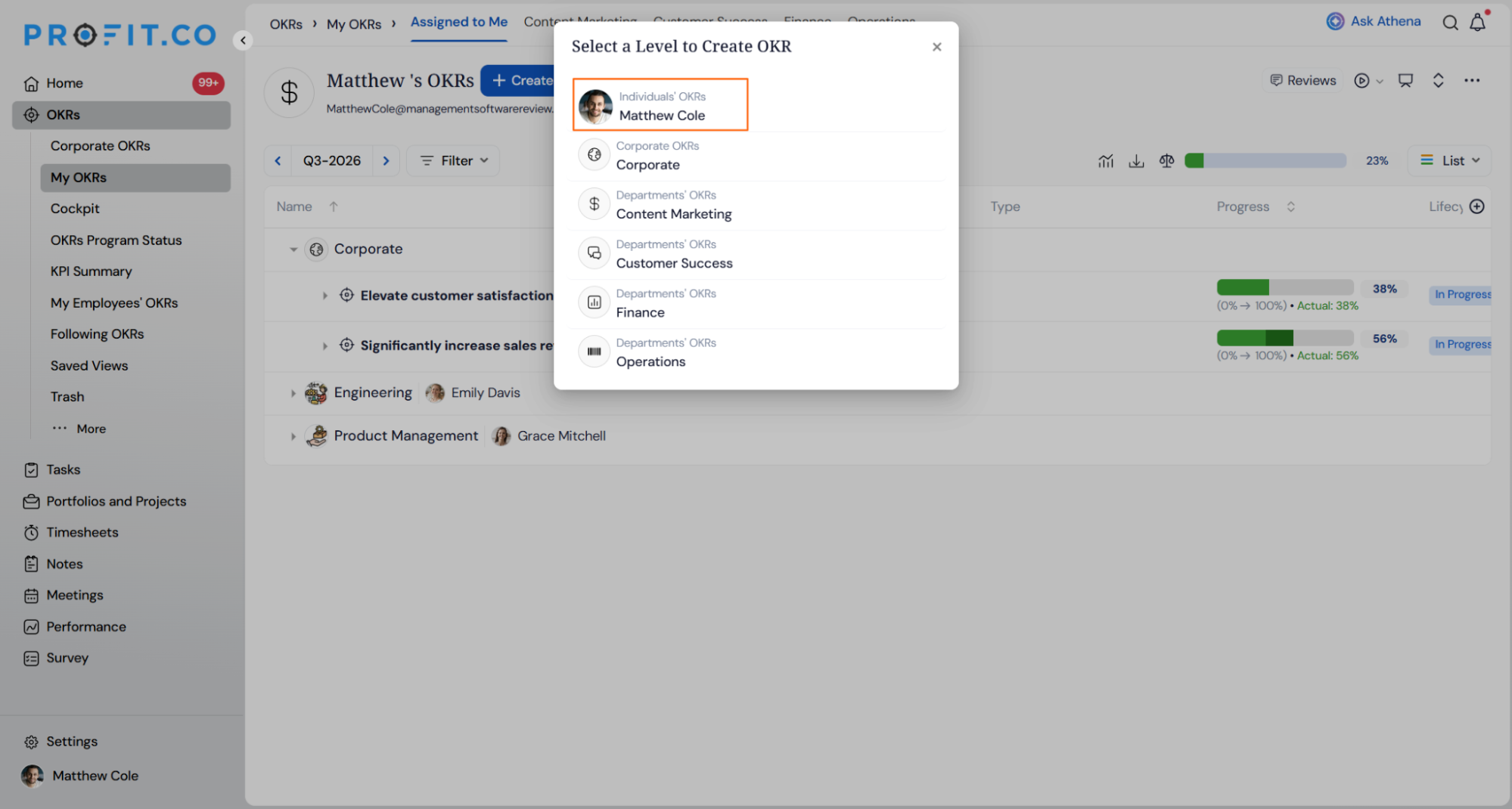
| Departments' OKRs | Objective is scoped to a specific department, such as Content Marketing, Customer Success, Finance, or Operations |
Note
The Select a Level to Create OKR popup is the only place this scope is set. Choosing a level other than Individuals' OKRs files the Objective under that team's list instead of yours.
Why Does Individual OKR Creation Matter?
Naming the Objective, setting its Period, and choosing its Visibility all happen in the same Create Objective panel, so you never have to switch to a separate corporate or department screen to start a personal goal.
Because Visibility is set at the moment you create the Objective, you decide from the start whether it stays Public or is limited to a narrower audience, rather than adjusting access after the goal is already live.
How Does Individual OKR Creation Work?
Create the Objective
Step 1
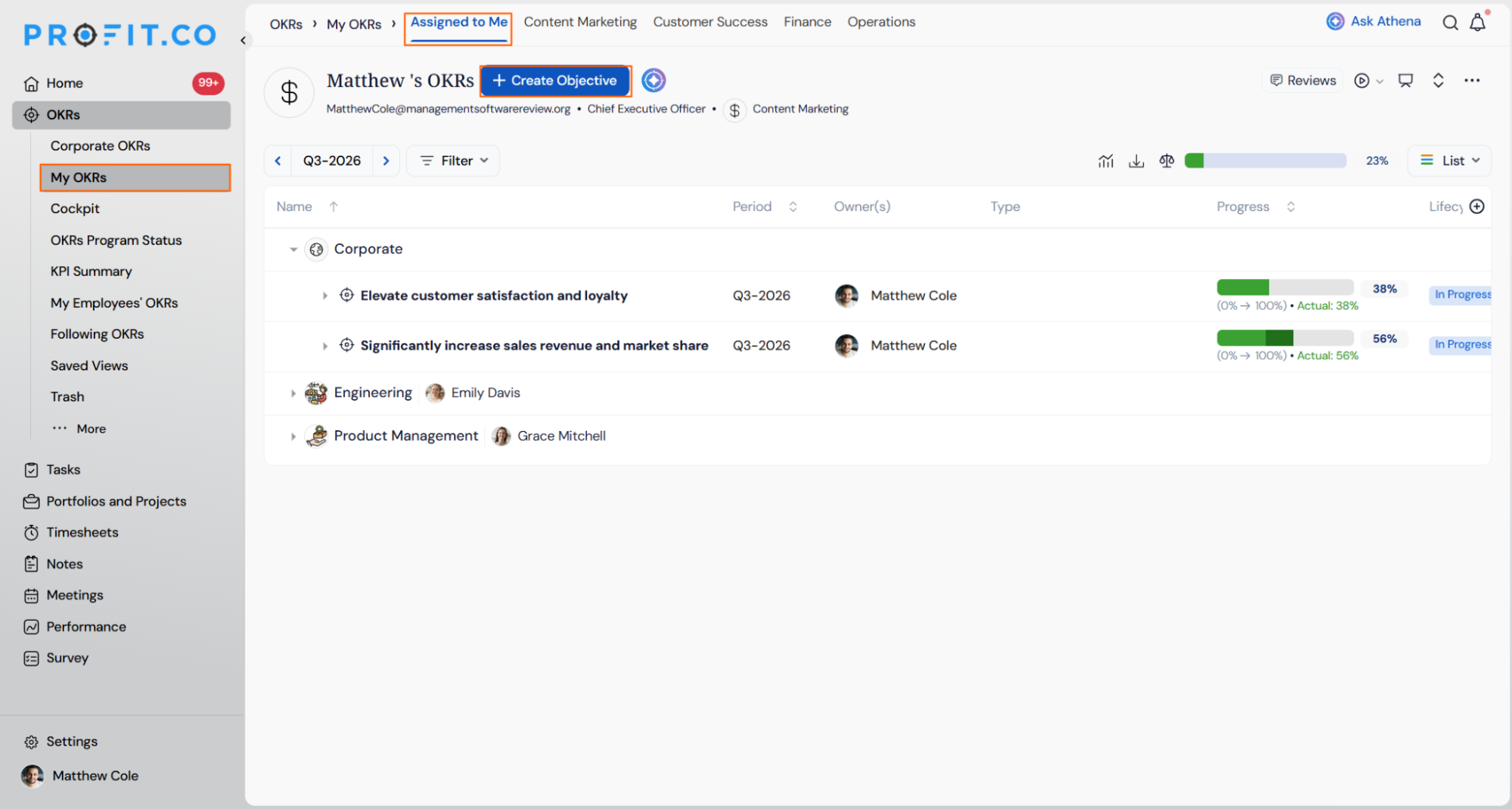
- Go to OKRs → My OKRs from the left navigation panel.
- Land on the Assigned to Me tab.
- Click + Create Objective.
- Select Individuals' OKRs on the Select a Level to Create OKR pop-up.
Tip
Use Create From Template at the top of the Create Objective panel to start from a saved template instead of a blank objective.
Step 2
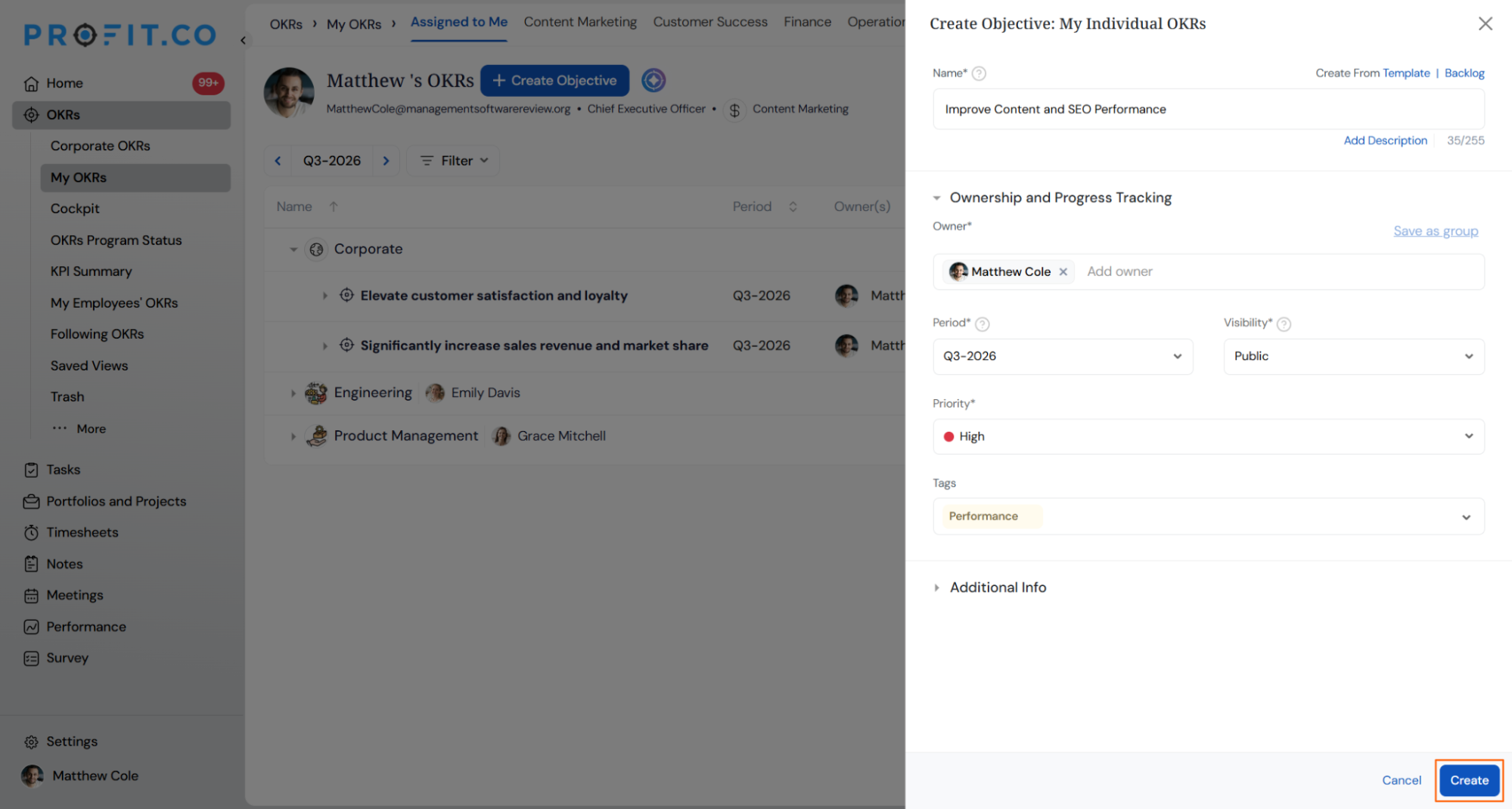
- Enter the Objective name in the Name field.
- Select the Period and Visibility.
- Set the Priority and add Tags if needed.
- Click Create.
Add a Key Result
Step 1
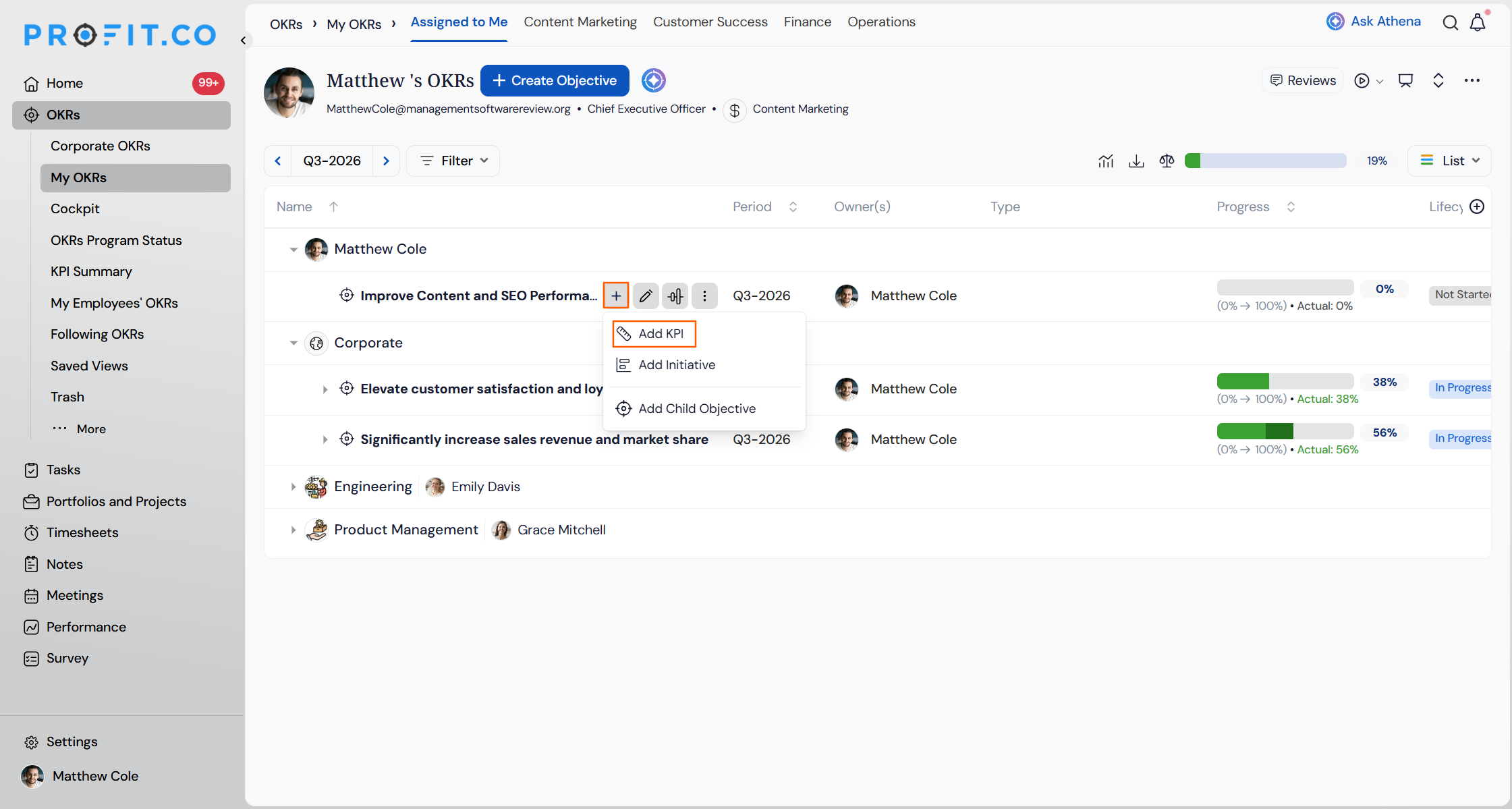
- Hover over the Objective row and click the three-dot menu.
- Choose Add KPI or Add Initiative (this guide uses Add KPI).
Step 2
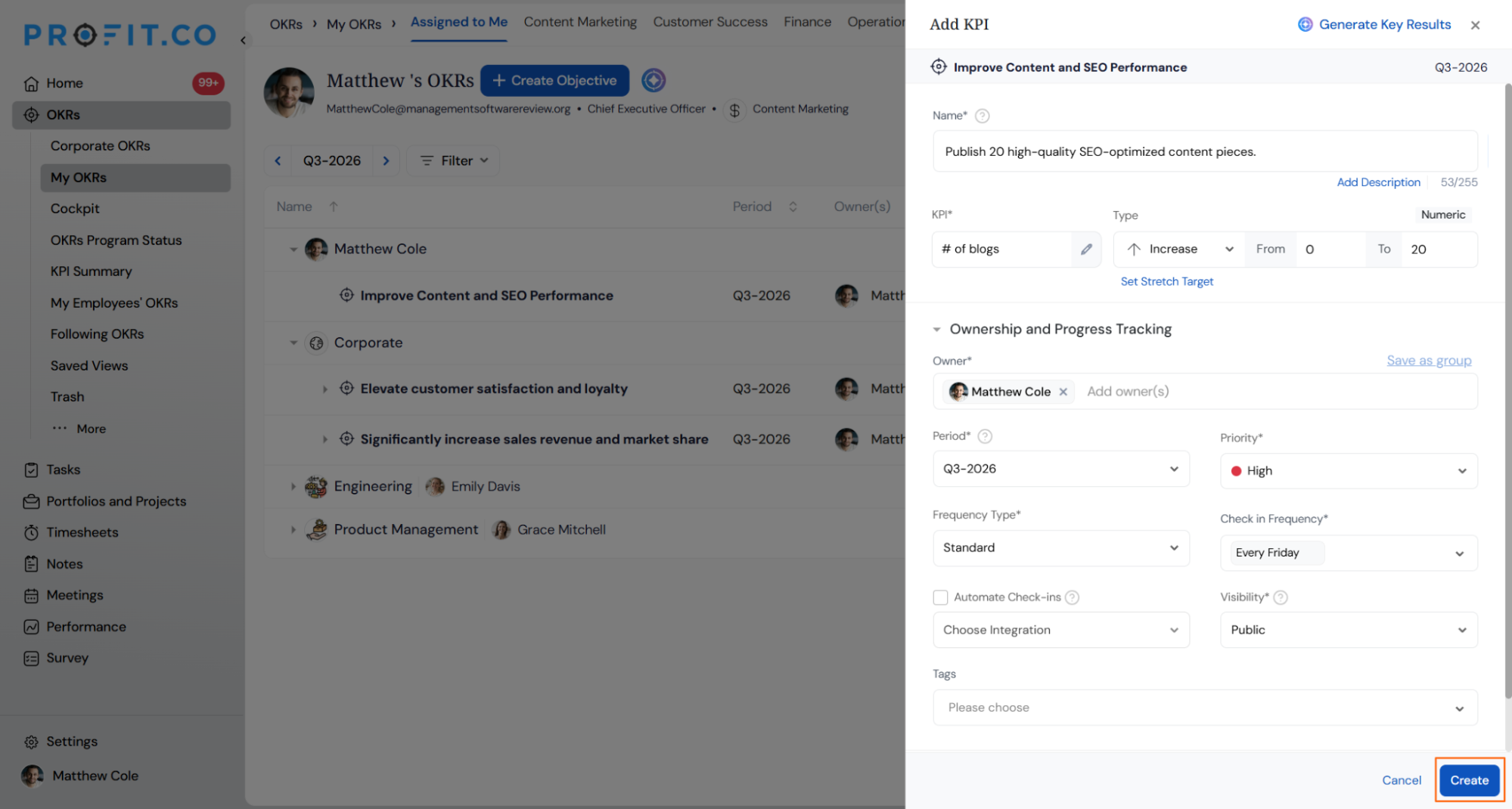
- Enter the Key Result name.
- Search for the KPI in the KPI field.
- Create a new KPI directly from the same field if it isn't listed.
- Choose the Key Result Type (Increase or Decrease).
- Enter the From and To values.
- Select the Period.
- Set the Check-in Frequency.
- Click Create.
- Confirm the Key Result now appears nested under the Objective.
What Happens When You Use Individual OKR Creation?
| Scenario | What Happens |
|---|---|
| You select Individuals' OKRs in the Select a Level to Create OKR popup. | Profit.co scopes the new Objective to your personal OKR list and sets you as the default Owner in the Create Objective panel. |
| You leave the Visibility field on its default Public setting. | Profit.co makes the Objective visible to other users in the organization according to your OKR visibility permissions. |
| You click Create on the Add KPI panel without choosing a KPI. | Profit.co displays a "Please choose a KPI" warning and does not create the Key Result until you select or create one. |
| You search for a KPI that isn't listed in the KPI dropdown. | Profit.co lets you create the missing KPI directly from the same panel so the Key Result creation isn't interrupted. |
| You finish creating a Key Result under an Objective. | Profit.co nests the Key Result under that Objective on the Assigned to Me page and rolls its progress into the Objective's overall percentage. |
What Are the Best Practices for Individual OKR Creation?
- Double-check your Level selection before filling in details, since choosing Corporate or a specific department in the same popup files the goal under that team's OKR list instead of your own Individuals' OKRs list.
- Search the KPI field before typing a brand-new name, since Profit.co only surfaces the option to create a new KPI once your search turns up no existing match.
- Set Priority and Visibility while you're still on the Create Objective panel, since both fields sit there and are easy to skip once you move on to adding Key Results.
- Pick the Key Result Type (Increase or Decrease) that matches the actual direction of the metric before entering the From and To values, since Profit.co uses that type to calculate progress against the values you enter.
- Use Add Initiative instead of Add KPI from the same three-dot menu when the Key Result tracks a body of work rather than a number.
Related Articles
- How to create a KPI from the key result creation page?
- How do I set my OKR visibility?
- How do I create a Key Result using Increase KPI?
What Are Some Frequently Asked Questions About Individual OKR Creation?
Yes. The same three-dot menu on the Objective row lists both Add KPI and Add Initiative; this guide covers the Add KPI path.
It's inside the KPI search field on the Add KPI panel. If your search doesn't return an existing KPI, Profit.co lets you create one without leaving the panel.
The same popup lists Corporate OKRs and Departments' OKRs, such as Content Marketing, Customer Success, Finance, or Operations, letting you pick the right scope before you name the Objective.
Yes. The Check-in Frequency dropdown on the Add KPI panel lets you choose the cadence that fits your Key Result.
Execute your strategy with confidence
Connect OKRs, tasks, and teams in one place with Profit.co
