

Profit.co allows you to access the login history information of the employees in your organization via OKRs Program status.
Why this feature?
- This feature allows the Super Users and add-on role users who have access to the OKR Program Status to view all employees' login date and time details in their organization.
- Super Users and HR admins can use these details for the Payroll calculation and they can maintain this login status record for their reference.
Step 1
Navigate to OKRs → OKRs Program Status from the left navigation panel.
On the OKRs Program Status page, click on the Users Login History tab.

Note: On the Users Login History page, you can view users' login history by selecting options from the dropdown: Users who have logged in, Users who have not logged in, and Active Users Login History. The result will be displayed on the same page based on the option you choose.
Step 2
Here, you can also see the login histories with the filters below.
- Current Week
- Last Week
- Last 15 Days
- Last 30 Days
- Beyond Last 30 Days
You can also click on the Login History Icon to view the login history of that particular user.

Once you click on the Login History icon, the Login History window will open. Here you can view the date and time of the logins with the Access Type and IP address of that particular user.

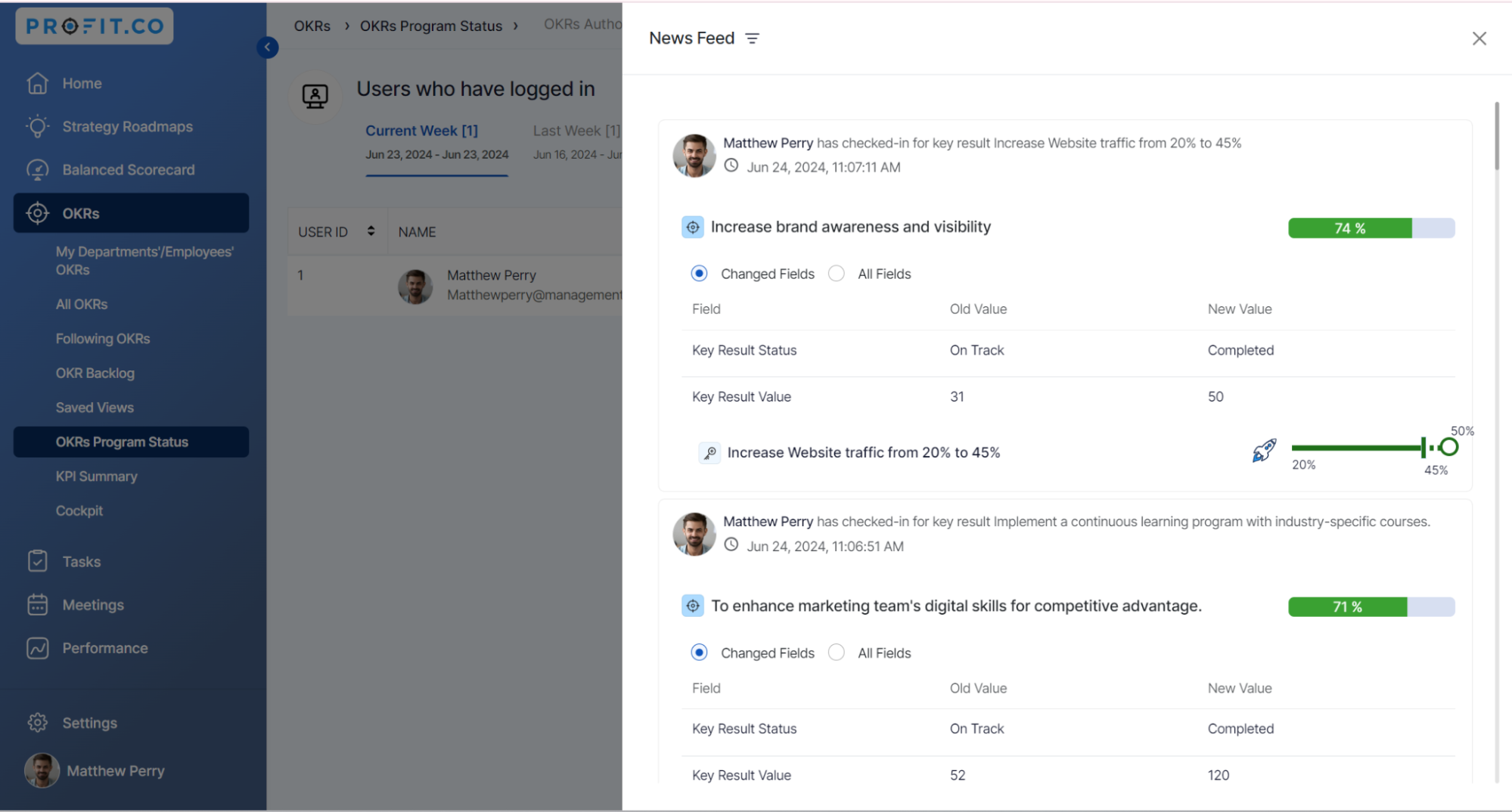
Likewise, You can also click on the NewsFeed Icon to view the recent activities of that particular user.

Once you click on the News Feed icon, the News Feed window will open. Here you can view the recent activities of that particular user.
Step 3
The Active Users Login history menu provides the information of the last LOG IN DATE & TIME of all the users in your organization.

Related Answer Post
To know more about How I can add users to my organization in Profit.co, click here.
