



How to edit/delete comments in Task management?
Category: Tasks
Profit.co allows users to easily edit, delete, or copy their own comments in Task Management, helping keep task discussions clear and up to date.
Table of Contents
Why Edit or Delete Comments in Tasks?
Comments in Task Management are often used to share progress updates, timelines, notes, or suggestions. Over time, details may change or require correction.
This feature helps you:
- Keep task discussions accurate and relevant
- Update progress or status-related notes without confusion
- Remove outdated or incorrect information
- Maintain a clean and meaningful task activity history
How to Edit or Delete Comments in Task Management
Step 1: Open the Task
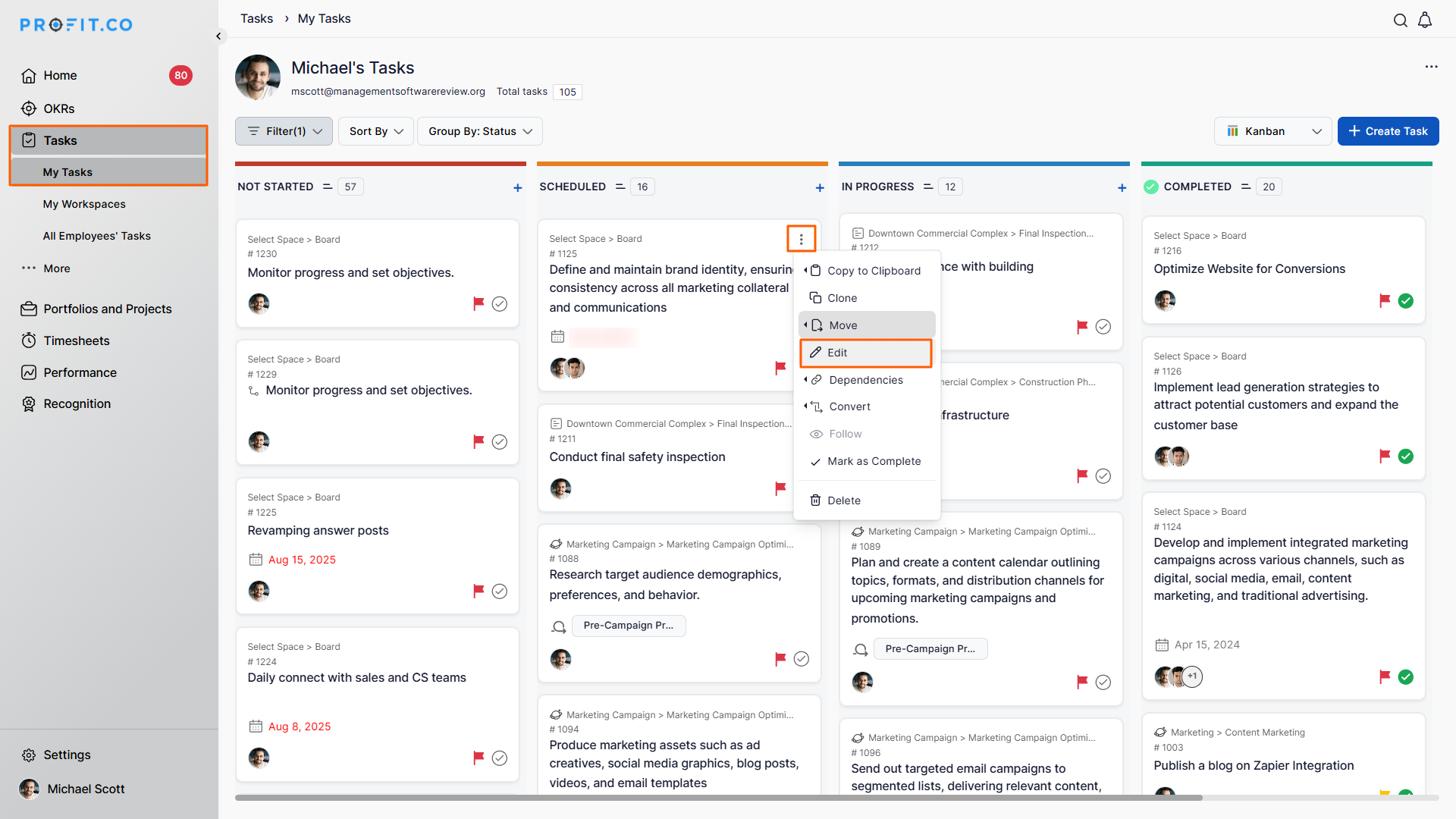
- Navigate to Tasks → My Space from the left navigation panel.
- Hover over the required task.
- Click the Ellipses (⋯) icon.
- Select Edit to open the task overview page.
Step 2: Access Comment Actions
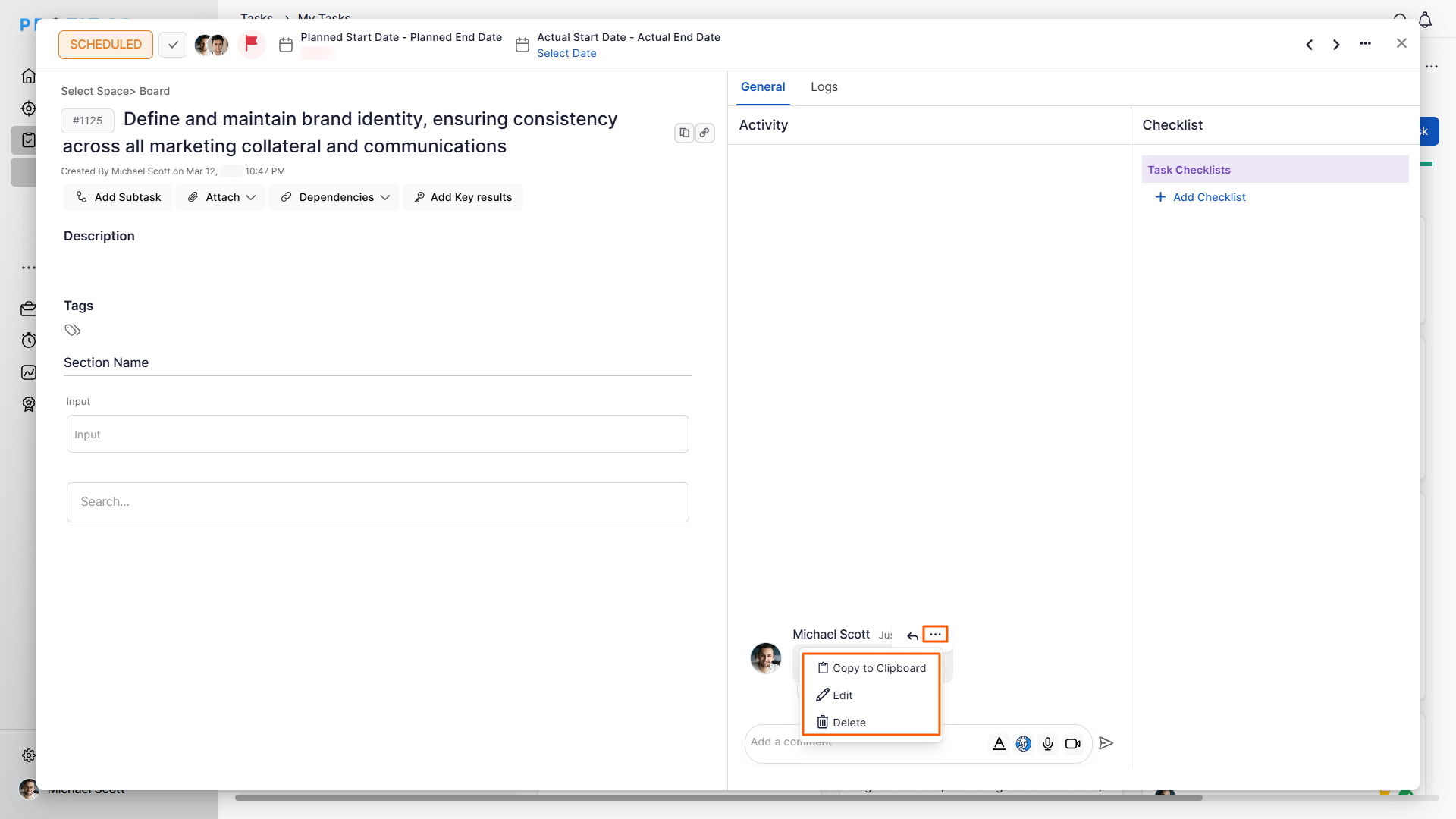
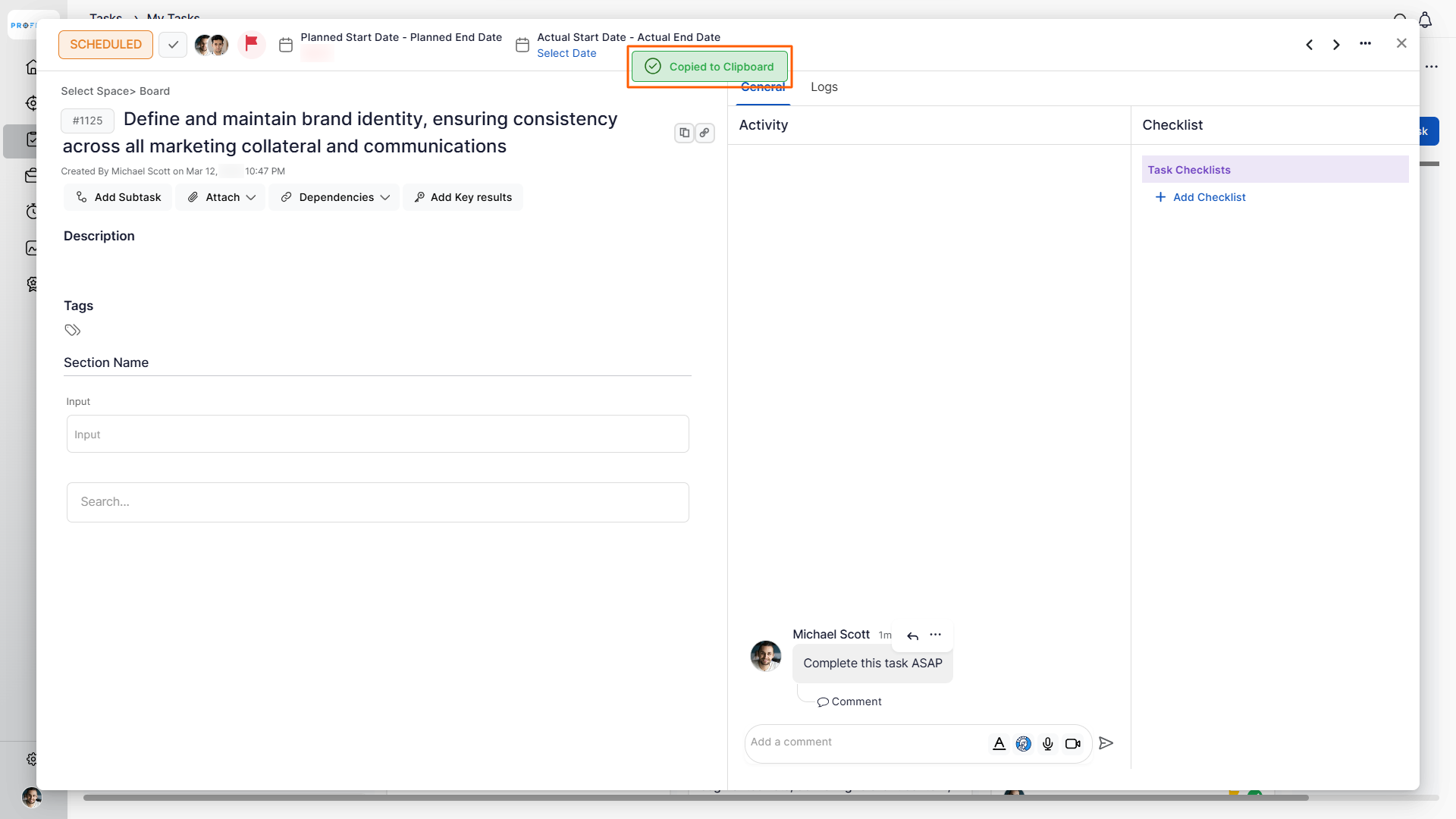
- In the Task Overview page, go to the Activity section.
- Hover over the comment you added.
- Click the More (⋯) option on the comment.
- You’ll see options to Edit, Delete, or Copy the comment.
Step 3: Edit, Delete, or Copy the Comment
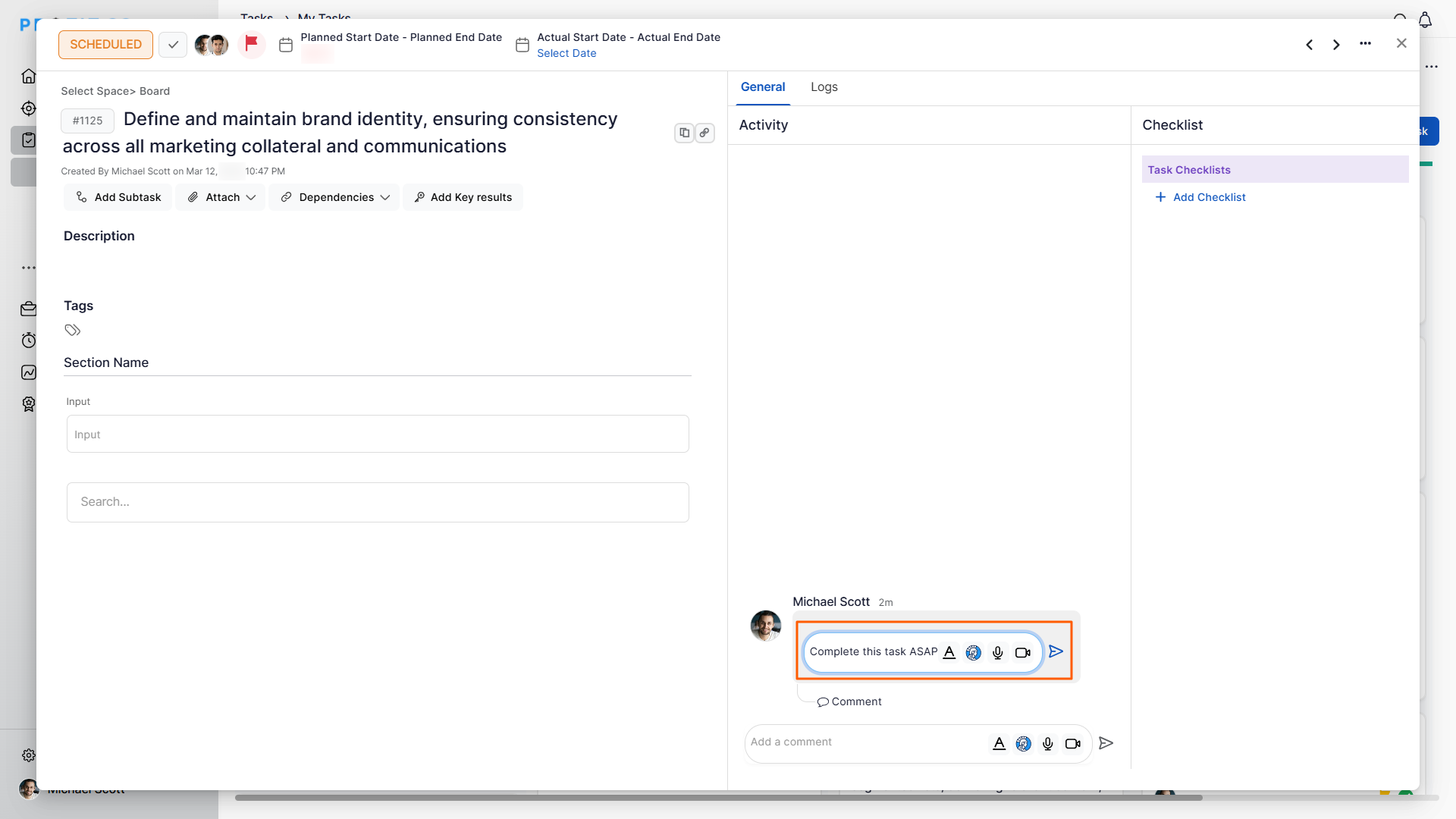
- Edit: Modify the comment text and click Update.
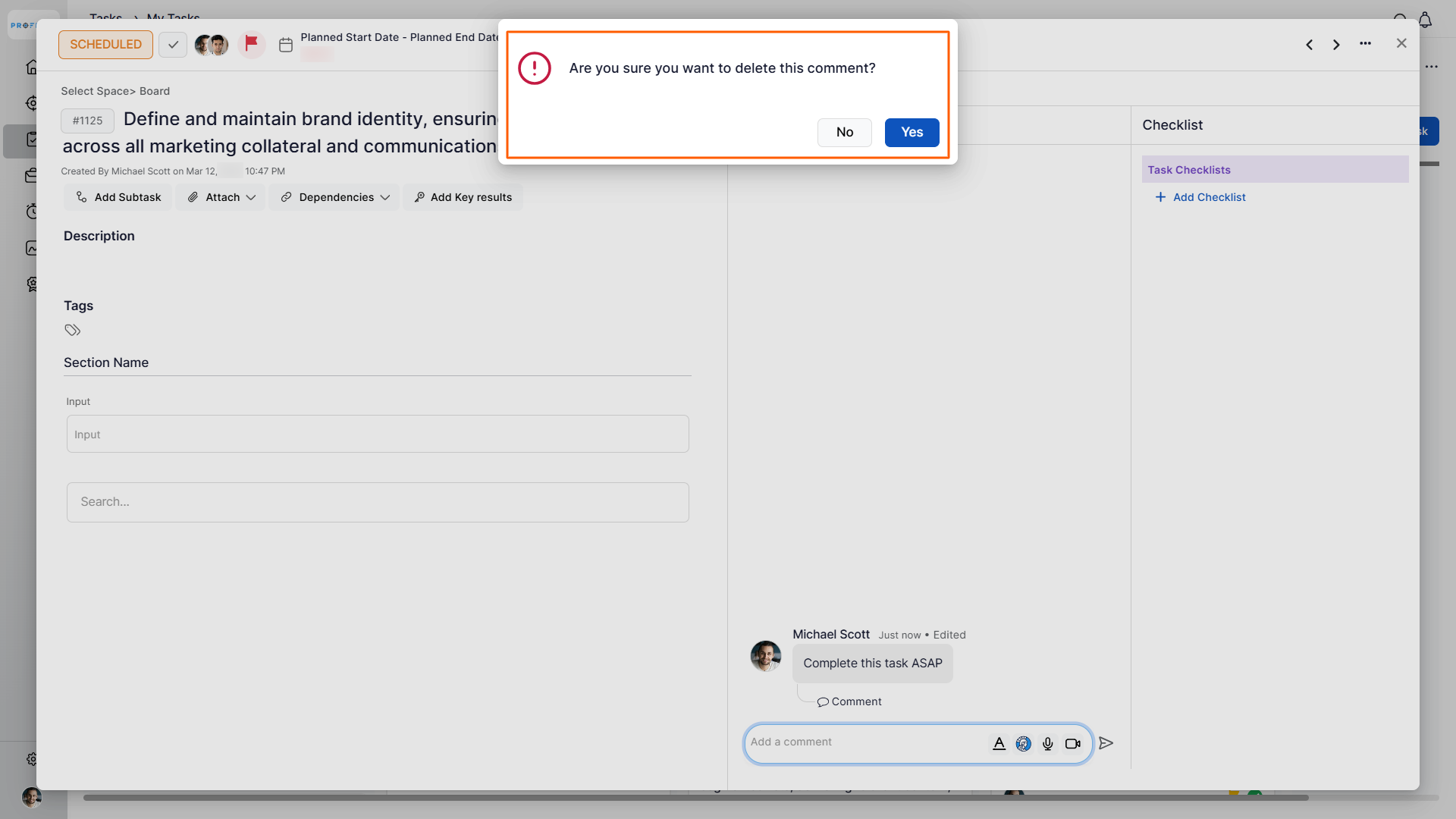
- Delete: Confirm the deletion by clicking Yes in the confirmation message.
- Copy: Select Copy to Clipboard to reuse the comment elsewhere. A confirmation message will appear once copied.
Note:
- You can only edit or delete comments added by you.
- Editing or deleting other users’ comments or replies is not allowed.
Best Practices for Managing Task Comments
- Update comments when task status or timelines change
- Delete outdated notes to avoid confusion
- Use comments for meaningful updates instead of temporary messages
- Copy important comments before deleting, if needed for reference
Related Questions
To know more about how to create sub-tasks for an already existing task, click here.
Frequently Asked Questions
No. Only the user who added the comment can edit or delete it.
In the Activity section of the task overview, under the comment’s More (⋯) option.
The comment is permanently removed after confirmation and cannot be restored.
Related Questions
-
How to create new Workspace and Boards for Tasks through a mobile application?
Profit.co’s mobile application lets you quickly create Workspaces and Boards to organize, manage, and track tasks on ...Read more
-
How does the hierarchy of Task Issue Types work in Profit.co?
Profit.co provides an option to classify tasks using different Issue Types such as Epics, Stories, Tasks, Sub-tasks, ...Read more
-
How do I use Agile Epics and User Stories in Profit.co?
In Profit.co, you can use Agile Epics and User Stories to structure work effectively, ensuring clear alignment and ...Read more
-
How to Restore Deleted Tasks in Profit.co?
Profit.co offers a valuable safety net by enabling users to restore deleted tasks through the new Trash and Restore ...Read more