

In Profit.co, you can create and configure a sprint planner within task management to organize tasks into focused, time-bound work cycles, helping teams improve efficiency, accountability, and iterative progress tracking.
Table of Contents
- What is a sprint in Profit.co task management?
- How to enable and create a sprint in Profit.co?
- How to enable Sprints for a Workspace in Profit.co?
- How to assign a Sprint to a task in Profit.co?
- How to filter tasks by sprint in Profit.co?
- Best practices for using the Sprint Planner in Profit.co
- Related Questions
- Frequently Asked Questions
What is a sprint in Profit.co task management?
A Sprint in Profit.co is a predefined, short-term time period within Task Management during which a team focuses on completing a specific set of tasks. Each Sprint has a defined start date, end date, name, code, owner, and description, giving teams a structured time frame to plan, execute, and review their work in focused cycles.
How to enable and create a sprint in Profit.co?
Before assigning sprints to tasks, the sprint feature must be enabled and the sprint must be created from the settings panel.
Step 1
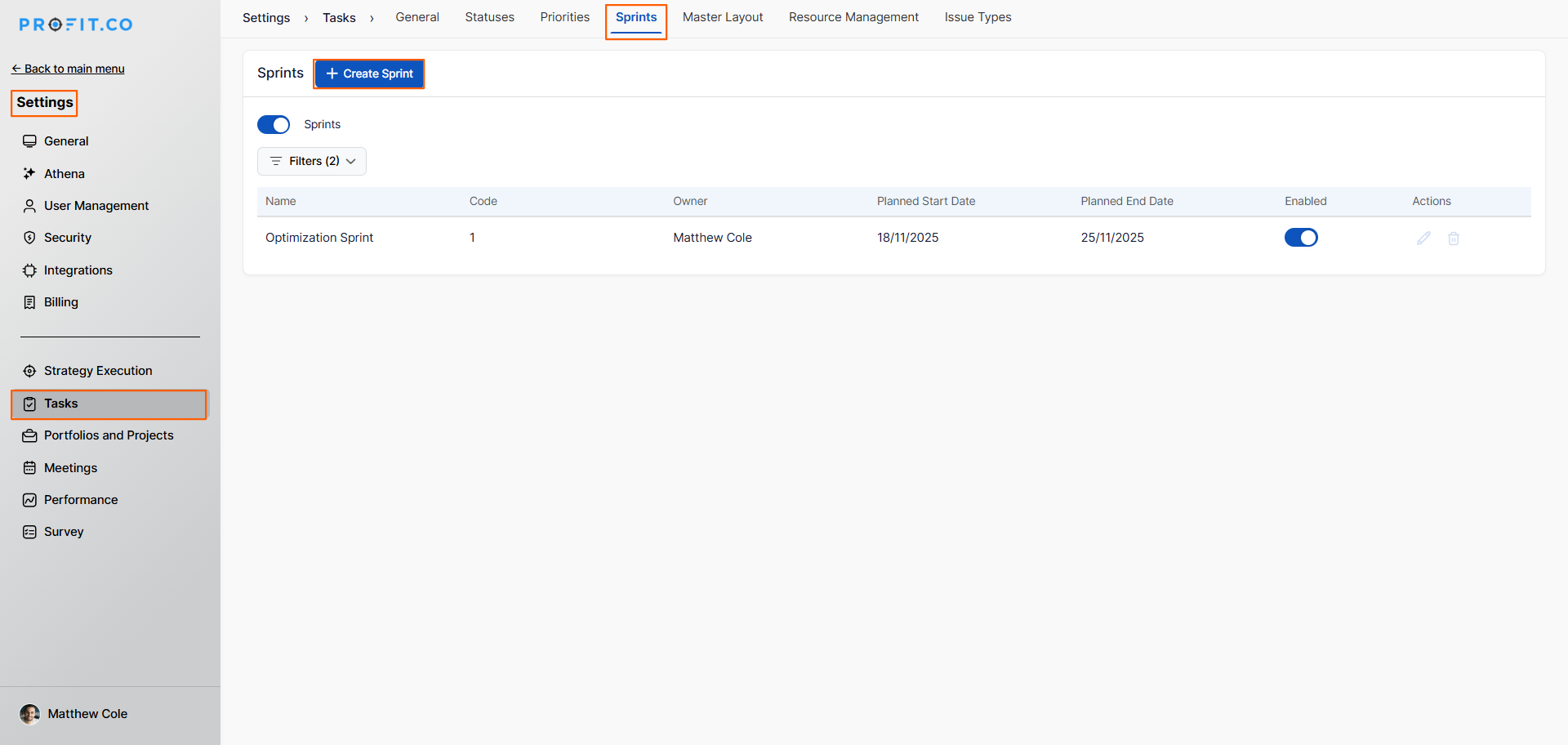
- Go to Settings → Tasks → Sprints from the left navigation panel.
- Enable the toggle for Sprints to activate the feature across your task management module.
- Click the + Create Sprint button.
- Enter the following details for the Sprint:
| Field | Description |
|---|---|
| Name | The name of the Sprint (e.g., Sprint 1, Q2 Sprint) |
| Code | A short identifier code for the Sprint |
| Start Date | The date the Sprint begins |
| End Date | The date the Sprint ends |
| Description | A brief summary of the Sprint's goals or focus area |
| Owner | The team member responsible for managing the Sprint |
- Click Create to save the Sprint.
- The Sprint will now be available for selection when creating or editing tasks.
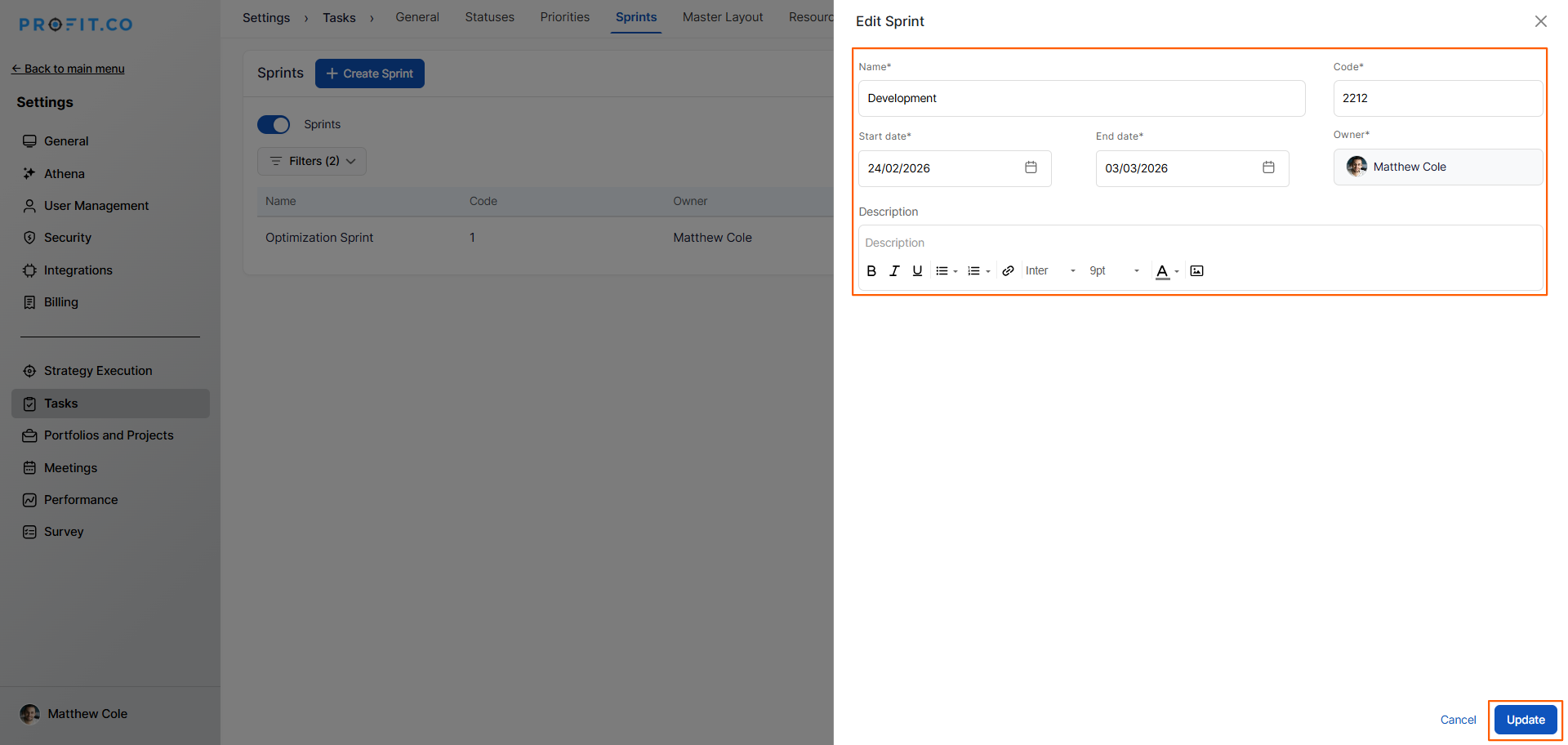
Note: You can also edit or delete any created Sprint from the Sprint Settings page at any time.
How to enable Sprints for a Workspace in Profit.co?
In addition to enabling Sprints globally in Settings, you must also activate the Sprint toggle at the Workspace level for tasks within that Workspace to support Sprint assignment.
Step 1
- Navigate to Tasks → Workspaces from the left navigation panel.
- Click "+ Create Workspace" or open an existing workspace to edit it.
- Within the Workspace creation or edit view, locate the Sprint toggle and enable it.
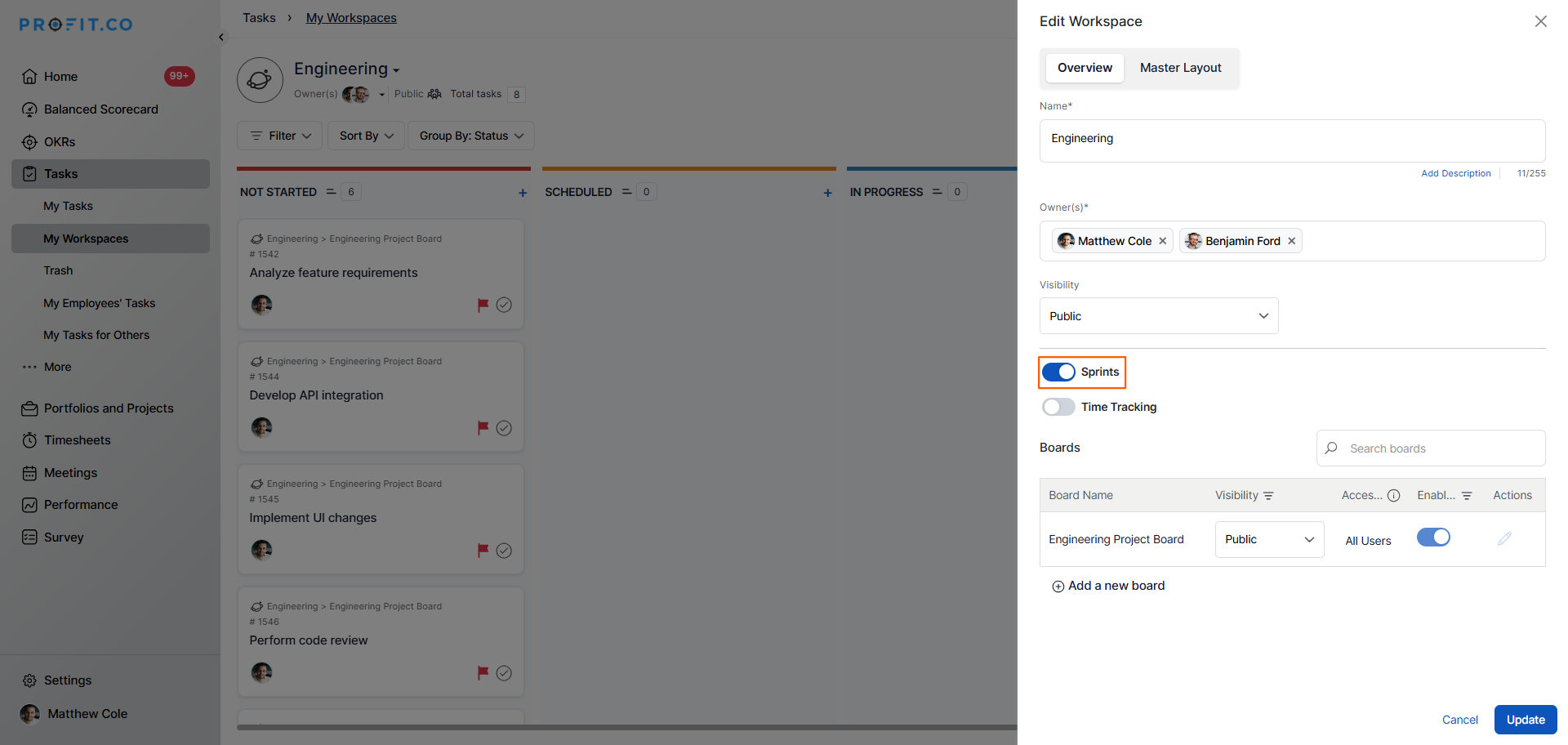
Once enabled, all tasks within that workspace and its associated boards will support sprint assignment through a dropdown selection.
How to assign a Sprint to a task in Profit.co?
Once Sprints are enabled at both the Settings and Workspace level, you can assign a Sprint to any task within that Workspace or Board.
Step 1
- Navigate to the Workspace or Board where the task is located.
- Click on the task you want to assign a sprint to.
- Within the task detail view, locate the Sprint field.
- Click the dropdown and select the predefined sprint you want to assign to the task.
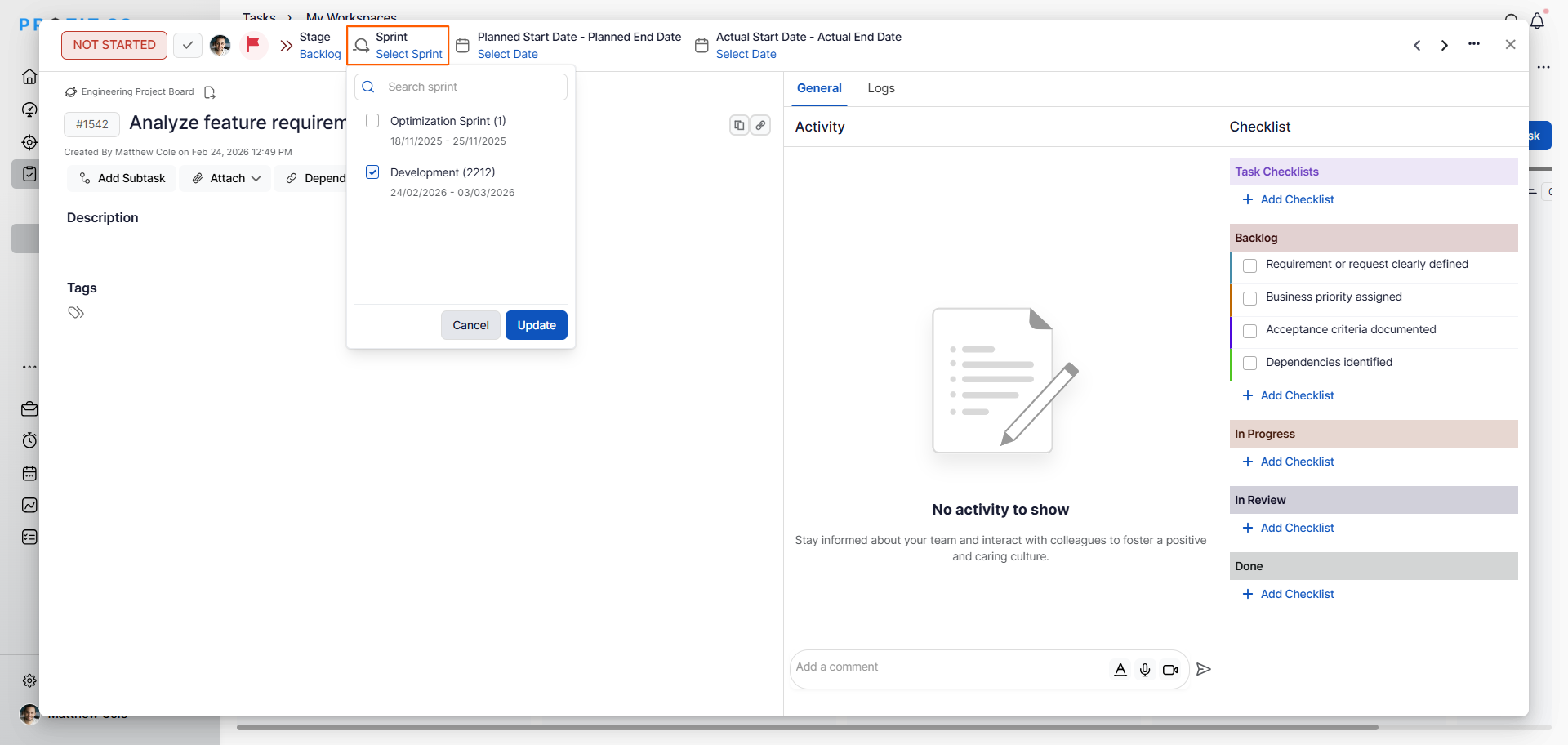
Note: You can assign multiple Sprints to a single task if the task spans across more than one sprint cycle.
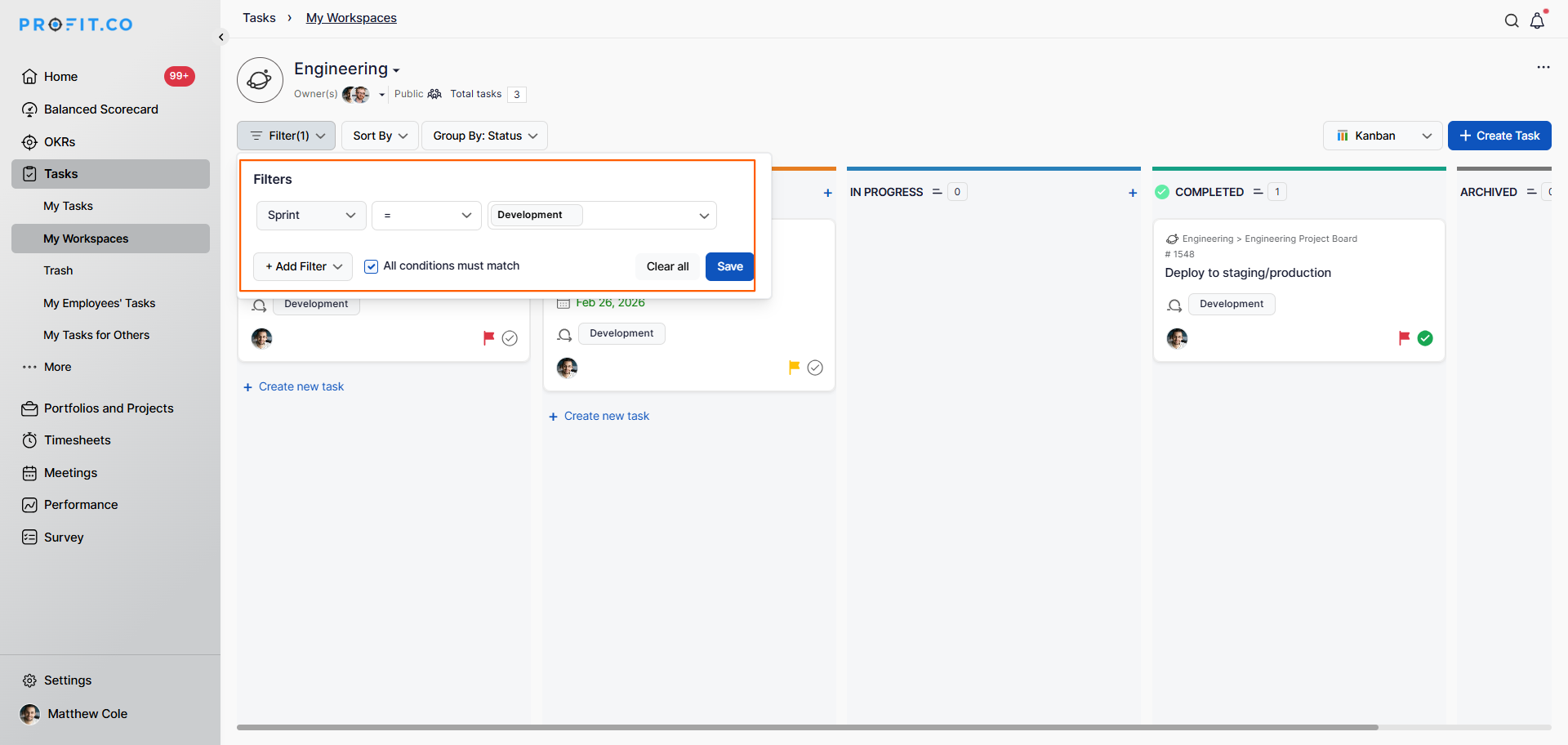
How to filter tasks by sprint in Profit.co?
Once tasks are assigned to sprints, you can sort and view tasks by sprint period directly from the workspace or board view.
Step 1
- Open the relevant Workspace or Board from the left navigation panel.
- In the Workspace or Board menu, click the Sprint dropdown filter.
- Select the specific Sprint you want to view tasks for.
- The task list will update to display only tasks belonging to the selected Sprint period.
Best practices for using the Sprint Planner in Profit.co
- Define Sprint durations that match your team's natural delivery cadence. Two-week sprints are common for agile teams, while monthly sprints may suit operational teams better.
- Always assign a Sprint Owner to ensure someone is accountable for monitoring Sprint progress and removing blockers.
- Use the Sprint filter at the start of each cycle to review carry-over tasks from the previous sprint and prioritize them accordingly.
Related Questions
Click here to learn how to create a task from the List View in Profit.co.
Frequently Asked Questions
Navigate to Settings → Tasks → Sprints, enable the Sprints toggle, and click + Create Sprint to set up your first sprint with a name, code, start date, end date, description, and owner.
Open the task within a Sprint-enabled Workspace or Board, locate the Sprint field in the task detail view, select the predefined Sprint from the dropdown, and save the task.
Yes. Profit.co allows you to assign multiple Sprints to a single task when the work spans more than one sprint cycle.
