

Trash and Restore gives you a 30-day recovery window before a deleted workspace, board, or task is permanently removed from Profit.co. You can restore, permanently delete, or filter these items directly from the Trash page.
Table of Contents
What is Trash and Restore?
Trash and Restore is Profit.co's recovery layer for deletions in Task Management. Instead of removing a workspace, board, or task immediately, Profit.co holds it for 30 days so it can still be restored.
The Trash page separates deleted items into three tabs, one for each level of the hierarchy. Each row displays the item's owner, visibility, access list, planned start and end dates, total tasks, open tasks, and priority.
| Trash Tab | What It Lists |
|---|---|
| Workspace | Deleted workspaces, with owner, visibility, access list, planned dates, total tasks, open tasks, and priority |
| Board | Deleted boards, with the same detail set as workspaces |
| Tasks | Deleted individual tasks, including who deleted them and when |
Why Trash and Restore Matters
Deleting a workspace, board, or task used to be final the moment you confirmed it, so a mistaken deletion meant rebuilding the item from scratch. The 30-day Trash window and its filters remove that risk while keeping cleanup under your control.
| Benefit | What Changed for You |
|---|---|
| Recovery without support tickets | Accidentally deleted items can be restored directly by the user within 30 days, without raising a support request or recreating the item from scratch. |
| Recovery across the full hierarchy | Deletion protection now covers workspaces and boards, not only individual tasks, so structural changes are as recoverable as task-level ones. |
| Granular recovery by item type | Separate tabs for Workspace, Board, and Tasks let you find exactly what was deleted without searching one combined list. |
| Controlled permanent deletion | Clear All Trash lets you remove items immediately instead of waiting out the 30-day window, so Trash does not accumulate unnecessarily. |
| Faster location of specific items | Filters by deletion date, owner, visibility, access list, task due date, or task priority narrow a long Trash list to the item you need. |
| Visibility into deletion activity | Filtering by owner or access list lets administrators review what specific users or teams have deleted across the organization. |
How It Works
Restore or Permanently Delete an Item from Trash
Step 1
- Navigate to Tasks → Trash
- Select the Workspace, Board, or Tasks tab
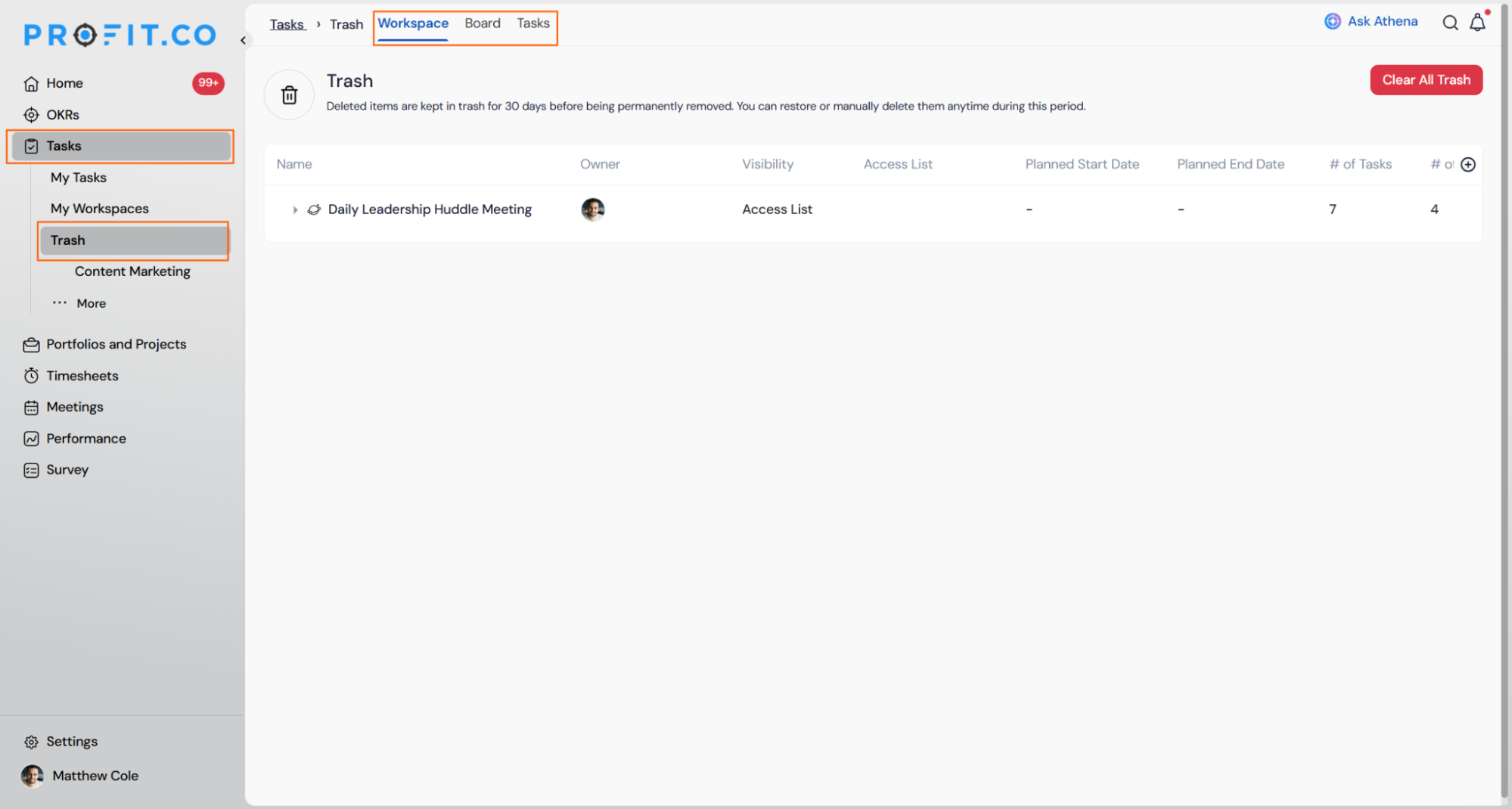
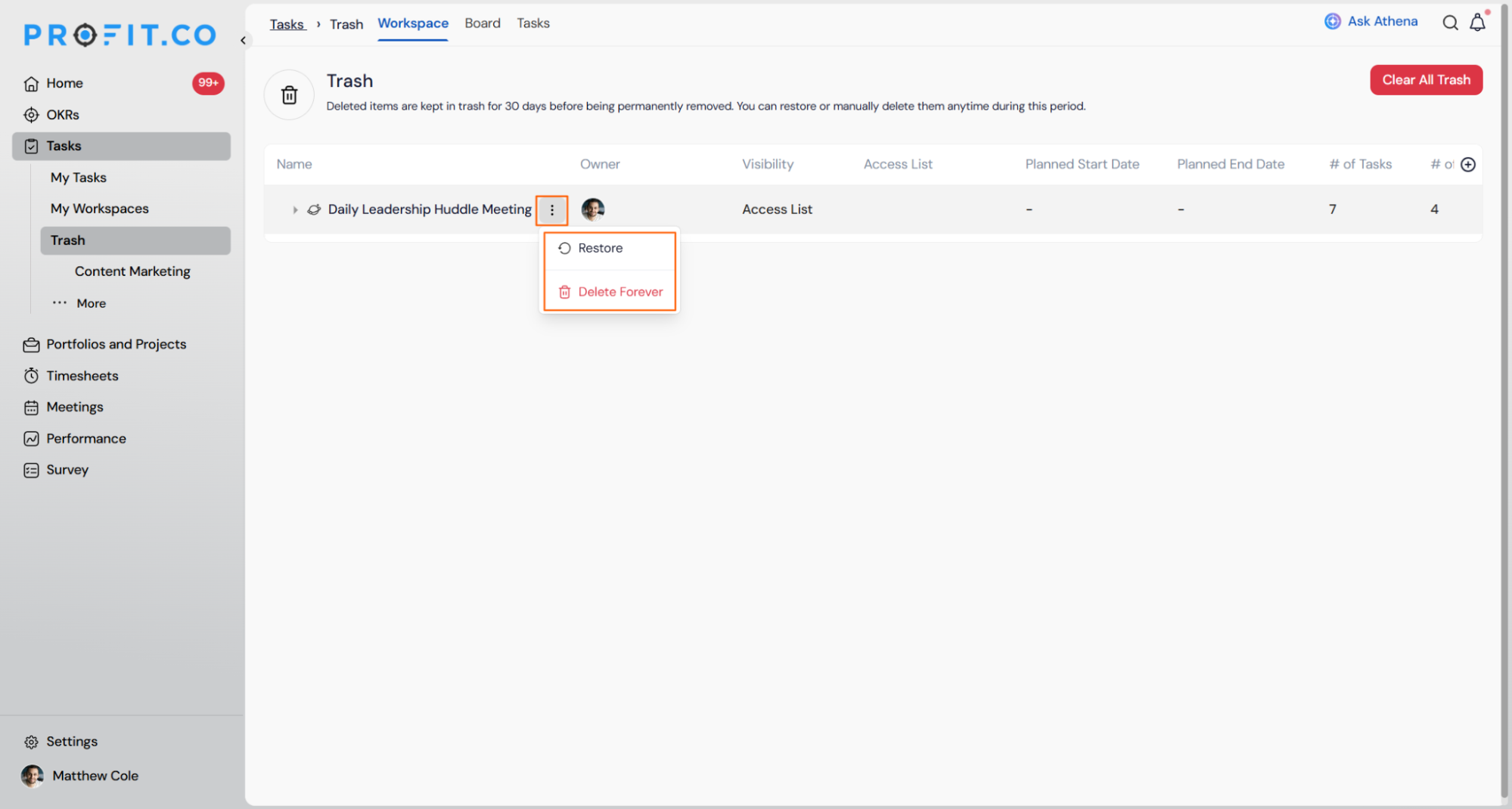
- Select the deleted item you want to bring back
- Choose the Restore option
Step 2
- Select the item you want removed before the 30-day window ends
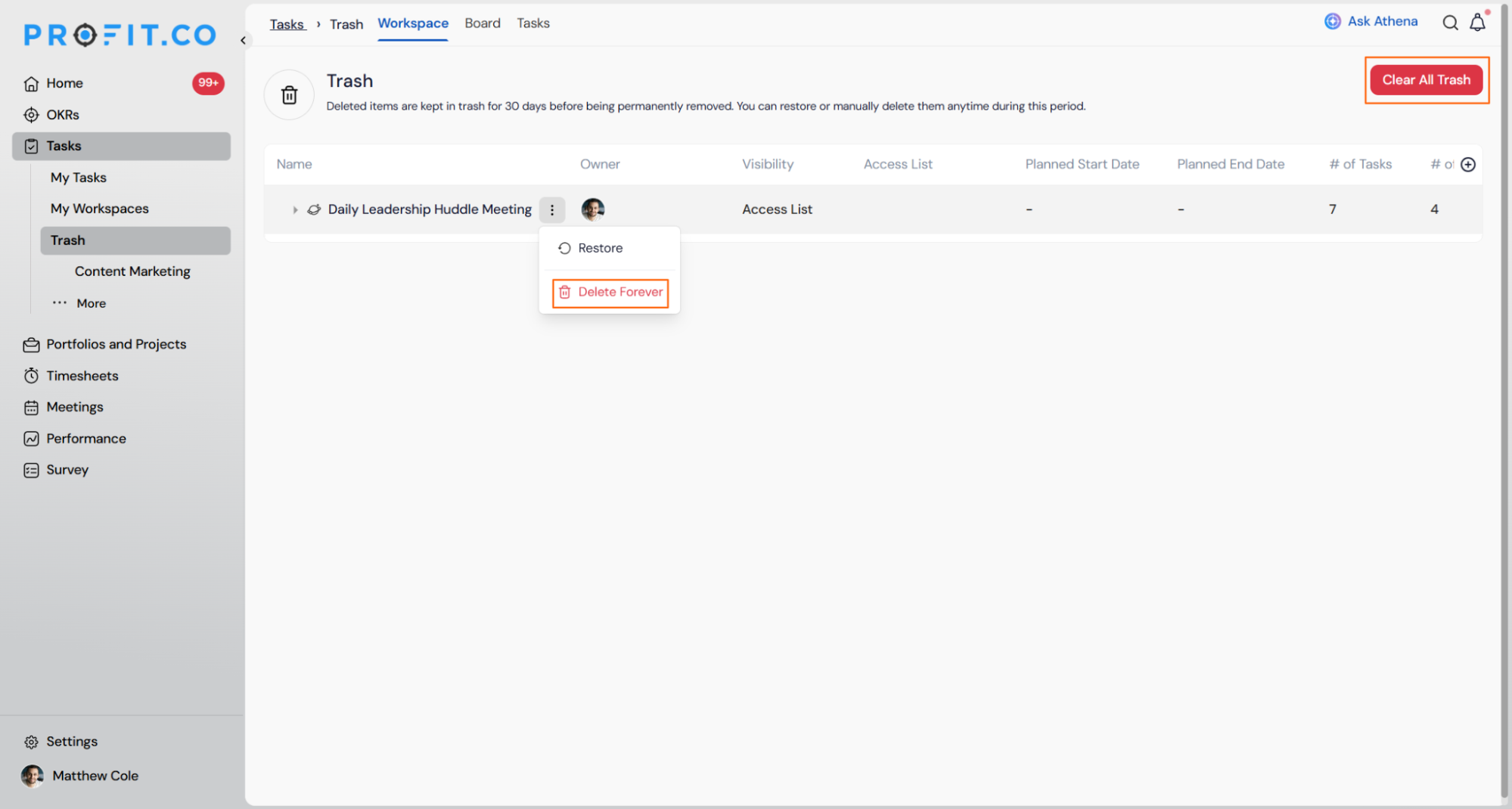
- Choose the Delete option to remove it immediately
- Click Clear All Trash to permanently remove every item listed in the current view
Filter Items in Trash
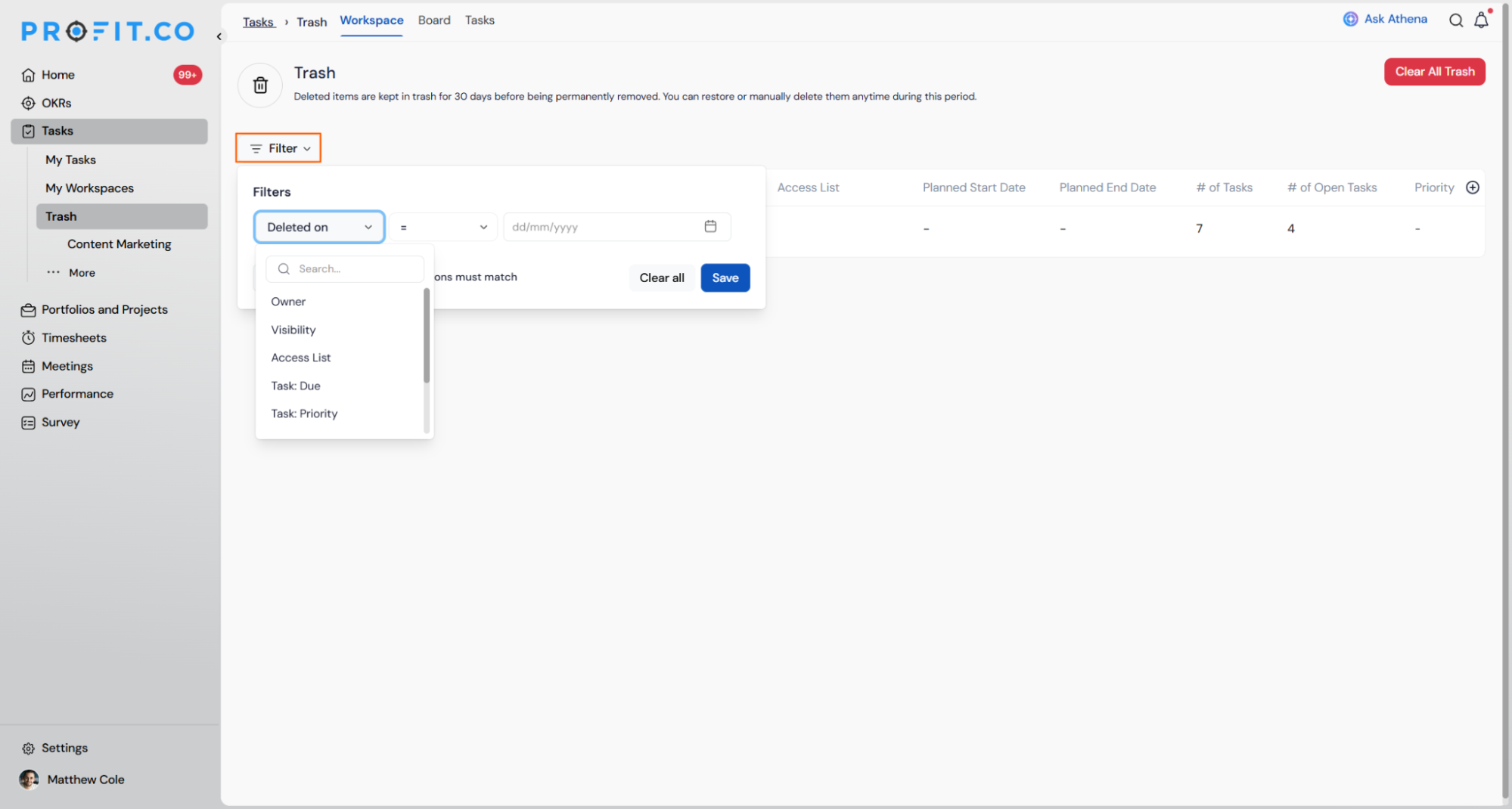
- Click Filter
- Select an attribute: Deleted on, Owner, Visibility, Access List, Task: Due, or Task: Priority
- Set the condition and value, then click Save
Trash and Restore Scenarios and Their Outcomes
| Scenario | What Happens |
|---|---|
| You select a deleted workspace, board, or task and choose Restore. | Profit.co returns the item to its original location in the workspace, board, or task list it was deleted from. |
| You select an item in Trash and delete it manually before the 30-day window ends. | Profit.co removes the item immediately and permanently, and it can no longer be restored. |
| You click Clear All Trash. | Profit.co permanently removes the items in Trash, and this action cannot be undone. |
| You leave a deleted item in Trash without restoring or deleting it. | Profit.co automatically and permanently deletes the item once 30 days have passed since deletion. |
| You apply a filter such as Deleted on or Owner in the Trash view. | Profit.co narrows the visible list to matching items only, and the deletion status of every item stays unchanged. |
| You open the Tasks tab to review a deleted task before acting on it. | Profit.co shows who deleted the task and when, alongside its owner, visibility, and priority. |
Trash Filter Attributes Reference
The Filter panel on the Trash page lets you narrow the list using the following attributes:
| Attribute | Description |
|---|---|
| Deleted on | Filters items by the date they were deleted |
| Owner | Filters items by the user who owns the deleted item |
| Visibility | Filters items by their visibility setting, such as Public or Access List |
| Access List | Filters items by the specific members included in the access list |
| Task: Due | Filters deleted tasks by their due date |
| Task: Priority | Filters deleted tasks by their assigned priority level |
Best Practices for Trash and Restore
- Check the Trash tabs separately when auditing a cleanup. A workspace, board, and task can share the same name, and restoring from the wrong tab returns the wrong hierarchy level.
- Use the Deleted on filter to find older items before the 30-day window closes on them. Anything left unresolved by day 30 is removed automatically and cannot be recovered.
- Confirm you really want to remove every item in Trash before clicking Clear All Trash. The action is permanent once confirmed.
- Filter by Owner or Access List when investigating deletions across a team instead of scrolling the combined Trash list, especially once multiple people delete items regularly.
- Review the owner, visibility, and access list details on a Trash row before deciding whether to restore or delete it. That row is the only context you get before the action becomes final.
Related Articles
- How to create a Workspace and Board in Profit.co?
- How to set visibility for each board apart from the Workspace in Task Management?
Frequently Asked Questions
Select the Board tab to see deleted boards and the Workspace tab to see deleted workspaces. Each is listed separately from the Tasks tab.
Yes. The filter panel includes a setting for how conditions should match, so you can filter by attributes such as Owner and Deleted on together in the same view.
It searches the list of filter attributes, such as Owner or Task: Priority, so you can find one quickly. It does not search Trash items by name.
Execute your strategy with confidence
Connect OKRs, tasks, and teams in one place with Profit.co
