

Profit.co's Task Completion Percentage Tracking lets you manually enter a numeric progress value for any task, which then automatically moves the task into the correct workflow stage based on your configured status-to-percentage mapping. This gives teams a precise, quantified view of task progress without relying on subjective status labels alone.
⚡ Quick Answer
Go to Settings and enable the Task Completion Percentage toggle. When creating your workspace, turn on the manual entry option for task completion. Then open any task, click Progress, and enter a percentage — Profit.co will automatically move the task to the stage configured for that percentage range.
Table of Contents
What is Task Completion Percentage Tracking?
Task Completion Percentage Tracking is a feature in Profit.co that allows users to input a numeric completion value (0–100%) directly on a task's Progress section. The platform maps this percentage to a preconfigured task status, automatically transitioning the task to the corresponding stage when the value is entered.
The feature operates at two levels: a global toggle in Settings activates it across the platform, and a workspace-level option enables manual entry for tasks created within that workspace. Once both are enabled, any user with task access can update the percentage directly from the task overview.
Why Task Completion Percentage Tracking Matters
Status labels like "In Progress" or "On Hold" are often too broad to reflect actual work done. Percentage-based tracking gives managers an accurate, real-time measure of task progress and eliminates ambiguity in status reporting.
Because the stage transition is automatic and driven by configured ranges, teams eliminate manual status updates — reducing administrative overhead and ensuring consistency in how task progress is recorded across the organization.
How It Works
Follow these steps to set up and use Task Completion Percentage Tracking:
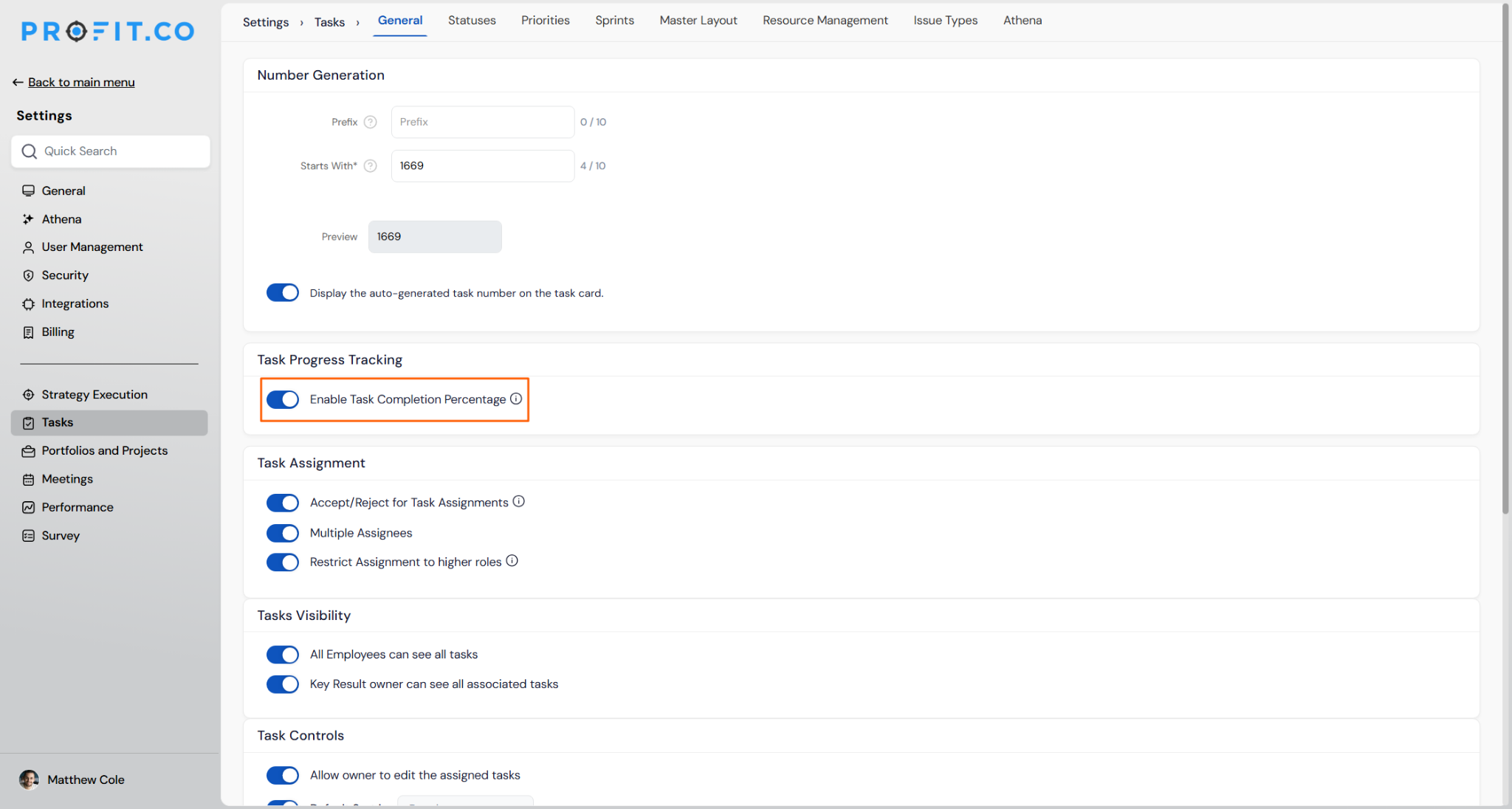
- Navigate to Settings and enable the Task Completion Percentage toggle.
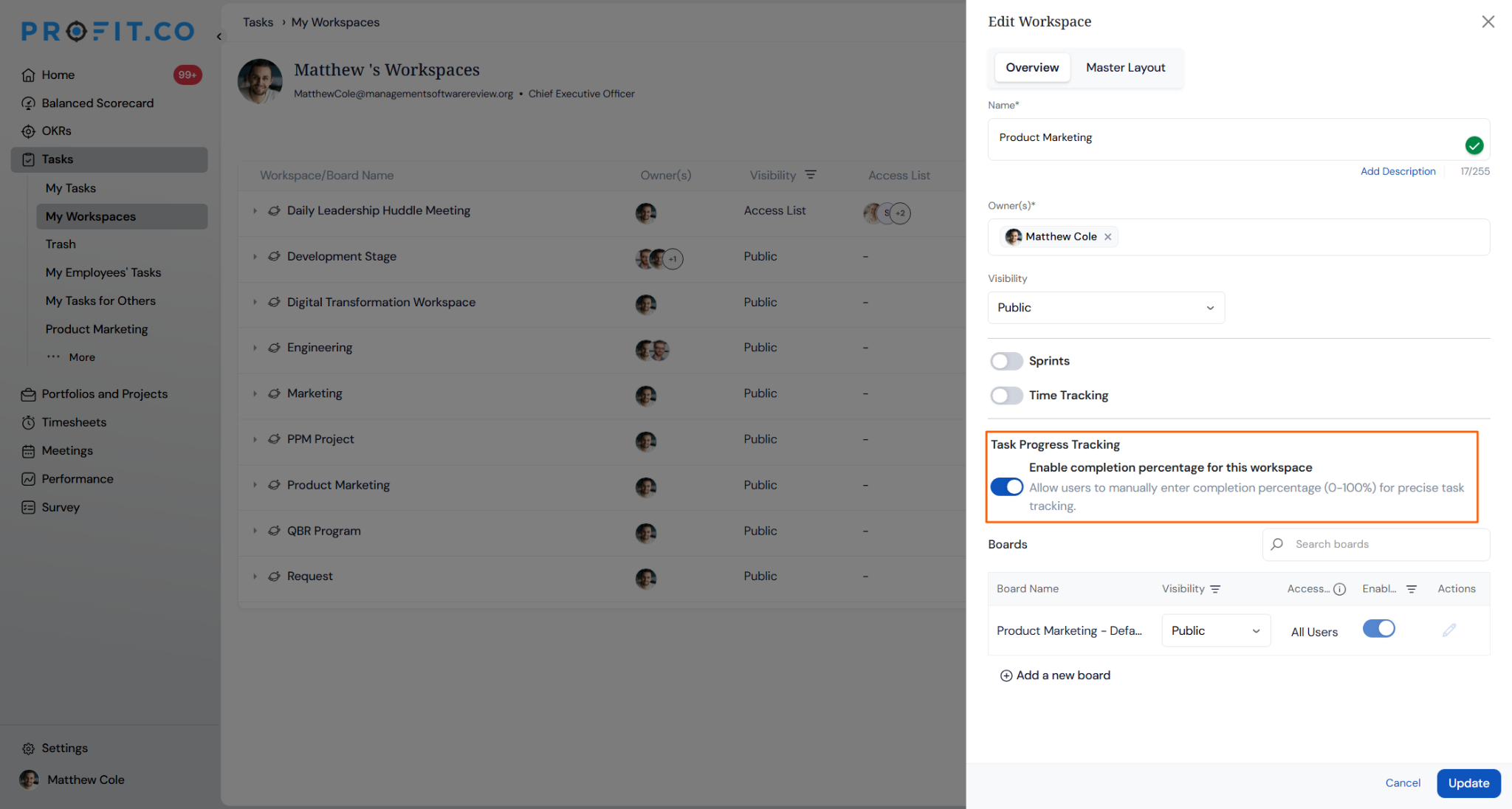
- Open the workspace creation flow.
- Locate the option to allow manual entry of completion percentage for tasks.
- Enable this option before finalizing workspace creation.
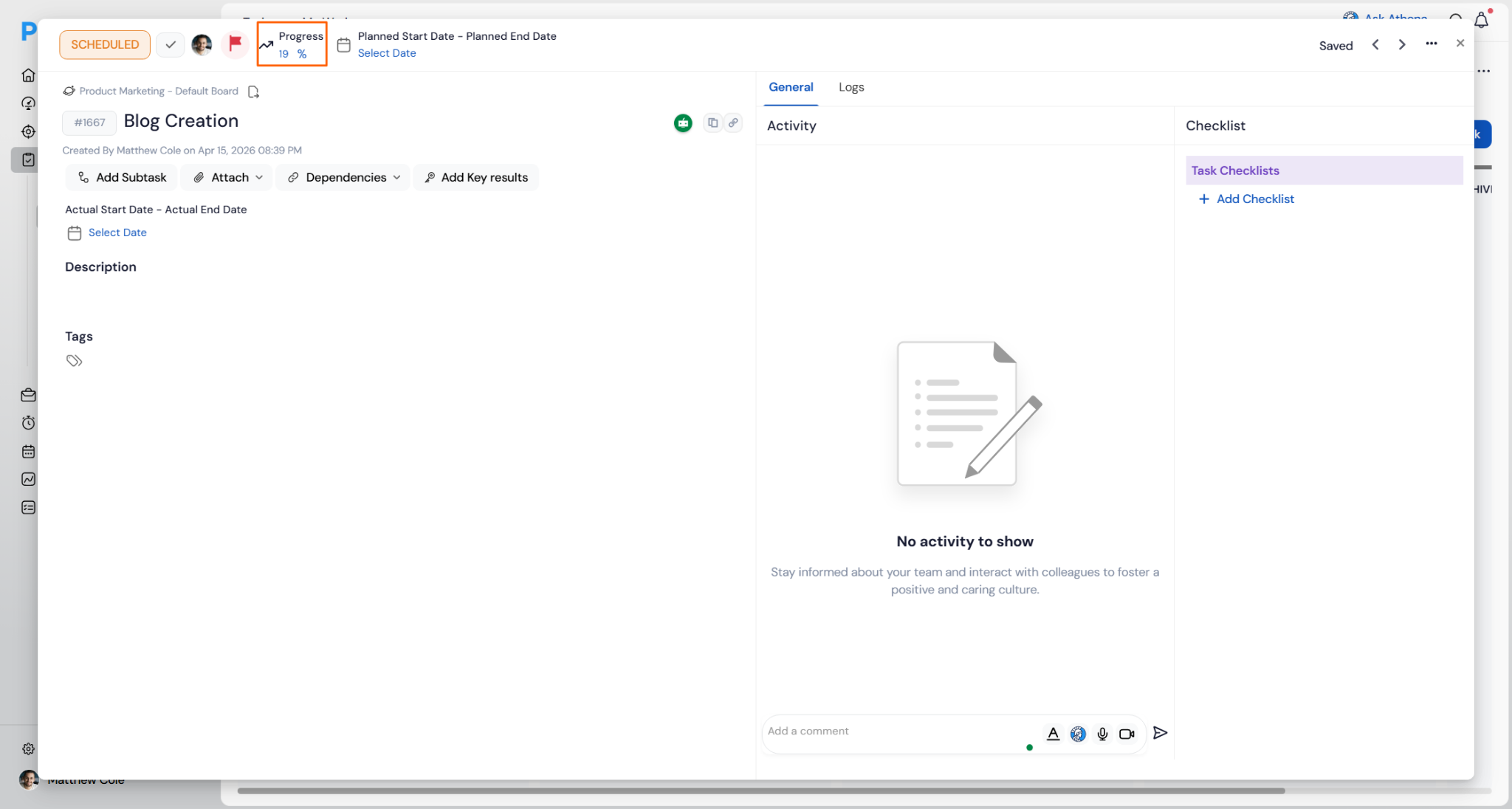
- A new Task % field is now available within task details.
- Users can manually enter the completion percentage based on task progress.
- The task automatically moves to the appropriate stage based on the configured mapping of task status to percentage.
Example
If a user enters 19% as the completion percentage and the Scheduled stage is configured to cover the 0–25% range, the task will automatically transition to Scheduled. Stage boundaries are defined in your task status configuration — ensure those mappings are set up before using this feature.
Best Practices for Task Completion Percentage Tracking
- Define non-overlapping percentage ranges for each task status before enabling manual entry — gaps or overlaps in your mapping will cause tasks to transition to unintended stages.
- Communicate the percentage thresholds to your team so contributors enter values with the correct stage transition in mind.
- Reserve percentage entry for tasks where quantifiable progress is meaningful; for binary tasks (done/not done), standard status updates are more appropriate.
- Audit stage-transition logs periodically to confirm that automated movements align with actual task progress and identify any misconfigured ranges.
- Enable manual entry only in workspaces where task granularity is needed — leaving it off in simpler workspaces keeps the interface clean for contributors who do not need it.
Related Questions
- Click here to learn more about How to edit task status
- Click here to learn more about How to Create and Manage Workspaces in Profit.co
Frequently Asked Questions
Yes. The stage transitions are driven by your task status-to-percentage configuration. You define the percentage boundaries for each stage, and the platform uses those ranges to determine which stage a task moves to when a value is entered.
No. The global Settings toggle activates the feature at the platform level, but manual entry for tasks must be enabled separately during workspace creation. Existing workspaces require their own configuration update to support manual percentage entry.
Yes. As long as manual entry is enabled for the workspace and the user has access to the task, they can update the completion percentage from the Progress section on the task overview page at any time. Each update will trigger the corresponding stage transition if the new value maps to a different stage.
Execute your strategy with confidence
Connect OKRs, tasks, and teams in one place with Profit.co
