

Schedule Conflict Detection flags tasks whose assignee is already working on other tasks during the same planned dates. Admins turn it on from Projects settings, and project users see the number of overlapping tasks directly in the project task list.
Table of Contents
What is Schedule Conflict Detection in Profit.co?
Schedule Conflict Detection checks whether a task's assignee has other tasks planned during the same dates. When an overlap is found, Profit.co shows the number of overlapping tasks next to the task, and you can open the details to see exactly which tasks clash.
Conflicts are checked across all projects, not only within the current project, so you can see when the same person is committed to work in more than one place at the same time.
| Element | What It Shows |
|---|---|
| Show schedule conflicts on tasks (setting) | Turns schedule conflict warnings on or off for tasks |
| Schedule Conflicts column | The number of overlapping tasks for each task, or a dash if there are none |
| Schedule Conflicts field (task details) | The same conflict count when a task is opened |
| Conflict details | The assignee, the task's planned dates, and each overlapping task with its project, task ID, and planned dates |
Why Schedule Conflict Detection Matters
Without conflict warnings, overlapping assignments often go unnoticed until deadlines slip or a team member is overloaded. Project managers had to check each person's workload across projects manually to find clashes.
With Schedule Conflict Detection turned on, overlaps surface automatically in the task list. Project managers can spot double-booked assignees early, see which projects the conflicting work belongs to, and rebalance dates or assignments before delivery is affected.
How It Works
Method 1 turns on Schedule Conflict Detection from Projects settings. Method 2 applies to users viewing tasks in a project.
Enable Schedule Conflict Detection
Step 1
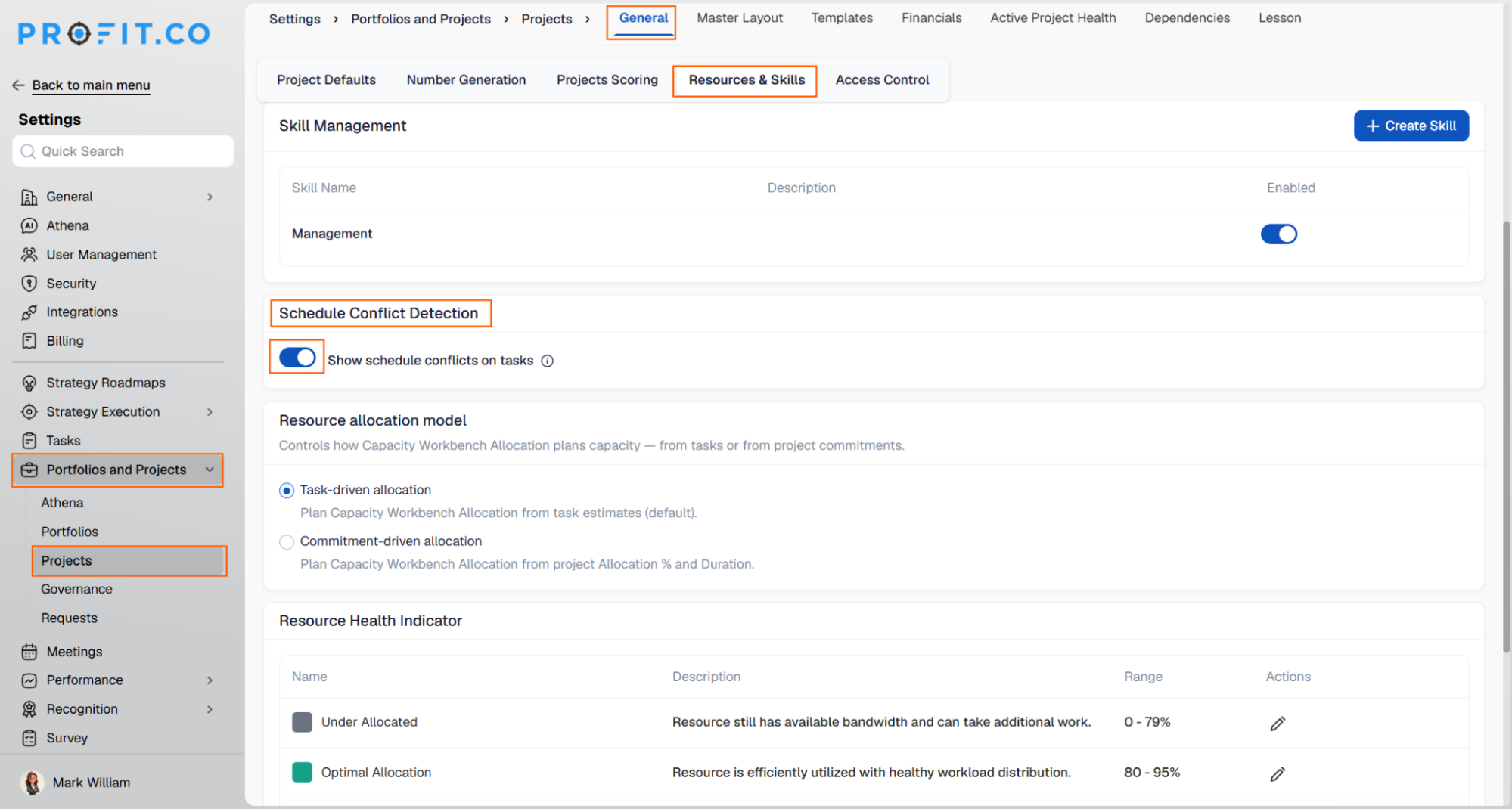
- Navigate to Settings → Portfolios and Projects → Projects → General → Resources & Skills.
- Under Schedule Conflict Detection, turn on Show schedule conflicts on tasks.
View and Review Schedule Conflicts
Step 1
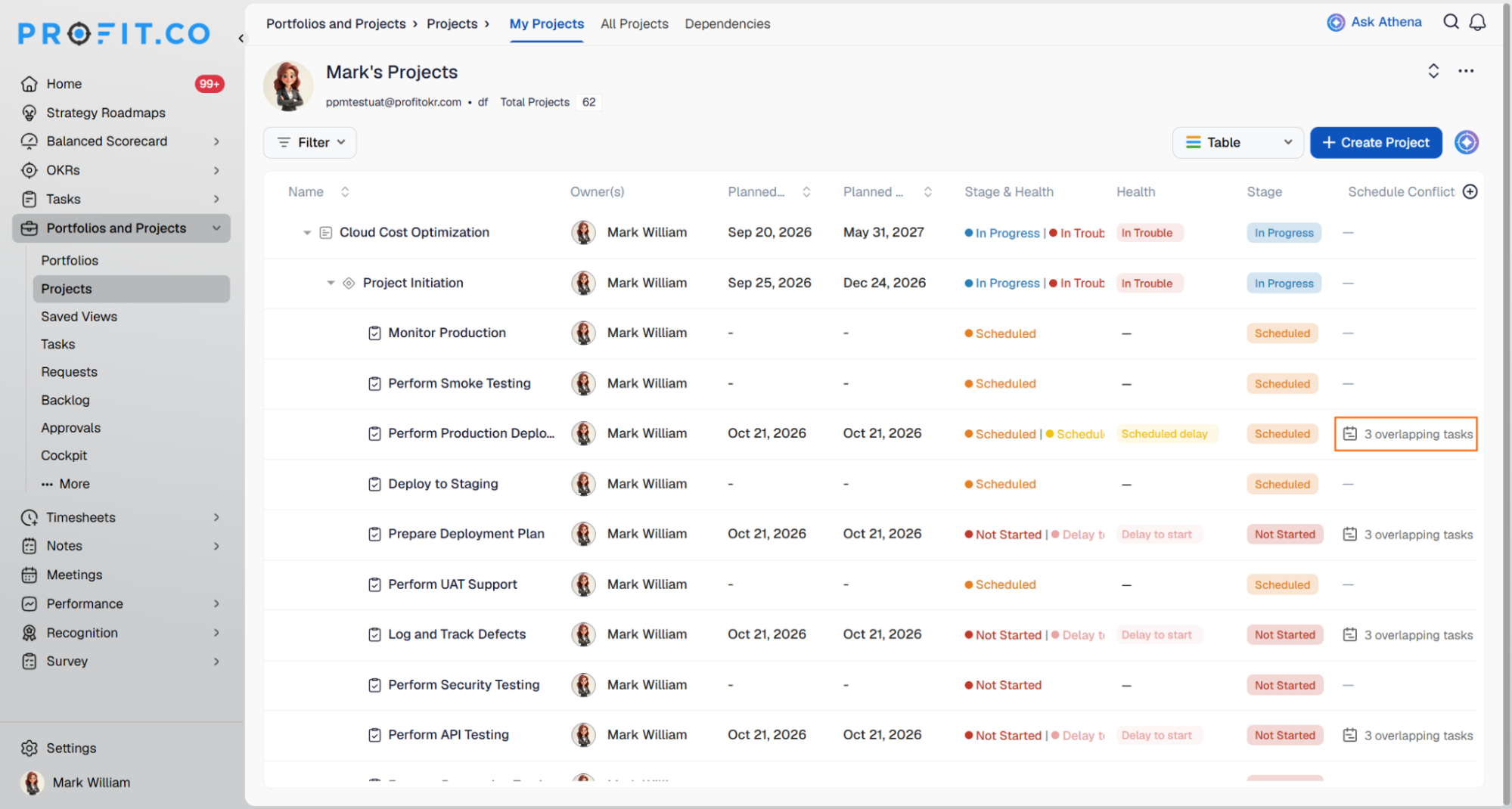
- Navigate to Portfolios and Projects → Projects and open a project.
- The Schedule Conflicts column shows the number of overlapping tasks for each task, for example, 3 overlapping tasks.
- Tasks with no conflicts show a dash.
Step 2
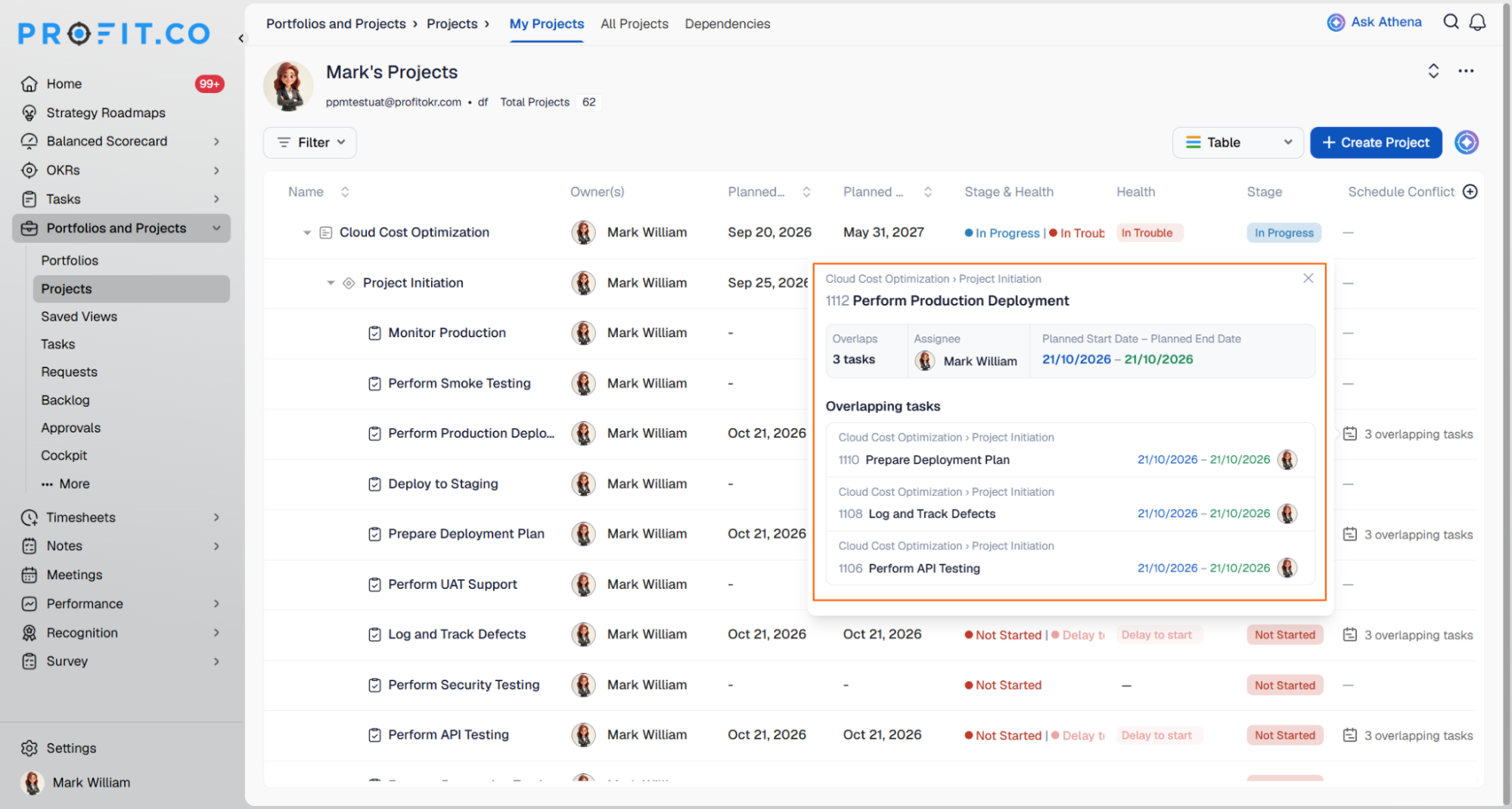
- Click the conflict count to open the conflict details.
- Review the assignee and the task's planned start and end dates.
- Review the list of overlapping tasks, along with each task's project, task ID, and planned dates.
Note
The same Schedule Conflicts field also appears when a task is opened, so you can review conflicts from the task details as well.
Schedule Conflict Scenarios and Their Outcomes
These outcomes cover what happens to conflict warnings as tasks change, not the steps used to configure them.
| Scenario | What Happens |
|---|---|
| A task's assignee has no other tasks during its planned dates. | The Schedule Conflicts column shows a dash for that task. |
| A task's assignee has other tasks planned during the same dates. | The Schedule Conflicts column shows the number of overlapping tasks, such as 3 overlapping tasks. |
| The overlapping task belongs to a different project. | It is still listed in the conflict details, since conflicts are checked across projects. |
| A task's assignee is added or changed. | Profit.co checks the task for conflicts again. |
| A task's planned start date or planned end date is added or changed. | Profit.co checks the task for conflicts again. |
Best Practices for Schedule Conflict Detection
- Turn on Schedule Conflict Detection before planning a new project phase, so overlaps are visible as soon as tasks are assigned.
- Add an assignee and planned start and end dates to every task, since conflicts are checked when these fields are added or changed.
- Review the Schedule Conflicts column during weekly project reviews to catch double-booked team members early.
- Open the conflict details before reassigning work, so you can see which projects the overlapping tasks belong to and coordinate with their owners.
- Resolve conflicts by adjusting planned dates or reassigning tasks, then check the column again to confirm the conflict count has cleared.
Related Articles
- How Do I Manage Resource Capacity in the PPM Module in Profit.co?
- How do I manage resources at the portfolio level in Profit.co?
- What is Resource Management in the PPM module?
- How Do I Edit Task Assignees Inline in the Gantt View in Profit.co?
Frequently Asked Questions
Navigate to Settings → Portfolios and Projects → Projects → General → Resources & Skills, and turn on Show schedule conflicts on tasks under Schedule Conflict Detection.
No. Overlapping tasks are listed across projects, not only within the current project.
Conflicts are checked whenever a task's assignee, planned start date, or planned end date is added or changed.
A dash means the task has no schedule conflicts.
The conflict details show the assignee, the task's planned dates, and each overlapping task with its project, task ID, and planned dates.
Yes. The same Schedule Conflicts field appears when a task is opened.
Execute your strategy with confidence
Connect OKRs, tasks, and teams in one place with Profit.co
