

Profit.co lets you staff projects using each person's actual available hours instead of headcount alone, and warns you before a task assignment pushes someone over their planned capacity. You configure how strictly over-assignment is handled, and review capacity from one Members & Access roster.
Table of Contents
What is Resource Capacity Management?
Resource Capacity Management adds capacity awareness to project staffing. It combines a configurable Resource Health Indicator (Under Allocated, Optimal Allocation, Over Allocated ranges), a per-project over-assignment policy (Alert and proceed or Restrict), an Add Resources modal that captures each person's role and allocation against their available hours, and a Members & Access roster for the whole project team.
The roster shows each member's Status, Manager, Department, Job Title, Project Role, and Cost Per Hour, along with a per-member View permission, and it supports External Members. Capacity settings are configured under Settings → Portfolios and Projects → Projects → General → Resources & Skills, on a per-project basis.
Why Resource Capacity Management Matters
Before this update, staffing decisions were based on headcount and role, without a direct view of who actually had the hours to take on more work. Over-allocation typically surfaced only after a deadline had already slipped.
| Benefit | What Changes |
|---|---|
| Staff by hours, not headcount | The Add Resources modal shows each candidate's available hours and an Availability Breakdown before you commit them to the project. |
| Catch over-allocation before it costs you | Over-allocated resources are flagged with a warning and a negative-hours badge at the moment you assign a task, not after the deadline slips. |
| A capacity policy you control | Each project can choose Alert and proceed or Restrict, instead of over-assignment being handled the same way everywhere. |
| One roster for the whole team |
Role, Cost Per Hour, Department, Manager, Job Title, and view access for every member sit together in Members & Access.
|
Step 1
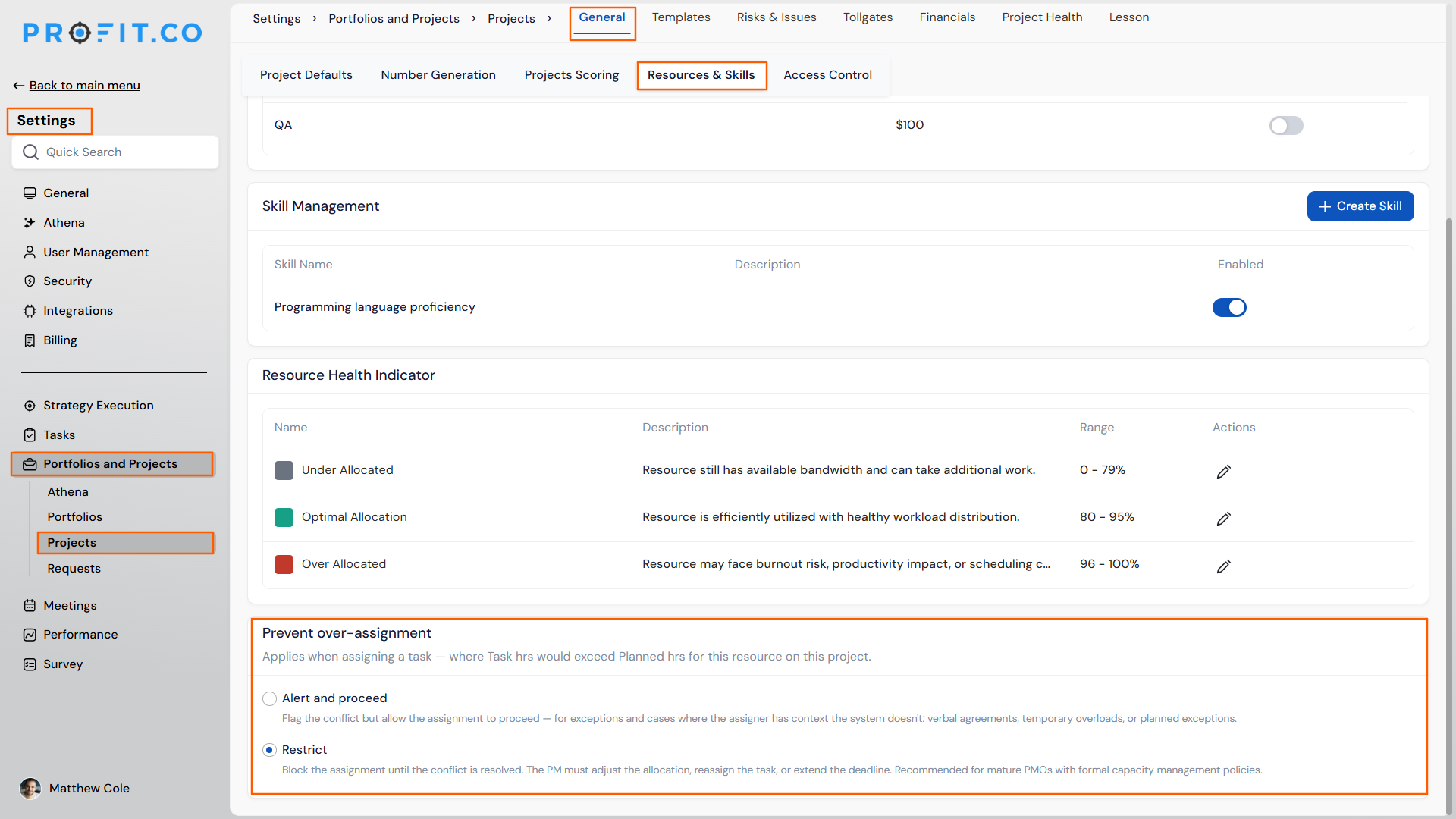
- Go to Settings → Portfolios and Projects → Projects → General → Resources & Skills.
- Set the Resource Health Indicator ranges for Under Allocated, Optimal Allocation, and Over Allocated.
- Choose the over-assignment policy: Alert and proceed or Restrict.
Prerequisite
Add people through People → Members & Access before assigning task hours. Availability warnings during task assignment only apply to resources already added to the project.
Step 2
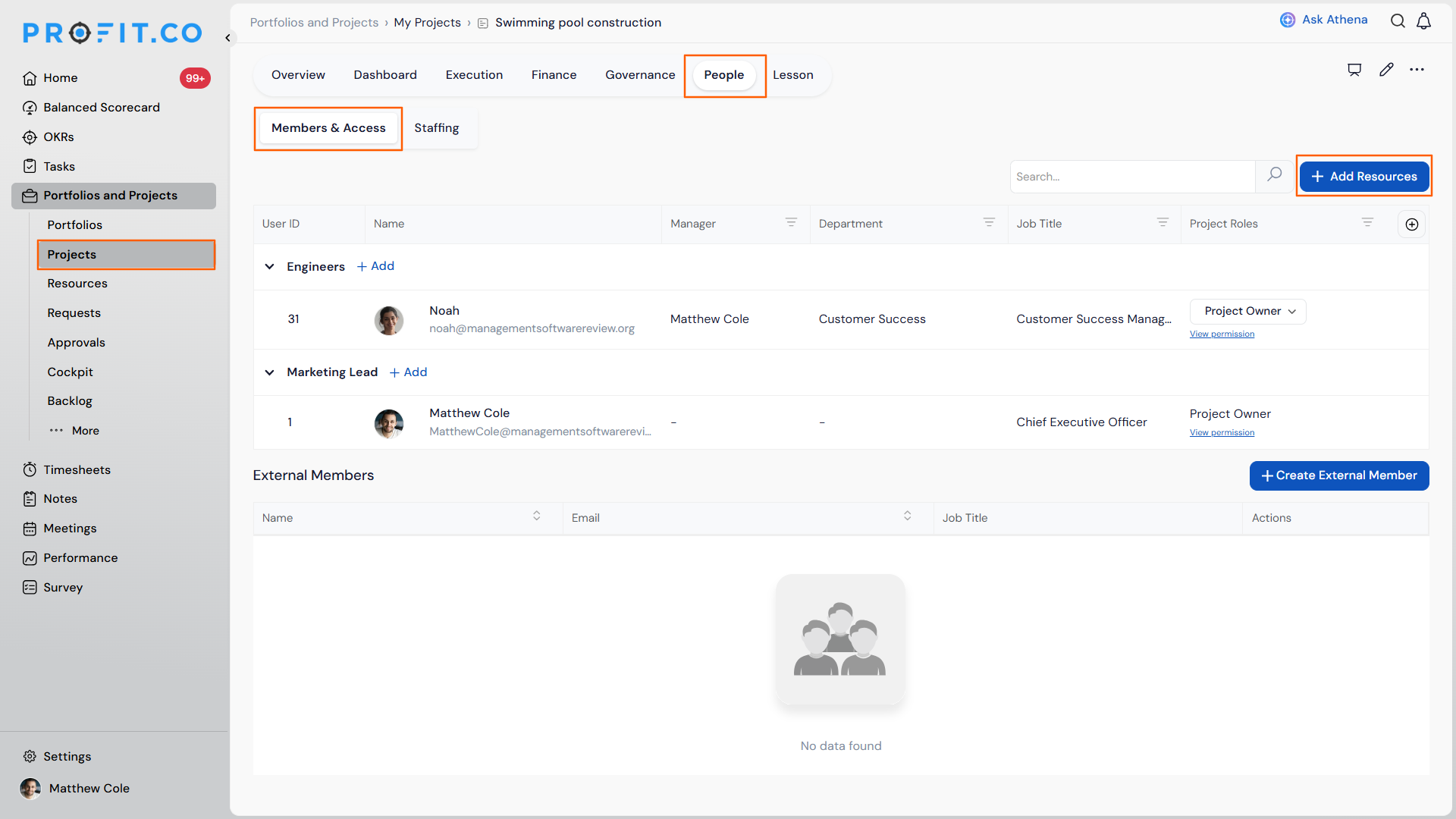
- On a project, go to People → Members & Access.
- Click + Add Resources.
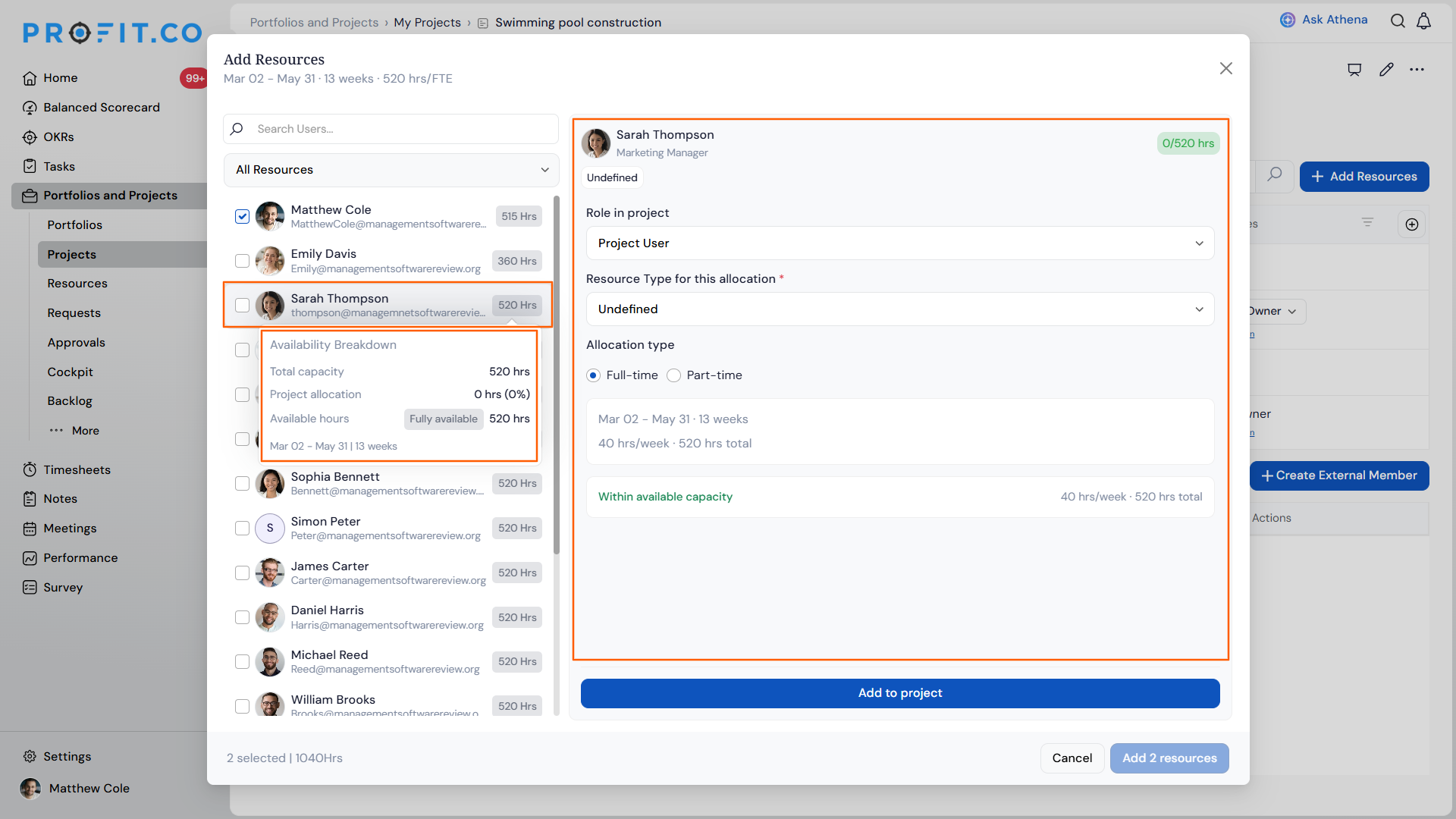
- Search and select multiple people; each one shows their available hours.
- Click a person to set their Role in project, Resource Type, and Allocation type (Full-time / Part-time) for the project window.
- Review the Availability Breakdown and any Exceeds available capacity warning.
- Click Add [n] resources to add the selected people to the project.
Step 3
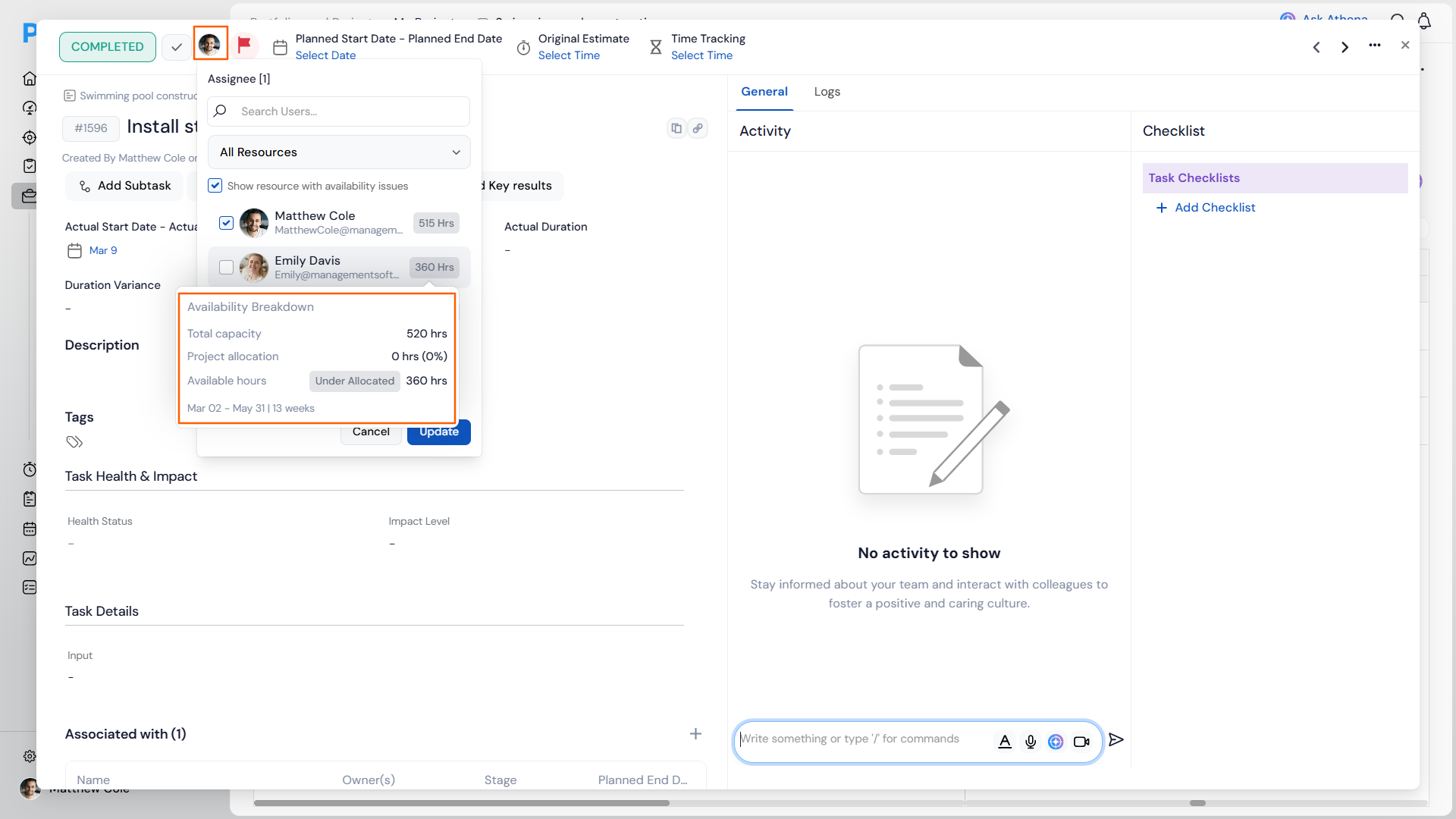
- When assigning a task, use Show resource with availability issues to surface conflicts.
- Hover a flagged resource to view its Availability Breakdown before assigning.
Resource Capacity Management Scenarios and Their Outcomes
| Scenario | What Happens |
|---|---|
| You assign task hours that push a resource over their planned hours while the project's over-assignment policy is set to Alert and proceed. | Profit.co lets the assignment go through, flags the resource with a warning and a negative-hours badge, and lists them under Show resource with availability issues. |
| You assign task hours that push a resource over their planned hours while the project's over-assignment policy is set to Restrict. | Profit.co blocks the assignment from being saved until you reduce the task hours or increase the resource's planned allocation. |
| You select a person in the Add Resources modal whose available hours fall short of the Allocation type you're setting. | Profit.co displays an Exceeds available capacity warning in the Availability Breakdown, giving you the chance to adjust the allocation or choose a different person before adding them. |
| You apply the Show resource with availability issues filter during task assignment. | Profit.co narrows the assignee list to only resources carrying an over-allocation warning or negative-hours badge, and hides resources within normal capacity. |
| You close the Add Resources modal without clicking Add [n] resources. | Profit.co discards the Role, Resource Type, and Allocation type selections you made, and does not add any of the selected people to the project. |
Best Practices for Resource Capacity Management
- Set the over-assignment policy to Restrict on fixed-deadline projects where over-committing a resource would directly delay delivery, since Restrict blocks the assignment from saving until hours are adjusted.
- Add resources through People → Members & Access before assigning task hours, since availability warnings during task assignment only apply to resources already added to the project.
- Resolve an Exceeds available capacity warning in the Add Resources modal before confirming allocation, since the modal still lets you add the person without resolving it.
- Open a planning session with the Show resource with availability issues filter instead of scanning the full assignee list row by row, since it isolates only resources carrying a warning or negative-hours badge.
- Keep Job Title, Department, and Cost Per Hour current in Members & Access when a person's role changes, since the roster is the single place the project team reviews a member's current role and rate.
Related Articles
- What is Resource Management in the PPM module?
- How do I assign tasks to others?
- What are the various roles available for users in Profit.co?
Frequently Asked Questions
It's configured per project under Settings → Portfolios and Projects → Projects → General → Resources & Skills, so different projects can use Alert and proceed or Restrict independently.
Yes. Members & Access supports External Members alongside regular team members in the same roster.
It flags a resource whose currently assigned task hours exceed their planned hours, the same over-allocation condition the Resource Health Indicator tracks.
Execute your strategy with confidence
Connect OKRs, tasks, and teams in one place with Profit.co
