

The Tasks dashboard can show how work is distributed across statuses and across assignees using four chart widgets, instead of manually filtering and counting task rows. Selecting any segment opens the exact tasks behind it in a filtered list.
Table of Contents
- What Are Activity Dashboard Widgets?
- Why Do Activity Dashboard Widgets Matter?
- How Do I Use Activity Dashboard Widgets?
- What Happens When You Use Activity Dashboard Widgets?
- What Are the Best Practices for Activity Dashboard Widgets?
- Related Articles
- What Are Some Frequently Asked Questions About Activity Dashboard Widgets?
What Are Activity Dashboard Widgets?
Activity Dashboard Widgets are four chart widgets available on the Tasks module's Dashboard view, added through the Customize widget selector. Activity Status Distribution shows one donut with as many segments as there are stages configured on that board: a board set up with six stages shows six segments, and a board set up with three shows three, based on each workspace's own preference rather than a fixed list.
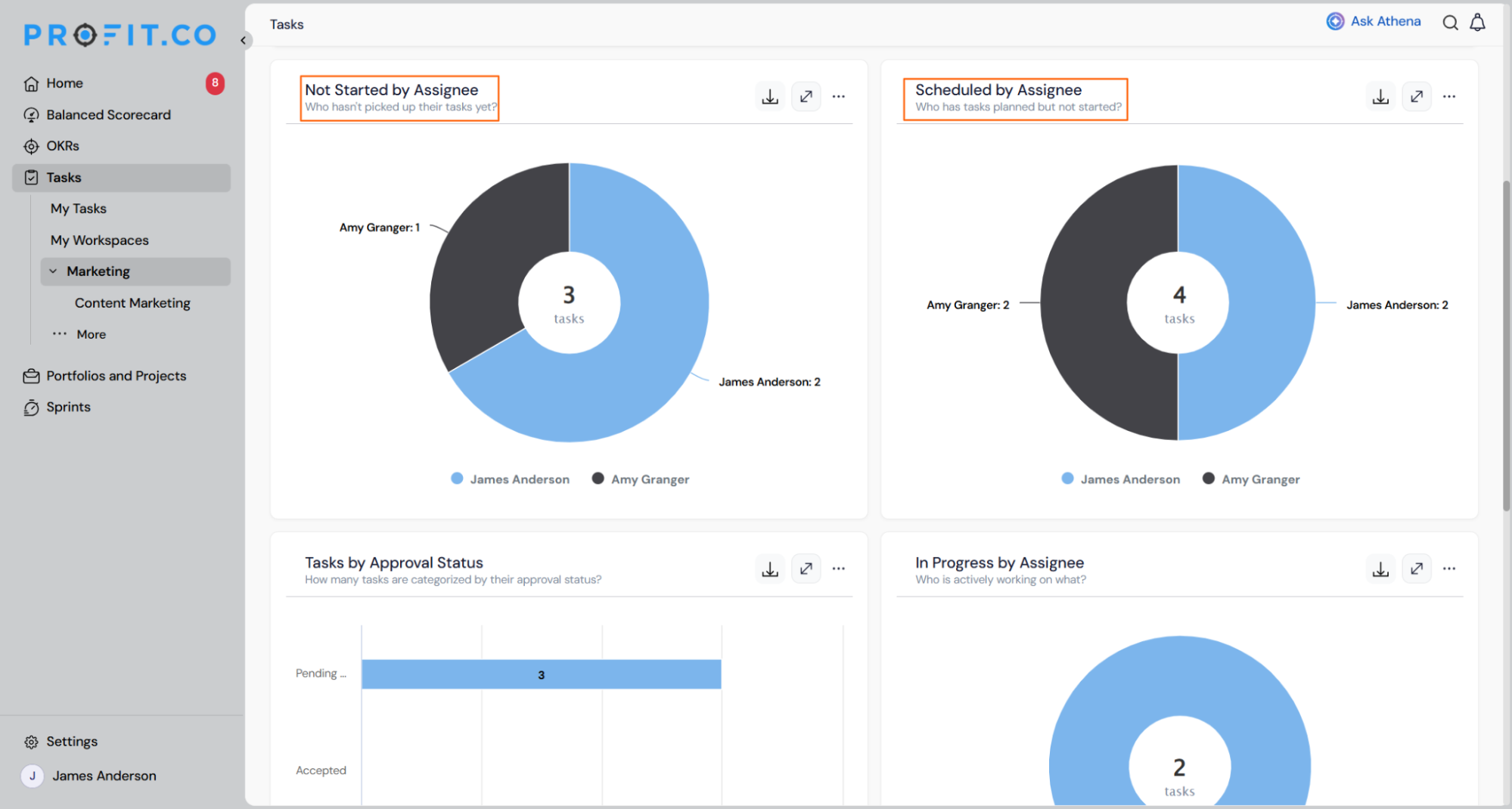
The remaining three widgets, Not Started by Assignee, Scheduled by Assignee, and In Progress by Assignee, each show a donut broken down by person, scoped to one status apiece. Tasks with no assignee appear under an Unassigned segment in these three widgets.
| Widget | What It Shows |
|---|---|
| Activity Status Distribution | Task counts in one segment per stage configured on the board, matching that count exactly. |
| Not Started by Assignee | Not-started task counts broken down by assignee. |
| Scheduled by Assignee | Scheduled, planned but not started, task counts broken down by assignee. |
| In Progress by Assignee | In-progress task counts broken down by assignee. |
Why Do Activity Dashboard Widgets Matter?
Before these widgets, seeing who was carrying the most open work meant filtering the task list separately for each status and each person, then counting the rows by hand. Now the same breakdown is visible in one chart without leaving the dashboard.
A status quietly building into a backlog, such as a growing Scheduled or Not Started segment, is visible as soon as it happens instead of surfacing only after it has already caused a delay. Selecting a segment opens the exact tasks behind it directly, with no separate filter or export step.
How Do I Use Activity Dashboard Widgets?
Step 1
- Open a workspace in the Tasks module.
- Switch to the Dashboard view.
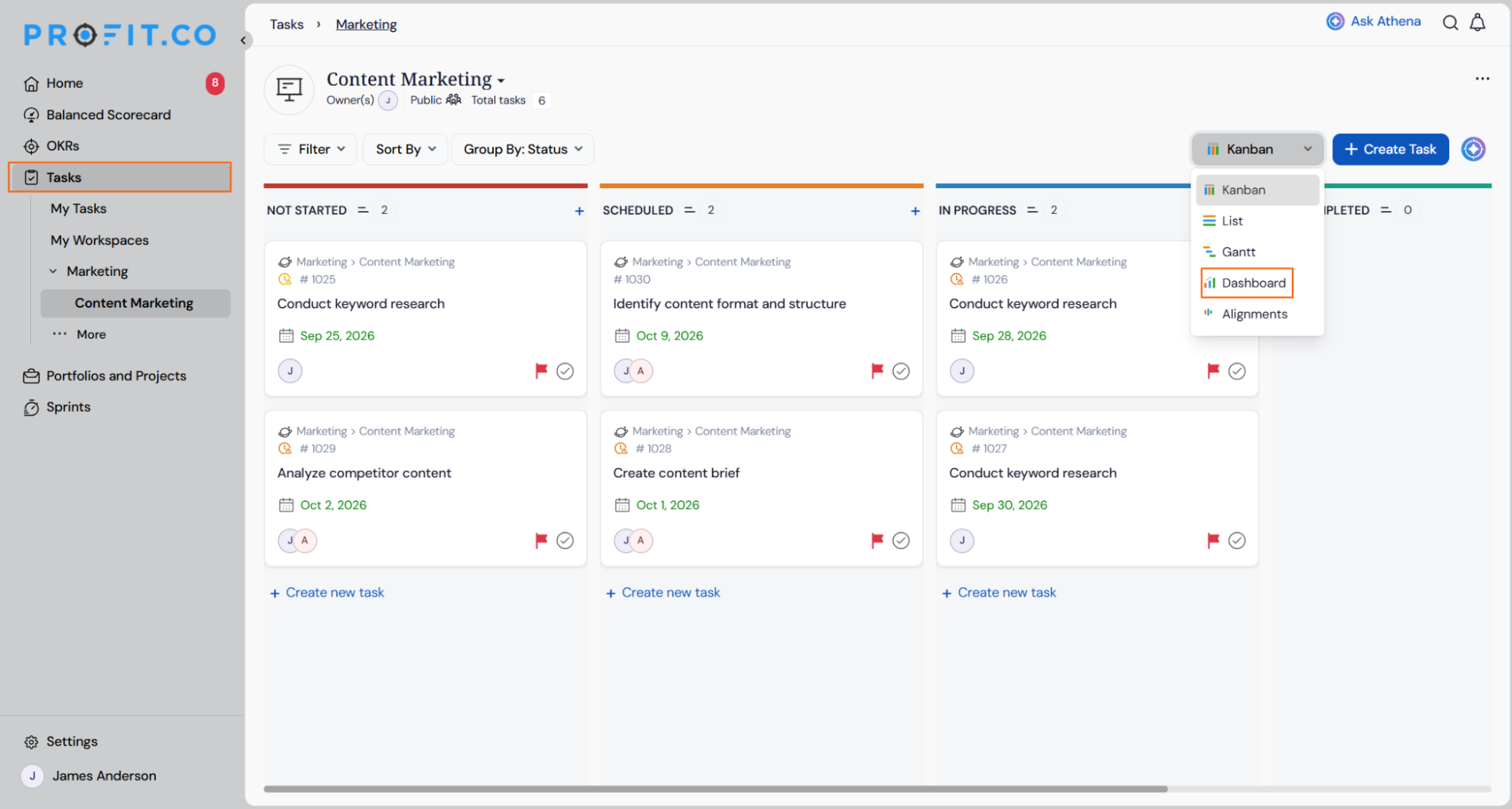
Step 2
- Select Customize to open the widget selector.
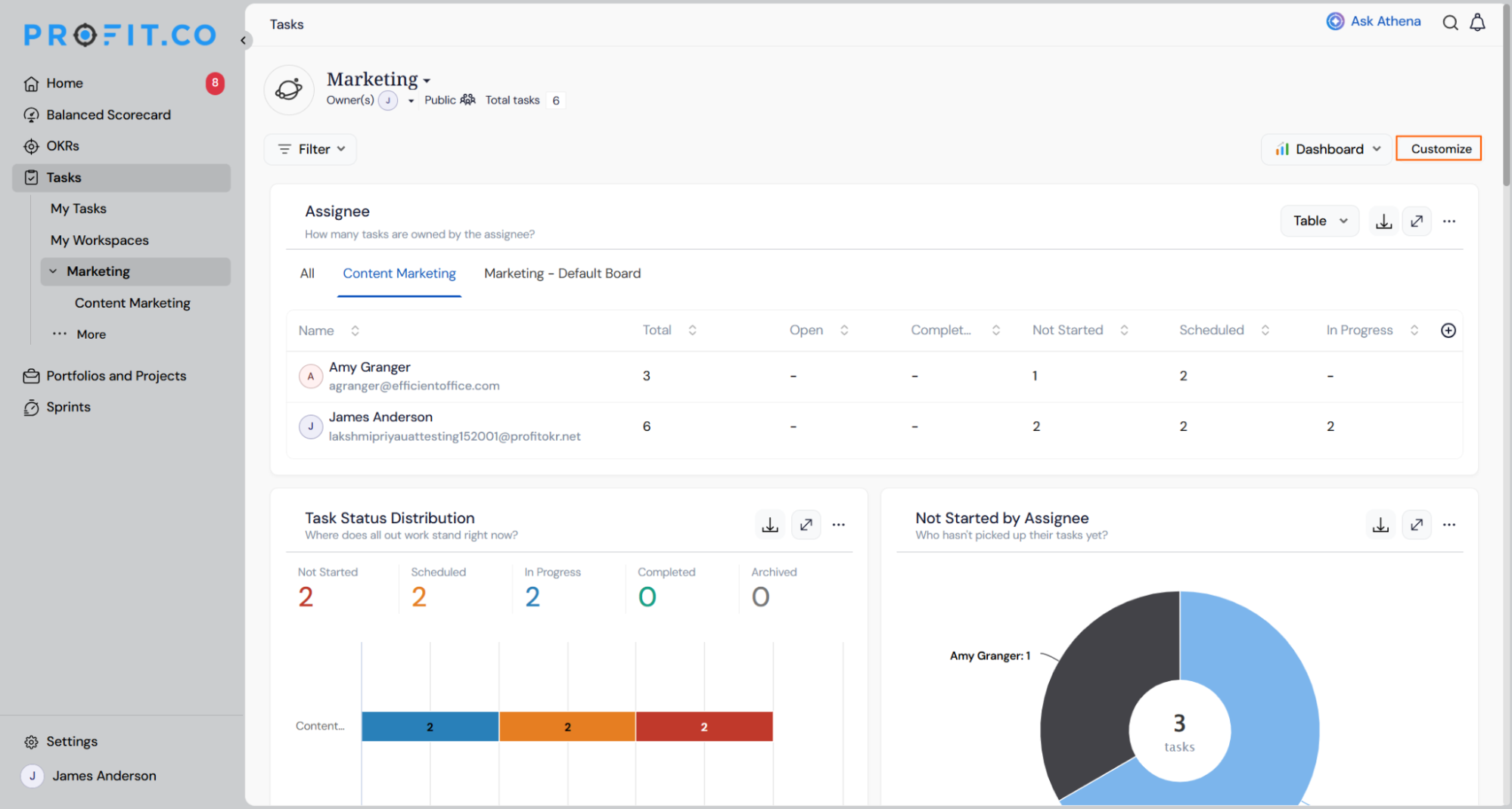
- Choose any combination of Activity Status Distribution, Not Started by Assignee, Scheduled by Assignee, and In Progress by Assignee.
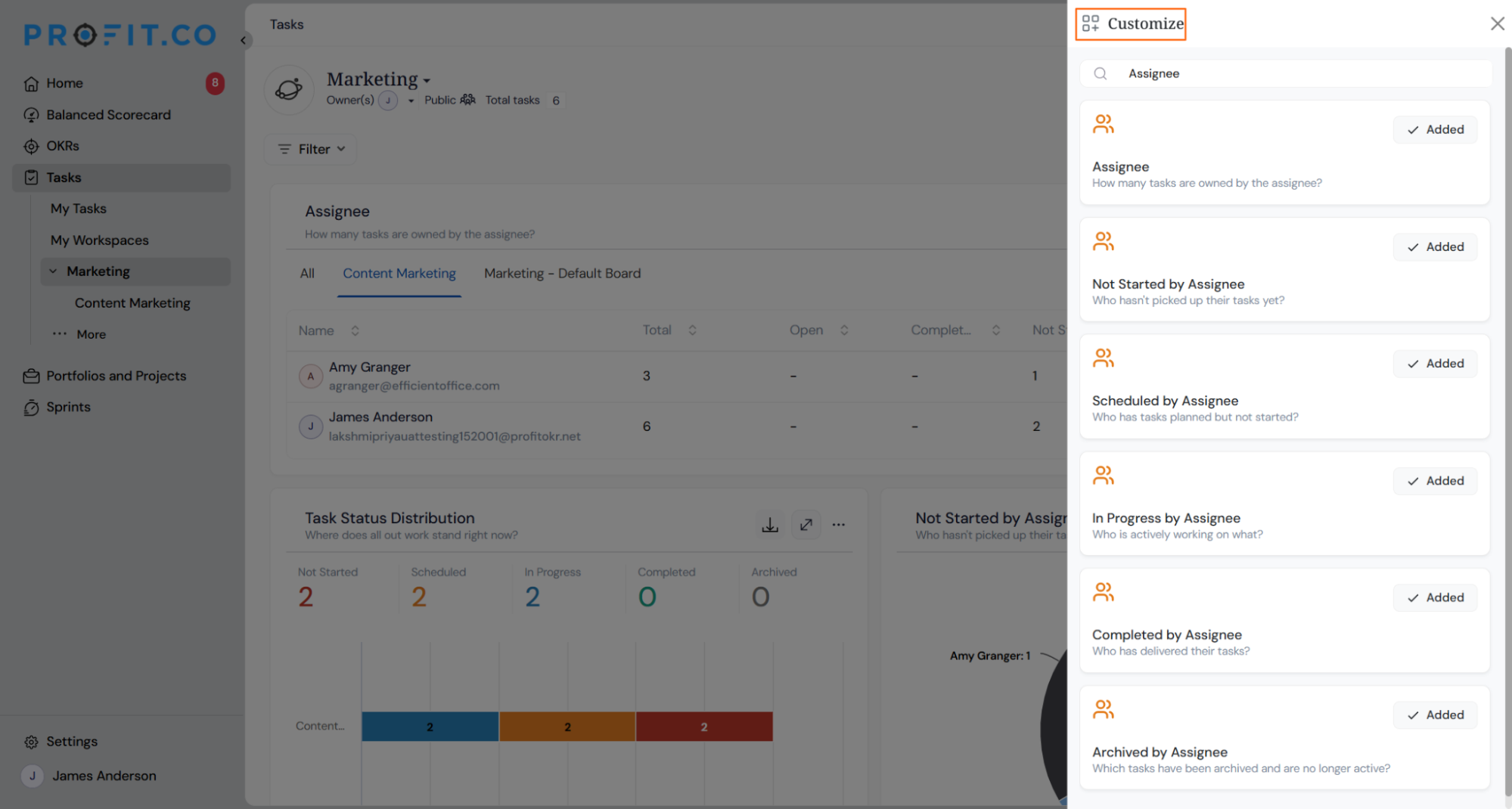
Step 3
- Check Activity Status Distribution for the overall count across every status configured on the board.
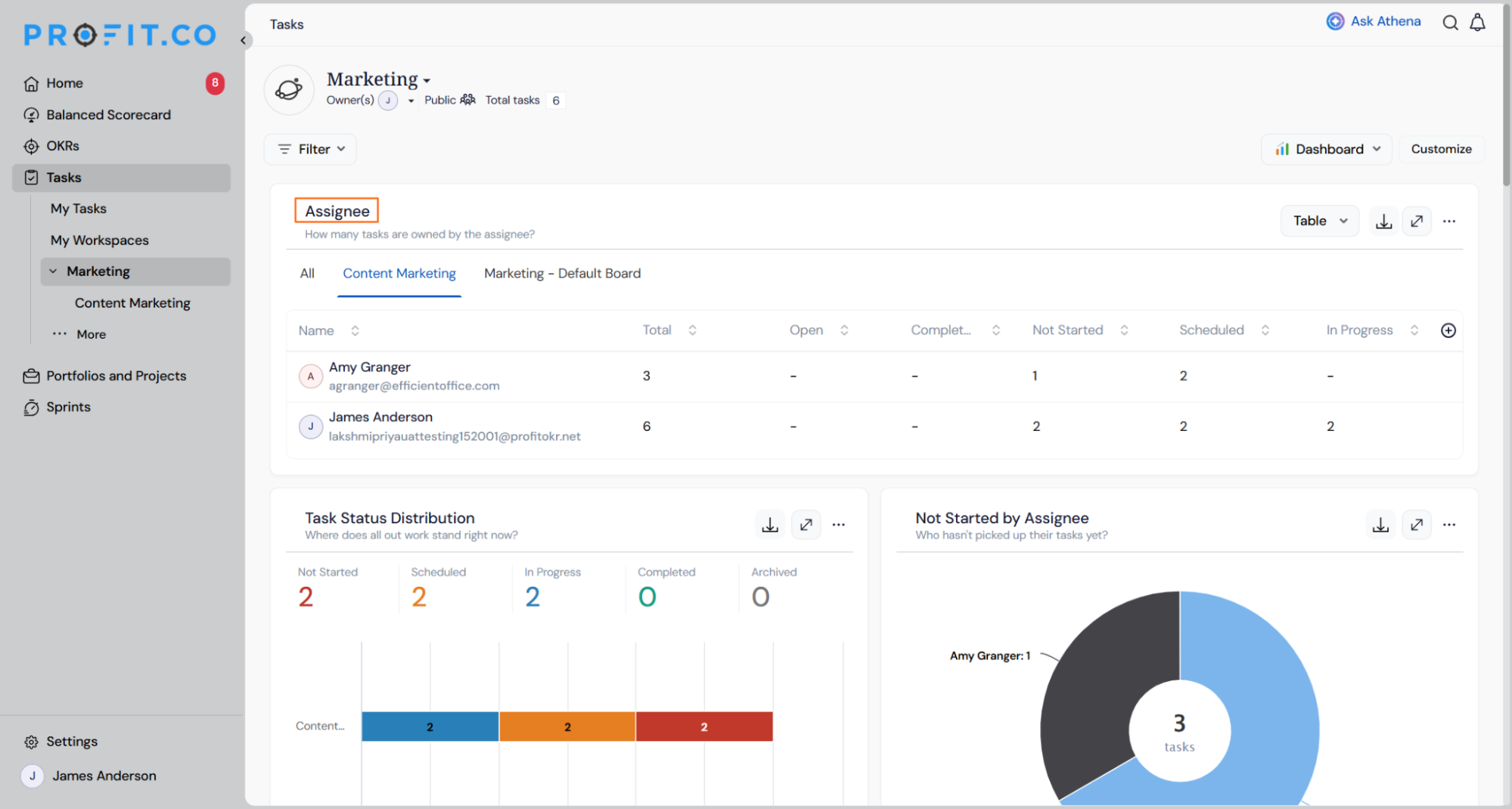
- Check the three assignee widgets to see who holds the open work in each status.
What Happens When You Use Activity Dashboard Widgets?
| Scenario | What Happens |
|---|---|
| You add or remove one of the four widgets on your dashboard. | Profit.co adds or removes that widget independently and remembers your selection the next time you open the dashboard. |
| You apply a filter on the Tasks dashboard while any of the four widgets are visible. | Profit.co updates all four widgets to match the active filter and refreshes them automatically if the filter changes or is removed. |
| You select a segment on any of the four widgets. | Profit.co opens a task list panel showing every task matching that segment, without navigating away from the dashboard. |
| You check the assignee widgets for tasks that have no assignee. | Profit.co groups those tasks under an Unassigned segment instead of leaving them out of the chart. |
| You change the number of stages configured on your board after adding Activity Status Distribution. | Profit.co redraws the donut with one segment per stage, so a board moved from three stages to six shows six segments instead of the original three. |
What Are the Best Practices for Activity Dashboard Widgets?
- Add only the widgets your team actually needs on a given dashboard, since each one adds another chart to scan and the useful ones can get lost among widgets nobody checks.
- Check the Unassigned segment on the assignee widgets regularly, since tasks with no owner won't show up under any specific person's slice.
- Apply a dashboard filter before reading the assignee widgets when you only care about one project or board section, since all four widgets follow that filter automatically.
- Revisit Activity Status Distribution after adding or removing a stage on your board, since the chart adds or drops a segment to match your current stage count rather than the one it started with.
Related Articles
- How to create/edit the task statuses at the workspace?
- How can we download the reports from the Task dashboard?
What Are Some Frequently Asked Questions About Activity Dashboard Widgets?
Yes. Each widget is added and removed independently from the Customize widget selector, so any combination, including all four, can sit on the same dashboard.
No. The segment count matches however many stages are configured on that board; a board with six stages shows six segments, and one with three shows three.
No. Not Started by Assignee, Scheduled by Assignee, and In Progress by Assignee each cover one specific status; completed tasks are not broken out in a dedicated assignee widget.
Execute your strategy with confidence
Connect OKRs, tasks, and teams in one place with Profit.co
