












Profit.co lets administrators turn Risk tracking and Issue tracking on or off independently for their organization’s portfolios and projects. Each one becomes a selectable governance item type the moment its toggle is switched on.
Table of Contents
- What Is the Risks and Issues Toggle in Profit.co?
- Why Does the Risks and Issues Toggle Matter?
- How Does the Risks and Issues Toggle Work?
- What Happens When You Use the Risks and Issues Toggle?
- What Are the Default Risk Statuses and Issue Priorities in Profit.co?
- What Are the Best Practices for the Risks and Issues Toggle?
- Related Articles
- What Are Some Frequently Asked Questions About the Risks and Issues Toggle?
What Is the Risks and Issues Toggle in Profit.co?
Risks and Issues are two of the governance item types available under the Portfolios and Projects Governance settings, alongside types such as Governance Items, Tollgates, Project Changes, Actions, Decisions, and Assumptions. A Risk is an uncertain future event that could affect project objectives, scored on Probability × Impact, while an Issue is a current problem that has already occurred and requires resolution to stay on track.
Each type has its own Enabled toggle and its own configuration screen, a Statuses table for Risks and a Priorities table for Issues, that only becomes relevant once the toggle for that type is switched on. Turning Risks off does not affect whether Issues are available, since the two toggles operate independently.
Why Does the Risks and Issues Toggle Matter?
Without this control, every portfolio and project would carry Governance tabs for both Risks and Issues whether or not your organization actually logs either one. Turning off the type you do not use keeps the Governance menu limited to the item types your team genuinely tracks.
Because the Statuses table for Risks and the Priorities table for Issues are preconfigured the moment you enable each type, every record created afterward already has a known set of status or priority values to pick from, instead of someone having to build that list before the first Risk or Issue can be logged.
How Does the Risks and Issues Toggle Work?
Method 1: Enable or Disable Risks
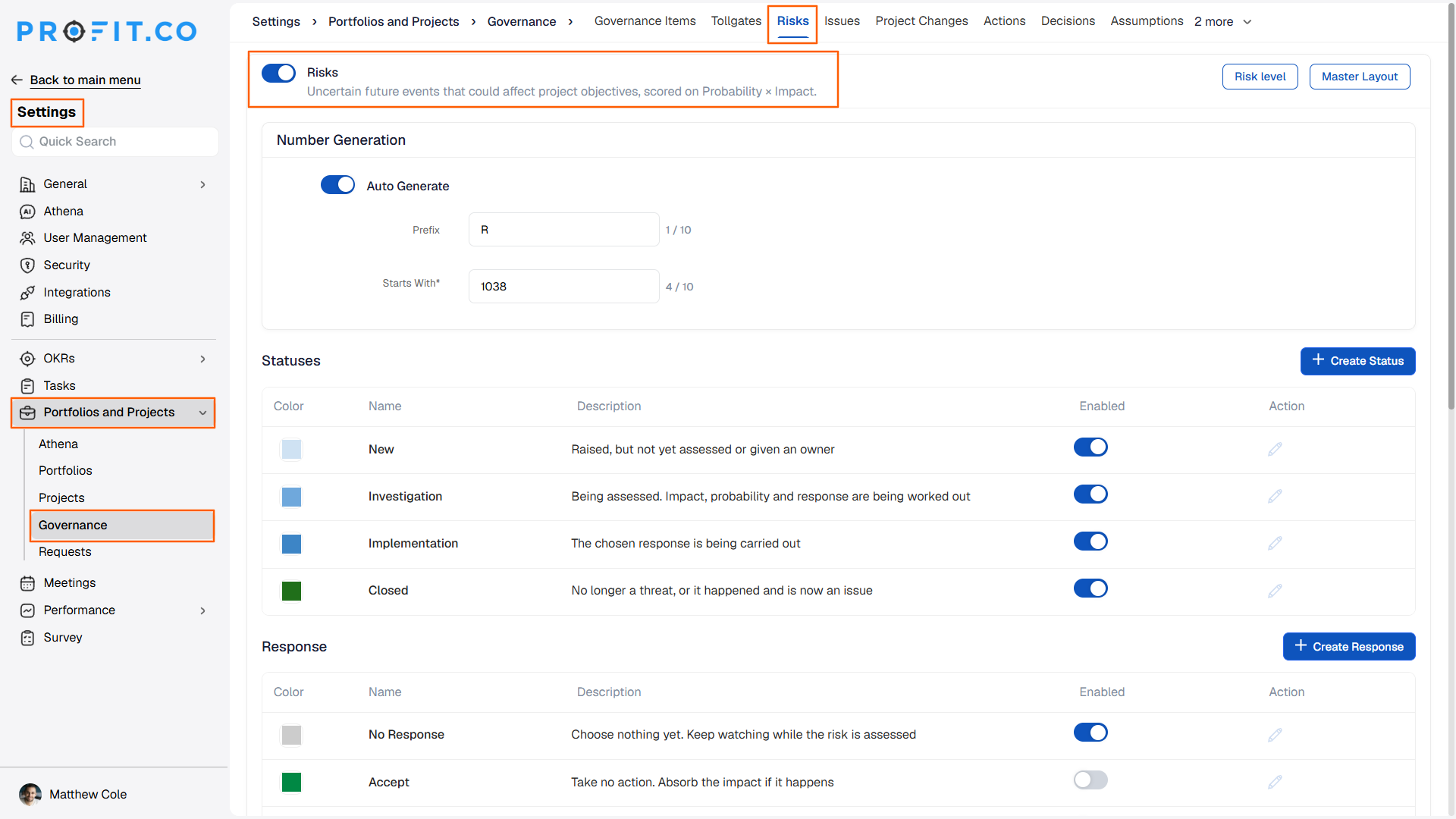
Step 1: Open the Risks Governance Tab
- Go to Settings → Portfolios and Projects → Governance
- Select the Risks tab
Step 2: Toggle Risk Tracking
- Use the toggle next to Risks at the top of the page to turn Risk tracking on or off
Step 3: Configure Risk Numbering and Statuses
- Turn on Auto Generate under Number Generation and set the Prefix and Starts With value
- Enable or disable each status (New, Investigation, Implementation, Closed) using its row-level Enabled toggle
- Click Master Layout and mark any attributes you want required on new Risk records
Method 2: Enable or Disable Issues
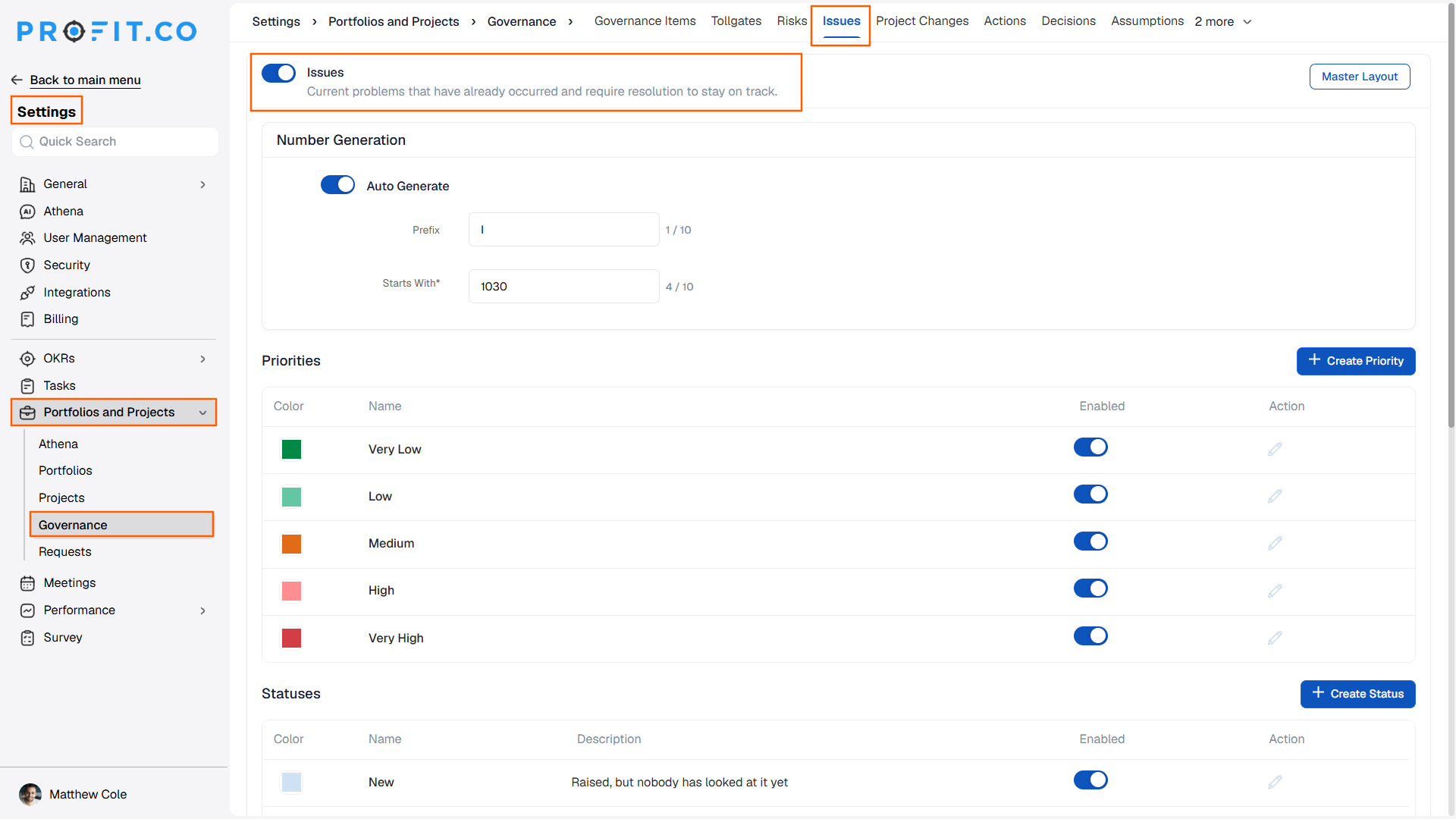
Step 1: Open the Issues Governance Tab
- Go to Settings → Portfolios and Projects → Governance
- Select the Issues tab
Step 2: Toggle Issue Tracking
- Use the toggle next to Issues at the top of the page to turn Issue tracking on or off
Step 3: Configure Issue Numbering and Priorities
- Turn on Auto Generate under Number Generation and set the Prefix and Starts With value
- Enable or disable each priority (Very Low, Low, Medium, High, Very High) using its row-level Enabled toggle
- Click Master Layout and mark any attributes you want required on new Issue records
What Happens When You Use the Risks and Issues Toggle?
| Scenario | What Happens |
|---|---|
| You turn off the Risks toggle on the Governance settings page. | Profit.co removes Risk tracking as an available governance item type for your organization’s portfolios and projects, and sends no notification to other users. |
| You turn off the Issues toggle on the Governance settings page. | Profit.co removes Issue tracking as an available governance item type for your organization’s portfolios and projects, and sends no notification to other users. |
| You set a Prefix and Starts With value under Number Generation for Risks or Issues. | Profit.co applies that ID format to every new Risk or Issue record created afterward, for example R-1038 or I-1030. |
| You disable a specific Risk status or Issue priority using its row-level Enabled toggle. | Profit.co removes that status or priority option from the list available when a record is created or updated, while the rest of the Risks or Issues feature stays active. |
What Are the Default Risk Statuses and Issue Priorities in Profit.co?
Enabling Risks or Issues loads a default set of Statuses or Priorities that your team can refine from the same table. The table below lists what Profit.co provides out of the box for each type.
| Governance Item | Status / Priority | Description |
|---|---|---|
| Risks | New | Raised, but not yet assessed or given an owner |
| Risks | Investigation | Being assessed. Impact, probability, and response are being worked out |
| Risks | Implementation | The chosen response is being carried out |
| Risks | Closed | No longer a threat, or it happened and is now an issue |
| Issues | Very Low, Low, Medium, High, Very High | Five priority levels ranked from least to most urgent; no individual description is configured for each level |
What Are the Best Practices for the Risks and Issues Toggle?
- Decide the Prefix and Starts With values for Risks and Issues before your team starts logging records, since Profit.co applies the active Number Generation settings to every new record created afterward.
- Review the Statuses table for Risks and the Priorities table for Issues before go-live, and disable any option your organization will not use, since each row-level toggle controls whether that option appears when someone creates or updates a record.
- Turn on only the governance item types your organization tracks, for example enabling Risks without Issues if your process does not formally log resolved problems, since the Risks and Issues toggles operate independently of each other.
- Confirm who has access to the Governance settings page before relying on it, since toggling Risks or Issues on or off is a silent, settings-only change that does not notify other users.
Related Articles
- How Do I Configure Risk Status Workflows?
- How do I convert a Project Risk into an Issue in Profit.co?
What Are Some Frequently Asked Questions About the Risks and Issues Toggle?
Yes. Each toggle operates independently, so you can activate Risk tracking, Issue tracking, or both, depending on which governance item types your organization needs.
Under Settings → Portfolios and Projects → Governance, where Risks and Issues appear as tabs alongside Governance Items, Tollgates, Project Changes, Actions, Decisions, and Assumptions.
No. Each has its own Number Generation settings, with its own Prefix and Starts With value, for example R and 1038 for Risks versus I and 1030 for Issues.
The Risks tab includes a Risk Level button in addition to Master Layout, while the Issues tab shows only Master Layout.
Execute your strategy with confidence
Connect OKRs, tasks, and teams in one place with Profit.co
