

Profit.co's Convert to Issue feature lets teams instantly escalate a project risk into a tracked issue directly from the Risk Management module — carrying all risk details forward without manual re-entry. This eliminates duplicate data entry and ensures no critical risk context is lost during escalation.
⚡ Quick Answer
To convert a project risk into an issue, navigate to the Project Risk Management module, select the risk you want to escalate, and click the "Convert to Issue" button. A side panel appears with the risk details pre-filled. Review and modify the information as needed, then click "Convert to Issue" to complete the conversion. Profit.co carries all critical risk information over to the new issue automatically.
Table of Contents
What is Convert Project Risks into Issues?
The Convert to Issue feature is part of Profit.co's Project Risk Management workflow. It allows users to escalate a logged risk — when it materialises or requires active resolution — into a formal project issue in a single action, with all relevant risk data pre-filled in the issue panel.
This creates a direct, auditable link between the original risk record and the resulting issue, giving project teams complete traceability from risk identification through to resolution.
Why Convert Project Risks into Issues Matters
When a risk becomes an active problem, every minute spent manually recreating issue details is time lost responding to it. This feature eliminates that friction by moving risk data directly into the issue workflow the moment escalation is triggered.
How It Works
Follow these steps to convert a project risk into an issue:
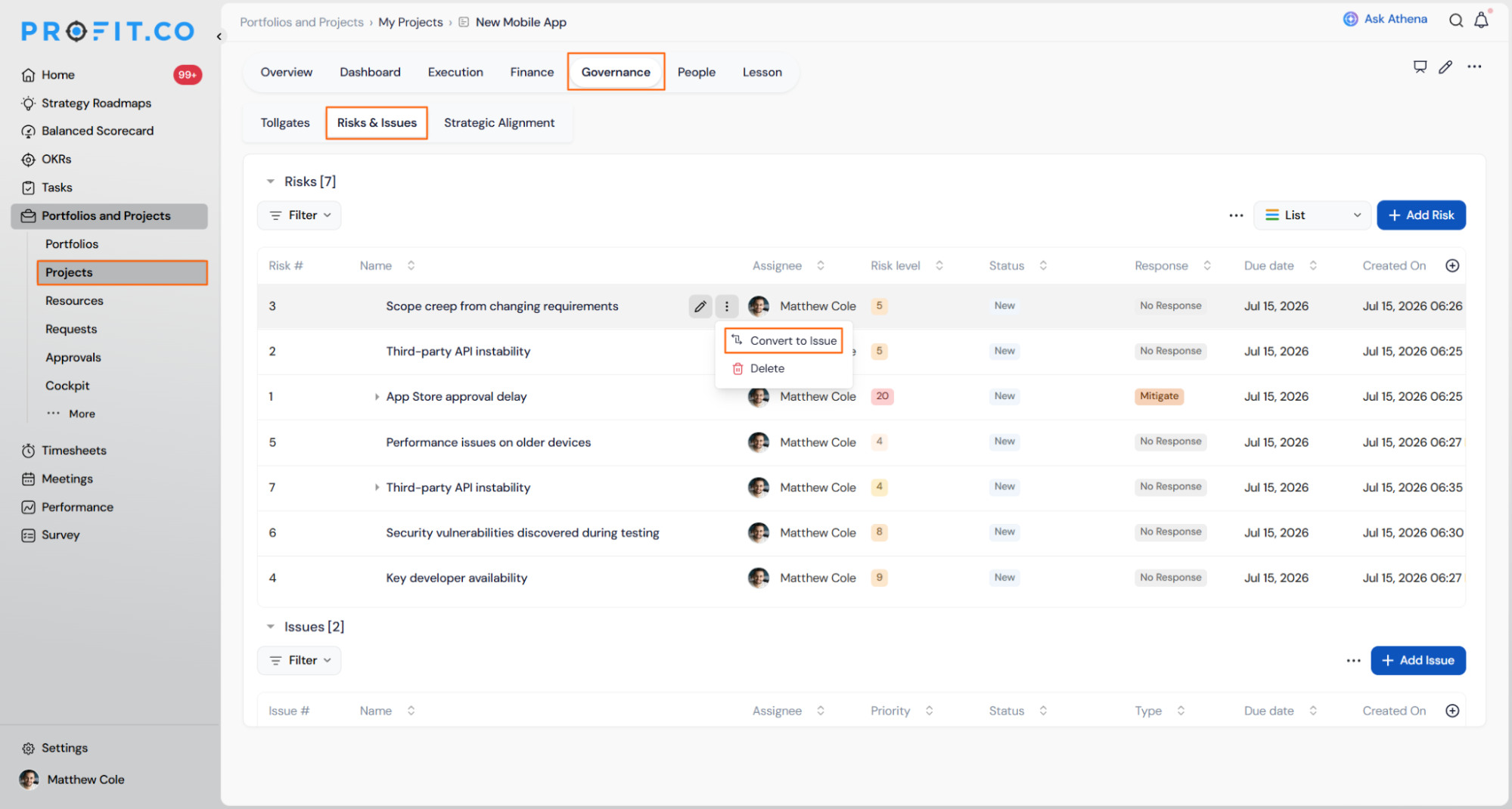
- Navigate to Portfolios & Projects → Projects from the left navigation panel. Select the required project, switch to the Governance tab, and then open the Risks & Issues tab.
- Select the risk you want to convert to an issue.
- Click the "Convert to Issue" button.
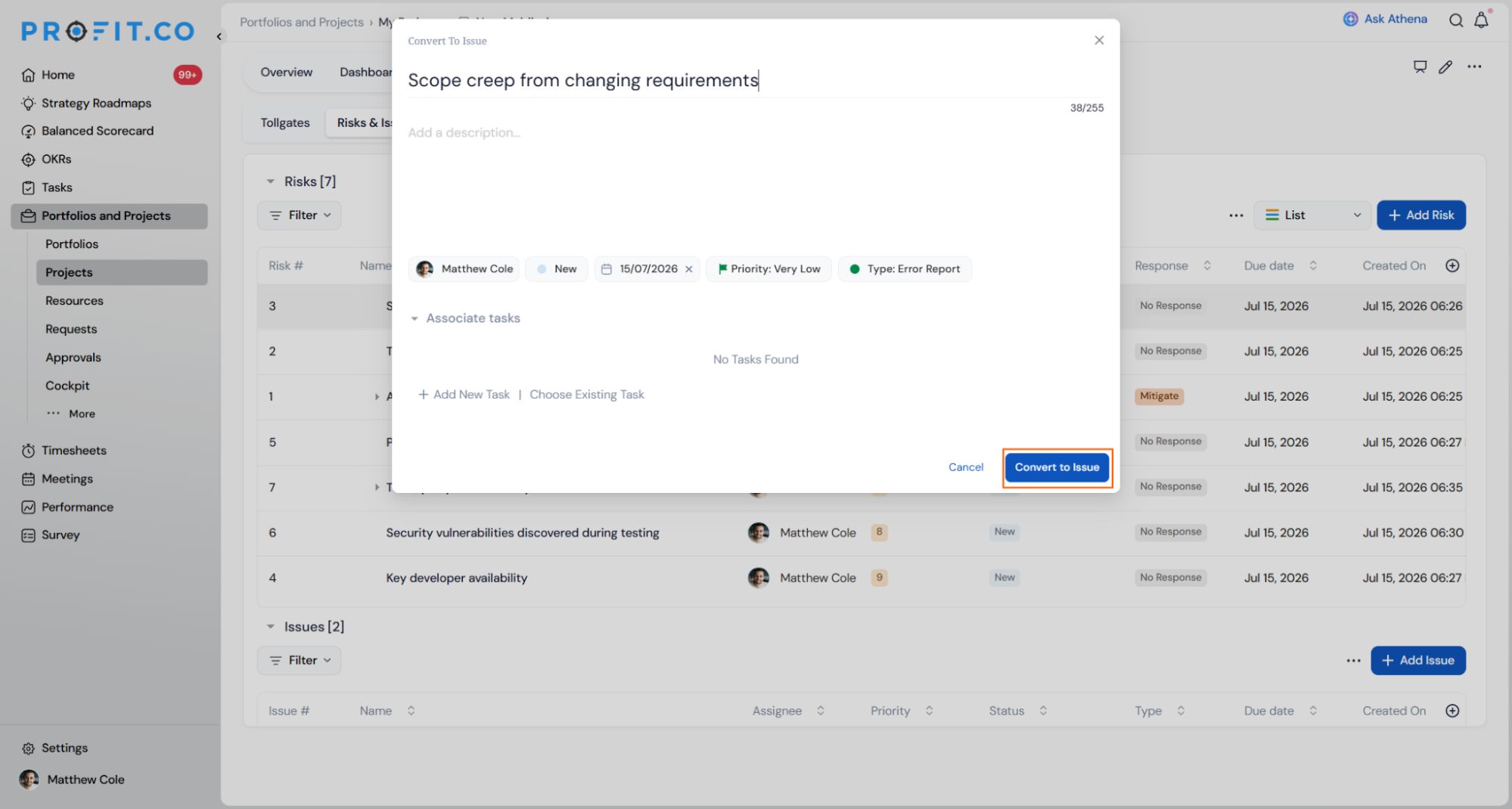
- A panel will appear with the risk details pre-filled.
- Review and modify the information as needed.
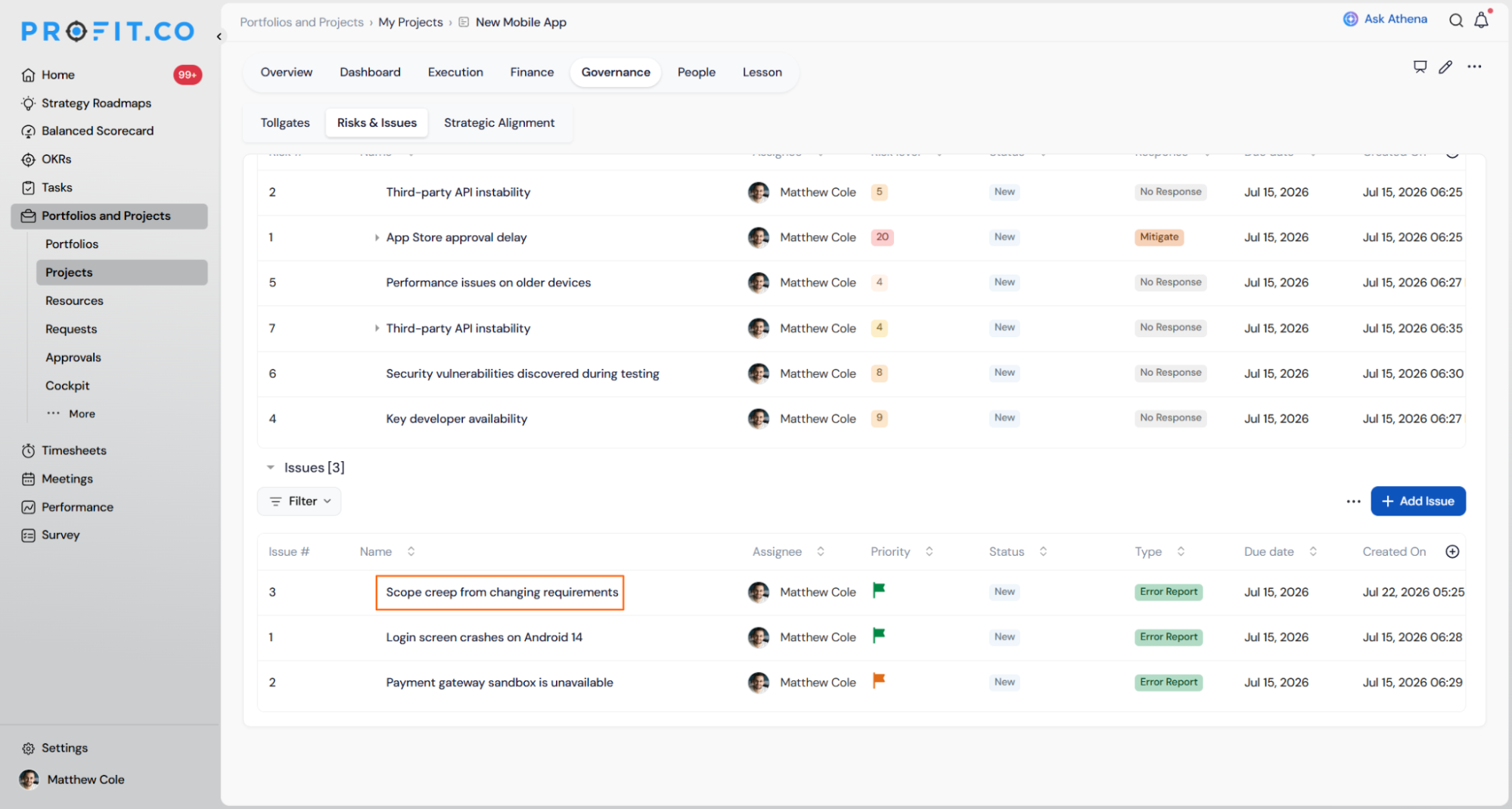
- Click "Convert to Issue" to complete the conversion.
Best Practices for Converting Project Risks into Issues
- Review risk severity before converting — not every risk warrants immediate issue escalation. Confirm the risk has materialised or crossed a defined threshold before triggering the conversion.
- Update the pre-filled details in the side panel before confirming — risk descriptions are often written in probabilistic terms. Adjust the language to reflect the actual issue at hand.
- Assign ownership immediately — use the conversion step to assign the issue to the correct team member so it enters the resolution queue without delay.
- Link the issue to the relevant project milestone or deliverable — this keeps the escalated issue anchored to the correct project context for reporting purposes.
- Establish a team convention for when risks should be converted — define a clear escalation threshold (e.g., risk score above a set level) to ensure consistent use of this feature across project managers.
Related Questions
- Click here to learn more about What is the Risk and Issues Management Feature in Profit.co?
- Click here to learn more about How Can I Use the Risks and Issues Feature to Improve Project Control in PPM?
Frequently Asked Questions
No — the Convert to Issue action is applied to one risk at a time. Each risk must be selected individually and converted through its own side panel. This ensures each conversion is reviewed before being confirmed.
No — the original risk record remains in the Project Risk Management module after conversion. Converting creates a linked issue; it does not delete or archive the source risk. Both records remain visible for audit and reporting purposes.
Yes — once converted, the issue exists as a standard project issue and can be edited at any time through the issue management interface. Changes made post-conversion do not retroactively update the source risk record.
Execute your strategy with confidence
Connect OKRs, tasks, and teams in one place with Profit.co
