

Profit.co offers users the ability to manage project uncertainties with the Risks & Issues option in the Project and Portfolio Management (PPM) module.
Table of Contents
- What's the difference between Risks and Issues in PPM?
- Why is the Risks & Issues feature important for project control?
- How do I set up and access Risks & Issues for my project?
- How do I add and manage Risks?
- How do I add and manage Issues?
- Best Practices for Using Risks & Issues in PPM
- Related Questions
- Frequently Asked Questions
What's the difference between Risks and Issues in PPM?
Understanding the distinction is crucial for effective project management:
| Aspect | Risk Management | Issue Management |
|---|---|---|
| Timing | Future events (what might happen) | Current problems (what is happening) |
| Approach | Proactive and preventive | Reactive and corrective |
| Assessment | Probability + Impact | Priority + Severity |
| Goal | Prevent or minimize impact | Resolve and close |
| Status | May never occur | Already occurring |
| Response | Avoid, Mitigate, Transfer, Accept | Fix, Workaround, Escalate |
Why is the Risks & Issues feature important for project control?
The Risks & Issues feature provides essential capabilities for maintaining project control and predictability. Here's why this feature matters:
- Risk Management: A risk in PPM is a potential event or uncertainty that may occur in the future and could negatively impact project objectives if not managed.
- Issue Management: An issue in PPM is an event or problem that has already occurred and is currently affecting the project.
- Improved Project Control: By tracking both proactively (risks) and reactively (issues), teams can improve project predictability, reduce disruptions, and maintain alignment with objectives.
- Task-Level Visibility: Associate risks and issues with specific tasks to understand potential and actual impacts at a granular level.
Note: What is the Risk & Issues Management Feature in Profit.co, Click Here
How do I set up and access Risks & Issues for my project?
Follow these steps to start managing risks and issues:
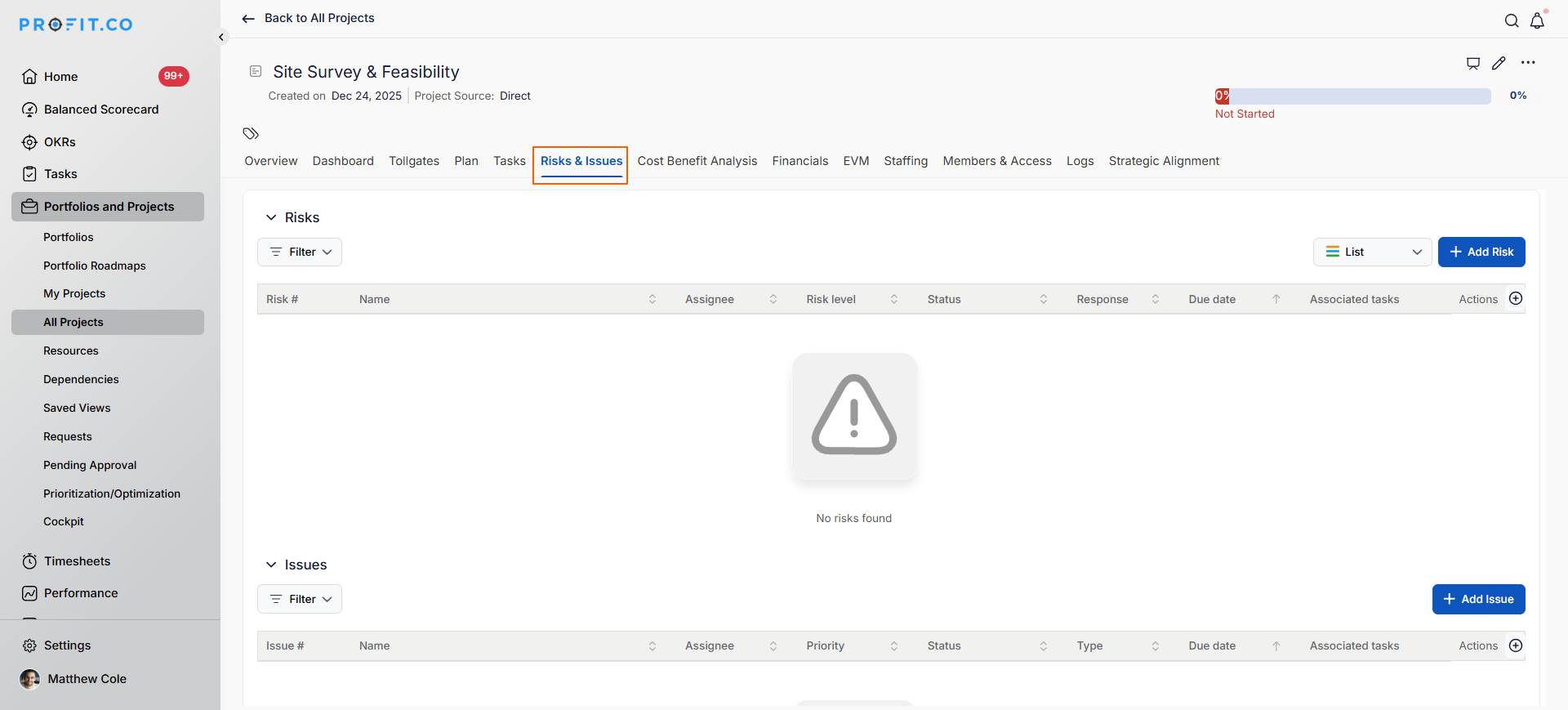
Step 1: Access the Risks & Issues Tab
From the Project Overview, click the Risks & Issues tab
You'll see separate sections for managing Risks and issues.
How do I add and manage Risks?
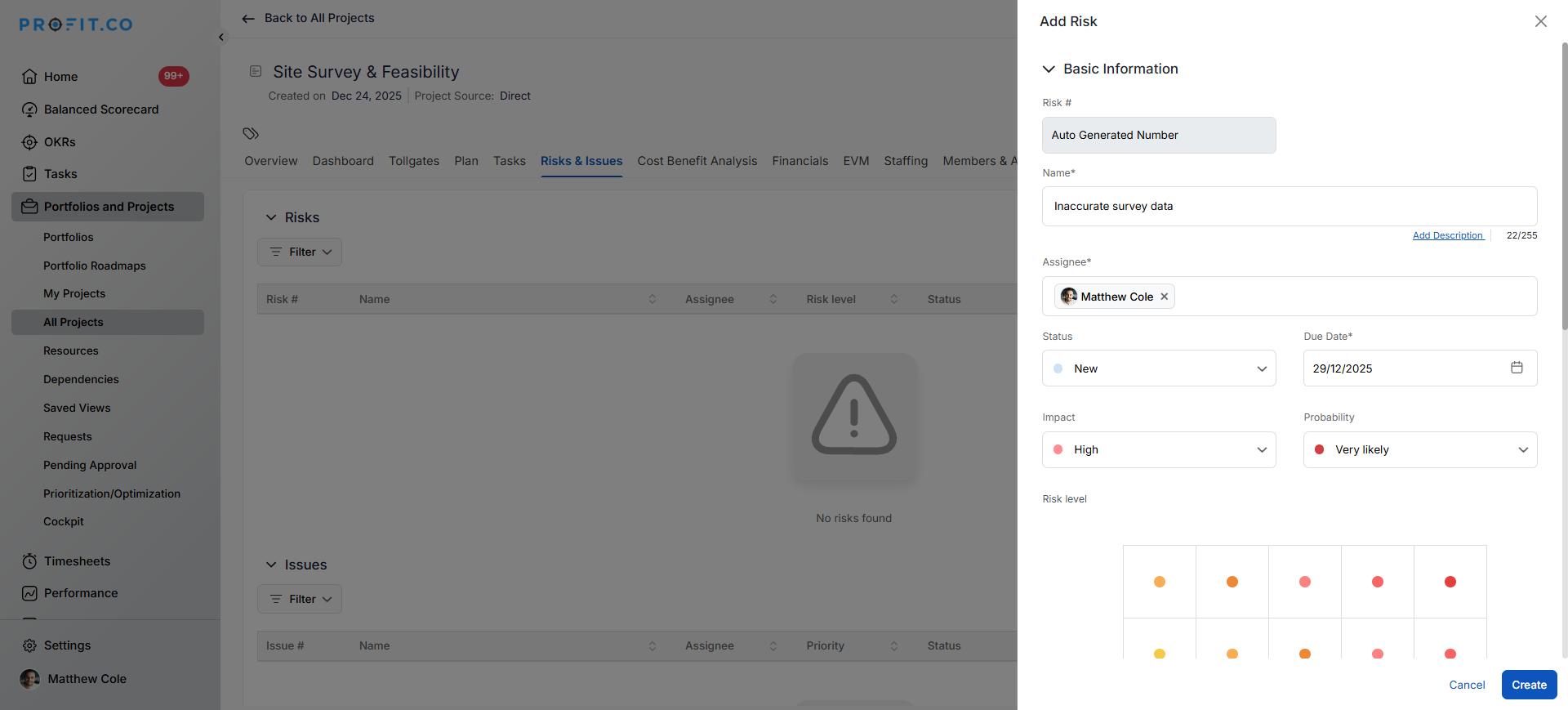
Step 2: Create a New Risk
To add a risk to your project:
- In the Risks section of the Risks & Issues tab, locate the option to add a new risk
- Enter the risk name (a clear description of the potential event)
- Select the impact level (how severely it would affect the project)
- Select the probability level (likelihood of occurrence)
- Click Create
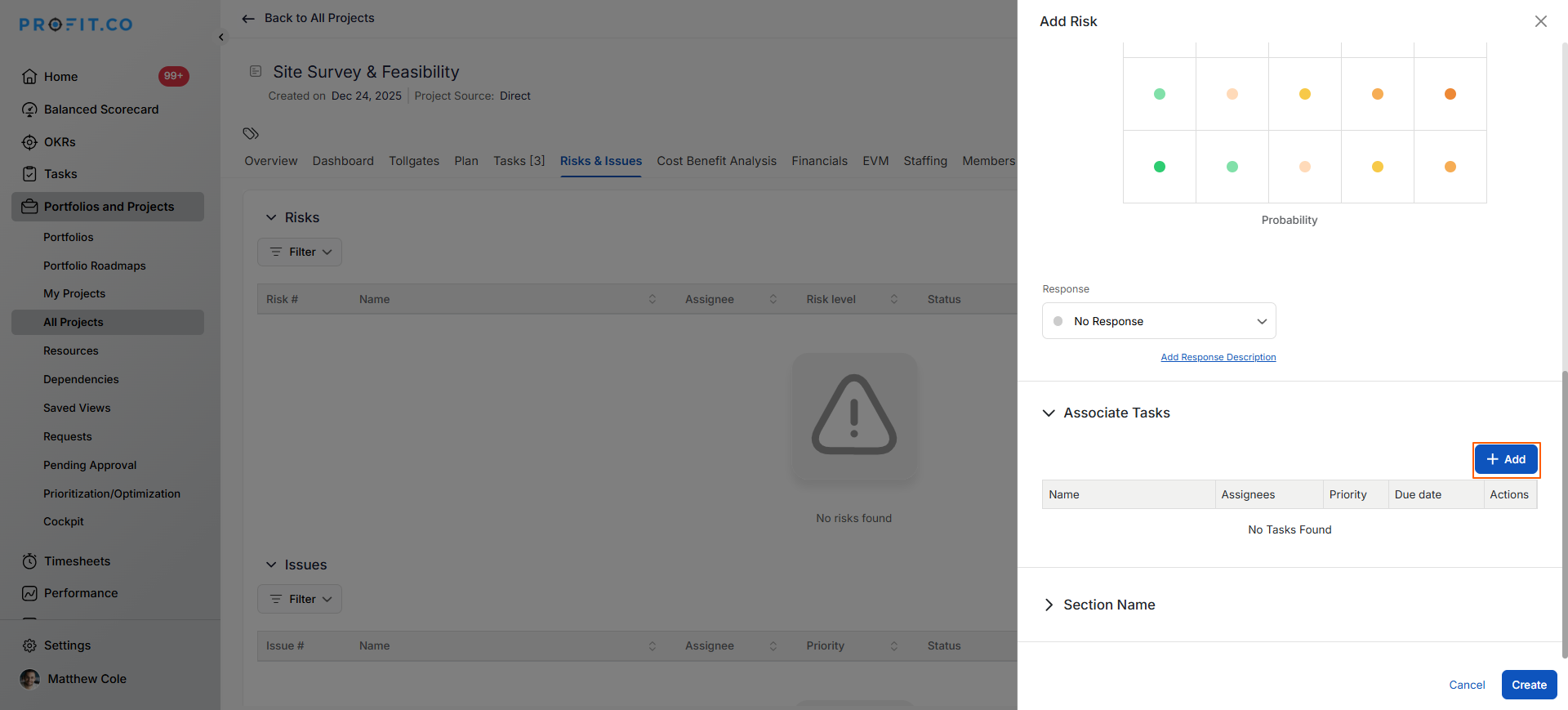
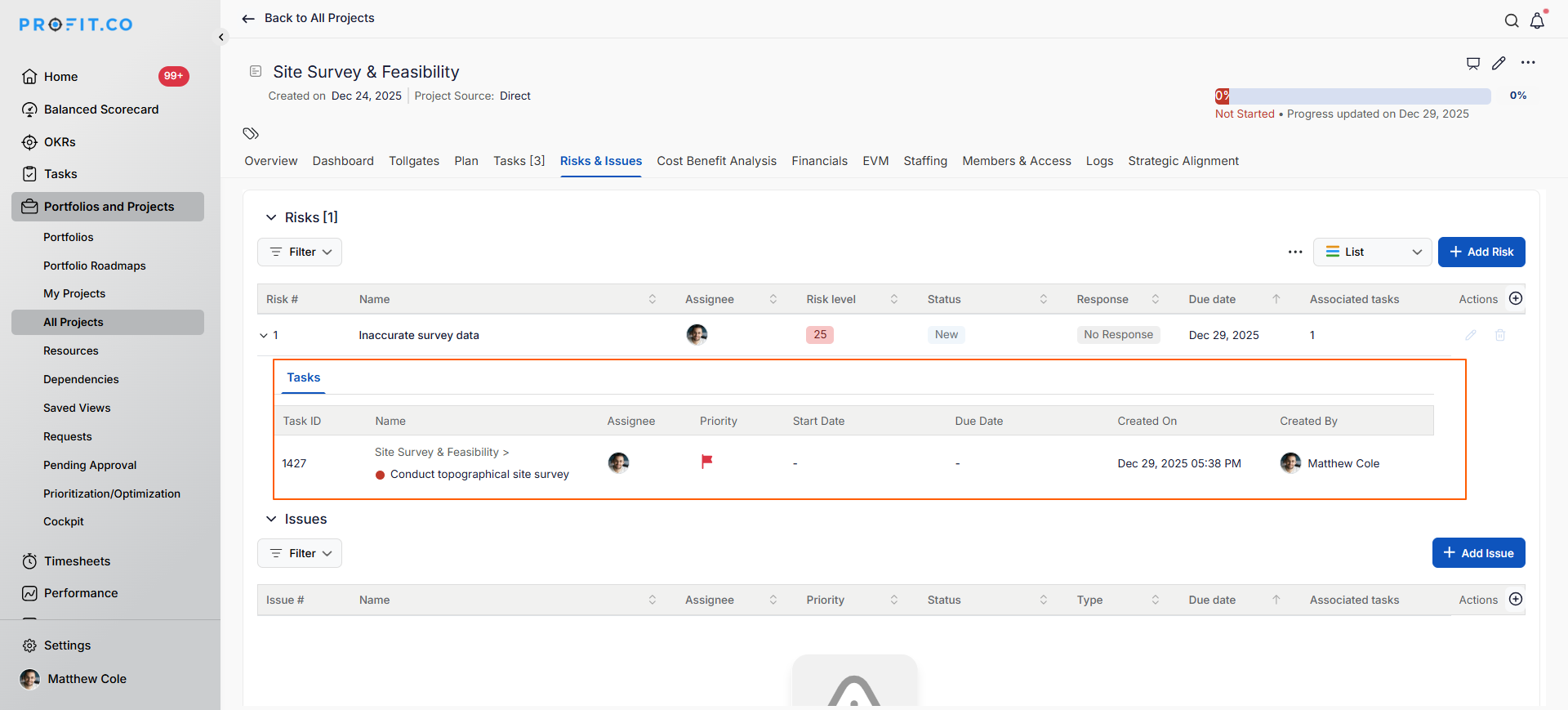
Associate Tasks with Risks
- Click the +Add button near Associate Task
- Choose the relevant tasks. Tasks associated with risks are used for mitigation purposes, helping to prevent or reduce the likelihood of those risks occurring.
- Click Add
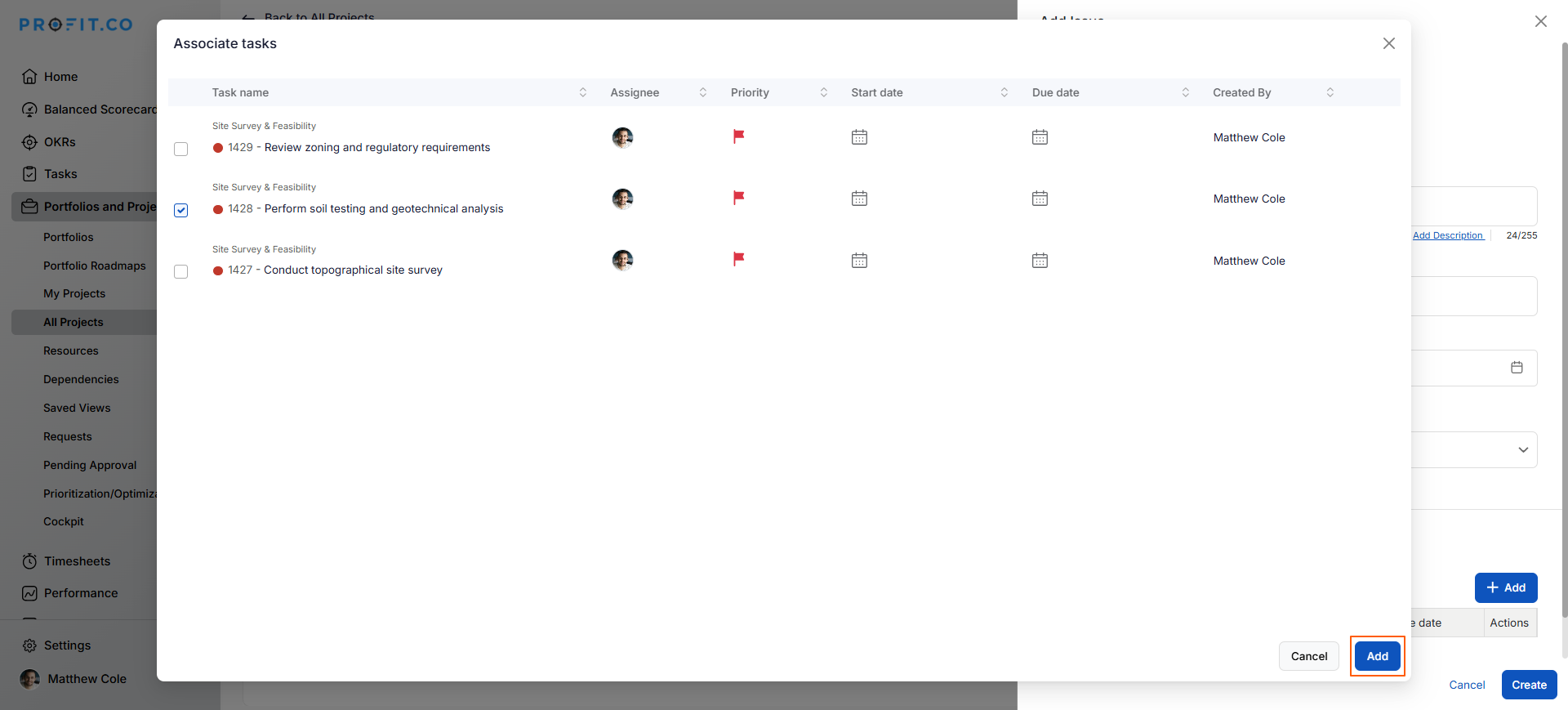
The associated tasks will now appear in the Risk Overview for visibility and tracking.
Note:
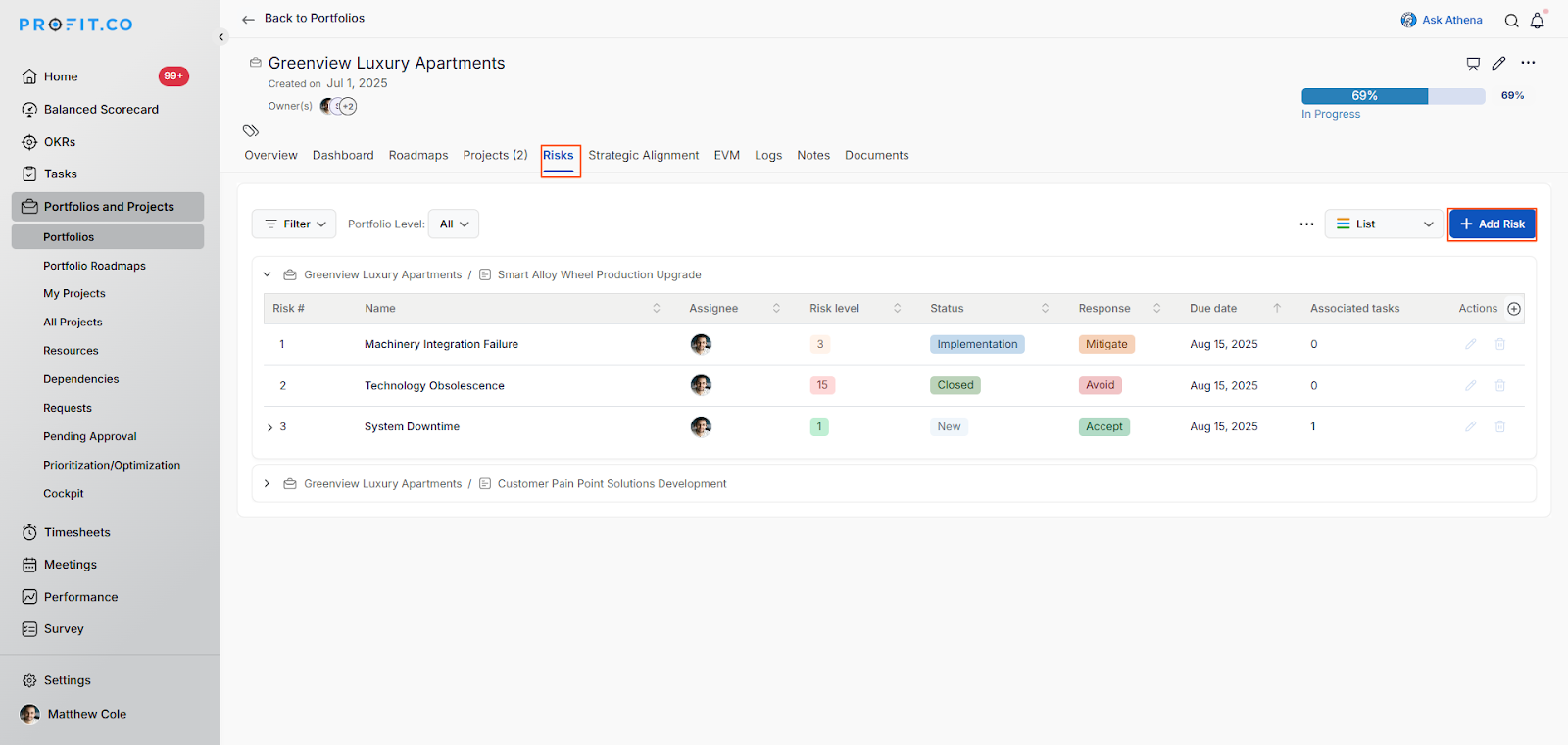
- Profit.co provides a centralized Risk Log at the portfolio level. Navigate to any Portfolio → Risks tab to view and manage risks across all portfolio projects in one place.
- Risks added at the portfolio level automatically appear in the respective project's risk list, and risks added at the project level automatically appear in the portfolio's centralized risk log — keeping both views in sync at all times.
How do I add and manage Issues?
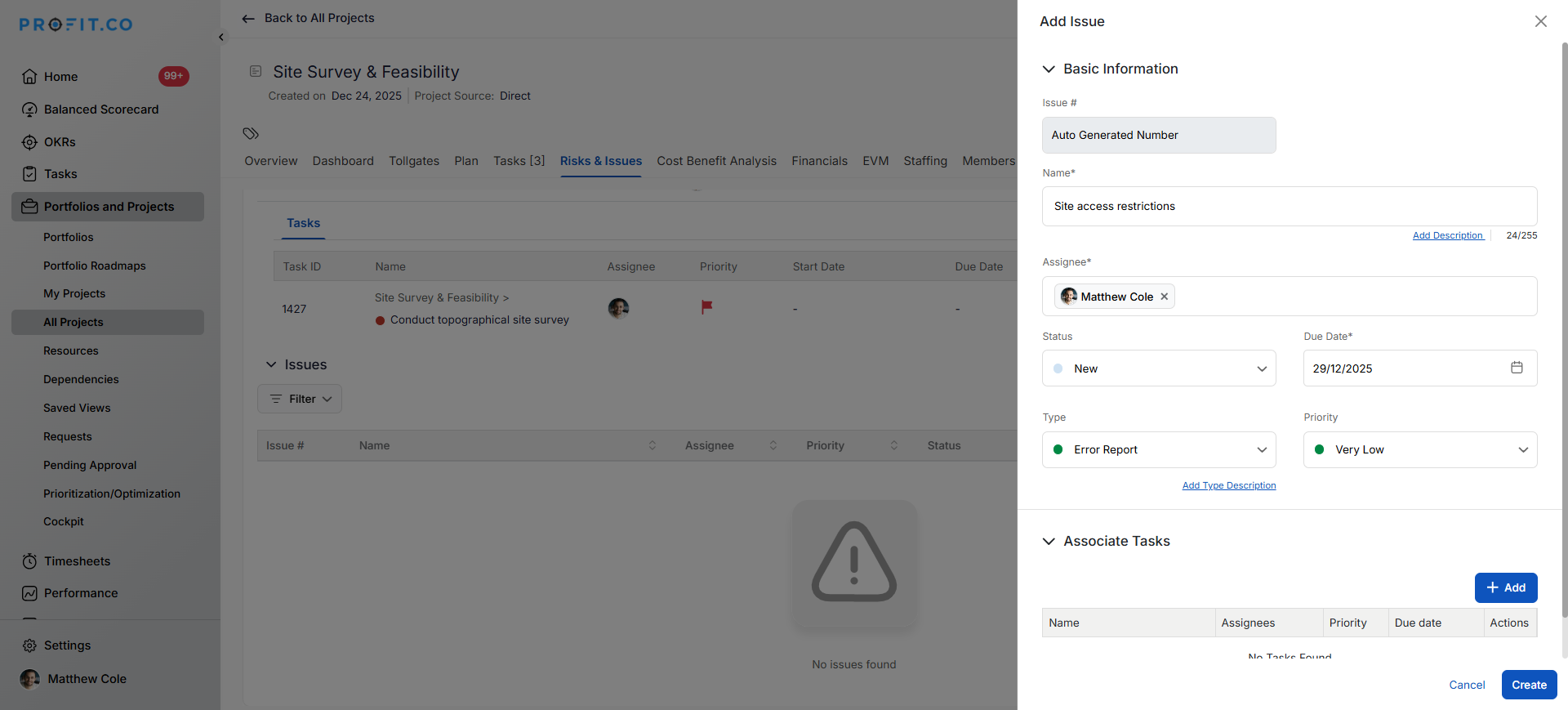
Step 3: Create a New Issue
To add an issue to your project:
- In the Issues section of the Risks & Issues tab, locate the option to add a new issue
- Enter the issue name (clear description of the problem)
- Select the type (category of the issue)
- Select the priority level (urgency of resolution)
- Click Create
Associate Tasks with Issues
To link issues to affected project tasks:
- Click the +Add button near Associate Task
- Select the tasks. Tasks associated with issues are used for resolution purposes, helping to address and resolve the problem after it has occurred.
- Click Add
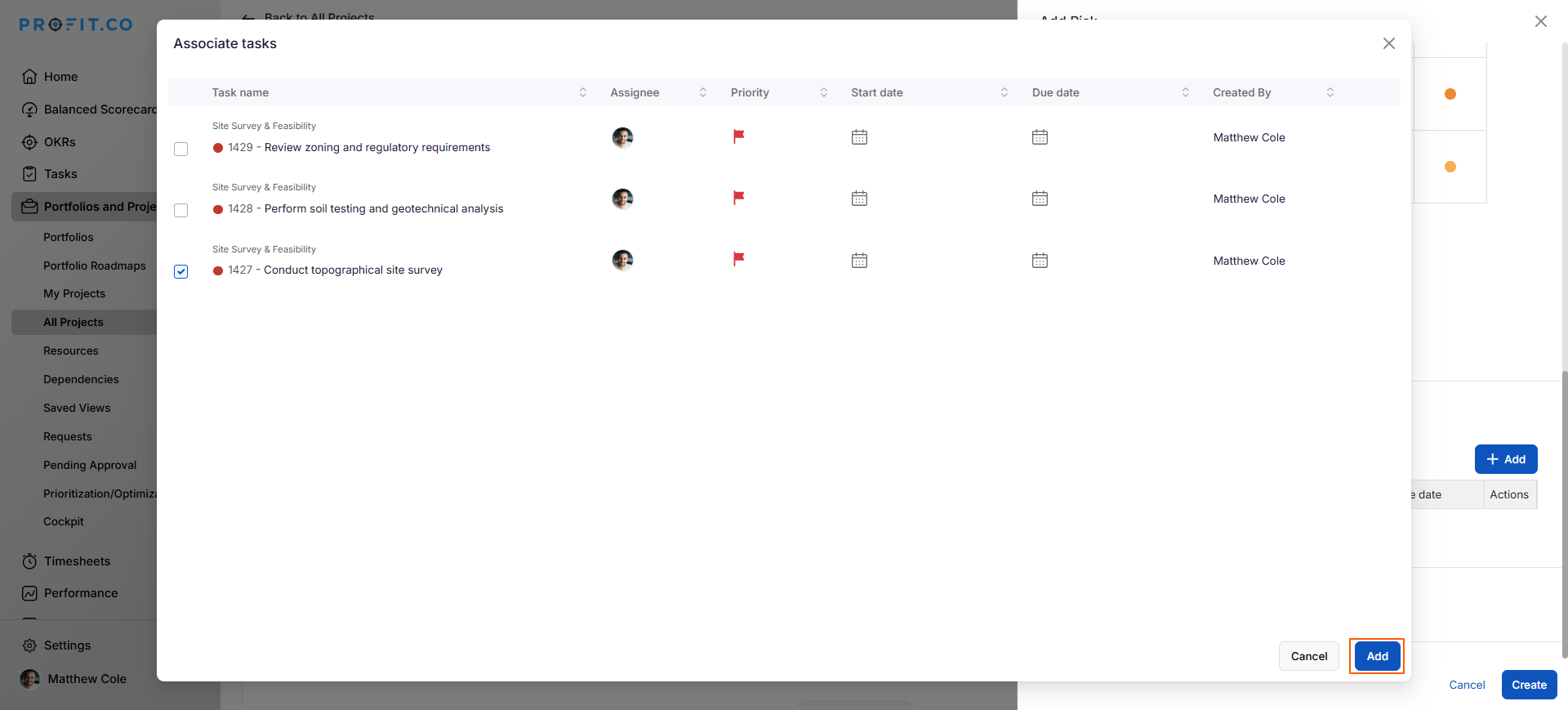
The associated tasks will now appear in the Issue Dashboard for ongoing management.
Best Practices for Using Risks & Issues in PPM
- To maximize the effectiveness of this feature:
- Regular Reviews: Assess risks weekly or at each project milestone
- Early Identification: Encourage team to raise potential risks proactively
- Immediate Logging: Document issues as soon as they occur
- Clear Ownership: Assign someone responsible for resolution
Related Questions
What is the Risk & Issues Management Feature in Profit.co, Click here
Frequently Asked Questions
Q1. Can a single risk be linked to multiple tasks?
Yes. A single risk can impact multiple tasks. Mitigating the risk across all relevant tasks helps reduce its likelihood and manage its potential impact effectively.
Q2. Can I create an issue directly without having a prior risk?
Yes, many issues emerge without being identified as risks beforehand. The feature supports both proactive risk management and reactive issue management independently.
This depends on your configuration and permissions. Best practice is to allow team members to identify and log risks/issues with manager review and approval.
