













Issues let you log problems that have already occurred on a project, assign an owner, and link the tasks needed to fix them. Once configured, every team member working the project sees the same structured record instead of a scattered thread of emails or chat messages.
Table of Contents
What Is Issues Tracking?
Issues Tracking is a Governance feature that administrators enable at the organization level and that project teams then use to log problems already affecting their work. It runs on configurable Priorities, Statuses, and Types, and every issue carries an Owner, a date, and optional linked tasks.
Issues must be turned on under Settings → Portfolios and Projects → Governance before it becomes available on any individual project's Governance tab. Until that toggle is on at the organization level, no project can create or display issue records.
Why Does Issues Tracking Matter?
Problems that have already happened on a project used to get tracked informally, through chat threads or status meetings, with no single owner or stage attached to them. Issues gives each one a record with a named Owner, a Status drawn from a defined lifecycle, and a Priority, so nothing depends on someone remembering to mention it.
Because the Owner field triggers an in-app notification the moment it's set, assignment doesn't rely on a separate message to tell someone they're responsible. And because tasks can be linked directly from the issue itself, the fix work stays connected to the problem it's solving instead of living in an unrelated task list.
How Do I Set Up and Use Issues Tracking?
Enable and Configure Issues
Step 1
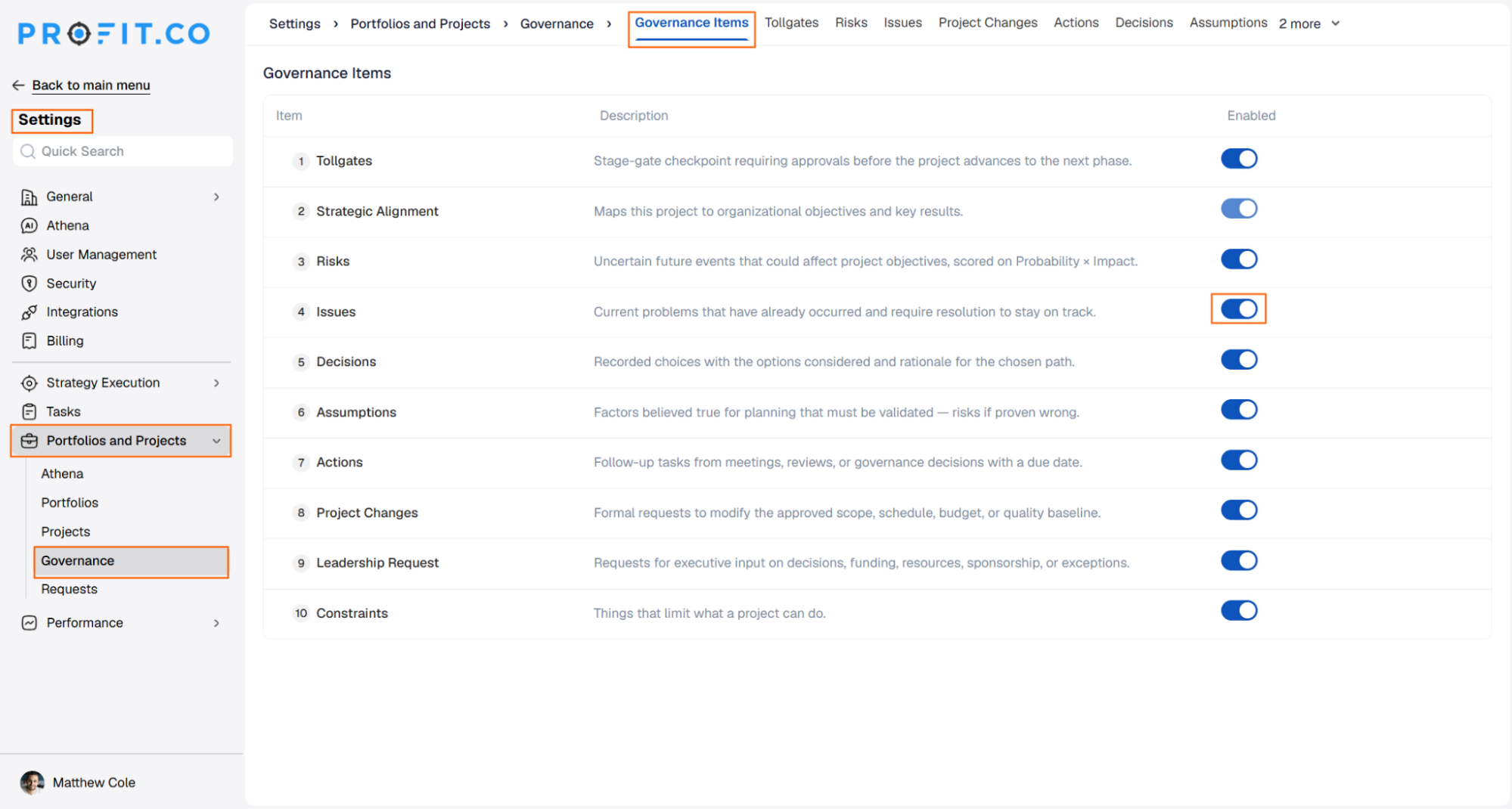
- Go to Settings → Portfolios and Projects → Governance
- Open the Governance Items tab
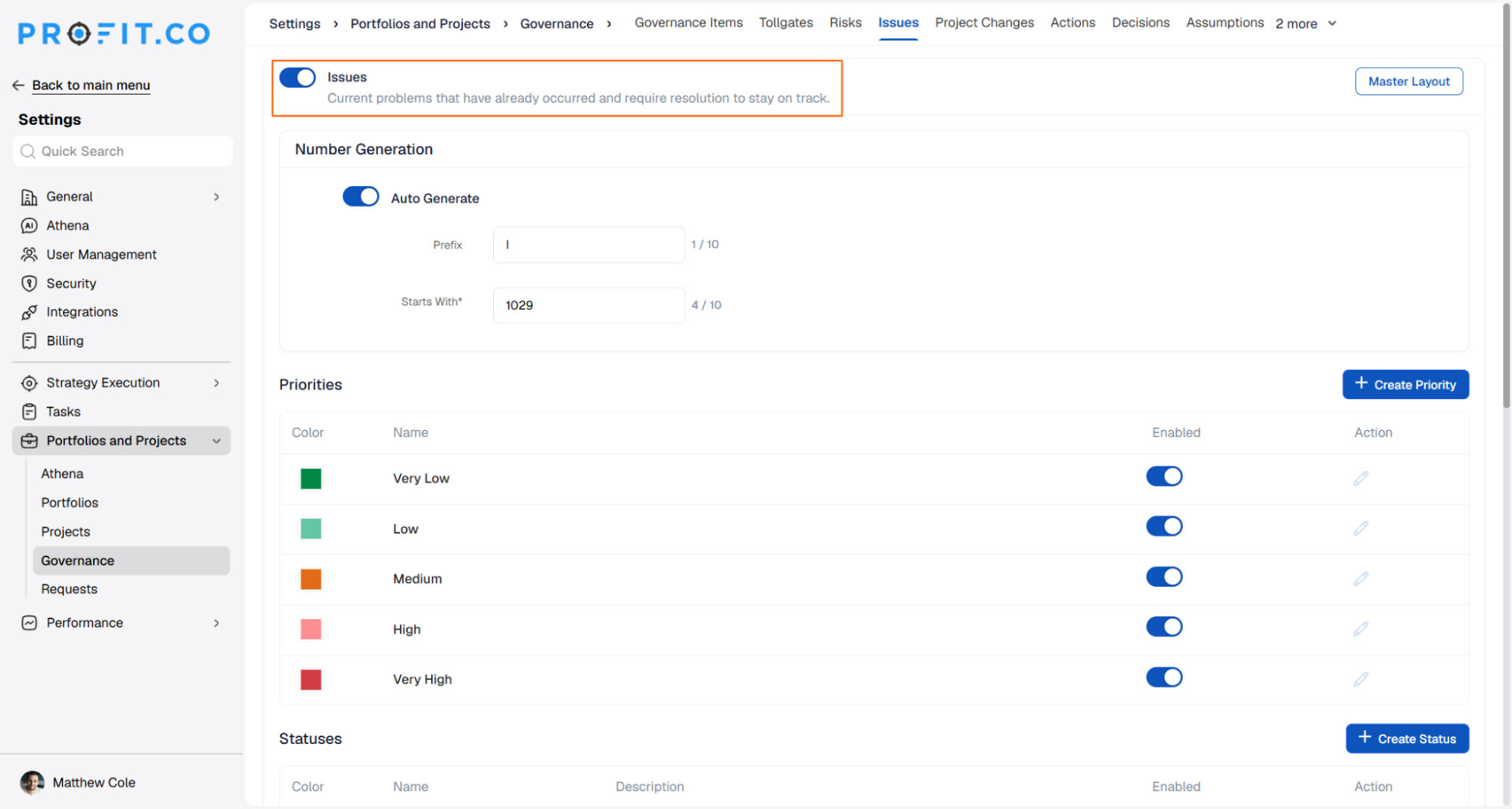
- Turn on the Enabled toggle next to Issues on the Governance Items page, or switch to the Issues tab and turn on the toggle from there instead
Step 2
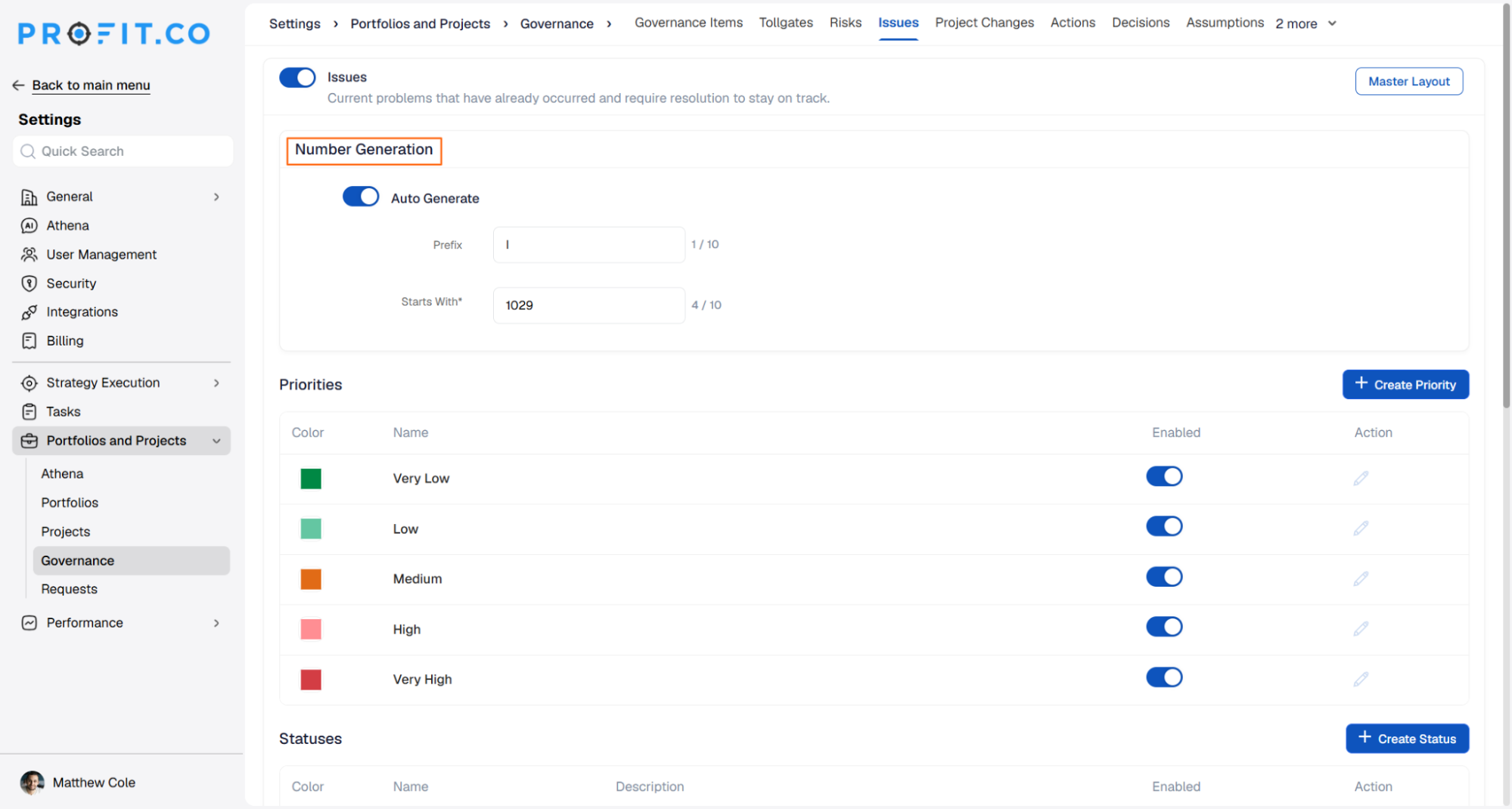
- Turn on Auto Generate to have issue IDs generated automatically
- Enter a Prefix (for example, "I")
- Set the Starts With value (for example, 1026)
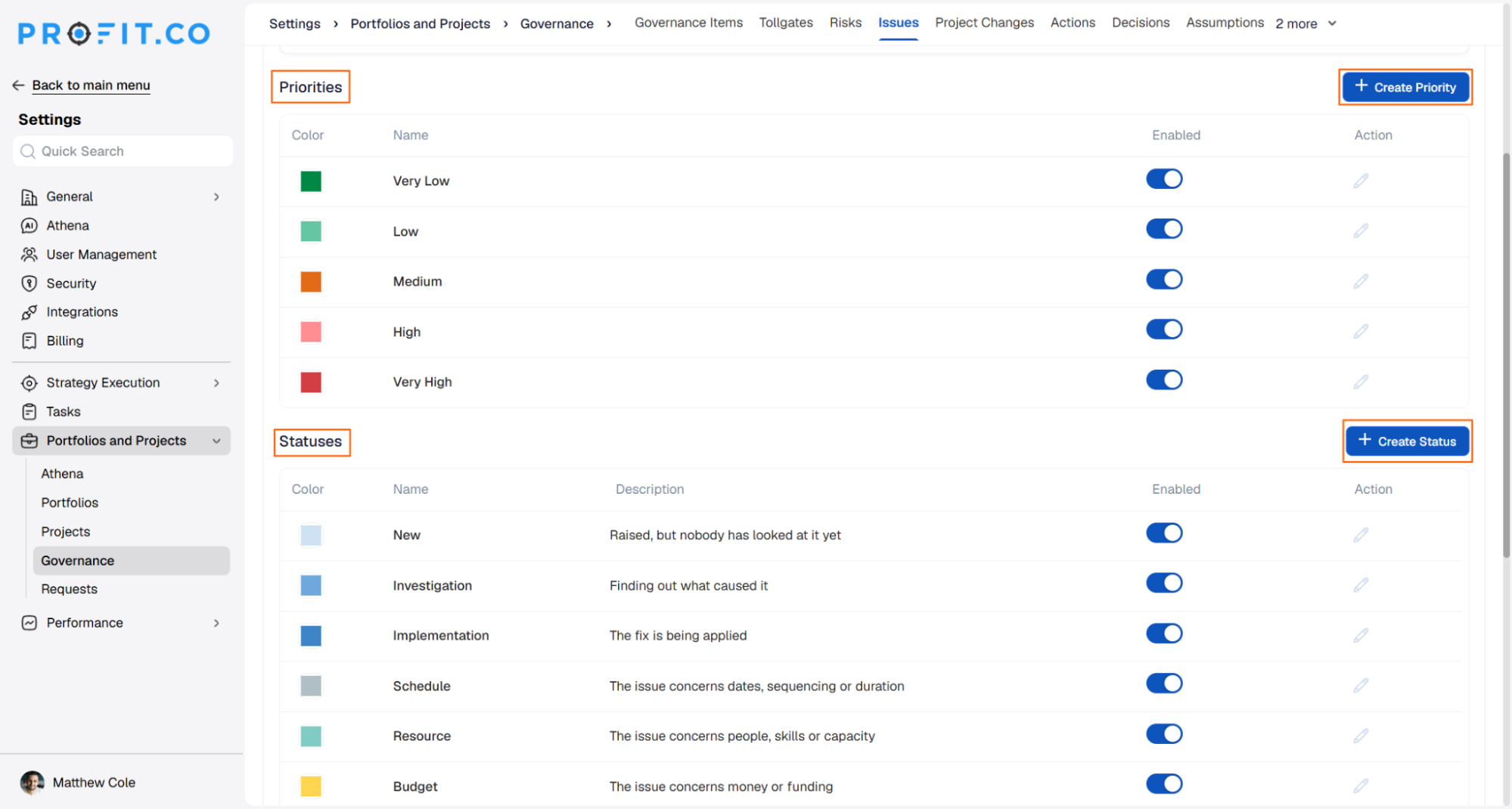
- Review the default priorities: Very Low, Low, Medium, High, Very High
- Click + Create Priority to add a new one
- Enable or disable each priority as needed
- Click + Create Status to add a status, or enable one of the defaults
- Click + Create Type to add a type, or enable an existing one such as Error Report
Create and Track an Issue on a Project
Step 1
- Open the project from Portfolios and Projects → My Projects
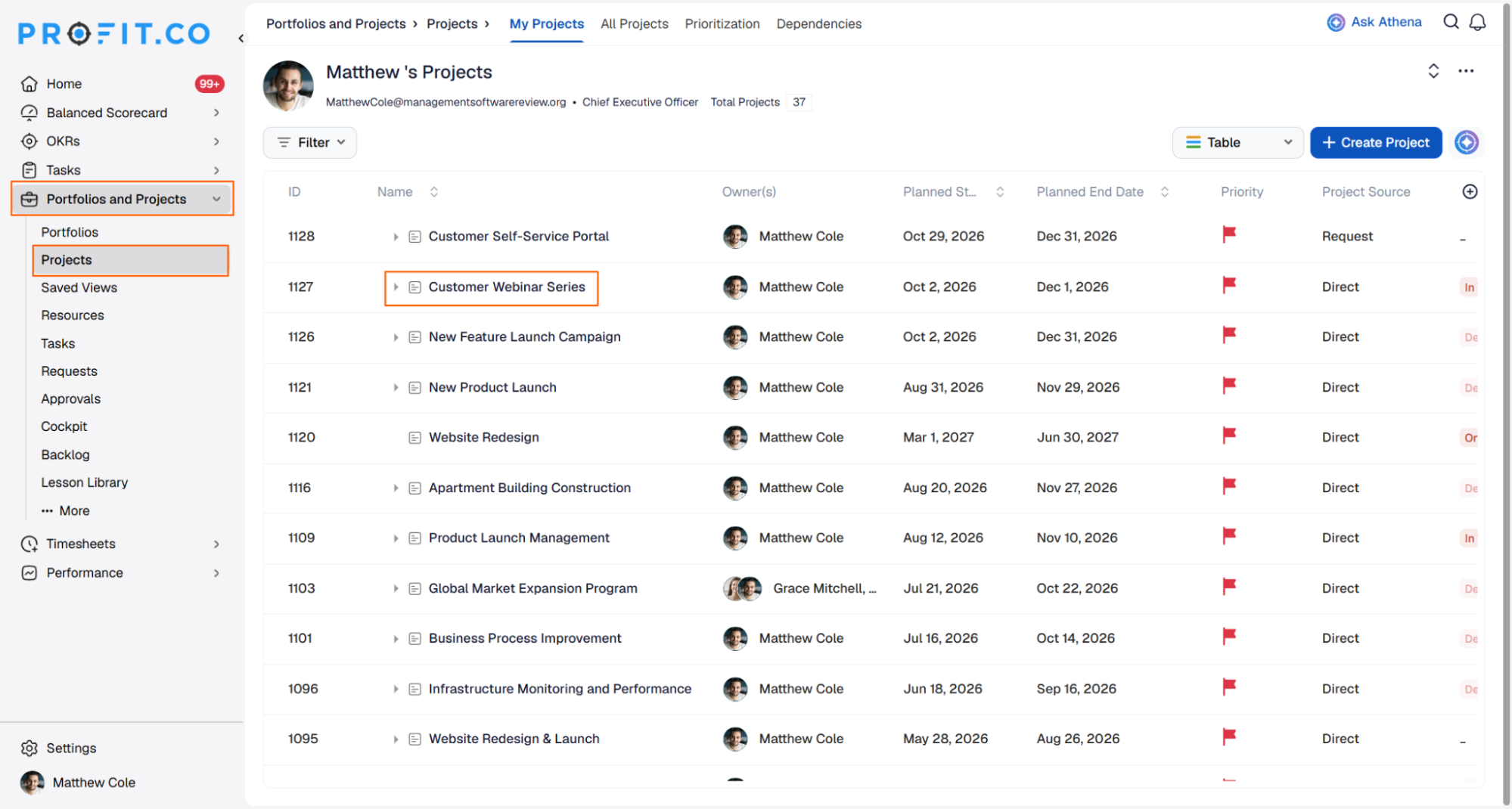
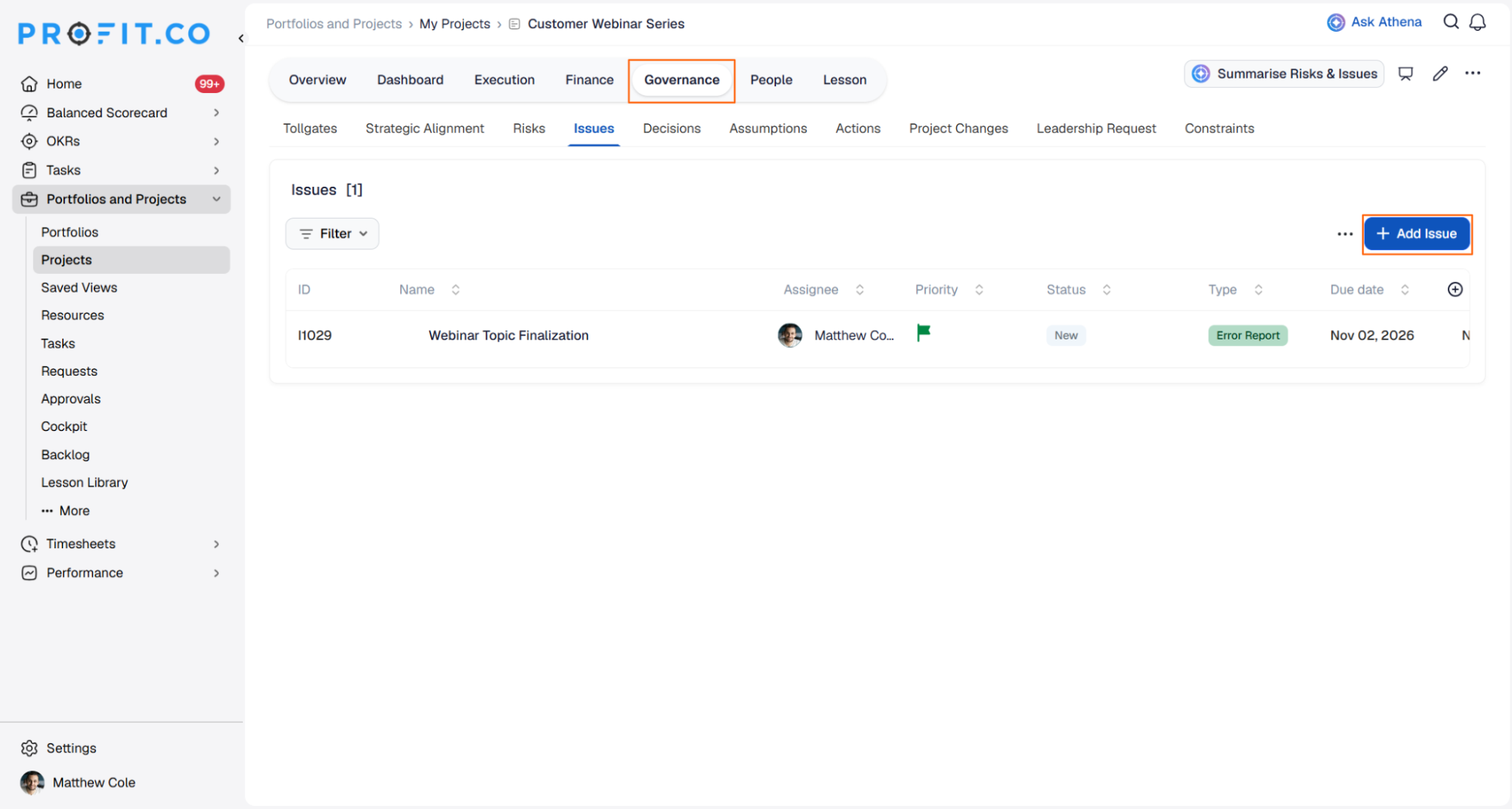
- Select the Governance tab
- Select the Issues tab
- Click + Add Issue
Step 2
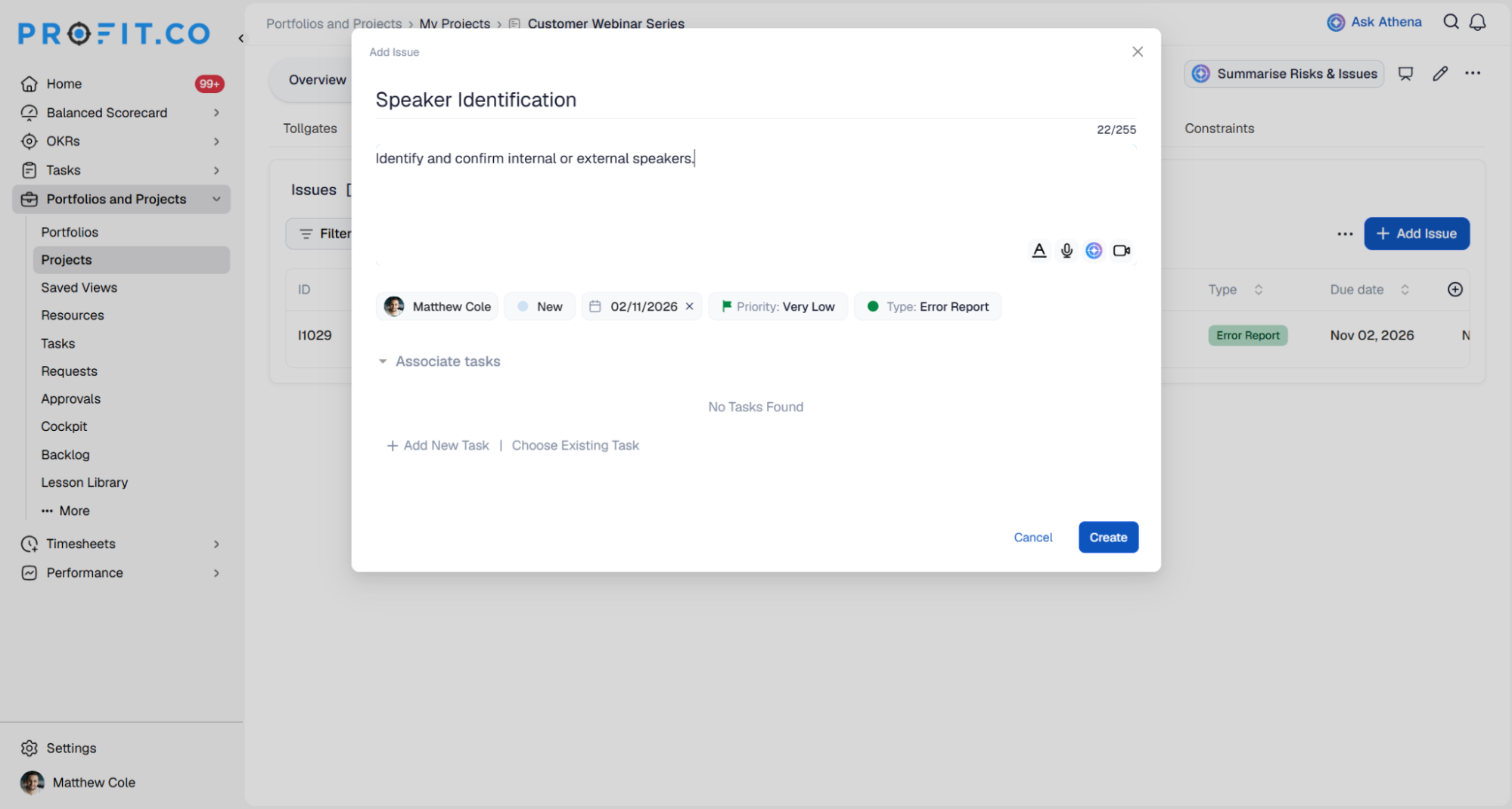
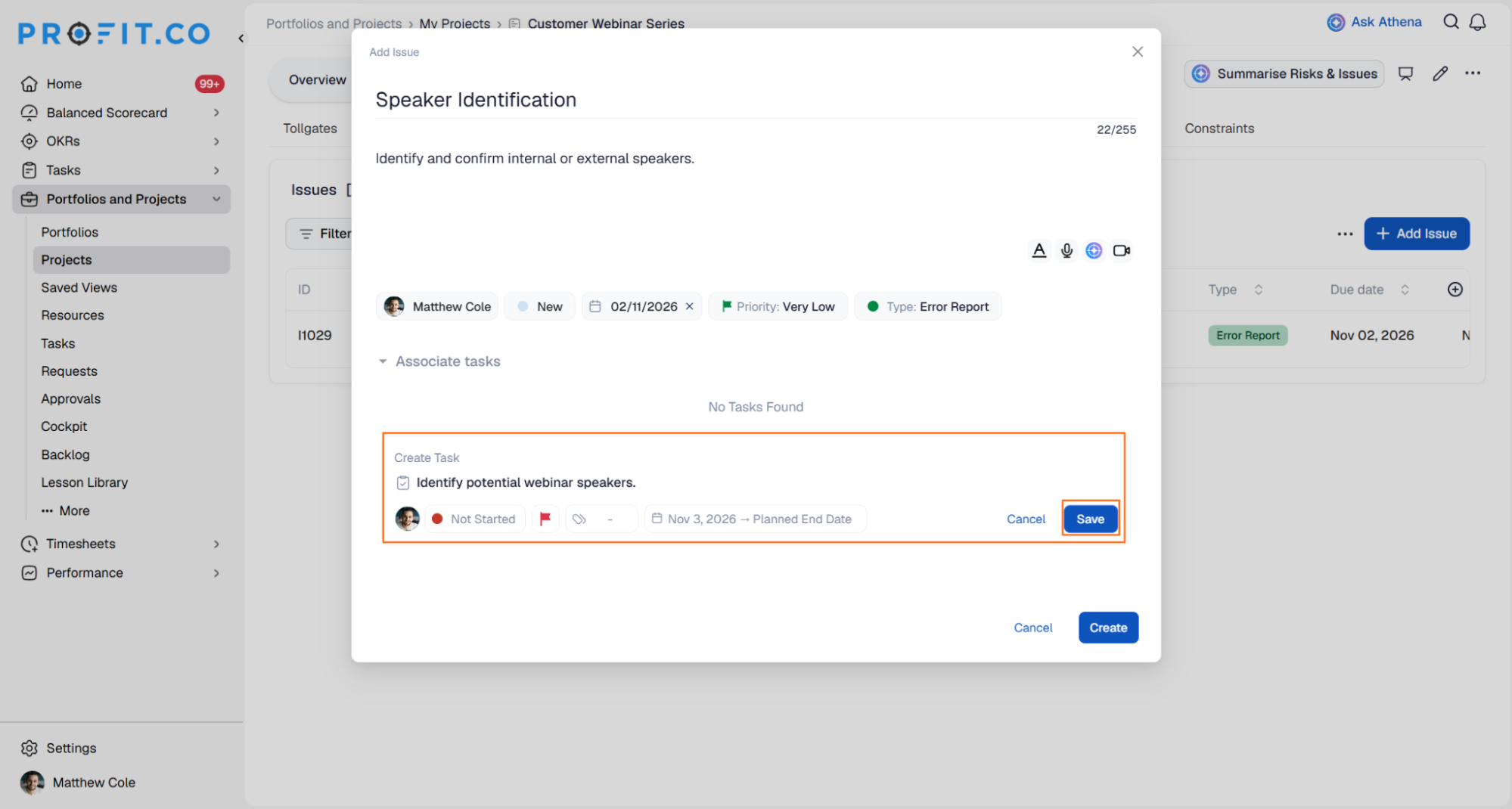
- Enter the Issue Name and a description
- Choose the Owner, Status, Date, Priority, and Type
- Each field opens with a preset default, such as the current user, today's date, New status, Very Low priority, and Error Report type, which you can change before creating the issue
Step 3
- Click Add New Task, enter the task name, owner, status, priority, tags, and date, then click Save
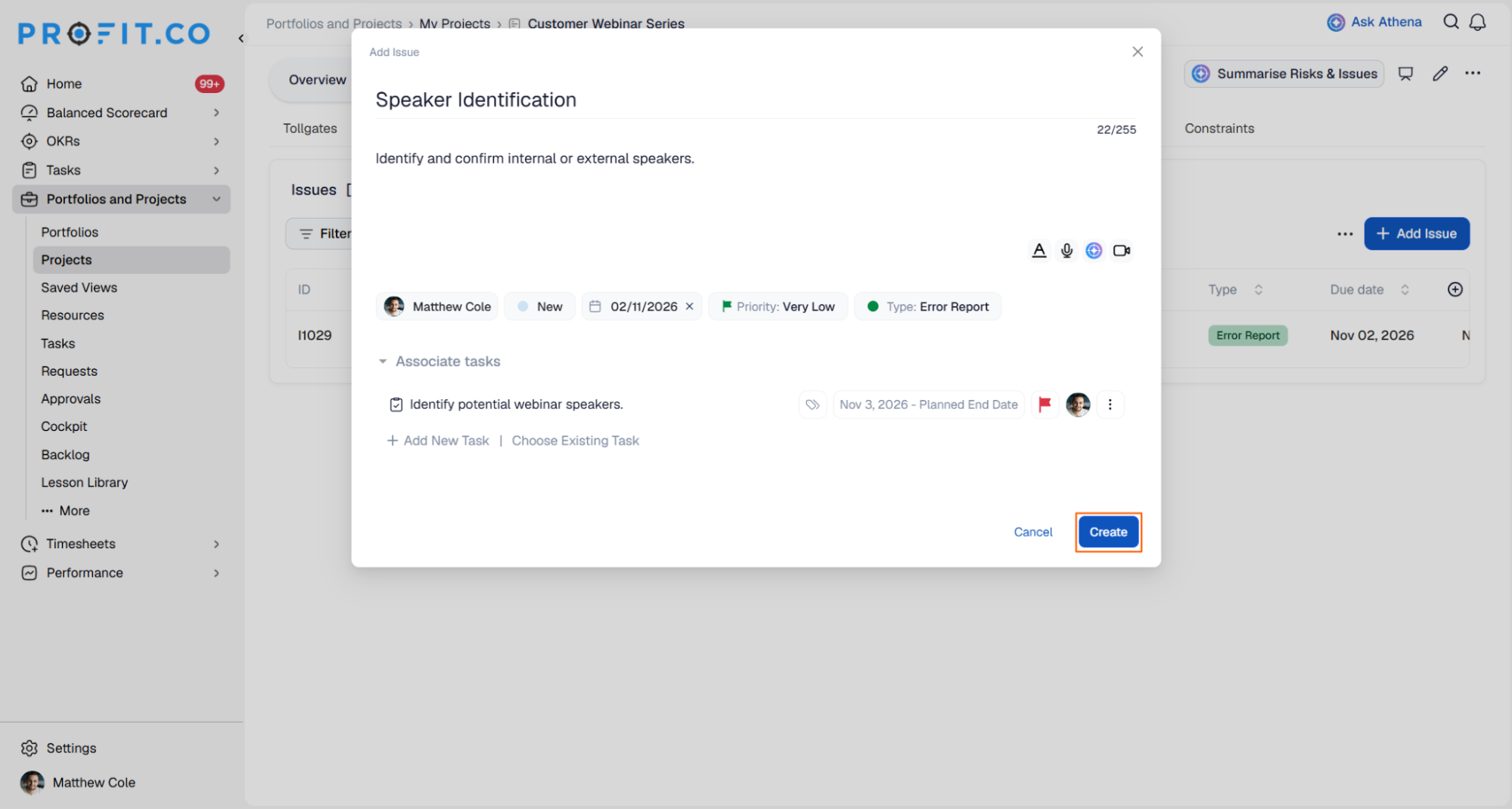
- Or click Choose Existing Task, select a task, and click Add
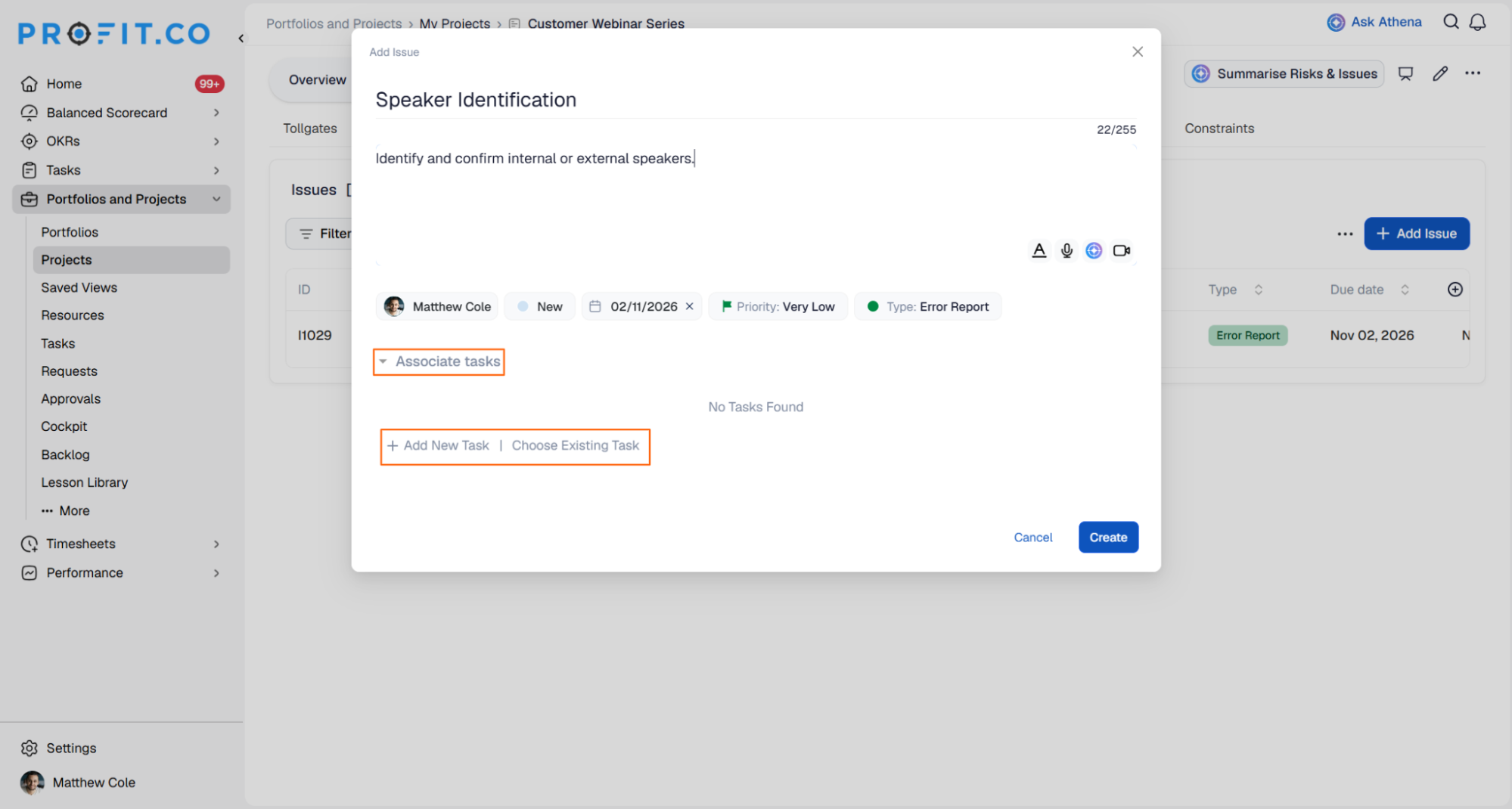
Click Create to save the issue to the project's Governance tab.
Prerequisite
Issues must be enabled under Settings → Portfolios and Projects → Governance before the Issues tab appears on any project's Governance section.
What Happens When You Use Issues Tracking?
This covers what changes to your data, visibility, and unsaved work once you act on an issue, not the clicks required to get there.
| Scenario | What Happens |
|---|---|
| You disable the Issues toggle in Governance Settings after issues already exist on a project. | Profit.co shows a confirmation popup and removes the Issues tab from that project's Governance section without deleting any existing issue records. |
| You turn the Issues toggle back on after disabling it. | Profit.co restores the Issues tab on the project and redisplays every previously created issue with its original details. |
| You set an Owner when creating or editing an issue. | Profit.co sends that person an in-app notification confirming the assignment. |
| You delete an issue that has a task linked to it. | Profit.co keeps the linked task in place as a standalone task instead of deleting it. |
What Are the Best Practices for Issues Tracking?
- Set the Starts With number before creating any issues, since issue IDs generate sequentially from that starting point once Auto Generate is turned on.
- Assign an Owner at creation instead of leaving the field on its default value, since the assigned owner receives the in-app notification and an unclaimed issue can sit unnoticed.
- Enable only the Priorities, Statuses, and Types your team actually uses, rather than leaving every default on, to keep the Add Issue fields relevant to how your organization categorizes problems.
- Link tasks directly from the Add Issue screen instead of creating them in isolation first, since connecting the work early costs nothing: the task always survives on its own even if the issue is later deleted.
- Treat the Settings-level Issues toggle as an organization-wide control, not a per-project setting, when deciding which admin has authority to turn it off.
Related Articles
- How do I track risks, issues, and other governance items in a Profit.co project?
- How to create a new task in Profit?
What Are Some Frequently Asked Questions About Issues Tracking?
Yes. Each default Priority, Status, and Type has its own Enabled toggle, so you can turn one off without deleting it from the system.
Yes. Issues configuration lives at the organization level under Settings → Portfolios and Projects → Governance, so every project with Issues enabled shares the same set.
Yes. Use Choose Existing Task in the Add Issue screen, select the task, and click Add to link it.
No. Auto Generate works together with the Prefix and Starts With fields, which you define before issue numbering begins.
Execute your strategy with confidence
Connect OKRs, tasks, and teams in one place with Profit.co
