

In Profit.co, Task Completion Approval lets you add a review step before a task moves to Completed, so the task creator can check finished work before it's officially closed, instead of relying on someone remembering to review it separately.
Table of Contents
- What is Task Completion Approval?
- How do I enable Task Completion Approval?
- What happens when I mark a task as complete?
- How does the task creator approve or reject a completion request?
- How does bulk completion work with this setting?
- Who can send a task for approval or approve it?
- How does this work with "Require Document to complete task"?
- Best practices for using Task Completion Approval
- Related Questions
- Frequently Asked Questions
What is Task Completion Approval?
Task Completion Approval is a Task Controls setting that adds a review step to the completion action. When it's switched on, a task doesn't move to Completed the moment someone marks it done. Instead, it waits for the task creator to approve it. This gives teams a way to check finished work before it's officially closed, rather than relying on informal, out-of-band review.
The approver is always the task's creator, and the setting applies module-wide, across Workspaces, Boards, Projects, and Project Tasks. There's no per-task, per-user, or "Applies To" configuration.
How do I enable Task Completion Approval?
Follow these steps to turn on Task Completion Approval:
Step 1
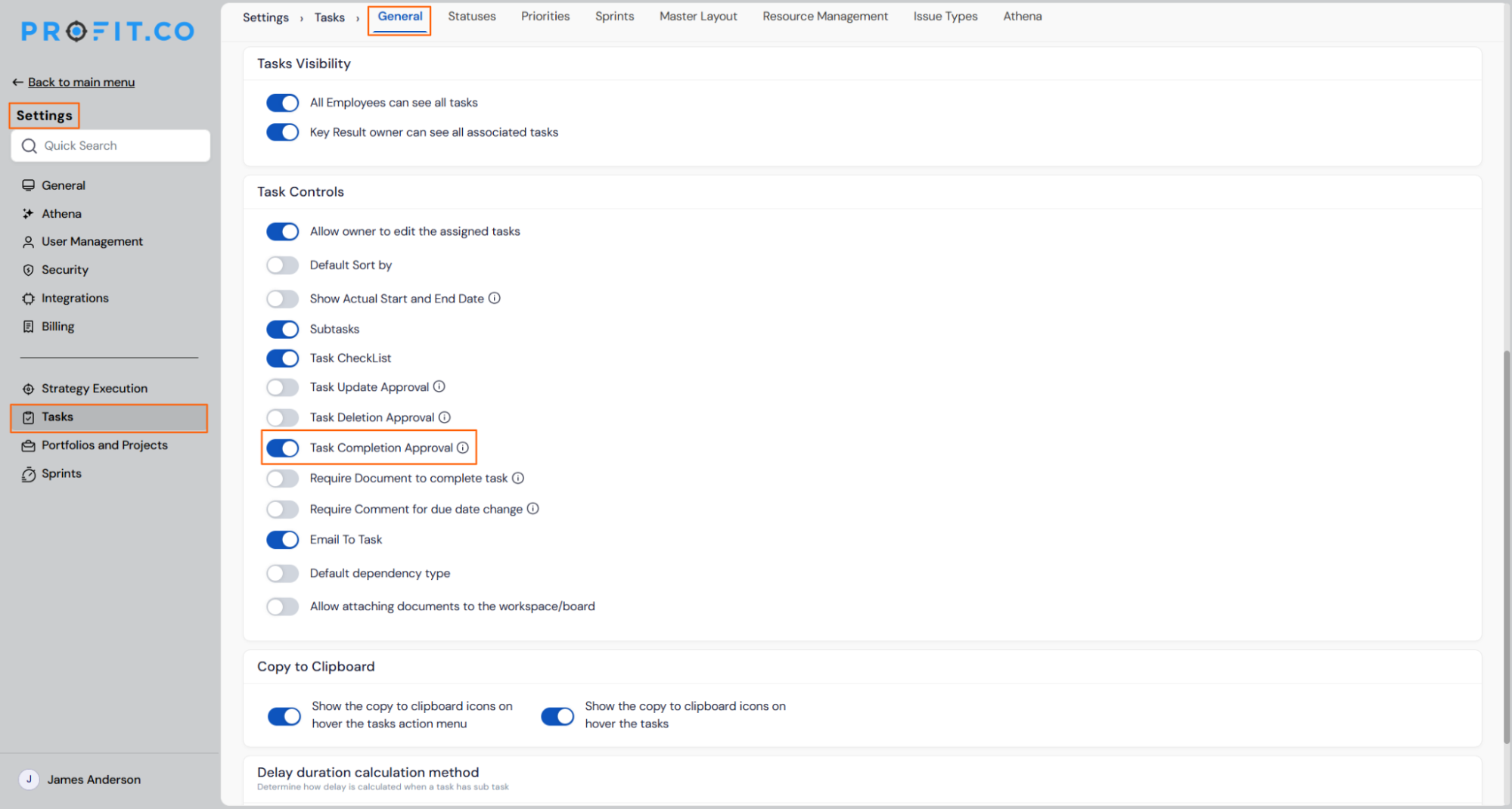
- Go to Settings → Tasks → General.
- Under Task Controls, enable the toggle for Task Completion Approval. This setting sits next to the existing Task Update Approval and Task Deletion Approval settings.
Note
Task Completion Approval applies to all tasks and boards once enabled.
What happens when I mark a task as complete?
Once Task Completion Approval is enabled, marking a task complete from any active status (Not Started, Scheduled, or In Progress) no longer moves it straight to Completed. Instead:
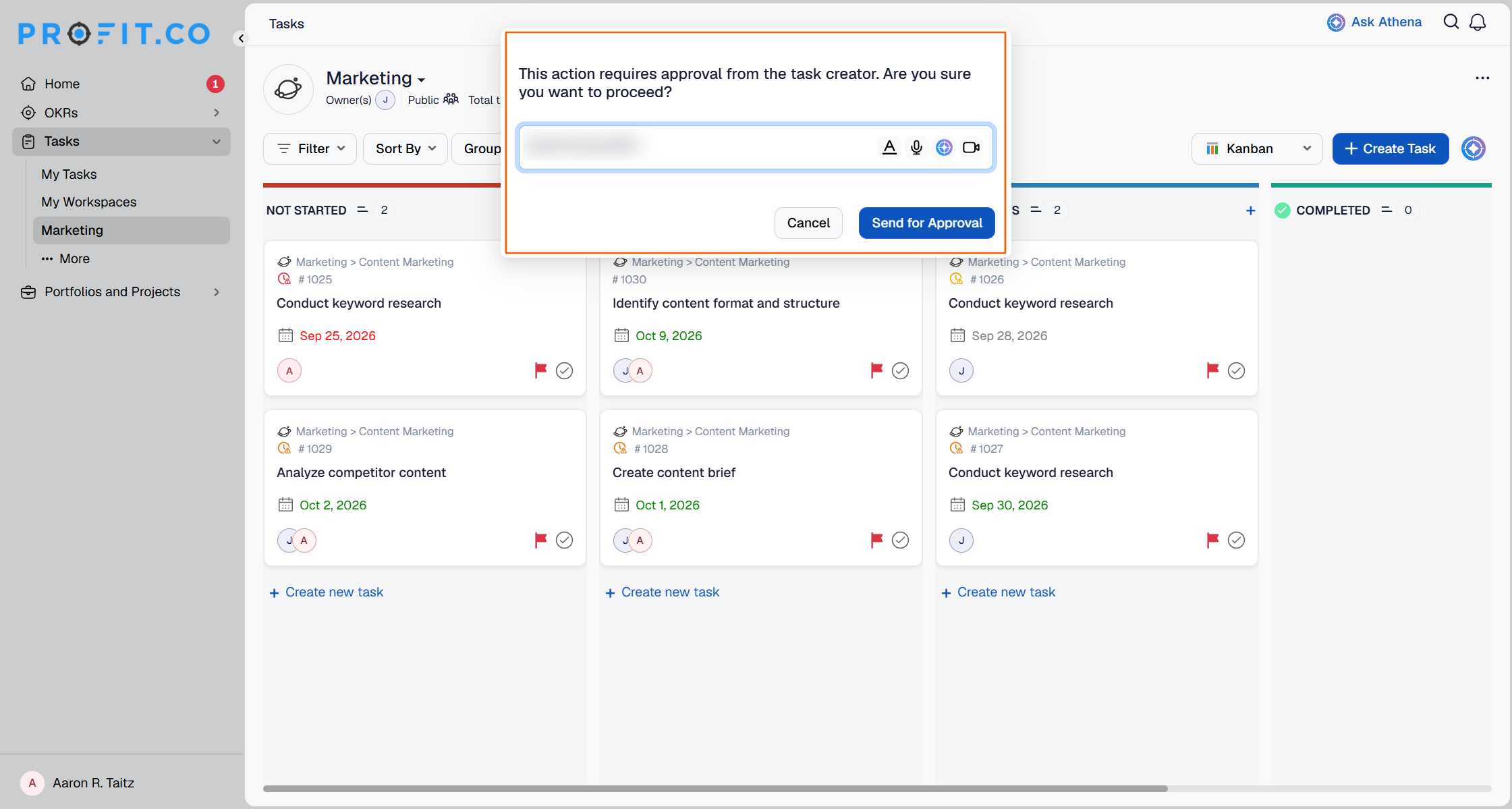
- You'll see a confirmation popup asking you to send the task for approval.
- Once confirmed, the task shows as "Pending approval sent to [creator's name]" instead of moving to Completed.
Note
Moving a task between statuses other than Completed (for example, Scheduled to In Progress) is unaffected. Approval is only triggered when a task is moved to Completed.
How does the task creator approve or reject a completion request?
The task creator reviews completion requests from the Pending Approval drawer:
Step 1
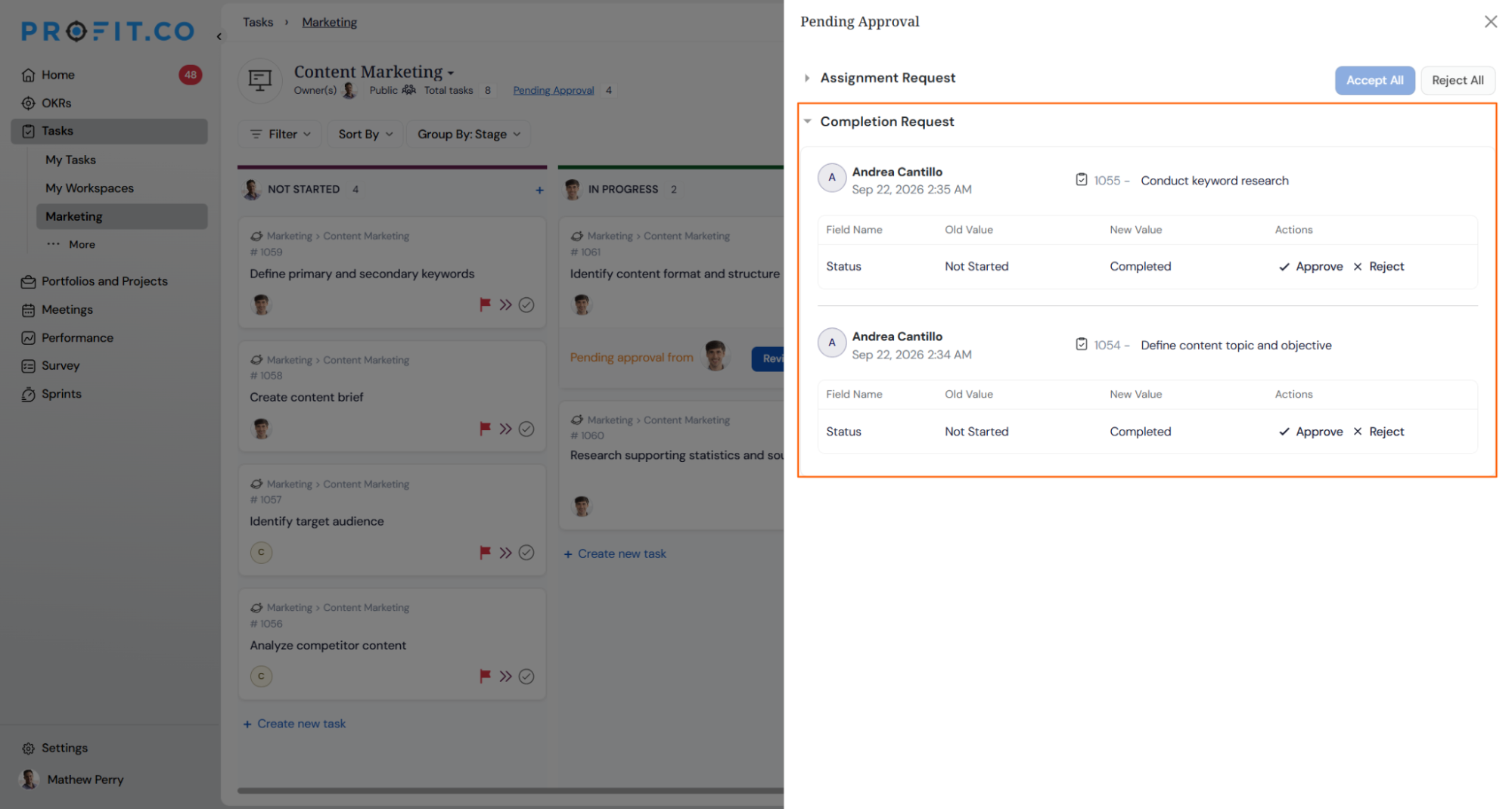
- Open the Pending Approval drawer.
- Find the request under the Completion Request group, alongside the existing Assignment Request and Deletion Request groups.
- Click Approve to move the task to Completed, or Reject to send it back with a comment explaining why.
A rejected task returns to its current active status for further action, and keeps the rejection comment until the next completion attempt.
How does bulk completion work with this setting?
When you bulk-move several tasks to Completed, each selected task is evaluated individually:
- Eligible tasks are sent for approval.
- Ineligible tasks, such as those already Completed, Archived, or already Pending, are skipped.
- You'll see a summary of how many tasks were sent for approval and how many were skipped.
Who can send a task for approval or approve it?
Task Completion Approval respects your existing task permissions:
- You need the applicable Maintain Task privilege to complete a task or send it for approval — Edit Assigned Tasks for your own tasks, or Edit Other Users' Tasks for tasks assigned to others.
- The task creator must also hold the applicable privilege to approve or reject a request.
- Being the task creator does not grant any extra privileges — it only makes you the approver. Users without the required privilege will see the completion action disabled.
How does this work with "Require Document to complete task"?
If your board also has Require Document to complete task enabled, that check runs first. Only after the required document is attached does the Send-for-Approval step run.
Best practices for using Task Completion Approval
- Turn this on for boards or projects with critical or milestone-related work, where a review step adds real value before closing tasks.
- Ask task creators to check the Pending Approval drawer regularly so completed work isn't left waiting for review.
- Use Reject with a clear comment so assignees know exactly what to fix before resubmitting.
- Use Approve All / Reject All to clear routine completion requests quickly during busy periods, like sprint close-out.
Related Questions
Frequently Asked Questions
No. Approval is only triggered when a task is moved to Completed. Moving a task between other statuses, such as Scheduled to In Progress, is unaffected.
The task returns to its current active status instead of closing, and keeps the creator's rejection comment so you know what needs further work.
No. The approver is always the task's creator. There is no option to configure a different or additional approver.
Gantt remains planning-only. To complete a task from Gantt, open the Task Overview, which routes through the same approval step.
Execute your strategy with confidence
Connect OKRs, tasks, and teams in one place with Profit.co
