
Profit.co provides an option to create tasks that help plan and break down daily work to achieve goals.
Table of Contents
What are tasks in Profit.co?
Tasks are the specific activities and work items that need to be completed to achieve key results and organizational goals.
Why is task management important?
Task management helps individuals and teams stay organized and productive. Here's why this feature matters:
- Organization: Task management helps individuals and teams stay organized by providing a clear overview of tasks, deadlines, and priorities.
- Resource Efficiency: It enables efficient allocation of resources and time, ensuring that each task is completed in a timely manner.
- Goal Achievement: The Task helps to plan and break down your daily work and it helps to achieve goals.
How do I create a new task?
Follow these steps to create a task:
Step 1: Navigate to Task Creation
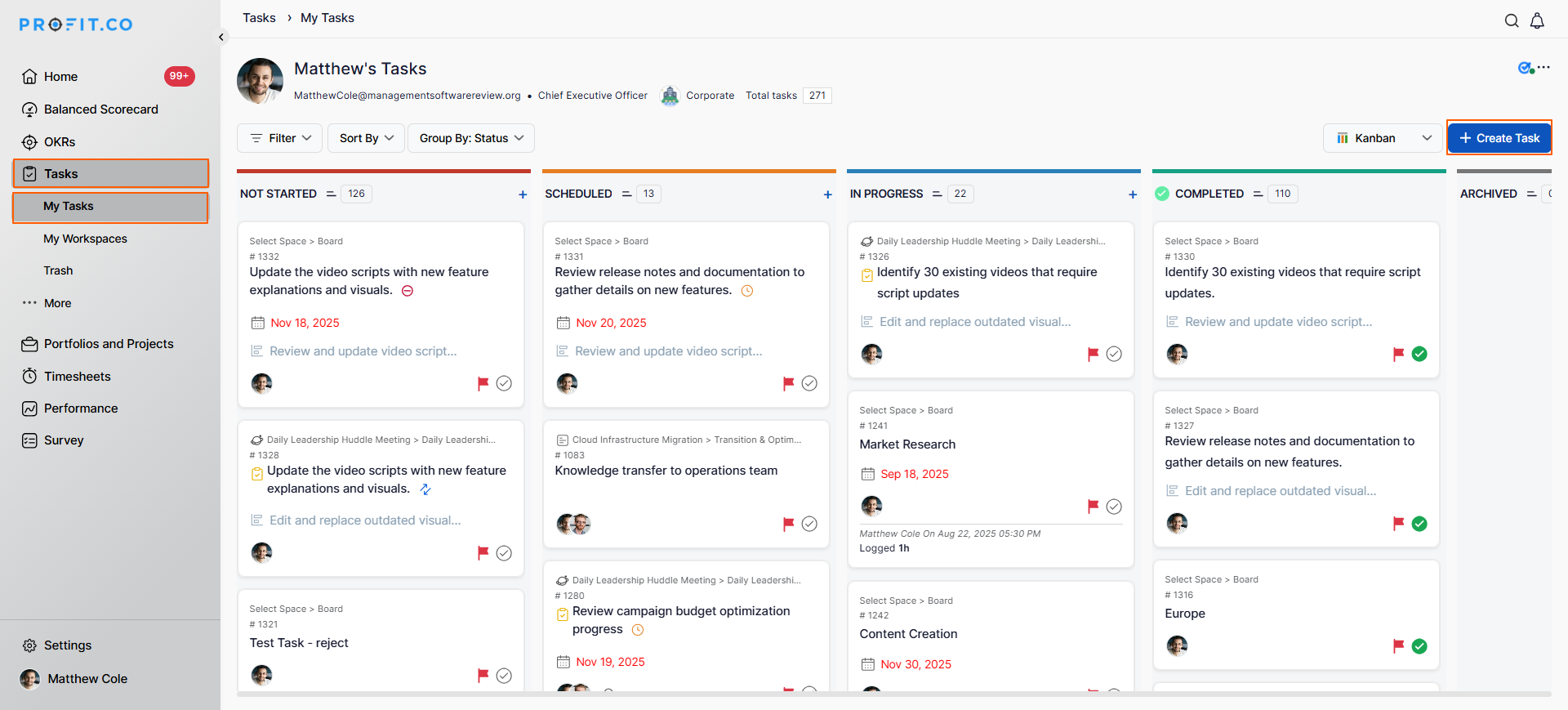
Navigate to Tasks → My Tasks from the left navigation panel
Click on the + Create Task icon to create a new task
Step 2: Configure Task Details
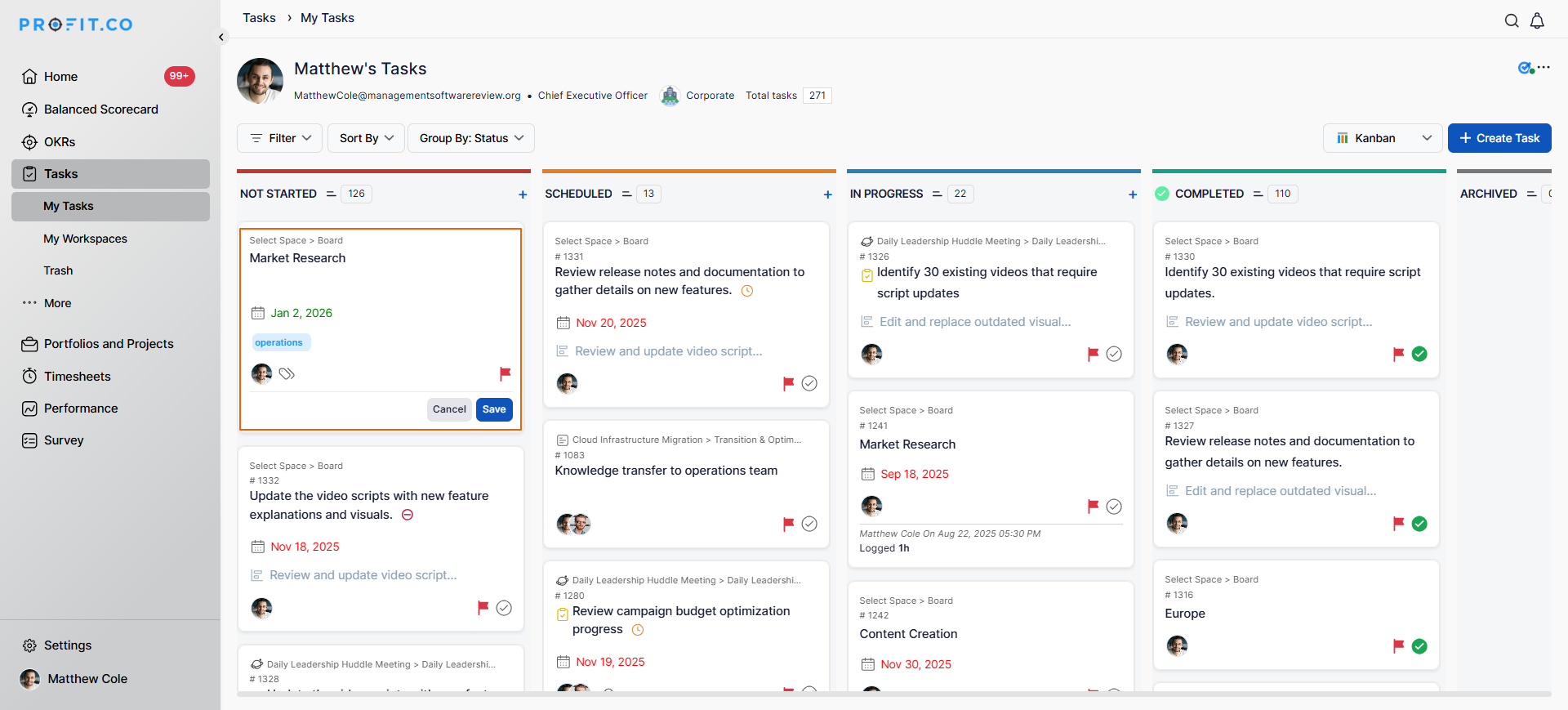
In the task creation form:
- Enter task name/description: What needs to be done
- Set a due date: When the task should be completed
- Associate key results: Link task to specific Key Results it supports
- Associate tags: Add labels or categories for organization
- Click on Save to create the task
The task is now created and appears in your task list.
How do I manage task status and completion?
Three Ways to Complete a Task:
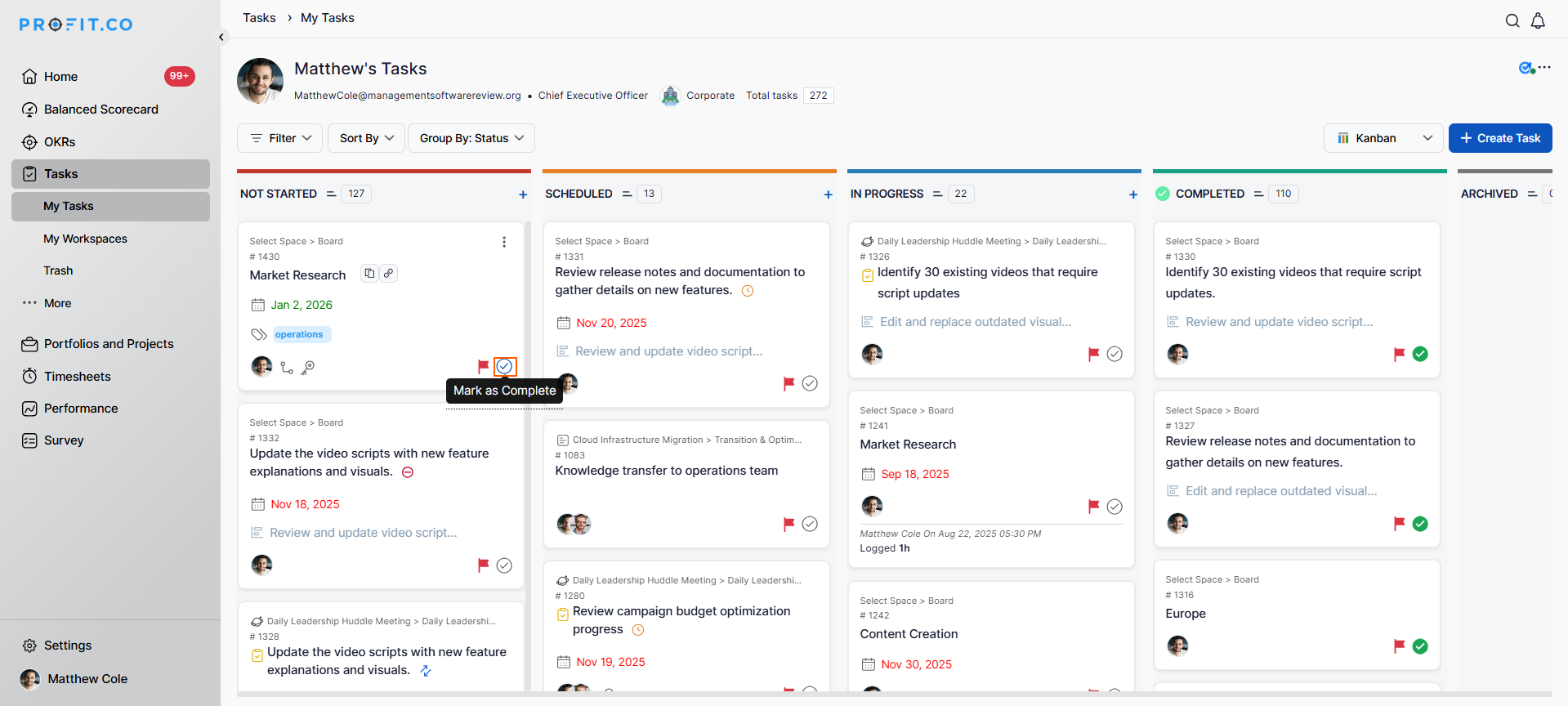
Method 1: Tick Icon
- Click on the tick icon next to the task
- The task was immediately marked as complete
- Quickest completion method
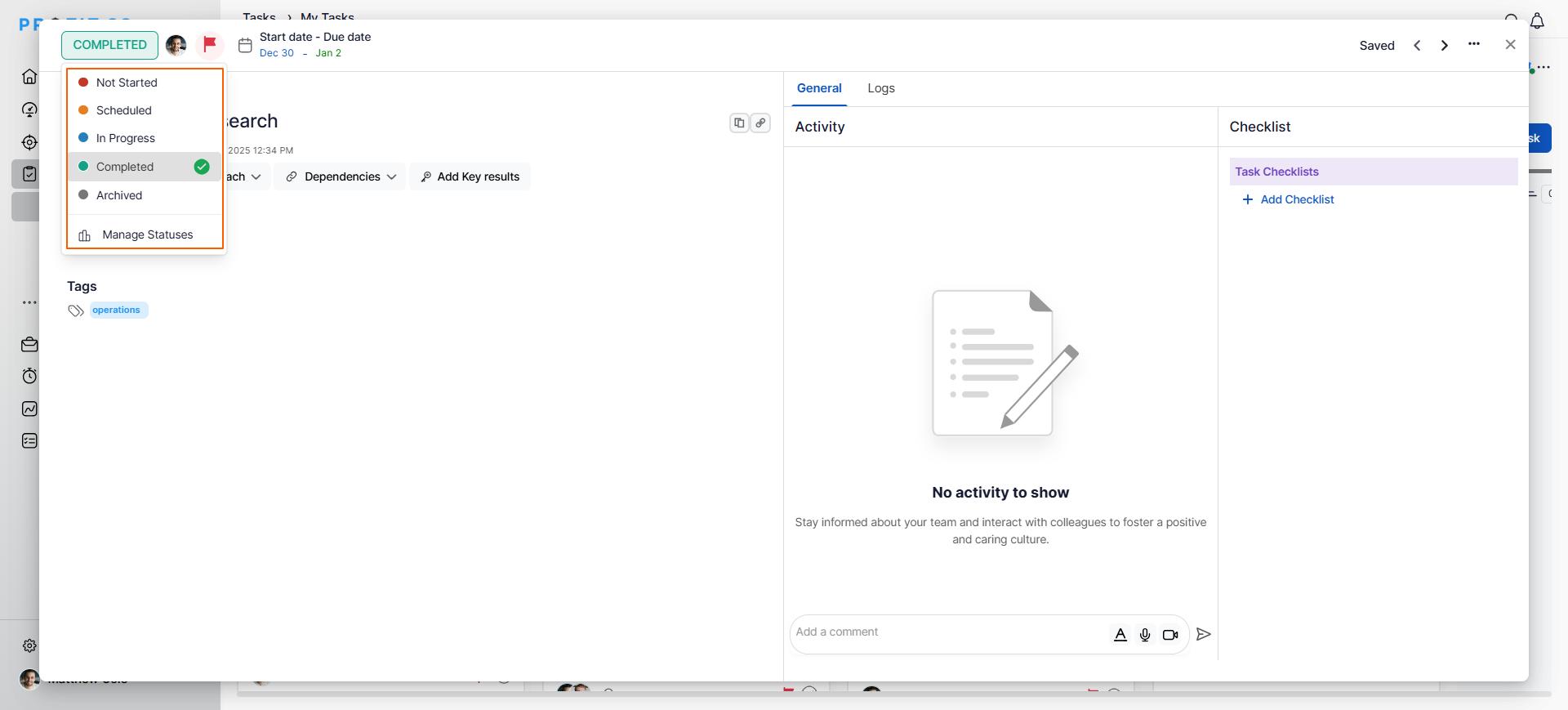
Method 2: Status Dropdown
- Click on the task name to open details
- Click on the task status dropdown
- Choose Complete from the options
- Task status updates to completed
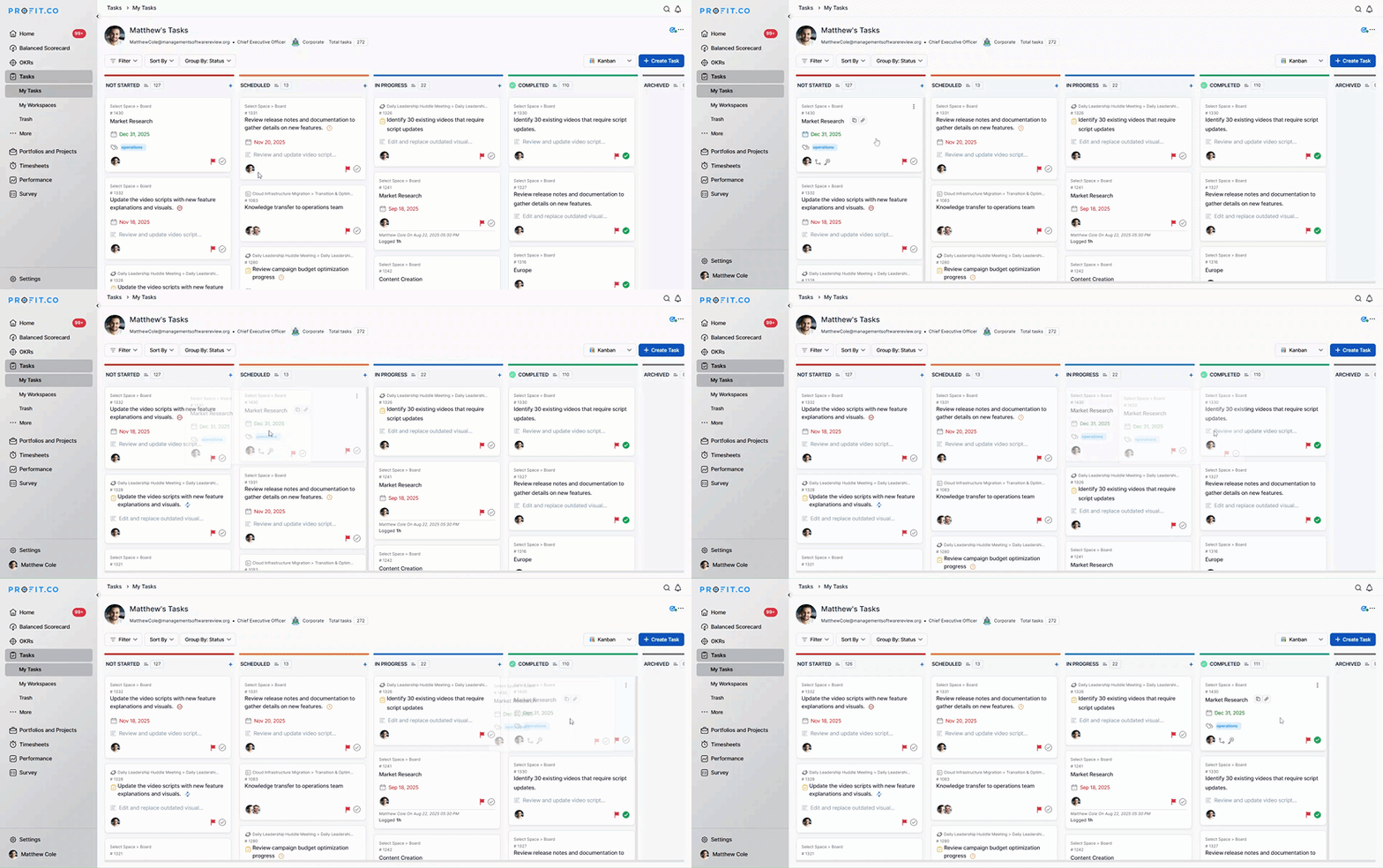
Method 3: Drag and Drop
- Simply drag and drop the task to the Completed status column
- Visual, intuitive completion
- Works in board/kanban view
How do I manage archived/completed tasks?
Hiding Archived Tasks:
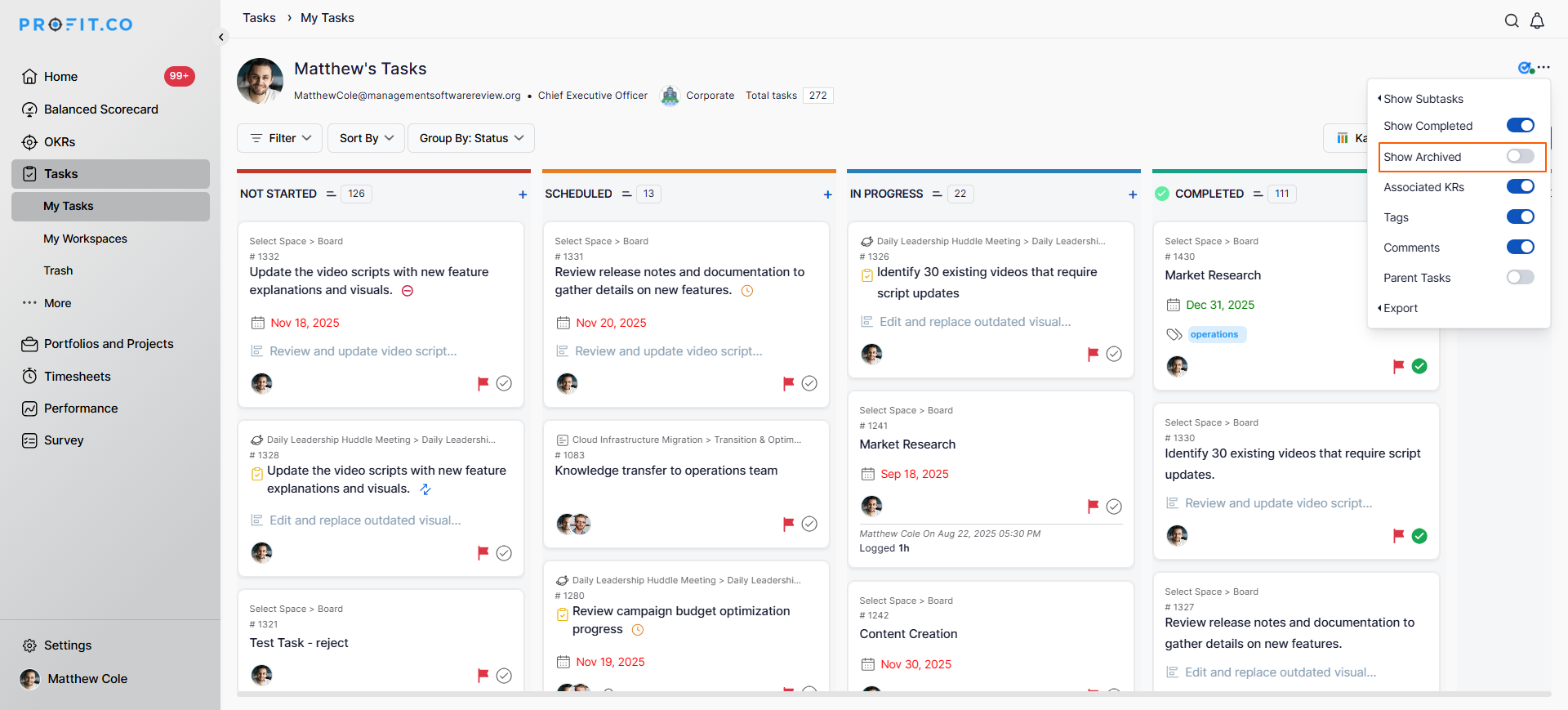
Note: If you don't want to see the Archived tasks:
- Click on the More icon (⋮) in the task view
- Disable the "Show Archived Tasks" option
- Archived tasks will be hidden from view
Best Practices for Task Management
To maximize the effectiveness of task management:
- Use Action-Oriented Task Names: Start with verbs like "Complete," "Review," "Create," and "Send," which make tasks clear and actionable at a glance.
- Set Realistic Due Dates: Assigning achievable deadlines based on task complexity and workload prevents overcommitment and maintains credibility.
- Keep Task List Current: Mark tasks complete promptly and archive finished tasks regularly maintains clean, focused workspace and accurate progress tracking.
Related Questions
To learn more about how to view the tasks of your team members, click here.
To learn more about how to add attachments in Task Management, click here.
Frequently Asked Questions
Tasks are specific activities you need to do (execution), while Key Results are measurable outcomes you want to achieve (results). Multiple tasks typically support one Key Result.
Yes, tasks can be standalone action items. However, associating with Key Results provides strategic context and helps prioritize work.
Task notifications typically work across web and mobile. Check your notification settings and mobile app configuration to ensure alerts are enabled.
