

Cloning a task creates a new, independent copy of an existing task, complete with whichever checklist items, dependencies, or other attributes you choose to carry over.
Table of Contents
What is Task Cloning in Profit.co?
Cloning a task creates a new, independent copy of an existing task, which you can send to the same Workspace/Board or to a different Project/Milestone. The Clone Task dialog lets you choose which attributes carry over into the copy, including Checklist and Dependencies, so the new task can start complete instead of needing to be rebuilt by hand.
Only the attributes you select in the dialog carry over. Anything left unchecked is not included in the copy.
Why Task Cloning Matters
Rebuilding a checklist or manually relinking dependencies on every new task copy is repetitive and easy to get wrong. Selecting Checklist and Dependencies in the Clone Task dialog means the copy already carries that structure over, so it is usable immediately instead of requiring manual rebuild.
The dialog follows the same pick-what-carries-over approach used when cloning a project template, so cloning behaves consistently whether you are duplicating a whole project structure or a single task within it.
How It Works
Step 1
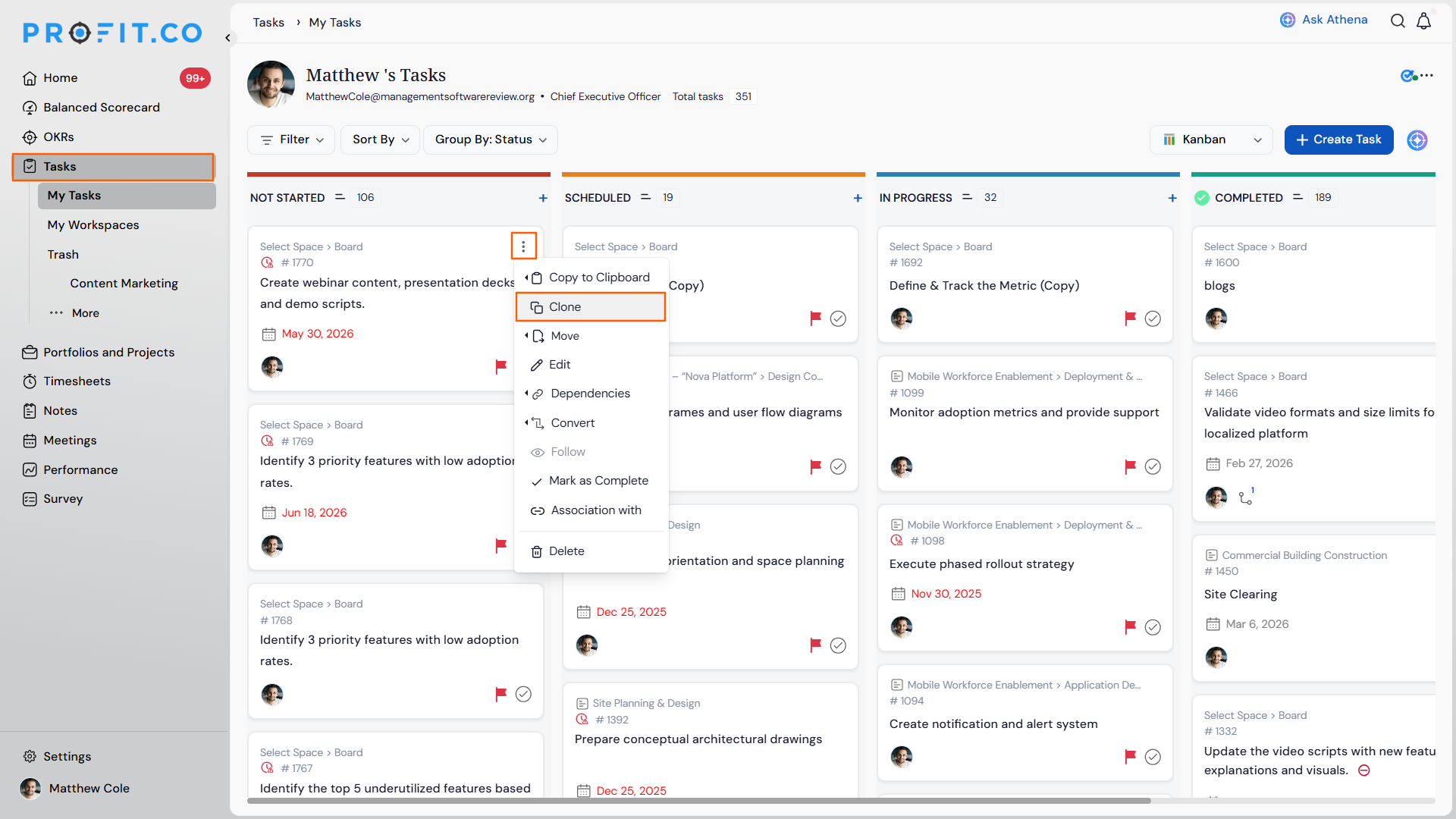
- Open the task you want to duplicate.
- Click its ellipsis icon and select Clone.
Step 2
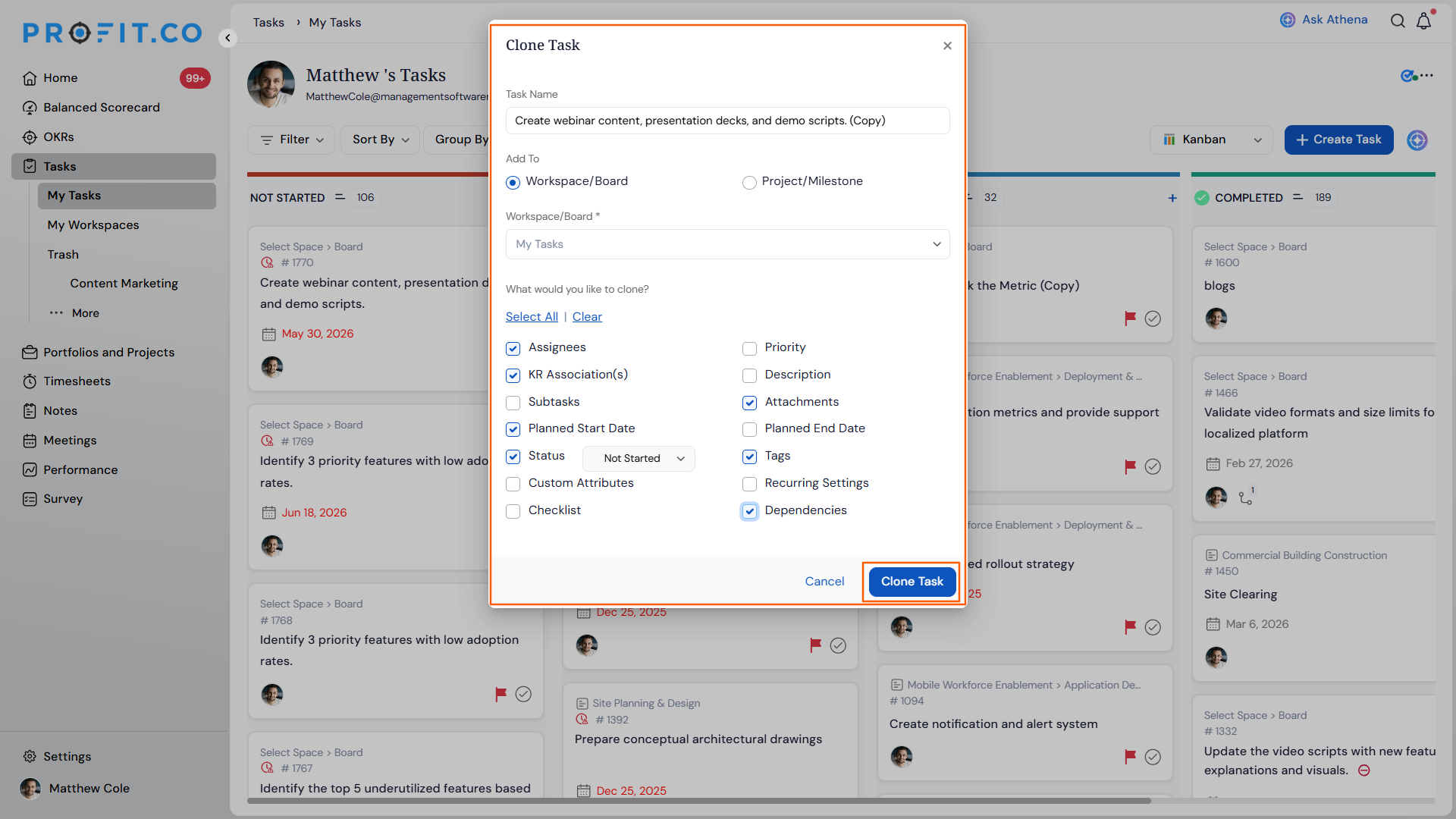
- Enter a name for the copy.
- Choose a destination: Workspace/Board, or Project/Milestone.
Step 3
- Under What would you like to clone?, select Checklist and/or Dependencies.
- Select any other listed attributes you want to carry over into the copy.
- Click Clone Task.
Task Clone Scenarios and Their Outcomes
These outcomes cover what ends up in the copy, not the steps used to create it.
| Scenario | What Happens |
|---|---|
| You clone a task without selecting Checklist. | Profit.co creates the copy without any checklist items, and it carries over only the attributes you selected. |
| You clone a task without selecting Dependencies. | Profit.co creates the copy without its dependency links, and it carries over only the attributes you selected. |
| You choose Project/Milestone as the destination instead of Workspace/Board. | Profit.co creates the copy under the Project/Milestone you choose, and it does not also place a copy in the task's original Workspace/Board. |
| You leave the destination as the task's original Workspace/Board. | Profit.co creates the copy in that same Workspace/Board, and it places it alongside the original task. |
Best Practices for Cloning Tasks
- Select Checklist when cloning a task that already has checklist items, since leaving it unchecked creates the copy without any of them.
- Select Dependencies when the copy needs to keep its place in an existing sequence, since leaving it unchecked creates the copy without its dependency links.
- Double-check the destination before clicking Clone Task, since choosing Project/Milestone sends the copy there instead of the task's original Workspace/Board.
- Rename the copy during cloning rather than after, since the dialog already prompts for a name before the clone is created.
- Treat task cloning the same way you would treat project template cloning: review every attribute checkbox deliberately, since only what you select carries over in either flow.
Related Articles
- How to create a task?
- What are Task Dependencies in Profit.co, and how do they help manage project execution?
Frequently Asked Questions
The Clone Task dialog lists other task attributes alongside Checklist and Dependencies under What would you like to clone? Select whichever ones apply to your copy.
They are separate flows for different entities. Cloning a task duplicates a single task, while cloning a project template duplicates a full project structure, but both use the same pick-what-carries-over approach for choosing which attributes carry into the copy.
You can leave every attribute unchecked and still create the clone. Profit.co creates the copy with just the name and destination you set, and it omits any attribute you did not select.
Execute your strategy with confidence
Connect OKRs, tasks, and teams in one place with Profit.co
