

Profit.co lets you change a task's assignees directly from its Assignee(s) cell in the Gantt view, without opening the task detail panel. This completes assignee inline editing across all three Task views: List, Kanban, and Gantt.
Profit.co's PPM software keeps task assignment consistent across all three views, so teams can rebalance workloads from the Gantt timeline without switching screens or losing context.
To learn more about how Profit.co manages resource capacity in the PPM module, click here.
Table of Contents
What is Inline Assignee Editing in the Gantt View?
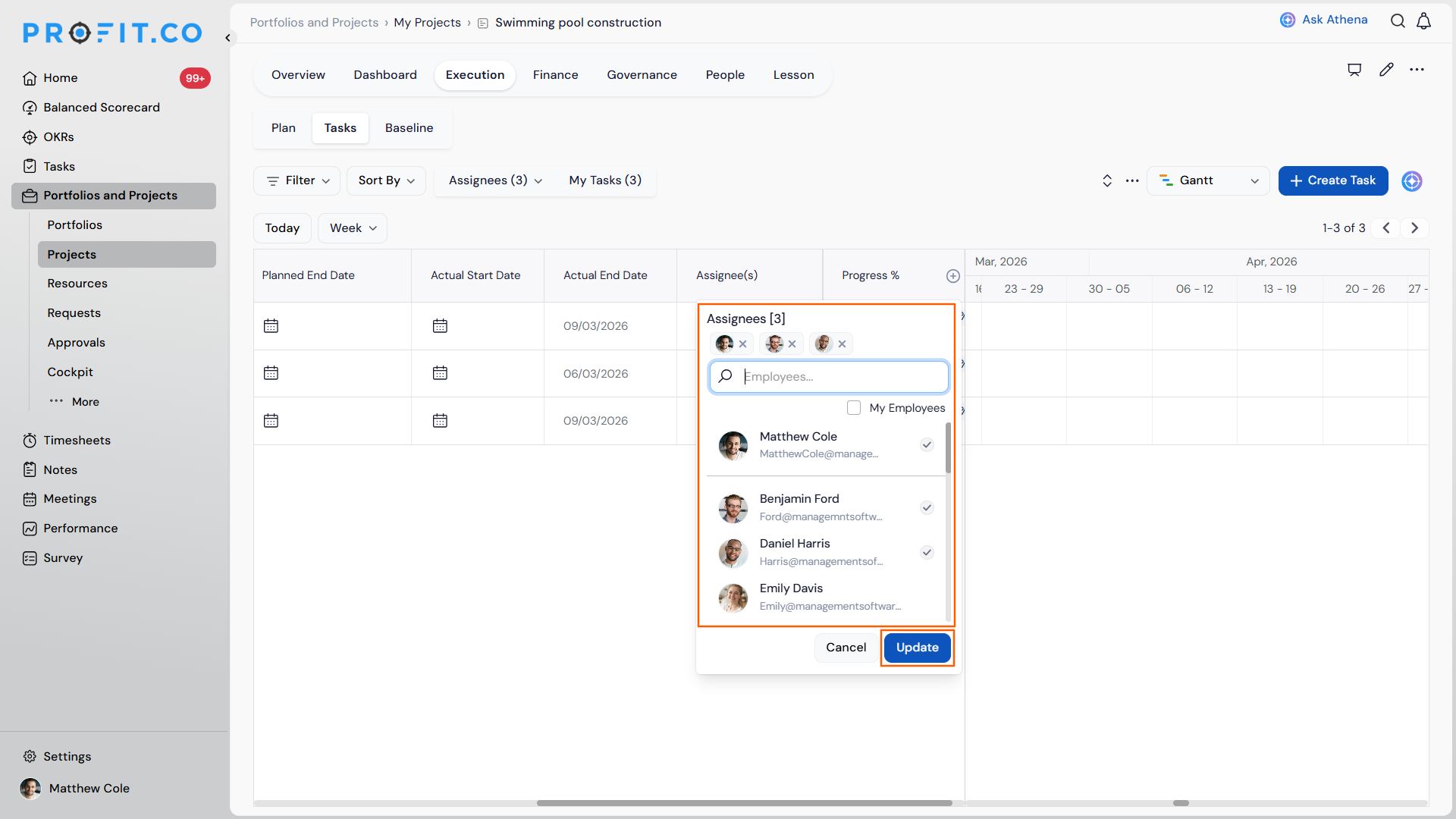
Inline assignee editing in the Gantt view lets you click a task's Assignee(s) cell to open the same multi-assignee picker already used in the List and Kanban views, directly on the Gantt timeline. The picker displays current assignees as removable chips alongside a search field, a My Employees filter, and a checklist of eligible users.
This is the same picker used elsewhere in the Tasks module, so behavior stays identical no matter which view you edit from. Editing is limited to users with task edit access; view-only roles can see the Assignee(s) column but cannot open the picker.
Why Inline Assignee Editing in the Gantt View Matters
Before this update, reassigning a task while planning in the Gantt view meant opening the task detail panel, making the change, and navigating back to the timeline. That extra round trip added friction on boards with many rows or during active resourcing sessions.
| Benefit | What Changes |
|---|---|
| Fewer clicks during planning | Reassigning now happens inside the Assignee(s) cell, without opening the task detail panel and navigating back to the Gantt timeline. |
| Consistent experience across views | The same multi-assignee picker used in List and Kanban view now behaves identically in Gantt, so teams don't relearn a different flow per view. |
| Faster workload balancing | On boards with many rows, reassigning several tasks during active planning no longer requires repeated open-and-close cycles per task. |
How It Works
Step 1
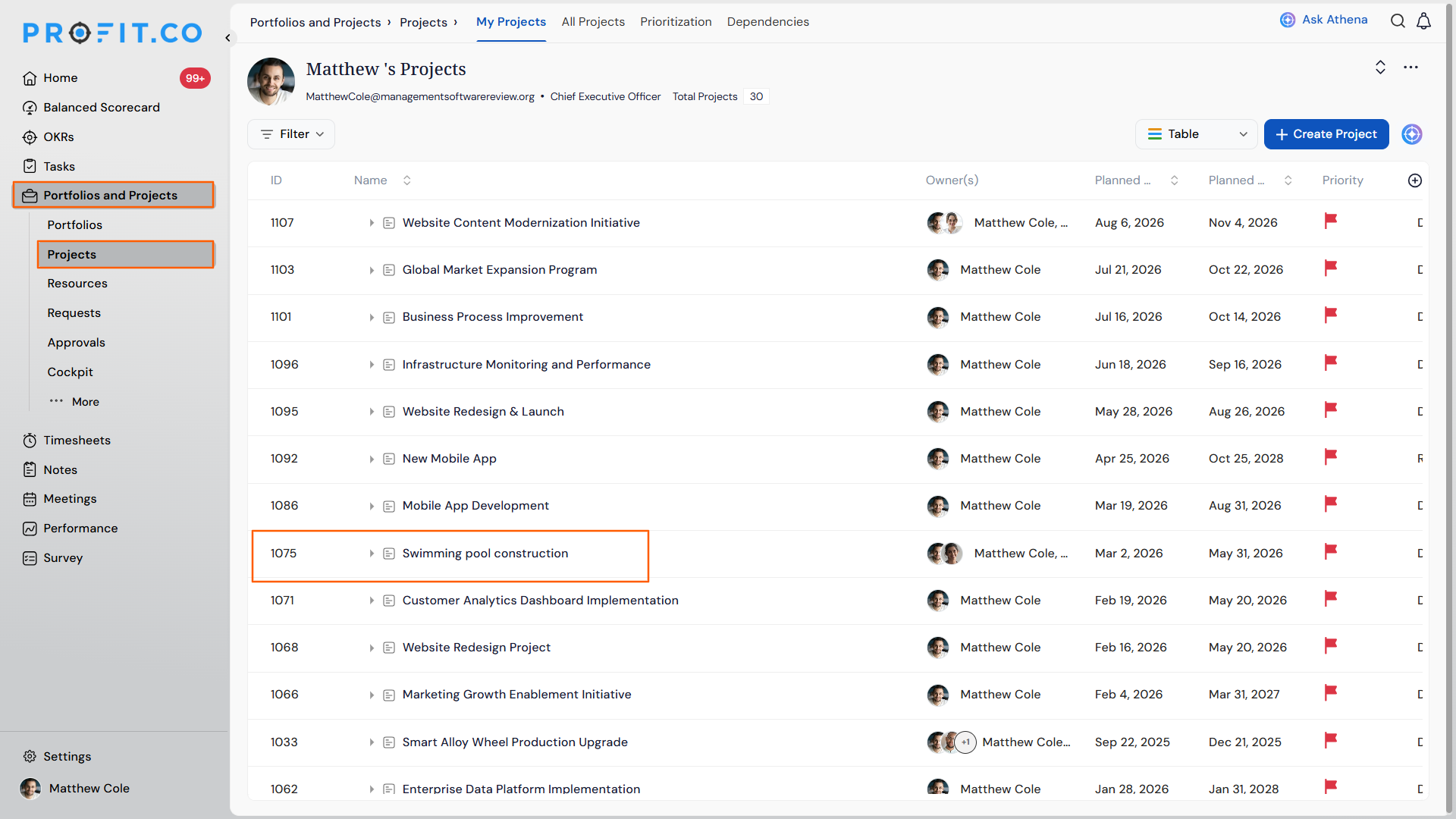
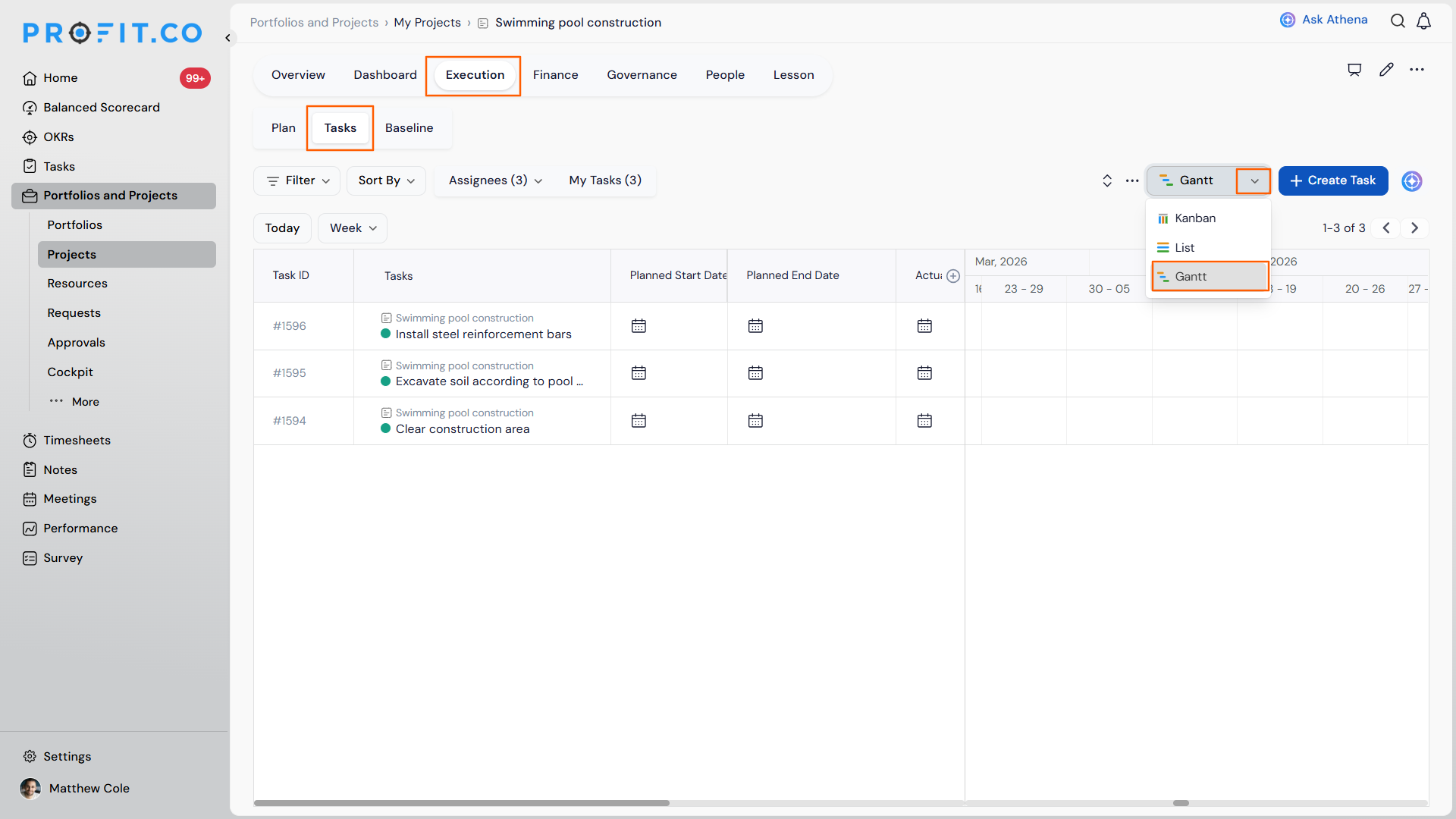
- Navigate to Portfolios & Projects → Projects and choose the required Project.
- Go to the Execution tab, and choose Tasks.
- Switch to the Gantt view.
Step 2
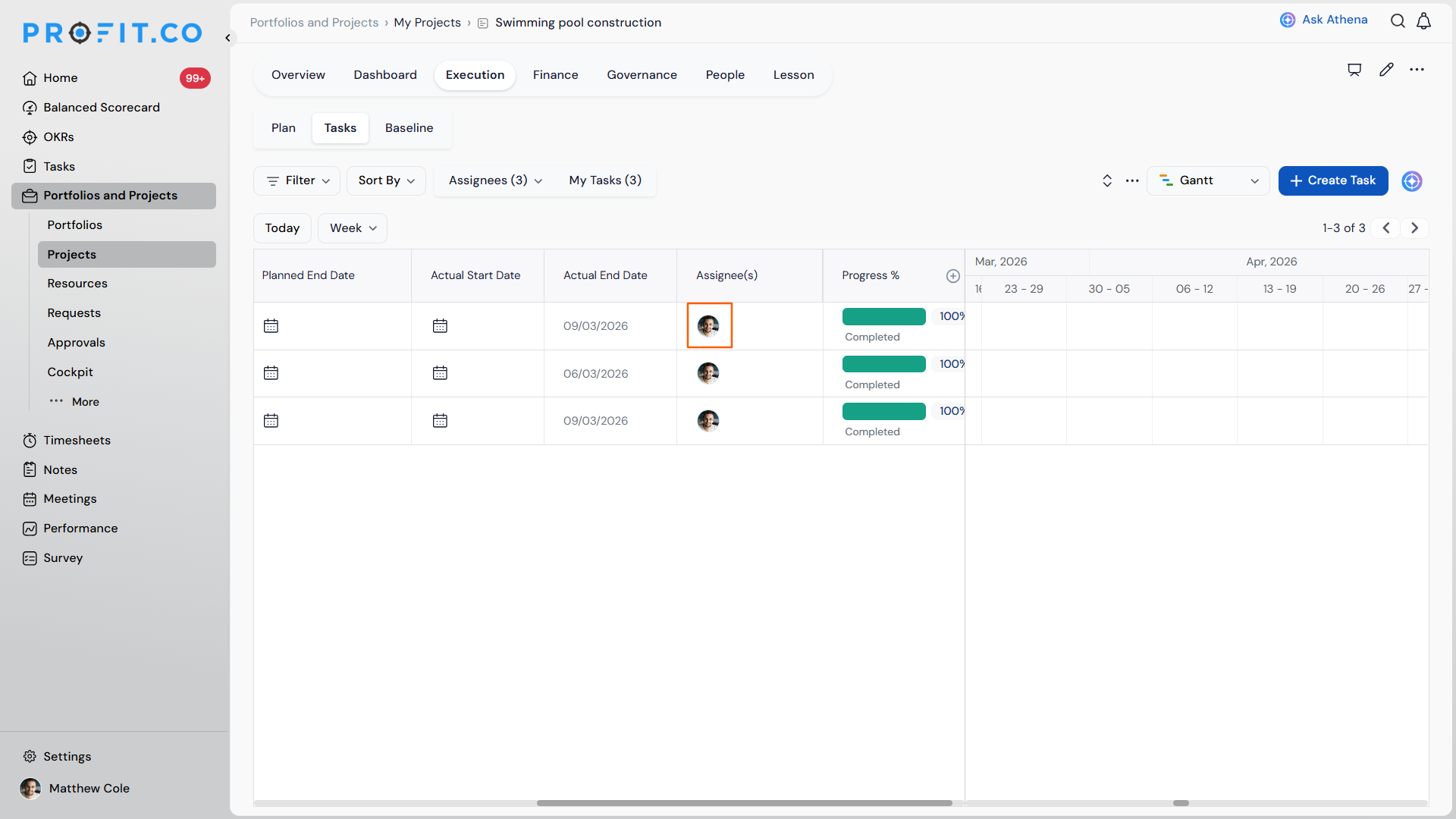
- Click a task's Assignee(s) cell.
- Search by name or email, and select the person you want to add.
- Click Update to apply the changes.
Tip
Reassign several tasks back to back without leaving the Gantt timeline. Each Update saves in place, so you can move straight to the next row.
Customize Gantt View Columns (Show, Hide & Reorder)
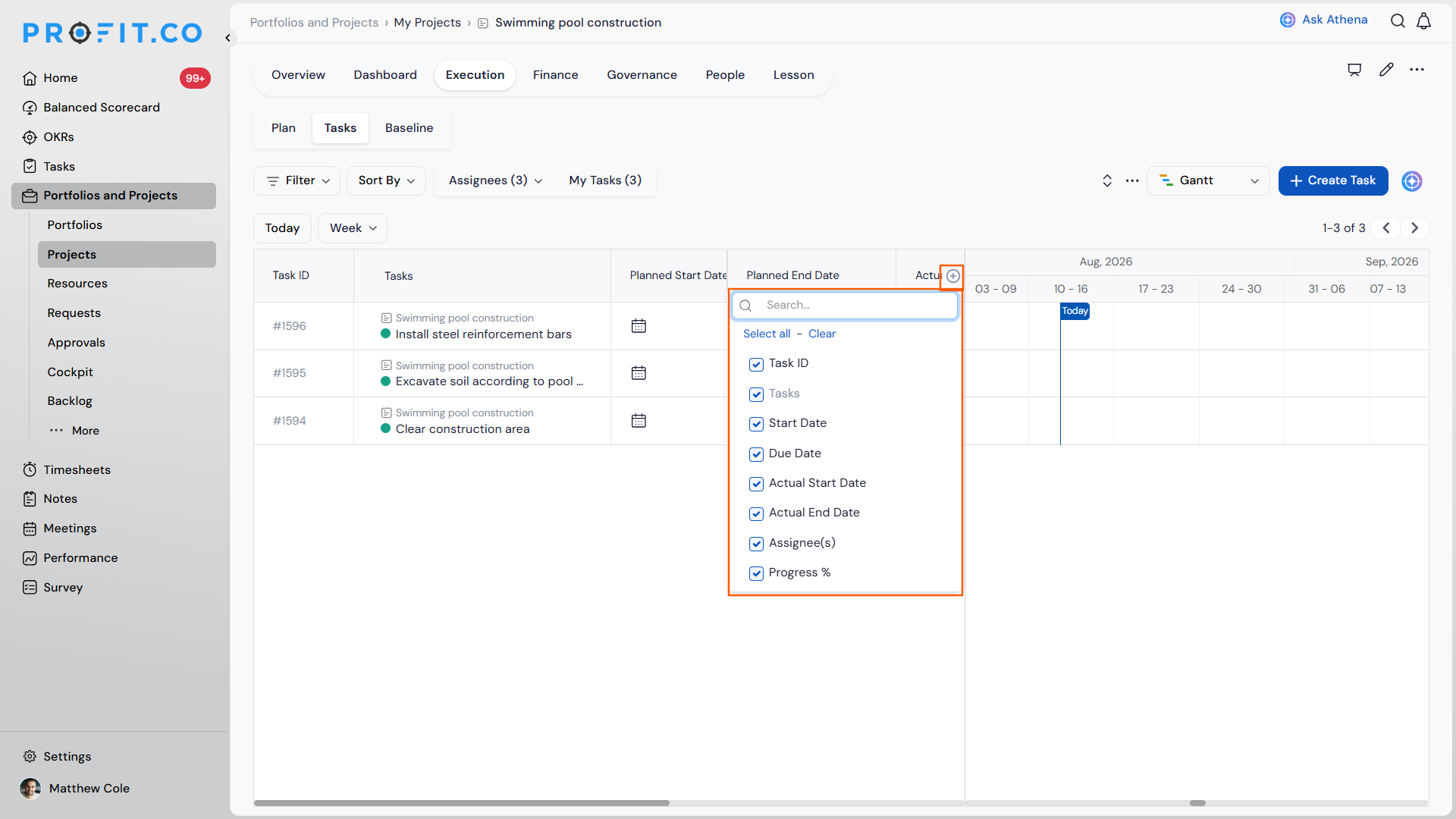
Profit.co lets you show, hide, and reorder the columns in the Gantt table using a column panel, so each view stays clutter-free and the timeline gets more room to breathe.
Step 1
- Open a project's Gantt view (for example, a milestone's Tasks tab in Gantt).
- Click the ⊕ control in the column header to open the column panel.
- Tick or untick a column to show or hide it; the Gantt updates instantly, with no Apply step.
- Use Search to find a specific column, or Select all / Clear to toggle everything at once.
- Configurable columns include Task ID, Tasks, Start Date, Due Date, Actual Start Date, Actual End Date, Assignee(s), and Progress %.
- Drag a column to move it to a new position in the table.
- Your layout is remembered the next time you open the view.
Inline Assignee Editing in the Gantt View Scenarios and Their Outcomes
| Scenario | What Happens |
|---|---|
| You save assignee changes made in the Gantt view picker. | Profit.co logs the change in the task's audit trail, matching the audit behavior of assignee changes made from the List or Kanban view. |
| You reassign a task's owner while the organization's Approval flow setting is enabled. | Profit.co sends an Approve/Reject notification to the original owner, and transfers ownership to the new assignee only after the original owner approves it. |
| You reassign a task's owner while the organization's Approval flow setting is disabled. | Profit.co applies the new assignee immediately and sends a standard notification, with no approval step required. |
| You click Cancel after making changes in the picker. | Profit.co discards every change made in the picker and keeps the original Assignee(s) unchanged. |
| You open the Assignee(s) cell with a view-only role. | Profit.co keeps the cell read-only and blocks the picker from opening, since view-only roles cannot edit assignees from any Task view. |
Best Practices for Inline Assignee Editing in the Gantt View
- Confirm your organization's Approval flow setting in Task settings before relying on inline Gantt reassignment for time-sensitive work; if it's enabled, ownership won't transfer until the original owner approves the change.
- Use the My Employees filter when reassigning from a dense Gantt board, since scanning the full user checklist row by row slows down high-volume planning sessions.
- Reference the task's audit trail when reviewing ownership changes after a sprint, since every update made from this picker is logged the same way as changes made in List or Kanban view.
- Grant edit access, not view-only, to any planner who needs to rebalance workload directly from the Gantt view, since view-only roles can see the Assignee(s) column but cannot open the picker.
- Treat Cancel as a safe way to inspect current assignees without committing changes, since Cancel discards every edit made in the picker.
Related Articles
Frequently Asked Questions
No. Any user with task edit access can use the same Assignee(s) cell they already see; view-only roles remain restricted from editing, as they are elsewhere in the Tasks module.
No. It is the exact same multi-assignee picker, including the search field, My Employees filter, and removable chips.
No. It opens only the assignee picker in place; the task detail panel opens only if you choose to open it separately.
Execute your strategy with confidence
Connect OKRs, tasks, and teams in one place with Profit.co
|
Book a DemoProfit.co'sPPM software keeps task assignment consistent across all three views, so teams can rebalance workloads from the Gantt timeline without switching screens or losing context.