



How to Set Up Custom Project Fields and Attributes?
Category: PPM
Profit.co provides an option to customize project fields and attributes to capture organization-specific information in the PPM module.
Table of Contents
Why are custom project fields important?
Custom project fields provide flexibility to tailor project management to your organization's specific needs. Here's why this feature matters:
- Capture Relevant Data: Add fields that capture information specific to your industry, processes, or reporting requirements
- Standardization: Ensure consistent data collection across all projects in your portfolio
- Better Tracking: Track custom metrics and attributes that matter to your organization
- Process Alignment: Align project fields with your organization's methodology and standards
What are custom project fields and attributes?
Custom project fields are additional data points you can add to the project creation and management interface beyond the standard fields provided by Profit.co.
How do I access the master layout for projects?
Follow these steps to access project field customization:
Step 1
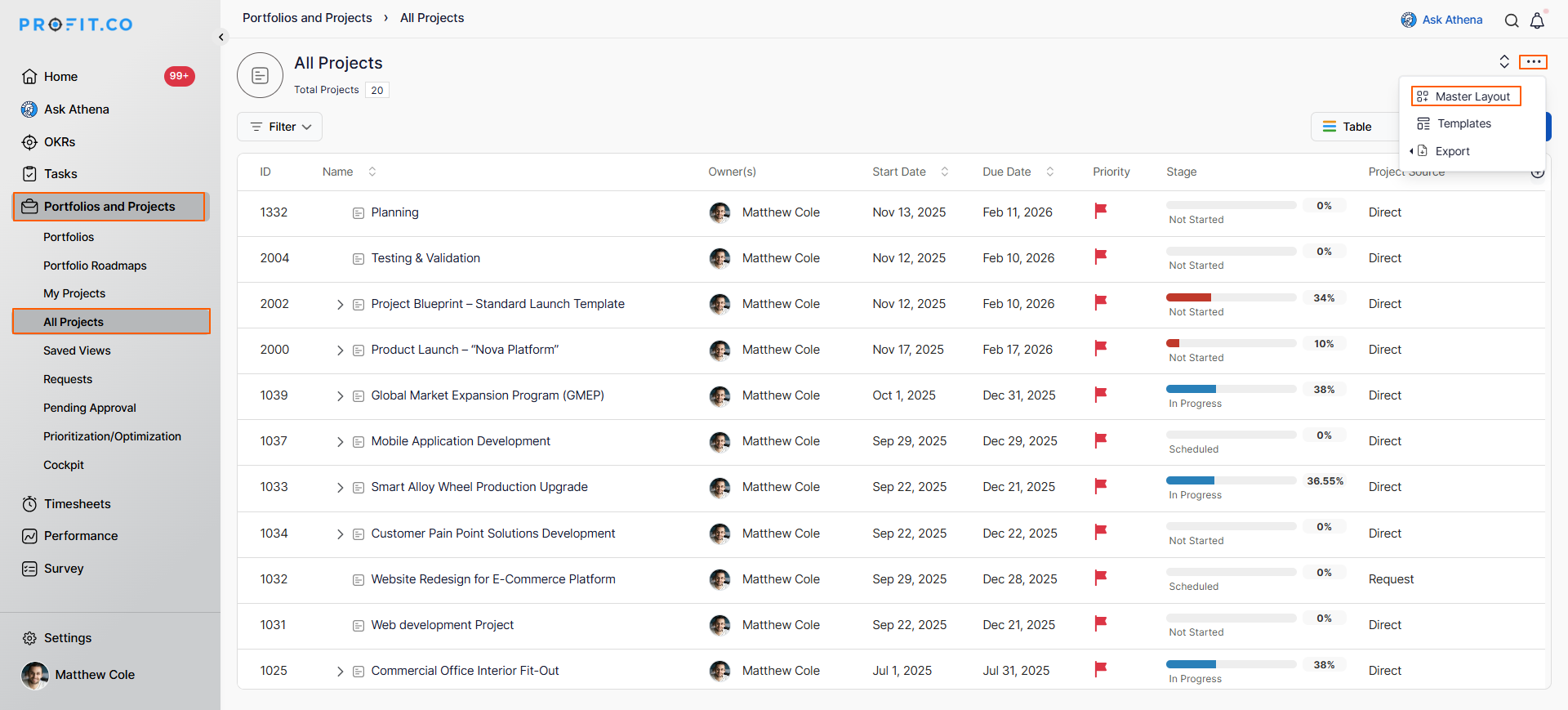
- Navigate to Portfolio and Project → All Projects from the left navigation panel
- Click the More icon (typically in the top-right corner or toolbar)
- Select Master Layout from the dropdown menu
Step 2
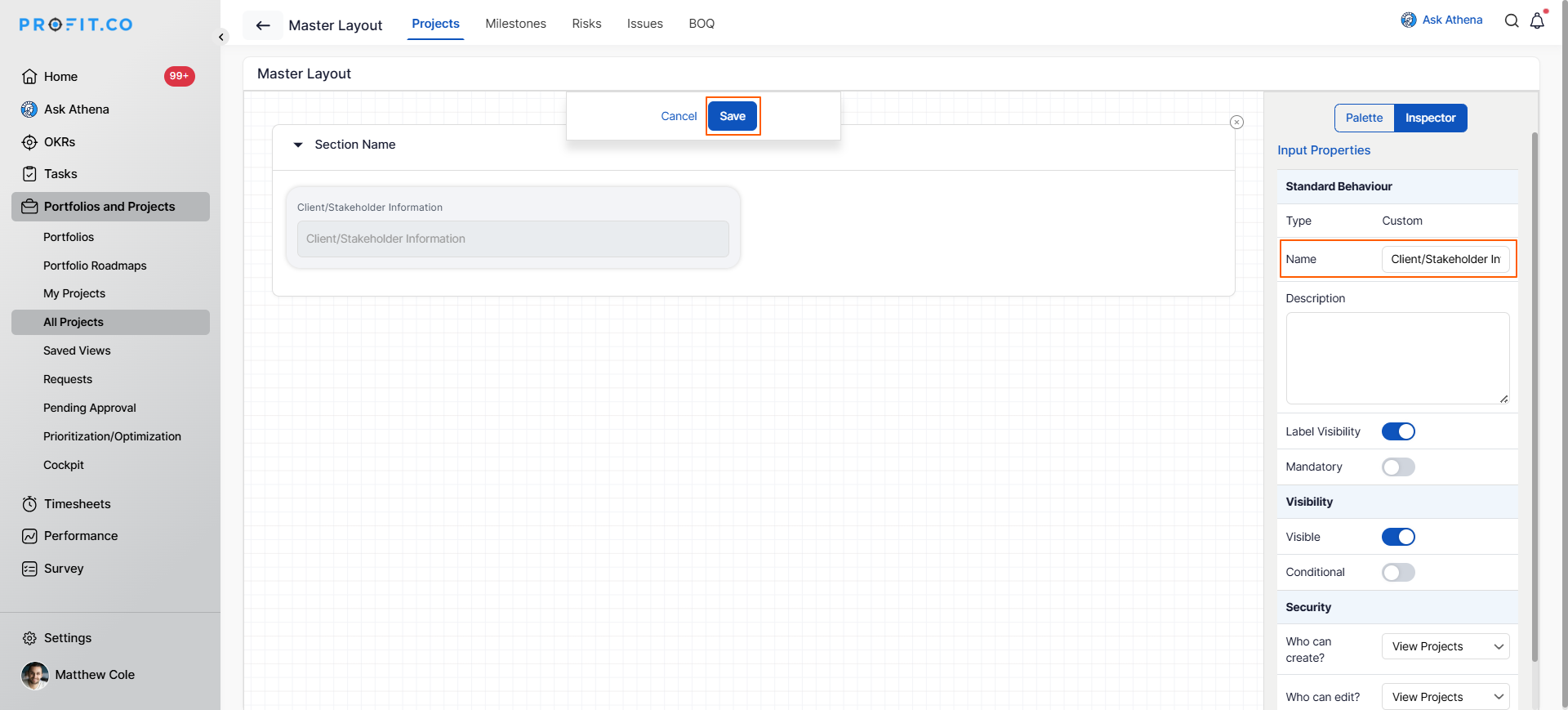
In the Master Layout interface:
- Drag and drop the required Attributes from the right panel to the section area
- Click Save to add the attributes to your project layout
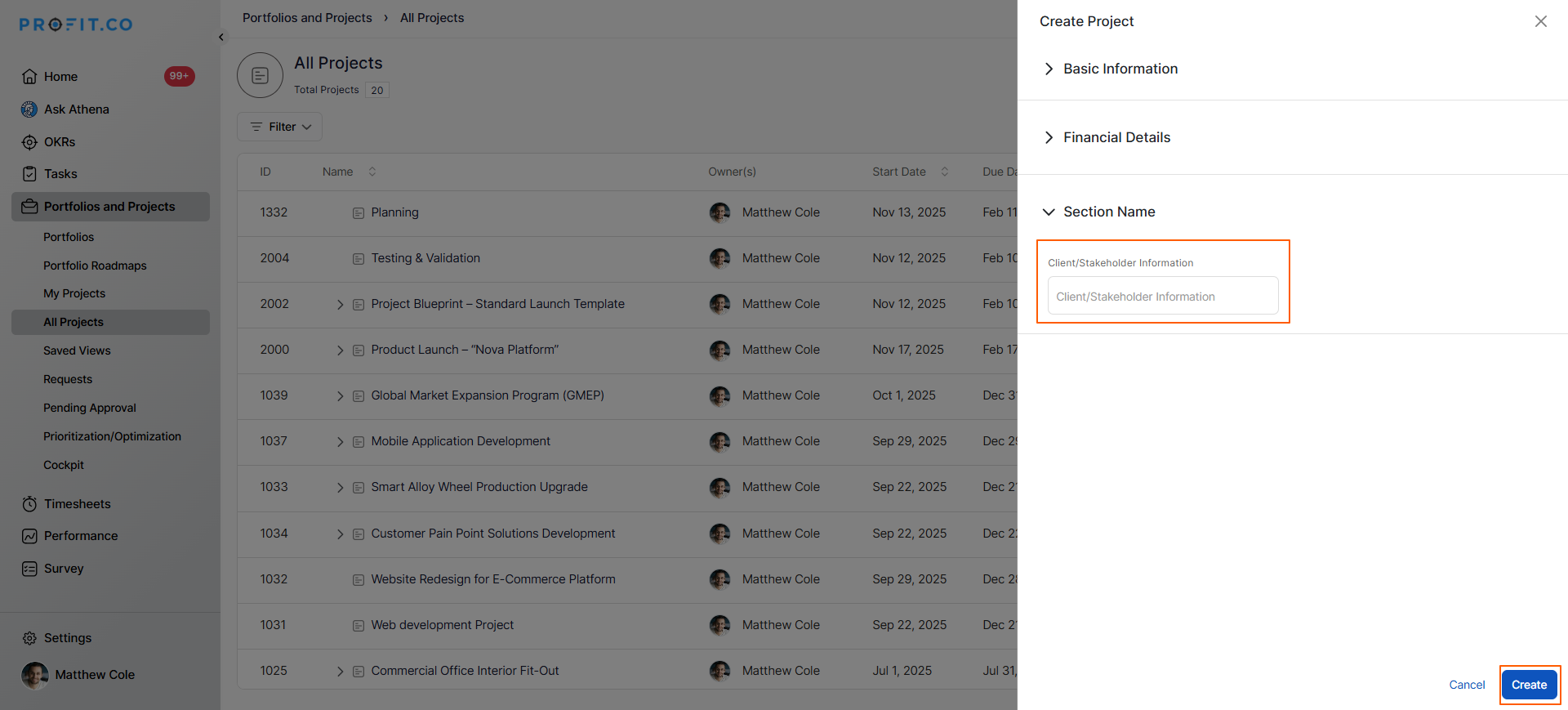
The customized fields will now appear when creating or editing projects.
How do I make custom fields mandatory?
Ensuring critical information is captured:
Steps to Set Mandatory Fields:
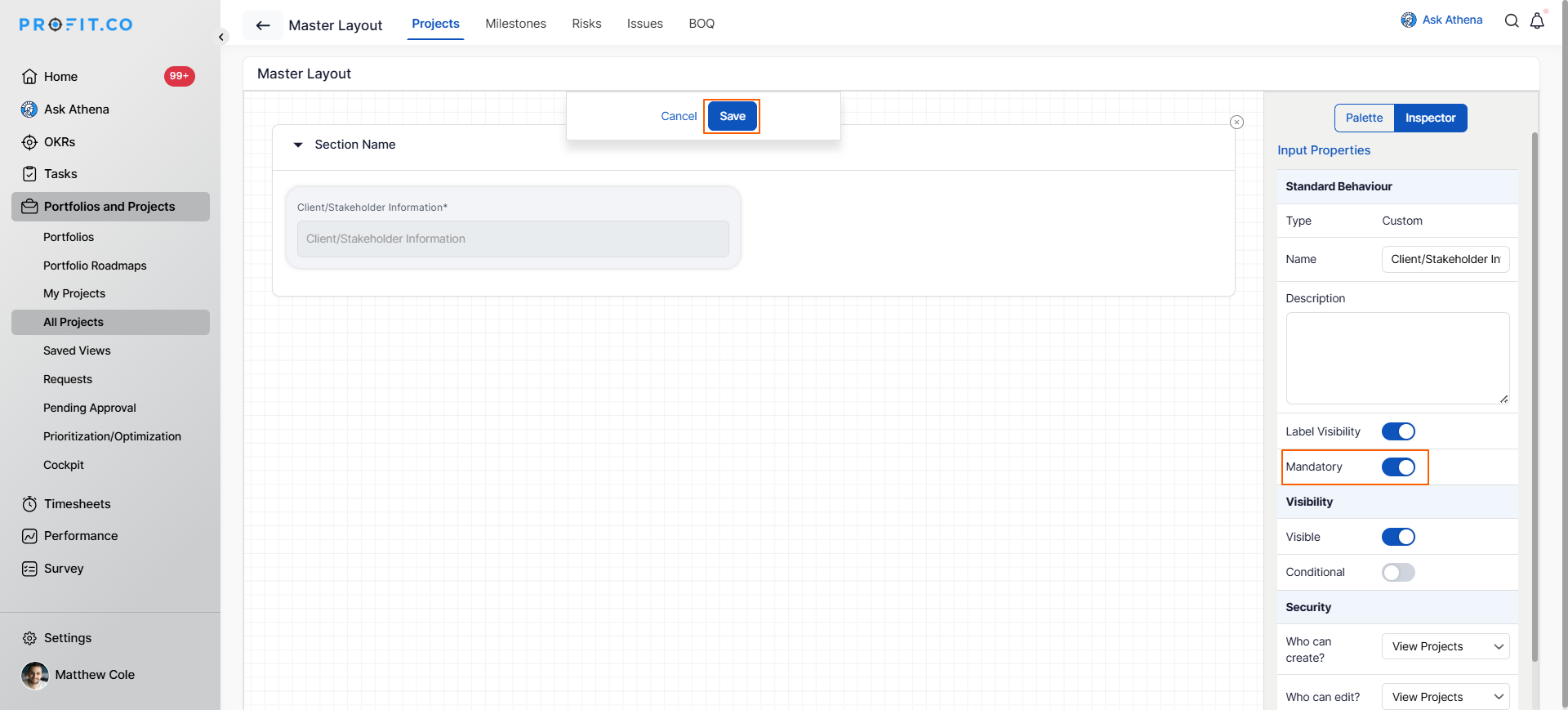
- In the Master Layout configuration
- Locate the field you want to make mandatory
- Enable the Mandatory toggle/checkbox
- Configure any conditional logic if needed
- Save your changes
Best Practices for Custom Project Fields
To maximize the effectiveness of custom project fields:
- Start with Essential Fields Only: Add 5-10 critical fields initially, test with a pilot group, and expand gradually based on feedback to avoid overwhelming users during project creation.
- Use Clear, Descriptive Names: Choose field names that are self-explanatory and consistent with your organization's terminology, avoiding jargon or acronyms that may confuse users.
- Balance Mandatory and Optional Fields: Only mark fields as mandatory when essential for governance or reporting; too many required fields can slow adoption and frustrate users.
Related Questions
Frequently Asked Questions
While there's typically no hard system limit, best practice suggests adding only essential fields. Too many fields (more than 15-20) can overwhelm users and slow down project creation. Focus on fields that provide genuine value.
Yes, but be cautious. Existing projects without that field data will remain valid, but all new projects will require it.
Deleting a field removes it from the creation form and typically from project views. Historical data may be preserved in the database but no longer visible. Always back up data before deleting fields.
Related Questions
-
What is Budget Management in the PPM module?
Budget Management in Profi.co's PPM (Project Portfolio Management) module is a financial tracking feature that allows ...Read more
-
How does Profit.co help managers identify employees who haven't created timesheets?
Profi.co provides a new view in the Cockpit to track employees without timesheets. The widget displays users who ...Read more
-
What is a Tollgate in the PPM in Profit.co?
The Tollgate feature in Profit.Co’s Project Portfolio Management (PPM) module acts as a structured checkpoint system ...Read more
-
How do I Configure Project Closure Settings in Profit.co?
As a system administrator, you can customize Profit.co's Project Closure feature to align with your organization's ...Read more