
In Profit.co, you can set custom attributes for tasks using the Master Layout, allowing you to add additional fields to your task board that capture the specific information your team needs beyond the default task fields.
Table of Contents
- What are Custom Attributes for Tasks in Profit.co?
- How to access the Master Layout for Tasks in Profit.co?
- How to create a Section in the Master Layout in Profit.co?
- How to add Custom Attributes to a Section in Profit.co?
- How to fill in Custom Attribute values on a Task in Profit.co?
- Best practices for using Custom Attributes for Tasks in Profit.co
- Related Questions
- Frequently Asked Questions
What are Custom Attributes for Tasks in Profit.co?
Custom Attributes in Profit.co are additional fields that you can configure and add to your task board using the Master Layout. They allow organizations to extend the default task form with fields that are specific to their workflows, processes, or reporting needs, such as a cost estimate, risk level, department code, or any other data point that standard task fields do not capture.
How to access the Master Layout for Tasks in Profit.co?
The Master Layout is the central configuration panel where all custom attributes for tasks are created and managed.
Step 1
- Go to Settings → Tasks from the left navigation panel.
- Switch to the Master Layout tab within the Tasks settings.
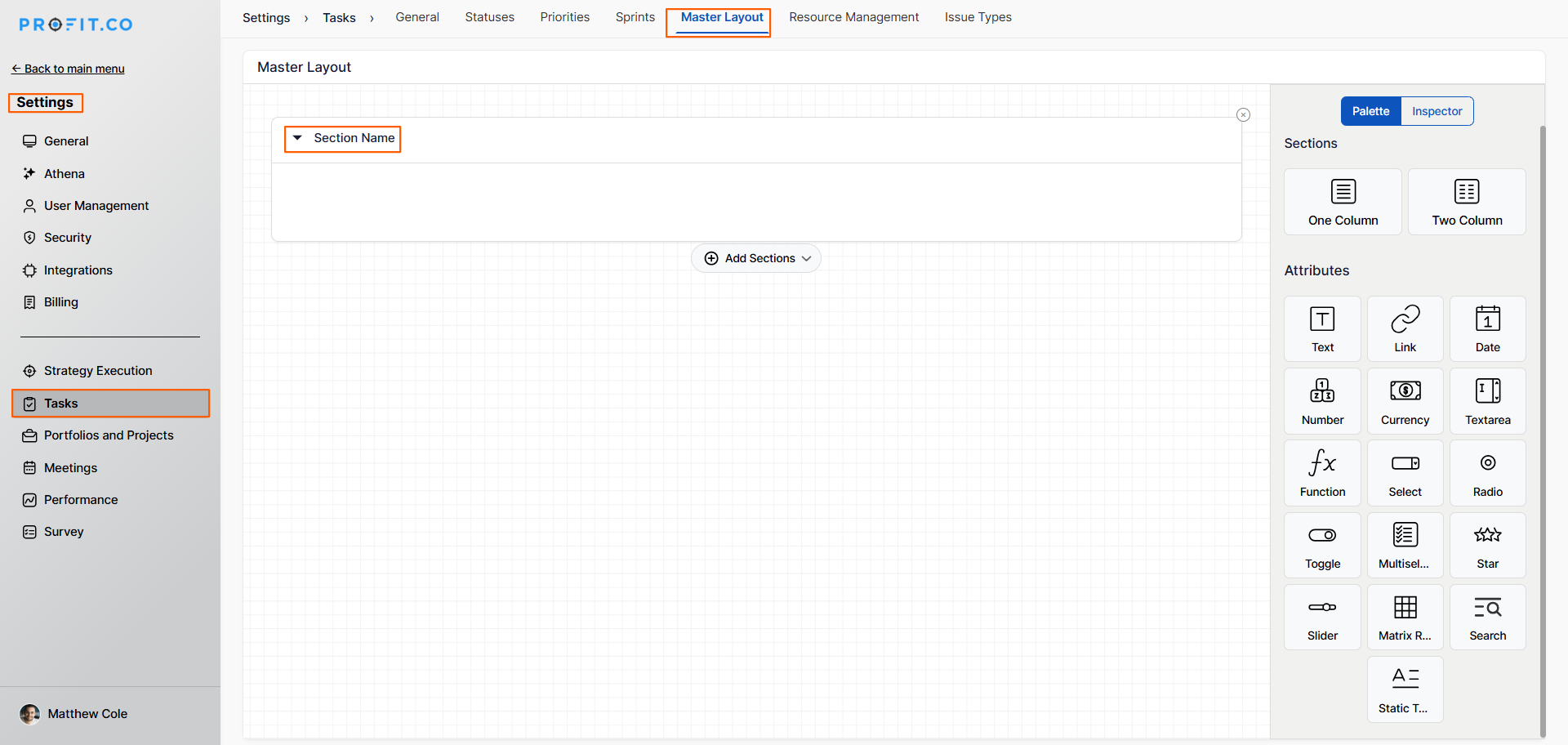
The Master Layout displays the current task form structure with sections and attributes. A default section is already present when you first access the Master Layout.
How to create a Section in the Master Layout in Profit.co?
Sections are grouping containers within the Master Layout that organize related custom attributes together on the task form.
Step 1
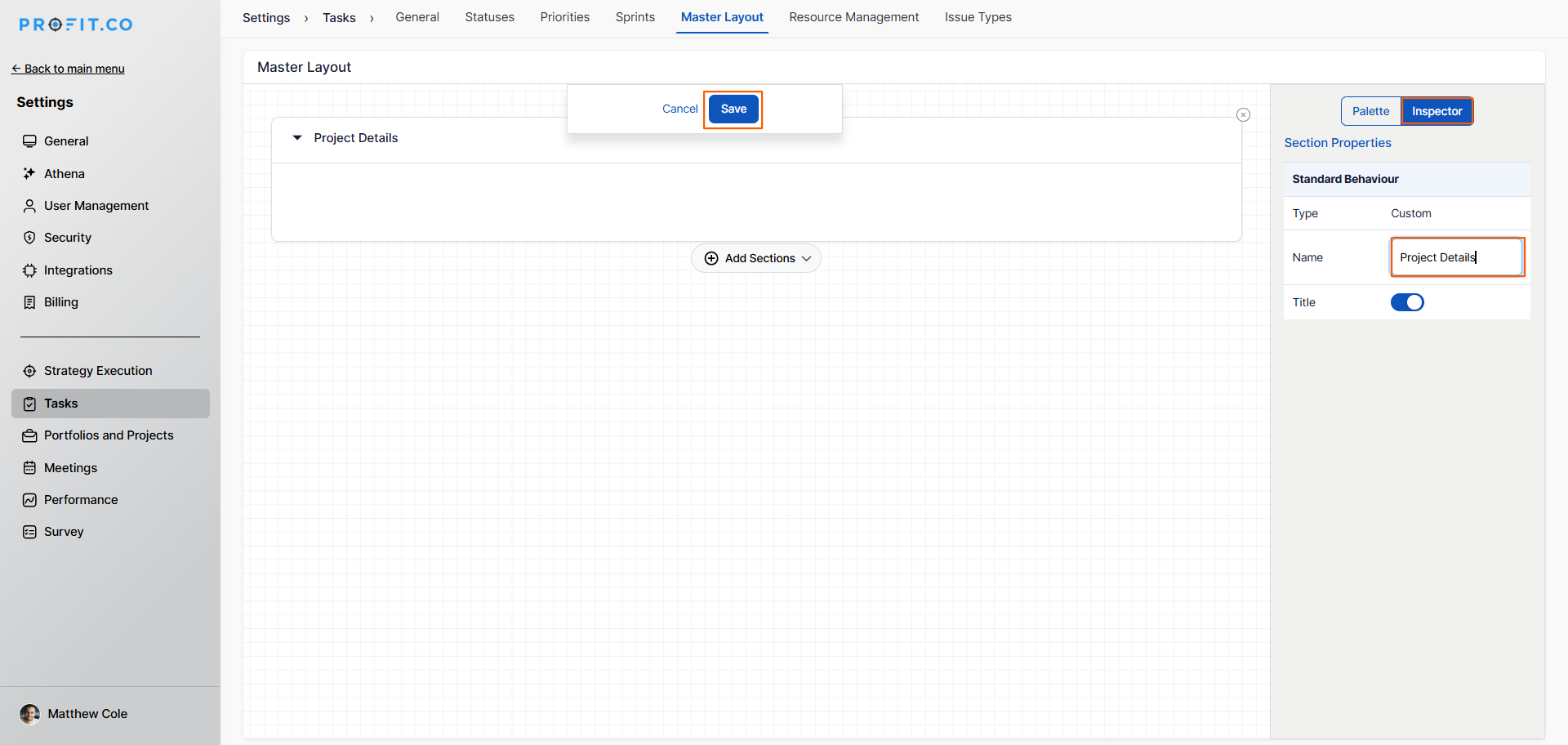
- In the Master Layout, click on the existing default section to select it.
- In the Inspector tab on the right side panel, update the section name to reflect the group of attributes it will contain, for example, "Project Details" or "Financial Information."
- Click Save to confirm the section name.
How to add Custom Attributes to a Section in Profit.co?
Once a section is created, you can add custom attribute fields to it from the Palette panel.
Step 1
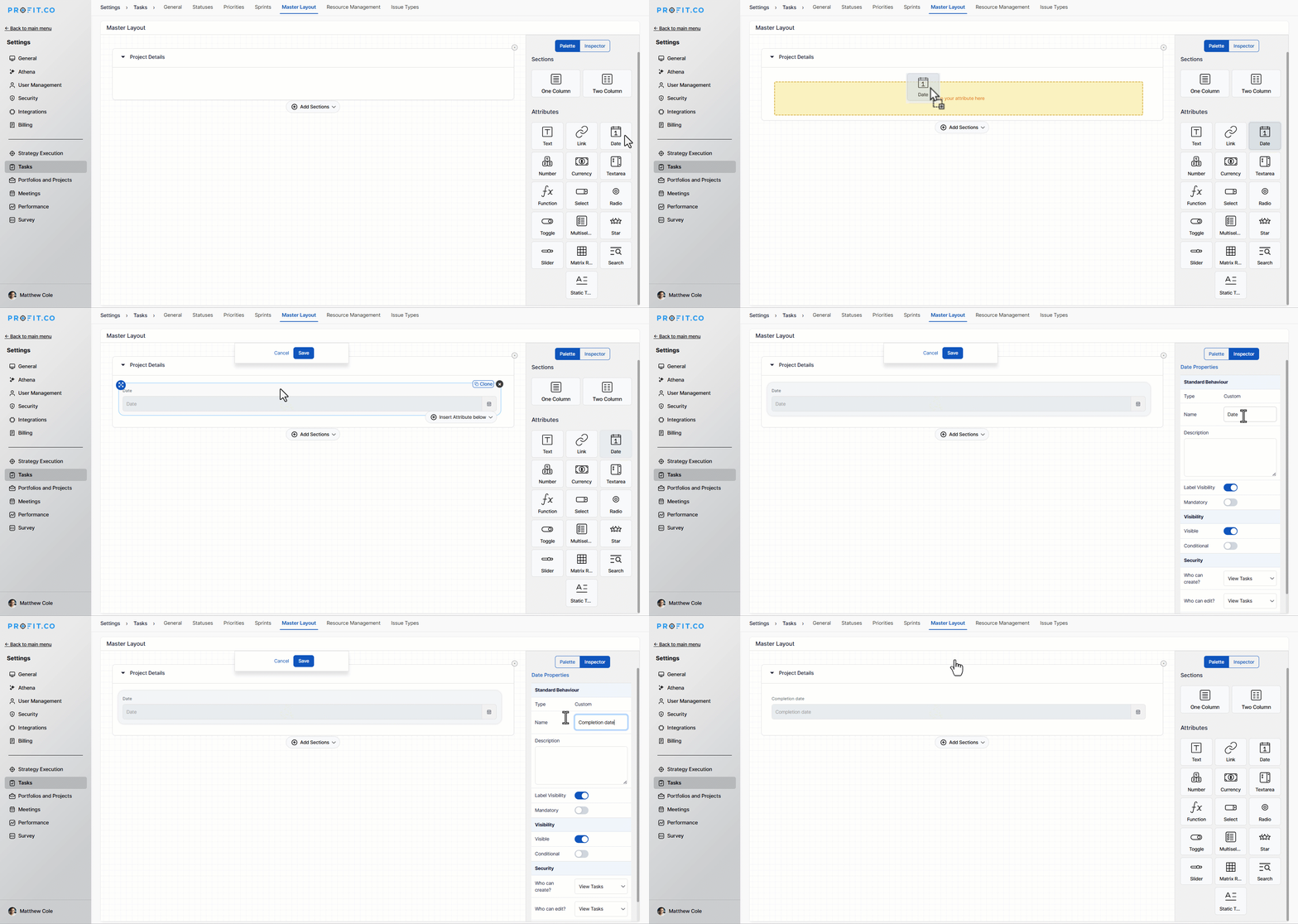
- In the Master Layout view, locate the Palette section, which contains all available attribute types.
- Click on the desired Attribute type from the Palette.
- Drag and drop it into the relevant section on the Master Layout.
- With the attribute selected, go to the Inspector tab.
- Enter the name for the attribute field as it should appear on the task form, for example, "Estimated Cost" or "Risk Level."
- Click Save to confirm the attribute configuration.
How to fill in Custom Attribute values on a Task in Profit.co?
Once custom attributes are configured in the Master Layout, users can fill in the values for those fields directly on any task.
Step 1
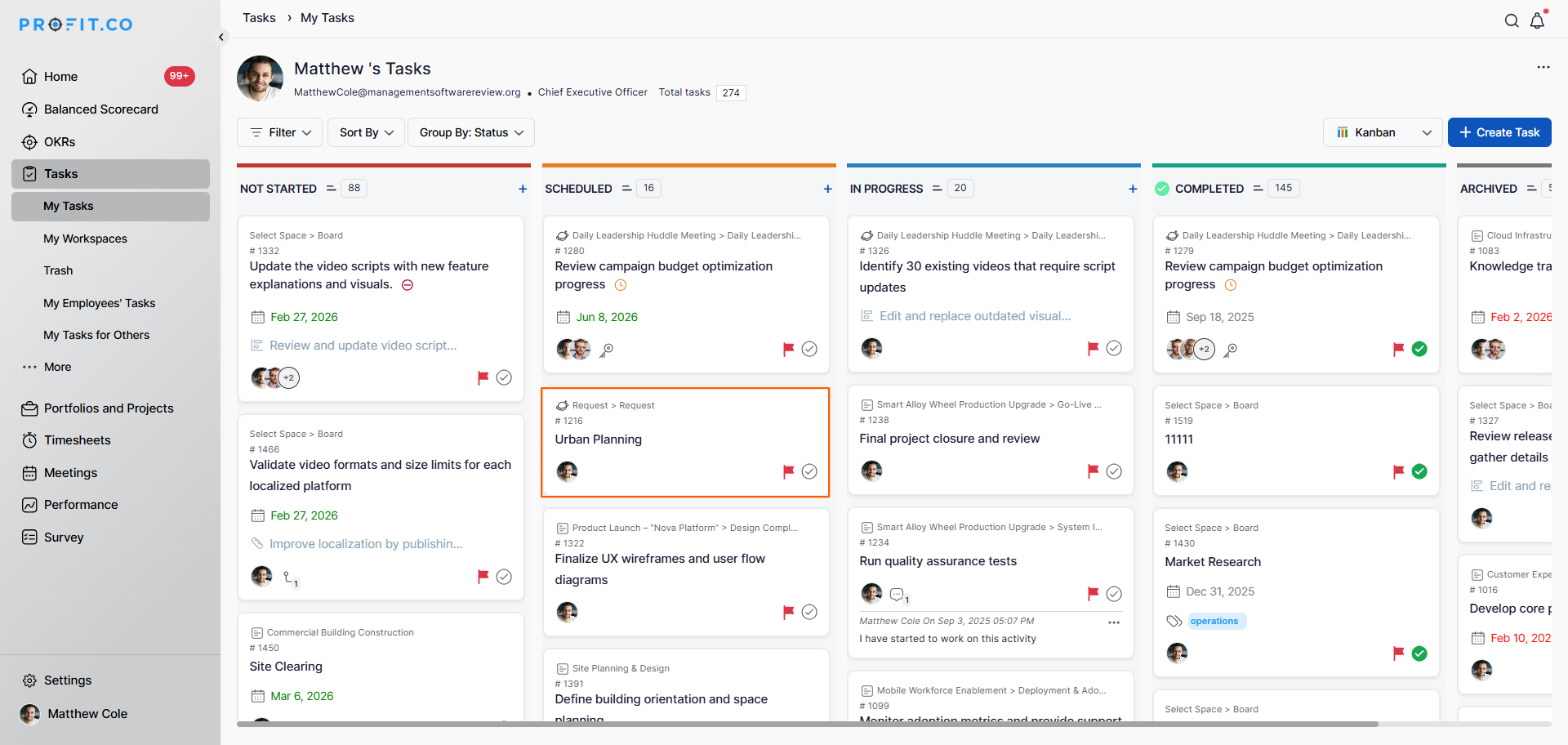
- Navigate to the Workspace or Board and click on any task to open its detail view.
- Click the Edit option on the task to enter edit mode.
Step 2
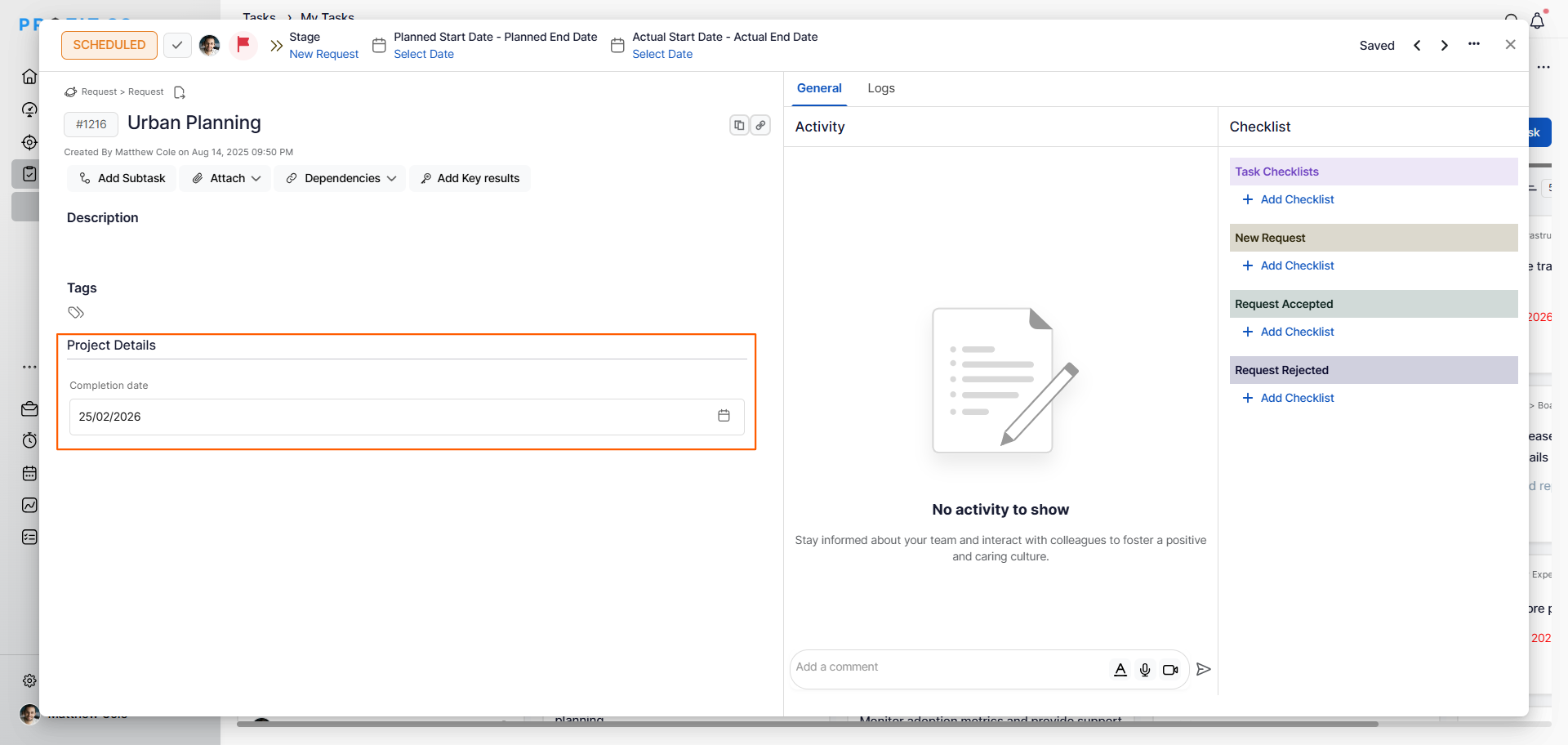
- Scroll to the custom attributes section within the task detail view.
- Enter the relevant values for each custom attribute field that has been configured.
Best practices for using Custom Attributes for Tasks in Profit.co
- Plan your custom attributes carefully before creating them; only add fields that your team will consistently use and that add genuine value to task tracking.
- Group related attributes into clearly named sections to keep the task form organized and easy to navigate.
- Use descriptive and self-explanatory attribute names so team members understand exactly what information to enter without additional guidance.
- Use Number and Currency fields with minimum and maximum value limits to prevent incorrect data entry and maintain data integrity.
Related Questions
Click here to learn how to set custom attributes for Goals in Profit.co.
Frequently Asked Questions
Navigate to Settings → Tasks from the left navigation panel and switch to the Master Layout tab. From here you can create sections and add custom attribute fields to the task form.
A Section is a grouping container within the Master Layout that organizes related custom attributes together on the task form. You can name each section to reflect the type of information it captures.
In the Master Layout, locate the desired attribute type in the Palette section, drag and drop it into the relevant section, name it in the Inspector tab, and click Save.
