



How to customize the charts on the Company Dashboard in Profit.co?
Category: General
Profit.co provides an option to customize the charts in the Company dashboard.
Why this Feature?
- The Super Users can customize the Company Dashboard charts, this helps to show only the charts that are used in their organization.
- For instance, if the organization uses only departments then the department chats will be displayed and team charts will not be displayed.
Step 1
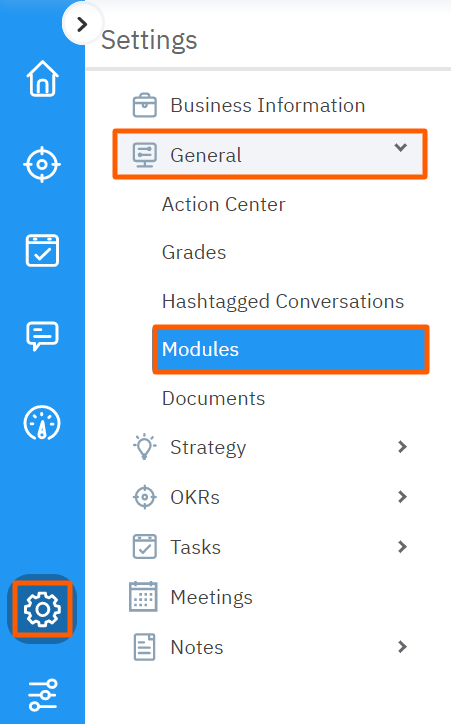
From the left menu navigate to Settings → General → Modules.
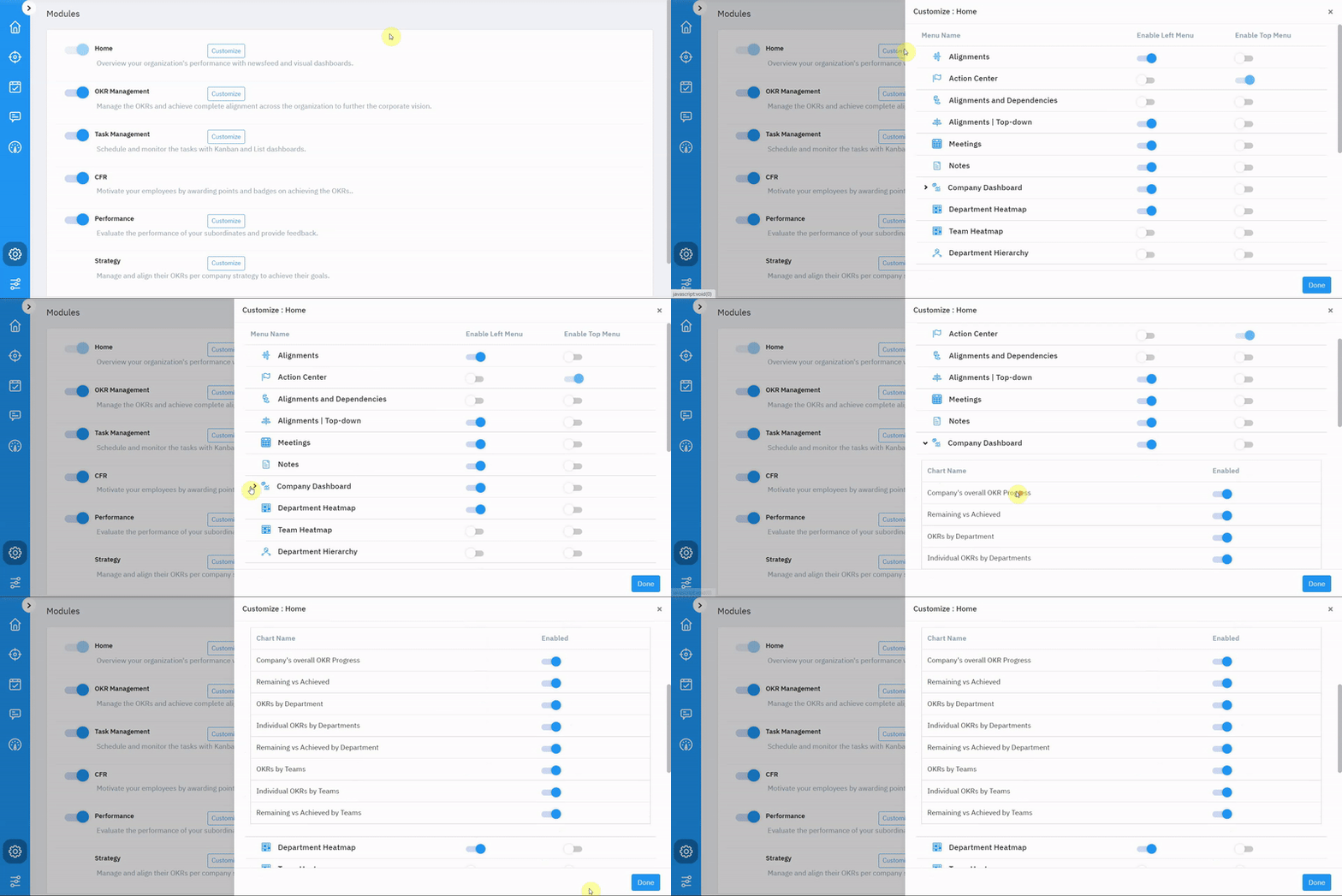
Customize the Home menu and click on the dropdown icon for the Company Dashboard.
Step 2
For instance, if the organization uses only departments you can customize the Company Dashboard by disabling the toggles that show the chart related to Teams.
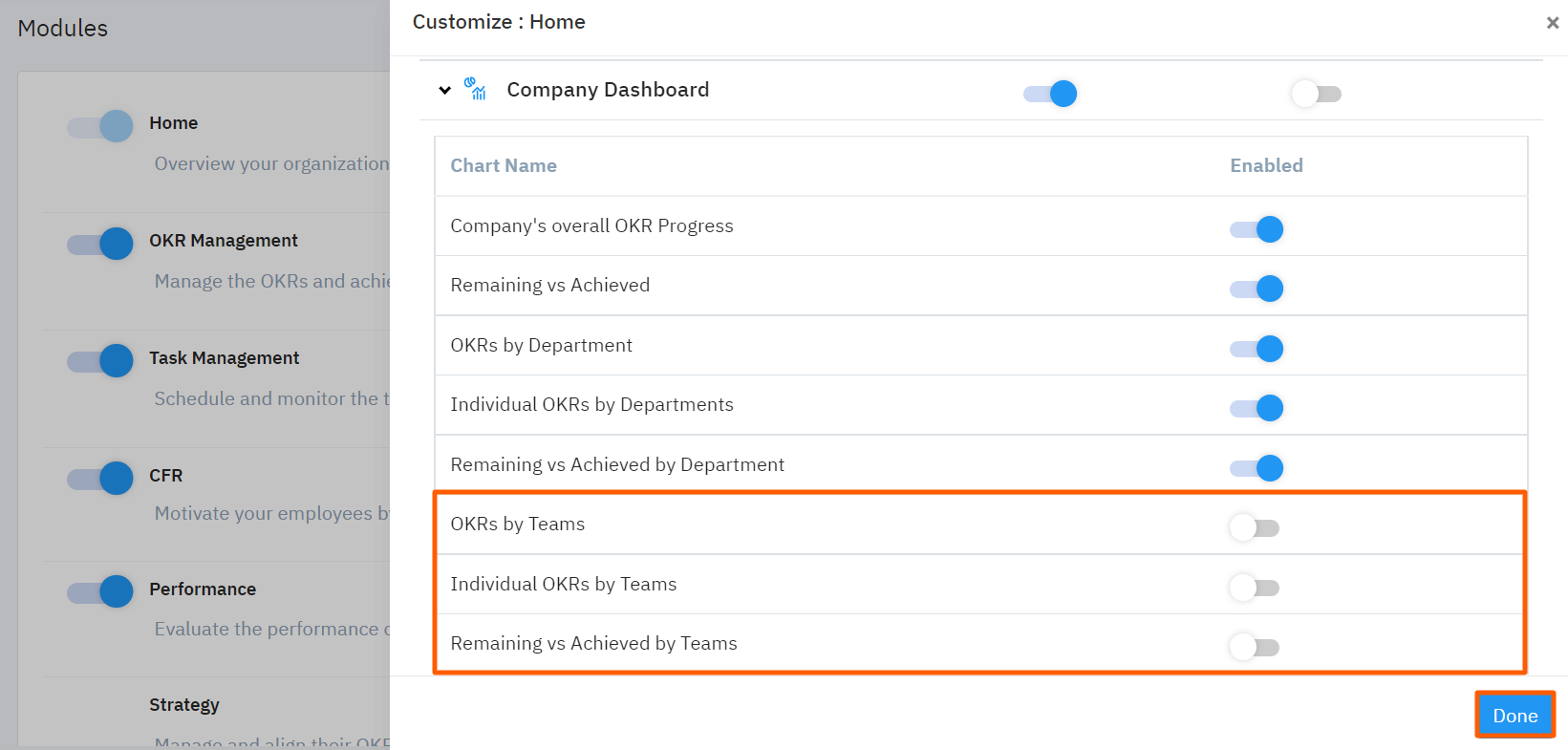
Finally, click on Done.
Step 3
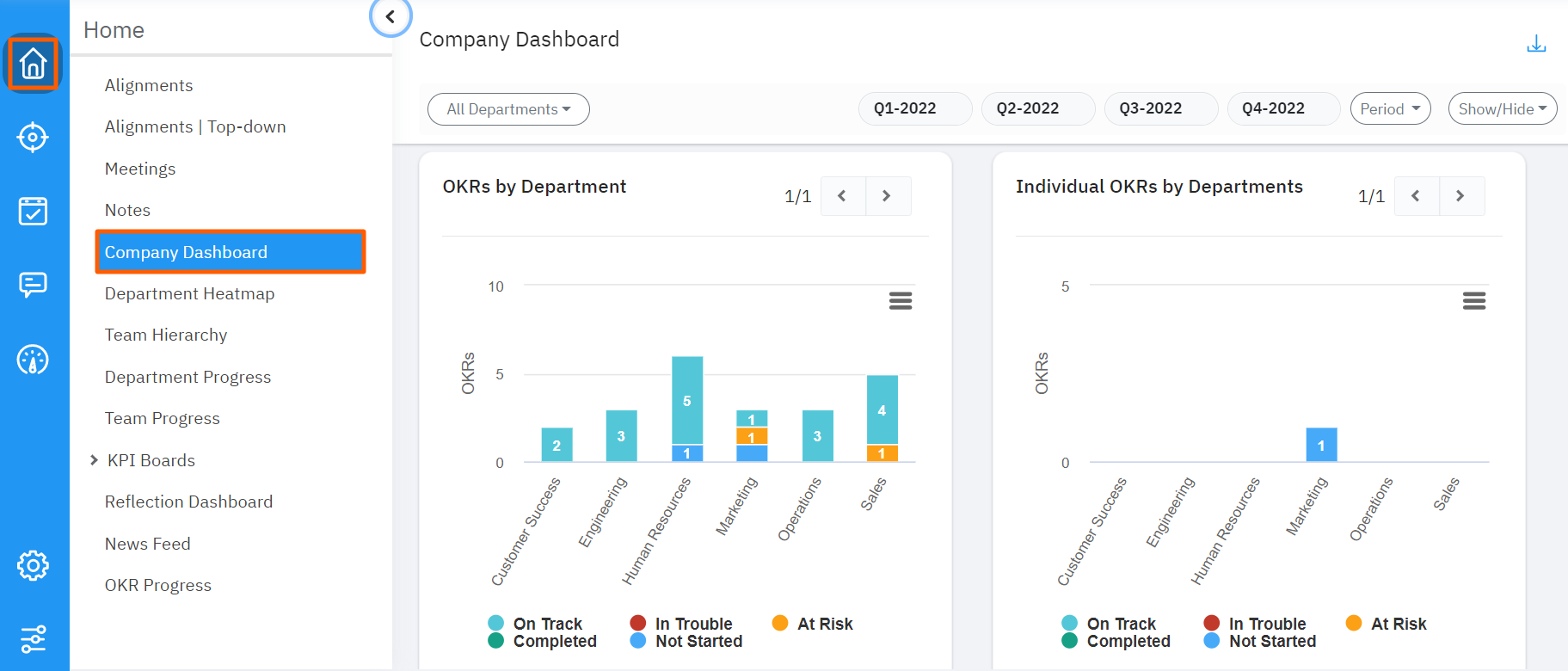
If you navigate to the Company dashboard from the left menu you will be able to see all other charts excluding team OKR charts.
Related Blog Post
To learn the process of exporting files from the Company Dashboard, click here.
Related Questions
-
How can I edit user information?
Table of Contents What does editing user information mean in Profit.co? Why should you use this feature? How to ...Read more
-
How can I create OKRs for one of my peers?
In Profit, there is a feature called Proxy users which allows you to login as a peer and create OKRs for them. If you ...Read more
-
What are the unique features of Profit?
From the outset, Profit.co understood the common issues, challenges, and dysfunctions around OKR implementation. We ...Read more
-
Do I get a task notification in the action center?
Profit.co allows you to get email notifications for all the pending tasks and tasks due. Why this feature? By using ...Read more