

In Profit.co, KPI Summary is a centralized dashboard that provides a visual overview of your Key Performance Indicators (KPIs) and Key Results, enabling you to track performance metrics against organizational goals efficiently.
Table of Contents
- What is KPI Summary in Profit.co?
- Why should I use KPI Summary?
- How do I access the KPI Summary in Profit.co?
- What can I view in the KPI Summary?
- How do I switch between KPIs and Key Results in KPI Summary?
- What filtering options are available in KPI Summary?
- KPI Summary Filter Scenarios and Their Outcomes
- How do I create a new KPI Board?
- Best Practices for Using KPI Summary
- Related Questions
- Frequently Asked Questions
What is KPI Summary in Profit.co?
KPI Summary is a visual performance tracking tool in Profit.co that displays Key Performance Indicators (KPIs) and Key Results in a consolidated view. It allows you to monitor actual metrics against organizational goals and targets across different organizational levels.
Why should I use KPI Summary?
KPI Summary provides several benefits for performance tracking and monitoring:
| Benefit | Description |
|---|---|
| Visual Performance Tracking | Offers a straightforward way to compare actual metrics with organizational goals |
| Simplified Data Presentation | Makes complex performance data easy to understand at a glance |
| Trend Identification | Helps identify patterns and trends in performance over time |
| Data Distribution Visualization | Displays data with clarity and precision across organizational levels |
| Centralized Monitoring | Consolidates KPIs and Key Results in one accessible location |
How do I access the KPI Summary in Profit.co?
Follow these steps to navigate to the KPI Summary:
Step 1
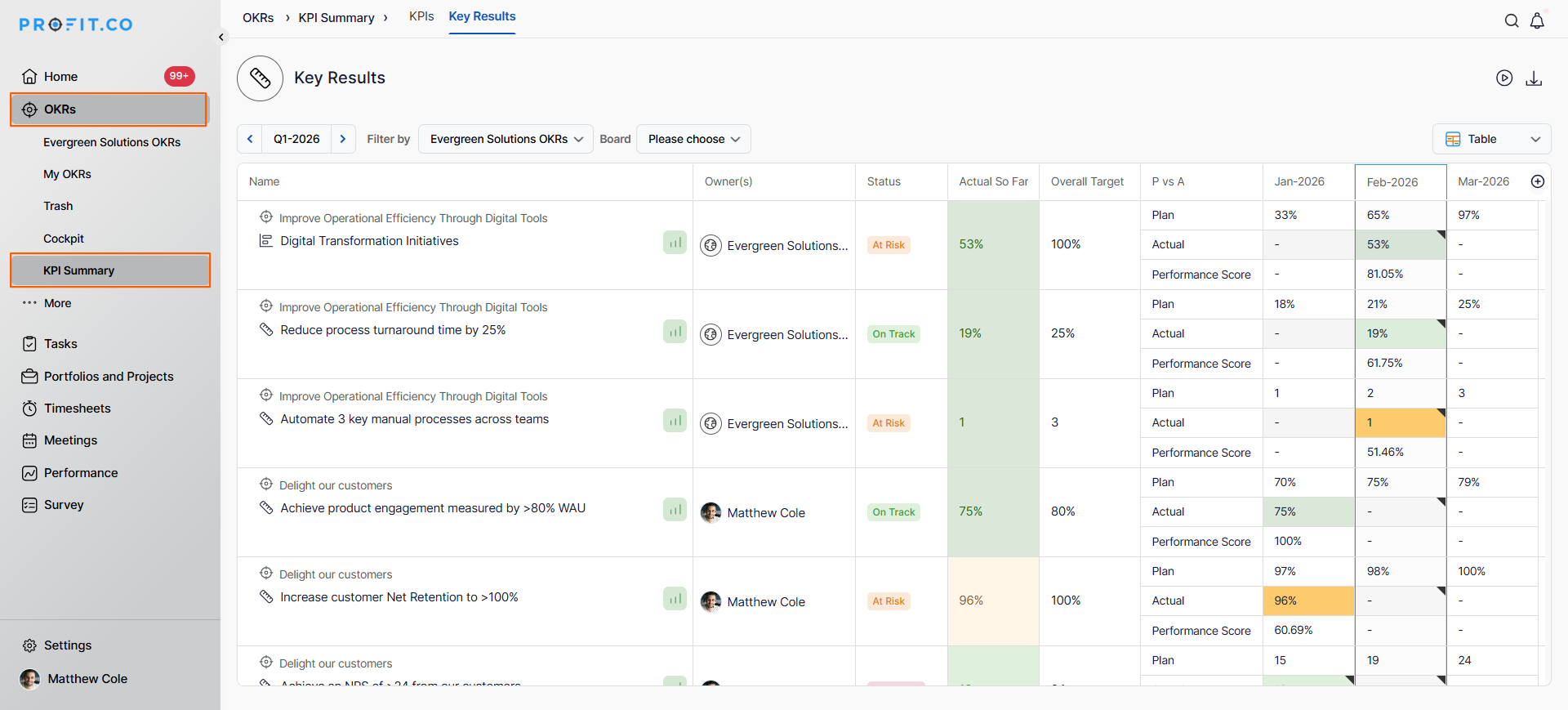
- Click on OKRs from the left navigation panel.
- Click on KPI Summary from the OKRs menu.
- You will now see the KPI Summary dashboard displaying your performance metrics.
What can I view in the KPI Summary?
The KPI Summary displays performance metrics at any selected organizational level:
| Organizational Level | Description |
|---|---|
| Corporate | View company-wide KPIs and Key Results |
| Department | Monitor department-specific performance metrics |
| Employee | Track individual employee KPIs and Key Results |
You can select your preferred level using the filter options in the KPI Summary dashboard.
How do I switch between KPIs and Key Results in KPI Summary?
The KPI Summary provides two tabs to organize your performance metrics:
| Tab | What It Shows |
|---|---|
| KPIs | Displays all Key Performance Indicators at the selected organizational level. Shows KPI performance data, trends, and progress toward targets. |
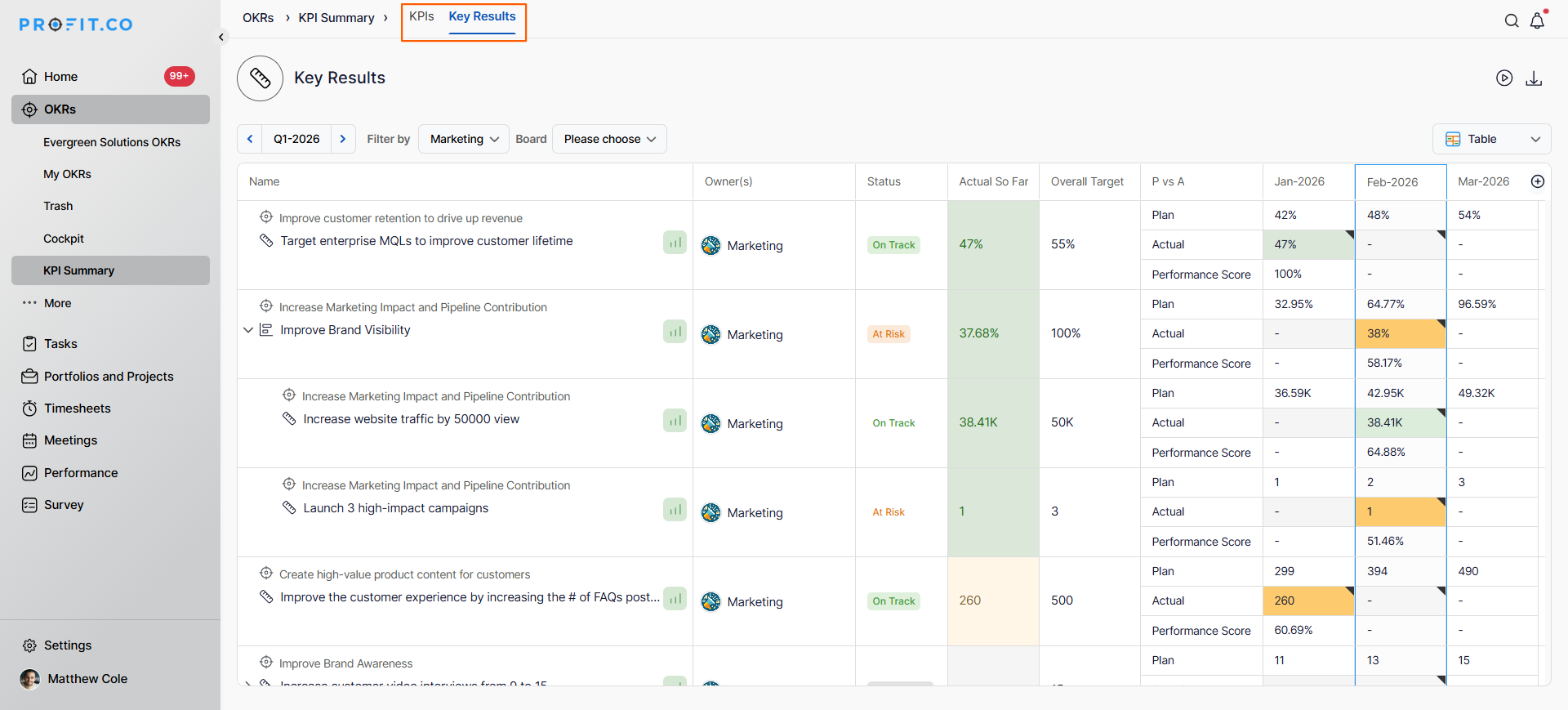
| Key Results | Displays Key Results linked to objectives at the selected level. Shows Key Result progress, status, and performance metrics. |
To switch between tabs, simply click on the KPIs tab or Key Results tab at the top of the KPI Summary dashboard.
What filtering options are available in KPI Summary?
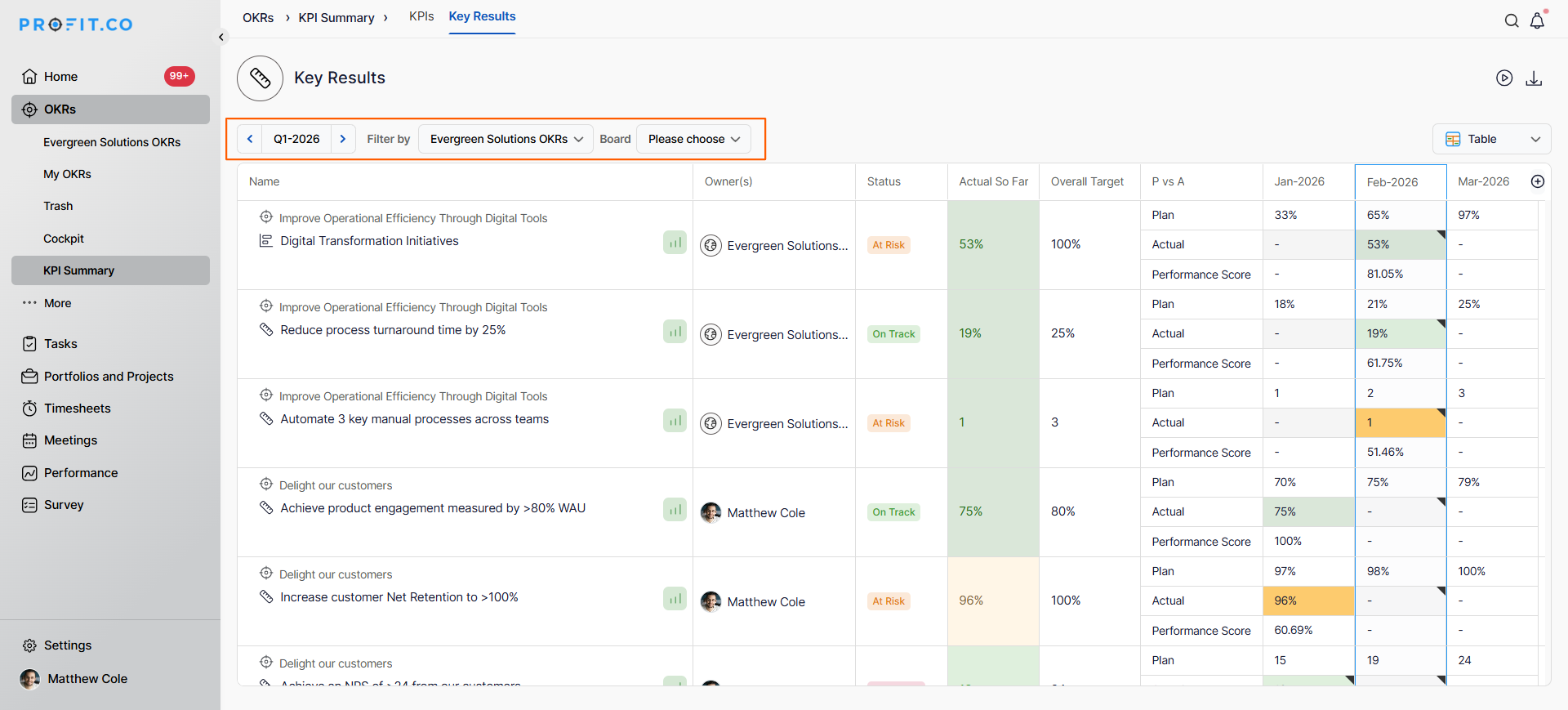
KPI Summary provides flexible filtering to customize your view:
- Filter by organizational level (Corporate, Department, Employee)
- Select specific time periods for performance tracking
- Choose which KPI Boards to display
Note
The department filter now supports selecting multiple departments in a single interaction. Previously, you could only apply one department filter at a time.
KPI Summary Filter Scenarios and Their Outcomes
| Scenario | Options You Have | What Happens |
|---|---|---|
| You click Select all in the department filter instead of checking departments one by one. | Add every department in the hierarchy in a single action. | Profit.co checks all departments and displays a row for each one across every KPI. |
| You switch from the KPIs tab to the Key Results tab. | View standalone KPIs or Key Results linked to objectives. | Profit.co reloads the dashboard with Key Result progress, status, and performance data in place of KPI data. |
| You select a specific KPI Board from the Board dropdown. | Choose any board you or another user has created. | Profit.co narrows the KPI Summary view to only the KPIs included in that board. |
| You start creating a new KPI Board but close the Create Board panel before selecting a Name or KPIs. | No option applies — the setup is incomplete. | Profit.co does not save the board, and the Board dropdown keeps its existing list unchanged. |
| You try to filter by a department outside your assigned access, or open a KPI Board you didn't create. | You can view boards created by others, but you can select only the departments included in your role's access. | Profit.co excludes departments outside your access from the hierarchy list, and blocks edit or delete actions on boards you don't own. |
How do I create a new KPI Board?
KPI Boards allow you to group related KPIs for focused tracking. Follow these steps to create a new board:
Step 1
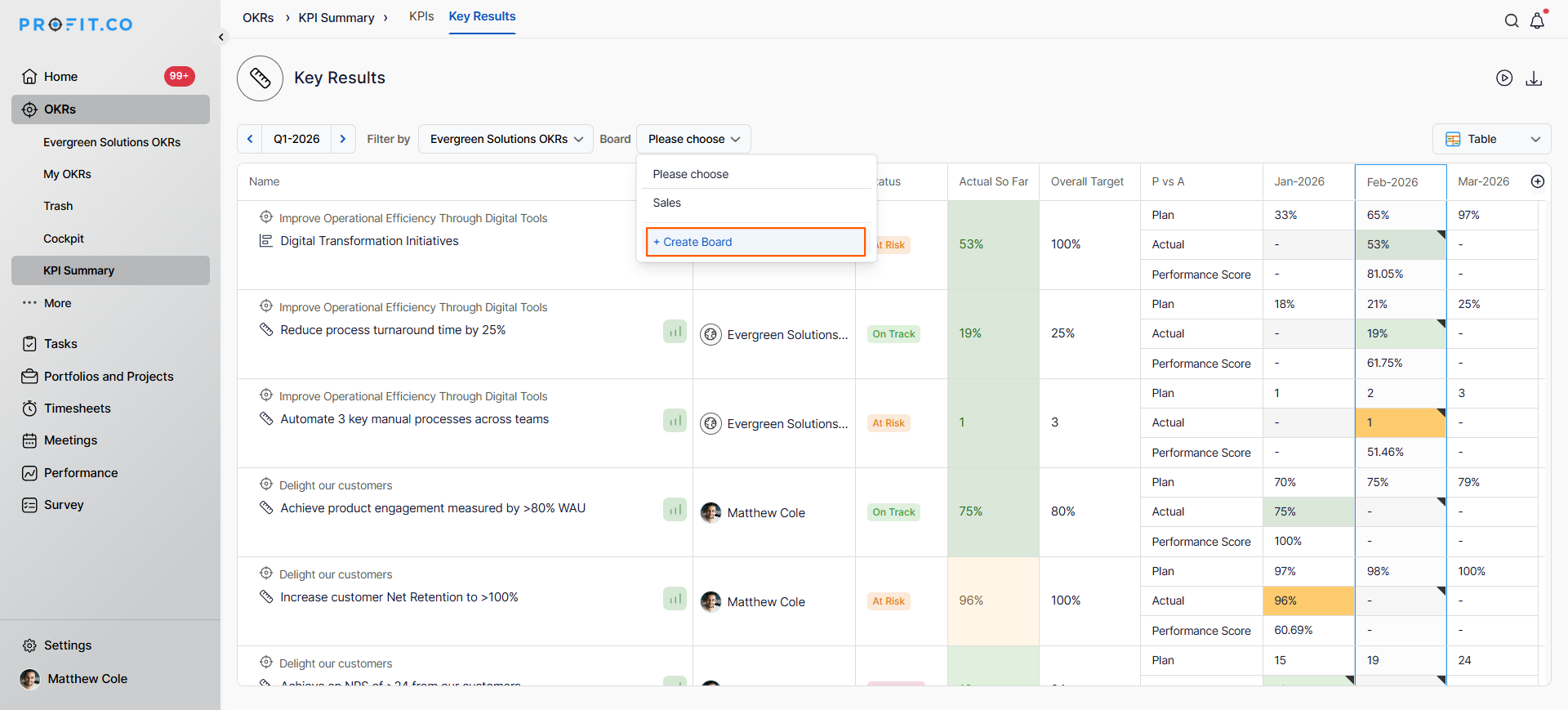
- In the KPI Summary, locate the Board dropdown menu.
- Click on + Create Board.
- Enter a Name for the KPI Board.
- Select the associated KPIs you want to include in this board.
- Click Create to save your new KPI Board.
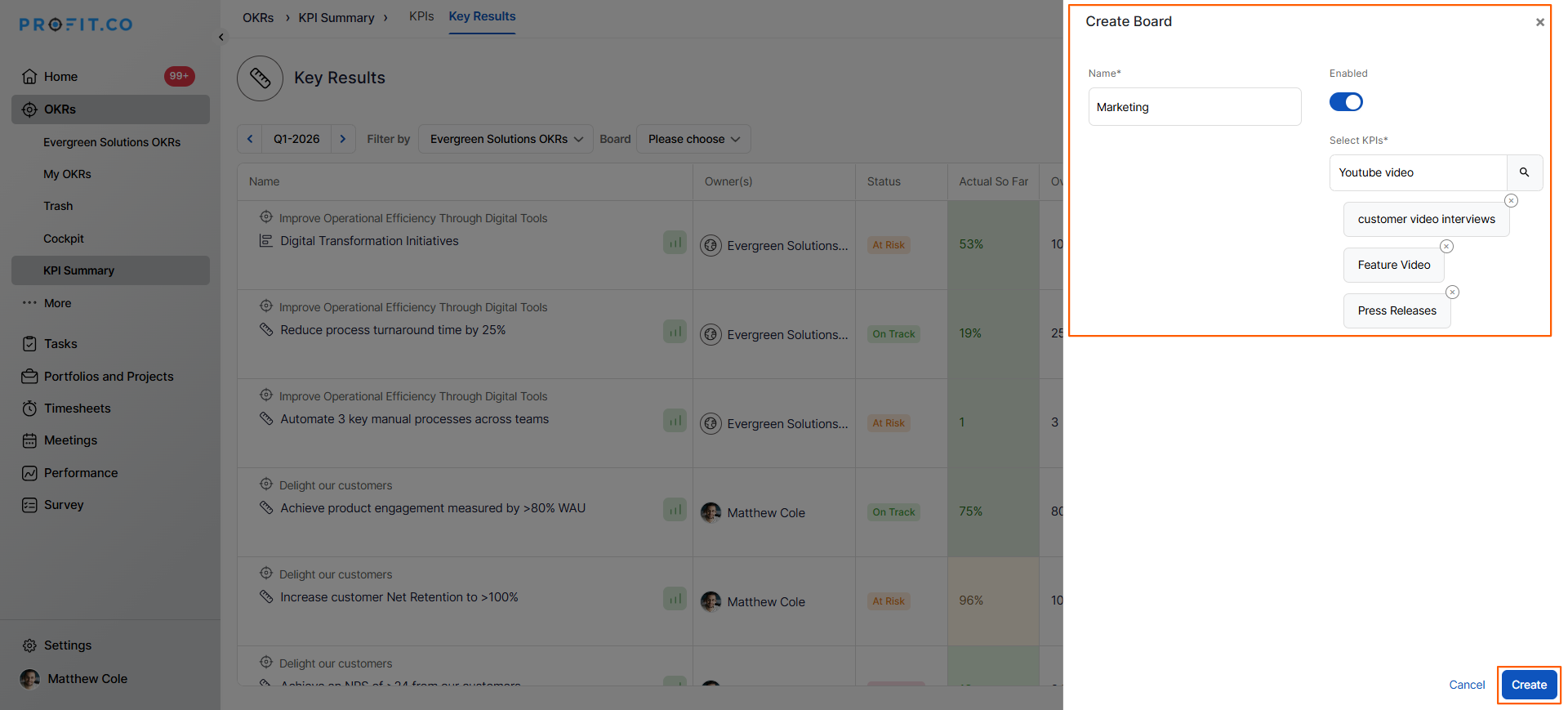
- Your new KPI Board will now appear in the Board dropdown menu and display the selected KPIs.
- All users except Read-Only users can now create KPI Boards directly from the KPI Summary section; Super User access is no longer required.
- The created board will automatically reflect in Settings.
- The user who creates the board becomes its owner.
- Only the creator can edit or delete that board.
Note
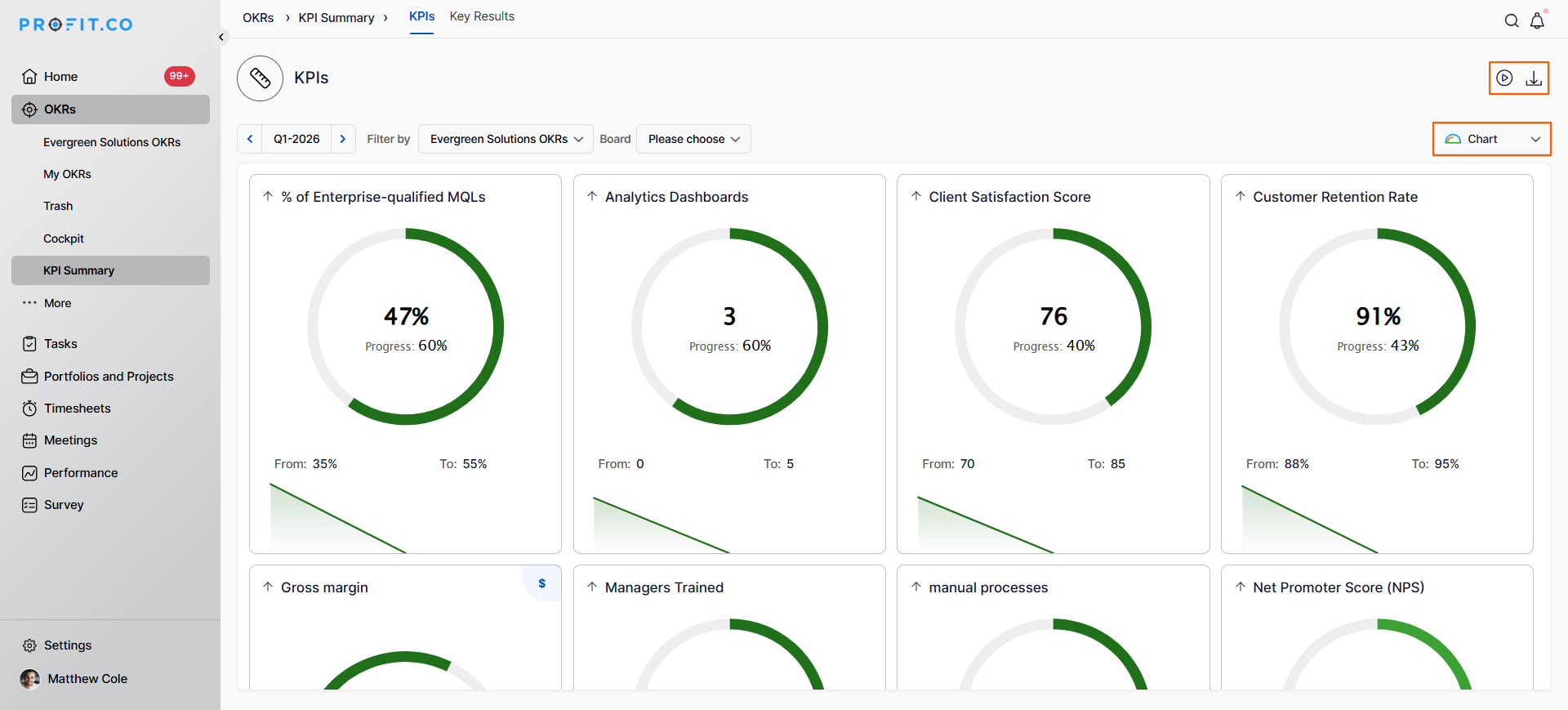
This information can be viewed in both Chart and Table formats. You can also use Presentation mode and export the data as CSV or PDF files.
Best Practices for Using KPI Summary
- Create multiple KPI Boards to organize metrics by theme, department, or strategic priority, making navigation easier.
- Use descriptive names for KPI Boards that clearly indicate their purpose or the metrics they contain.
- Regularly review both KPIs and Key Results tabs to maintain a comprehensive view of performance.
- Apply filters strategically to focus on specific organizational levels or time periods during review meetings.
- Enable only the KPI Boards most relevant to your current priorities to avoid information overload.
- Update KPI Boards periodically to reflect changing strategic priorities and performance metrics.
Related Questions
Frequently Asked Questions
The KPIs tab displays standalone Key Performance Indicators, while the Key Results tab shows Key Results that are linked to specific objectives in your OKR structure.
There is no strict limit on the number of KPIs you can add to a board, but it's recommended to keep boards focused with a manageable number of related metrics for optimal clarity.
Disabled KPI Boards are hidden from view but not deleted. You can re-enable them at any time, and all associated KPIs and configurations will remain intact.
Execute your strategy with confidence
Connect OKRs, tasks, and teams in one place with Profit.co
