



How to set alignments to only one level above the aligning objective's level?
Category: OKRs
Profit.co provides an option to set alignments to only one level above the aligning objective's level.
Why this feature?
- By using this feature you can only align OKRs only to the next level.
- The Department level OKR can be aligned only at the Corporate Level.
- The Individual OKRs can be aligned only with the Management OKRs [Manager’s OKR].
Step 1
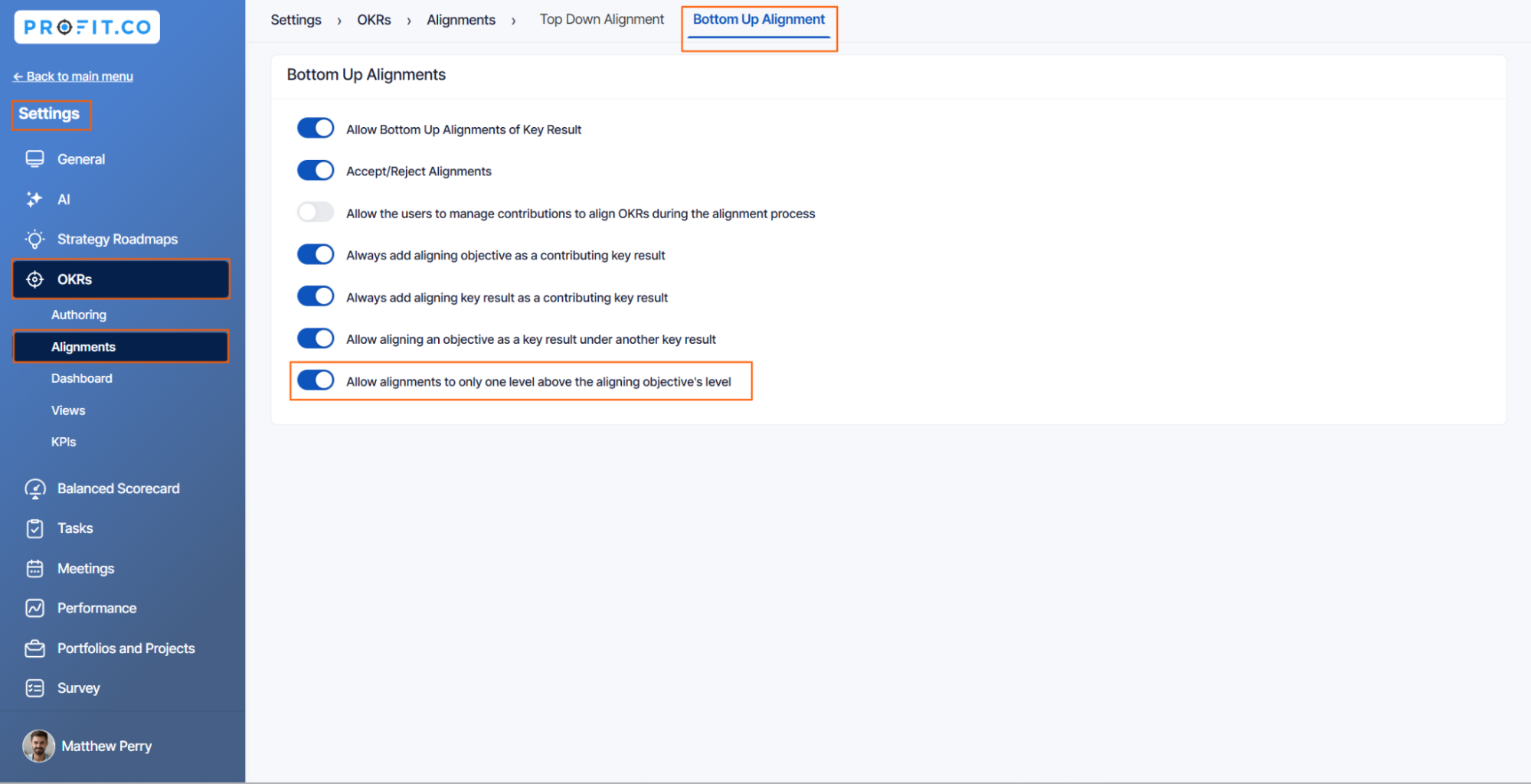
Navigate to Settings → OKRs → Alignments from the left navigation panel. Switch to the Bottom Up Alignment tab.
Enable the toggle for the option “Allow alignments to only one level above the aligning objective's level”.
Step 2
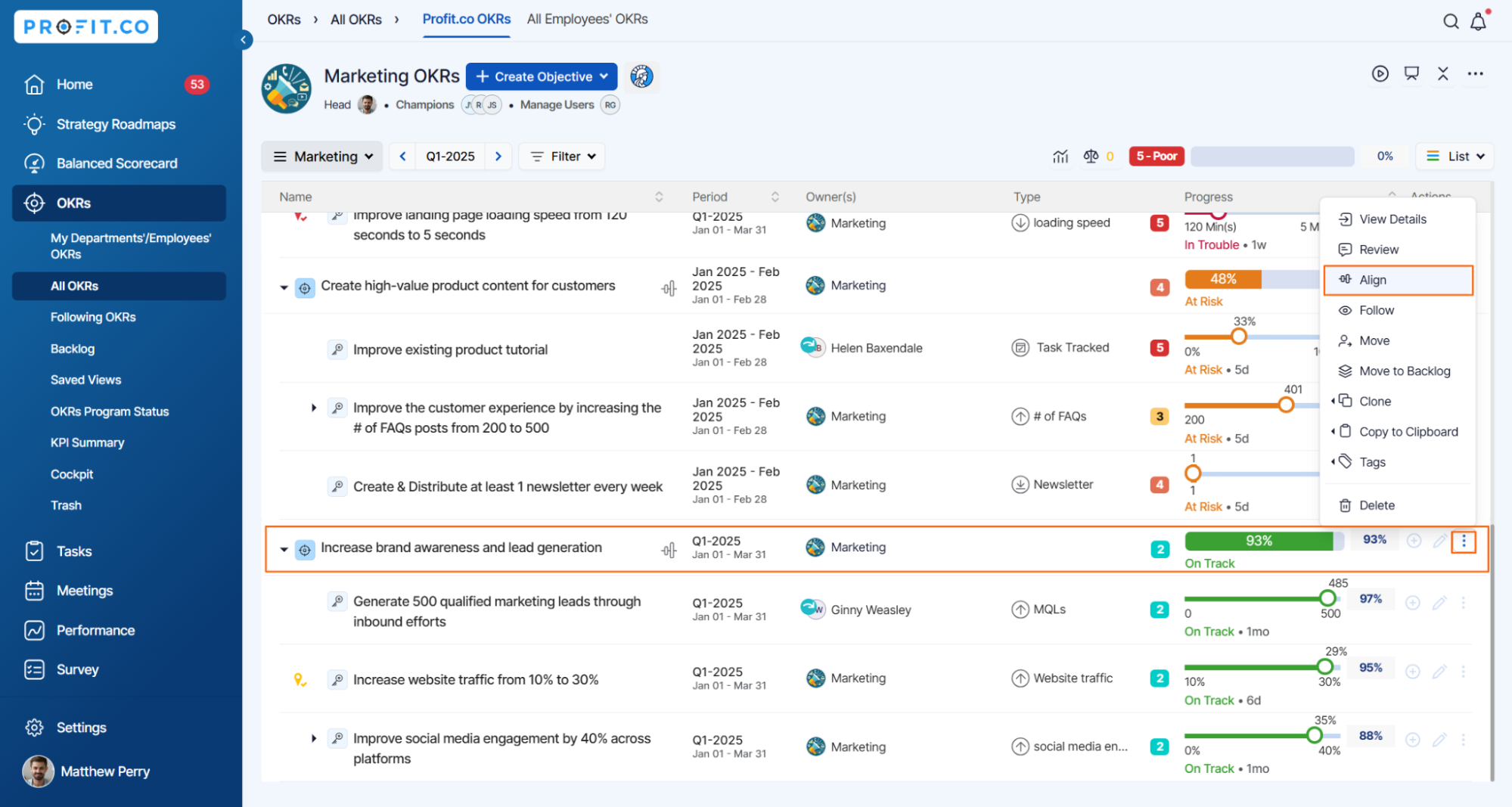
If you’re aligning your OKR to any other OKR.
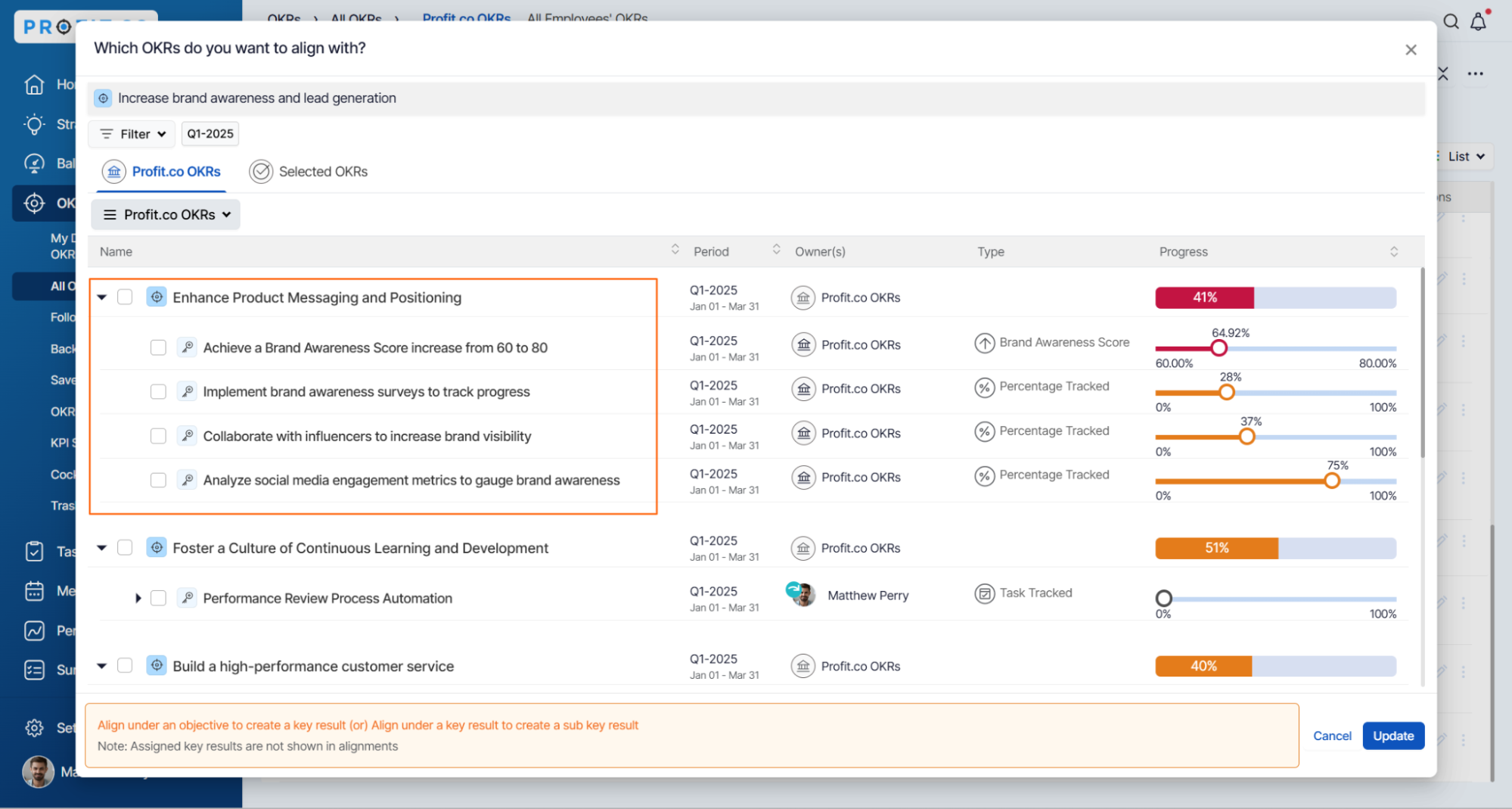
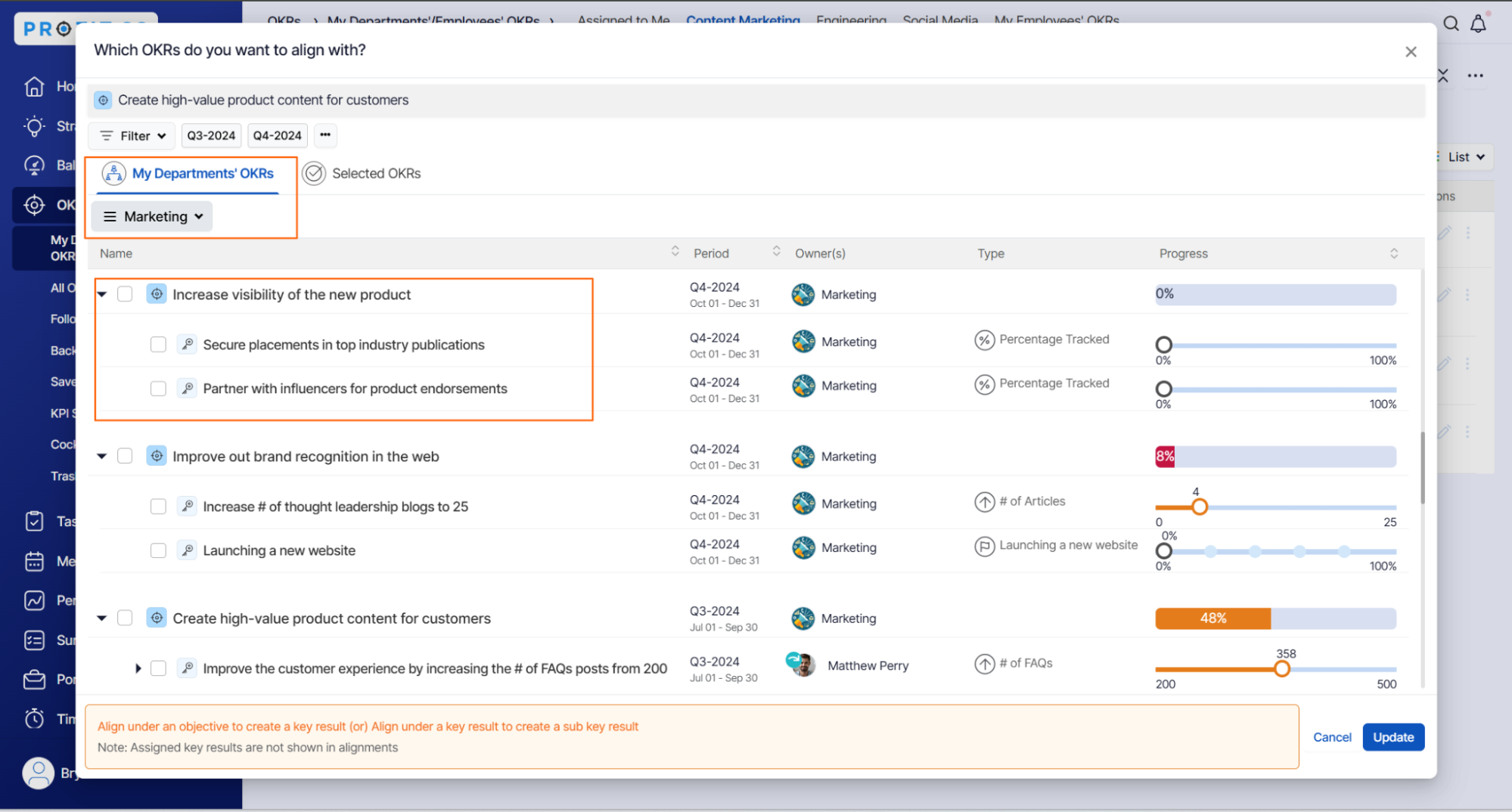
Only the next level OKRs list will be reflected. Here, we are aligning a department-level OKR, so the corporate-level OKRs will be reflected.
You can select only one checkbox of the same OKR. To be aligned as a key result under an Objective or to be aligned as a sub-key result under a parent key result.
Step 3
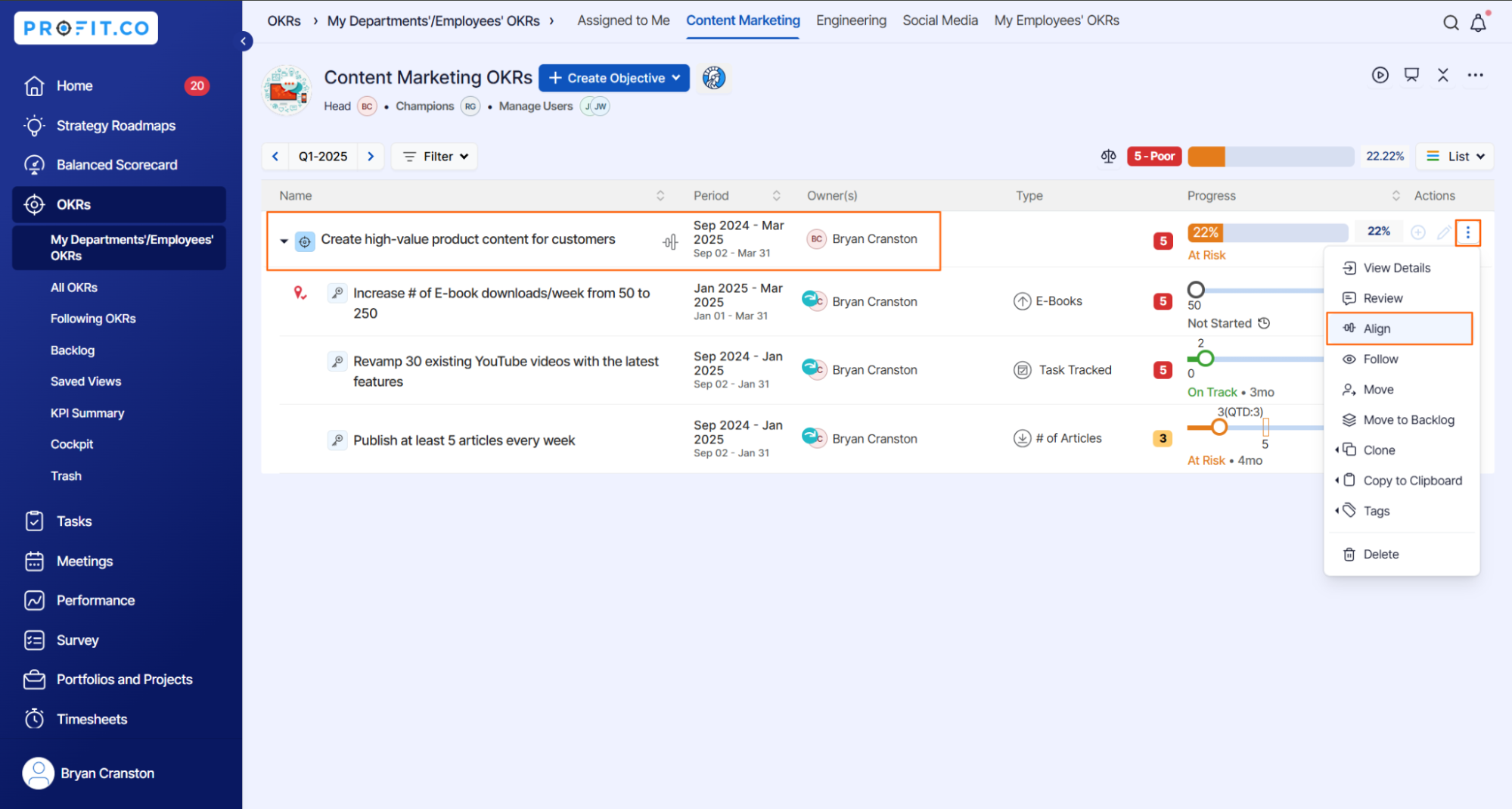
If you are aligning your individual OKR, the reporting manager’s OKR [Mangement OKRs] will be reflected.
Related Blog Post
To learn about the process of alignment, click here.
Related Questions
-
What does Control KPI imply?
Table of Contents Why this feature? What is a Control KPI? Progress Calculation Types in Control KPI Value ...Read more
-
How do I check-in for Key Results?
Profi.co allows you to report your progress on your key results at different OKR levels. Why are key result check-ins ...Read more
-
How do I manage Key Results directly in the Bowler Chart View in Profit.co?
In Profit.co, the Bowler Chart View now allows users to create, edit, delete, and access quick actions for Key Results ...Read more
-
How do I view user login history in the Cockpit?
Profit.co has introduced three new widgets within the OKR Cockpit to help organizations monitor user login behavior and ...Read more