

In Profit.co, the Bowler Chart View now allows users to create, edit, delete, and access quick actions for Key Results (KRs) directly within the chart, just like in the List View. It also offers an Excel-style grid that lets users update planned targets and submit check-ins for each Key Result without leaving the chart.
Table of Contents
What is the Bowler Chart View in Profit.co?
The Bowler Chart View offers a visual summary of OKR progress across months or quarters. It helps teams monitor performance trends at a glance while maintaining full control of KR management.
In the Bowler chart view, you can:
- Create new KRs directly from the Bowler Chart.
- Edit existing KRs to adjust targets or progress.
- Delete outdated or irrelevant KRs.
- Access More Options (⋮) for additional quick actions.
This update offers the same level of interactivity as the List View, with the added advantage of a visual, data-rich layout.
How to manage Key Results in the Bowler Chart View?
Step 1
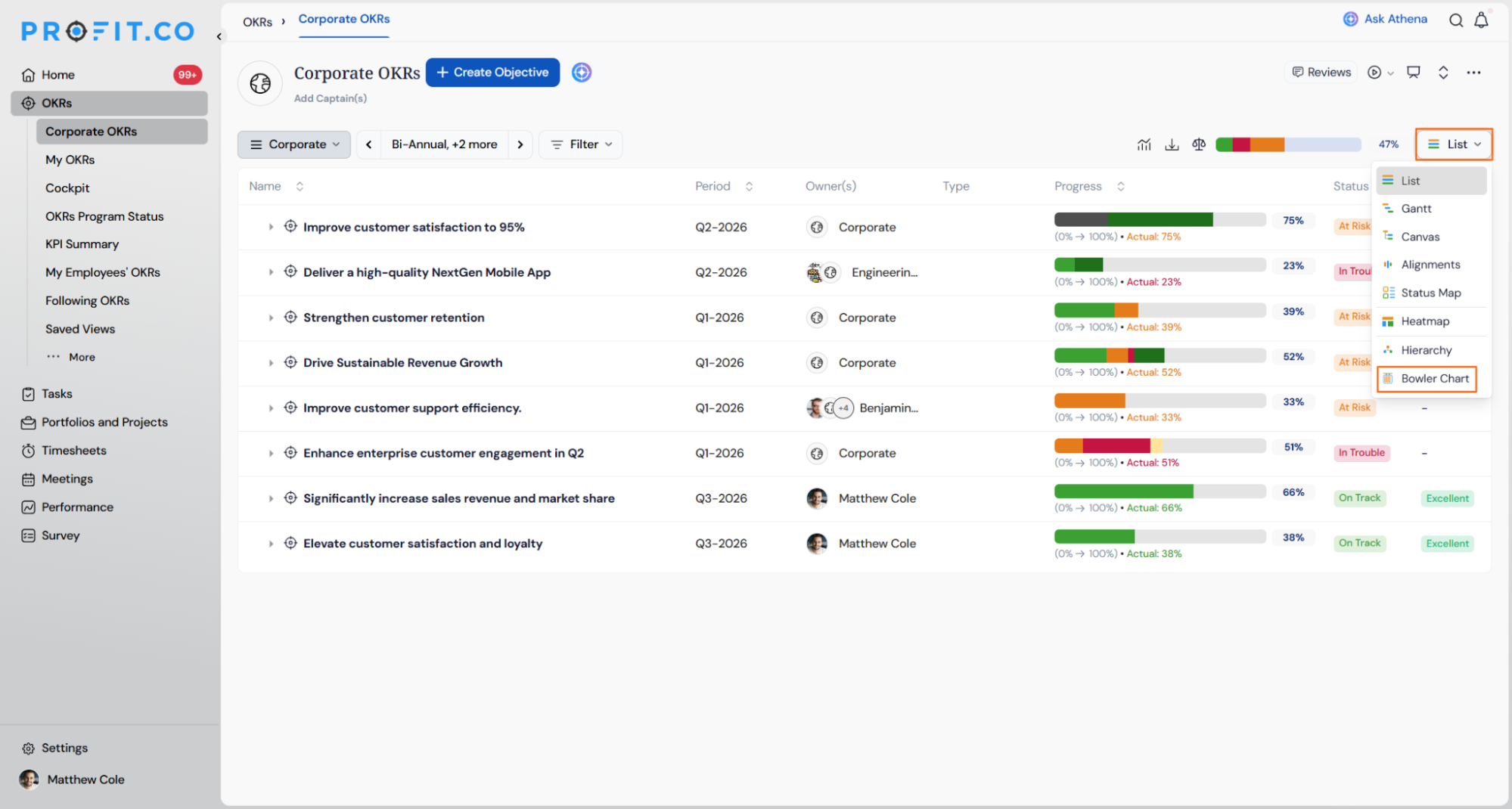
- Navigate to OKRs → select the Bowler Chart View from the dropdown
- Hover over a Key Result to reveal available actions
- Click the + icon to create a new KR
- Select the edit icon to modify existing data
- Click the More Options (⋮) icon for additional actions
All updates made in this view automatically sync with other OKR views, such as List and Gantt.
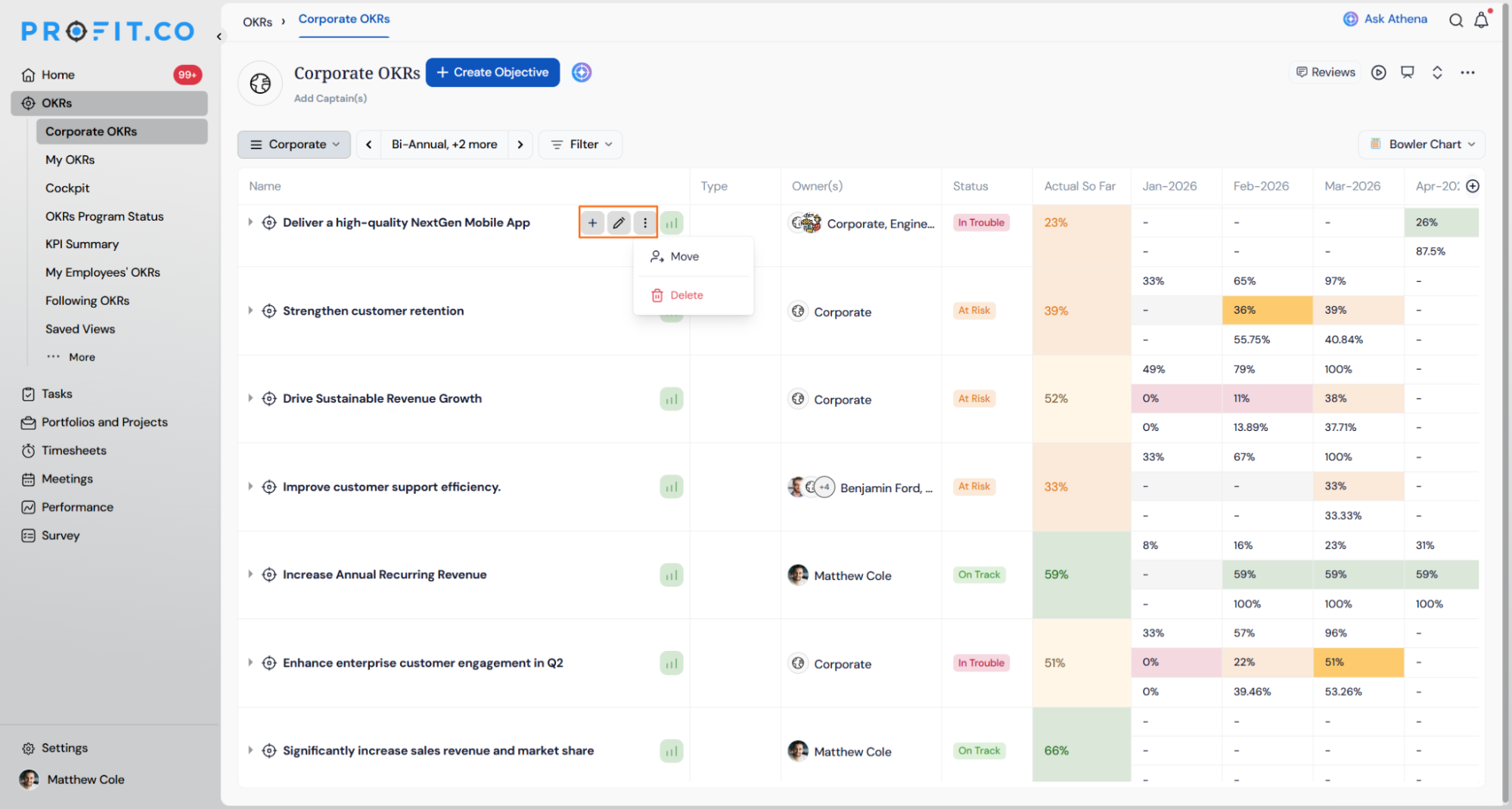
The Bowler Chart also displays an Excel-style grid that lists each Key Result's owner, period, plan, actual, tag, KR type, and weightage in a single row, so plans and check-ins can be updated without opening the record individually.
| Column | What It Shows |
|---|---|
| Owner name | Identifies the KR owner for that row. Displayed for reference only. |
| Period | Identifies the reporting period for that row. Displayed for reference only. |
| Plan | The planned target for the period. Click to open the Modify Plan panel and update it. |
| Actual | The submitted progress for the period. Click to open the Check-in panel and update it. |
| Tag | The KR's assigned tag. Displayed for reference only. |
| Key Results Type | The KR type, such as Milestone or Numeric. Displayed for reference only. |
| Weightage | The KR's weight in scoring. Displayed for reference only. |
Excel-Style Grid Scenarios and Their Outcomes
The table below covers what happens to your data and other views when you use the Excel-style grid, not the click-by-click steps.
| Scenario | What Happens |
|---|---|
| You update Plan or Actual through the Excel-style grid. | Profit.co syncs the change to List View and Gantt View, the same as edits made through the edit icon. |
| You update Plan or Actual through the Excel-style grid. | Profit.co keeps Weightage and Key Results Type unchanged, and recalculates the Performance Score independently of those two fields. |
| You open the Modify Plan or Check-in panel from the grid and close it without saving. | Profit.co discards the change, and the grid keeps its previous value. |
How Performance Scores work in the Bowler Chart View
The Bowler Chart View now shows clear and traceable Performance Score calculations, making OKR scoring easy to understand and verify.
Viewing Performance Scores:
- Open a Bowler Chart view
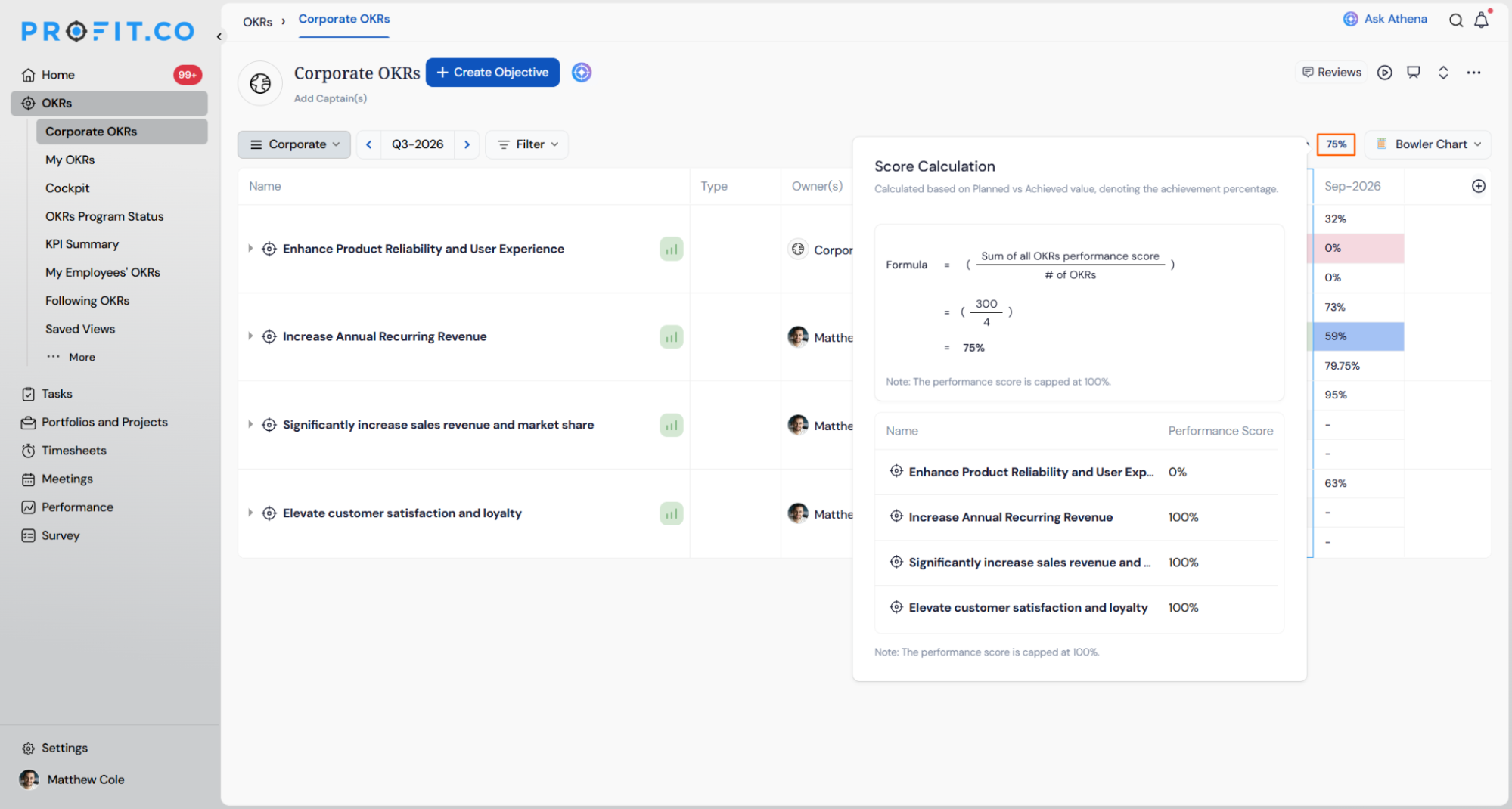
- The Overall Performance Score appears at the top of the chart
- Click the score to view a detailed calculation pop-up
This option is only available when you enable the OKR Scoring type in settings.
What the calculation shows:
- The scoring formula used: (Sum of all OKRs performance scores) ÷ (# of OKRs)
- Individual OKR scores contributing to the overall result
- Real-time score values based on current data
- A transparent breakdown with no hidden logic
Best Practices for Using the Bowler Chart View
- Use the Bowler Chart to track monthly or quarterly performance trends.
- Update KRs regularly from within the chart to maintain accurate progress data.
- Switch between List View and Bowler Chart View for both detailed and visual insights.
- Use More Options to align or analyze KR details quickly.
- Check Performance Score breakdowns before reviews or check-ins.
- Keep your chart tidy by reviewing and deleting outdated KRs periodically.
- Use the Excel-style grid when updating Plan or Actual values across several periods in one sitting, since both panels open directly from the grid without switching to List View.
Related Questions
Frequently Asked Questions
Yes. You can create, edit, delete, and manage KRs directly from the Bowler Chart, similar to the List View.
Yes. All changes made in the Bowler Chart View are synced across List, Gantt, and other OKR views in real time.
Navigate to OKRs → Select Workspace → View Menu → Bowler Chart to access and manage your KRs.
No. These columns display for reference only. Only Plan and Actual values are directly editable from the grid, opening the Modify Plan panel and Check-in panel respectively.
Execute your strategy with confidence
Connect OKRs, tasks, and teams in one place with Profit.co
