













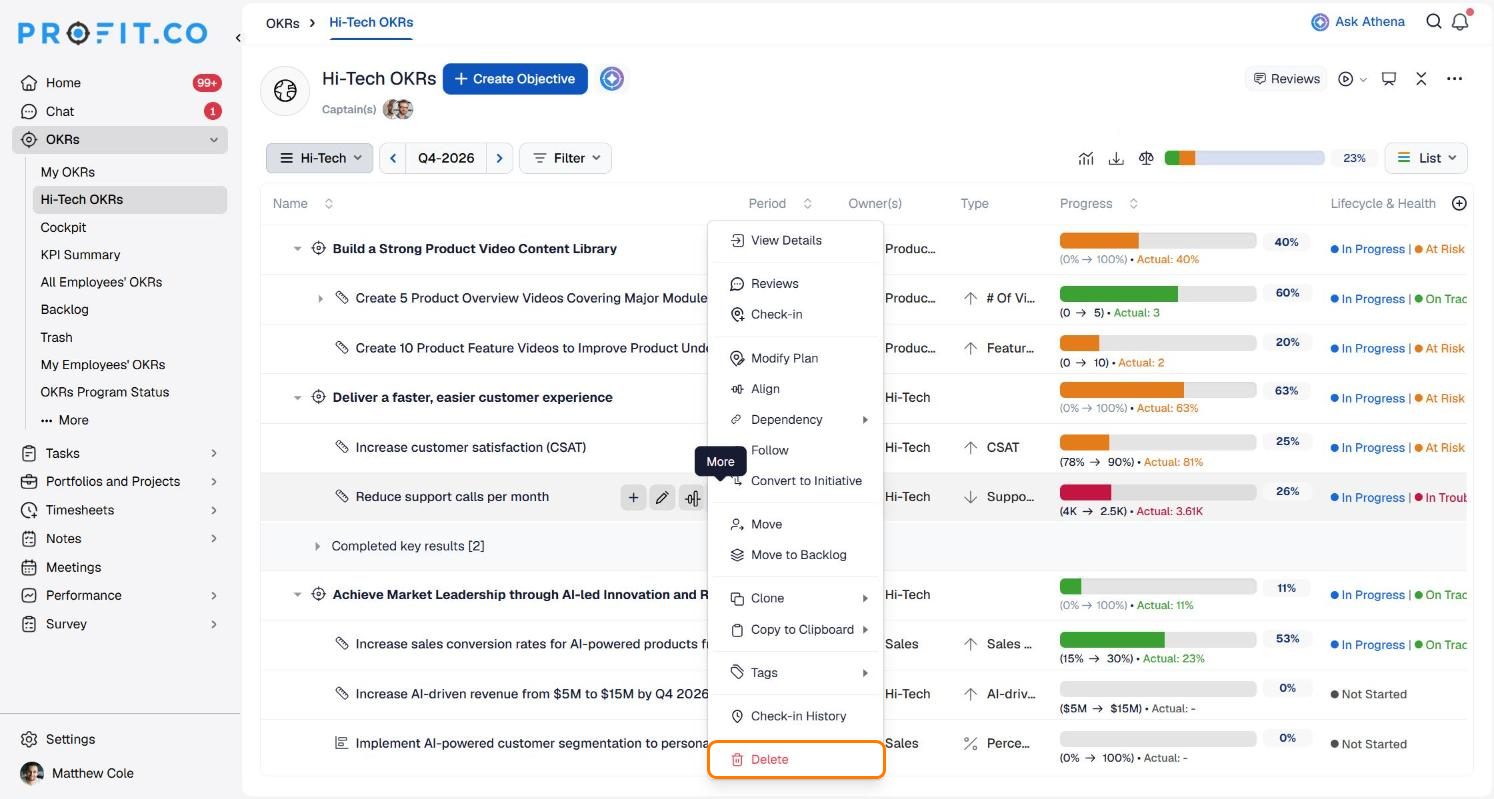
Hover over the objective or key result, click ⋮ (More) → Delete, read the warning, and click Delete to confirm. Deleting a key result affects its parent objective's progress. Deleting an objective also deletes all of its key results. Deleted OKRs go to Trash.
Table of Contents
What Happens When You Delete an OKR?
| You delete | What Profit.co does |
|---|---|
| A key result | Removes it from the list. A warning says the parent objective's progress will be affected. |
| An objective | Removes it and all of its associated key results. |
| Either one | Moves it to Trash. |
Profit.co always asks you to confirm, and it shows what will be removed before you do.
Note
The Delete action appears only if an admin has turned it on. See "How to enable the edit and delete OKRs option?"
How to Delete a Key Result
Step 1
- In the left navigation panel, expand OKRs and open a page, for example, Hi-Tech OKRs.
- Choose the period with the period selector, then expand the objective so its key results show.
- Hover over the key result and click the ⋮ (More) icon at the end of its name.
- Click Delete.
Step 2
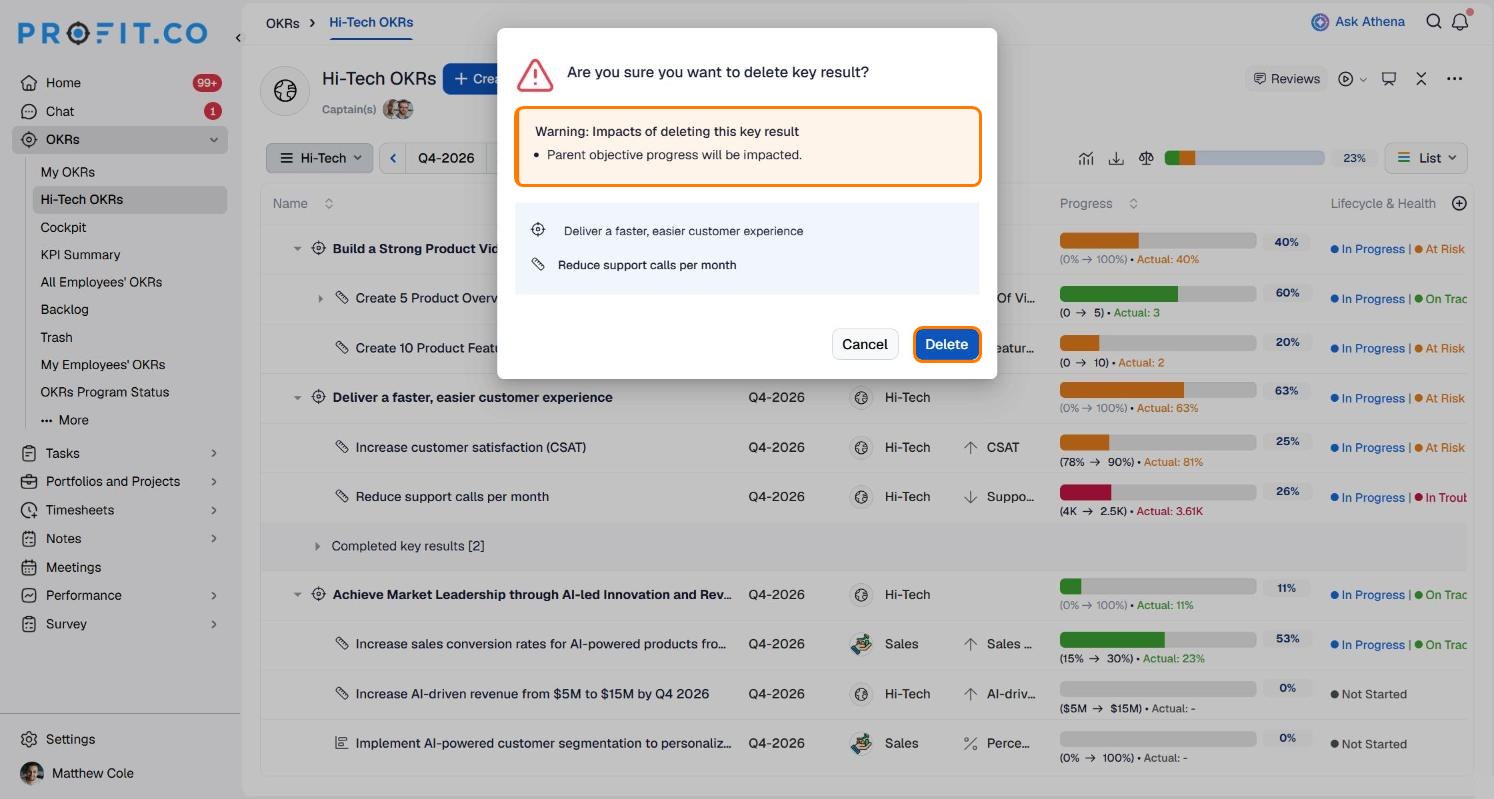
- A window asks Are you sure you want to delete key result?
- Under Warning: Impacts of deleting this key result, it says parent objective progress will be impacted. It also lists the objective and the key result you are deleting.
- Click Delete to remove it, or Cancel to keep it.
How to Delete an Objective
Step 1
- Hover over the objective and click its ⋮ (More) icon.
- Click Delete.
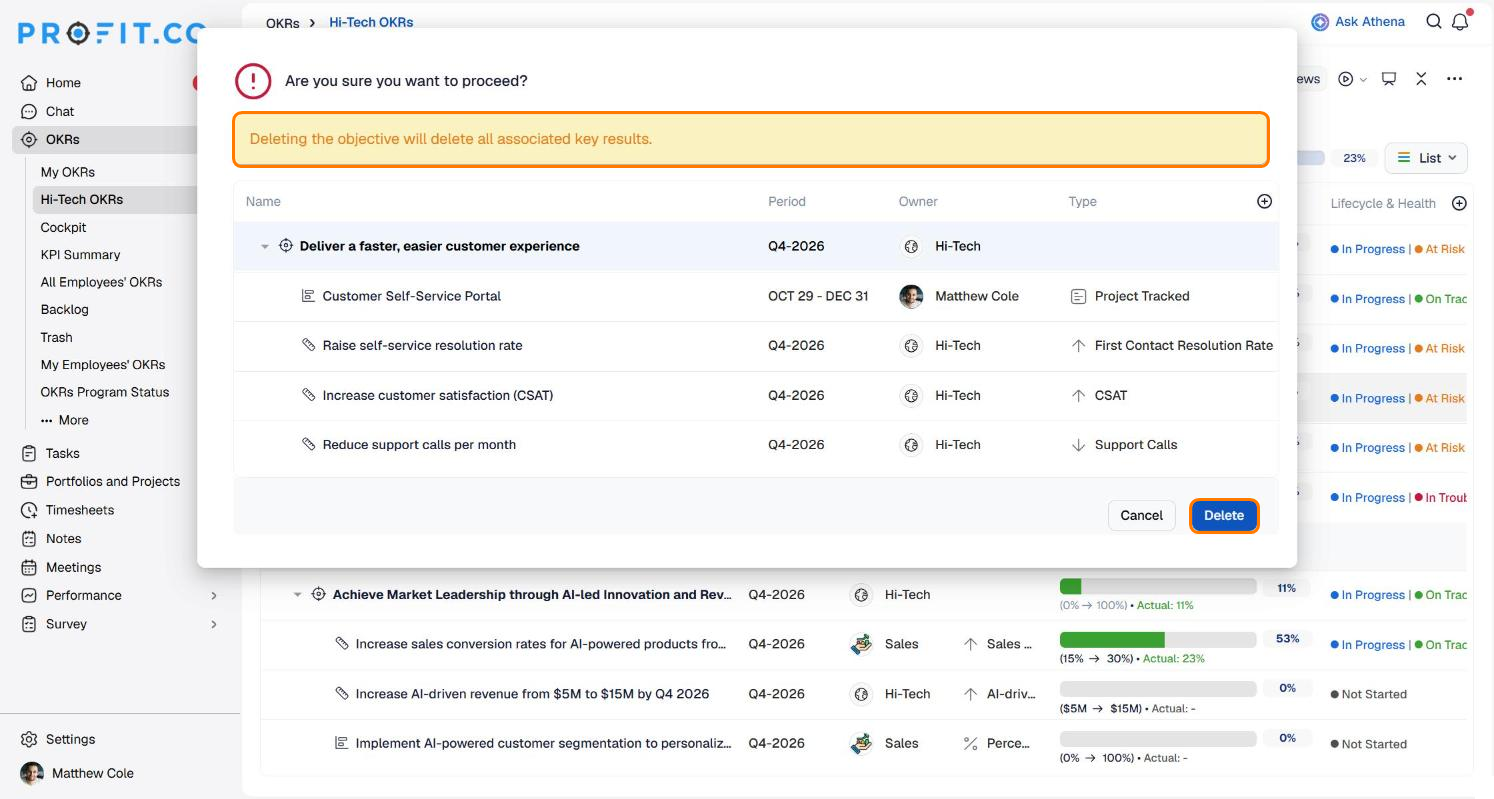
- The window asks Are you sure you want to proceed? and warns that deleting the objective will delete all associated key results.
- A table lists the objective and every key result, initiative, and other item under it, with their period, owner, and type.
- Click Delete to remove the objective and everything listed, or Cancel to keep it.
Where Do Deleted OKRs Go?
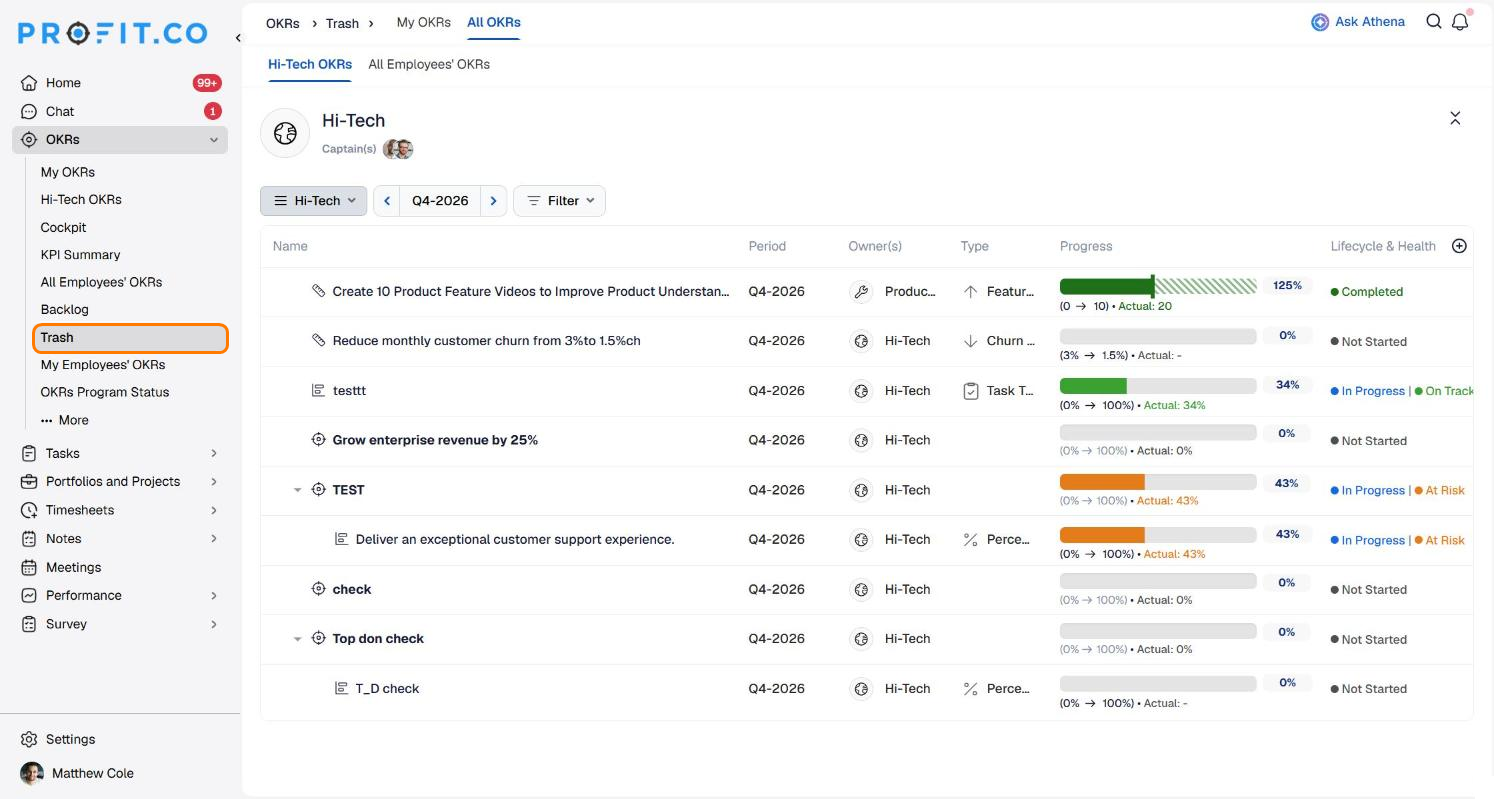
Deleted OKRs go to Trash.
- In the left navigation panel, expand OKRs and click Trash.
- Use the My OKRs and All OKRs tabs, then Hi-Tech OKRs or All Employees' OKRs, and the period selector to find a deleted item. Objectives and key results appear with their progress and status.
To bring one back, see "How to restore deleted OKRs in Profit.co?"
Alternatives to Deleting
Not every OKR needs to be deleted. The same ⋮ menu offers gentler options:
| Instead of deleting, you can | Use it when |
|---|---|
| Move to Backlog | The OKR is still wanted, but not now. |
| Move | The key result belongs under a different objective. |
| Complete or close it during Reflect/Reset | The OKR is finished or no longer needed at period end. |
| Clone | You want a copy to reuse before removing the original. |
Best Practices
- Check the list first: Before deleting an objective, read every key result in the confirmation.
- Tell the owner: Let them know before you remove their OKR.
- Prefer the backlog for "not now": You can bring it back easily.
- Delete early, not late: Remove a wrong OKR before check-ins pile up.
- Limit who can delete: Turn Delete on only where it is needed.
Questions and Answers
| Scenario | What Happens |
|---|---|
| You delete a key result. | Profit.co removes it from the key result list and moves it to Trash. |
| You delete a key result that is contributing to its objective's progress. | Profit.co recalculates the parent objective's progress to reflect the removal. |
| You delete an objective. | Profit.co deletes the objective along with every key result, initiative, and other item nested under it, and moves them all to Trash. |
| You open the delete confirmation window and click Cancel. | Profit.co makes no change, and the key result or objective remains exactly as it was. |
| You delete a key result that your manager assigned to you. | Profit.co notifies your manager of the deletion when the relevant notification toggle is enabled in Action Center. |
Related Questions
- How to enable the edit and delete OKRs option?
- How to restore deleted OKRs in Profit.co?
- How to delete an OKR before the normal time period expires?
- How to retrieve the OKRs from the backlog?
Frequently Asked Questions
Hover over it, click ⋮ → Delete, and confirm.
Yes. All associated key results are deleted.
To Trash, under OKRs.
The Delete row action may be off, or you may lack permission.
Execute your strategy with confidence
Connect OKRs, tasks, and teams in one place with Profit.co
