
In Profit.co, you can create sub-tasks under any existing task to break down complex work into smaller, manageable actions, each with its own assignee, due date, priority, and tags.
Table of Contents
- What are sub-tasks in Profit.co?
- What details can I add to a sub-task in Profit.co?
- How to enable sub-tasks in Profit.co?
- How to create a sub-task for an existing task in Profit.co?
- How to create a sub-task directly from the My Task page?
- How to convert a task to a sub-task or vice versa in Profit.co?
- Best practices for using sub-tasks in Profit.co
- Related Questions
- Frequently Asked Questions
What are sub-tasks in Profit.co?
Sub-tasks in Profit.co are smaller, actionable items created underneath an existing parent task. They allow you to divide a larger task into individual work items, each of which can be independently tracked, assigned, and managed. Sub-tasks inherit the context of the parent task while maintaining their own attributes such as assignee, due date, tags, and priority.
What details can I add to a sub-task in Profit.co?
Similar to parent tasks, each sub-task in Profit.co supports the following attributes:
| Field | Description |
|---|---|
| Assignee | The team member responsible for completing the sub-task |
| Due Date | The target date for completing the sub-task |
| Priority | Urgency level: High, Medium, or Low |
| Tags | Labels to categorize or group the sub-tasks |
How to enable sub-tasks in Profit.co?
Before creating sub-tasks, the feature must be enabled from the Settings panel.
Step 1
- Navigate to Settings → Tasks from the left navigation panel.
- In the General section, locate Task Controls.
- Enable the toggle for subtasks.
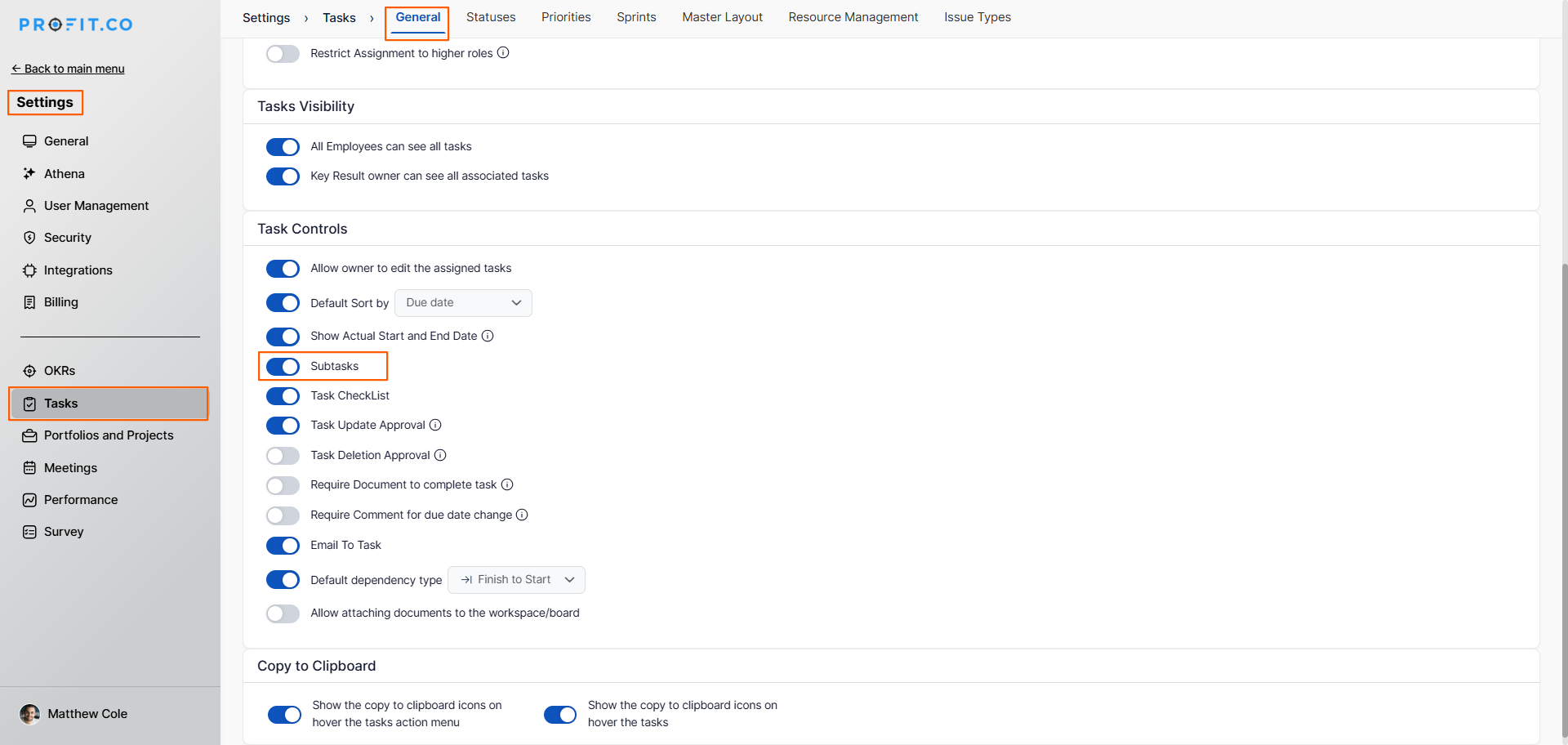
Once enabled, the Sub-Tasks section will appear within every task detail view across your Workspaces and Boards.
How to create a sub-task for an existing task in Profit.co?
Follow these steps to add a sub-task to an already existing task:
Step 1
- Navigate to My Space from the left navigation panel.
- Click on the task to which you want to add sub-tasks.
- Scroll down to the Sub Tasks section within the task detail view.
- Click Add to create a new sub-task.
- Enter the sub-task name.
- Select the Assignee, Due Date, Tags, and Priority as needed.
- Click Add to confirm.
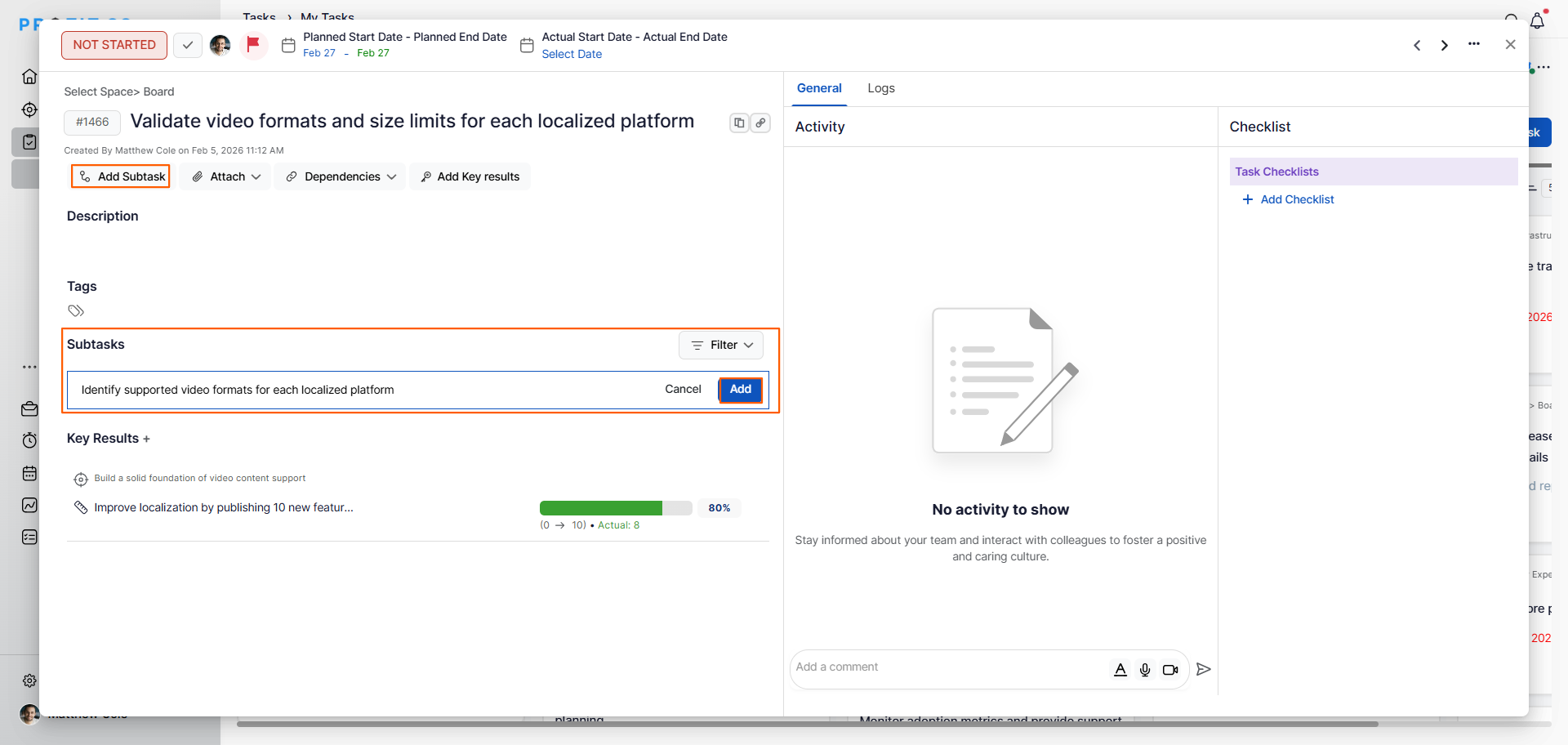
- The newly created sub-task will now appear listed under the parent task.
How to create a sub-task directly from the My Task page?
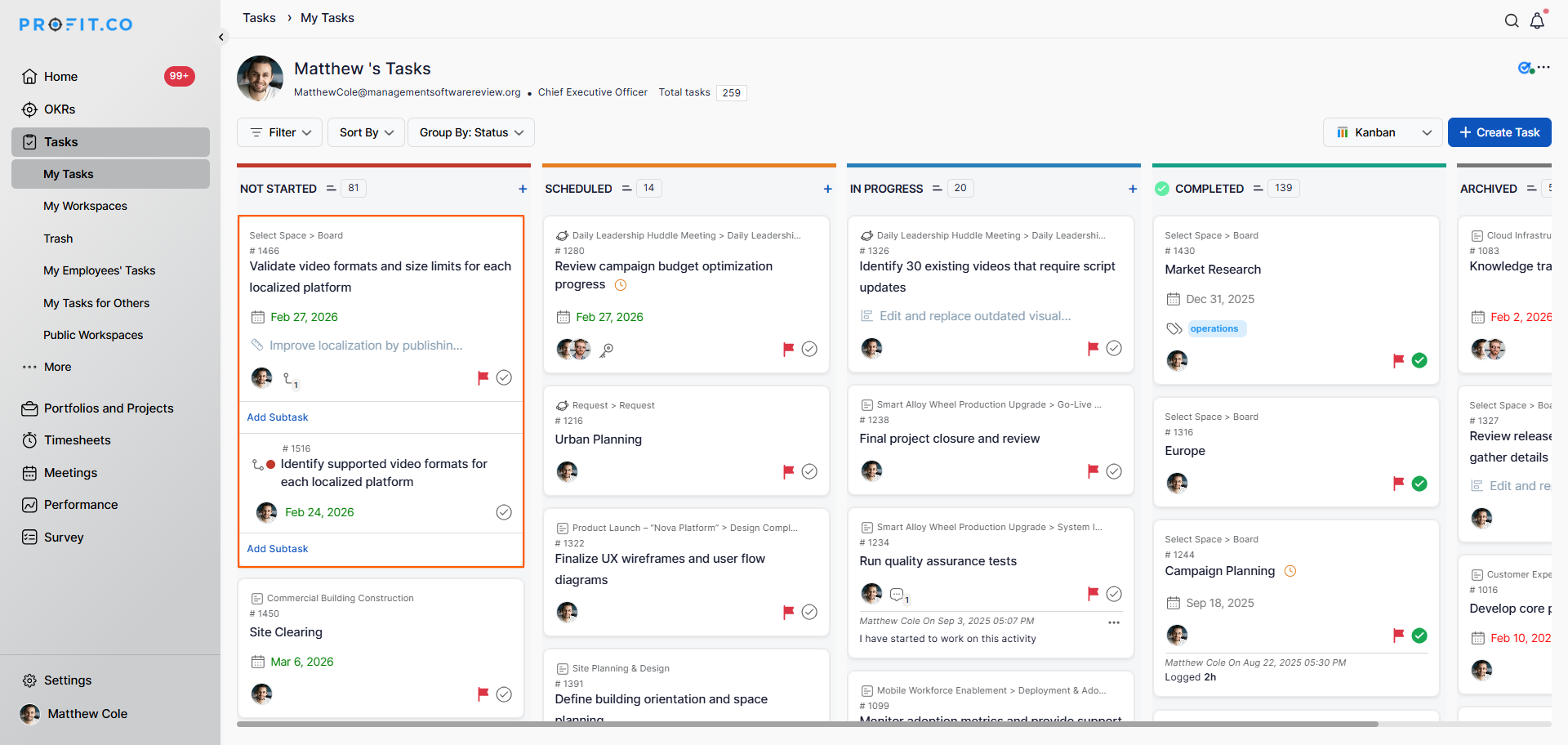
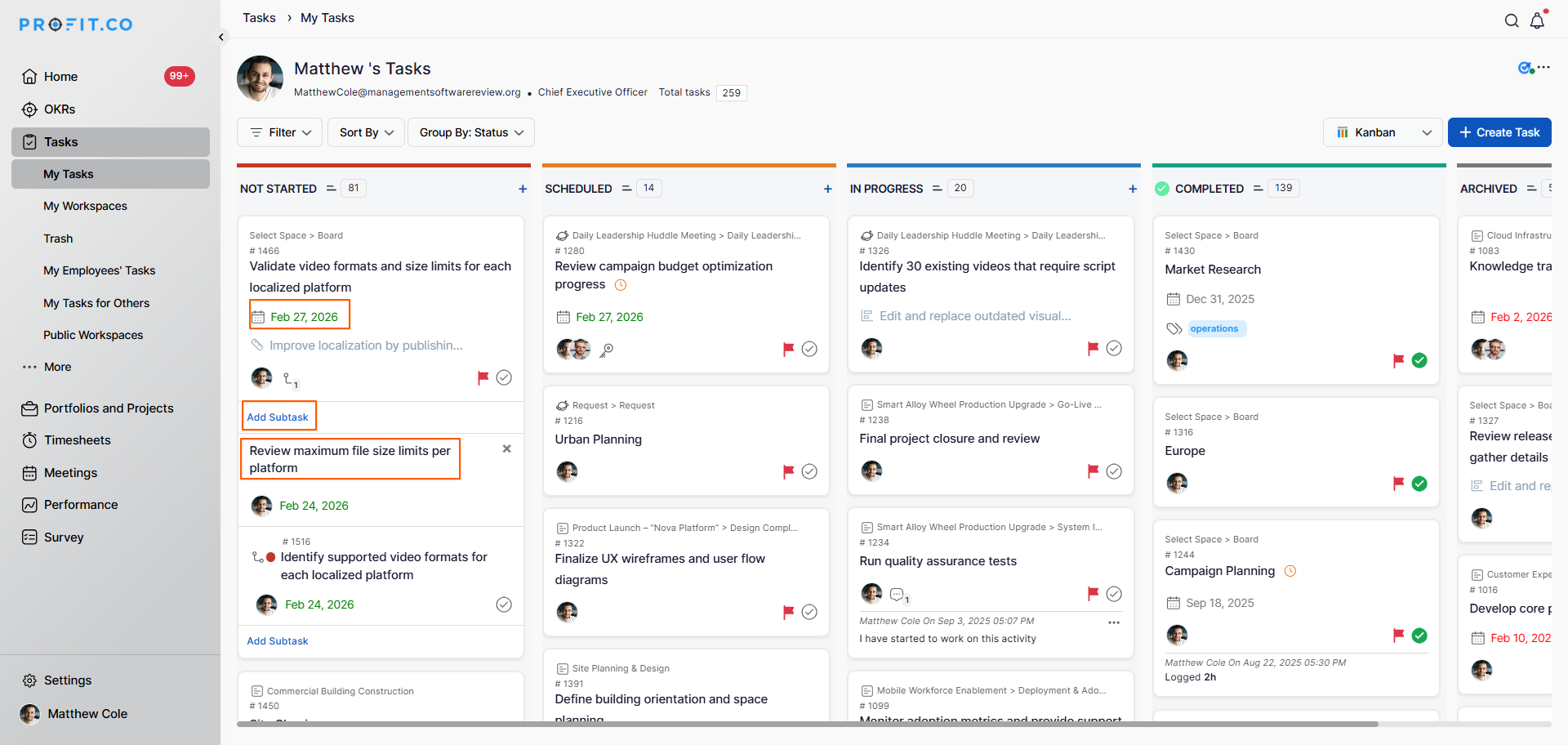
You can also create a sub-task without opening the parent task detail view.
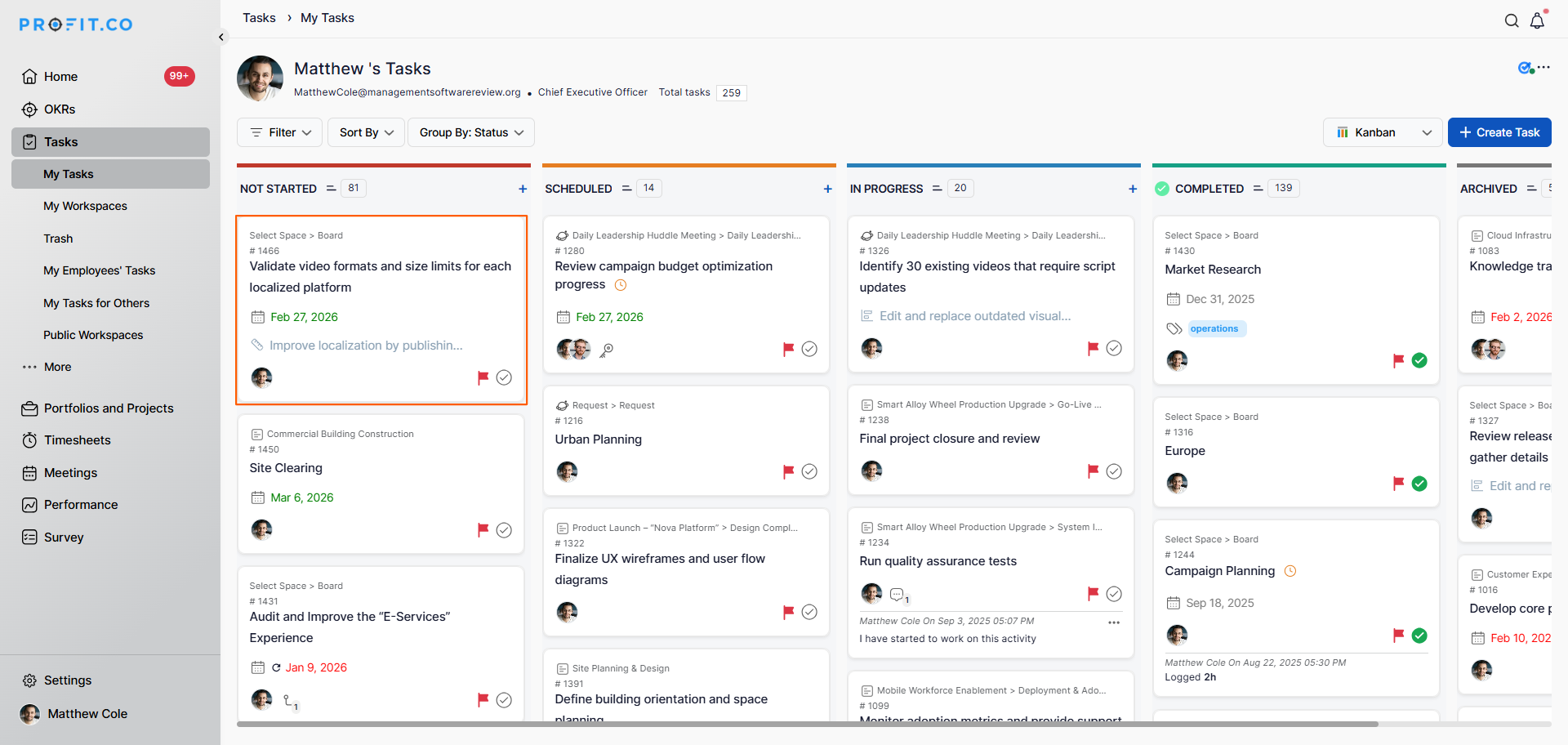
- Navigate to the My Task page from the left navigation panel.
- Locate the parent task and use the inline option to add a sub-task directly from the task row.
How to convert a task to a sub-task or vice versa in Profit.co?
Profit.co provides a Convert option that gives you flexibility to restructure your task hierarchy at any time.
- To convert a parent task into a sub-task, open the task, click the Convert option, and select the parent task it should nest under.
- To convert a sub-task into a parent task, open the sub-task, click the Convert option, and choose to promote it as a standalone parent task.
Best practices for using sub-tasks in Profit.co
- Break down tasks into sub-tasks only when the work involves multiple steps or requires more than one person.
- Always assign a dedicated owner to each sub-task to ensure clear accountability.
- Set realistic due dates on sub-tasks that align with the parent task's overall deadline.
- Use tags on sub-tasks to group related work items across different parent tasks for easier filtering.
- Review sub-task completion regularly to assess overall parent task progress.
Related Questions
Click here to learn more about how to view tasks owned by team members in Profit.co.
Frequently Asked Questions
Open the existing task, scroll to the Sub Tasks section, click Add, fill in the details such as Assignee, Due Date, Tags, and Priority, then click Save.
Yes. Navigate to Settings → Tasks → General → Task Controls and enable the Sub-Tasks toggle before you can add sub-tasks to any task.
Yes. Each sub-task has its own Assignee field, so it can be assigned to any team member independently of the parent task.
