

In Profit.co, you can set visibility for department OKRs as well as Individual and team OKRs. This feature allows you to control who can view and access specific department objectives and key results within your organization with flexible visibility options tailored to your organizational hierarchy.
Table of Contents
- What is the Department Visibility and Access List feature?
- Why does this feature matter?
- How to set department visibility and access lists in Profit.co
- What are the five visibility levels in Profit.co?
- Best practices for setting department visibility in Profit.co
- Related Questions
- Frequently Asked Questions
What is the Department Visibility and Access List feature?
Profit.co's visibility and access control feature enables organizations to manage the transparency of department, team, and individual OKRs. You can choose from five visibility levels (Public, My Management, My Directs, My Team, and Access List) to ensure that the right people have access to the right information at the right time.
Why does this feature matter?
Department visibility and access lists enhance organizational efficiency by granting appropriate personnel access to relevant information and controls. This ensures:
- Streamlined communication across teams and departments
- Minimized errors by restricting sensitive information to authorized users
- Enhanced collaboration among team members who need shared visibility
- Better security by controlling who can view strategic objectives
- Flexible transparency allows you to balance openness with confidentiality
- Hierarchical alignment ensures managers and leadership have appropriate visibility
How to set department visibility and access lists in Profit.co
Follow these steps to configure visibility settings for your department's OKRs:
Step 1
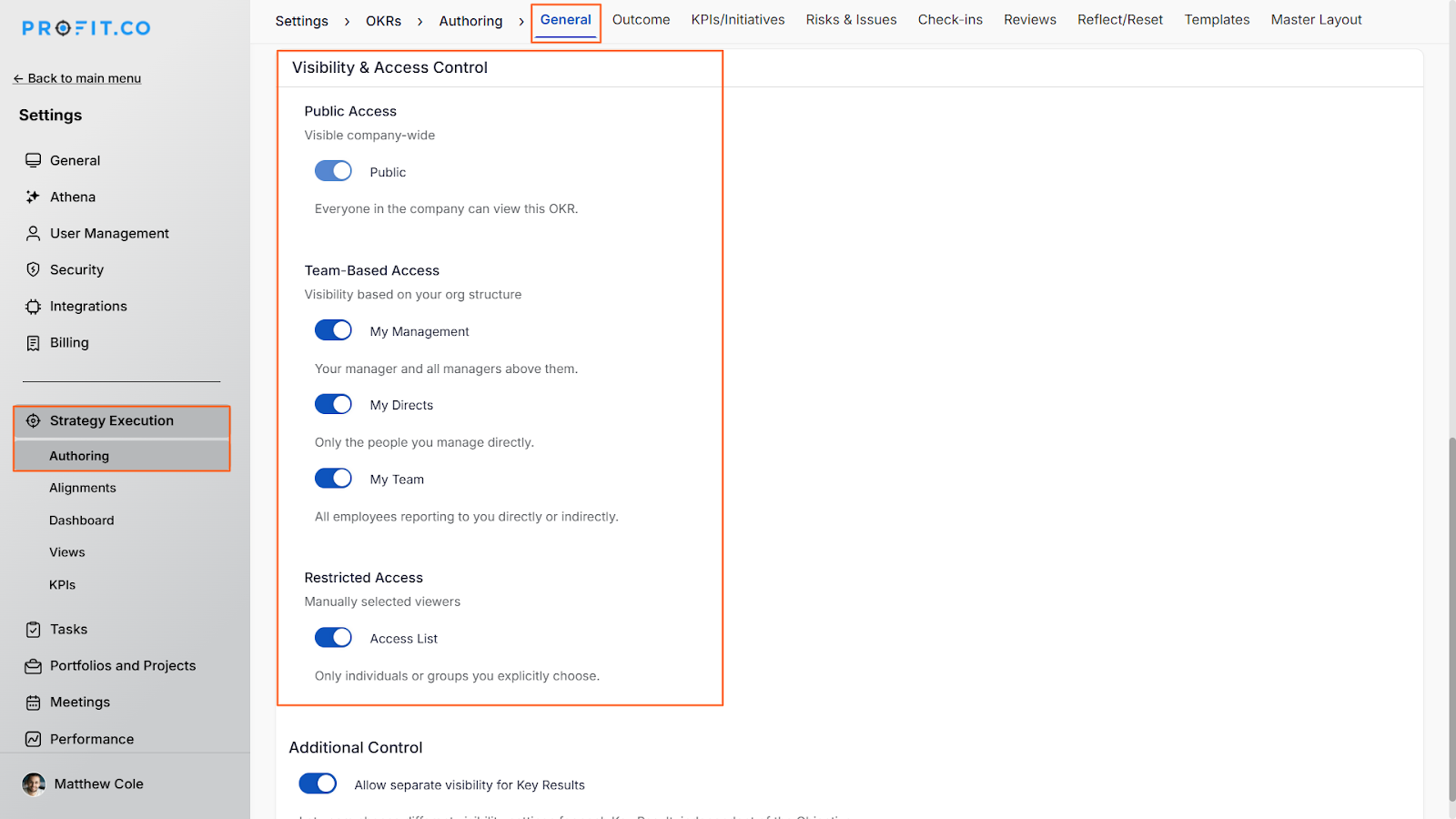
- Go to Settings in your Profit.co account
- Navigate to Strategy Execution and click Authoring
- On the General tab, under Visibility and Access Control, ensure the required visibility levels are enabled for your organization
- Only visibility levels enabled here will appear in the dropdown when creating objectives
Step 2
- Go to OKRs and click on the My OKRs menu from the left navigation panel.
- Switch to the Department OKR Tab (e.g., Marketing, Corporate).
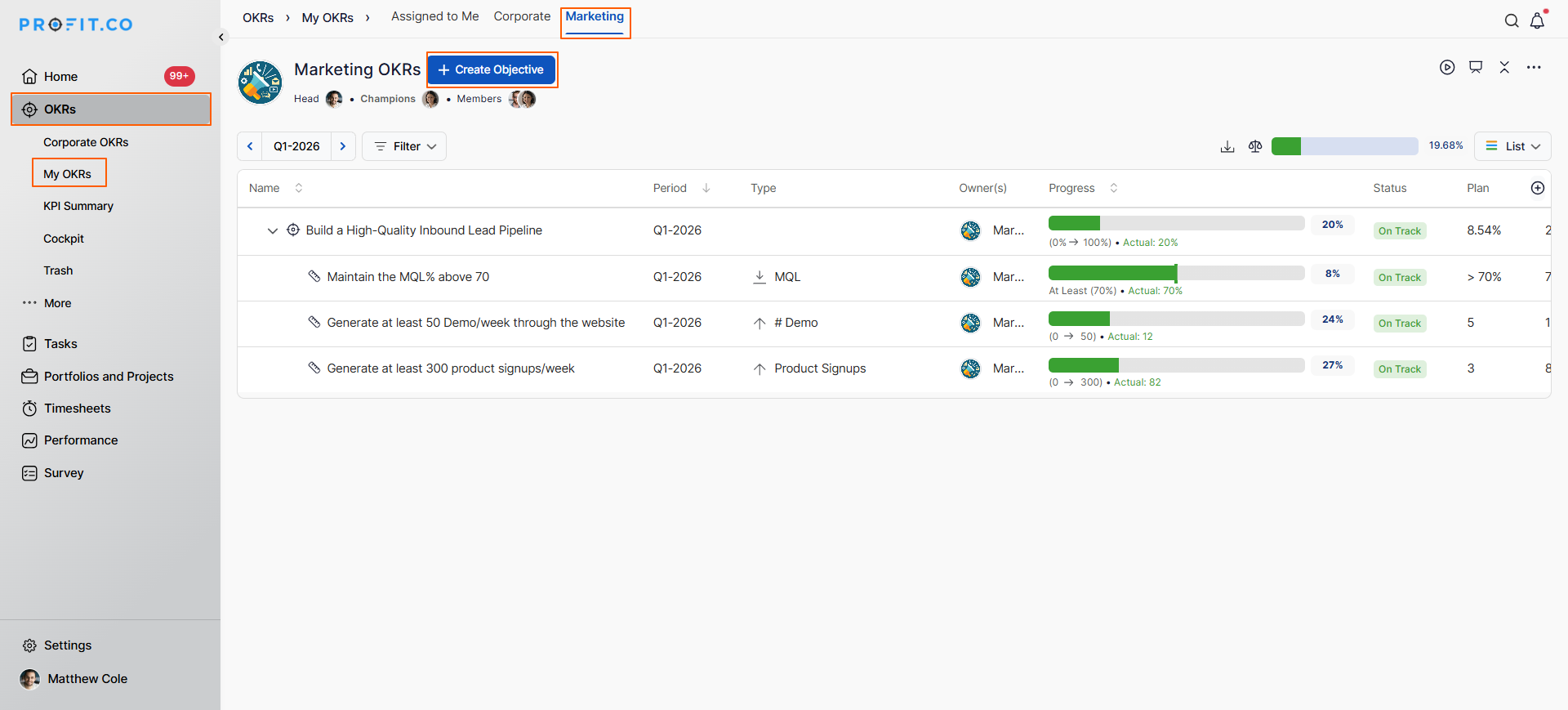
- Click on the Create Objective button.
- A side panel will open, displaying the Visibility option.
- When you click on the Visibility dropdown, you'll see five options:
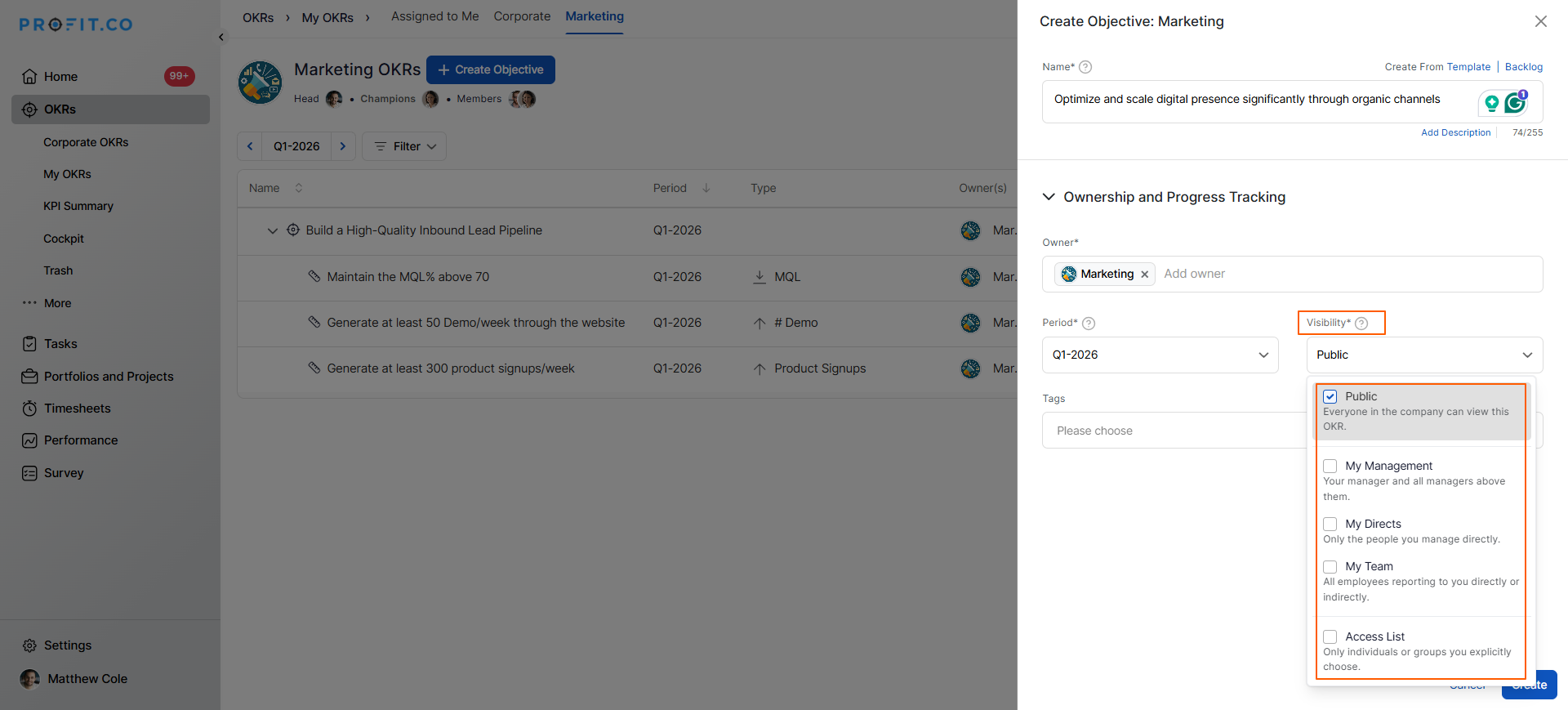
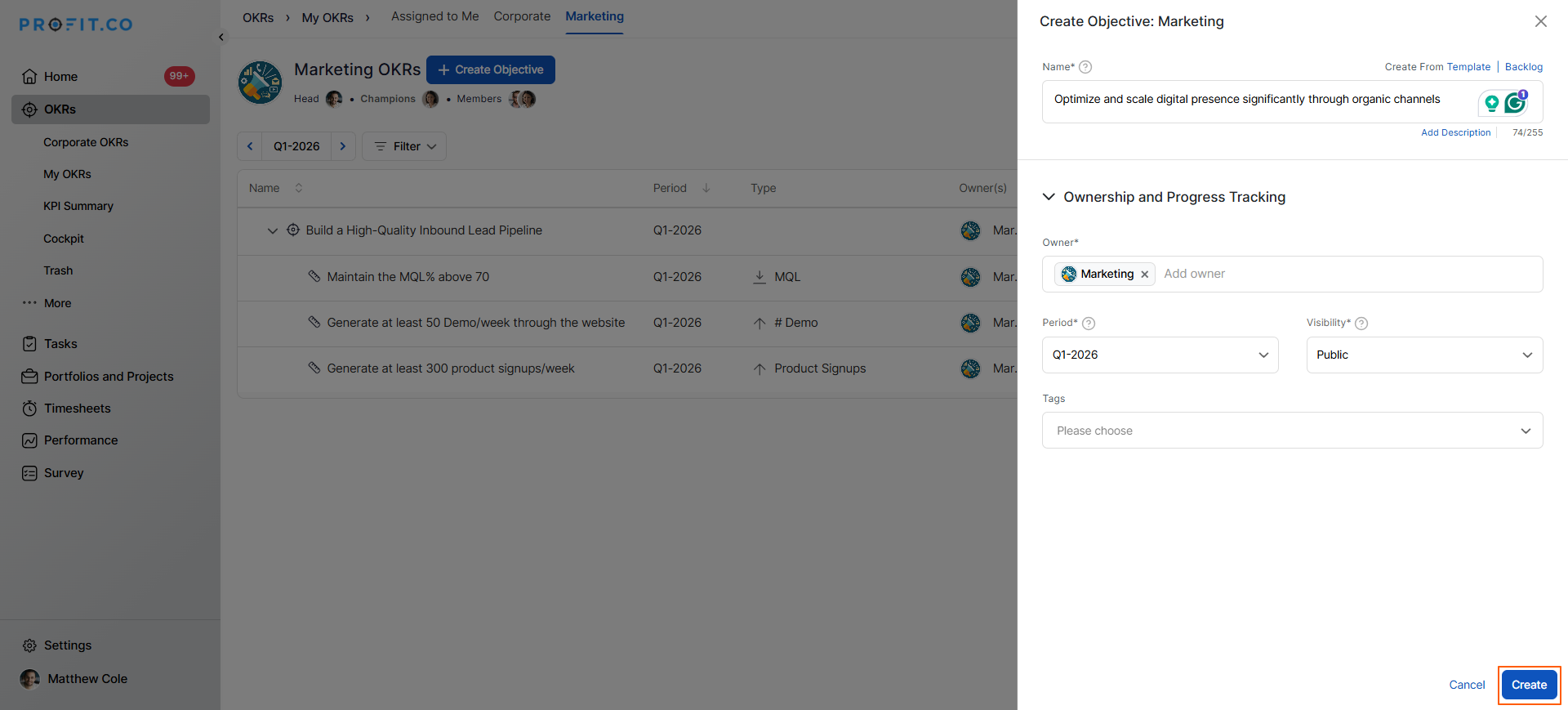
- Once you select the appropriate visibility level, click on the Create button to apply your settings.
Note: By default, visibility is set as Public.
What are the five visibility levels in Profit.co?
Understanding each visibility level helps you make informed decisions about OKR transparency:
| Visibility Level File Names | Who Can View | Best Used For |
|---|---|---|
| Public | Everyone in the company | Company-wide initiatives, transparent goals, and cross-functional objectives |
| My Management | Your manager and all managers above them | Goals requiring leadership oversight and approval |
| My Directs | Only the people you manage directly | Tactical team objectives for immediate reports |
| My Team | All employees reporting to you directly or indirectly | Department-wide goals across your entire team hierarchy |
| Access List | Only selected individuals, teams, or departments | Sensitive projects, confidential initiatives, or selective cross-functional collaboration |
Best practices for setting department visibility in Profit.co
- Start with appropriate defaults: Consider your organization's culture if transparency is valued, default to Public visibility; if confidentiality is important, use hierarchical options or Access List.
- Match visibility to sensitivity: Use Public for general initiatives, My Management for goals requiring oversight, and Access List for confidential projects.
- Communicate visibility choices: Let team members know why certain OKRs have restricted visibility to avoid confusion or mistrust.
Related Questions
Click here to learn more about how to set visibility for team OKRs in Profit.co
Frequently Asked Questions
Q1. Can I change the visibility of an existing department OKR?
Yes, you can modify the visibility settings of an existing department OKR by editing the objective and selecting a different visibility level from the dropdown menu.
By default, visibility is set as Public for new department OKRs, making them visible to all users in the organization.
My Directs shows the OKR only to people who report directly to you (your immediate team members). My Team shows the OKR to all employees in your reporting hierarchy, including people who report to your direct reports.
