



How do I enable and use the status map view in Profit.co?
Category: OKRs
The Status Map View in Profit.co provides a focused, high-level snapshot of your OKRs by displaying Objectives and Key Results grouped by their current status. It gives teams and managers an immediate read on where OKRs stand without the noise of sub-level detail.
Table of Contents
What is the Status Map View?
The Status Map View is a dedicated OKR viewing mode in Profit.co that organizes Objectives and Key Results into status-based groupings, showing the count of items within each category. It is enabled via Settings and accessed through the View Selector on the OKRs page.
| Element | Included in Status Map View |
|---|---|
| Objectives | Yes |
| Key Results | Yes |
| Sub Key Results | No (excluded to maintain a clean layout) |
Why the Status Map View Matters
Most OKR views present data hierarchically, which requires scanning through multiple levels to understand overall health. The Status Map condenses this into a single-pane status breakdown, letting managers identify bottlenecks or momentum across the entire OKR set in one glance.
How It Works
Step 1
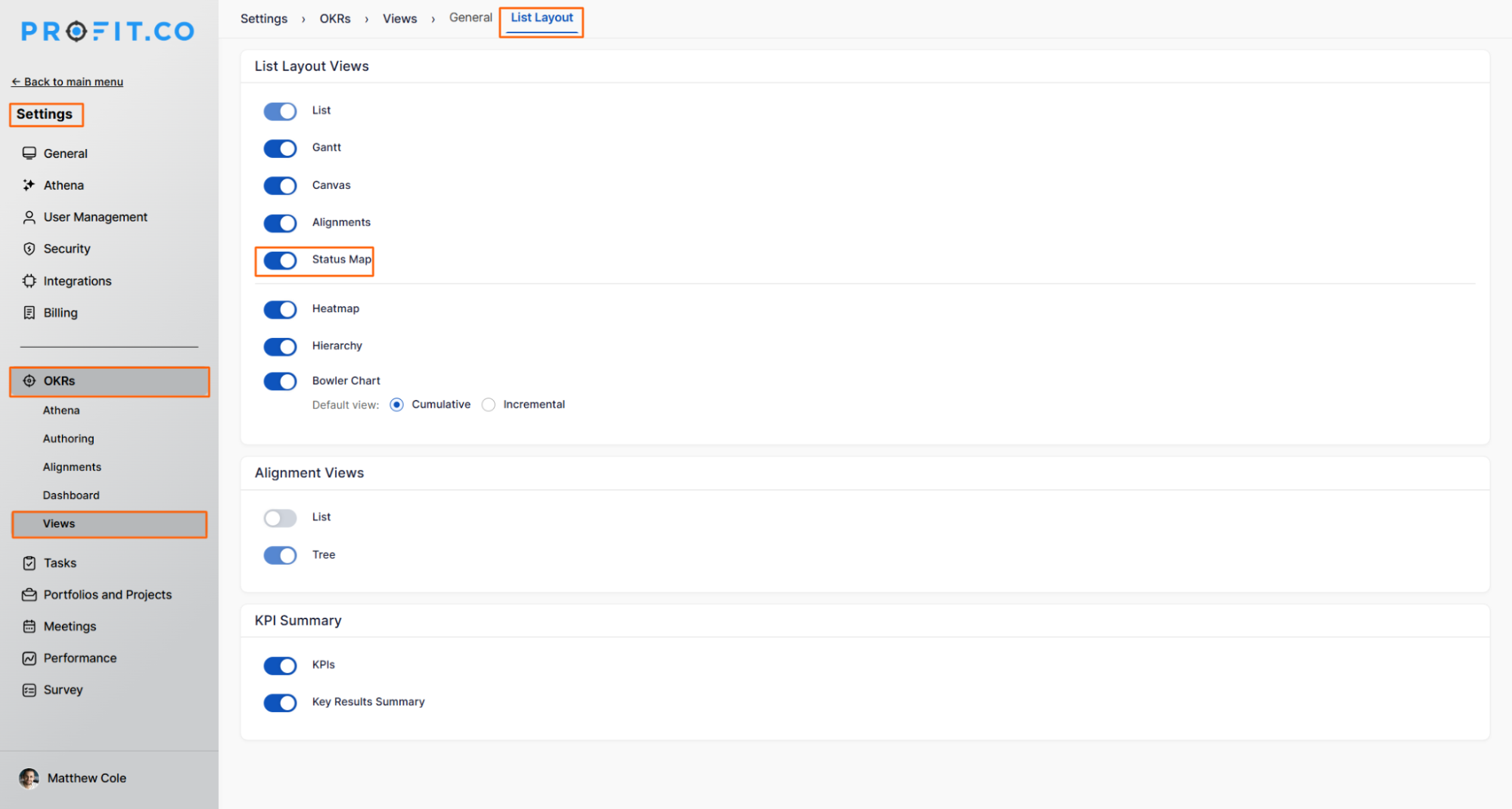
- Navigate to Settings → OKRs → Views from the left navigation panel.
- On the Views page, switch to the List Layout tab.
- Locate and enable the Status Map toggle.
Step 2
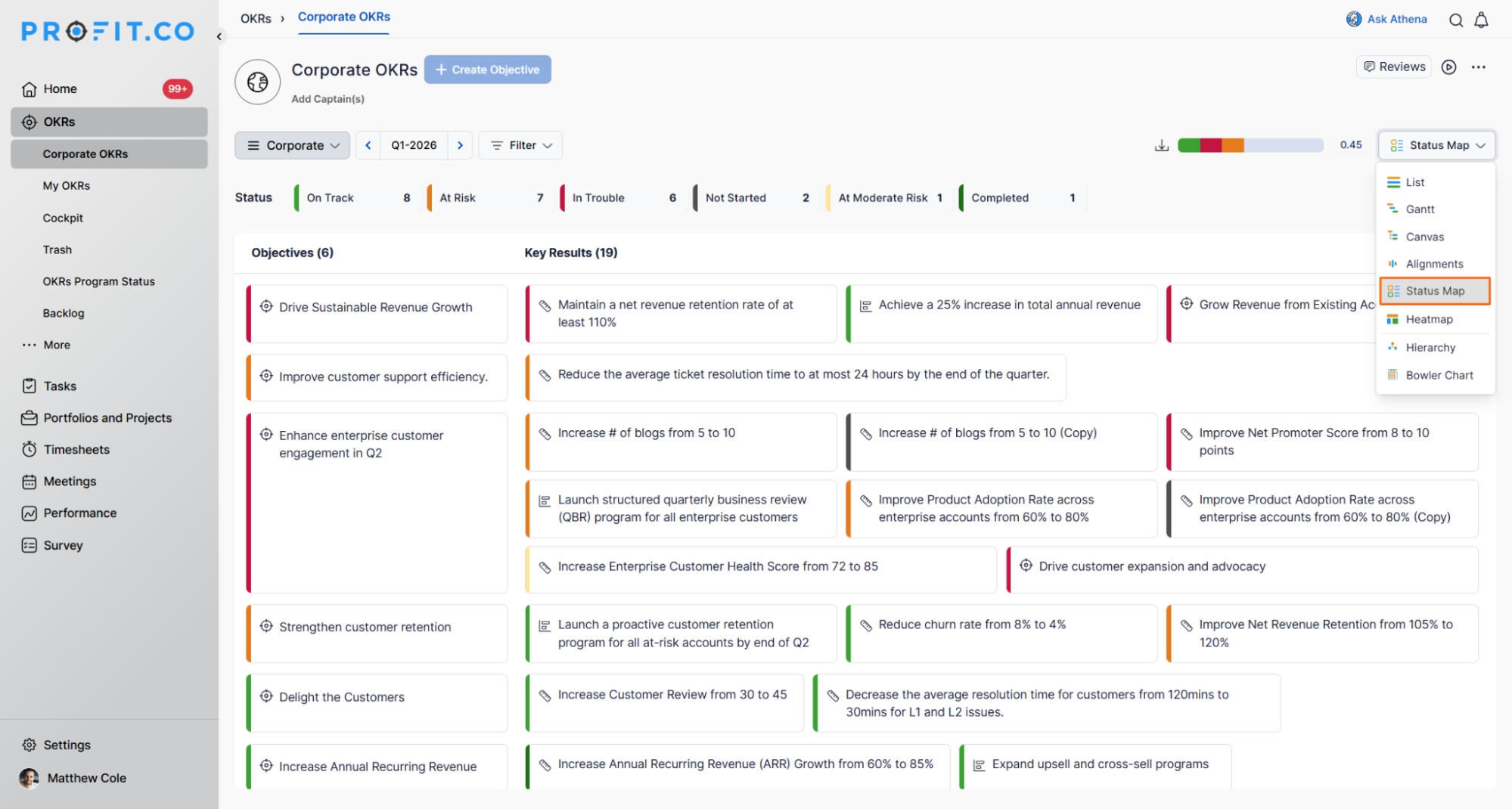
- Go to the OKRs page from the left navigation panel.
- Click the View Selector at the top of the page.
- Choose Status View from the dropdown options.
Visibility Behavior in the Status Map View
The Status Map View respects the OKR visibility settings configured for each record. Access and display are governed by whether an OKR has been assigned or marked private.
| OKR Type | Display Behavior |
|---|---|
| Assigned OKRs | Visible but lightly blurred, acknowledges existence without exposing full detail |
| Private OKRs | Fully blurred, the content is restricted and not readable |
Best Practices for the Status Map View
- Use the Status Map View as your default opening screen during weekly OKR reviews to get an immediate status pulse before diving into individual OKRs.
- Pair the Status Map View with OKR color codes (configured in Settings → OKRs → Authoring → Statuses) to ensure your status categories are clearly defined before using this view in leadership meetings.
Related Questions
- Click here to learn more about What is the use of the List Layout in Profit.co?
- Click here to learn more about How are OKR Status and Color Codes linked with OKR?
- Click here to learn more about How to enable OKR Progress and what is its use in Profit.co?
Frequently Asked Questions
Only Super Users have access to Settings → OKRs → Views. Standard users can access the Status Map View once a Super User has enabled the toggle, but they cannot configure it themselves.
Yes. Status groupings and item counts in the Status Map View reflect the current state of each OKR at the time of viewing, based on the latest check-in data. There is no manual refresh required.
Disabling the toggle removes the Status View option from the View Selector on the OKRs page for all users. No OKR data is affected; only the view mode becomes inaccessible until the toggle is re-enabled.
Related Questions
-
How to Use the OKR Present Mode in Profit.co?
Profit.co allows users to use the OKR Present Mode directly from the OKR list view in a structured presentation format. ...Read more
-
How do I enable and use baseline tracking for projects in Profit.co?
Profit.co's Baseline Tracking feature lets you capture the original project plan and monitor every change made to ...Read more
-
How to Create an Objective in Profit.co?
In Profit.co, users can create Objectives directly from the OKRs module using a quick-form panel, with support for ...Read more
-
How do I define weights for projects in Profit.co?
Profit.co's PPM module lets you control how project progress is calculated, either by distributing weight equally ...Read more