



How to filter and view the notes in an aligned OKR?
Category: OKRs
Profit.co provides a filter option to view the notes in aligned OKRs. The notes will be visible in both parent and child level if it is not set as Private.
Why this feature?
- By using this feature you can view the added notes in an aligned OKR.
- When an additional information has been added it has to be visible for both parent and child level OKRs. For that purpose we can use the filter option by clicking on the checkbox to view the notes.
Step 1
Consider that the department head has added a note to the Marketing Key Result.
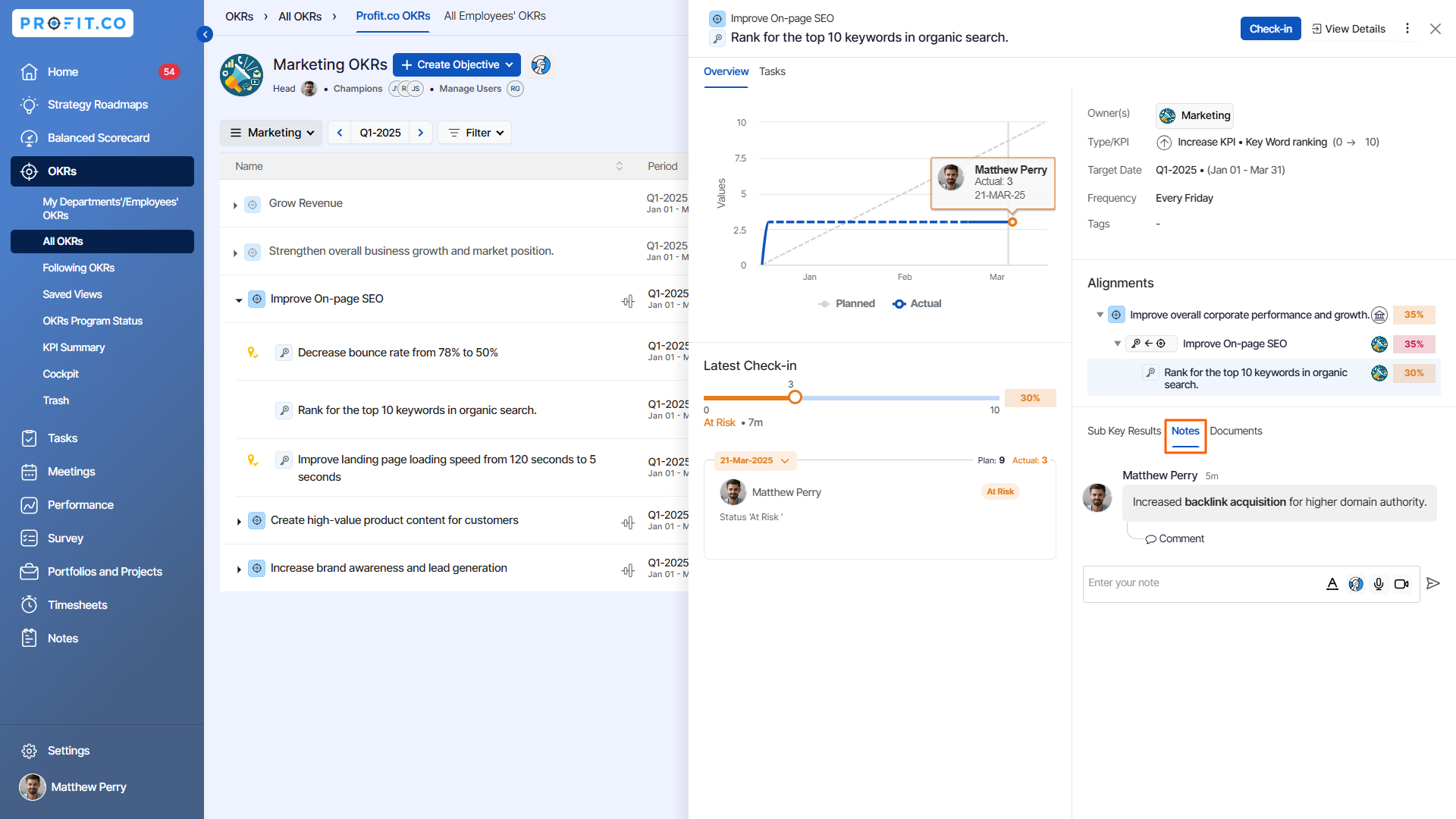
Then the Marketing department OKR aligns its Objective as a key result to the Product Development department's Objective.
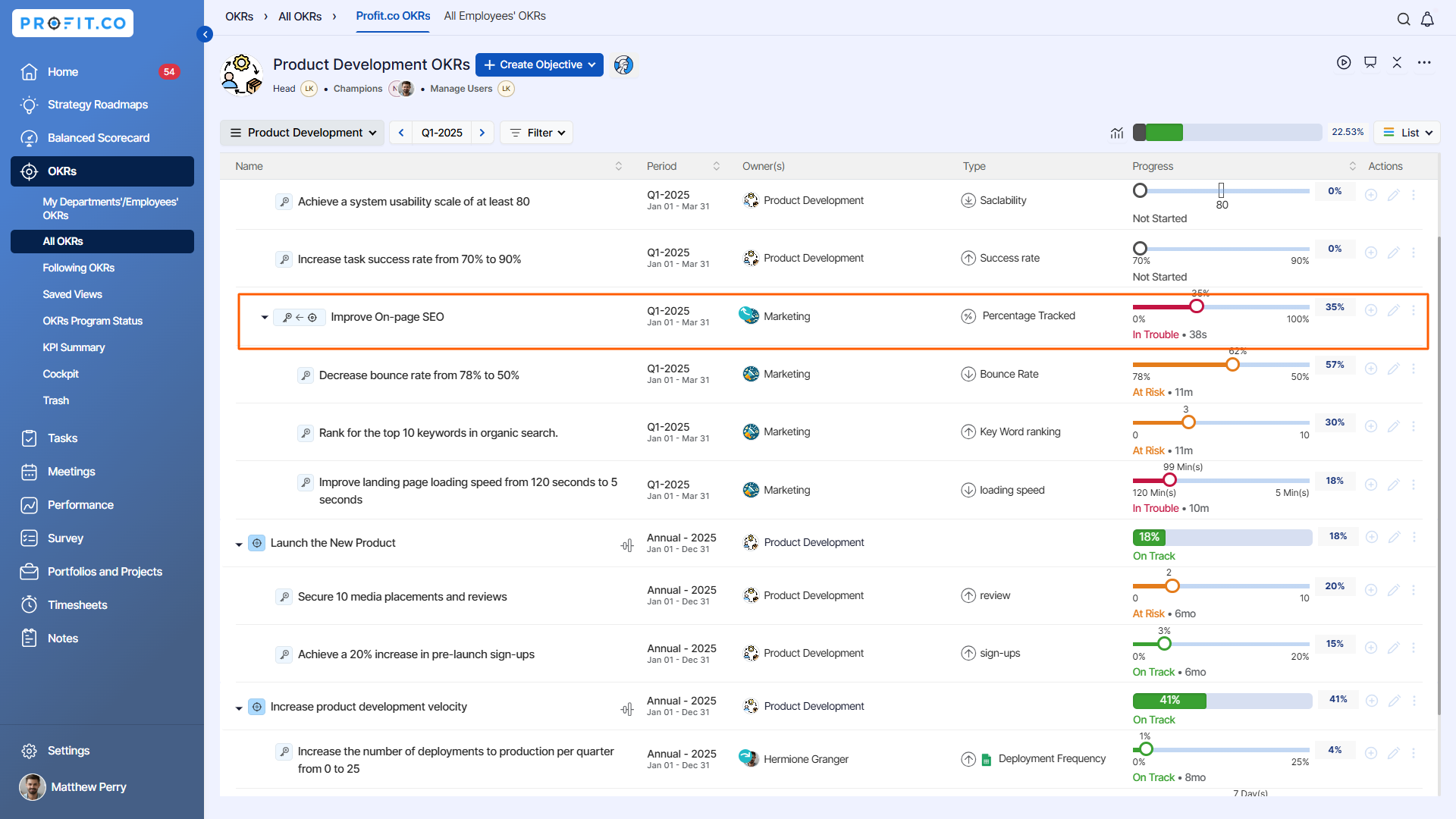
Step 2
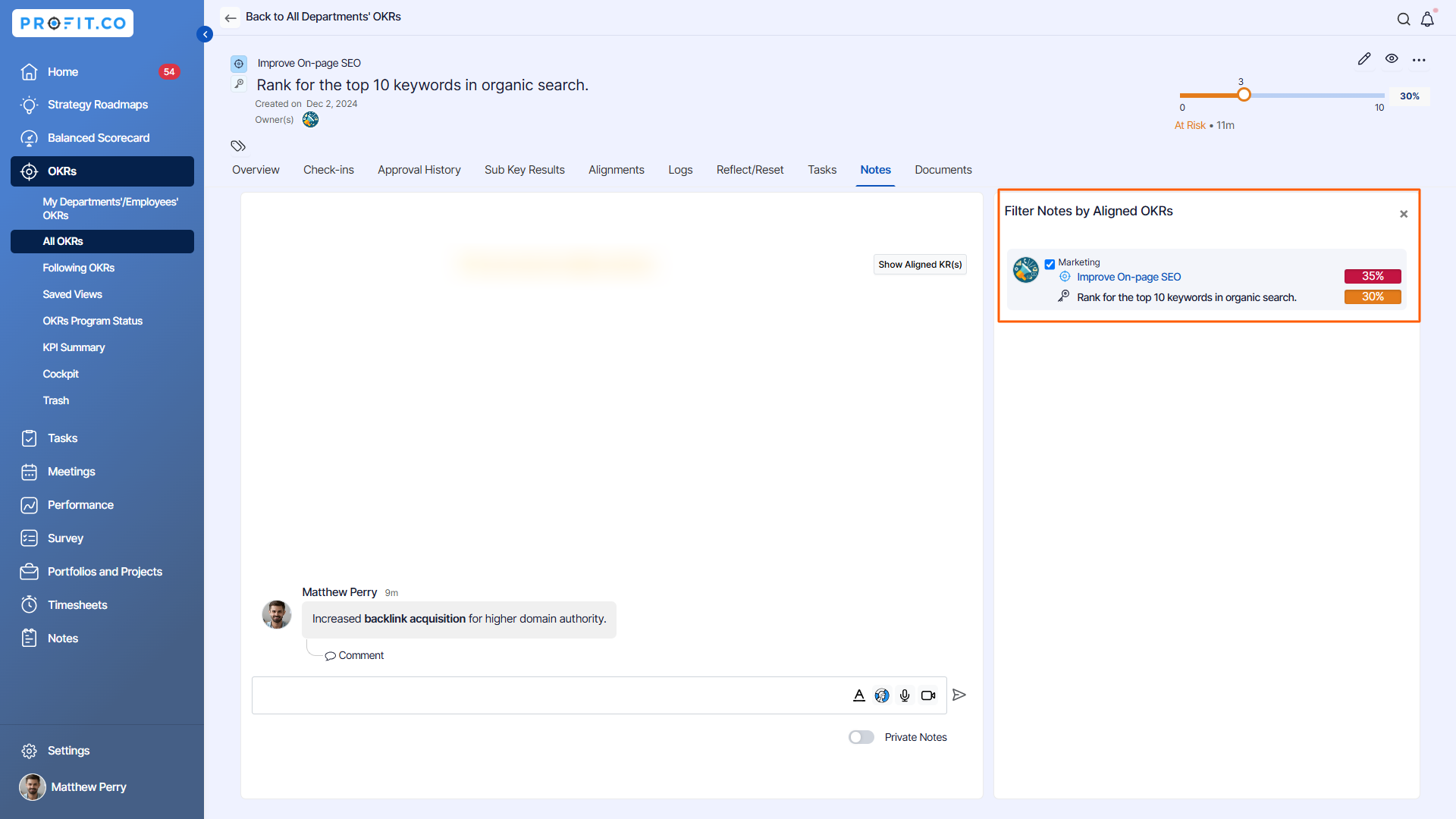
By clicking on the Notes icon of the bottom-up aligned key result, you can use the filter option on the right side to view the notes added in the child level OKR.
Related Answer Post
To learn the process of adding notes in an Objective, click here.
Related Questions
-
What does Control KPI imply?
Table of Contents Why this feature? What is a Control KPI? Progress Calculation Types in Control KPI Value ...Read more
-
How do I check-in for Key Results?
Profi.co allows you to report your progress on your key results at different OKR levels. Why are key result check-ins ...Read more
-
How do I view user login history in the Cockpit?
Profit.co has introduced three new widgets within the OKR Cockpit to help organizations monitor user login behavior and ...Read more
-
How do I enable and Configure Risks & Issues Management at Key Result Level in Profit.co?
In Profit.co, you can enable Risks & Issues Management at the Key Result level to proactively identify potential ...Read more