



How to Use the OKR Present Mode in Profit.co?
Category: OKRs
Profit.co allows users to use the OKR Present Mode directly from the OKR list view in a structured presentation format. It enables teams to review Objectives and Key Results during meetings without switching between tools or preparing separate slides.
Table of Contents
What is the OKR Presentation Mode in Profit.co?
The OKR Presentation Mode in Profit.co is a built-in feature that allows users to display their OKR progress in a structured, meeting-ready view directly from the OKR list page. Users can present all OKRs for a selected department or choose specific Key Results to present, making it easy to drive focused and productive OKR review meetings.
What are the OKR Presentation options available in Profit.co?
| Presentation Option | Description |
|---|---|
| Present All OKRs | Displays all OKRs for the selected department in presentation mode |
| Present Selected KRs | Allows users to choose specific Key Results and present only those in the meeting |
How to present OKR Progress in a Meeting in Profit.co?
Follow these steps to present OKR progress during a meeting in Profit.co:
Step 1
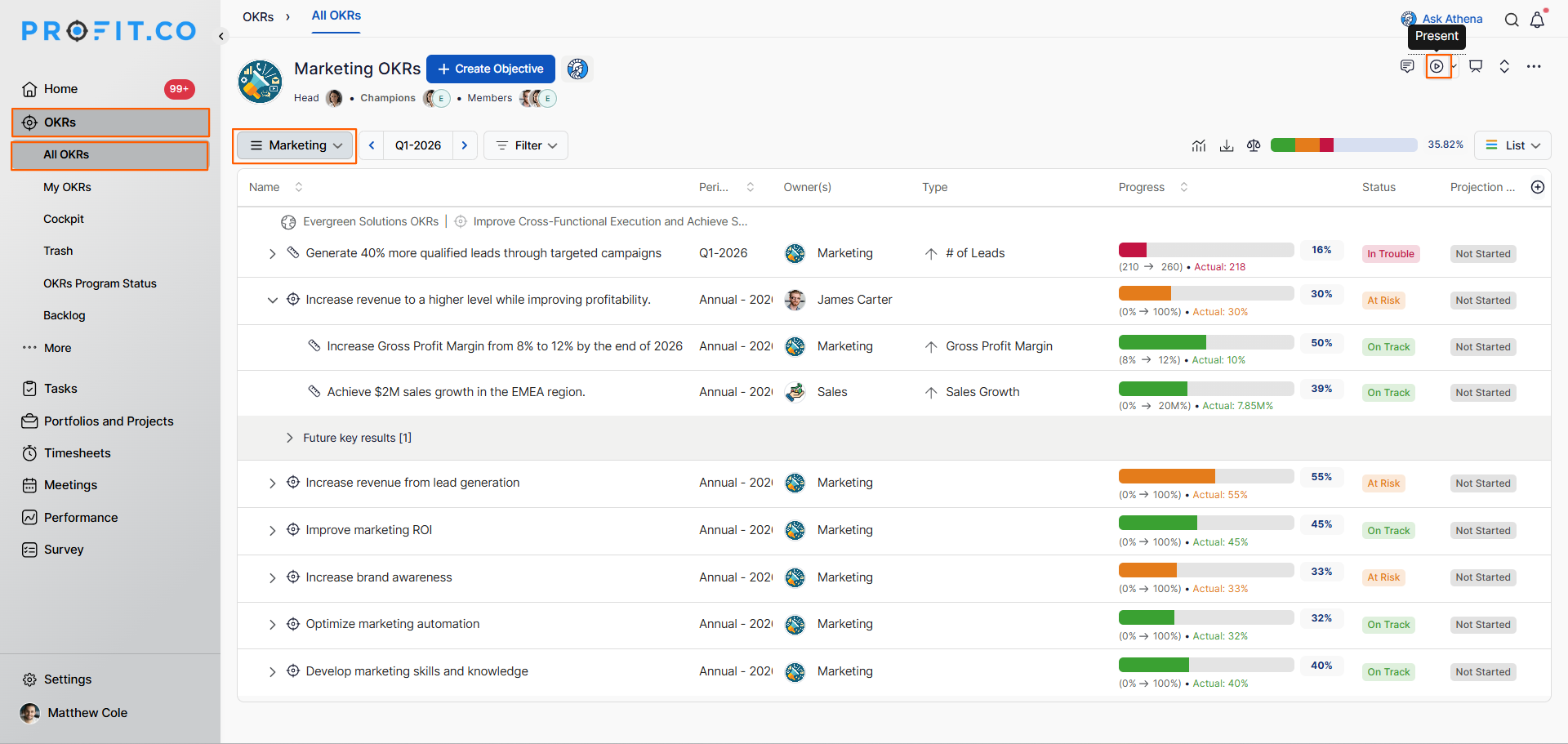
- From the left navigation panel, go to OKRs → All OKRs.
- On the OKR list view page, choose the Department whose OKR progress you want to present.
- Click on the Present option to launch the OKRs in presentation mode.
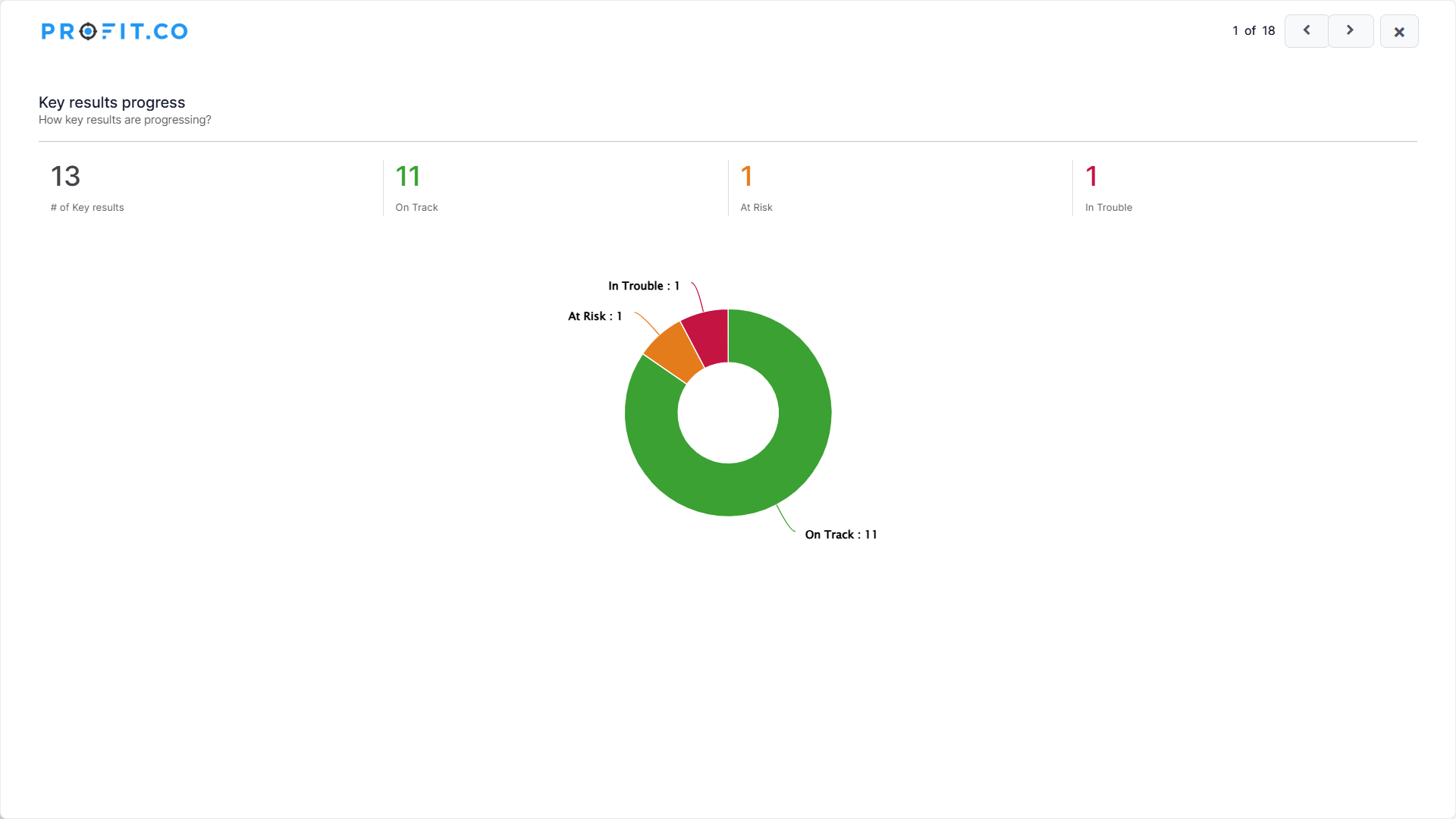
- The OKRs for the selected department will be displayed in a structured presentation view.
Step 2
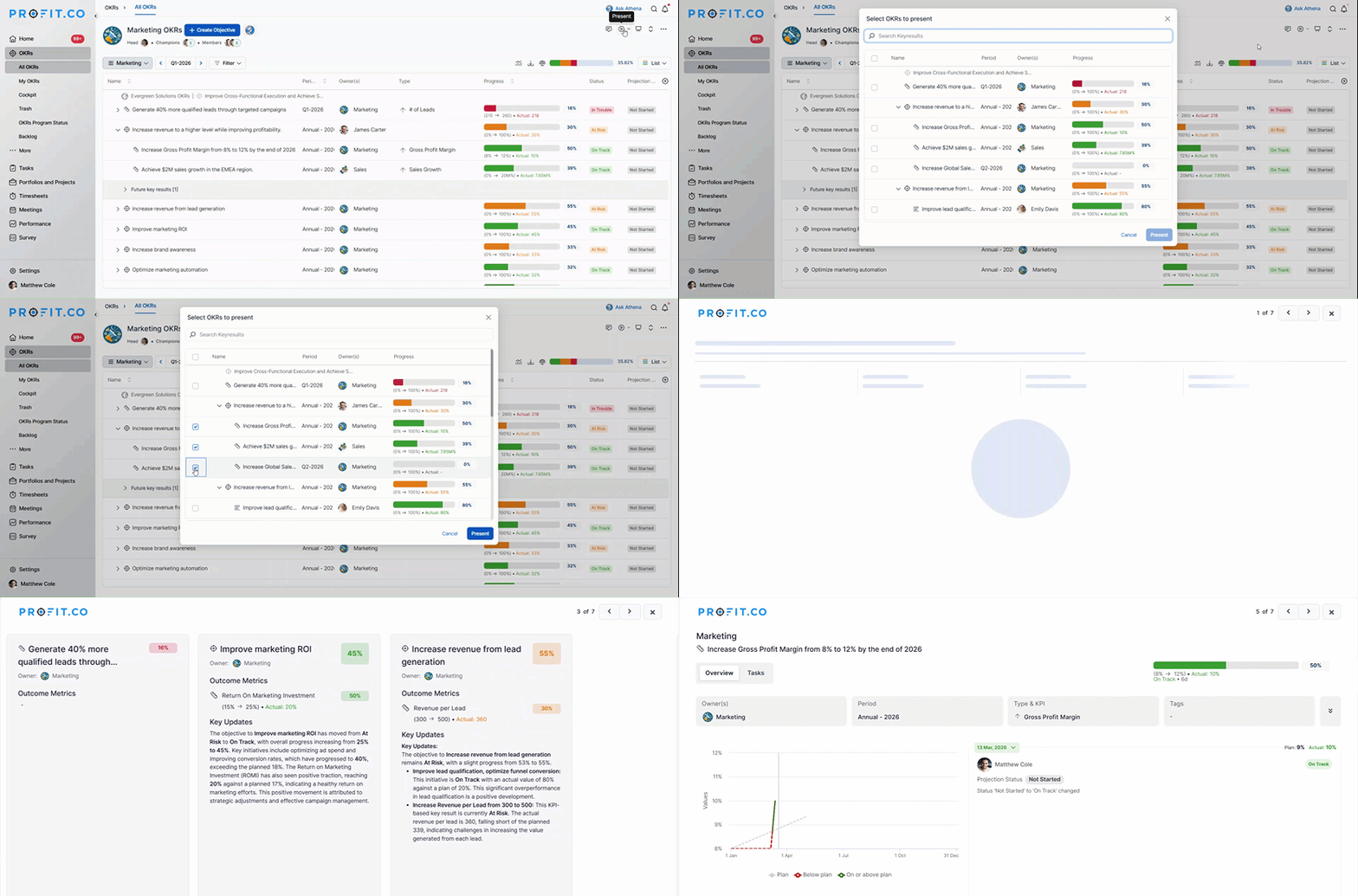
- If you want to present only particular Key Results instead of all OKRs, select the desired Key Results using the Select KR option.
- Once the required Key Results are selected, click Present.
- Only the selected Key Results will be displayed in the presentation mode for a more focused meeting discussion.
Best Practices for presenting OKRs in Meetings in Profit.co
- Use the Department filter before clicking Present to ensure only the relevant team's OKRs are displayed during the meeting.
- Use the Select KR option when the meeting agenda focuses on specific outcomes rather than the full department OKR set. This keeps the discussion targeted and time-efficient.
- Review OKR progress before the meeting to familiarize yourself with the current status of each Key Result so you can address questions confidently.
- Use OKR presentation mode for weekly check-ins, monthly reviews, and quarterly business reviews to maintain a consistent review rhythm.
- Encourage all stakeholders to log in to Profit.co during the meeting so they can follow along and reference Key Result details in real time.
Related Questions
Click here to learn more about how to download a PowerPoint Presentation of the OKR Progress Report in Profit.co.
Frequently Asked Questions
It is a built-in feature that allows users to display OKR progress in a structured, meeting-ready view directly from the OKR list page covering all OKRs for a selected department or specific Key Results.
Navigate to OKRs → All OKRs from the left navigation panel. On the OKR list view page, select the required department and click the Present option.
Yes. Use the Select KR option on the OKR list view page to choose specific Key Results, then click Present to display only those Key Results in the presentation mode.
Related Questions
-
How do I enable and use the status map view in Profit.co?
The Status Map View in Profit.co provides a focused, high-level snapshot of your OKRs by displaying Objectives and Key ...Read more
-
How do I enable and use baseline tracking for projects in Profit.co?
Profit.co's Baseline Tracking feature lets you capture the original project plan and monitor every change made to ...Read more
-
How to Create an Objective in Profit.co?
In Profit.co, users can create Objectives directly from the OKRs module using a quick-form panel, with support for ...Read more
-
How do I define weights for projects in Profit.co?
Profit.co's PPM module lets you control how project progress is calculated, either by distributing weight equally ...Read more