



How do I enable and Configure Risks & Issues Management at Key Result Level in Profit.co?
Category: OKRs
In Profit.co, you can enable Risks & Issues Management at the Key Result level to proactively identify potential problems and track existing challenges that may impact your objectives
Table of Contents
- What is Risks & Issues Management in Profit.co?
- How do I enable Risk Management in Profit.co?
- What can I configure in Risk Management?
- What can I configure in Issue Management?
- What's the difference between Risk and Issue Management?
- How do I add and manage Risks?
- How do I add and manage Issues?
- Best practices for Risks & Issues Management in Profit.co
- Related Questions
- Frequently Asked Questions
What is Risks & Issues Management in Profit.co?
Risks & Issues Management allows you to identify, track, and mitigate potential problems (risks) and address existing challenges (issues) at both Objective and Key Result levels in Profit.co.
How do I enable Risk Management in Profit.co?
Follow these steps to activate the Risk Management feature:
Step 1
- Go to Settings from the left navigation panel.
- Select OKRs, then click on Authoring.
- Switch to the Risks and Issues tab.
- Enable the toggle to activate the Risk Management feature.
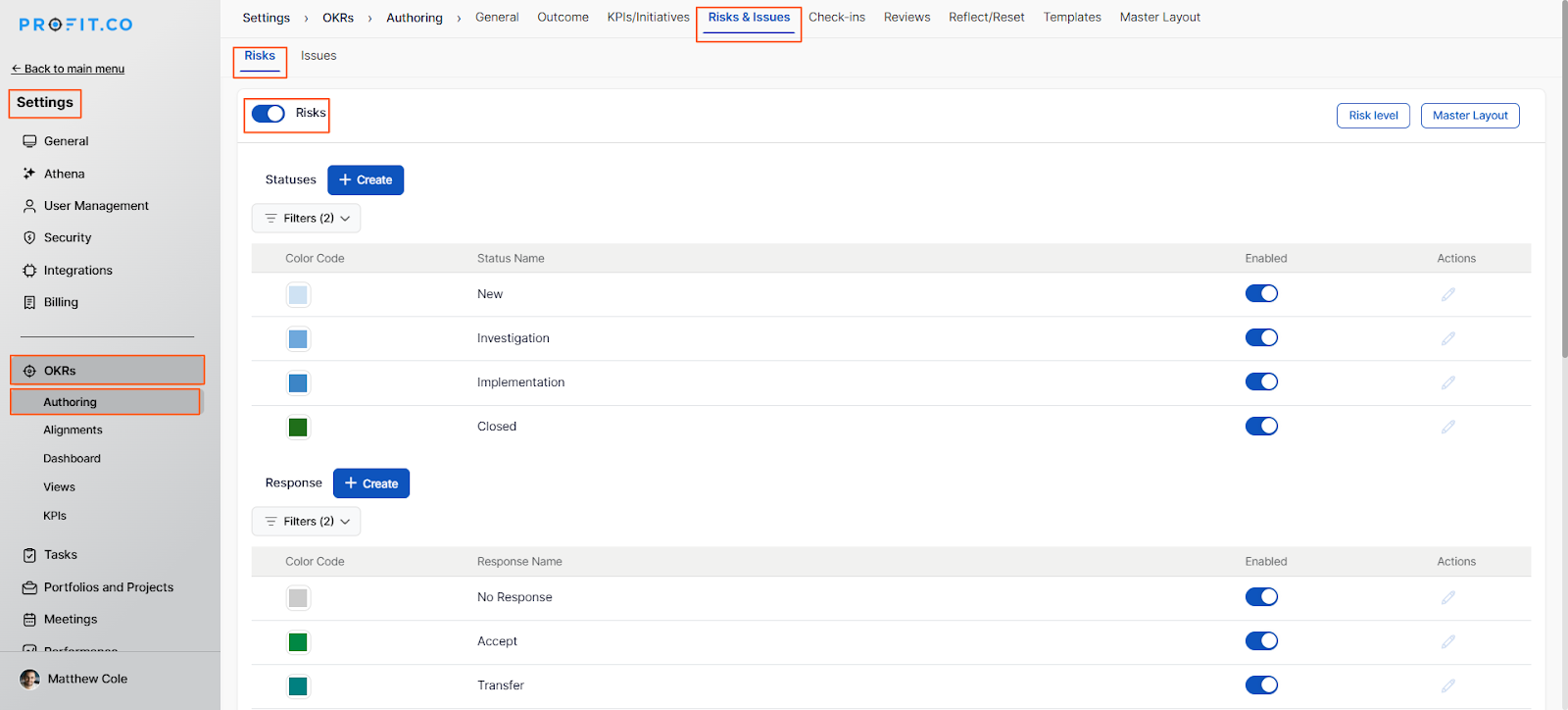
- Switch to the Issues tab.
- Enable the toggle to activate the Issue Management feature.
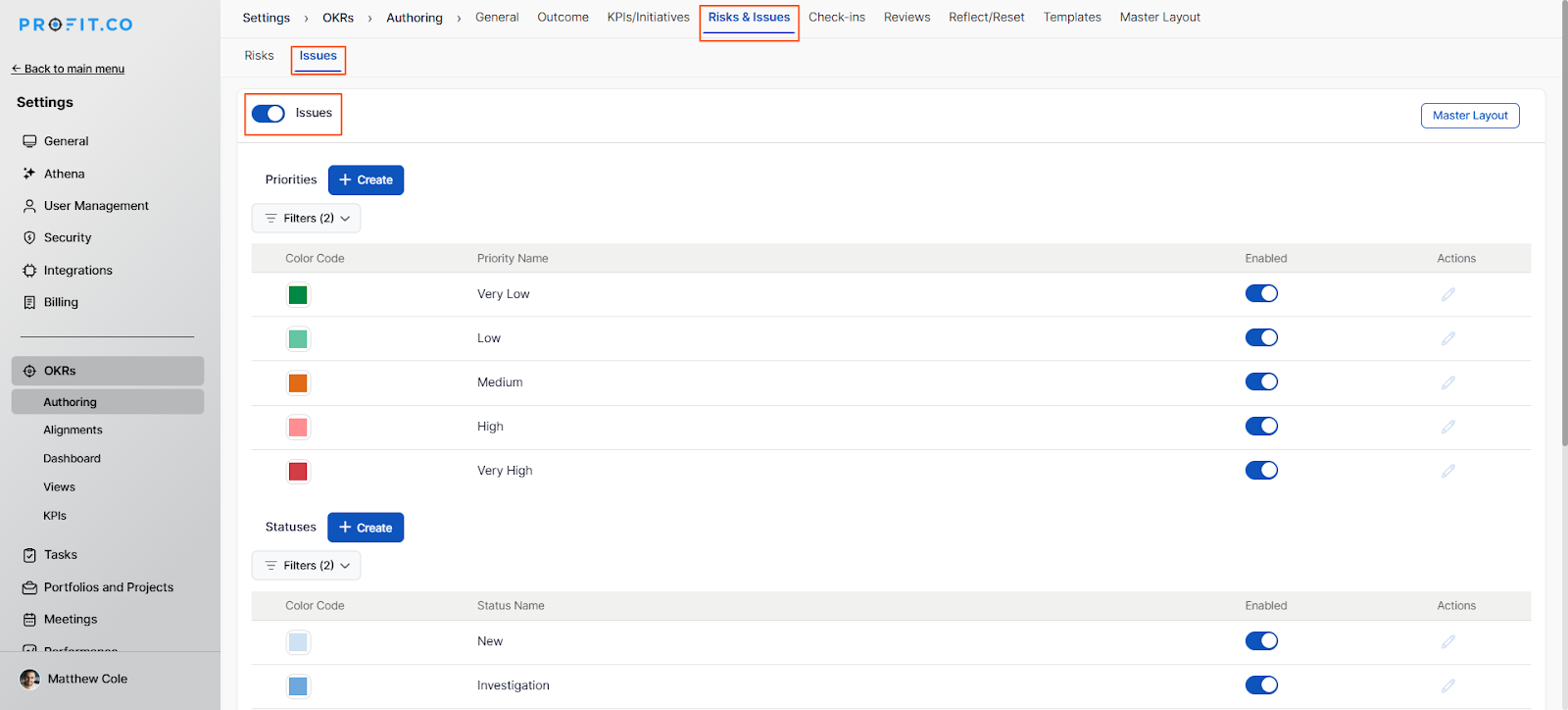
Once enabled, the Issue Management feature will be available across all Objective and Key Result levels.
What can I configure in Risk Management?
The Risk Management feature offers comprehensive configuration options:
| Configuration Option | Purpose |
|---|---|
| Risk Statuses | Track the current state of each risk |
| Risk Responses | Define how to respond to identified risks |
| Risk Impact Scores | Measure the severity of potential risks |
| Probability Levels | Assess the likelihood of risk occurrence |
| Risk Level Matrix | Visualize risk priority based on impact and probability |
What can I configure in Issue Management?
The Issue Management feature provides essential configuration options:
| Configuration Option | Purpose |
|---|---|
| Priority Levels | Define urgency of issue resolution |
| Issue Statuses | Track the current state of each issue |
| Issue Types | Categorize issues for better organization |
| Ownership Assignment | Assign accountability for issue resolution |
What's the difference between Risk and Issue Management?
| Risk Management | Issue Management |
|---|---|
| Focuses on potential future events | Focuses on current problems |
| Preventive approach | Reactive approach |
| Uses probability and impact assessment | Uses priority and severity levels |
| Tasks associated for mitigation | Tasks associated for resolution |
How do I add and manage Risks?
Follow these steps to add risks to your OKRs:
Step 1
- Go to OKRs from the navigation panel.
- Choose the Objective or Key Result where you want to add Risks. (In this example, let’s see how to add risks at the KR level.)
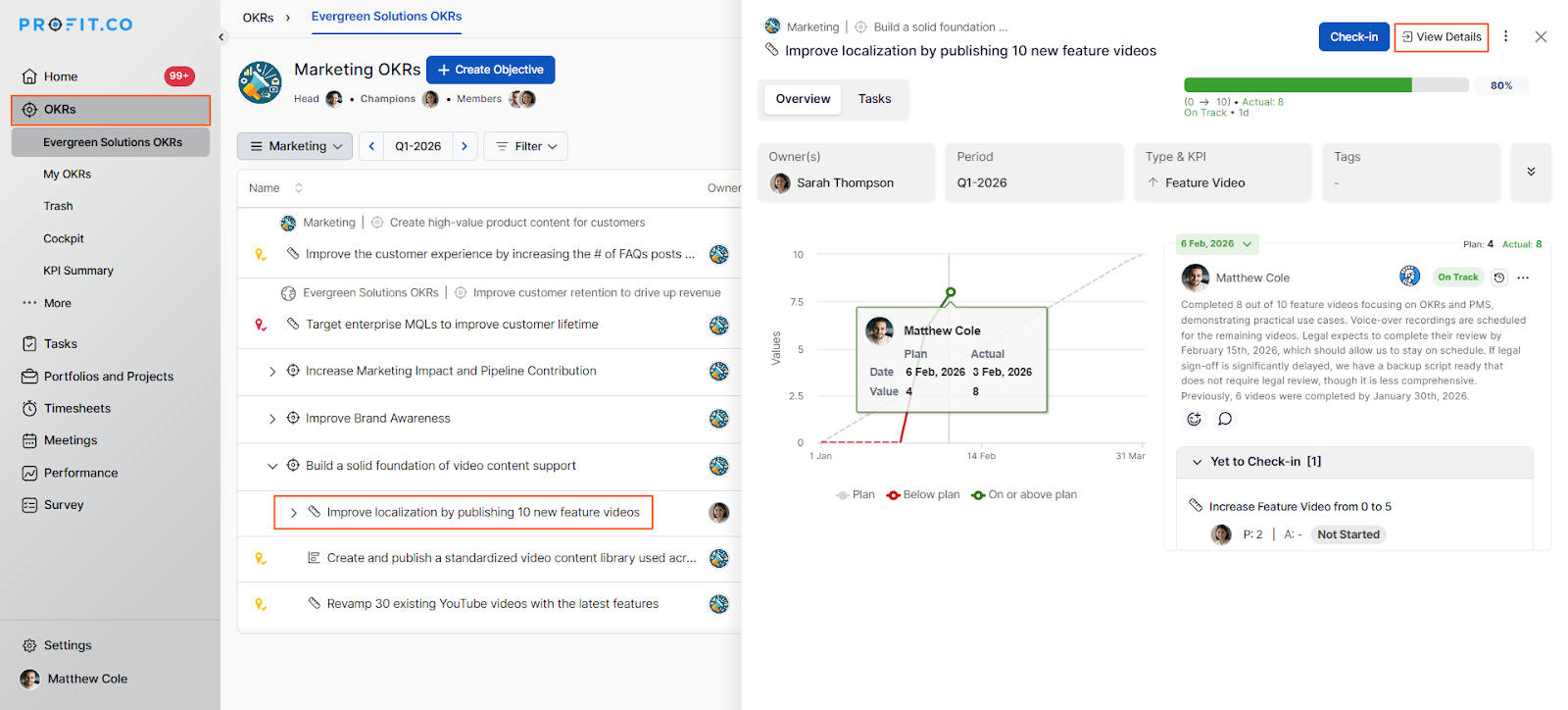
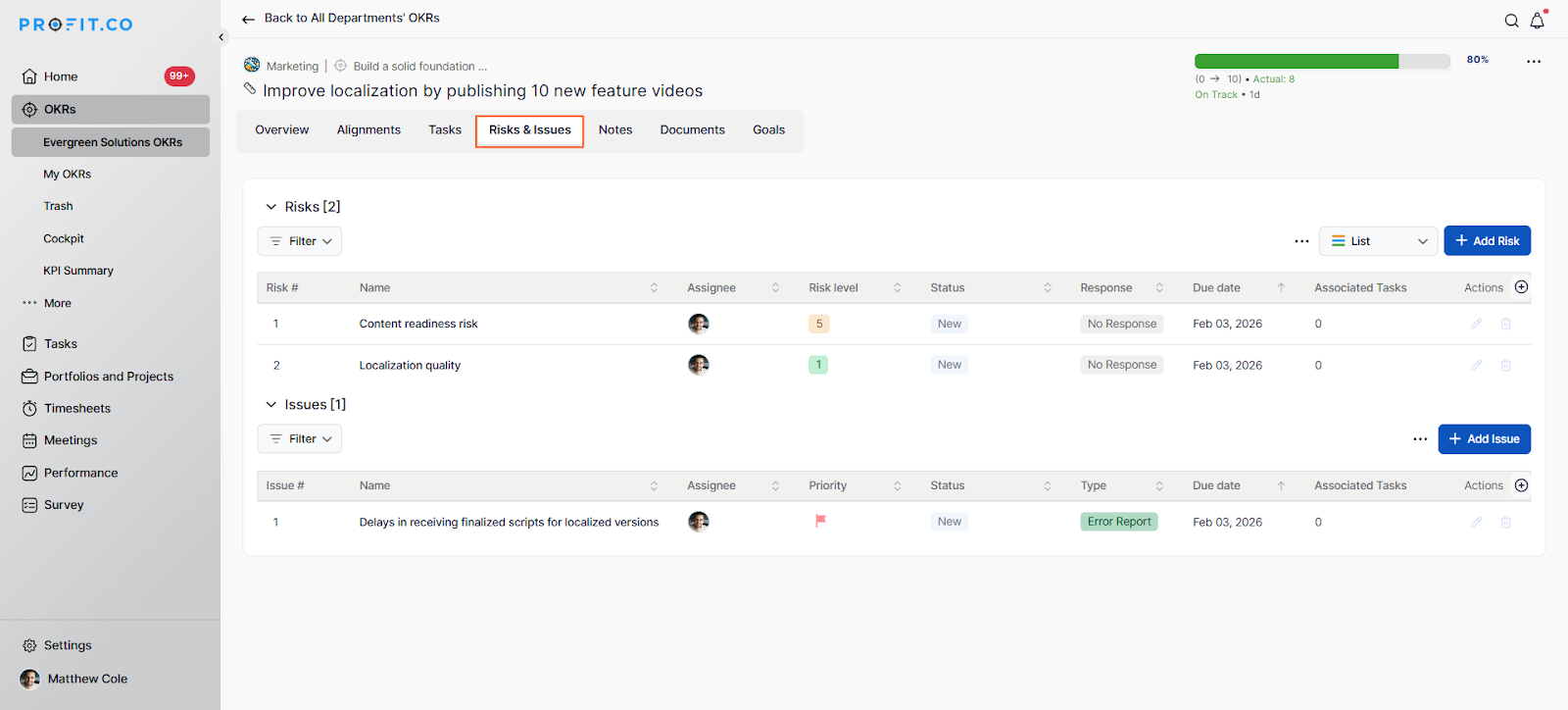
- Click on the View Details page.
- Switch to the Risks and Issues tab.
Step 2
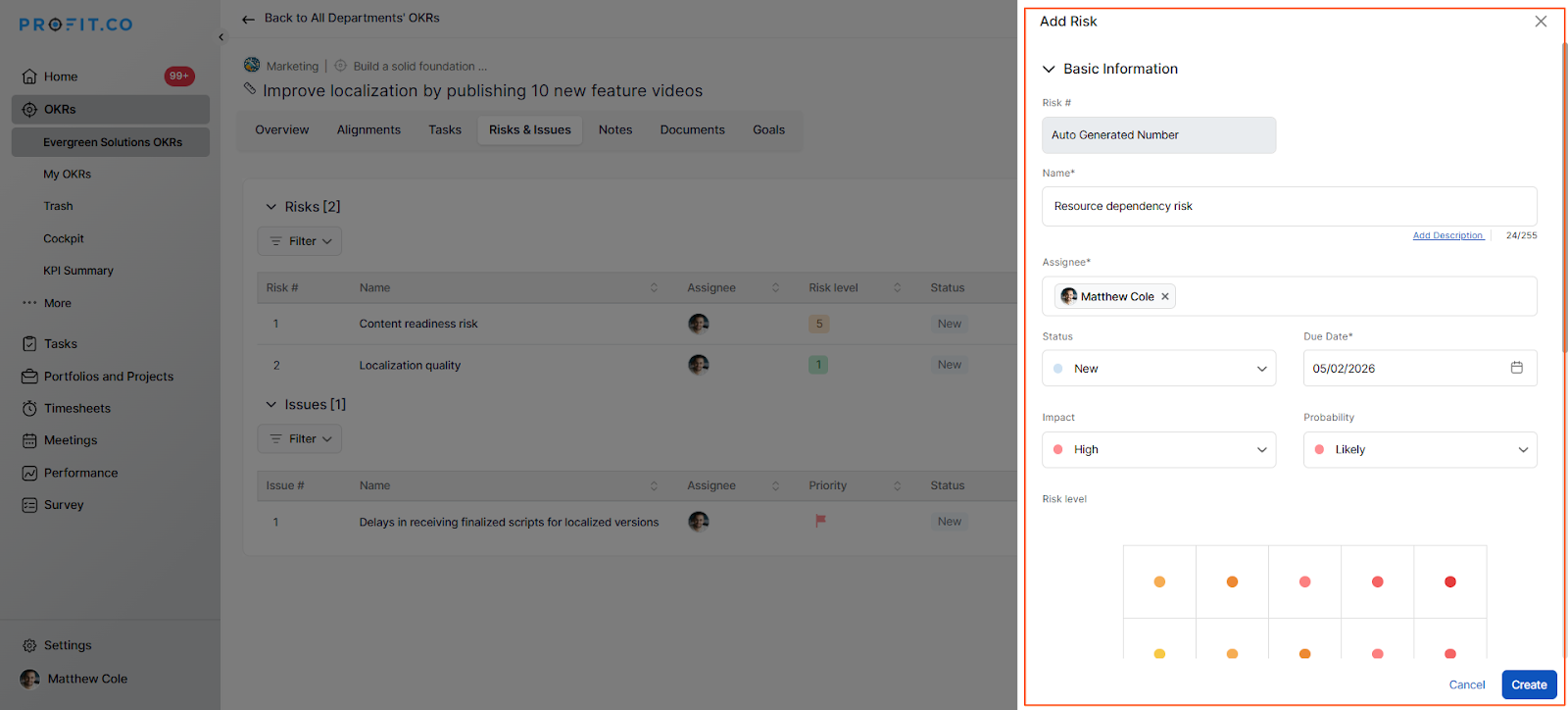
- In the Risks section, locate the option to add a new risk.
- Enter the risk name (a clear description of the potential event).
- Select the Impact level (how severely it would affect the project).
- Select the Probability level (likelihood of occurrence).
- Click Create.
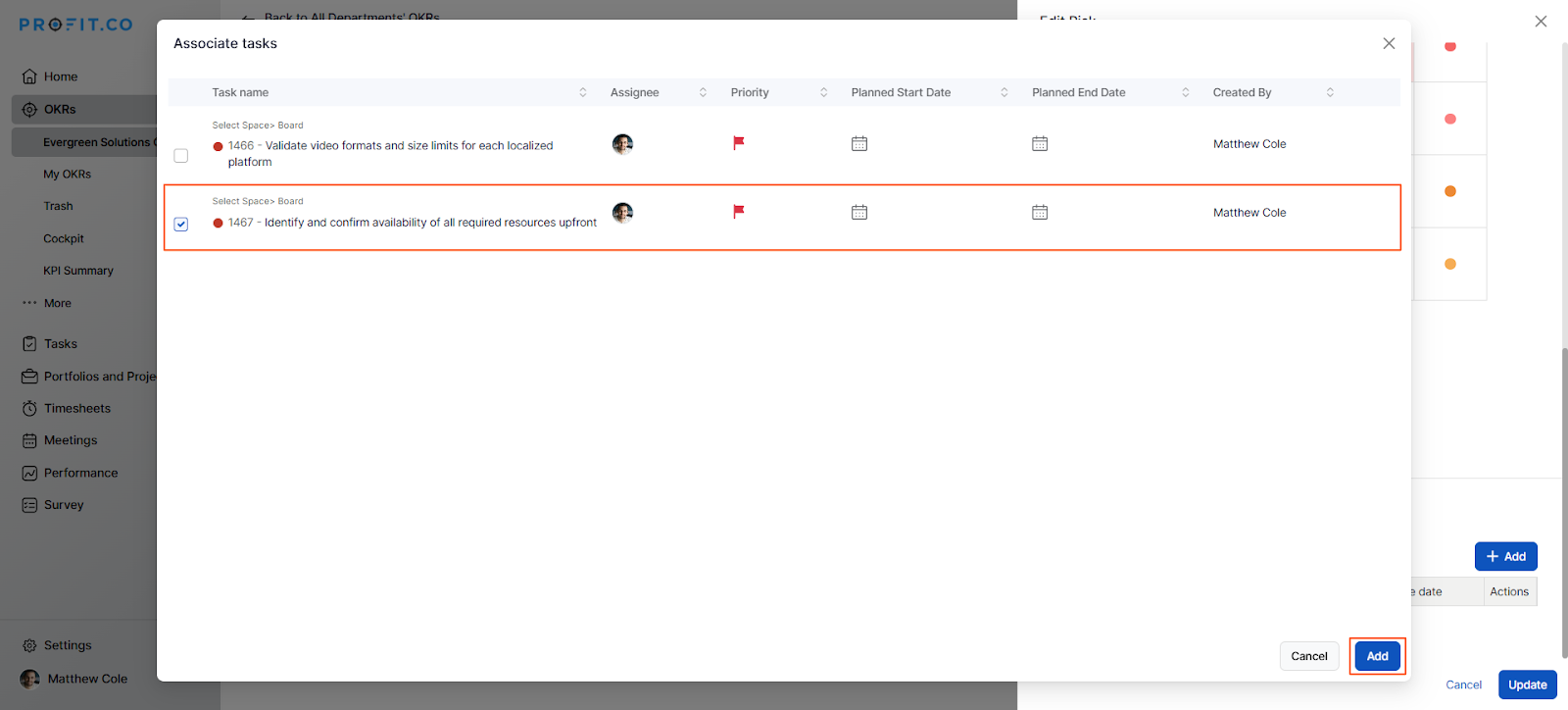
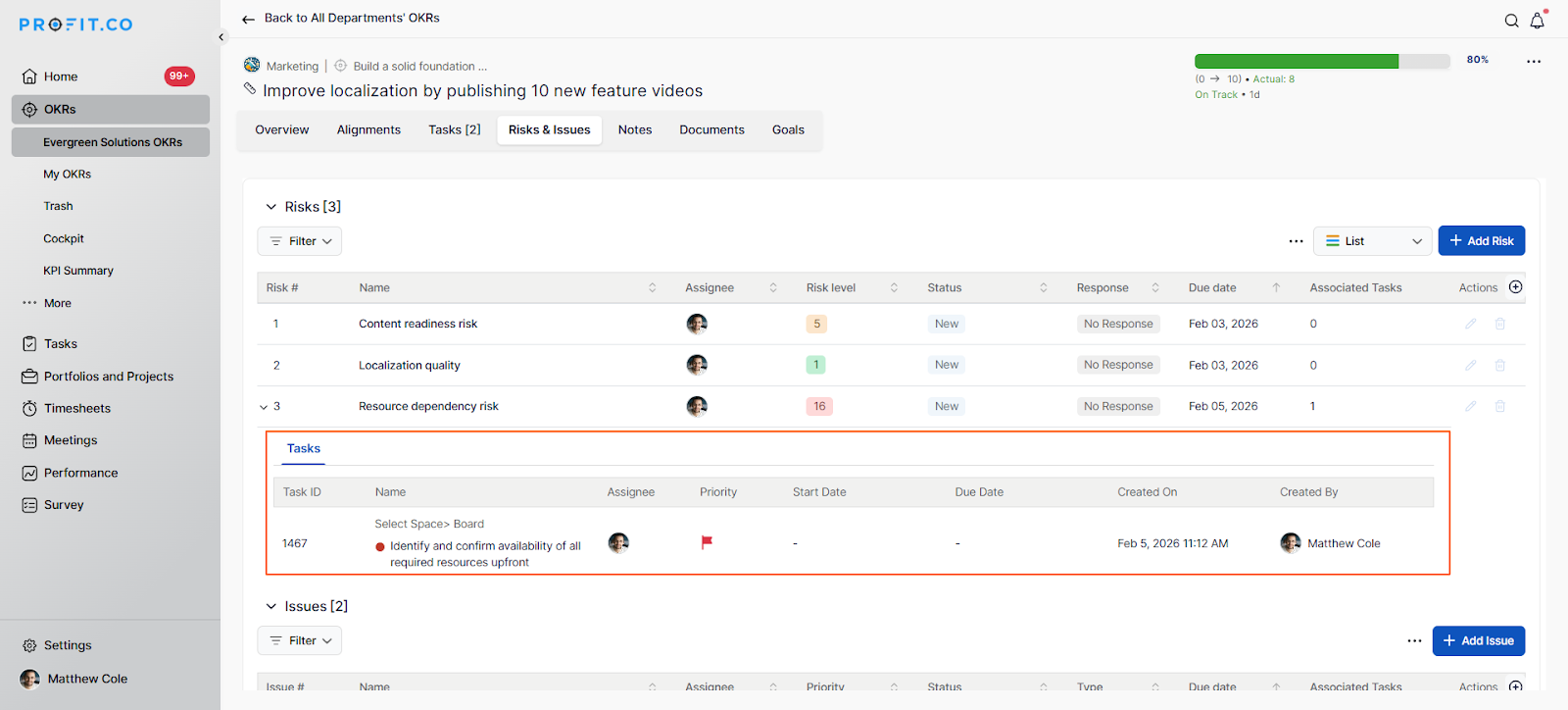
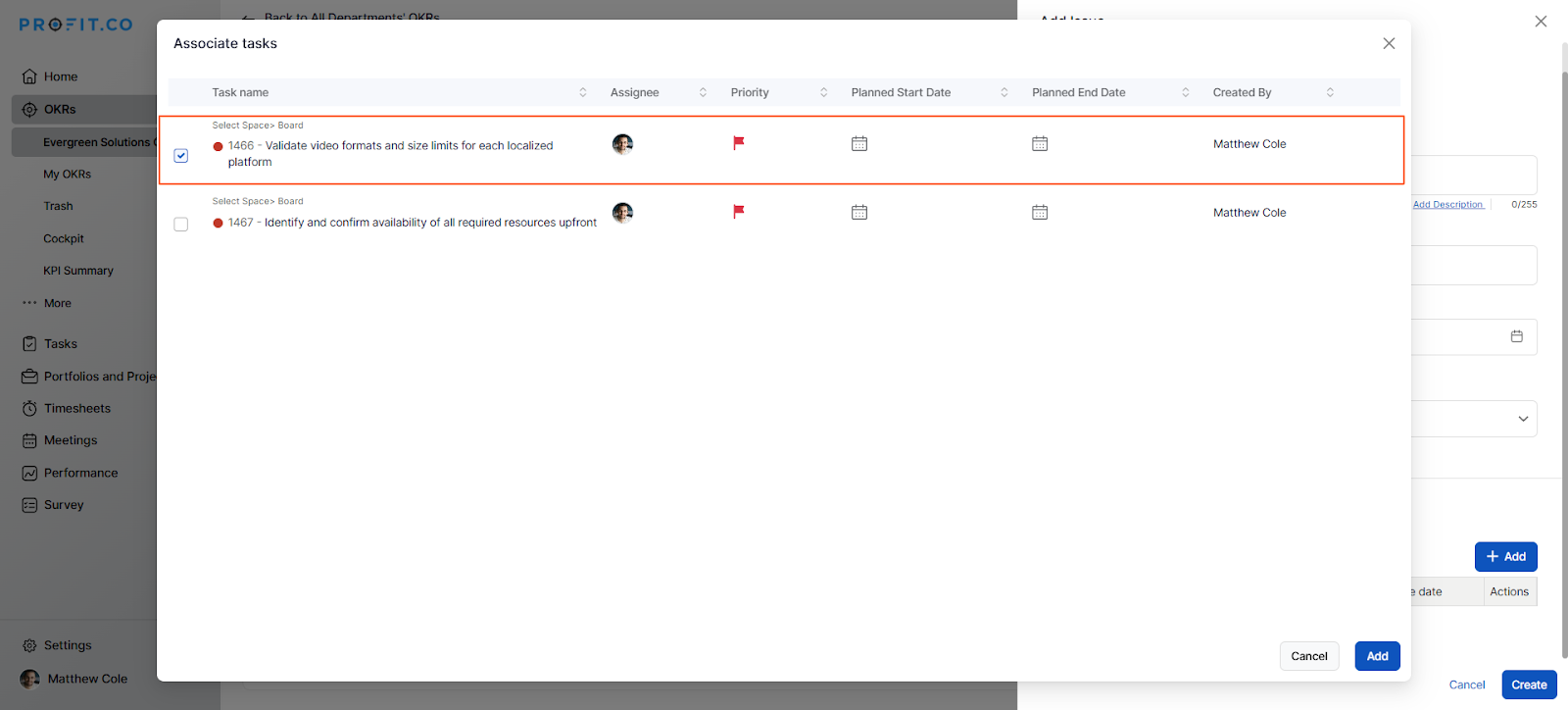
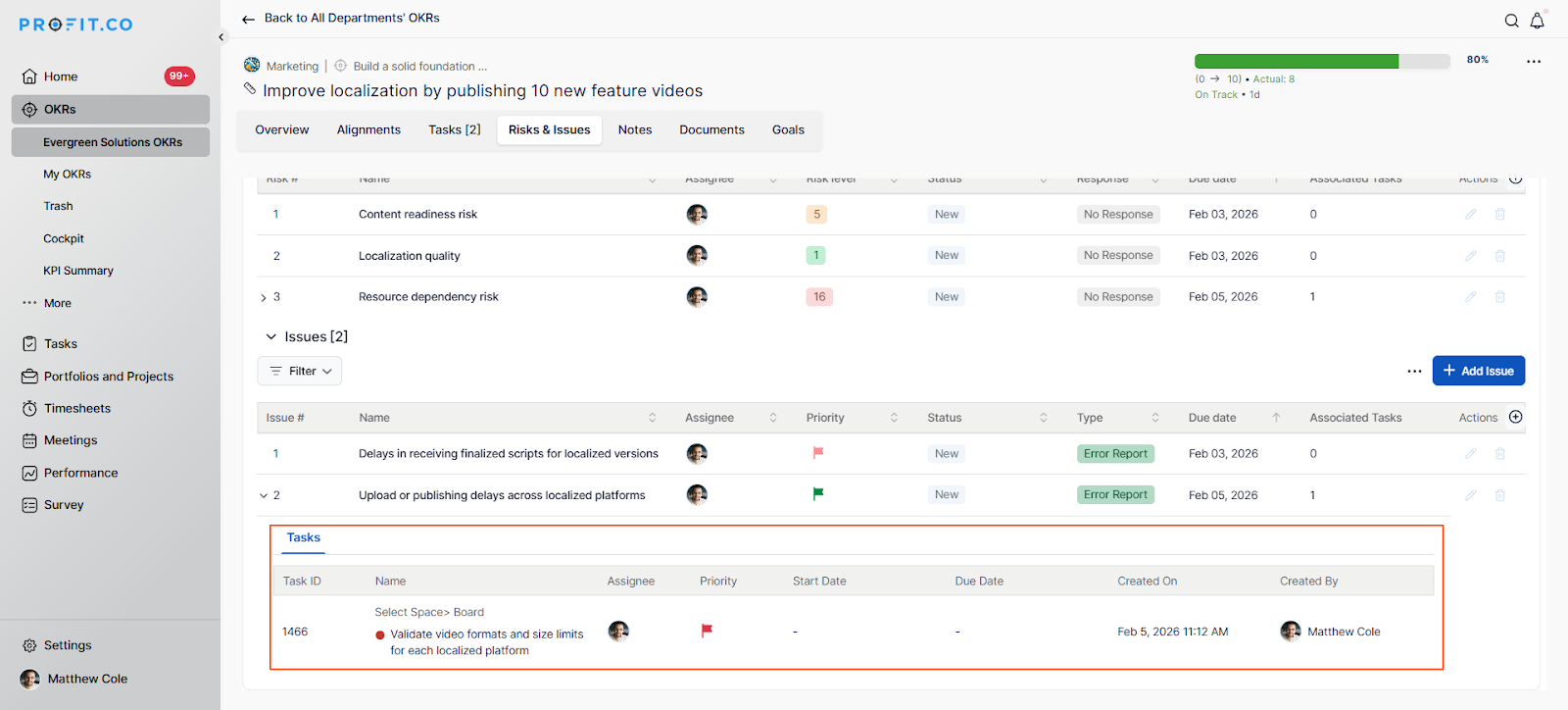
Note: To associate tasks with this risk, choose the relevant tasks. Tasks associated with risks are used for mitigation purposes, helping to prevent or reduce the likelihood of the risk occurring.
How do I add and manage Issues?
Follow these steps to add issues to your OKRs:
Step 1
- Switch to the Risks and Issues tab.
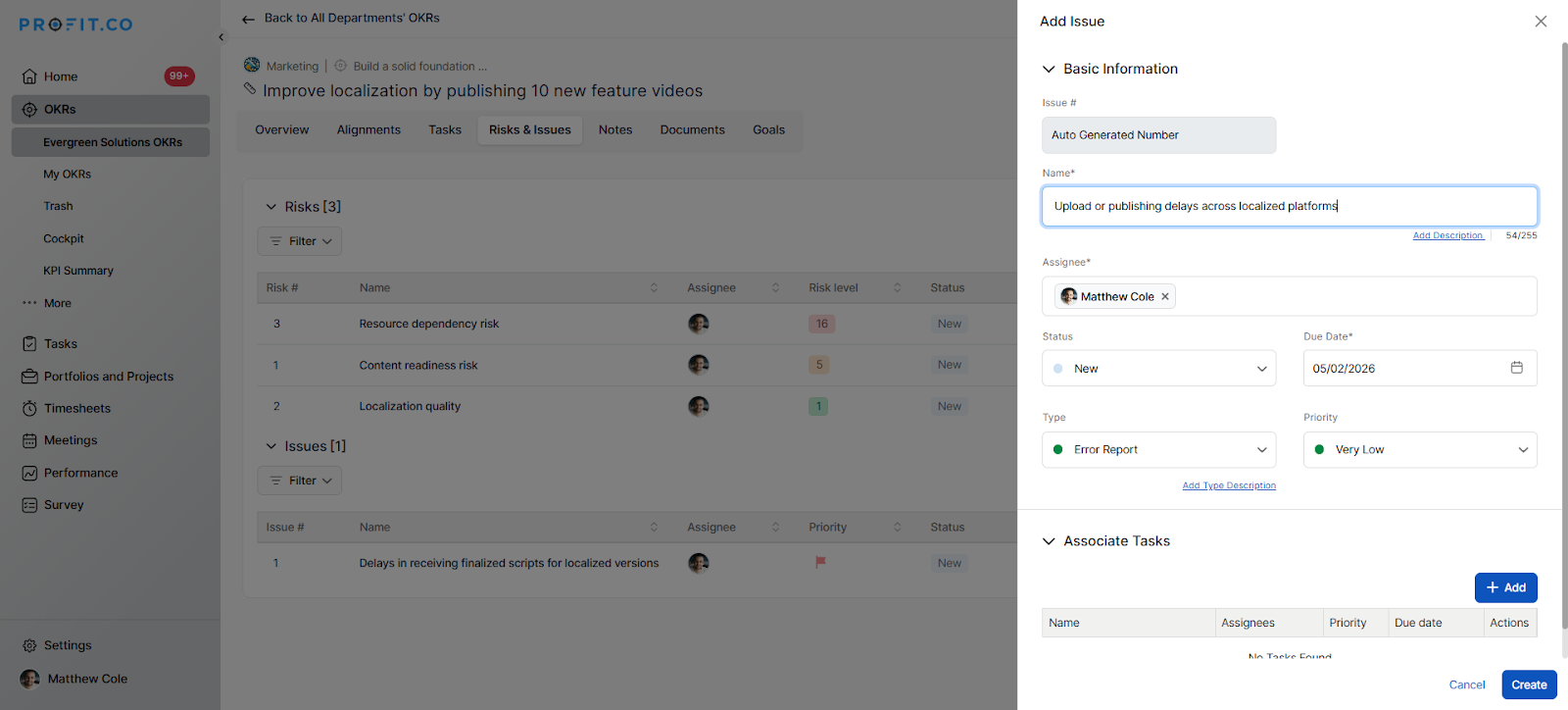
- In the Issues section, locate the option to add a new issue.
- Enter the issue name (a clear description of the problem).
- Select the Type (category of the issue).
- Select the Priority level (urgency of resolution).
- Click Create.
Note: To associate tasks with issues, select the relevant tasks. Tasks associated with issues are used for resolution purposes, helping to address and resolve the problem after it has occurred.
Best practices for Risks & Issues Management in Profit.co
- Enable both Risk and Issue Management features to maintain comprehensive oversight of your OKRs.
- Clearly define risk impact scores and probability levels during configuration to ensure consistent assessment.
- Use descriptive names for risks and issues to make them easily identifiable by team members.
- Associate relevant tasks with risks for mitigation and with issues for resolution to maintain clear accountability.
- Review and update risk statuses regularly as circumstances change throughout the project lifecycle.
- Prioritize issues based on urgency and impact to ensure critical problems are addressed first.
Related Questions
To learn more about how to create OKRs in Profit.co, click here
Frequently Asked Questions
Yes, you can enable Risk Management and Issue Management independently based on your organizational needs.
Once enabled, the Risks & Issues feature is available at both Objective and Key Result levels throughout your OKRs.
Tasks associated with risks are for mitigation purposes (preventing problems), while tasks associated with issues are for resolution purposes (fixing existing problems).
Related Questions
-
What does Milestone tracked Key Result imply?
Profit.co offers multiple ways to track Key Results, and the Milestone Tracked type is specifically designed for goals ...Read more
-
How do I view user login history in the Cockpit?
Profit.co has introduced three new widgets within the OKR Cockpit to help organizations monitor user login behavior and ...Read more
-
How to Configure Module Linkage Between BSC and OKR in Profit.co?
Profit.co now lets you control, objective by objective, whether an objective appears only in the OKR module or across ...Read more
-
How to Use the OKR Present Mode in Profit.co?
Profit.co allows users to use the OKR Present Mode directly from the OKR list view in a structured presentation format. ...Read more