



How to Customize the Email Template for Review Reminder in Profit.co?
Category: Performance
In Profit.co, you can personalize the review reminder email notification sent to employees during a performance review cycle, directly from the Action Center settings.
Table of Contents
- What is the Review Reminder email notification in Profit.co?
- Who can customize the Review Reminder email template in Profit.co?
- How to navigate to the Action Center in Profit.co?
- How to customize the Review Reminder email template in Profit.co?
- Best Practices for Customizing Review Reminder Email Templates
- Related Questions
- Frequently Asked Questions
What is the Review Reminder email notification in Profit.co?
The Review Reminder is an automated email notification sent to employees reminding them of pending performance review submissions. It is part of the HR administration action type under the Performance module in the Action Center.
Admins can customize the subject line and message body of this email to match their organization's tone and communication style.
Who can customize the Review Reminder email template in Profit.co?
Only users with Admin or HR Admin access can customize email notification templates through Settings → General → Notifications → Action Center.
How to navigate to the Action Center in Profit.co?
Step 1
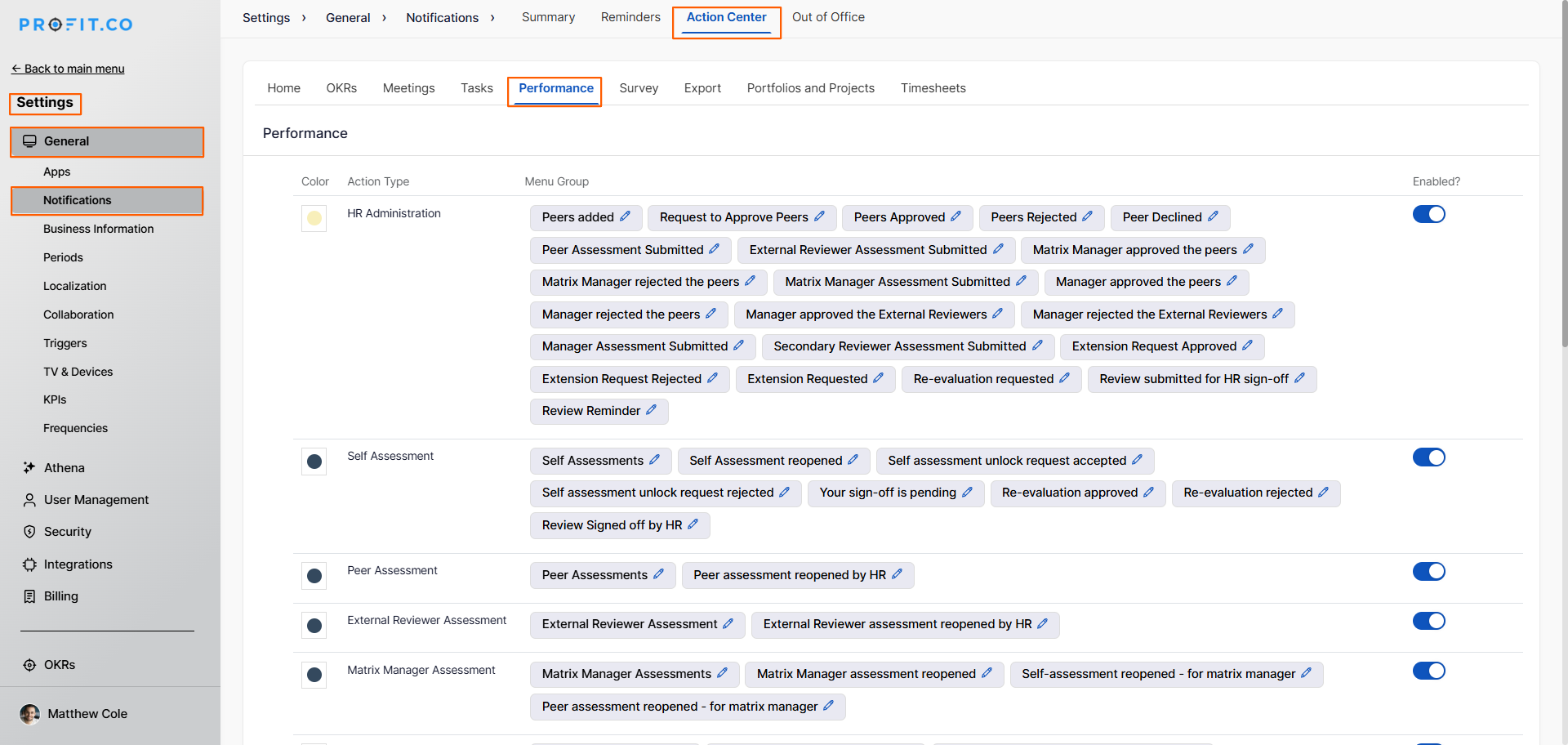
- Click on Settings from the left navigation panel.
- Under the General section, select Notifications.
- On the Notifications page, click the Action Center tab from the top navigation.
- Within the Action Center, click on the Performance tab to view all performance-related notification action types.
How to customize the Review Reminder email template in Profit.co?
Step 1
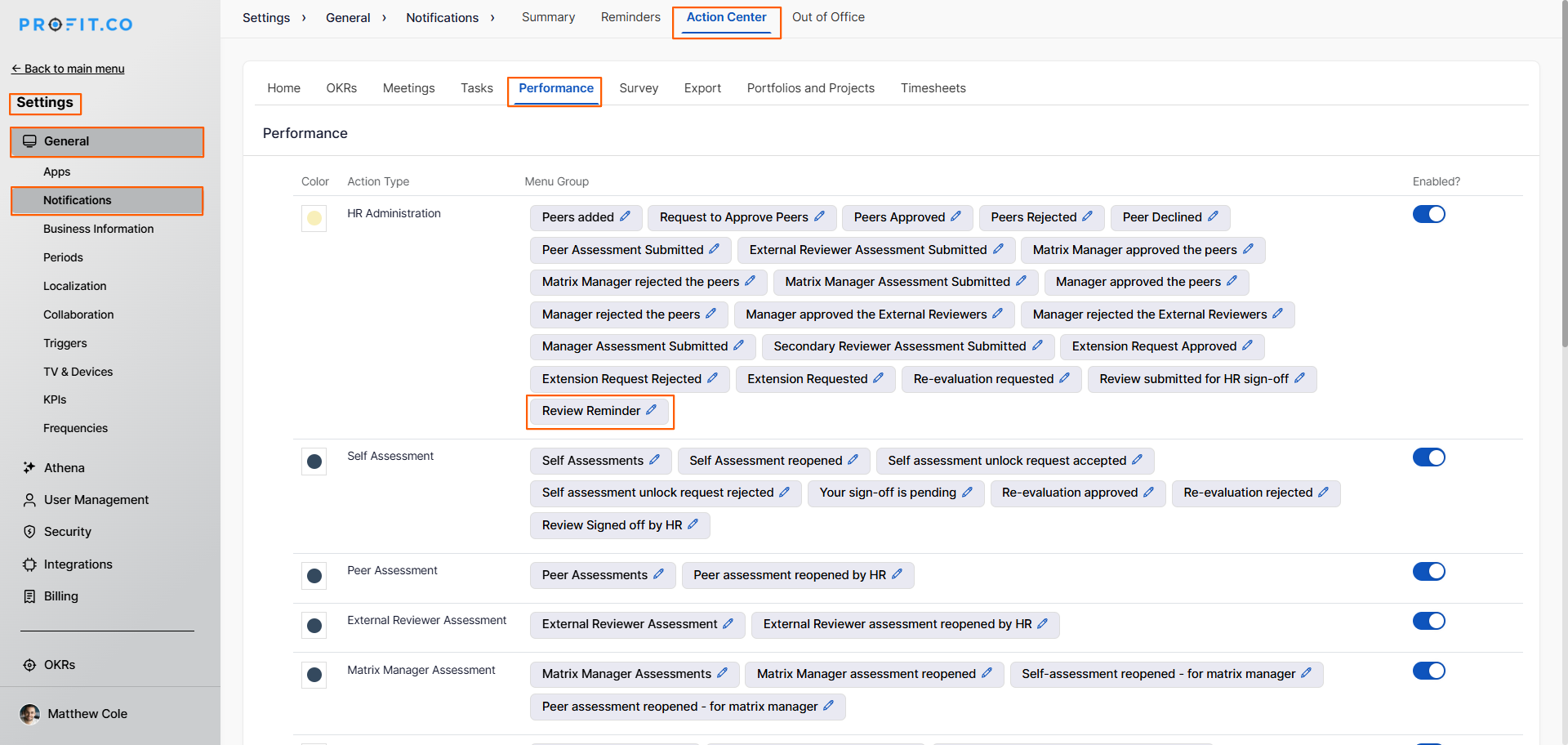
- On the Performance Action Center page, find the HR Administration action type row.
- You will see a list of notification menu groups, including Peers Added, Peers Approved, Review Reminder, and more.
- Locate the Review Reminder tag within the HR Administration row.
- Click the pencil (edit) icon next to it.
Step 2
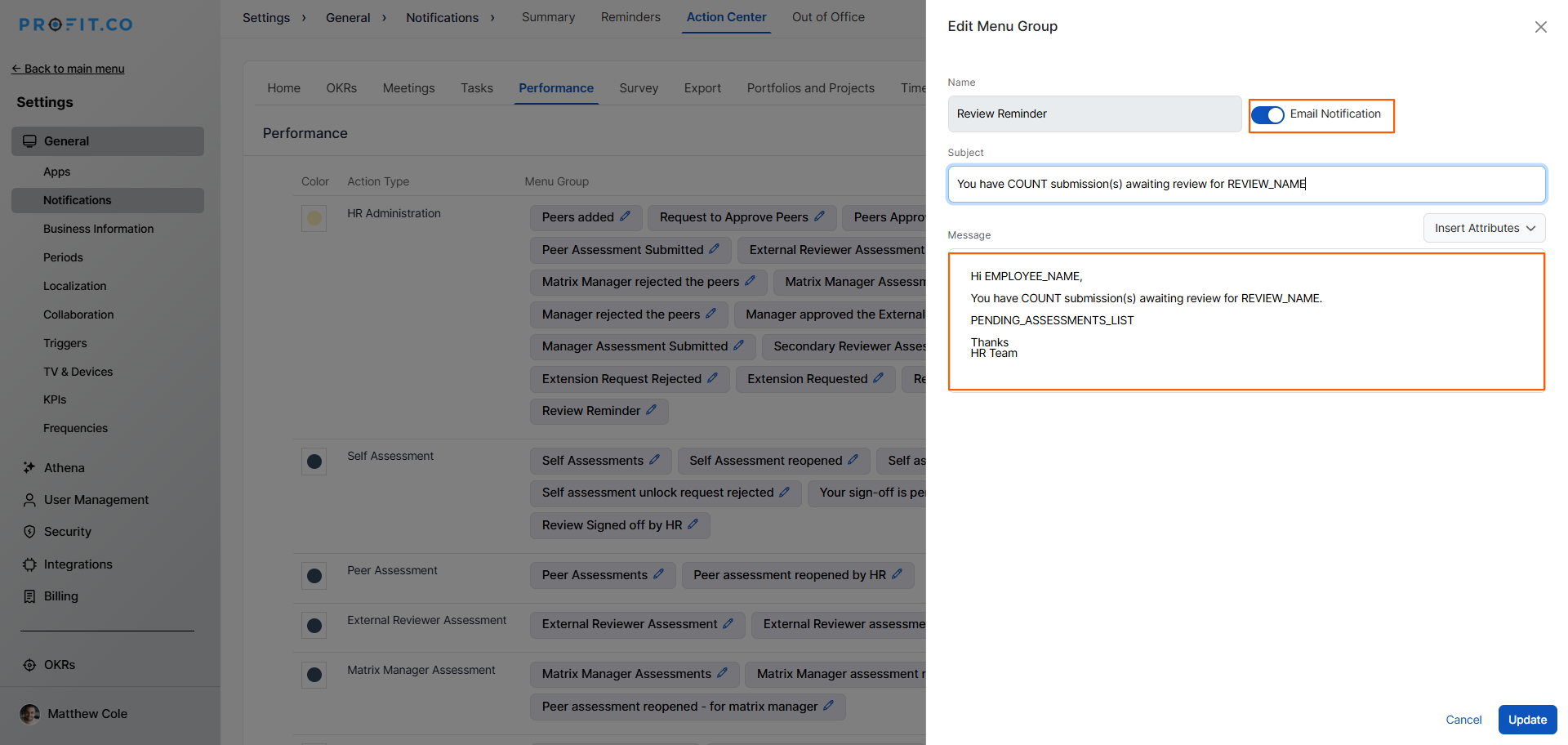
- In the side panel, toggle on the Email Notification switch at the top right to activate email delivery for this reminder.
- Edit the Message field to personalize the email body.
- Click Update to apply your customized email template.
- Click Cancel to discard changes.
Best Practices for Customizing Review Reminder Email Templates
- Keep the subject line clear and action-oriented so employees immediately understand what is needed.
- Always include EMPLOYEE_NAME in the greeting to make the email feel personalized.
- Use PENDING_ASSESSMENTS_LIST in the body to give employees direct context on what is outstanding.
- Avoid removing the COUNT attribute from the subject; it helps employees gauge urgency at a glance.
- Test the email by triggering a review cycle in a sandbox or pilot group before rolling out to the full organization.
Related Questions
Click here to learn more about how to manage notification preferences in Profit.co.
Frequently Asked Questions
Navigate to Settings → General → Notifications → Action Center → Performance tab. Under the HR Administration action type, click the edit icon next to the Review Reminder tag.
Yes. In the Edit Menu Group side panel, use the Email Notification toggle to enable or disable this email notification independently.
You can use EMPLOYEE_NAME, REVIEW_NAME, COUNT, and PENDING_ASSESSMENTS_LIST via the Insert Attributes option in the message editor.
Related Questions
-
What is Review Summary Information and How the Scores are calculated in Performance Reviews?
Table of Contents Why this feature? How to Enable Review Summary Information Understanding Score Calculations in ...Read more
-
How does the Saved View feature works in Profit.co’s PMS module?
The Saved View feature in Performance Goals allows you to quickly access frequently used, custom-filtered views without ...Read more
-
How do I Import Goals in Profit.co?
In Profit.co, you can import multiple goals at once using a CSV file, allowing you to quickly set up goals for ...Read more
-
What are Competency Activities?
In Profit.co, users can now create activities under competencies to document the actions they are taking to demonstrate ...Read more