

In Profit.co, HR teams and managers can initiate a Performance Improvement Plan (PIP) to help employees improve performance in specific skill or role-related areas through a structured and guided approach.
Quick Answer
Go to Portfolios and Projects → Portfolios → General, scroll to Portfolio Presentation Configuration, and enable Tollgate Tracking. Customize the slide design if needed, then open the portfolio, click the Presentation icon, select Tollgate Tracking, filter and select the projects to include, and click Download to get a .pptx file.
Table of Contents
- What is a Performance Improvement Plan (PIP) in Profit.co?
- Why Use the Performance Improvement Plan Feature?
- Who Can Initiate a PIP in Profit.co?
- How to Initiate a Performance Improvement Plan (PIP) in Profit.co
- What Happens After PIP Initiation?
- Tracking and Completing the PIP
- Signing Off and Closing the PIP
- Best Practices for Using Performance Improvement Plans (PIP) in Profit.co
- Related Questions
- Frequently Asked Questions
What is a Performance Improvement Plan (PIP) in Profit.co?
A Performance Improvement Plan (PIP) is a structured development plan used to support employees who are struggling to meet performance expectations. It clearly defines improvement areas, goals, timelines, and coaching support.
PIPs in Profit.co ensure transparency, accountability, and continuous guidance throughout the improvement journey.
Why Use the Performance Improvement Plan Feature?
The PIP feature in Profit.co helps organizations:
- Support employees with clear improvement goals and expectations
- Personalize performance improvement based on individual needs
- Enable managers and mentors to coach effectively
- Track progress and outcomes in a structured manner
- Ensure fair and documented performance management
Who Can Initiate a PIP in Profit.co?
- HR Admins
- HR Business Partners (HRBPs)
- Authorized Initiators
Note: Only HR Admins and HRBPs can delete a Performance Improvement Plan.
How to Initiate a Performance Improvement Plan (PIP) in Profit.co
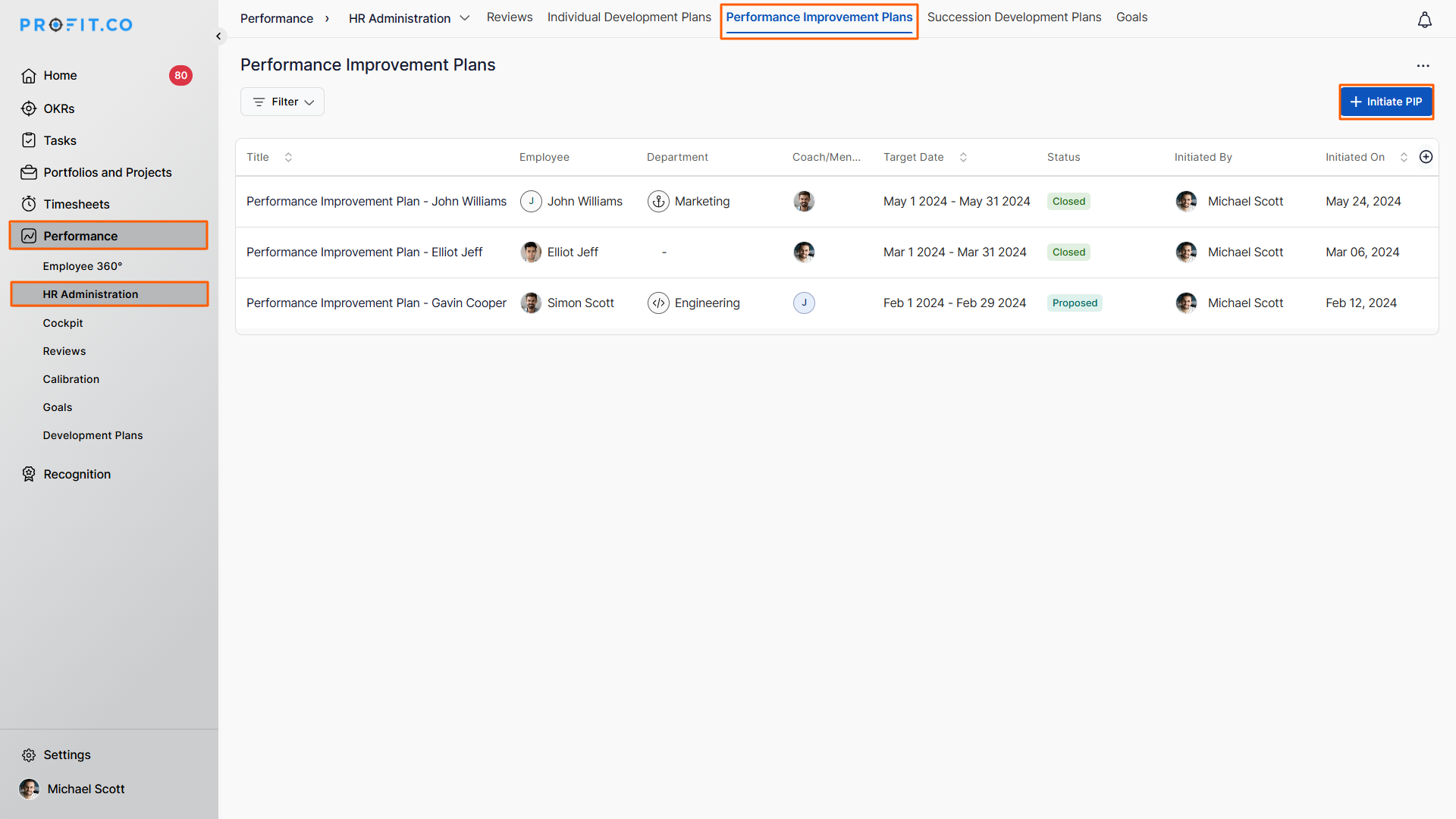
Step 1: Navigate to the PIP Section
- Go to Performance → HR Administration from the left navigation panel
- On the HR Administration page, click Performance Improvement Plan
- Click Initiate PIP to create a new plan
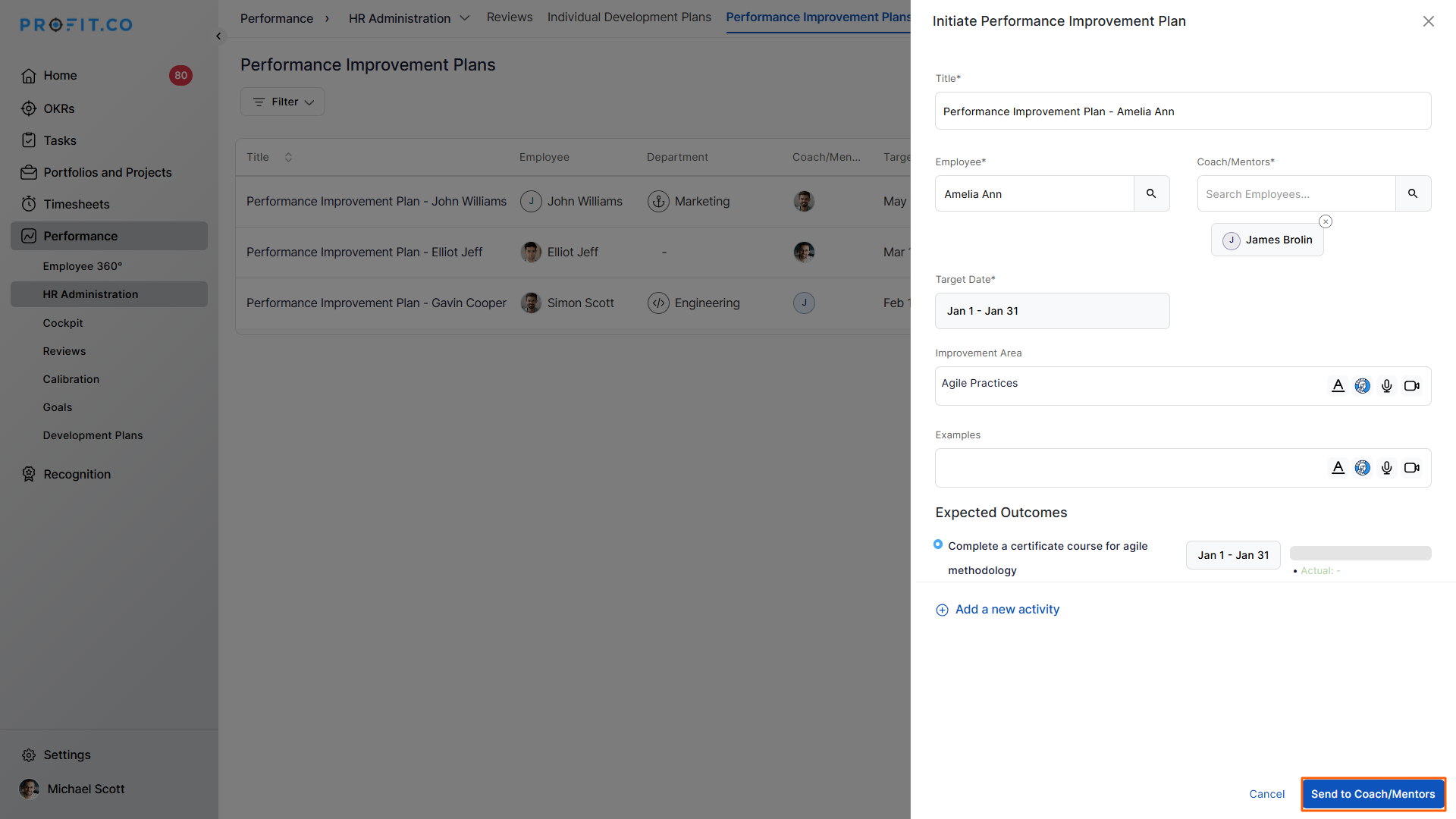
Step 2: Enter PIP Details
- Clicking + Initiate PIP opens a side panel
- Enter all required PIP details (employee, focus areas, timeline, goals, etc.)
- Send the PIP for approval
- Once sent for approval, the PIP is created with a Proposed status.
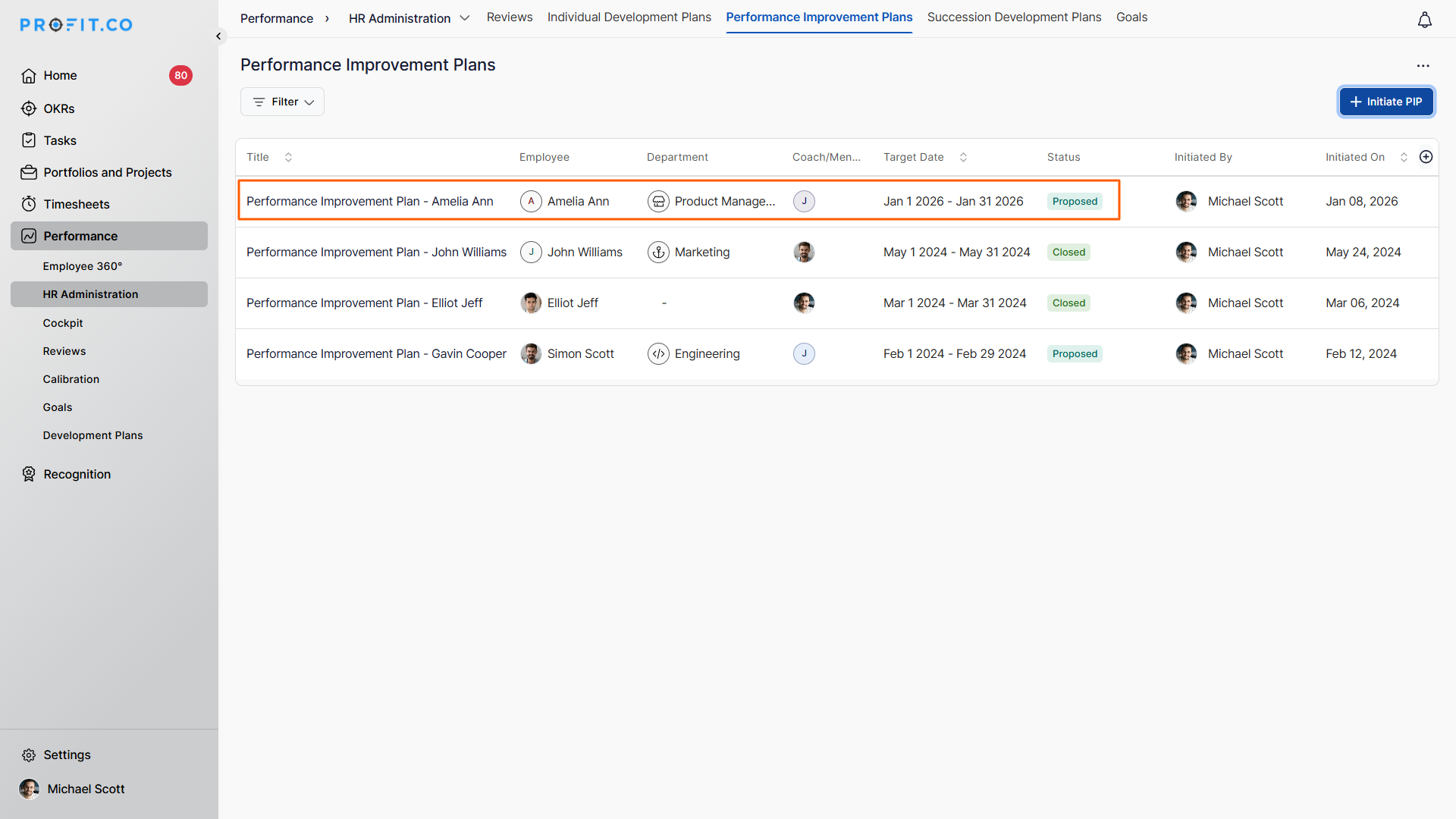
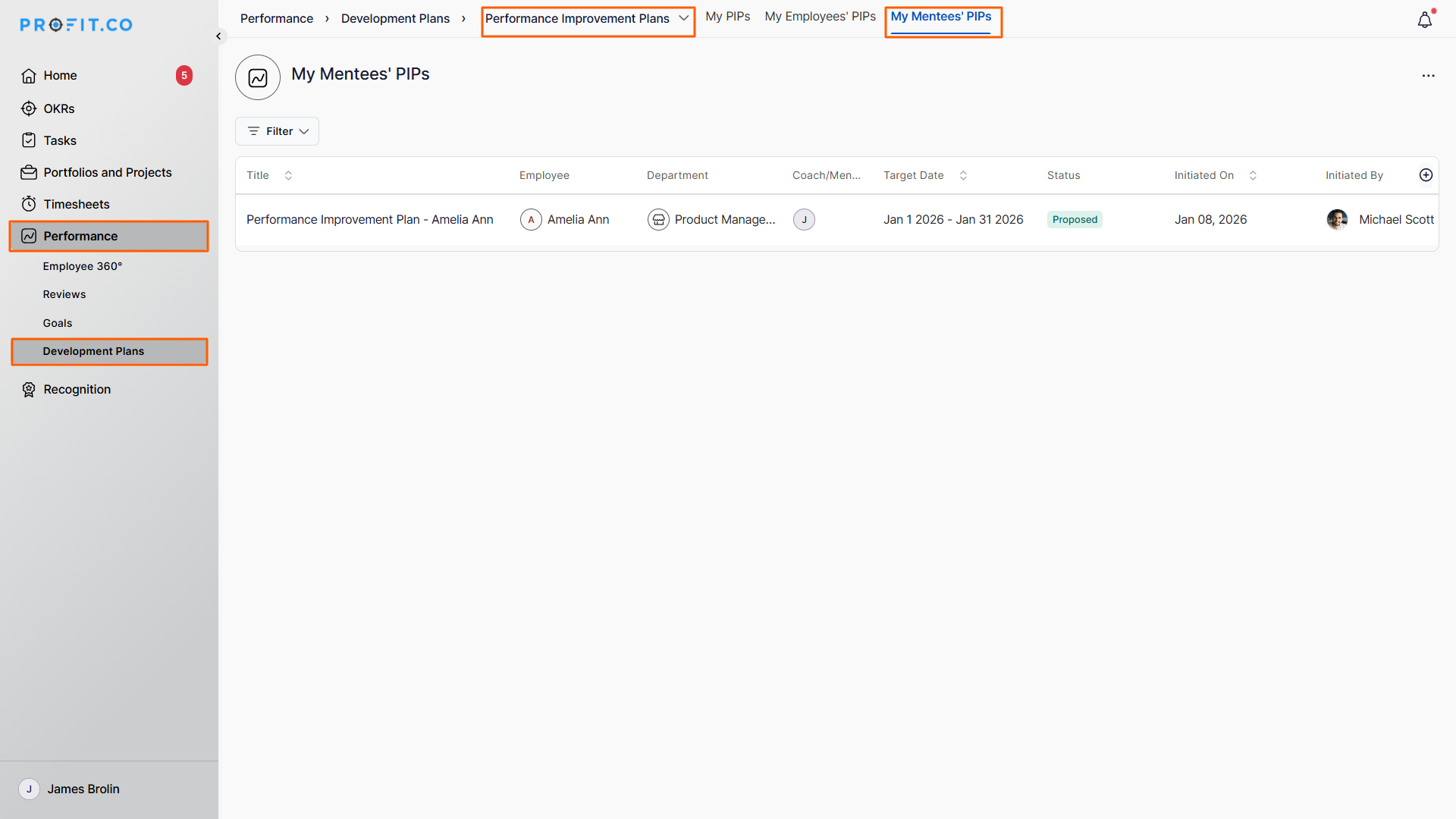
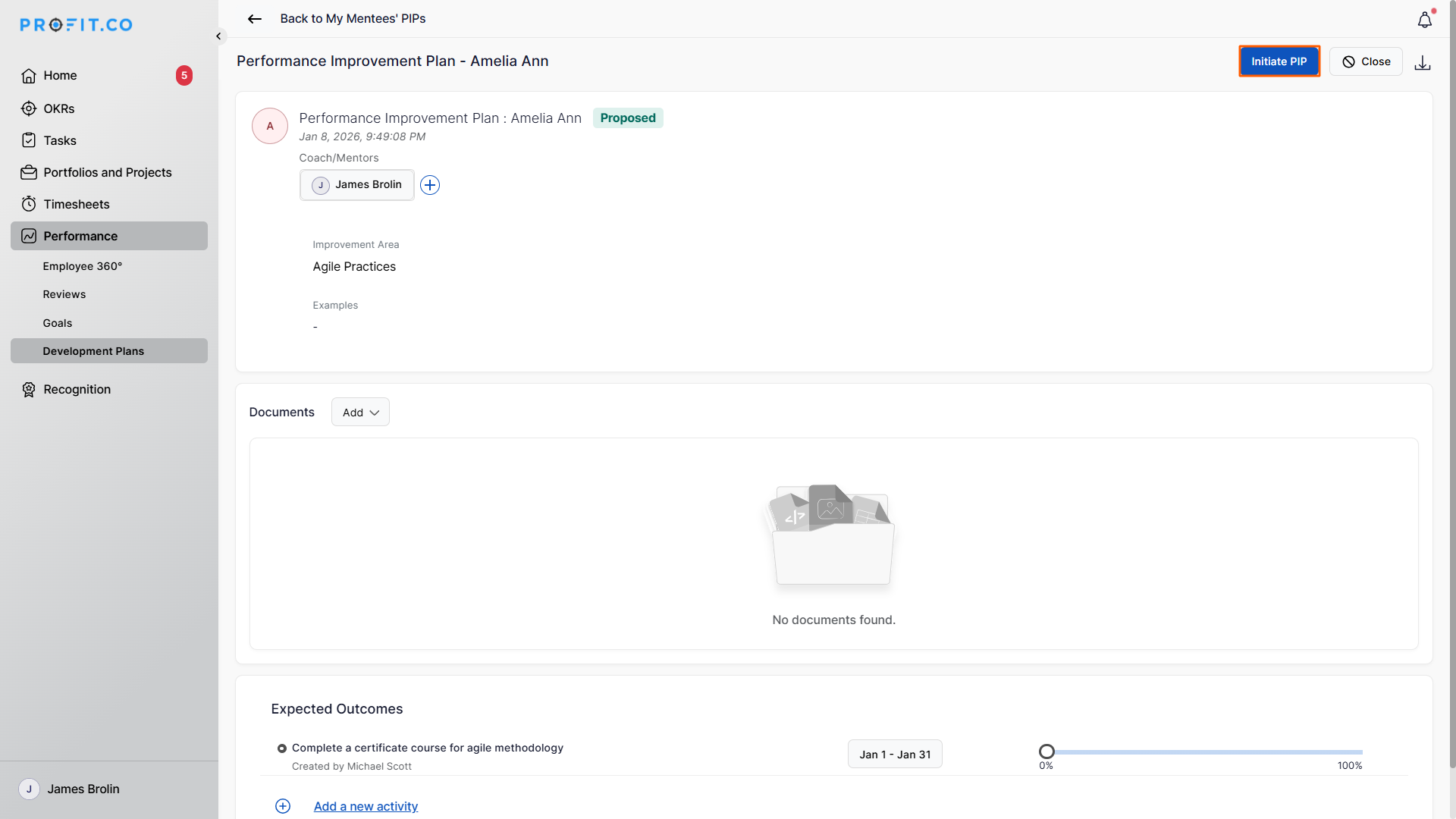
Step 3: Initiate the PIP
- The assigned coach or mentor can review and modify details if needed
- Add additional coaches or mentors, if required
- Click Initiate to start the PIP
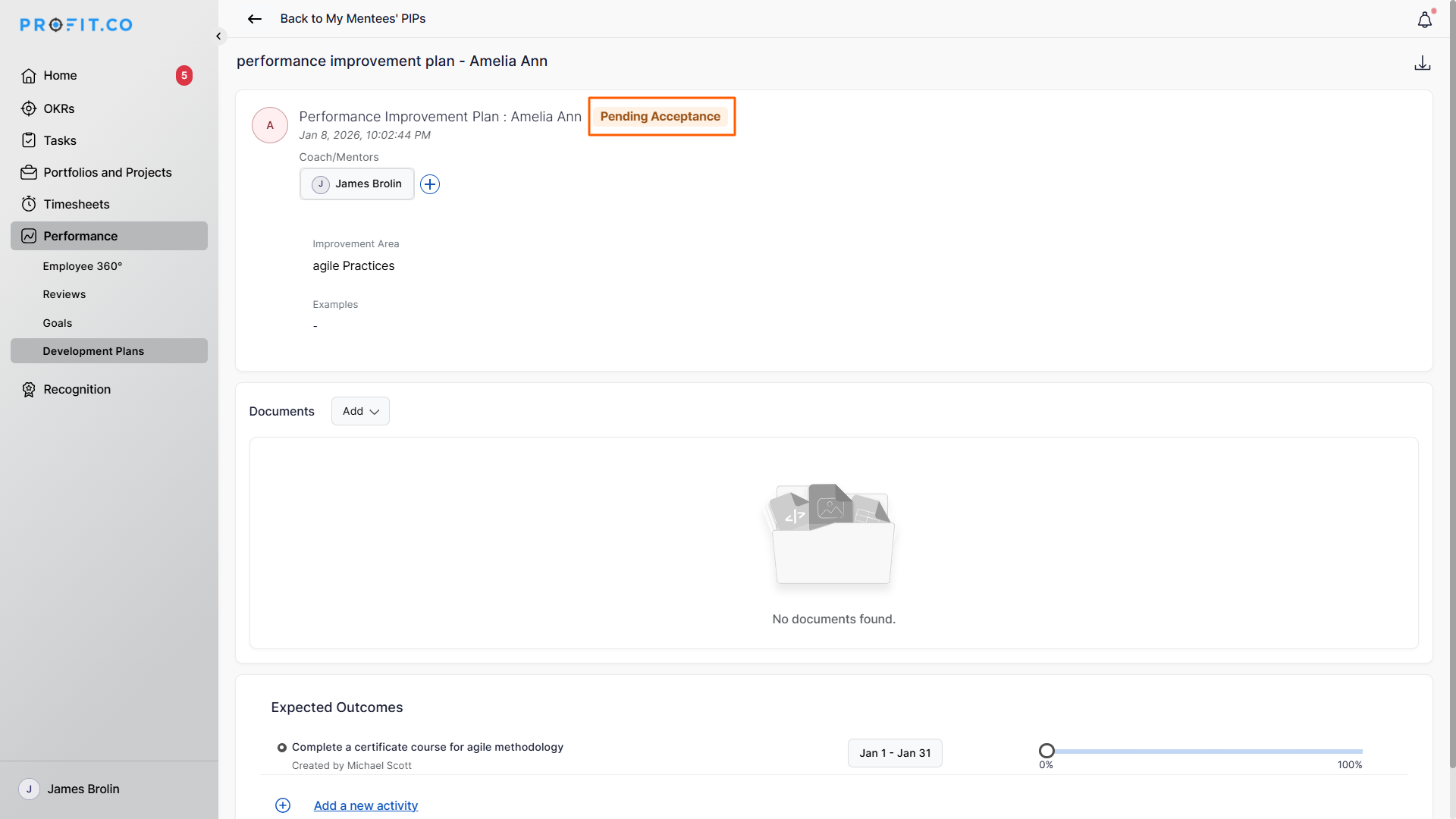
What Happens After PIP Initiation?
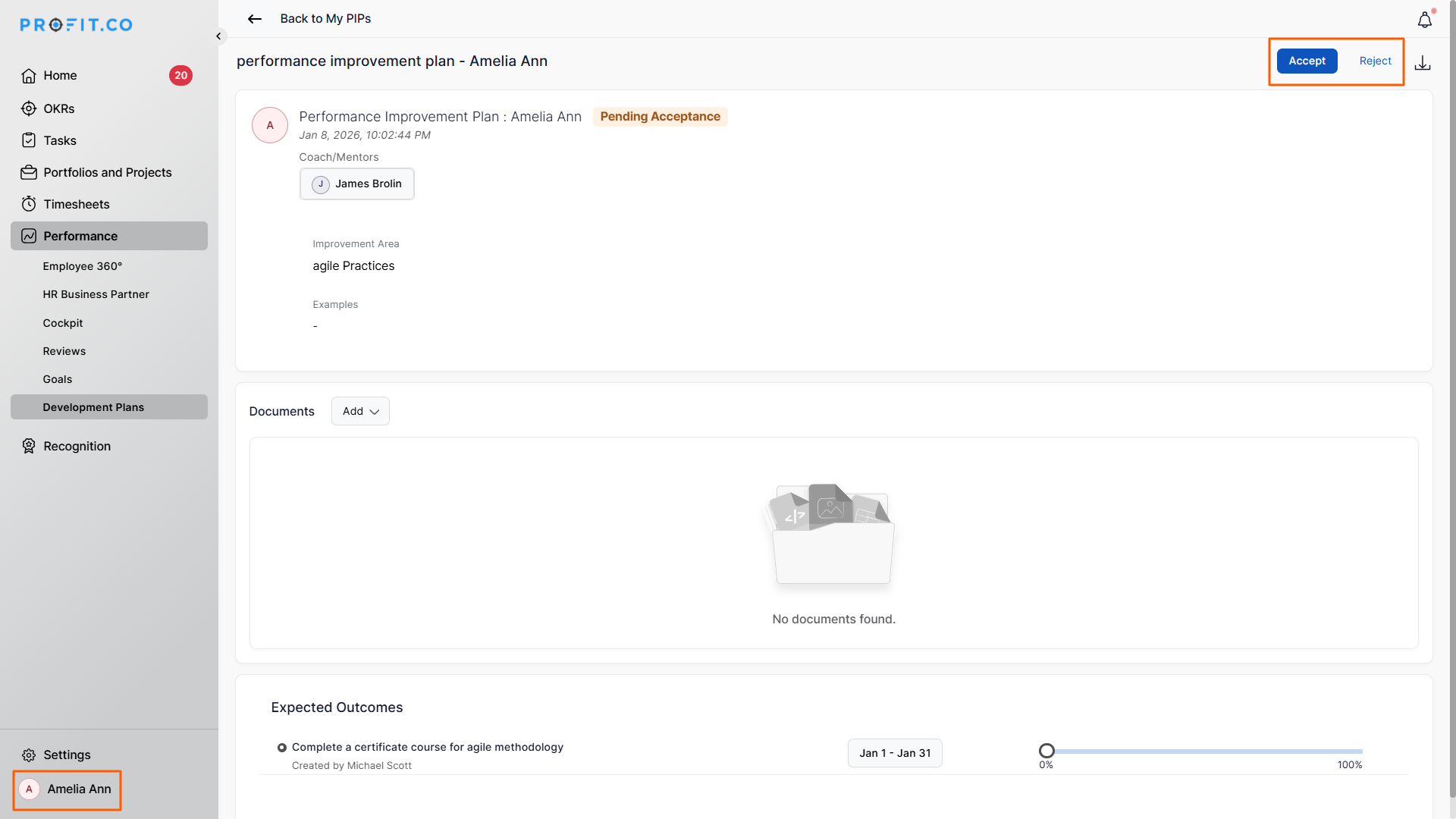
- Once initiated, the PIP remains in Pending status
- The employee can Accept or Reject the PIP under My PIPs
Note: Accept and Reject options are available for all development plans (IDP, PIP, and SDP).
Tracking and Completing the PIP
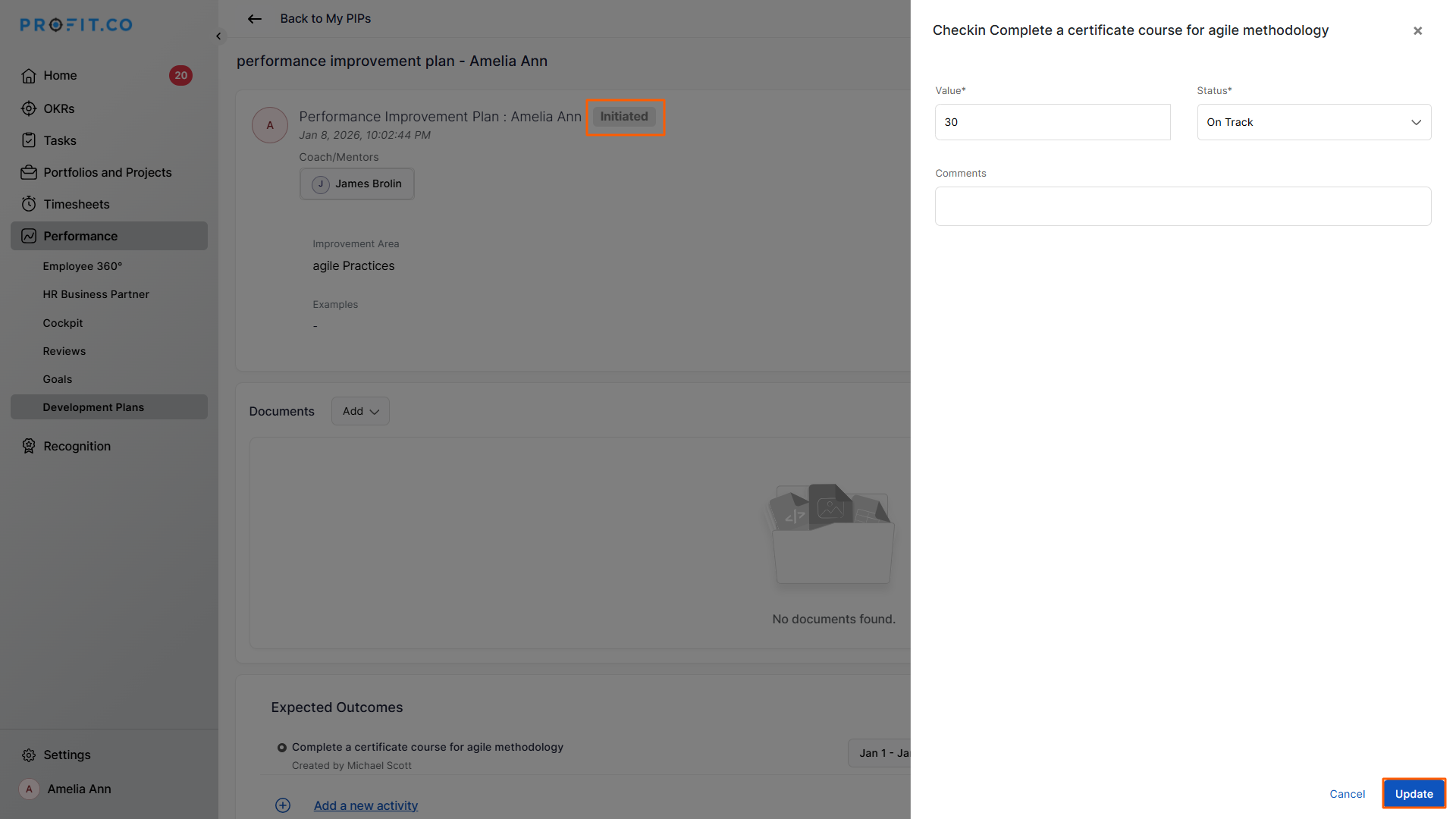
- After acceptance, the PIP moves to the Initiated stage
- Both the employee and mentor can collaborate and track progress
- Use the Update button to log progress regularly
Signing Off and Closing the PIP
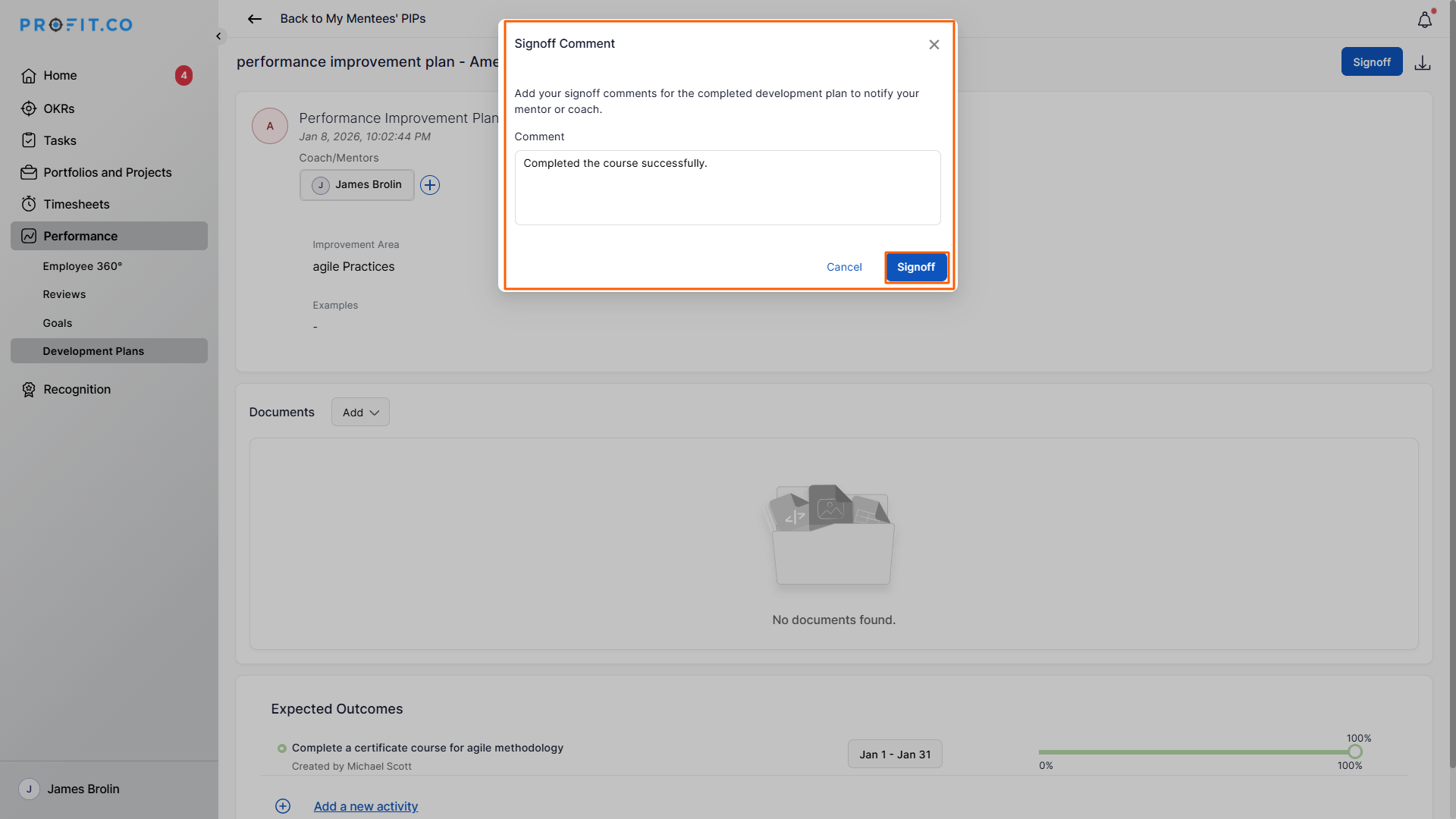
- Once the required progress is completed, the coach clicks Sign-off
- Add comments and confirm the sign-off
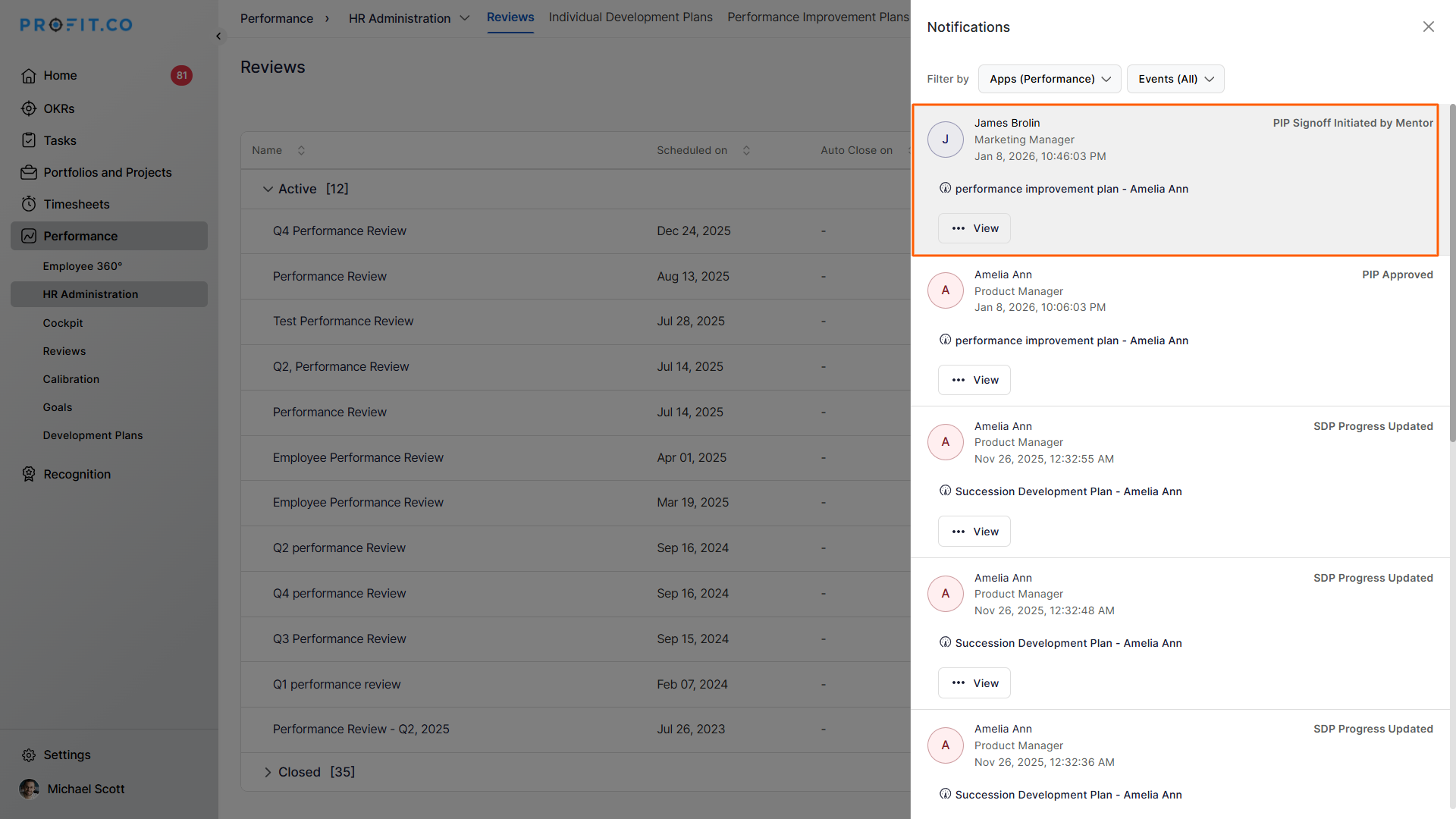
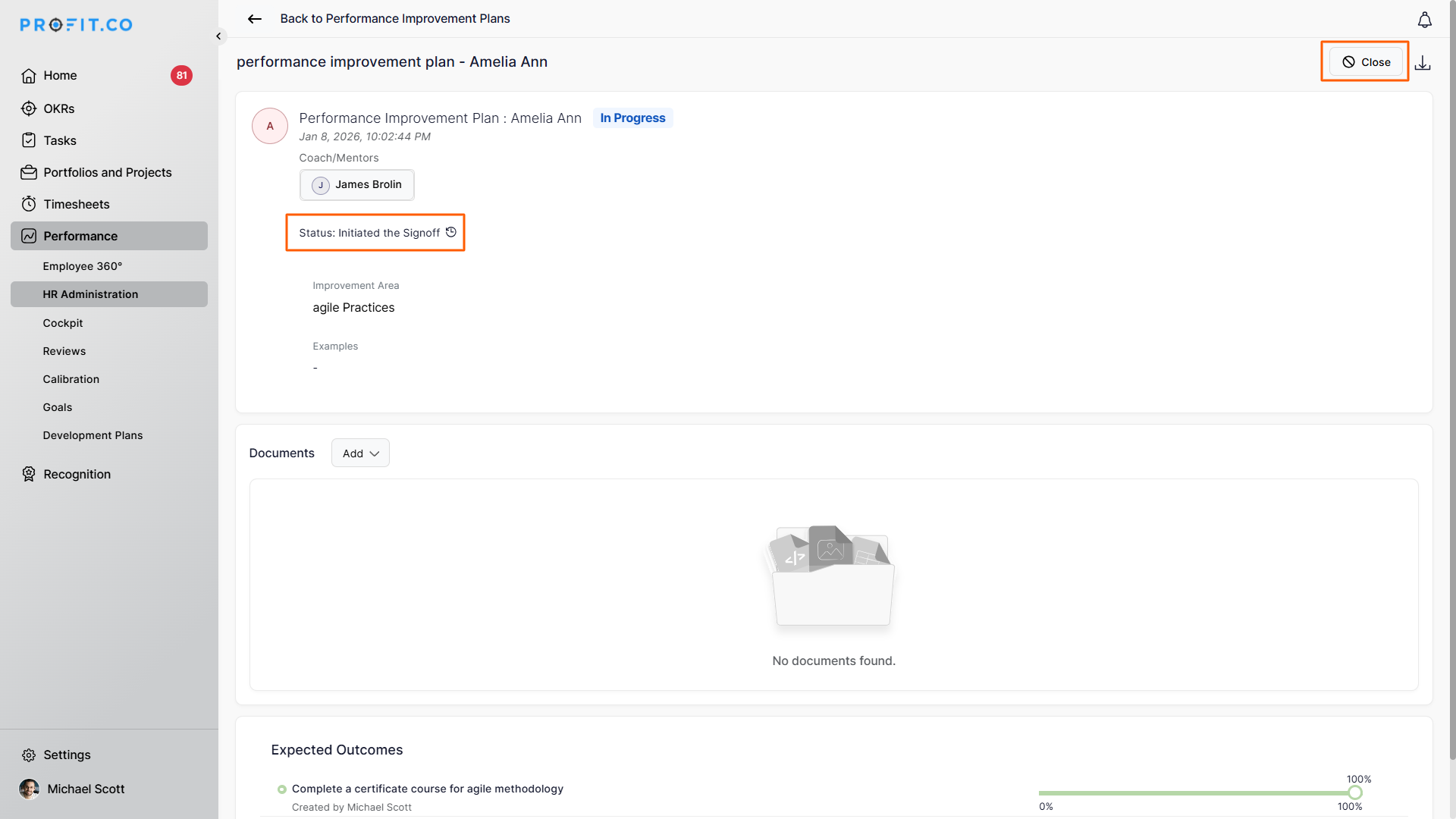
- The sign-off request is sent to the HRBP (PIP initiator)
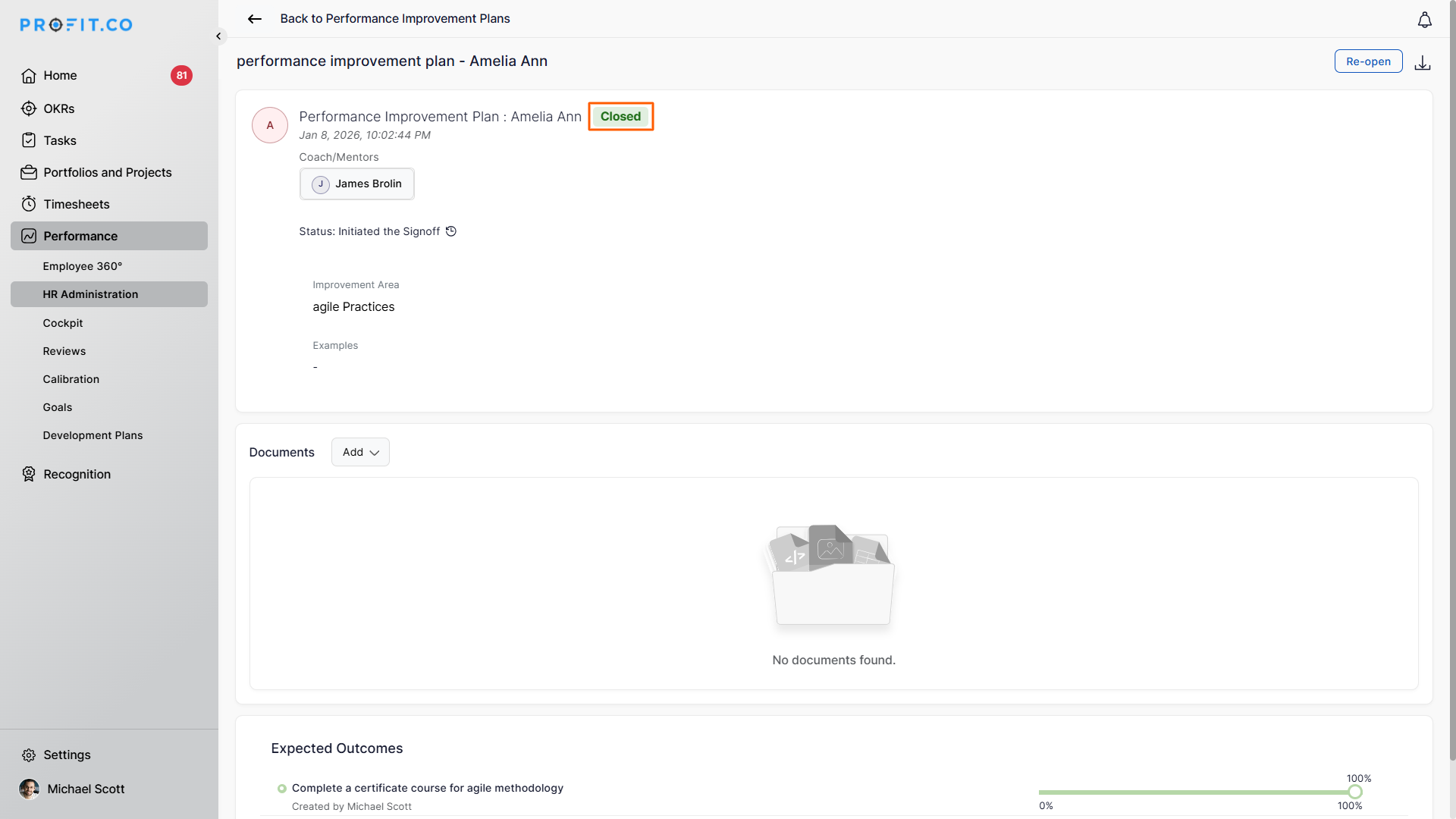
- The HRBP reviews and closes the PIP
Notes
- PIPs can be deleted directly from the HR Administration page
- Deleting a PIP triggers notifications to relevant stakeholders
- Only HR Admins and HRBPs have deletion privileges
Best Practices for Using Performance Improvement Plans (PIP) in Profit.co
- Define clear, measurable goals aligned with role expectations.
- Personalize the PIP based on individual performance gaps.
- Assign the right coach or mentor for continuous guidance.
- Track progress regularly with timely updates and feedback.
- Complete sign-off promptly once improvement goals are met.
Related Questions
To learn the process of initiating an Individual Development Plan [PIP], click here.
Frequently Asked Questions
Yes. Employees can accept or reject a PIP from the My PIPs section.
Only the HRBP who initiated the PIP can close it after coach's sign-off.
No. PIPs are initiated only when performance improvement support is required.
