



How to Configure Module Linkage Between BSC and OKR in Profit.co?
Category: OKRs
Profit.co now lets you control, objective by objective, whether an objective appears only in the OKR module or across both Balanced Scorecard (BSC) and OKR modules - giving you full flexibility over how your two strategic frameworks connect.
Table of Contents
What is the Module Linkage Between BSC and OKR?
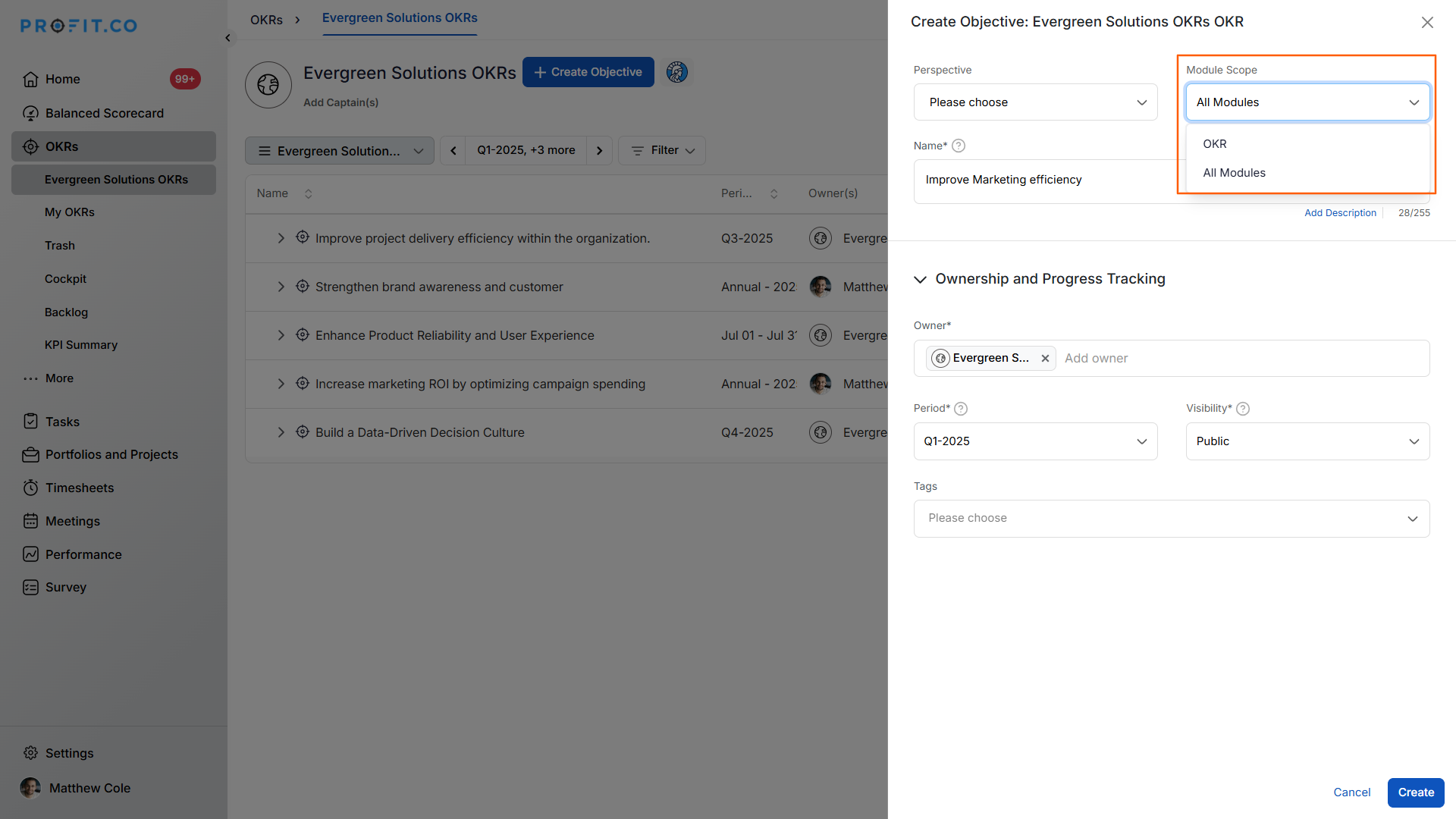
Module Linkage gives administrators the ability to enable a Module Scope field on every objective. When creating an objective, users can choose whether it should be visible only in the OKR module or visible across both the BSC and OKR modules simultaneously.
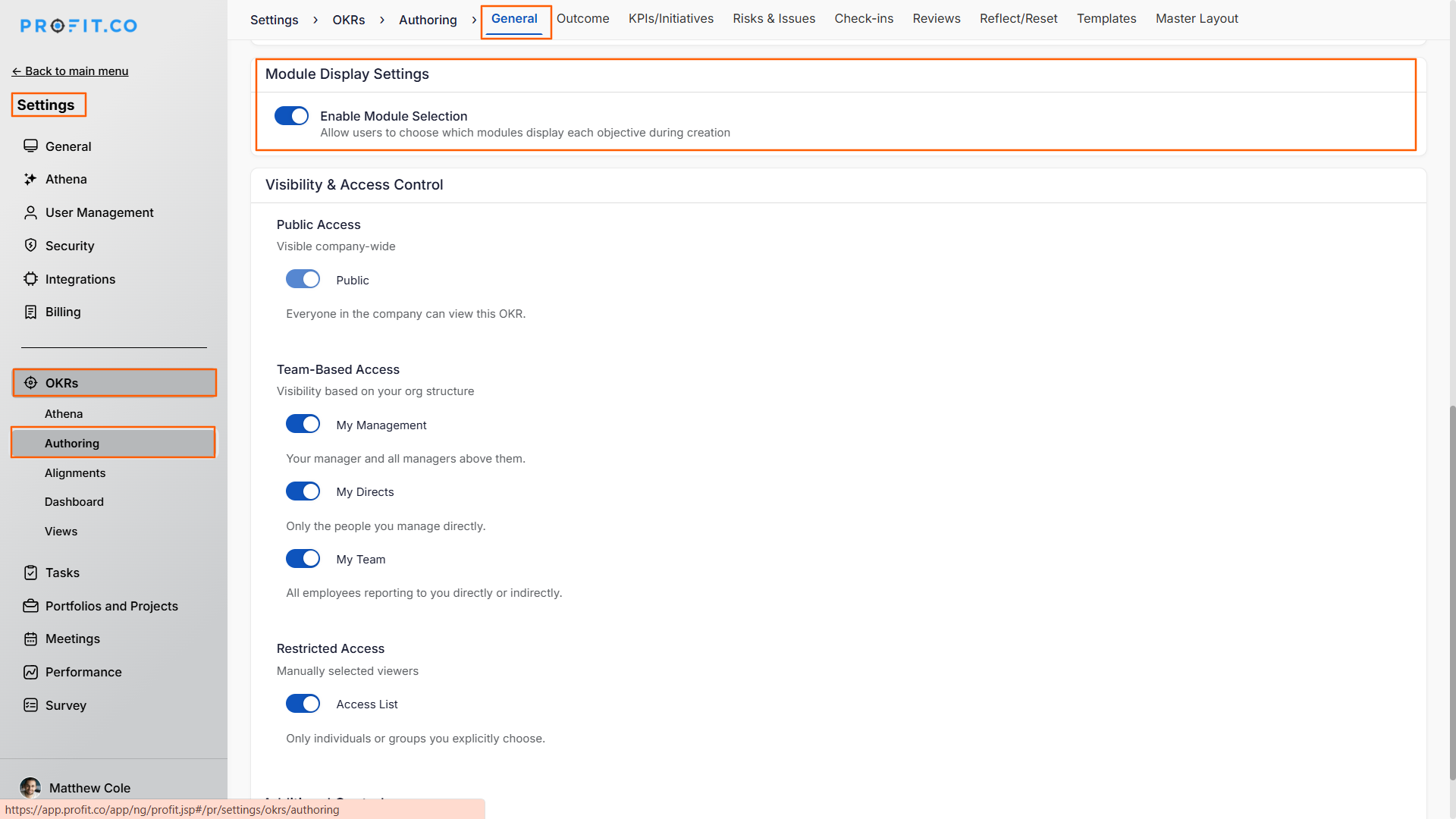
This is configured through a single admin toggle - Enable Module Selection - located at Settings → OKRs → Authoring → General → Module Display Settings. Once enabled, the Module Scope field appears on the objective creation form for all users.
Why Module Linkage Matters
Organizations running both BSC and OKR frameworks often have objectives that serve one framework but not the other. Without control over module visibility, objectives bleed across both modules regardless of their strategic context - creating noise for teams that don't need cross-framework visibility.
| Strategic Need | How Module Scope Addresses It |
|---|---|
| Methodological flexibility | Choose to integrate or separate BSC and OKR on a per-objective basis based on organizational needs. |
| Strategic clarity | Keep OKR objectives out of the BSC when the two frameworks serve distinct purposes within the organization. |
| Unified planning | Surface objectives in both BSC and OKR when cross-framework alignment is required. |
| Team-specific approaches | Different departments can operate with different integration strategies without system-wide configuration changes. |
| Reduced framework noise | Pure OKR teams are not exposed to BSC objectives that are irrelevant to their workflow. |
How It Works - Step-by-Step Guide
Step 1
- Navigate to Settings → OKRs → Authoring from the left navigation panel. Switch to General and locate the Module Display Settings.
- Enable the Enable Module Selection toggle.
Note: Only Super Users can access Settings and enable this toggle. Once enabled, the Module Scope field becomes available to all users when creating objectives.
Step 2
- Navigate to OKRs from the left navigation panel.
- Click + Create Objective, and on the objective creation form, locate the Module Scope field.
- Select OKR to make the objective visible only within the OKR module.
- Select All Modules to make the objective visible in both the BSC and OKR modules.
Step 3
- Fill in all remaining objective details as required.
- Click Complete to save.
- The objective will appear only in the module(s) specified by your Module Scope selection.
Module Scope Options at a Glance
| Module Scope Value | Where the Objective Appears | When to Use |
|---|---|---|
| OKR | OKR module only | When the objective is part of a pure OKR workflow and has no BSC relevance. |
| All Modules | Both the OKR and the BSC modules | When the objective needs to be tracked across both frameworks for unified strategic alignment. |
Best Practices for BSC and OKR Module Linkage
- Define your organization's integration policy before enabling Module Selection - decide upfront which objective types belong in both frameworks and which are OKR-only, so teams apply Module Scope consistently from the start.
- Assign All Modules scope to corporate-level strategic objectives that anchor both your BSC perspectives and OKR hierarchy, keeping the two frameworks connected at the top of the strategy map.
- Use OKR scope for quarterly operational objectives that are too granular for the BSC, preventing BSC scorecards from becoming cluttered with execution-level detail.
- Brief department leads on the Module Scope field before rollout - without guidance, users default to All Modules, which replicates the pre-configuration behavior and defeats the purpose of selective linkage.
- Review BSC scorecards after enabling Module Selection to identify any previously created objectives that may need their scope updated to reflect the intended framework separation.
Related Questions
- Click here to learn more about how to create a Balanced Scorecard (BSC) in Profit.co
- Click here to learn more about how to create an Objective via a step-by-step guide
- Click here to learn more about the use of the BSC Cockpit Dashboard in Profit.co
Frequently Asked Questions
Yes. You can edit an existing objective and update the Module Scope field at any time. Changing the scope from OKR to All Modules will immediately make the objective visible in the BSC, and reverting it will remove it from the BSC without deleting the objective.
When the Enable Module Selection toggle is turned off, the Module Scope field is no longer presented during objective creation. Objectives that were previously scoped retain their last saved setting, but the admin loses granular control over new objectives until the toggle is re-enabled.
The Enable Module Selection toggle in Settings is restricted to Super Users. However, once enabled, the Module Scope field on the objective creation form is available to any user who has permission to create objectives - it is not admin-only at the point of use.
Related Questions
-
What does Milestone tracked Key Result imply?
Profit.co offers multiple ways to track Key Results, and the Milestone Tracked type is specifically designed for goals ...Read more
-
How do I view user login history in the Cockpit?
Profit.co has introduced three new widgets within the OKR Cockpit to help organizations monitor user login behavior and ...Read more
-
How do I enable and Configure Risks & Issues Management at Key Result Level in Profit.co?
In Profit.co, you can enable Risks & Issues Management at the Key Result level to proactively identify potential ...Read more
-
How to Use the OKR Present Mode in Profit.co?
Profit.co allows users to use the OKR Present Mode directly from the OKR list view in a structured presentation format. ...Read more