

Profit.co offers multiple ways to track Key Results, and the Milestone Tracked type is specifically designed for goals that don't fit traditional numeric metrics but still require structured progress tracking.
Table of Contents
- What is a Milestone Tracked Key Result?
- Why use Milestone Tracked Key Results?
- When should I use Milestone Tracked Key Results?
- How do Milestone Tracked Key Results work?
- Milestone Tracked vs. Other Key Result Types
- Flexible Check-ins for Milestone Key Results
- Best practices for using Milestone Tracked Key Results
- Related Questions
- Frequently Asked Questions
What is a Milestone Tracked Key Result?
A Milestone Tracked Key Result is a type of Key Result used when you need to track binary or sequential outcomes that don't have quantifiable KPIs. Instead of measuring progress with numbers, you break down the goal into distinct milestones or checkpoints, where each milestone represents a completed step toward achieving the Key Result.
Why use Milestone Tracked Key Results?
Milestone Tracked Key Results solve specific tracking challenges in OKR management:
| Benefit | Description |
|---|---|
| Binary outcome tracking | Perfect for yes/no, done/not-done type goals |
| Sequential clarity | Breaks complex initiatives into clear, ordered steps |
| Visual progress | Shows completion percentage based on milestones achieved |
| Flexible measurement | Works when traditional KPIs aren't applicable |
| Project-style tracking | Bridges OKRs with project management methodologies |
| Team alignment | Makes it clear what needs to happen and in what order |
When should I use Milestone Tracked Key Results?
There are scenarios where you find it difficult to associate any KPI with your Key Result. This typically happens when you have a binary outcome to track—something that's either complete or incomplete, with no middle ground for numeric measurement.
Common use cases:
Product Development:
- Launch product version 3.0
- Complete beta testing phase
- Deploy new infrastructure
Hiring & Team Building:
- Hire a sales manager
- Onboard five engineering team members
- Establish remote work policies
Process Implementation:
- Establish a sales onboarding process
- Implement new performance review system
- Create customer success playbook
Strategic Initiatives:
- Sign partnership agreement with vendor
- Open new regional office
- Achieve industry certification
How do Milestone Tracked Key Results work?
Structure of a Milestone Tracked Key Result
A Milestone Tracked Key Result consists of:
- Key Result statement: The overall goal (e.g., "Launch product version 3.0")
- Individual milestones: Sequential steps required to complete the Key Result
- Progress calculation: Percentage based on completed milestones
Progress calculation example:
If your Key Result "Launch product version 3.0" has 5 milestones:
- Complete feature development
- Conduct QA testing
- Create user documentation
- Execute marketing campaign
- Deploy to production
Progress tracking:
- Each milestone = 20% of total progress
- 3 milestones completed = 60% progress
- All 5 milestones completed = 100% (Key Result achieved)
Milestone Tracked vs. Other Key Result Types
| Feature | Milestone Tracked | Numeric Tracked | Task Tracked |
|---|---|---|---|
| Best for | Binary outcomes | Measurable KPIs | Multiple action items |
| Progress type | Milestone completion | Numeric value | Task completion |
| Measurement | % of milestones done | Current vs. Target | % of tasks done |
| Complexity | Sequential steps | Single metric | Multiple tasks |
| Example | Launch product | Increase revenue to $1M | Complete 15 sales activities |
Flexible Check-ins for Milestone Key Results
By default, Milestone Tracked Key Results follow a scheduled check-in cadence. Profit.co also allows admins to enable Additional Check-ins — letting users log progress on a Milestone KR at any point between scheduled check-in dates, without waiting for the next scheduled window.
Enabling Additional Check-ins
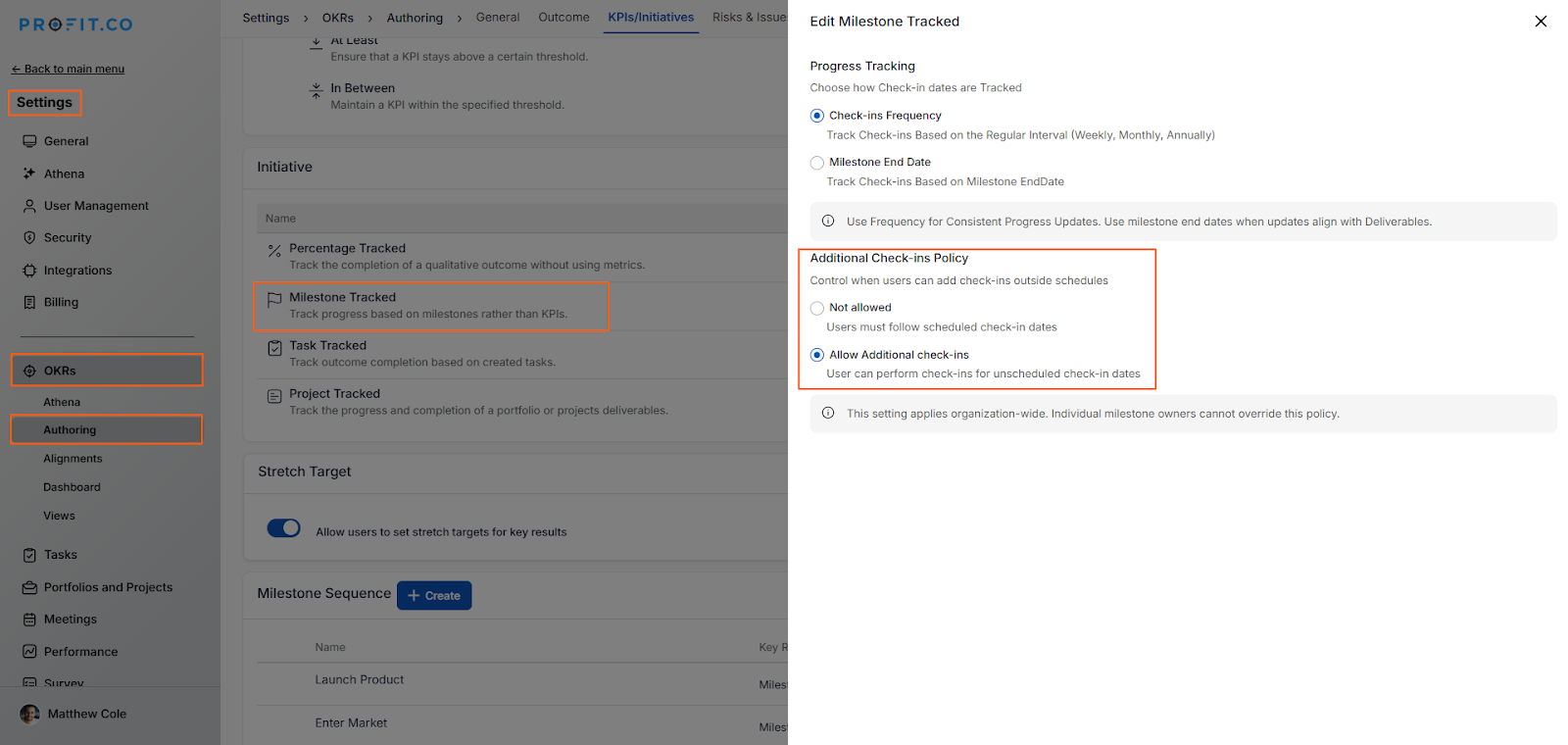
- Navigate to Settings → OKRs → Authoring → KPIs/Initiatives → Edit Milestone Tracked.
- Under the Additional Check-ins Policy, select Allow Additional check-ins.
Note: Only Super Users can configure the Additional Check-ins Policy in Settings.
Logging an Additional Check-in
- Open the Milestone Key Result and click Check In.
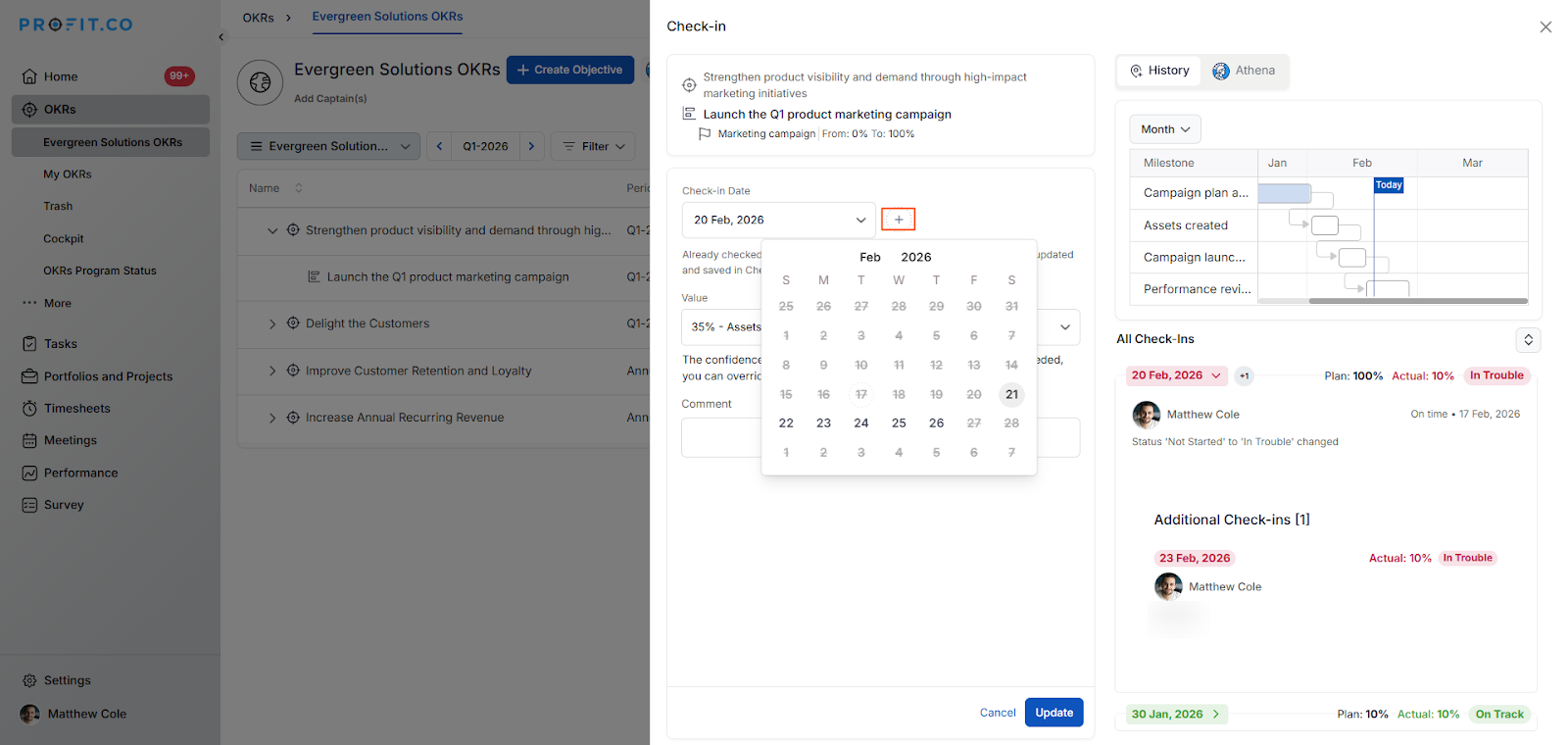
- Click the Additional Check-in date button.
- Select any date between your last scheduled check-in and the next scheduled check-in.
- Enter the progress value and any relevant comments, then submit.
Both scheduled and additional check-ins appear in the check-in history. Additional check-ins display in a dedicated Additional Check-ins section, keeping them clearly distinguishable from the regular check-in cadence.
How Additional Check-ins Work in Practice
| Check-in Type | Date | Action |
|---|---|---|
| Last scheduled | Feb 20 (Fri) | Completed normally on schedule. |
| Milestone achieved | Feb 23 (Tue) | Log an additional check-in immediately to capture the milestone. |
| Next scheduled | Feb 27 (Fri) | Occurs as planned — the regular cadence is unaffected. |
Additional check-ins supplement the scheduled cadence — they do not replace or skip any regular check-in dates.
Best practices for using Milestone Tracked Key Results
- Keep milestones meaningful: Each milestone should represent significant progress, not trivial steps.
- Limit the number: Aim for 3-7 milestones per Key Result for clarity and manageability.
- Define clear completion criteria: Make it obvious when a milestone is truly "done".
- Sequence logically: Arrange milestones in a natural order when dependencies exist.
- Add ownership: Assign responsible parties to milestones for accountability.
- Include deadlines: Set target dates for milestones to maintain momentum.
- Document dependencies: Note if certain milestones must be completed before others can begin.
- Regular check-ins: Review milestone status frequently to identify blockers early.
- Celebrate completions: Acknowledge when milestones are achieved to maintain team motivation.
Related Questions
- Click here to learn more about how to define a Key Result of Milestone Tracked in Profit.co
- Click here to learn more about how to set up a new Milestone Sequence
- Click here to learn more about which Key Result type to choose
Frequently Asked Questions
It depends on your Profit.co configuration. Generally, it's best to choose the correct Key Result type from the start. If you need to change it, you may need to create a new Key Result and archive the old one.
Milestone completion contributes to the Key Result's progress percentage, which in turn rolls up to calculate the overall Objective progress based on all Key Results under that Objective.
Yes, you can assign different owners to individual milestones within a single Milestone Tracked Key Result, allowing for distributed responsibility while maintaining unified tracking.
