



How to view the subordinate's feedback in the overall review?
Category: Performance
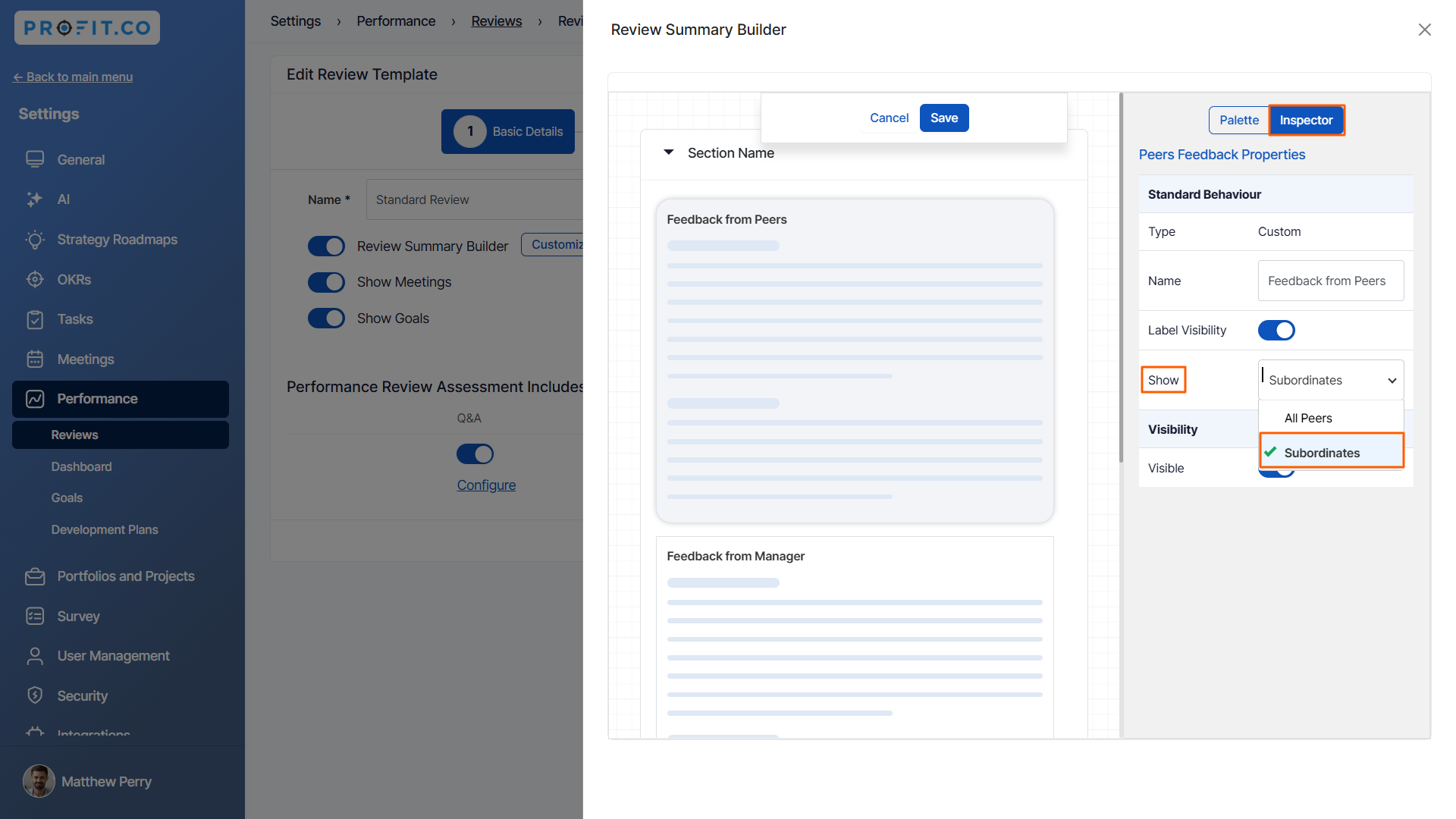
In the Review summary builder, the profit.co system allows configuring the “Feedback from subordinates” when you drag & drop the “Feedback from peers” widget and select “Subordinate” in the shown drop-down.
Why this feature?
By using this feature, we can show the subordinates' feedback in the Overall Review Summary.
Step 1
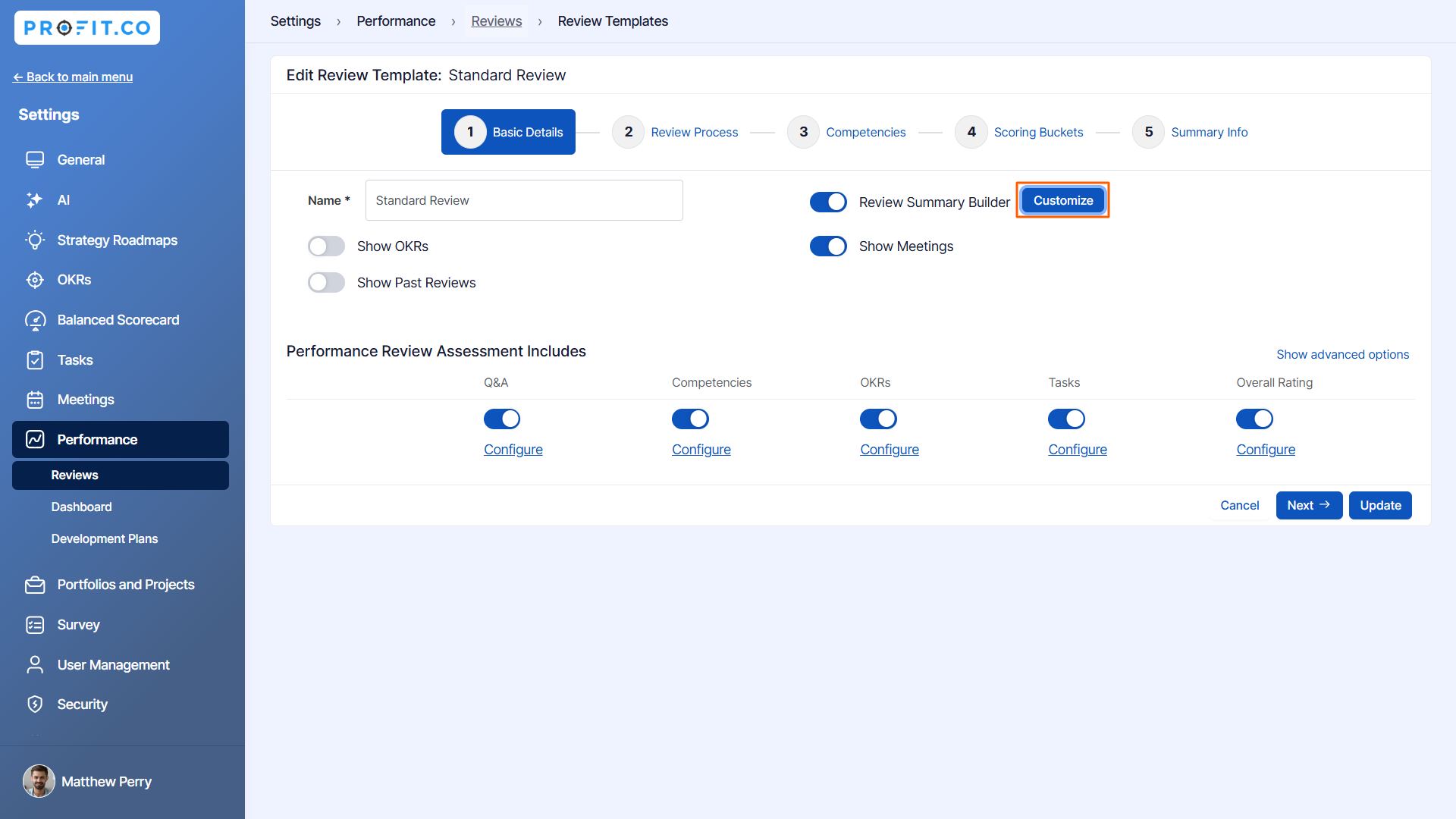
Go to Settings → Performance → Reviews from the left navigation panel and switch to the Review Templates page. Click on the Edit icon of your preferred template.

Click on the Customize button in the Review Summary Builder.
Step 2
Edit the component Feedback from Peers, and in the Inspector tab set the showing option as Subordinates.
After setting it, click Save.
Note: When the SuperUser views the employee's review from the HR dashboard, they can see feedback from subordinates. Additionally, managers will be able to view the subordinates’ feedback while performing the assessment.
Related Answer Post
To learn more about the Review Summary dashboard click here.
Related Questions
-
What is Review Summary Information and How the Scores are calculated in Performance Reviews?
Table of Contents Why this feature? How to Enable Review Summary Information Understanding Score Calculations in ...Read more
-
How do I Import Goals in Profit.co?
In Profit.co, you can import multiple goals at once using a CSV file, allowing you to quickly set up goals for ...Read more
-
How to Customize the Email Template for Review Reminder in Profit.co?
In Profit.co, you can personalize the review reminder email notification sent to employees during a performance review ...Read more
-
What are Competency Activities?
In Profit.co, users can now create activities under competencies to document the actions they are taking to demonstrate ...Read more