



How do I close a project in Profit.co?
Category: PPM
Profit.co provides a comprehensive Project Closure feature that enables structured project endings with achievement documentation, lessons learned capture, and closure checklist. This ensures projects close properly with valuable insights preserved for future reference, transforming project endings from informal wrap-ups into strategic knowledge management opportunities.
Table of Contents
- What is project closure in Profit.co?
- What are the two methods for closing a project?
- How do I close a project using the More Options Menu?
- How do I close a project using Stage Change during check-in?
- How does the approval process work when enabled?
- Best practices for effective Project Closure
- Related Questions
- Frequently Asked Questions
What is project closure in Profit.co?
Project Closure is a structured process for formally ending projects while capturing critical information about achievements, lessons learned, and closure circumstances. Rather than allowing projects to fade away without documentation, Project Closure enforces discipline around project retrospectives and knowledge transfer.
The feature includes four key components:
- Closure Reason: Categorize why the project ended using organizational closure reasons
- Achievements Documentation: Record what was accomplished during the project lifecycle
- Lessons Learned Capture: Preserve insights, challenges, and best practices for future projects
- Closure Checklist: Complete required closure tasks before finalizing the project end
- This comprehensive approach creates an audit trail of project endings while building organizational knowledge that improves future project success rates.
What are the two methods for closing a project?
Profit.co provides two flexible closure paths to accommodate different user workflows and preferences:
| Method | Entry Point | Best For |
|---|---|---|
| Close via More Options Menu | Project detail page → More options (⋯) | Deliberate closures, end-of-project ceremonies, team retrospectives |
| Close via Stage Change | Project check-in → Stage dropdown | Quick closures, workflow-based endings, status update transitions |
How do I close a project using the More Options Menu?
This method provides direct access to project closure from the project detail page, best for routine project closures with team participation. (Note: Stage-based closure is more applicable for ideal, structured endings.)
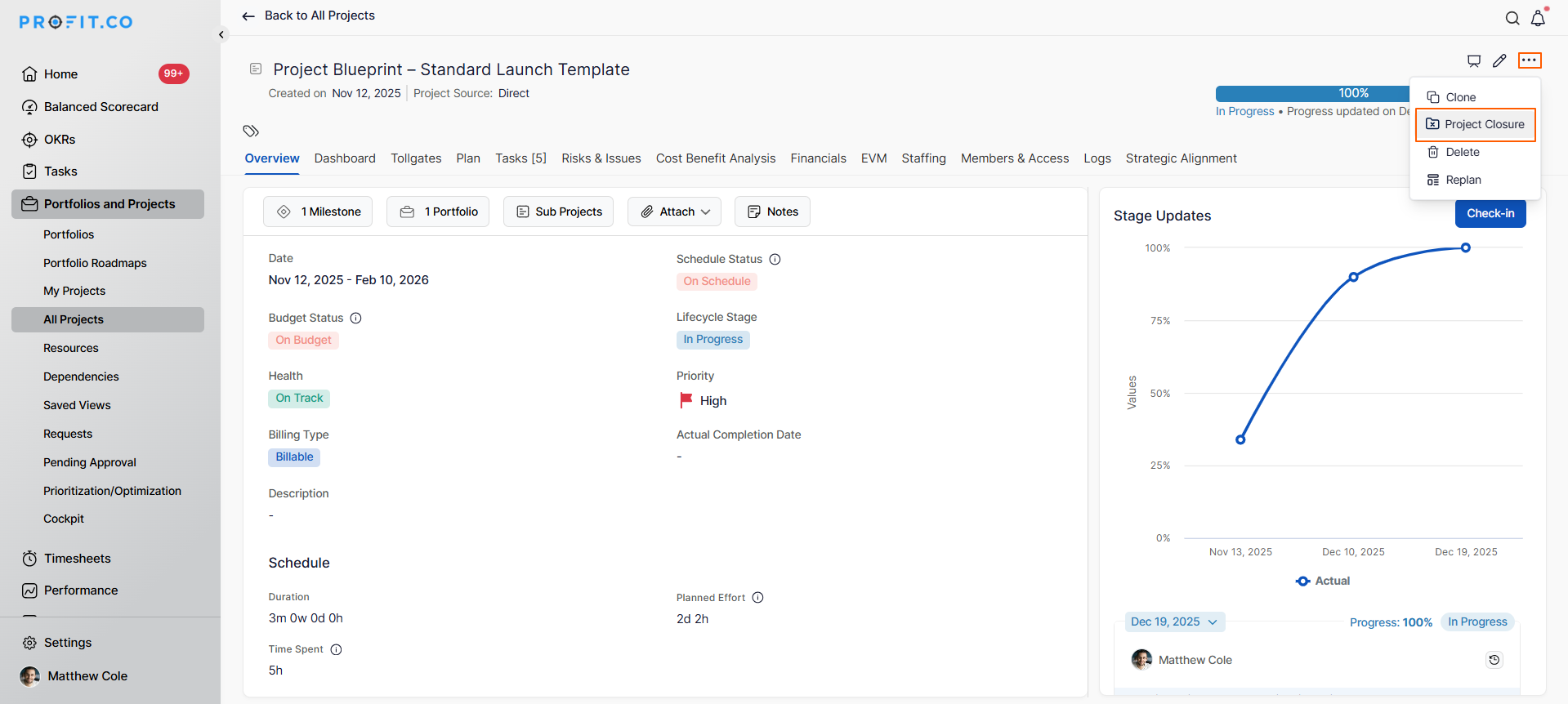
Step 1
Navigate to the project you want to close
- Click the More options menu (⋯) in the top right corner
- Select Project Closure from the dropdown
Step 2
Enter the following information:
- Achievements
- Lessons Learned
- Closure Checklist
- Closure Reason
- Click Update to close the project
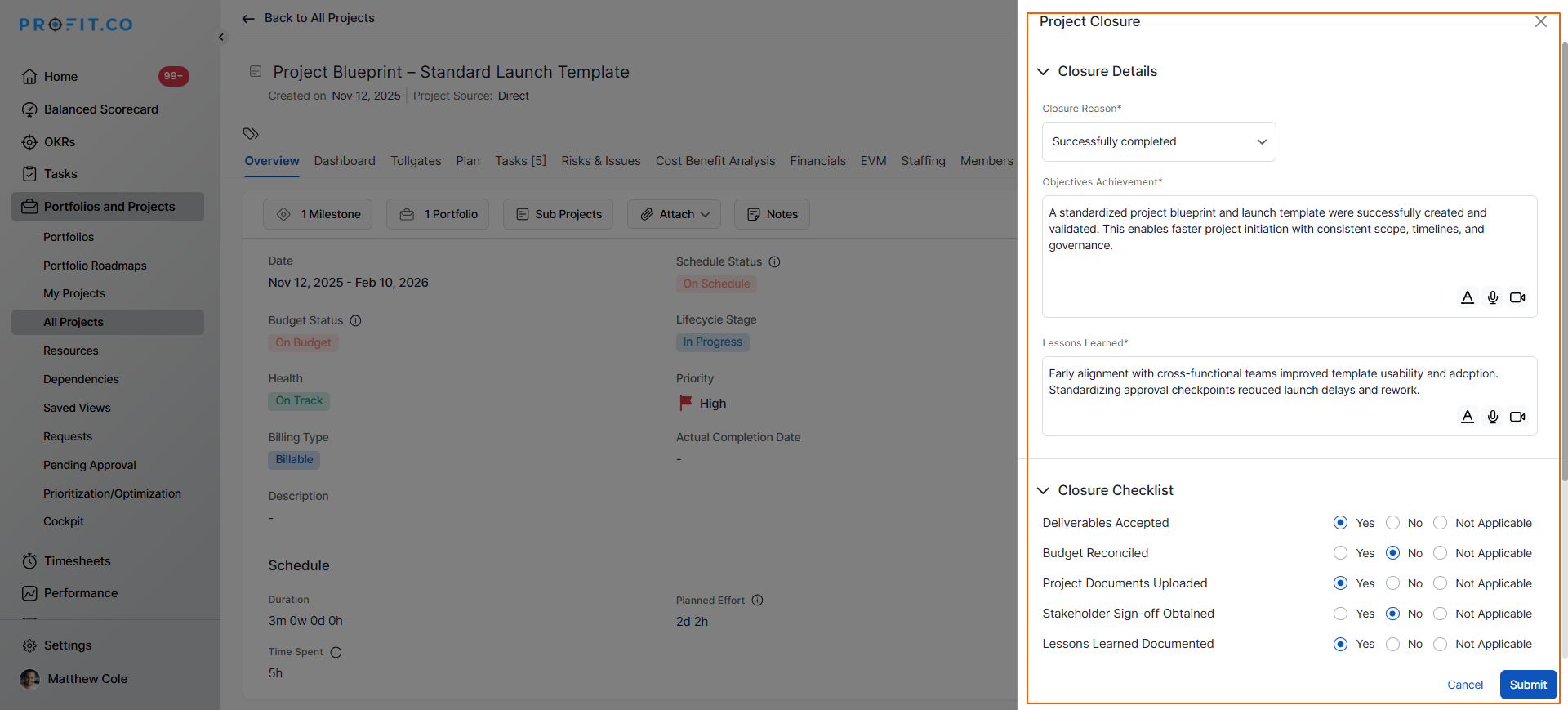
- The project status changes to "Closed" and becomes read-only
How do I close a project using Stage Change during check-in?
This workflow-based method integrates closure into the project status update process, enabling seamless transitions from active to closed status.
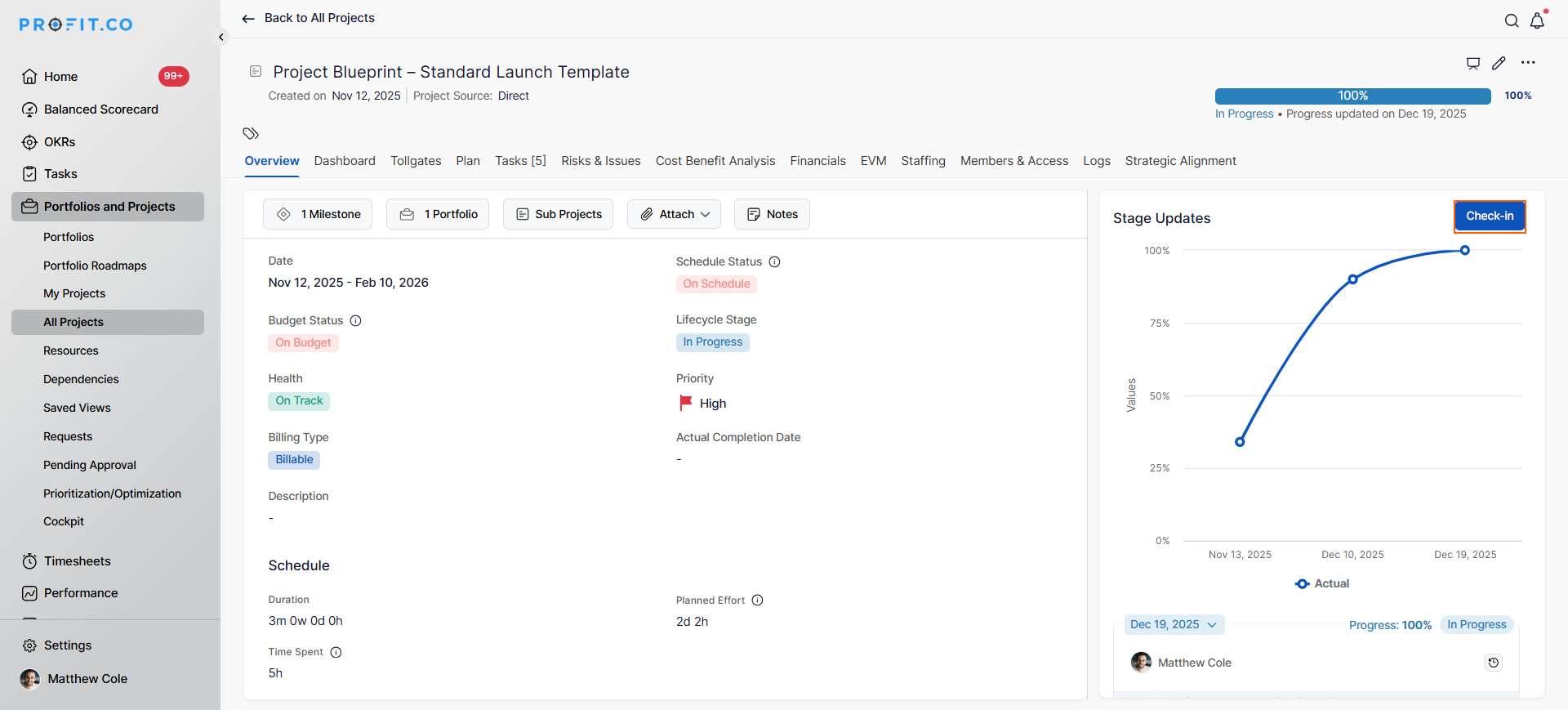
Step 1: Initiate Project Check-in
- Open your project
- Click the Check-in button
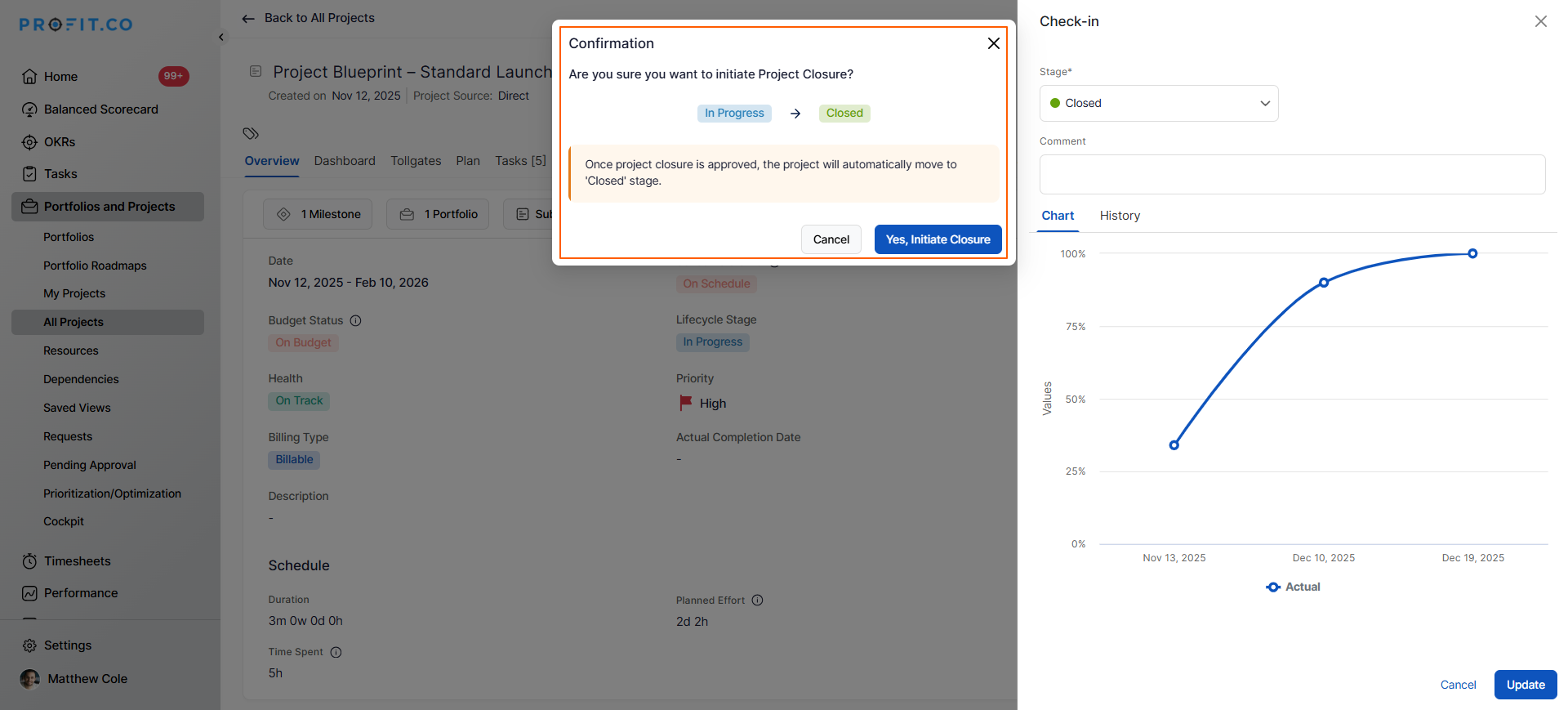
Step 2: Change Stage to Closed
- In the check-in window, locate the Stage dropdown
- Select Closed from the available stages
- Click Update to save the stage change
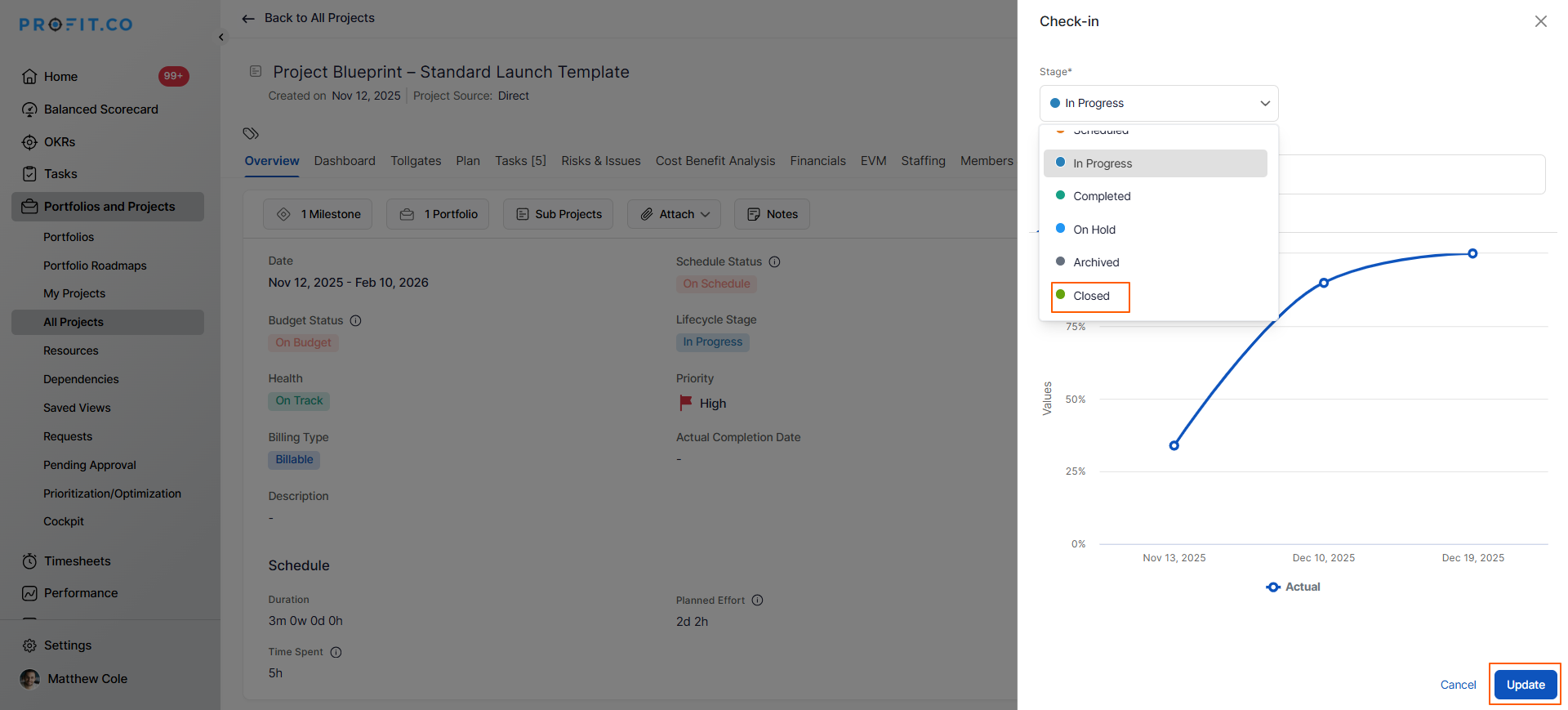
- A confirmation popup appears: "Are you sure you want to close this project?"
- Click Yes, Initiate Closure to proceed
Step 3: Complete Closure Documentation
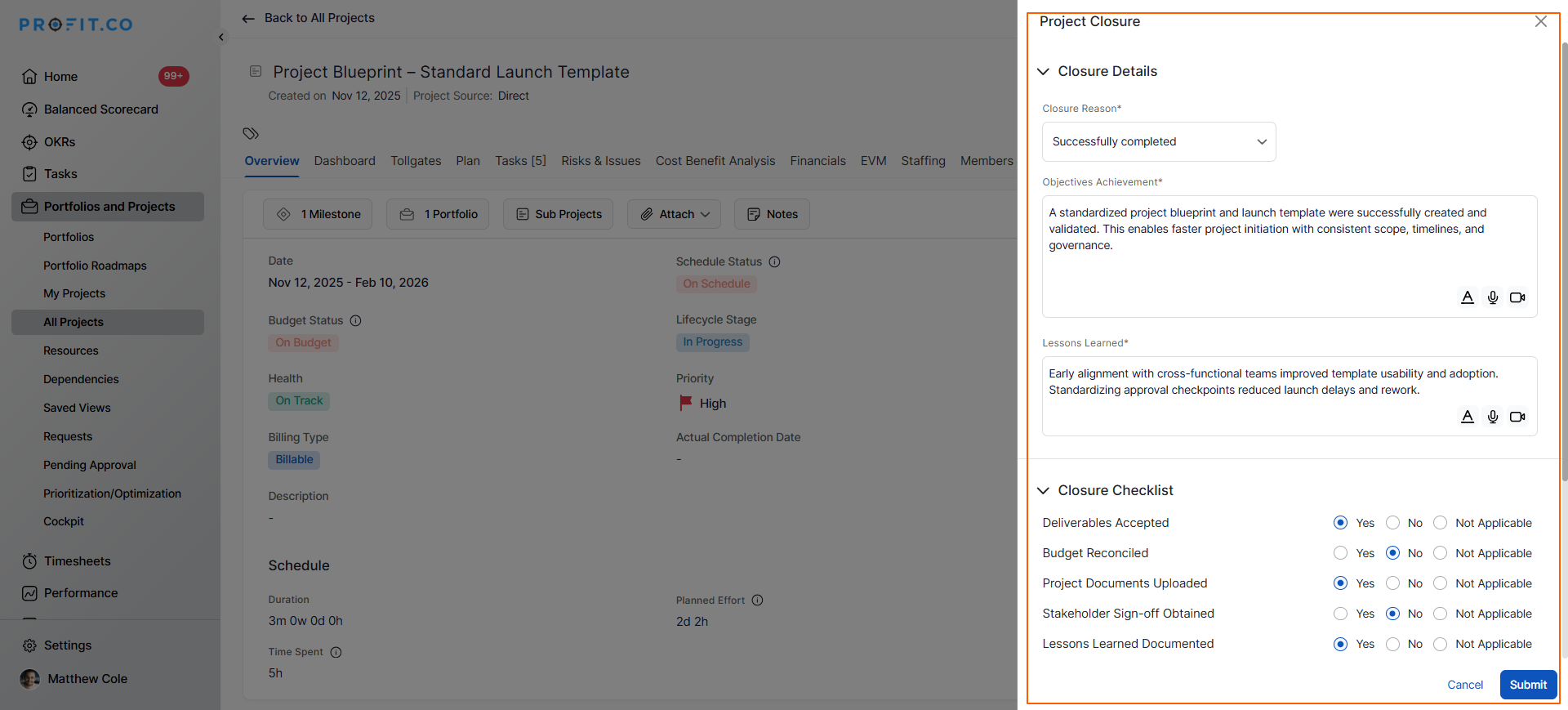
- The project closure window opens automatically
- Complete the same closure form as Method 1:
- Achievements: What was accomplished
- Lessons Learned: Insights for future projects
- Closure Checklist: Required closure tasks
- Closure Reason: Why the project ended
- Review all entered information
- Click Submit to finalize the closure
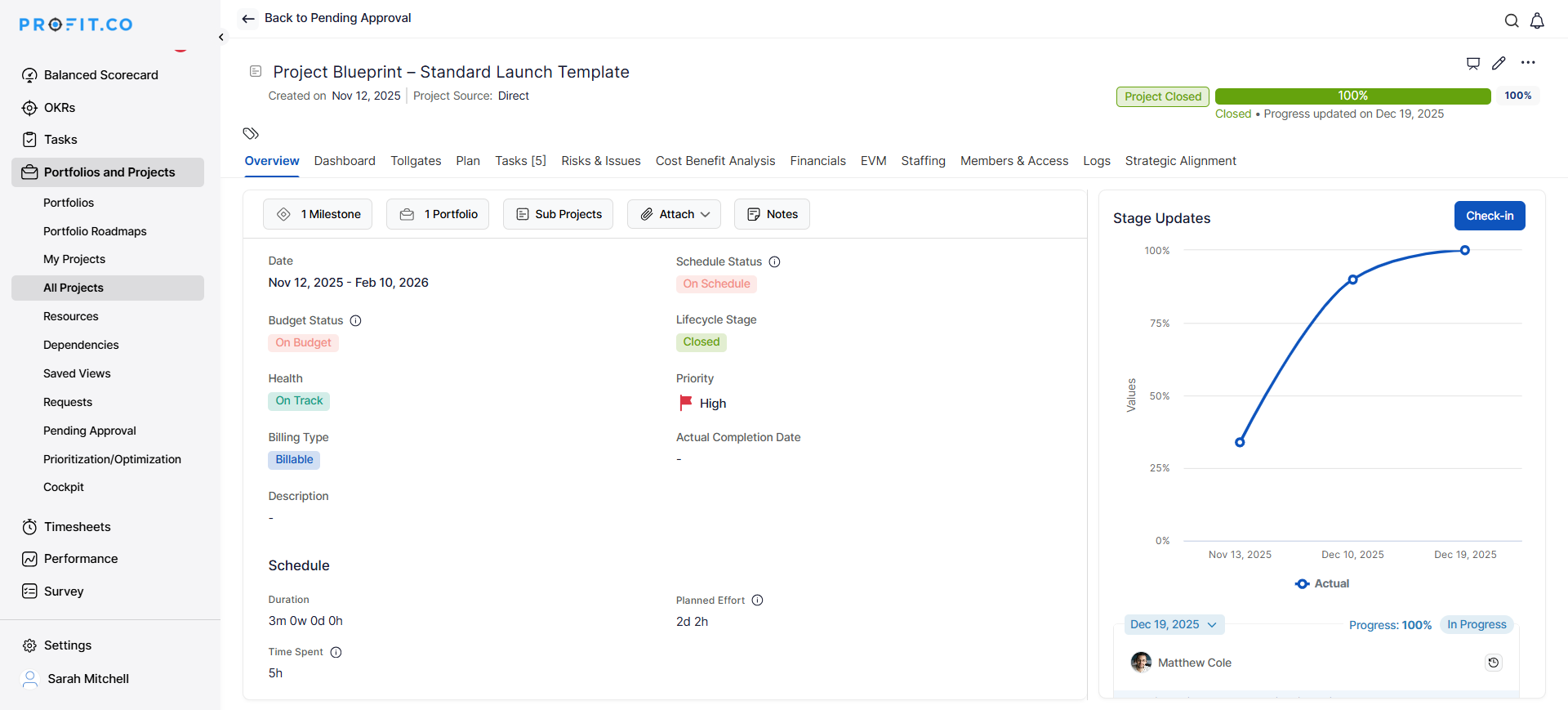
- Project status updates to "Closed"
How does the approval process work when enabled?
When your organization has enabled approval flow for project closures, the closure process includes an additional approval step before the project status changes to "Closed."
For Approvers (Reviewing Closure Requests)
If you're designated as an approver, follow these steps to review and approve project closures:
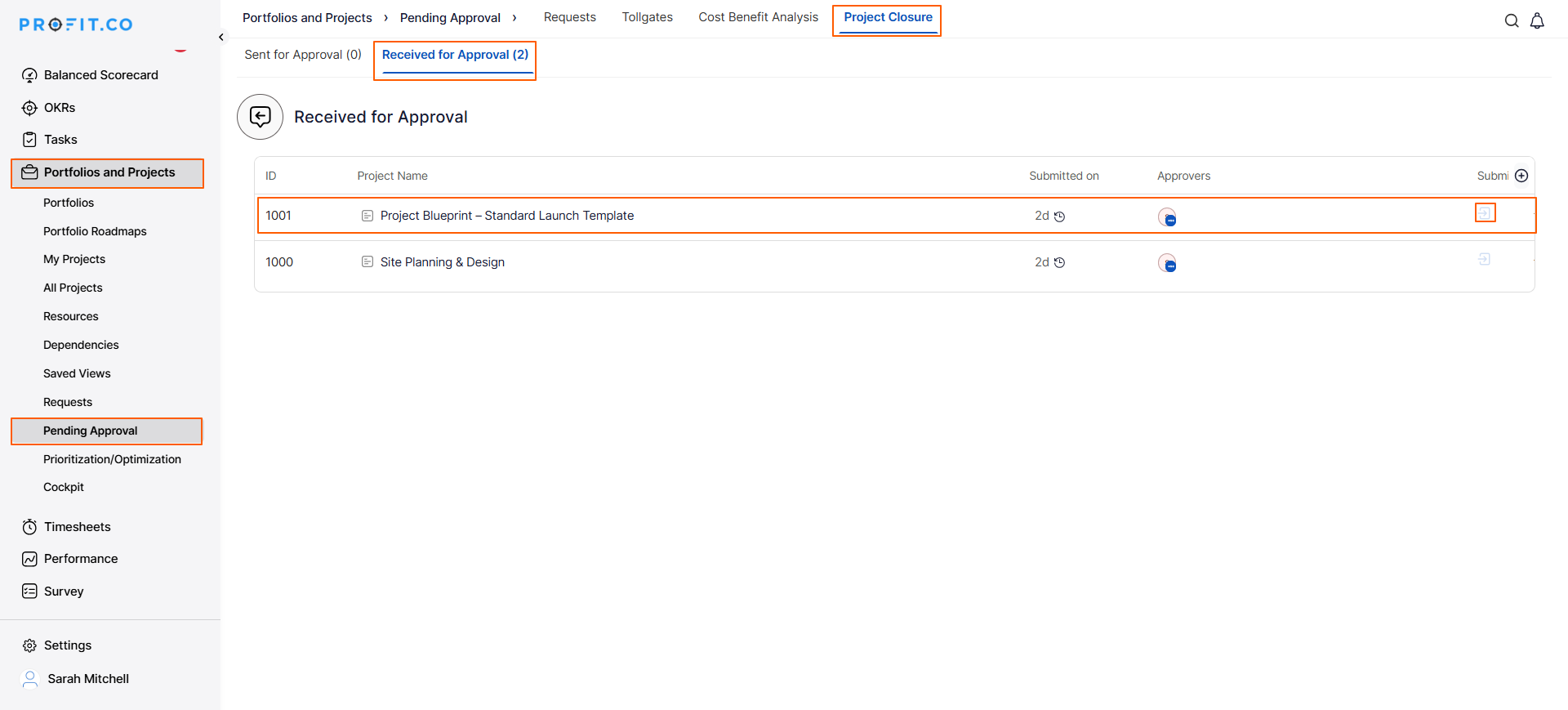
Step 1: Navigate to Pending Approvals
- Go to Portfolios and Projects from the main navigation
- Select Pending Approval from the menu
- In the Pending Approval page, switch to the Project Closure tab
- This displays all projects awaiting your closure approval
- Under the Project Closure tab, you'll see the Received for Approval section
- This lists all projects submitted for your approval review
- Select the project you want to review
- Click on View Details to open the project closure information
Step 2: Review and Approve
- Click the Review Changes button
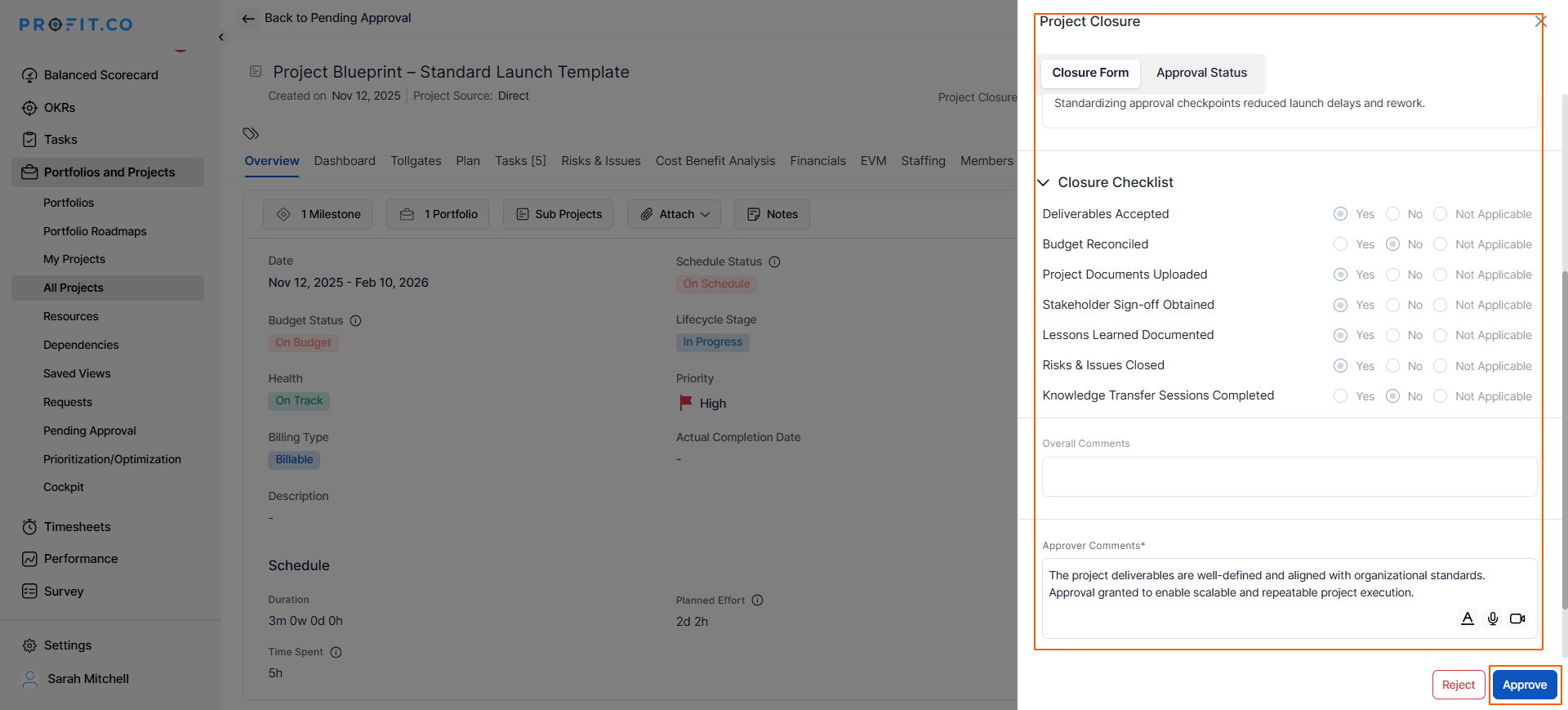
- A pop-up window opens displaying all closure information:
- Achievements documented
- Lessons Learned captured
- Closure Checklist completion status
- Closure Reason selected
- Any additional custom fields
- Review all information for completeness and accuracy
- Add Approver Comments if you have feedback or observations
- Click Approve to accept the closure request
Step 3: Project Status Updates
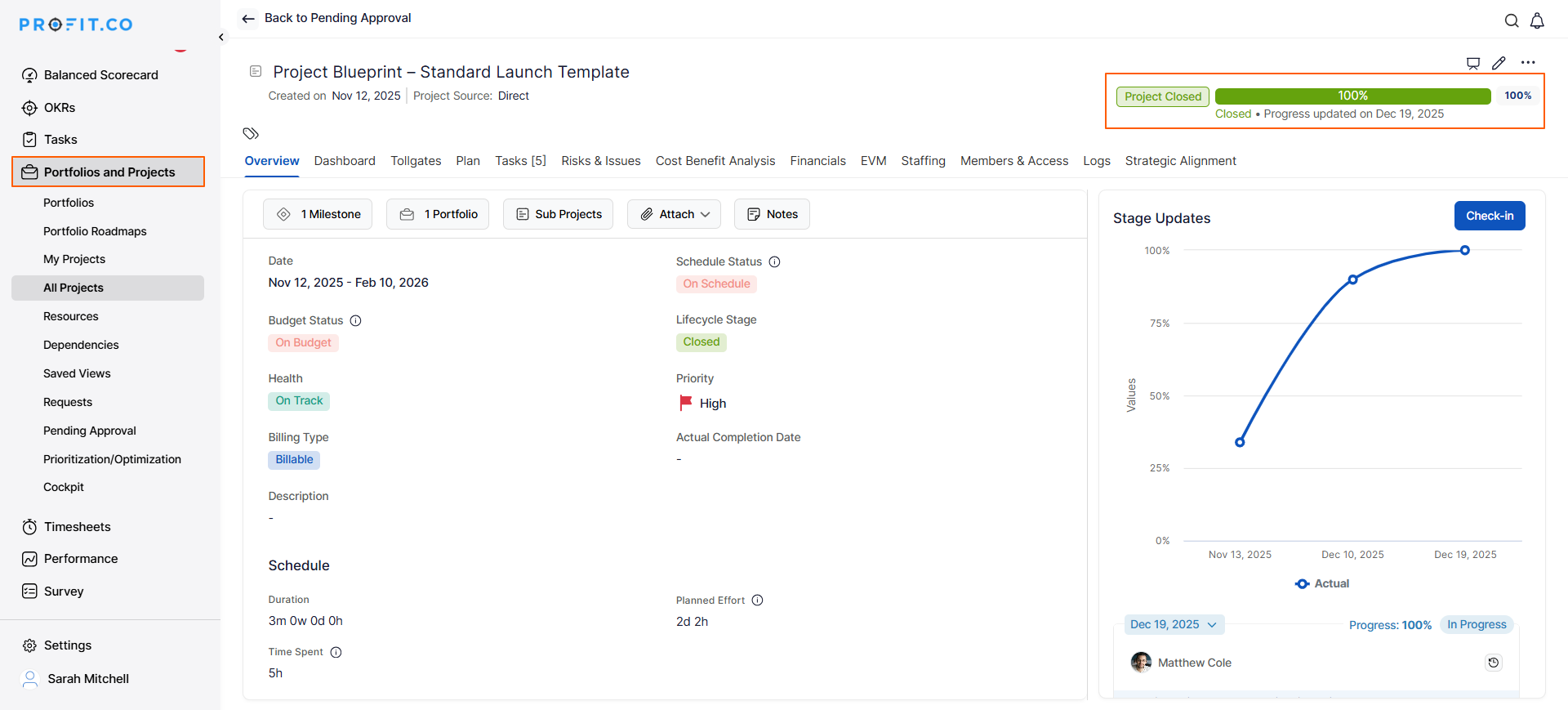
Once you approve the request, the project status immediately changes to Project Closed
Approval/Rejection (Optional)
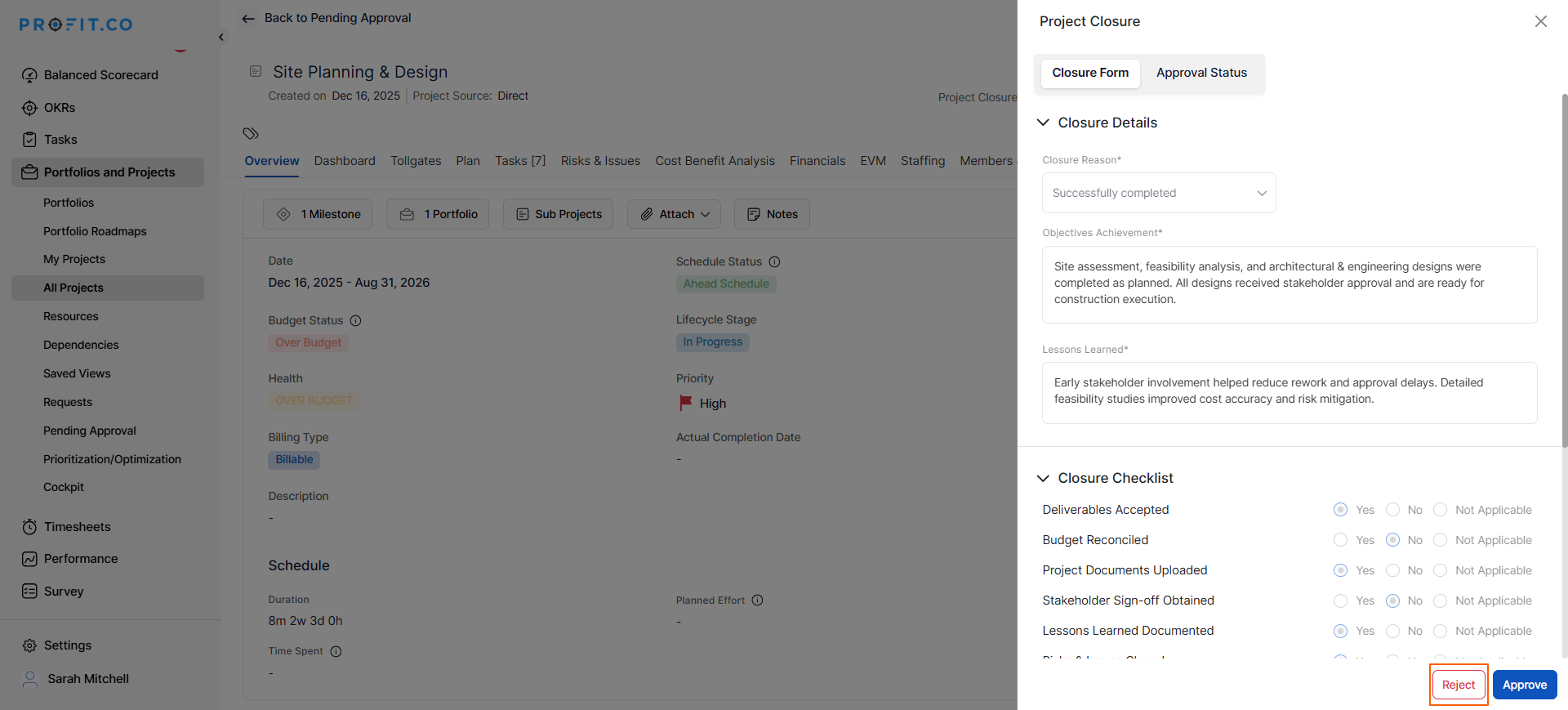
If closure documentation is incomplete or requires changes:
- Click Reject instead of Approve
- Provide clear comments explaining what needs to be corrected
Best practices for effective Project Closure
Involve the entire team in closure documentation:
Project closure shouldn't be a solo activity by the project manager. Conduct a team retrospective to gather diverse perspectives on achievements and lessons learned. Different team members notice different patterns, and collective input produces richer organizational learning.
Close projects promptly after completion:
Don't let projects linger in "almost done" status for weeks. Close projects within 5 business days of practical completion while details are fresh and team members are still engaged. Delayed closures produce incomplete documentation and lose valuable context.
Make lessons learned actionable and specific:
Generic insights like "improve communication" don't drive change. Instead: "Implement weekly 15-minute stakeholder demos to surface scope concerns before they become change requests." Actionable lessons enable direct application to future projects.
Quantify achievements against original objectives:
Reference the original project charter, success criteria, and OKRs when documenting achievements. Specific comparisons between planned and actual outcomes provide accountability and enable more accurate future project planning.
Be honest about challenges and setbacks:
Lessons learned lose value when sanitized for political safety. Create psychological safety for honest reflection about what didn't work. Organizations learn more from frank failure analysis than from glossed-over success stories.
Related Questions
To learn how administrators configure project closure settings. click here.
To learn how to create a project in the PPM module, click here.
Frequently Asked Questions
All closure fields (Achievements, Lessons Learned, Closure Checklist, Closure Reason) are required to ensure comprehensive documentation
When a project closes, all tasks remain visible but become read-only. Incomplete tasks are preserved in their current state for historical reference. Team members can still view task details but cannot modify task status, assignments, or other attributes.
Yes, closed projects remain accessible for viewing by team members with appropriate permissions. This enables teams to reference project documentation, review lessons learned, and access historical information. However, editing capabilities are restricted to prevent accidental modifications of closed project records.
Related Questions
-
How to create a Project in the PPM module?
Profit.co provides an option for users to create a project within the Project Portfolio Management (PPM) module. This ...Read more
-
How do I manage tollgate compliance across projects in Profit.co?
In Profit.co, you can Manage tollgate compliance across projects by associating tollgate sequences with projects, ...Read more
-
How do I set up resource rate cards and cost allocation in Profit.co?
In Profit.co, you can set up resource rate cards by creating Resource Types with specific hourly cost rates, assigning ...Read more
-
How to View Critical Tasks of a Project in Profit.co?
Profit.co's Critical Path Method (CPM) feature helps project managers identify the most essential sequence of tasks ...Read more