

In Profit.co, Hashtagged Conversations allow users to categorize and organize posts using #hashtags across the platform, making it easier to track topics, conversations, and moments by specific themes or keywords.
Table of Contents
- What are Hashtagged Conversations in Profit.co?
- Who can enable Hashtagged Conversations?
- How do I enable Hashtagged Conversations in Profit.co?
- How do I create a new hashtag in Profit.co?
- Where can I use hashtags in Profit.co?
- How do I create a new hashtag in Profit.co?
- What happens if I use a negative or restricted hashtag?
- How do I restore a banned hashtag?
What are Hashtagged Conversations in Profit.co?
Hashtagged Conversations is a feature that enables users to tag posts, moments, and recognition with #hashtags. This creates organized, searchable conversation threads around specific topics, making it easy to find and follow related content across the platform.
Who can enable Hashtagged Conversations?
Only users with Super User can enable the Hashtagged Conversations feature for the entire organization. Once enabled, all users can create and use hashtags in their posts.
How do I enable Hashtagged Conversations in Profit.co?
Follow these steps to activate the Hashtagged Conversations feature:
Step 1
- Click on Settings from the left navigation panel.
- Select General from the Settings menu.
- Click on Collaboration.
- In the Collaboration section, locate and click the Hashtagged Conversations tab.
- Toggle the Hashtagged Conversations switch to the enabled position.
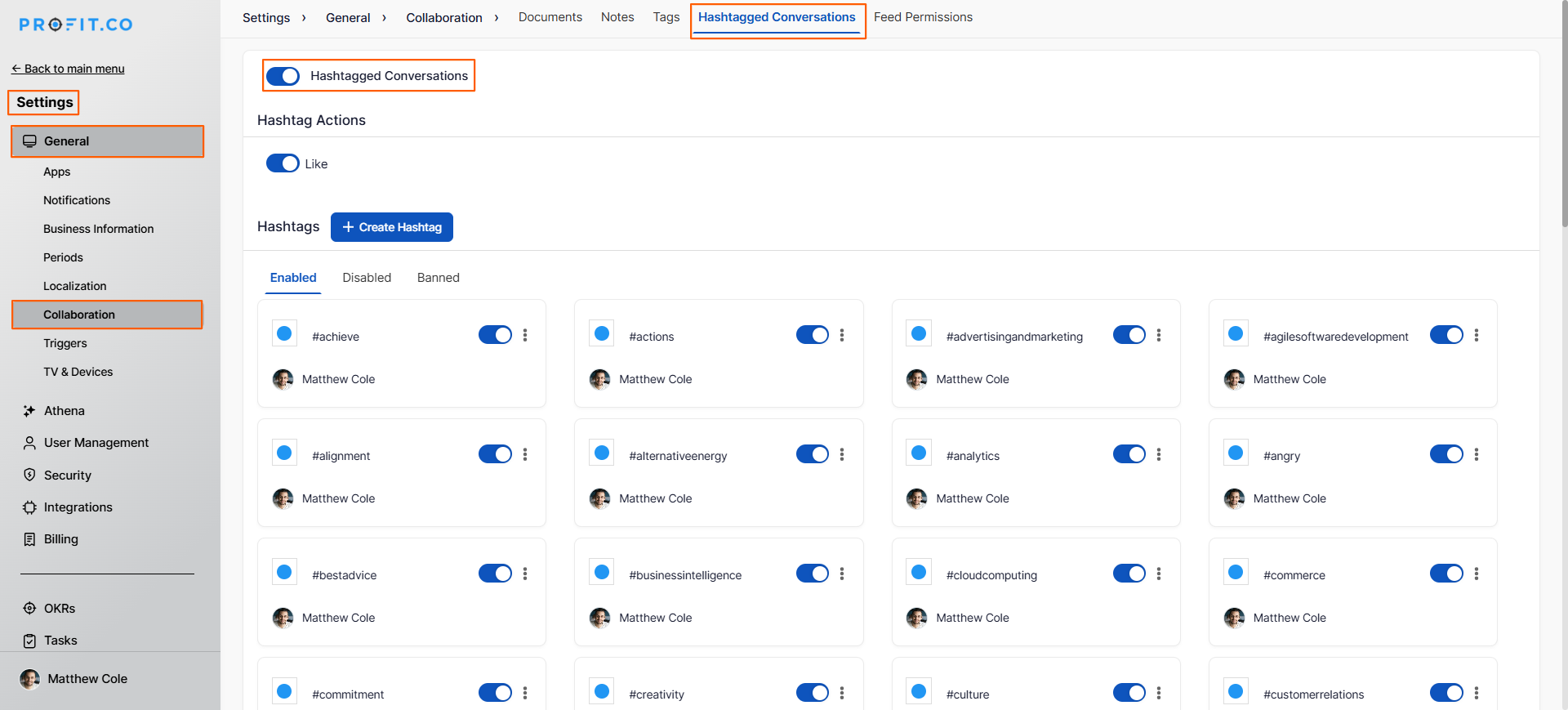
Once enabled, users across your organization can start using #hashtags in their posts, moments, and recognition messages.
How do I create a new hashtag in Profit.co?
You can create hashtags from various locations in Profit.co. Here's an example using the Feed section:
Step 1
- Click Home from the left navigation panel.
- In the Feed section, click the Write a Moment tab.
- Click the # option in the post composer.
- Enter your hashtag name (for example, #PositiveMomentum).
- Do not include spaces in your hashtag name.
- Add the recipient(s) for your post.
- Add your message content.
- Click Post to publish.
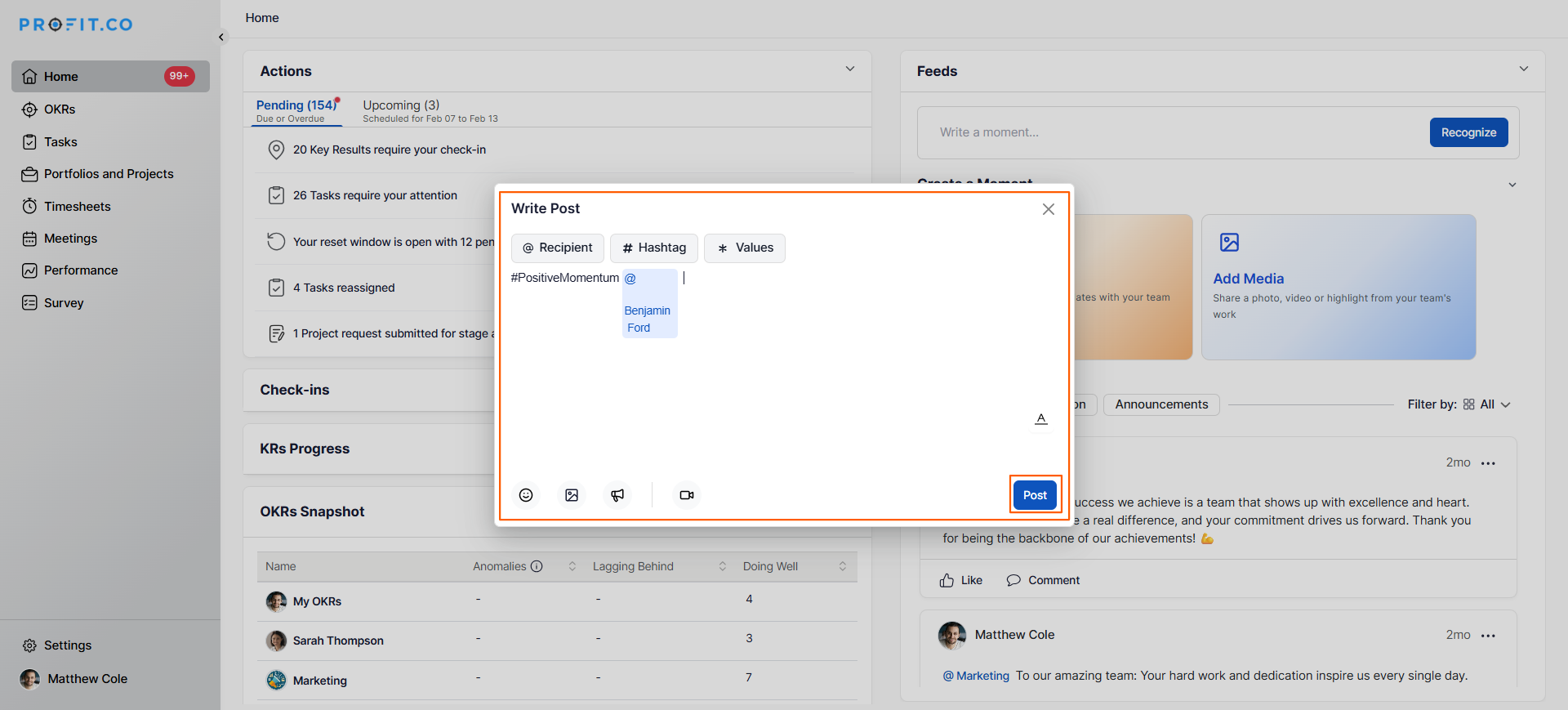
Your hashtag has been created and will be associated with your post. Other users can click the hashtag to see all related posts.
Where can I use hashtags in Profit.co?
Once Hashtagged Conversations is enabled, you can use hashtags in multiple areas:
| Location | Usage |
|---|---|
| Feed / Moments | Add hashtags to personal updates and moments |
| Recognition Posts | Tag recognition messages with relevant hashtags |
| Comments | Include hashtags in comments on posts |
| Updates | Use hashtags in status updates |
What happens if I use a negative or restricted hashtag?
Profit.co includes built-in content moderation to prevent inappropriate hashtags:
Automatic Detection:
- The system monitors hashtags for negative or restricted words.
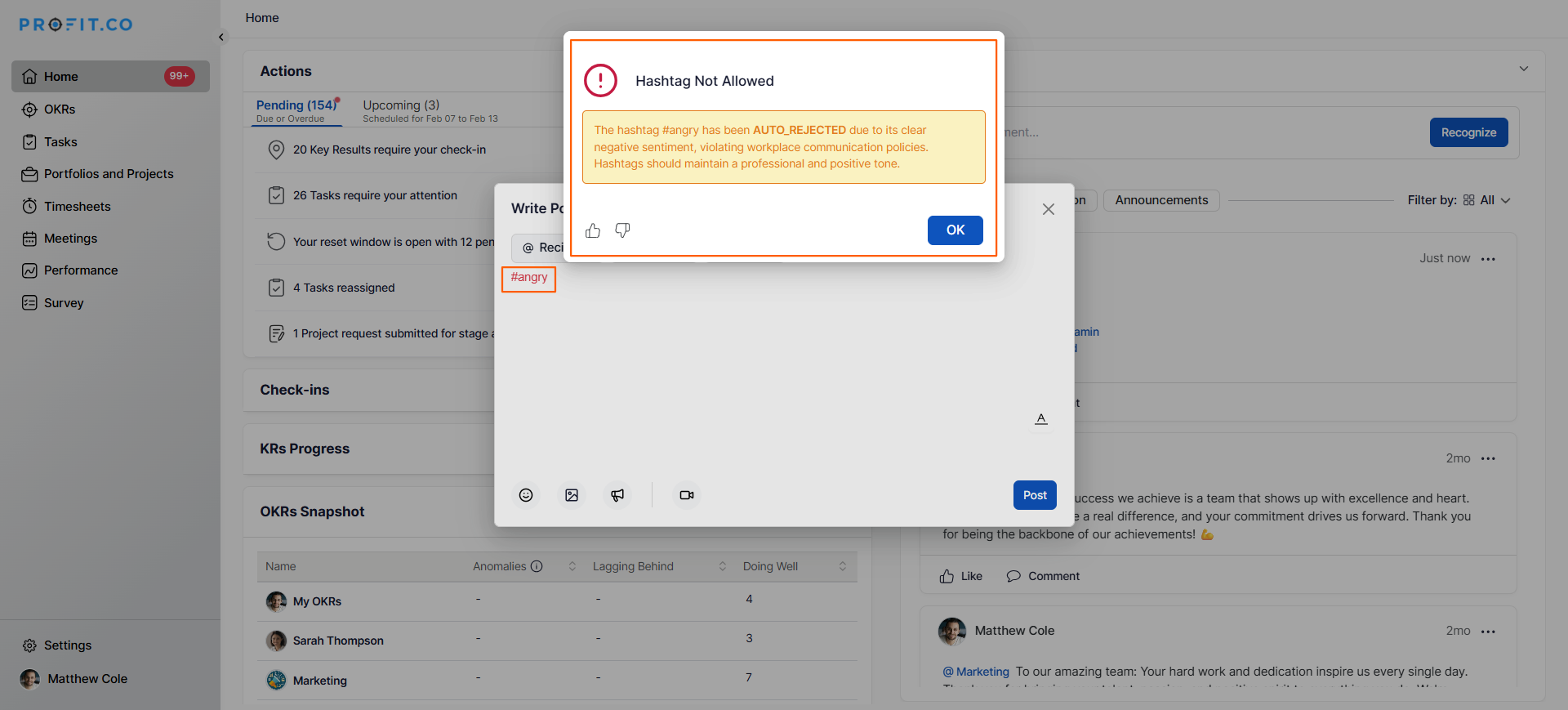
- If you attempt to post a hashtag containing inappropriate content, an error message appears.
Example Scenario:
- User attempts to post #angry.
- System displays an error message: "This hashtag contains restricted words."
- User clicks OK to dismiss the error.
Automatic Banning:
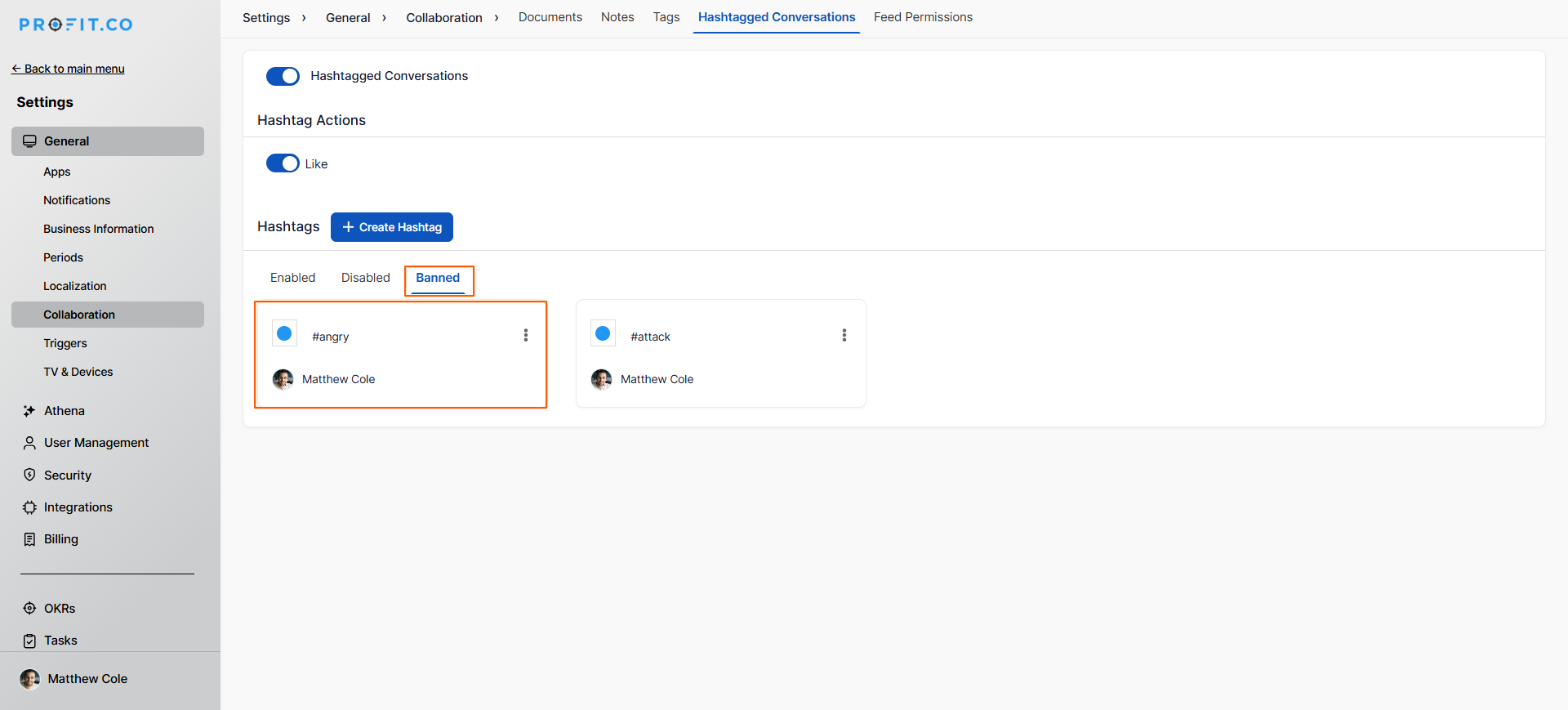
- The hashtag is automatically moved to the Banned section in Settings.
- The post is not published with the banned hashtag.
- Users cannot use this hashtag until a Super User restores it
.
How do I restore a banned hashtag?
Super Users can restore banned hashtags if they determine the hashtag is appropriate for use:
Step 1
- Go to Settings → General → Collaboration → Hashtagged Conversations.
- Locate the Banned section showing all banned hashtags.
- Find the hashtag you want to restore.
- Click the More option (three dots) next to the banned hashtag.
- Select Restore from the dropdown menu.
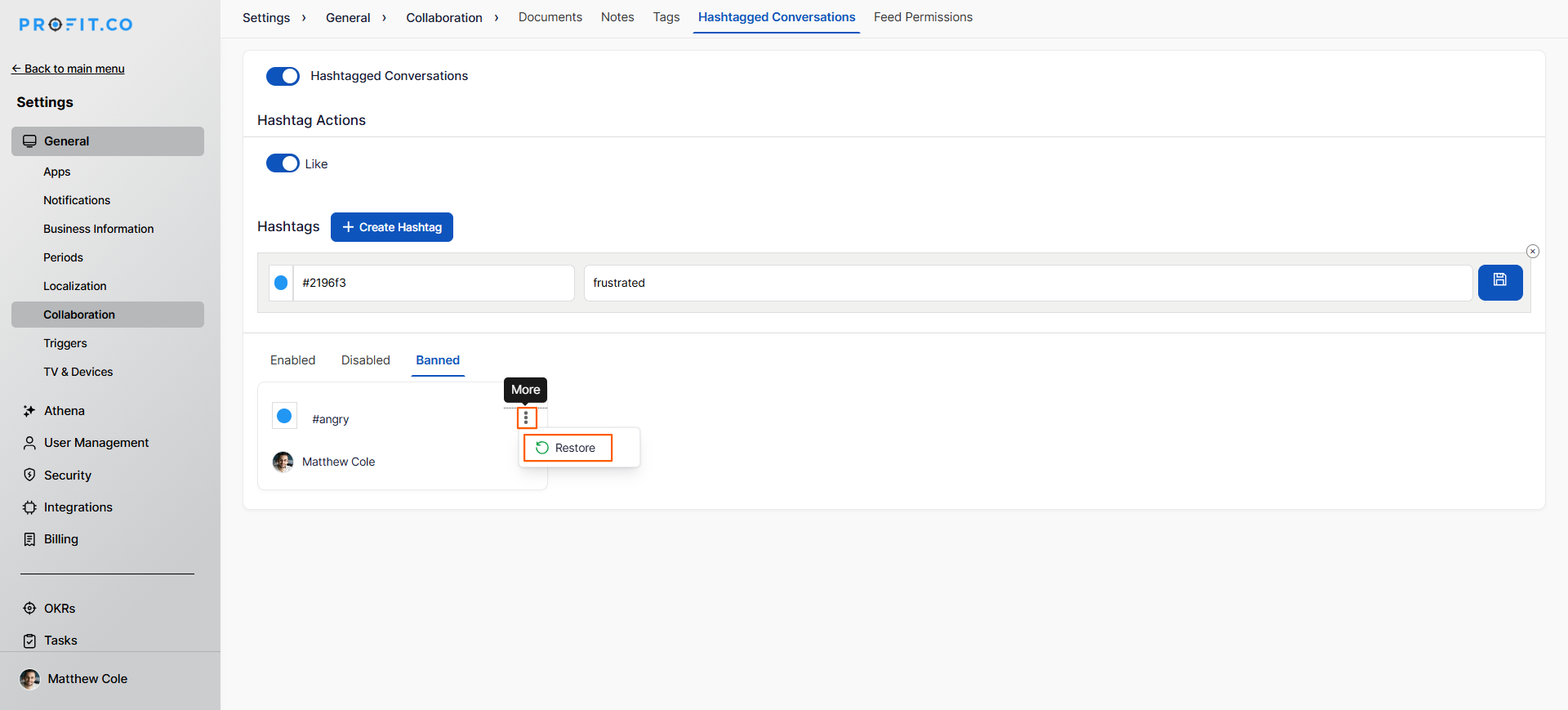
- Once restored, the hashtag automatically moves to Disabled status.
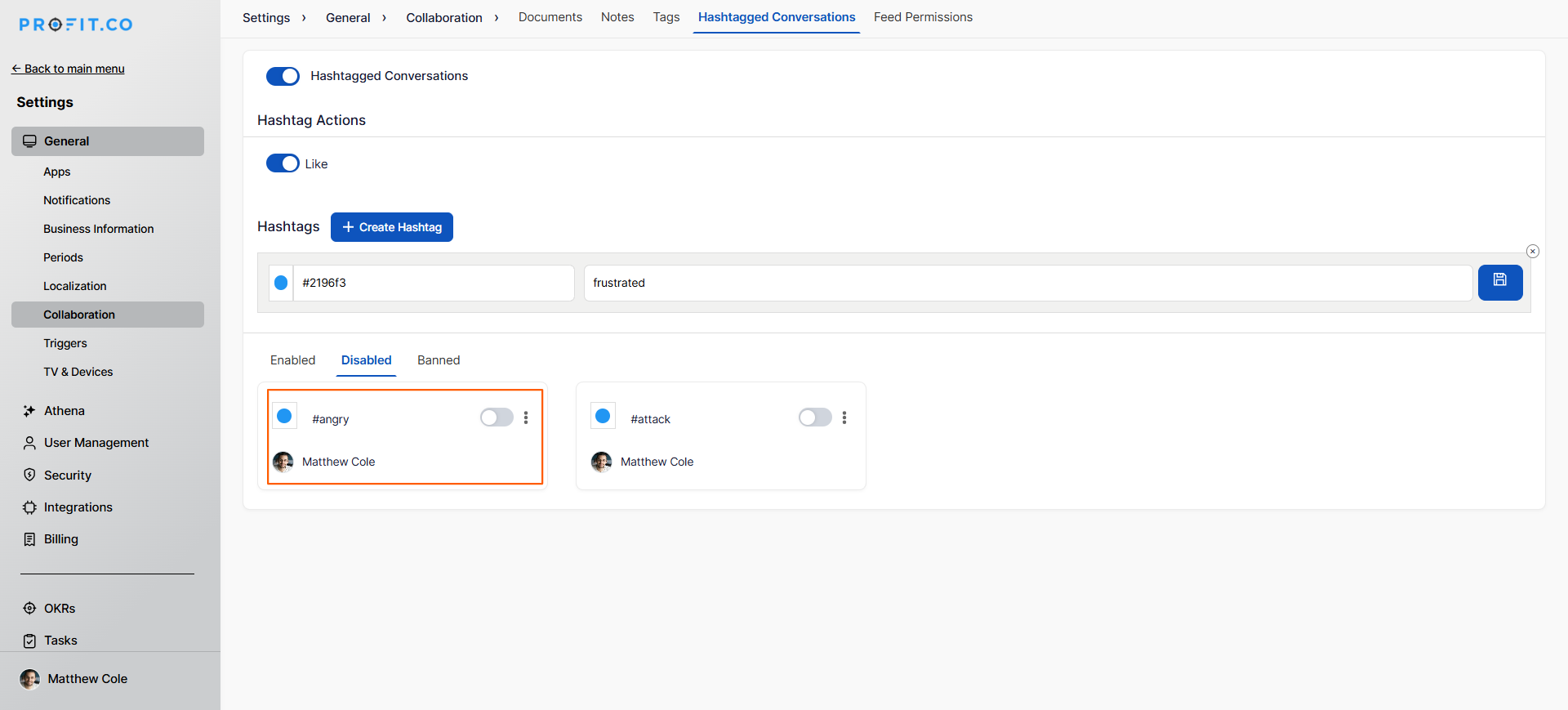
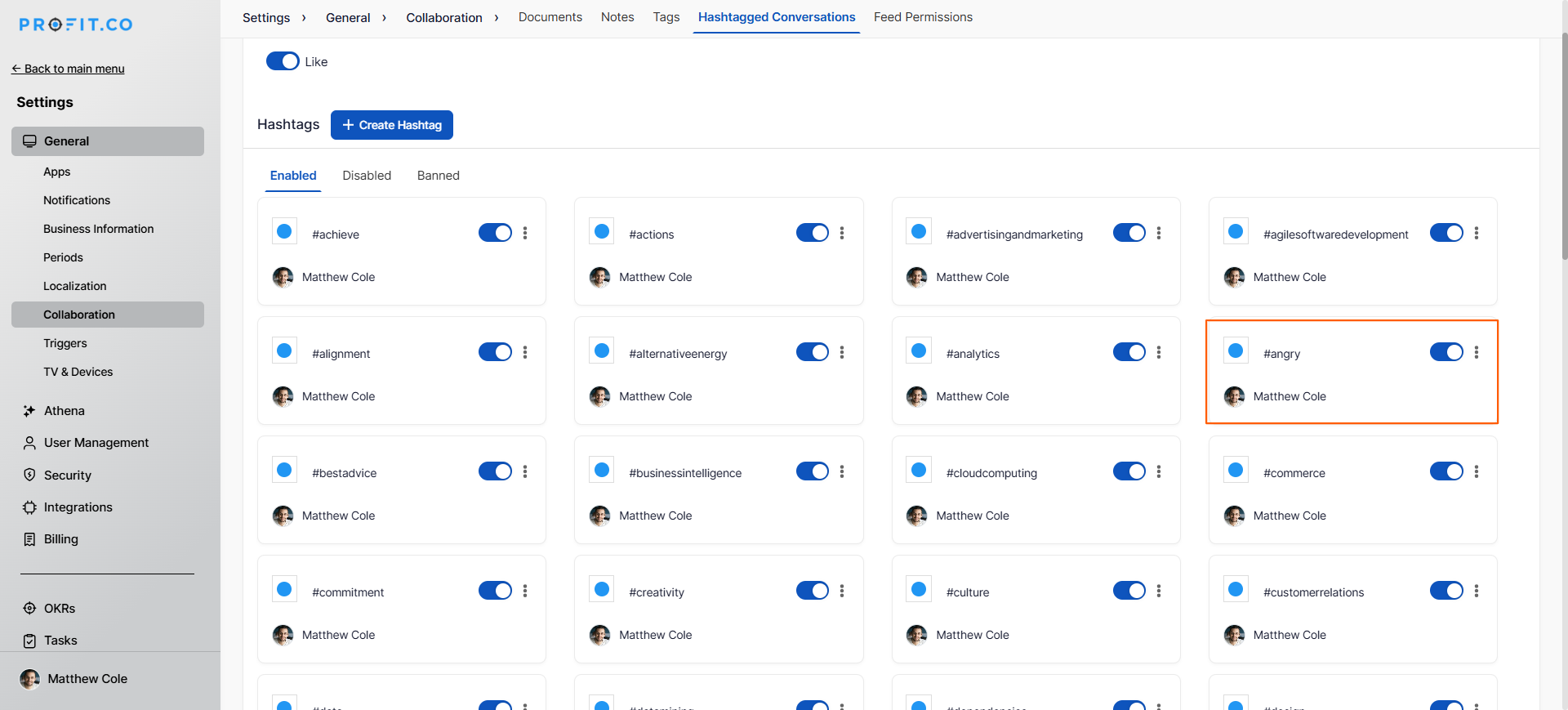
- The Super User must then enable the hashtag to make it available for use.
- After allowing, users can use the hashtag again in their posts.
Best Practices for Creating Portfolios
- Create a hashtag naming convention guide for your organization to maintain consistency (e.g., #Q1Sales vs #q1sales).
- Establish official hashtags for recurring events, campaigns, or initiatives (e.g., #AllHandsMeeting, #InnovationWeek).
- Avoid using spaces, special characters, or punctuation in hashtags,use camelCase for multi-word hashtags (e.g., #ProductLaunch2025).
- Monitor trending hashtags to understand what topics resonate with your team.
- Encourage employees to use hashtags for recognition posts to celebrate achievements (e.g., #SpotlightOnExcellence).
- Super Users should regularly review the Banned hashtags list to ensure legitimate hashtags aren't incorrectly flagged.
- Combine hashtags with @mentions to increase visibility and engagement on important posts.
Related Questions
To learn about how to reward points to the employees through Home in Profit.co, Click Here
Frequently Asked Questions
Yes, you can include multiple hashtags in a single post to categorize it under different topics or themes.
You can edit your post to remove or change hashtags. However, this doesn't delete the hashtag itself from the system; it only removes it from that specific post.
Hashtags are automatically banned by the system when they contain restricted words. Only Super Users can manually ban or restore hashtags.
