



How do I set up resource rate cards and cost allocation in Profit.co?
Category: PPM
In Profit.co, you can set up resource rate cards by creating Resource Types with specific hourly cost rates, assigning team members to these types, allocating them to project tasks with estimated hours, and tracking actual time to calculate accurate project costs and resource utilization.
Table of Contents
- What are resource rate cards in Profit.co?
- How do I create resource types with cost rates?
- How do I assign users to resource types in projects?
- How do I allocate resources to project tasks?
- How do I view financial cost allocation?
- Best practices for resource rate cards and cost allocation
- Related Questions
- Frequently Asked Questions
What are resource rate cards in Profit.co?
Resource rate cards are standardized cost profiles (resource types) that define hourly billing or cost rates for different categories of team members. When you assign users to resource types and allocate them to tasks with estimated hours, the system automatically calculates project costs based on these rates, enabling accurate financial tracking and resource management.
How do I create resource types with cost rates?
Why This Matters: Resource types define standardized rate cards for different roles or skill levels. Creating these is the foundation for cost tracking.
Step 1
- Go to Settings → Portfolios and Projects from the left navigation panel
- Switch to the Resource Type tab
- Click + Create Resource Type
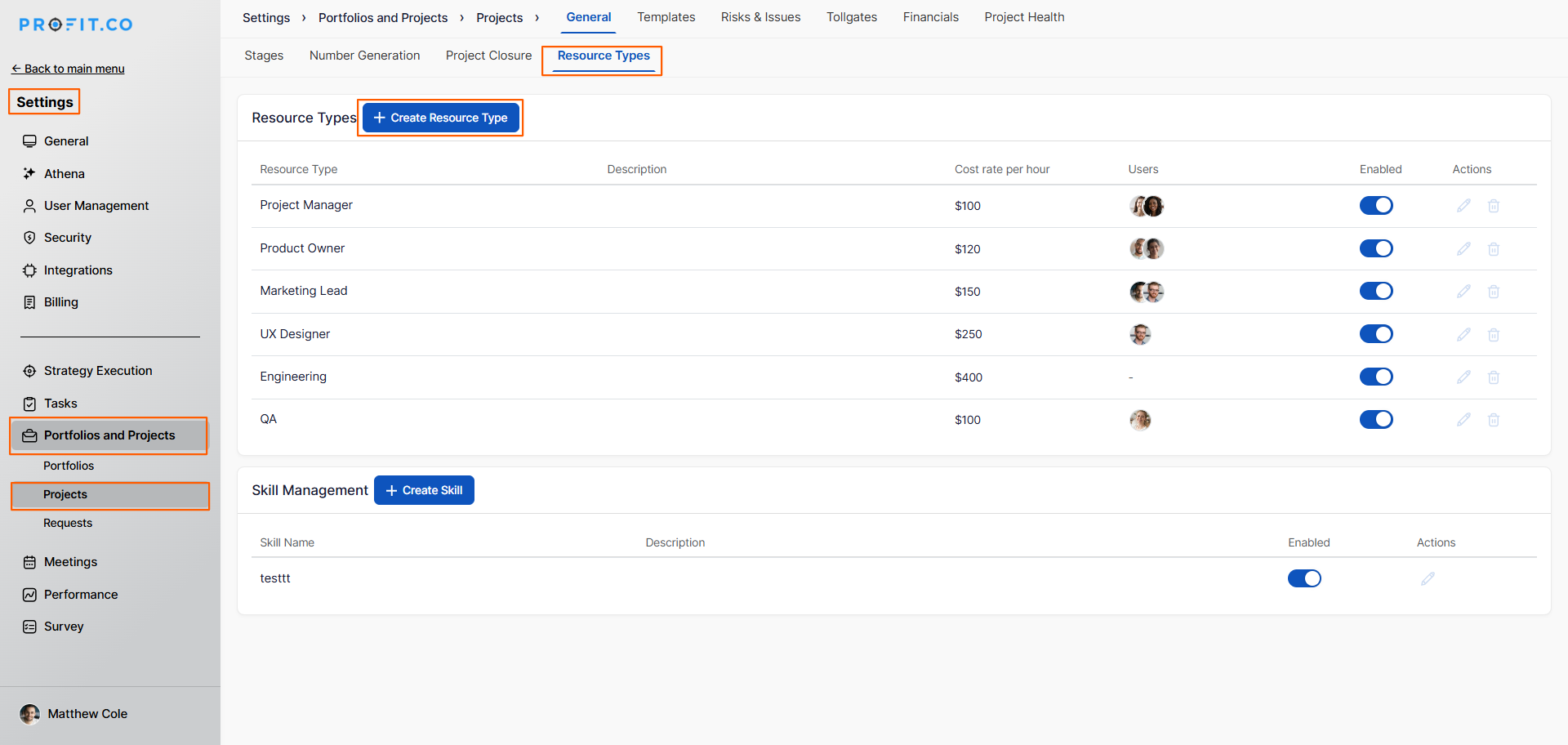
- A form will appear. Enter the following information:
- Resource Type Name
- Cost Rate (per hour)
- Users to Assign Under This Resource Type
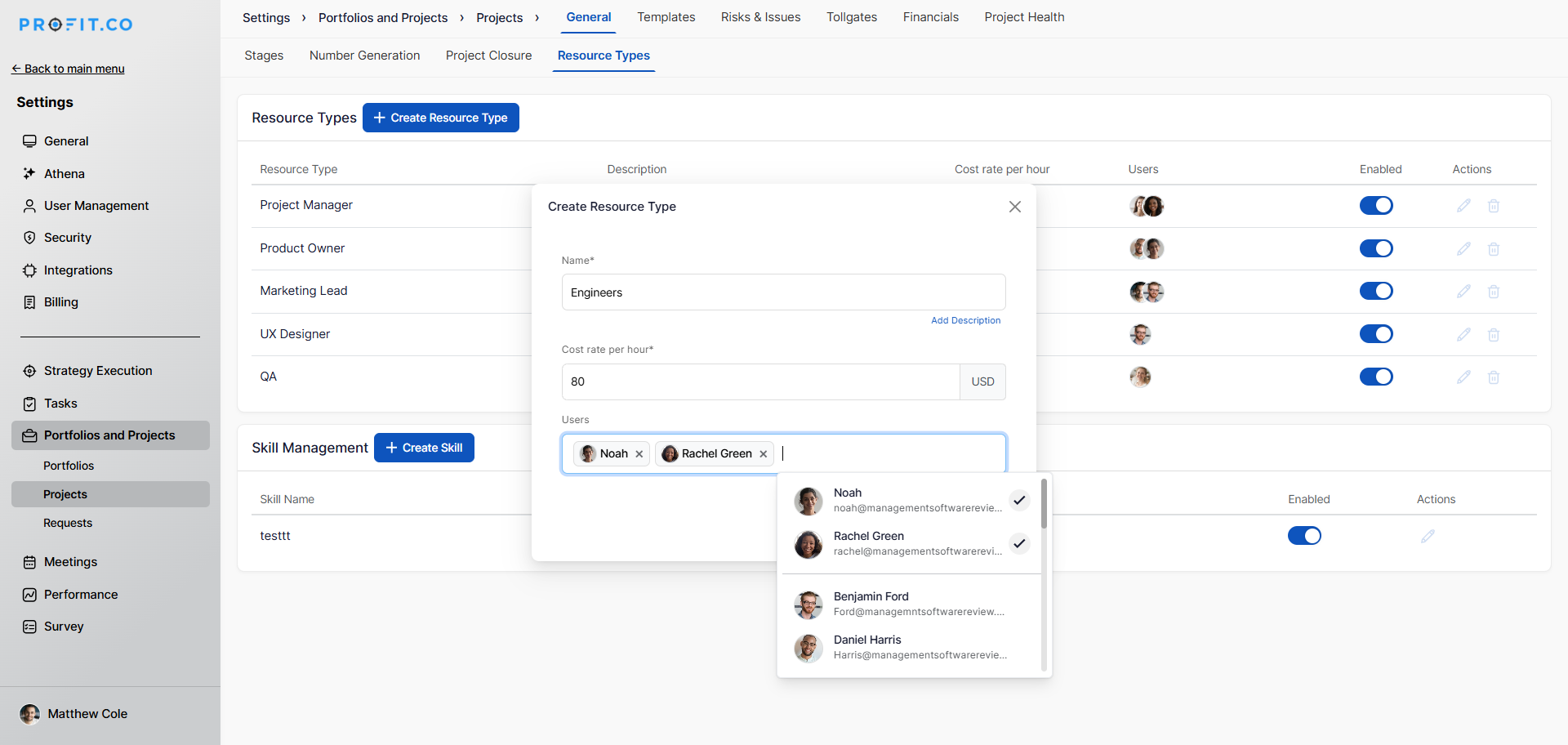
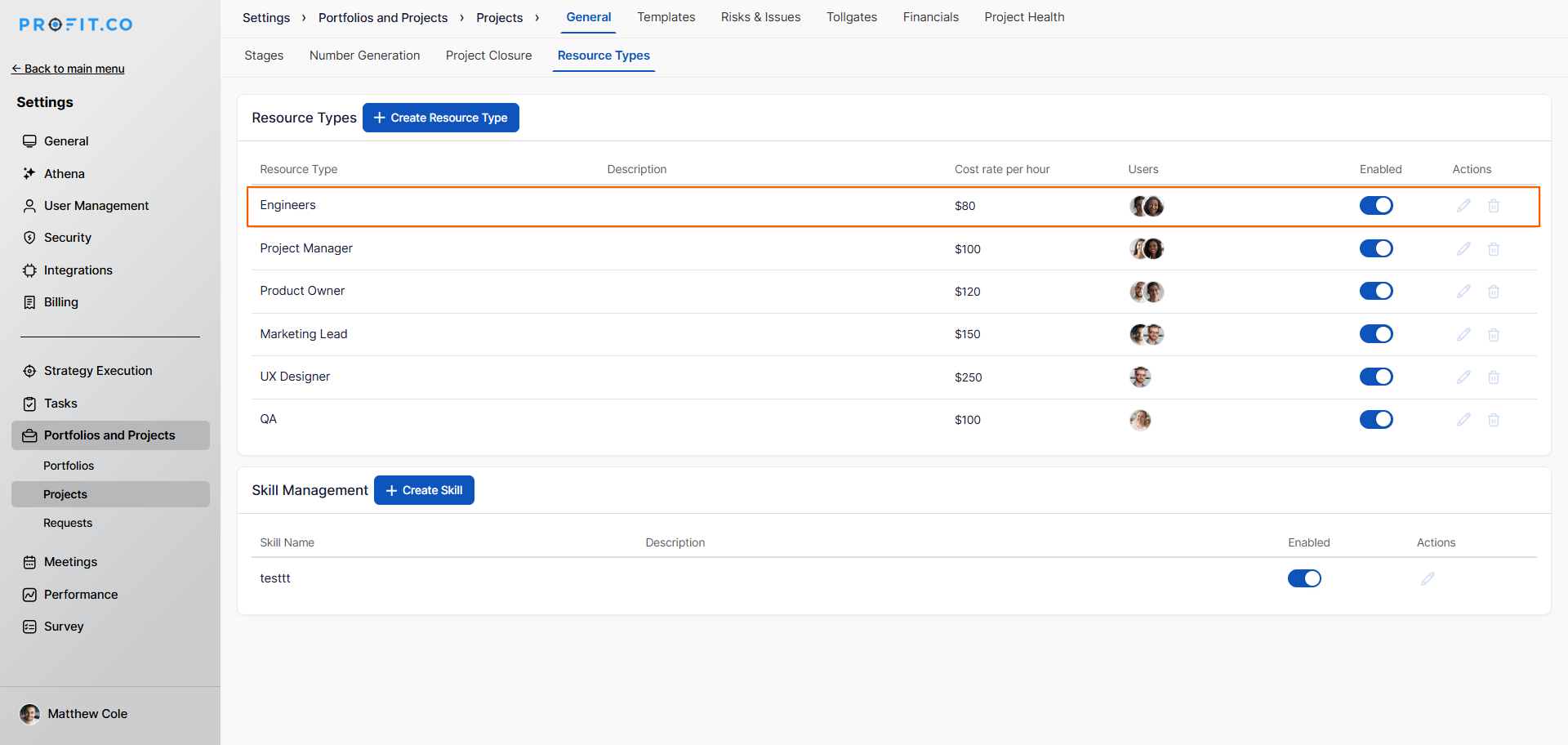
- Click Create to save the resource type
How do I assign users to resource types in projects?
Assigning resource types to project members ensures their work is costed correctly when they log time on tasks.
Step 1
- Go to Portfolios and Projects → All Projects
- Select a project from the list
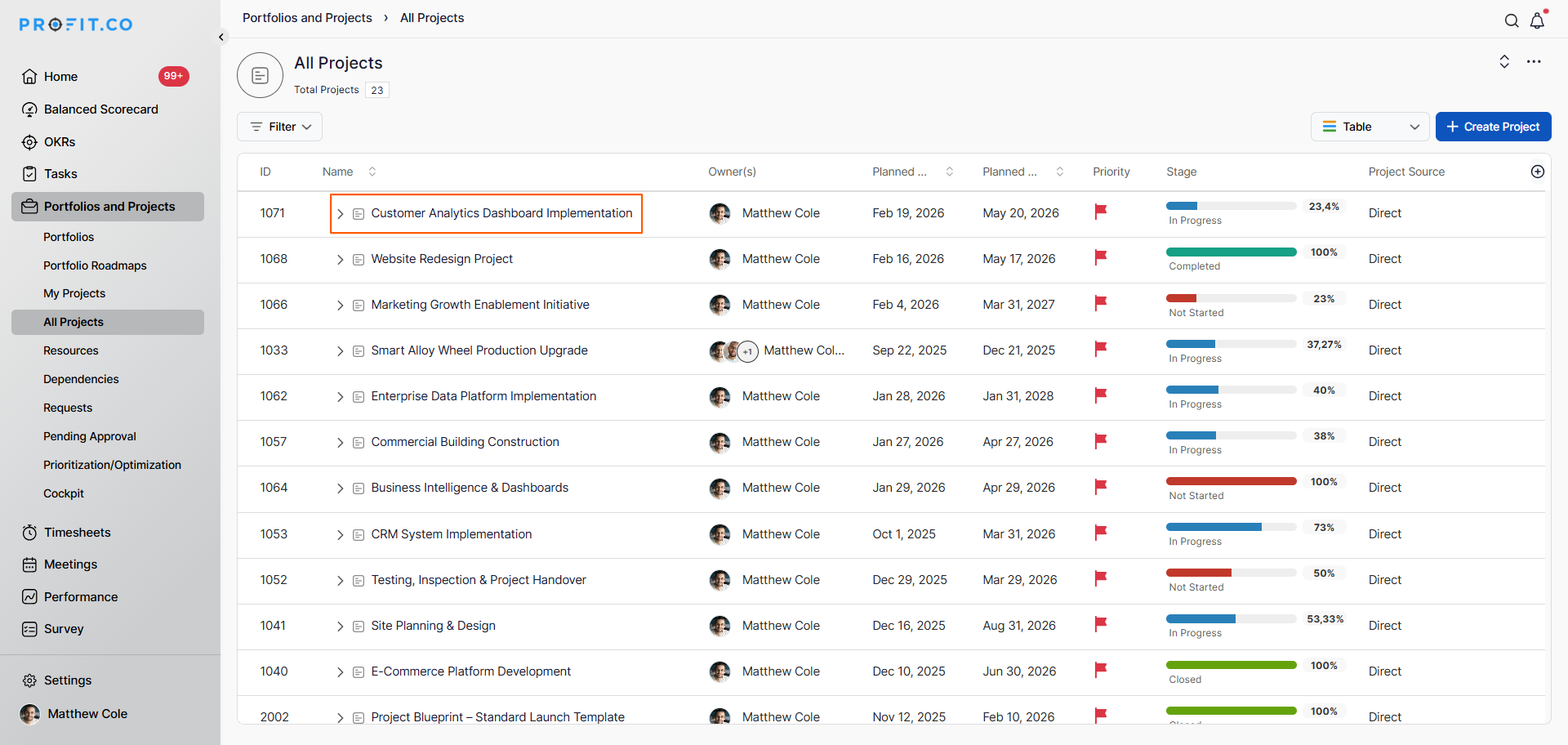
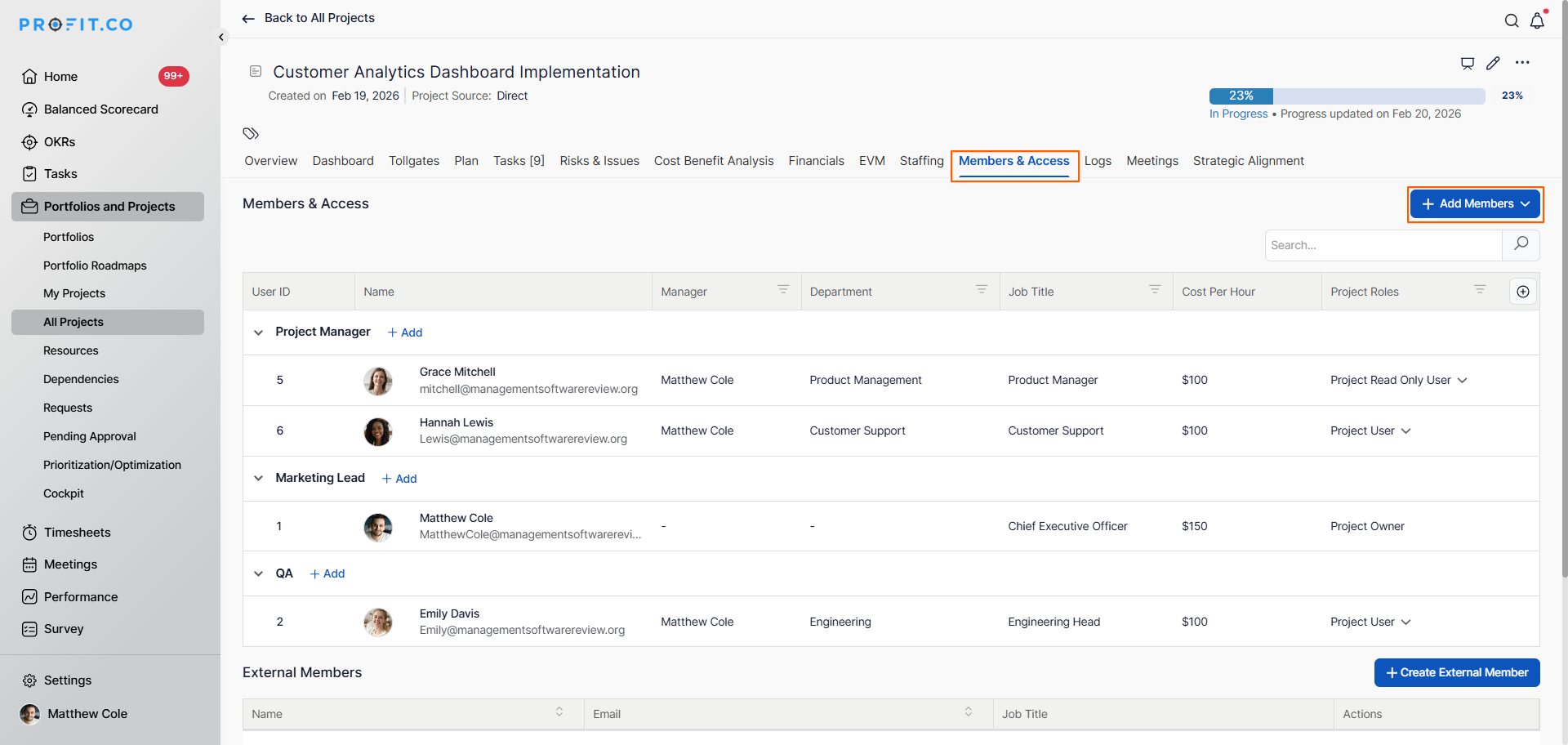
- On the project overview page, switch to the Member and Access tab
- Click + Add Members
- Choose the Resource Type from the dropdown
- Select the Users you want to add
- Click Add
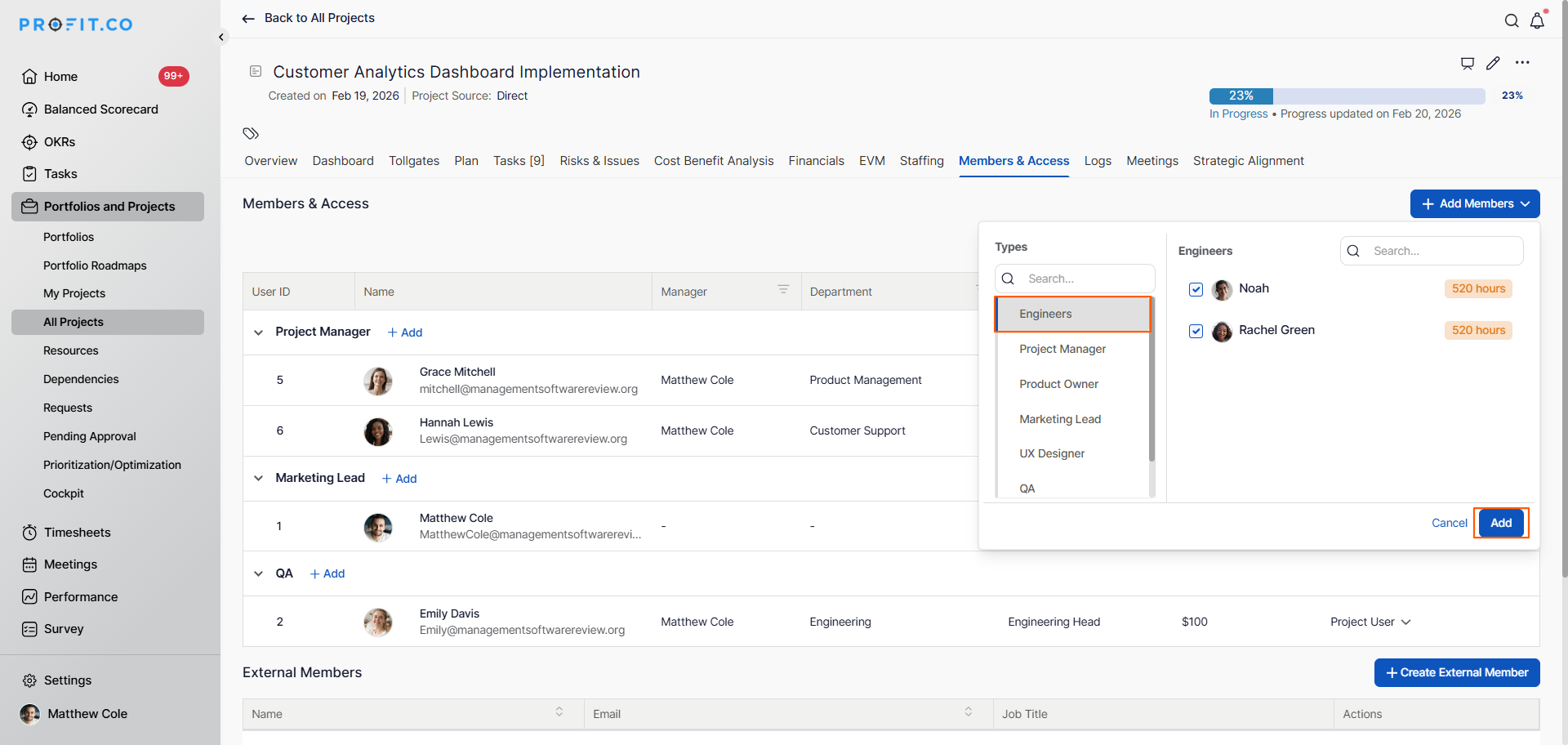
- Members are now added to the project with their associated resource types
- Their cost rates are applied when they work on project tasks
How do I allocate resources to project tasks?
Allocating resources to tasks with estimated hours enables cost forecasting and workload planning.
Step 1
- In the same project, click on the milestone name
- This will redirect to the Tasks tab
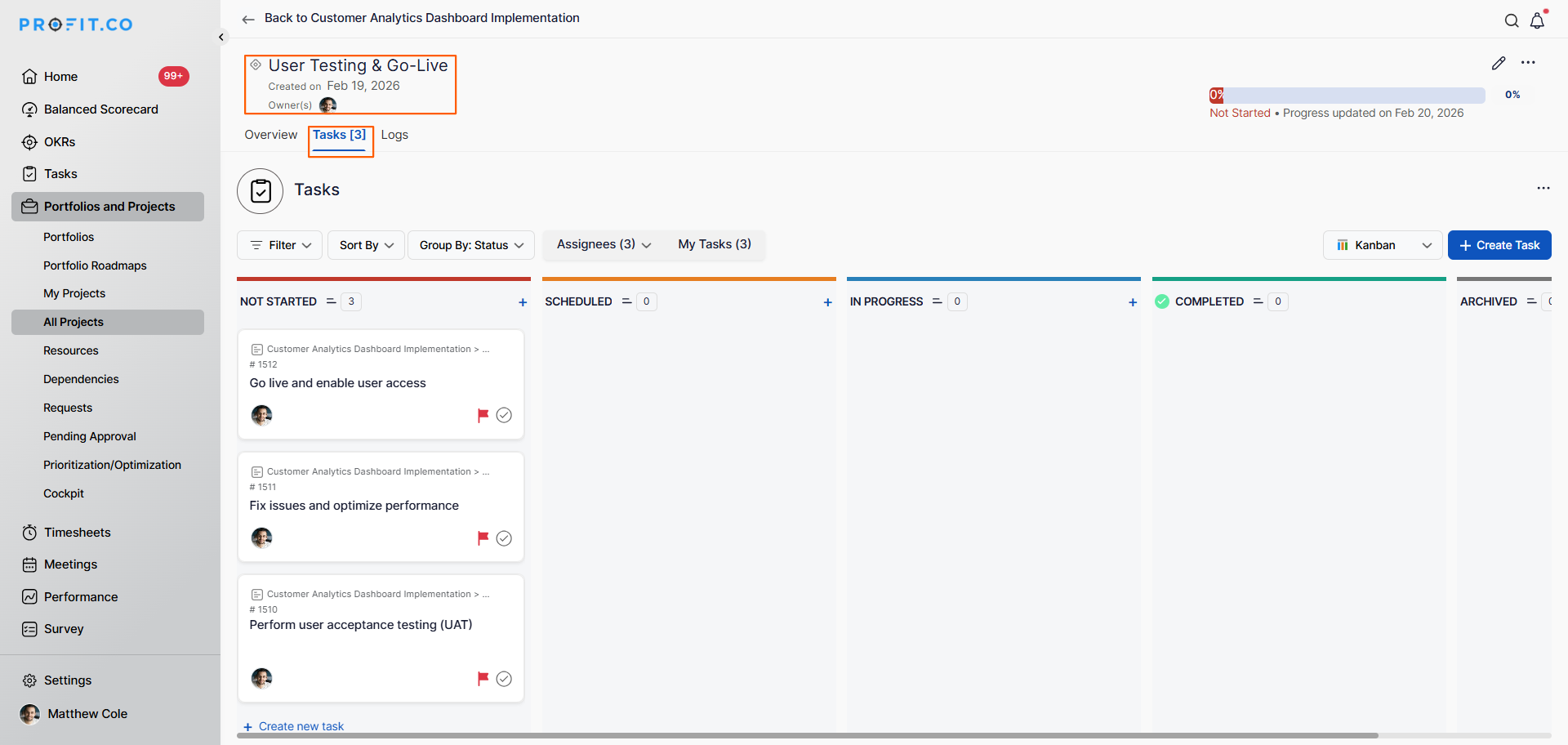
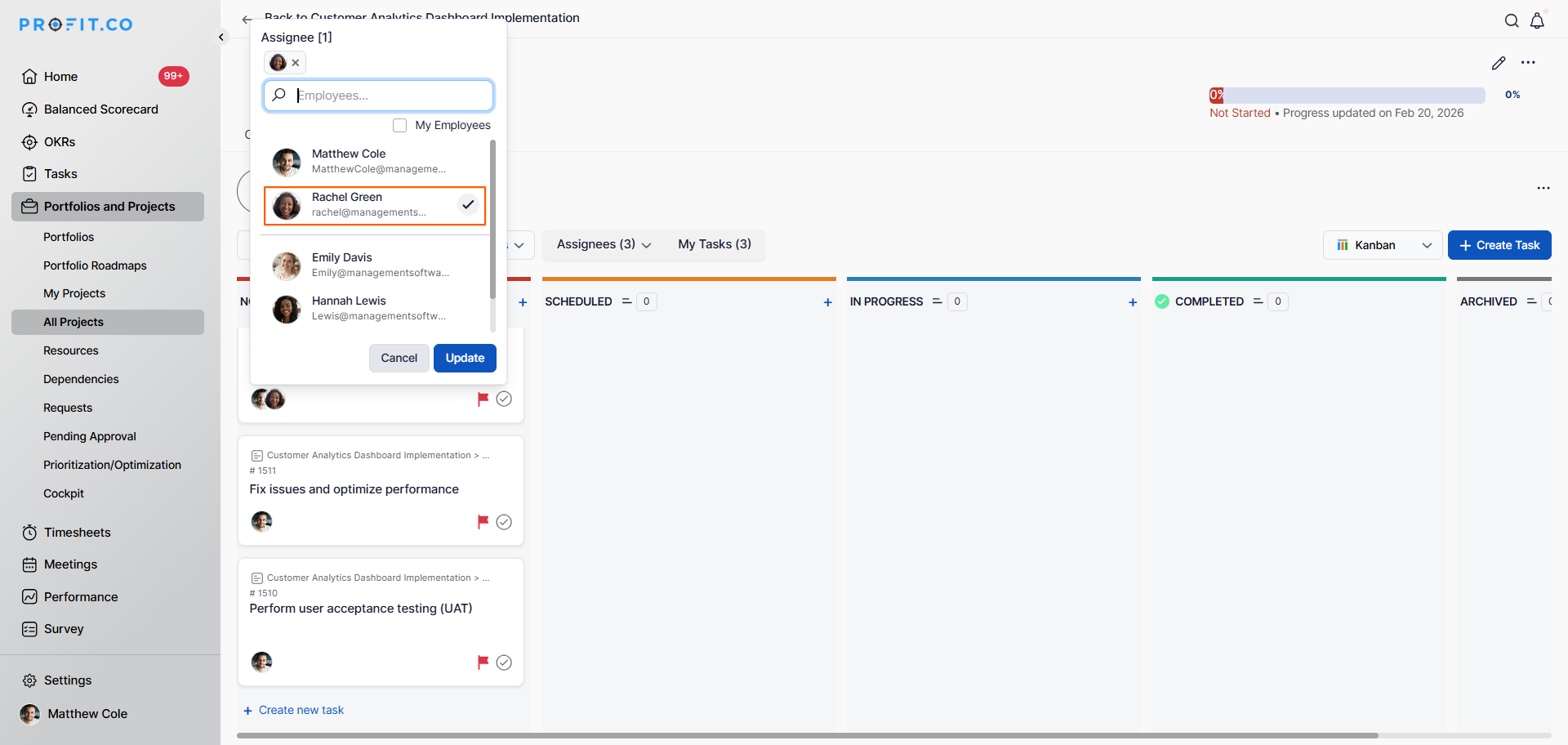
- Select the task you want to allocate time for
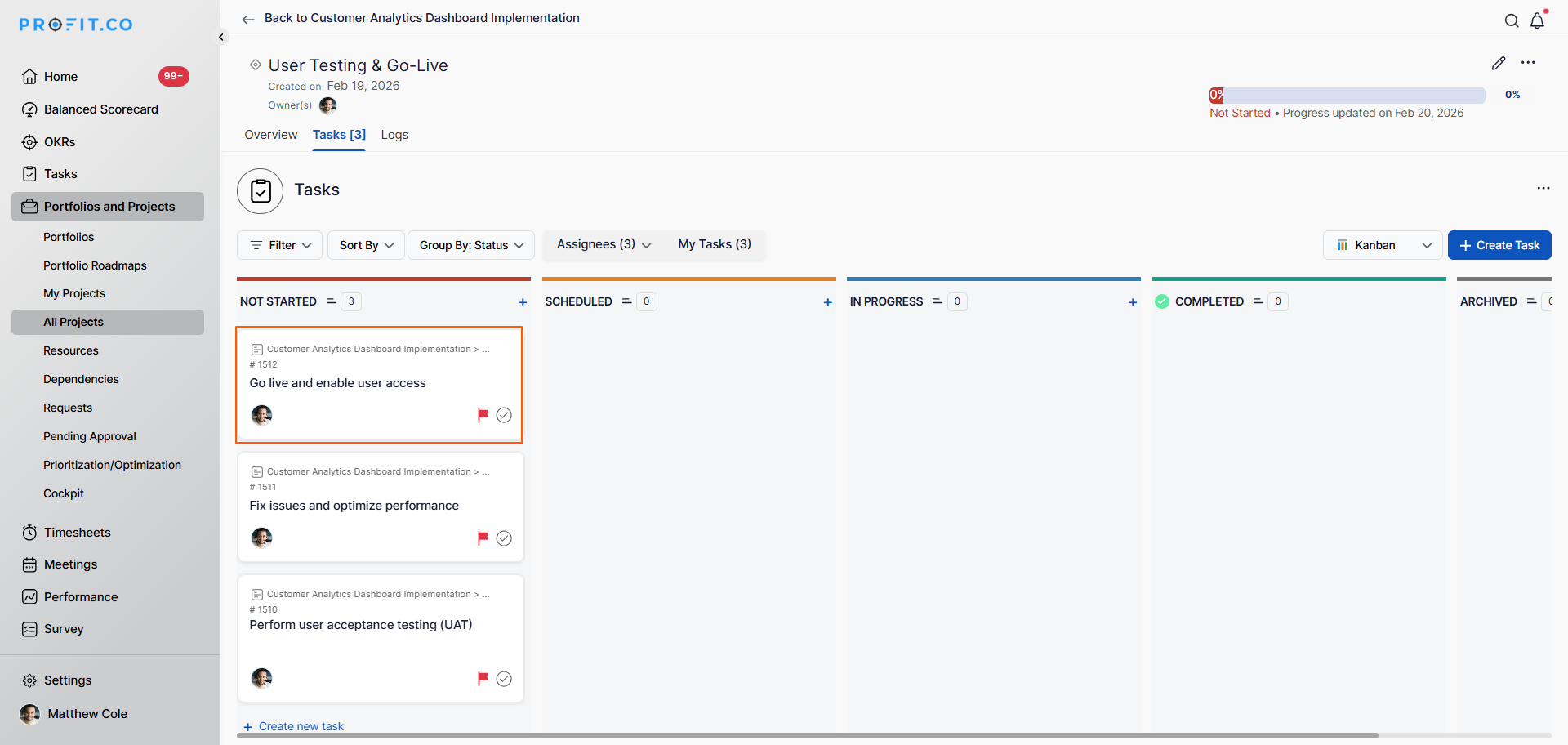
- Assign the user who will work on this task
- The user's resource type (and cost rate) is automatically applied
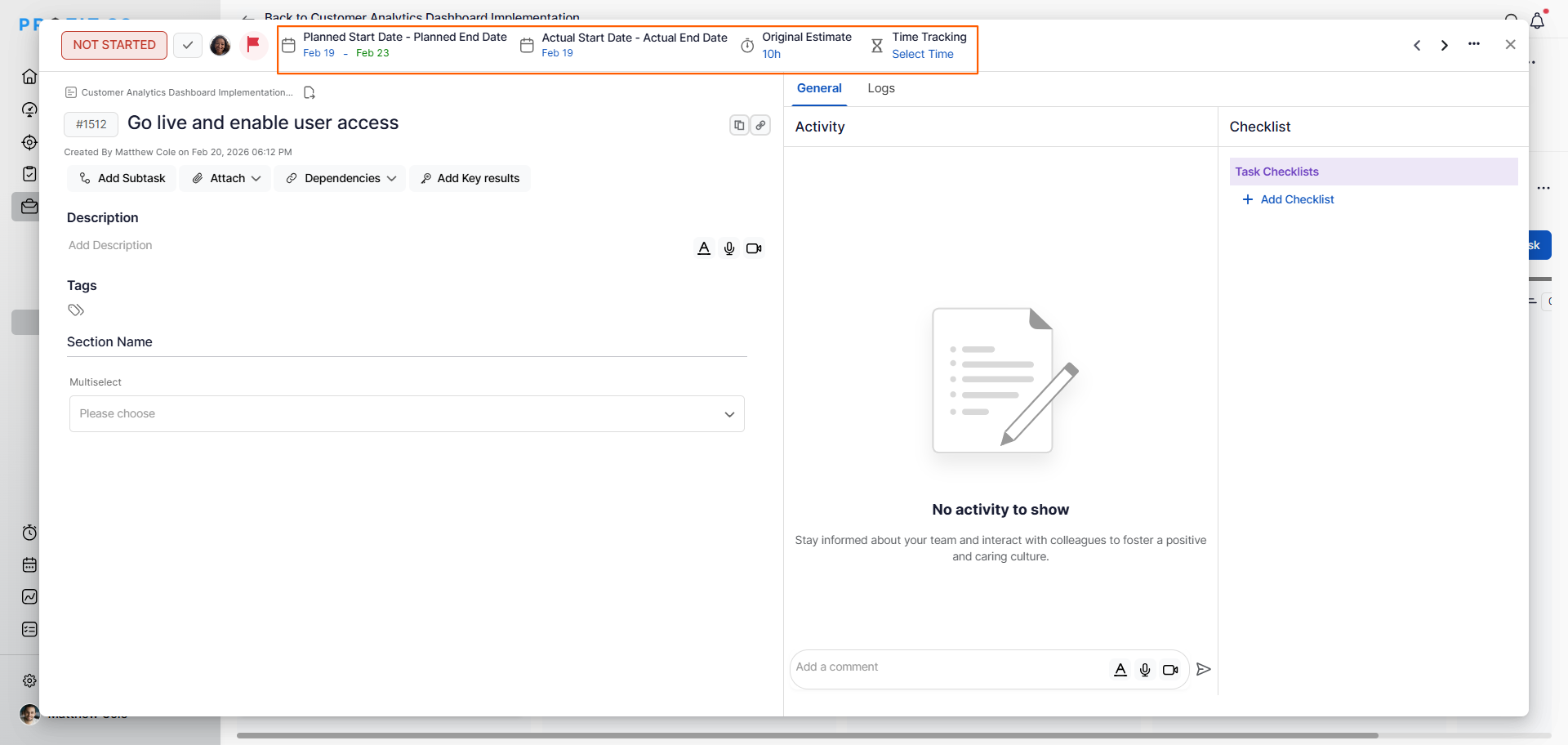
Configure the following fields:
- Set the Start Date and
- Enter the estimated hours.
How do I view financial cost allocation?
Note: Users' logged hours are automatically transformed into project costs based on the resource rate card.
Viewing financial reports helps understand where costs are going and whether projects are on budget.
Step 1
- Open your project
- To track the cost allocation for this user, the project owner
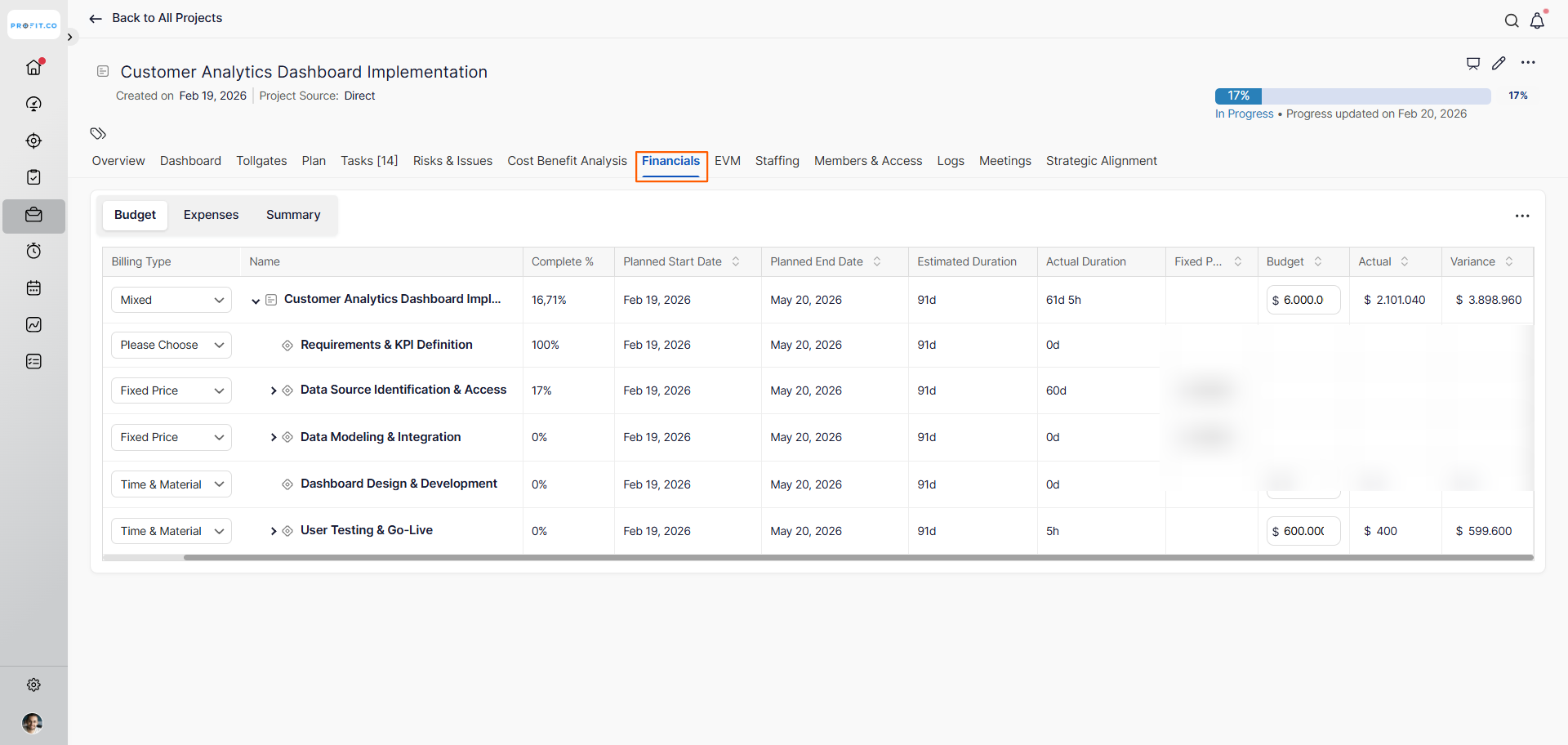
- Switch to the Financial tab
- You'll see the financial overview page with sub-tabs: Budget, Expenses, and Summary
- Click the Budget tab (default view)
- This displays all project financial data
- Look at the Billing Type column (first column)
- When you choose the Time & Materials rows, you can see detailed resource cost information
- Time & Materials entries show costs based on actual hours worked
What You See in Time & Materials Rows:
In the Financials, when you view Time & Materials entries, you can see:
| What's Displayed | What It Tells You |
|---|---|
| Total Budget for this resource | The allocated budget for this milestone/resource (e.g., $600.00K) |
| The actual work he did | The actual hours logged by the resource (e.g., 5h means 5 hours worked) |
| The amount we spent on him | The actual cost based on hours × resource rate (e.g., $400 spent so far) |
Best practices for resource rate cards and cost allocation
- Create Resource Types that reflect your actual organizational structure and skill levels for accurate cost modeling.
- Set cost rates based on true loaded costs (salary + benefits + overhead) rather than just base salary.
- Review and update cost rates quarterly or annually to reflect market changes and salary adjustments.
- Assign resource types to all project members before work begins to ensure complete cost tracking.
- Enter estimated hours for all tasks at project kickoff to establish a cost baseline for comparison.
Related Questions
How do I add members to projects in Profit.co?
Frequently Asked Questions
Create multiple resource types based on the type of work, not on individual names. When a team member performs different roles, assign them to the appropriate resource type for each task.
This depends on your system configuration. You may need to create separate resource types or use project-specific rate overrides if available.
Yes, you can download the financial data as a CSV file.
Related Questions
-
How to create a Project in the PPM module?
Profit.co provides an option for users to create a project within the Project Portfolio Management (PPM) module. This ...Read more
-
How do I manage tollgate compliance across projects in Profit.co?
In Profit.co, you can Manage tollgate compliance across projects by associating tollgate sequences with projects, ...Read more
-
How do I manage tollgate compliance across projects in Profit.co?
In Profit.co, you can Manage tollgate compliance across projects by associating tollgate sequences with projects, ...Read more
-
How to View Critical Tasks of a Project in Profit.co?
Profit.co's Critical Path Method (CPM) feature helps project managers identify the most essential sequence of tasks ...Read more