



How do I use hashtagged conversations for project collaboration in Profit.co?
Category: PPM
In Profit.co, hashtagged conversations allow you to organize and categorize discussions using customizable #hashtags with color coding, making it easier to track topics, collaborate with team members, and find related conversations across projects.
Table of Contents
What are hashtagged conversations in Profit.co?
Hashtagged Conversations is a collaboration feature that enables users to categorize and organize discussions using #hashtags. Each hashtag can be customized with a unique color, making it easy to visually identify and track conversations by topic across projects, teams, and departments.
How do I enable Hashtagged Conversations?
Follow these steps to activate the hashtagged conversations feature:
Step 1
Click on Settings from the left navigation panel.
Select General from the Settings menu.
Click on Collaboration.
In the Collaboration section, click the Hashtagged Conversations tab.
Toggle the hashtagged conversations switch to the enabled position.
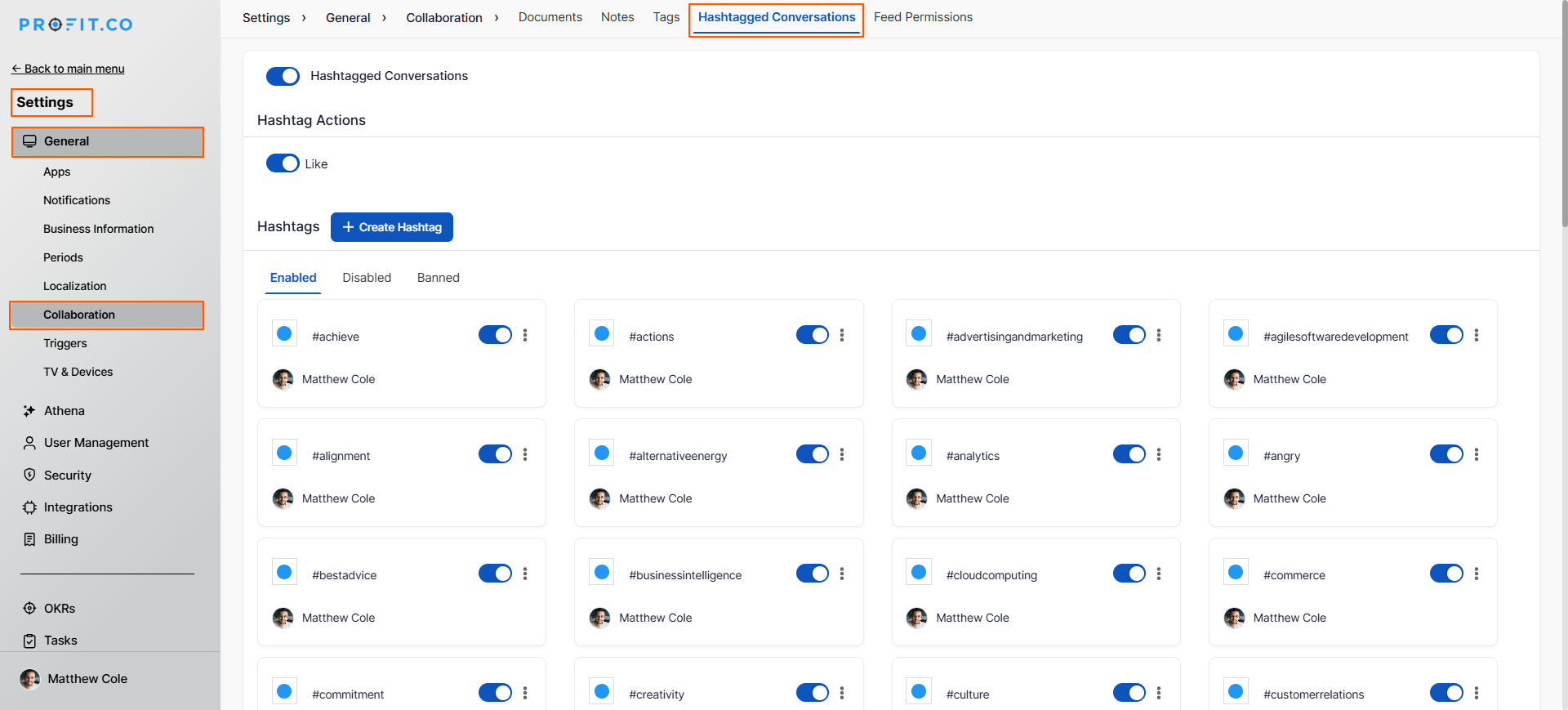
Once enabled, all users in your organization can create and use hashtags in their conversations, notes, and posts.
How do I create a new hashtag?
After enabling Hashtagged Conversations, you can create custom hashtags:
Step 1
Click on the + Create Hashtag option.
In the creation dialog, enter the # name for your hashtag.
Do not include spaces in the hashtag name.
Use descriptive names that clearly indicate the topic (e.g., #ProjectUpdate, #BudgetReview, #CustomerFeedback).
To change the color, click on the color code selector and choose from the color picker.
Different colors help differentiate hashtag categories visually.
Click Save to add the hashtag.
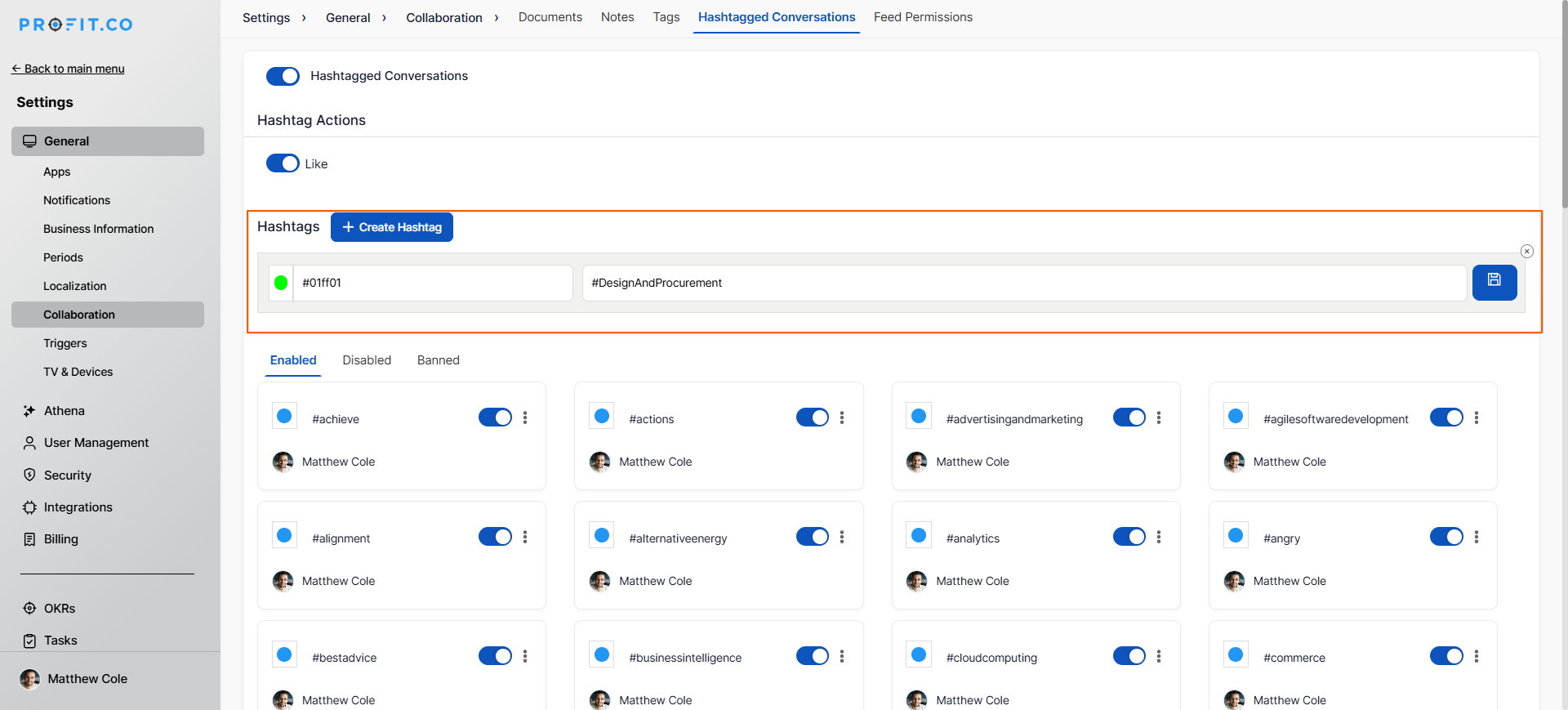
The hashtag is now available for use across the platform with your chosen color.
How do I use hashtags in project notes?
Project notes are a primary location for hashtagged collaboration:
Step 1
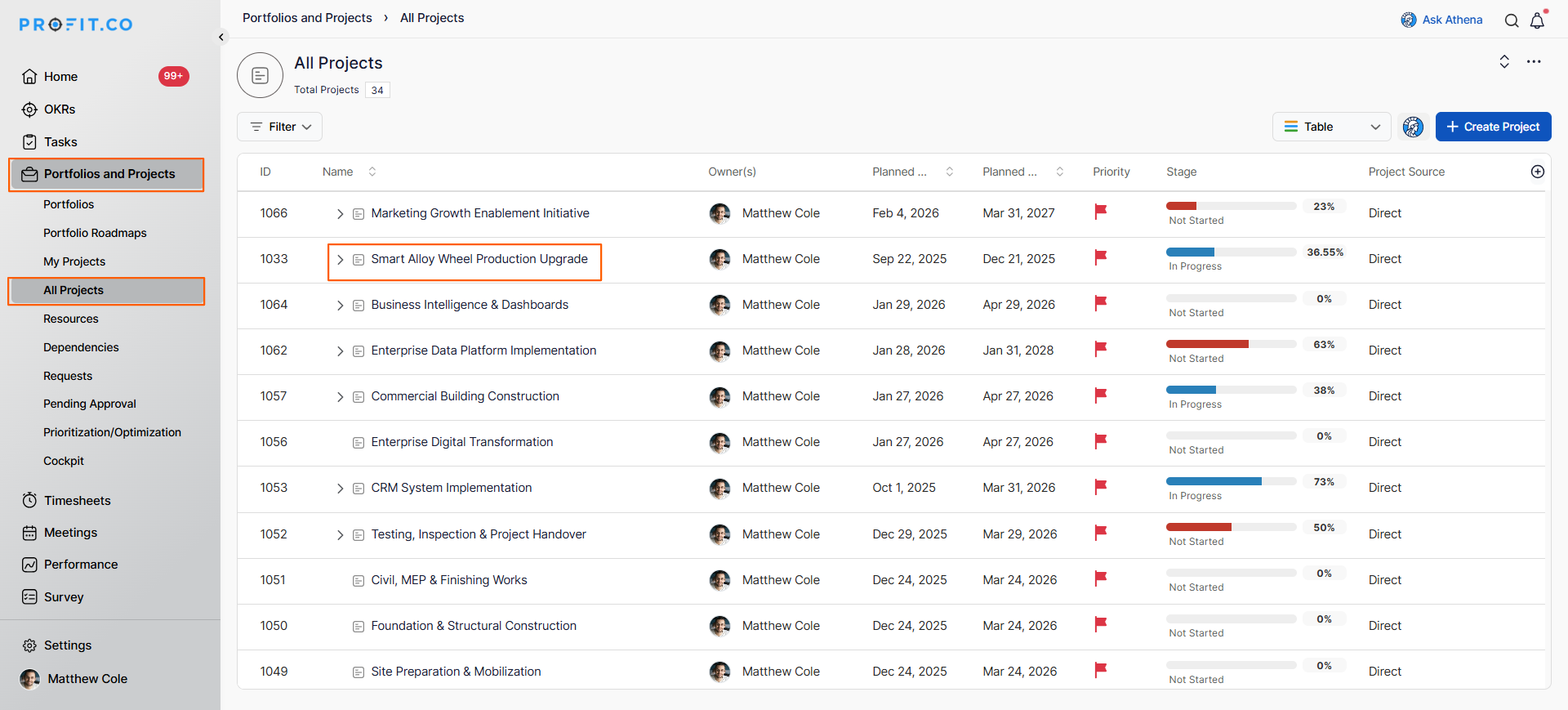
- Click on Portfolios and Projects from the left navigation panel.
- Select Projects from the submenu.
- Click on the project name you want to add notes to.
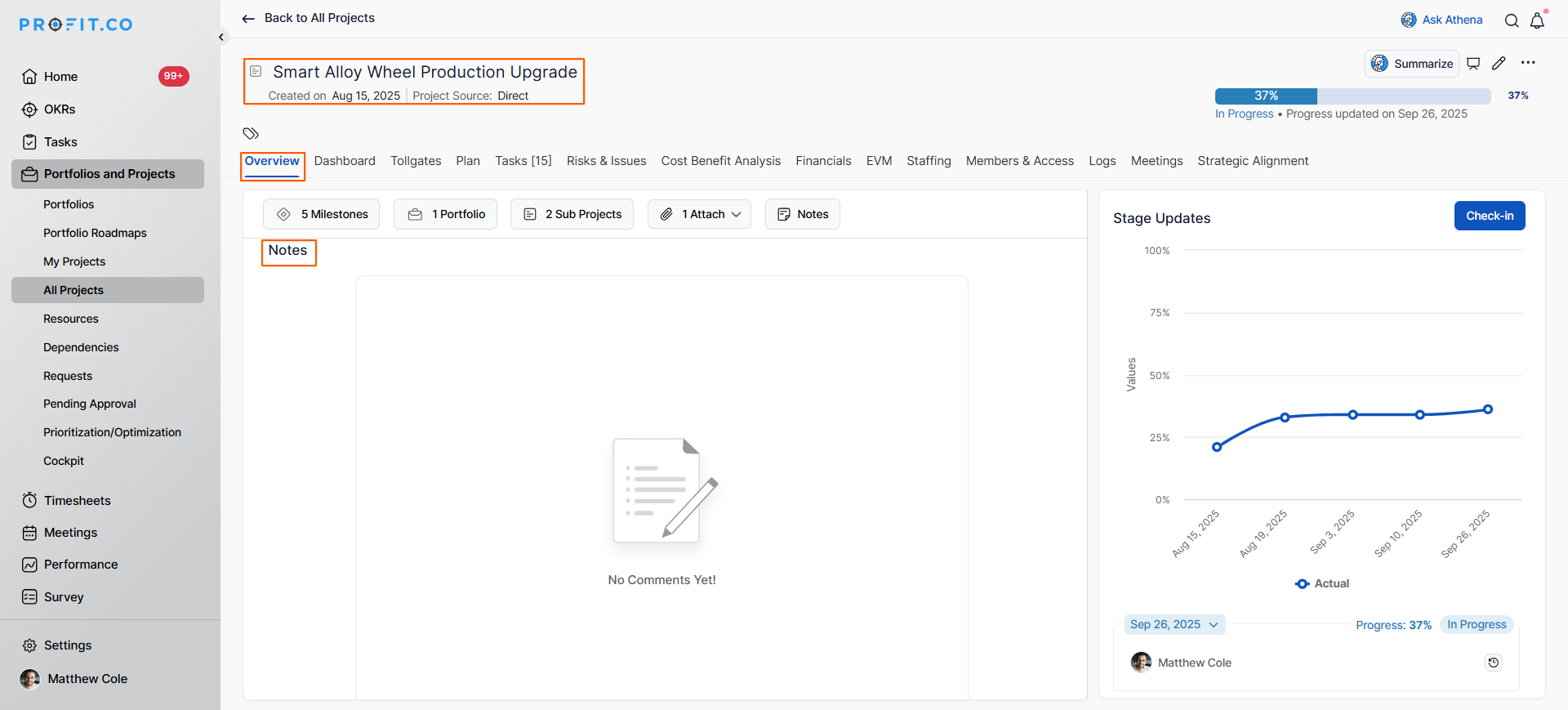
- Scroll down to the Notes section in the project overview page.
- This is where you can collaborate with others.
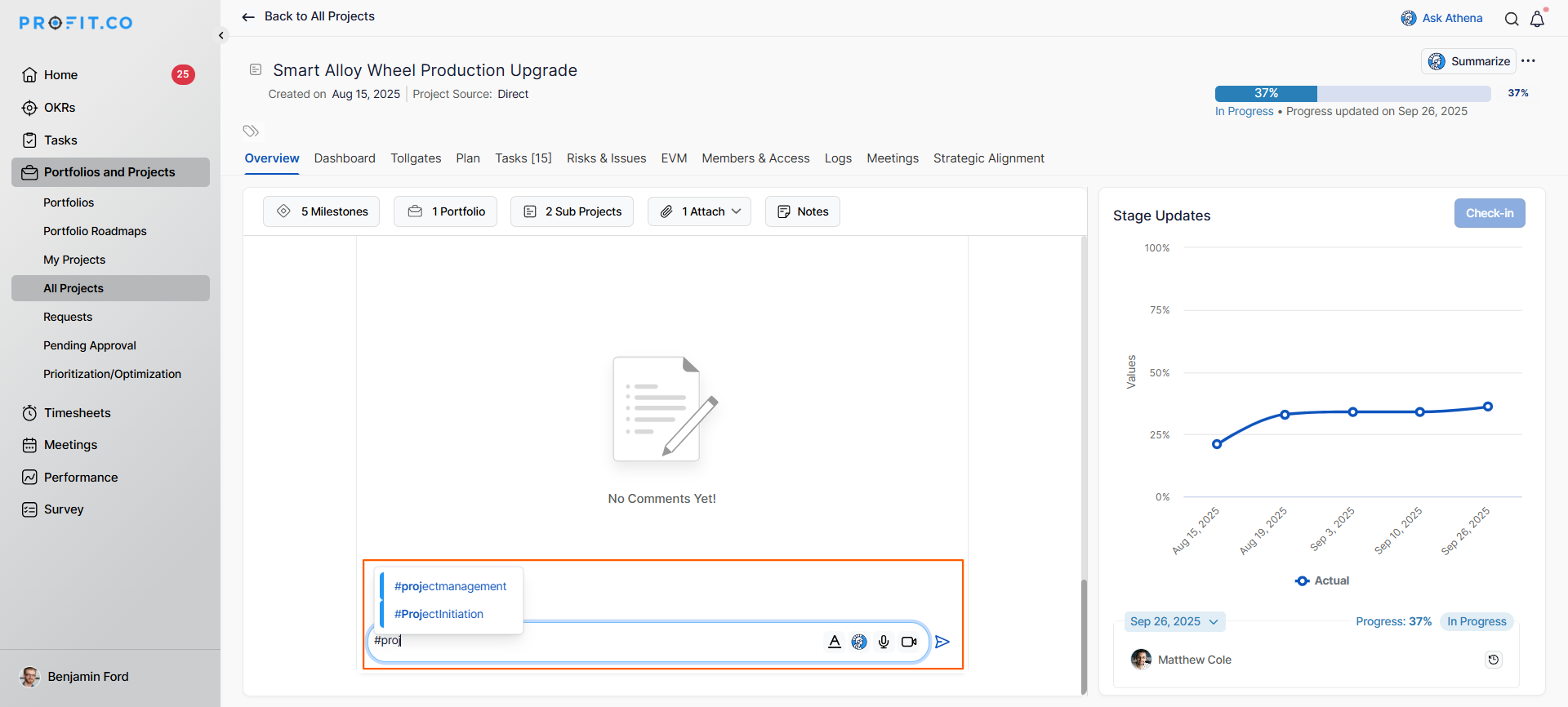
- In the notes editor, type your hashtag (e.g., #BudgetReview).
- Add your content or message.
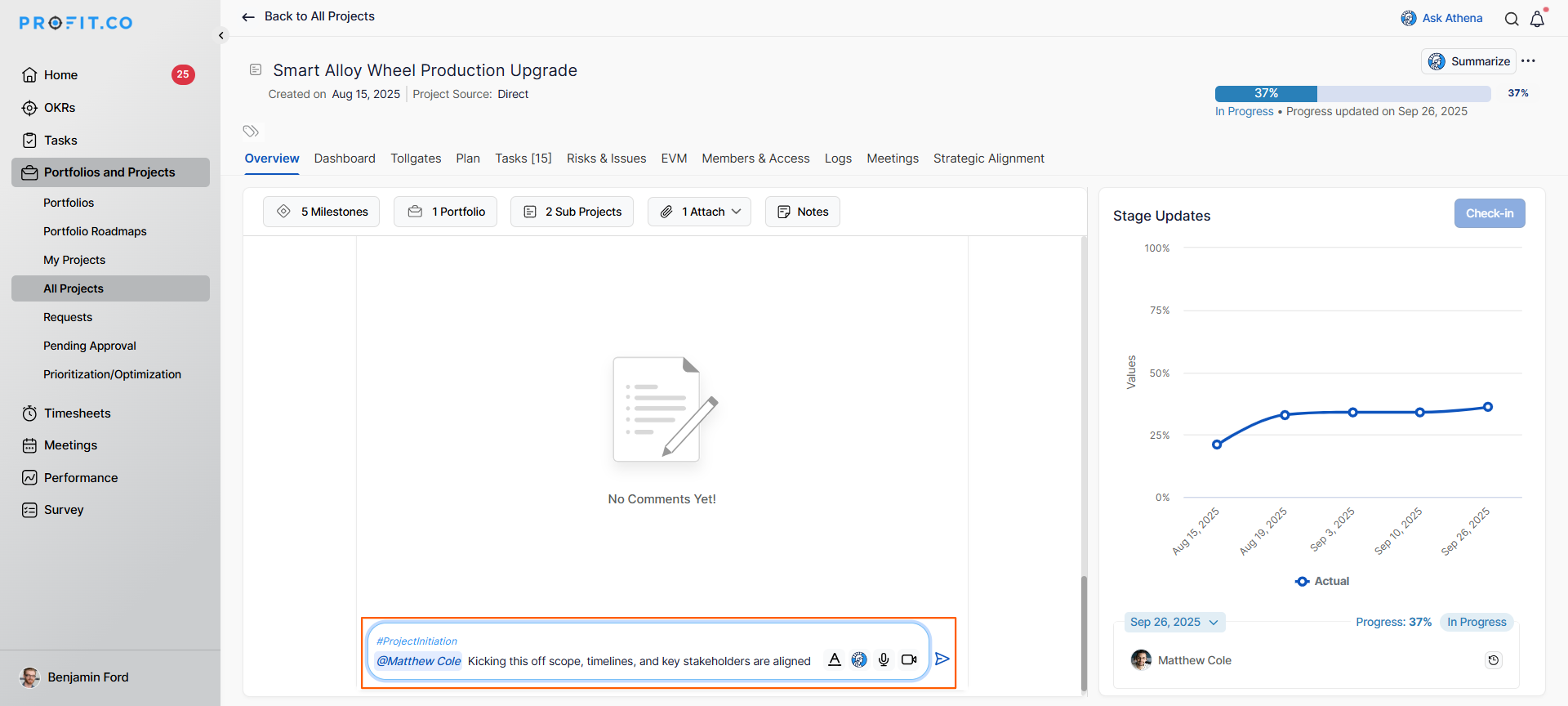
- The hashtag will appear in the color you assigned during creation.
- Use @mention to tag someone (e.g., @JohnDoe).
- Type @ followed by the person's name.
- Select the person from the dropdown that appears.
- Click send to publish your note.
- The note will be visible to team members with the colored hashtag and mentions.
Best practices for using Hashtagged Conversations
- Create a hashtag style guide for your organization defining standard hashtags and their colors for consistency.
- Establish color conventions organization-wide (e.g., red always means urgent) to avoid confusion.
- Avoid creating too many similar hashtags; consolidate related topics under one hashtag.
- Train team members on which hashtags to use for common scenarios to maintain consistency.
- Create hashtags for recurring meetings or initiatives (#WeeklyReview, #SprintPlanning).
- Encourage teams to click on hashtags to discover related conversations and learn from previous discussions.
Related Questions
To learn more about collaboration features in Profit.co Click here
Frequently Asked Questions
Yes, you can typically edit existing hashtags to change their color. Go to Settings → General → Collaboration → Hashtagged Conversations and edit the hashtag.
Hashtags are typically not case-sensitive, meaning #Budget and #budget would be treated as the same hashtag.
Yes, you can include multiple hashtags in one note to categorize it under multiple topics.
Related Questions
-
How to create a Project in the PPM module?
Profit.co provides an option for users to create a project within the Project Portfolio Management (PPM) module. This ...Read more
-
How do I manage tollgate compliance across projects in Profit.co?
In Profit.co, you can Manage tollgate compliance across projects by associating tollgate sequences with projects, ...Read more
-
How do I set up resource rate cards and cost allocation in Profit.co?
In Profit.co, you can set up resource rate cards by creating Resource Types with specific hourly cost rates, assigning ...Read more
-
How to View Critical Tasks of a Project in Profit.co?
Profit.co's Critical Path Method (CPM) feature helps project managers identify the most essential sequence of tasks ...Read more