



What is Budget Management in the PPM module?
Category: PPM
Budget Management in Profi.co's PPM (Project Portfolio Management) module is a financial tracking feature that allows users to monitor project budgets and expenses. It enables you to define billing types (Fixed Price, Time & Material, or Mixed), set budget limits, track expenses, and view quarterly financial summaries to ensure projects stay within budget and maintain profitability.
Table of Contents
- Why is Budget Management important in the PPM module?
- What are the three main sections of Budget Management in Profi.co?
- What billing types are available in the Budget Management feature?
- How do I set up Budget Management for my project in Profi.co?
- What can I export from the Budget Management feature?
- Best Practices for Budget Management in the PPM Module
- Related Questions
- Frequently Asked Questions
Why is Budget Management important in the PPM module?
Budget Management is crucial for maintaining financial control and project profitability. Here's why this feature matters:
- Financial Tracking: The Budget and Expenses sections help track spending and maintain profitability by defining billing types, setting limits, and monitoring expenses, ensuring projects stay within budget.
- Quick Financial Assessment: The Summary section provides a quarterly financial overview, enabling quick assessment of a project's financial health, helping identify discrepancies, and aligning with business goals.
- Resource Allocation: Effective budget management ensures financial resources are allocated wisely, helping avoid overspending while maintaining profitability.
What are the three main sections of Budget Management in Profi.co?
The Budget Management feature in Profi.co's PPM module consists of three key sections:
- Budget: Define the billing type for your project and set financial parameters.
- Expenses: Track and record all project-related expenses in detail.
- Summary: View a quarterly breakdown of your project's financial data for quick assessment.
Each section works together to provide comprehensive financial oversight for your projects.
What billing types are available in the Budget Management feature?
Profi.co offers three billing types to accommodate different project requirements:
1. Fixed Price
The total cost, timeline, and scope of work are agreed upon before the project starts.
Key Features:
- The client pays a predetermined amount, regardless of the actual time or resources used
- Suitable for projects with well-defined requirements and minimal changes expected
- Provides budget certainty and predictability
2. Time & Material
Billing is based on the actual hours worked and materials used during the project.
Key Features:
- Offers flexibility for projects where requirements might evolve over time
- The client pays for the resources utilized during the project
- Ideal for projects with changing scopes or undefined requirements
3. Mixed
Combines elements of fixed price and time & material billing to provide a hybrid approach.
Key Features:
- Fixed-price components for predictable aspects of the project
- Time & material billing for sections requiring flexibility and adaptability
- Provides the best of both approaches for complex projects
You can select the appropriate billing type based on your project's specific requirements.
How do I set up Budget Management for my project in Profi.co?
Follow these steps to create and manage a budget for your project:
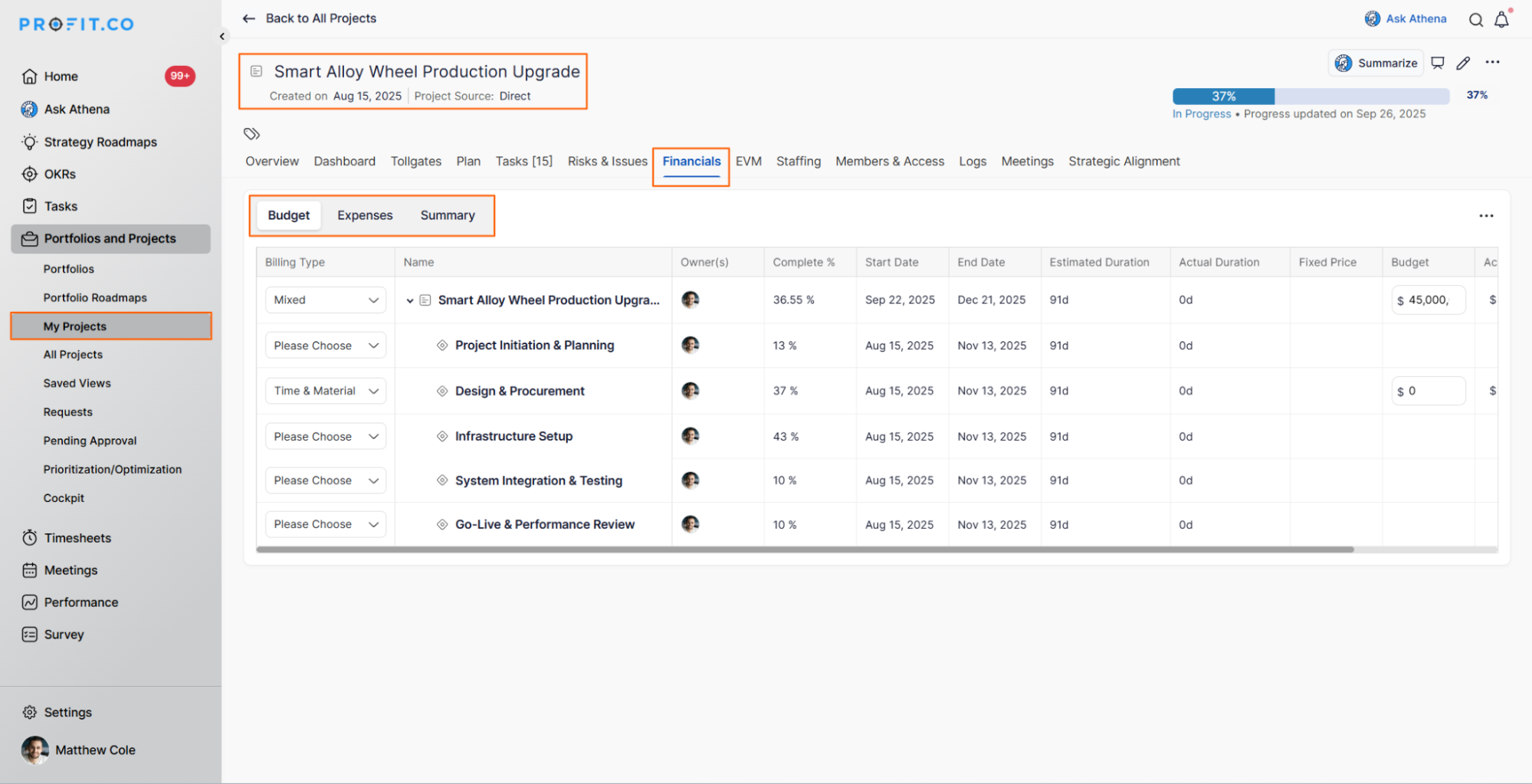
Step 1: Access the Financials Tab
To create a budget for your project:
- Click on your Project
- In the project overview section, switch to the Financials tab
- You will see three main sections: Budget, Expenses, and Summary
Step 2: Define Your Budget
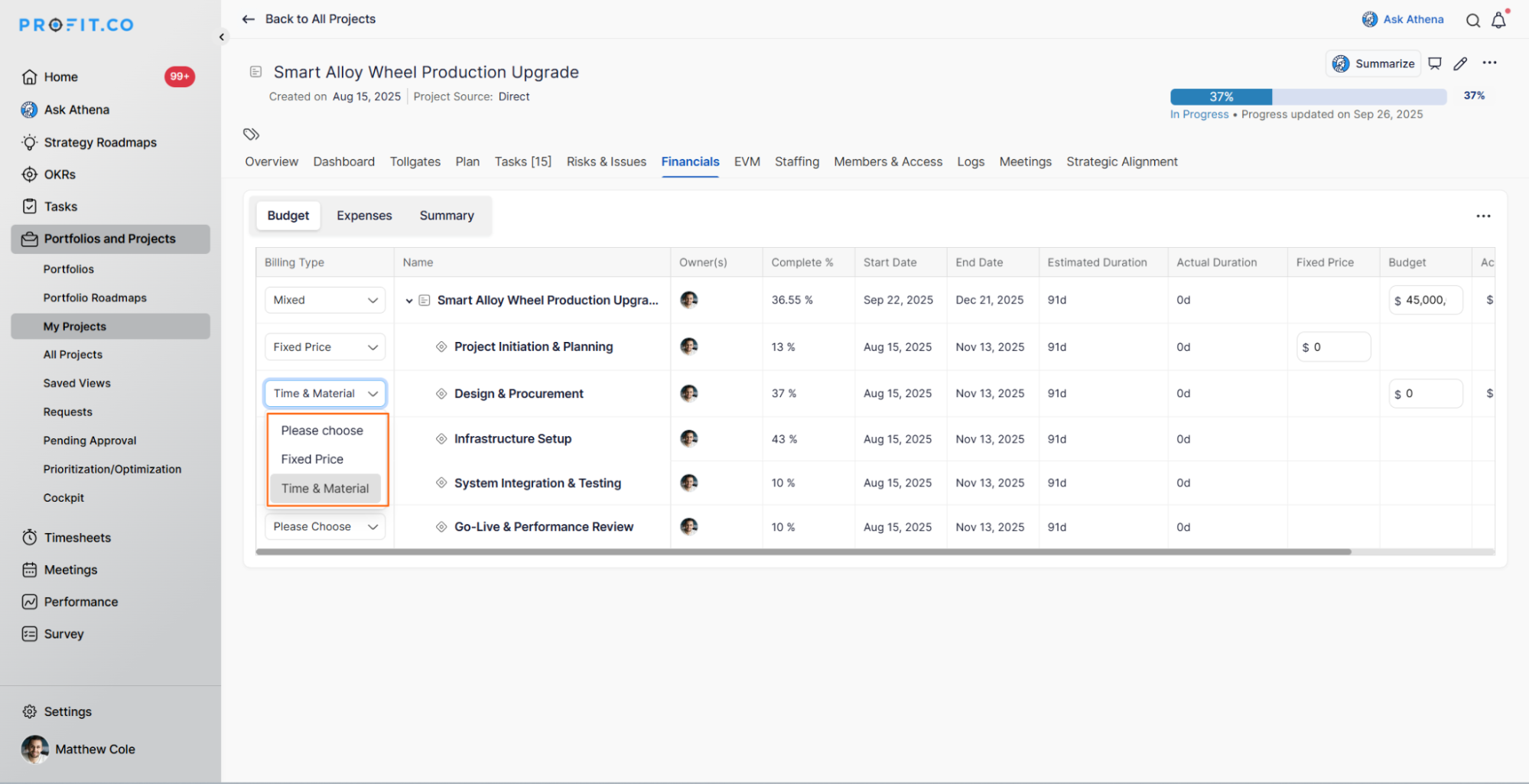
In the Budget section:
Choose your billing type from the three available options:
- Fixed Price
- Time & Material
- Mixed
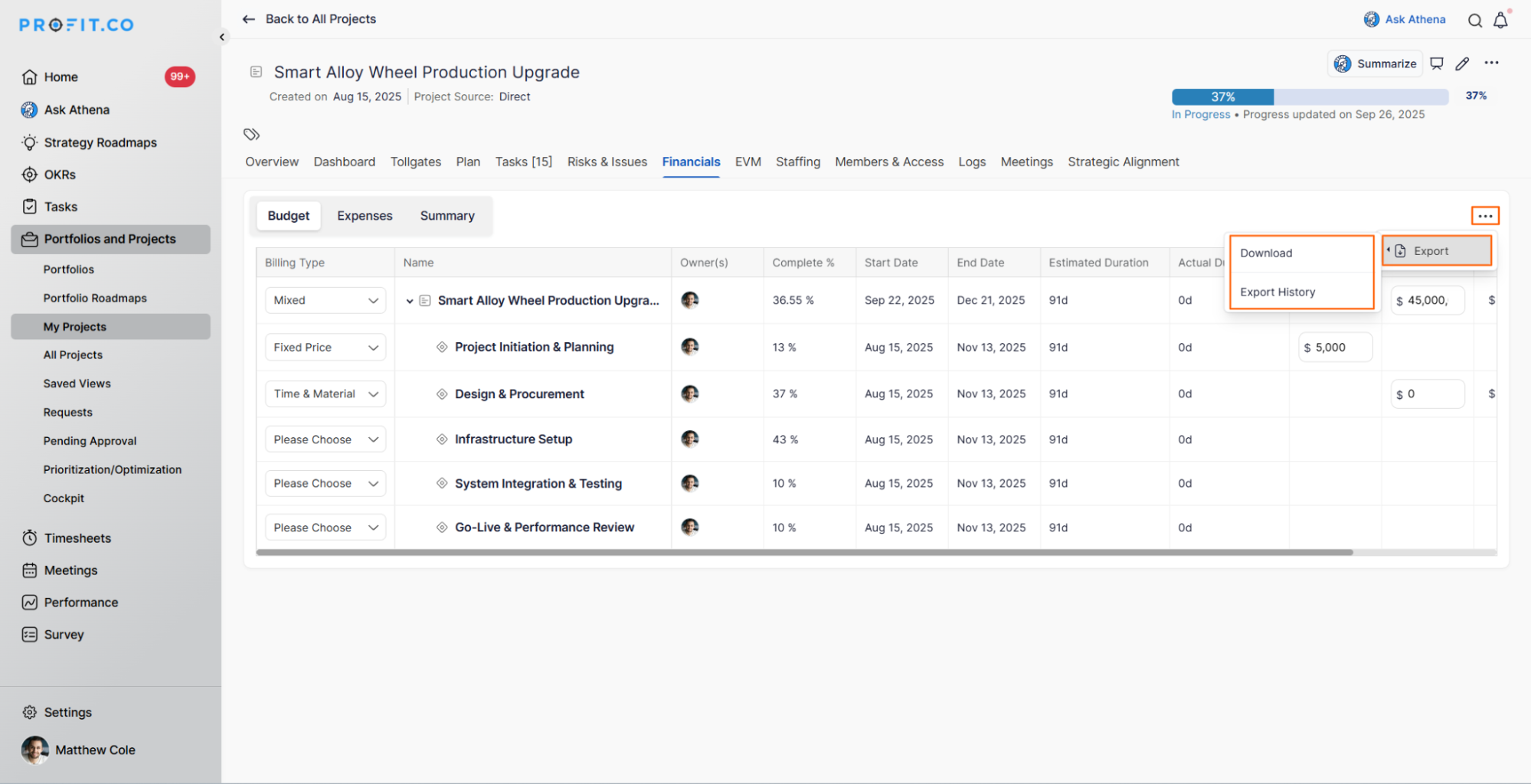
Note: You can export data from the Budget tab using the Export/Download option to download project budgets and related financial details for offline review, reporting, or analysis.
Step 3: Track Expenses
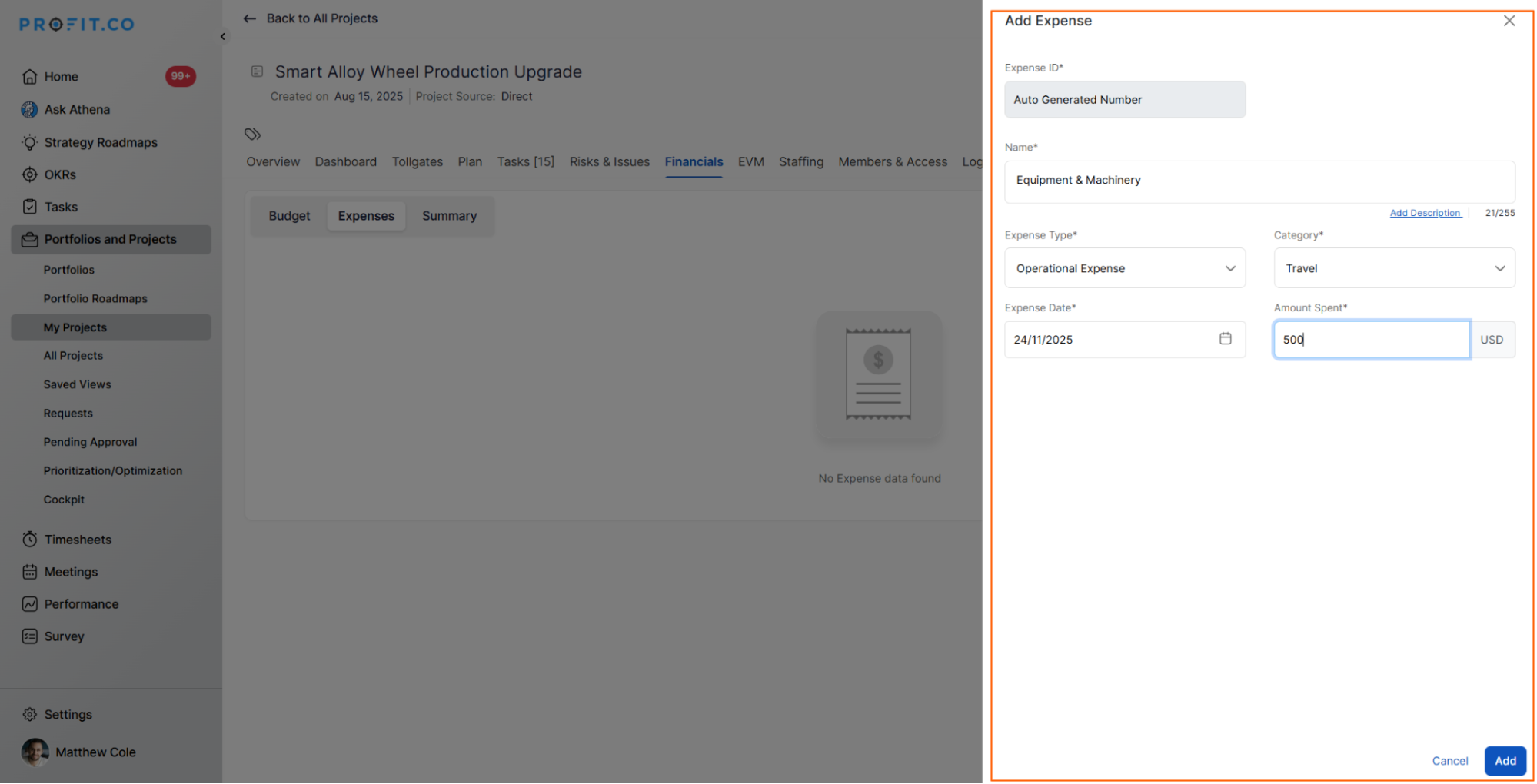
To add and monitor project expenses:
- Navigate to the Expenses tab
- Click on the +Add Expense button

- In the Add Expense side panel, enter: Name, Category, Expense Date, Amount Spent
- Click the Add button to save
Note: You can enable or disable automatic number generation for project expenses under Settings → Projects → Number Generation.
Step 4: Review Financial Summary
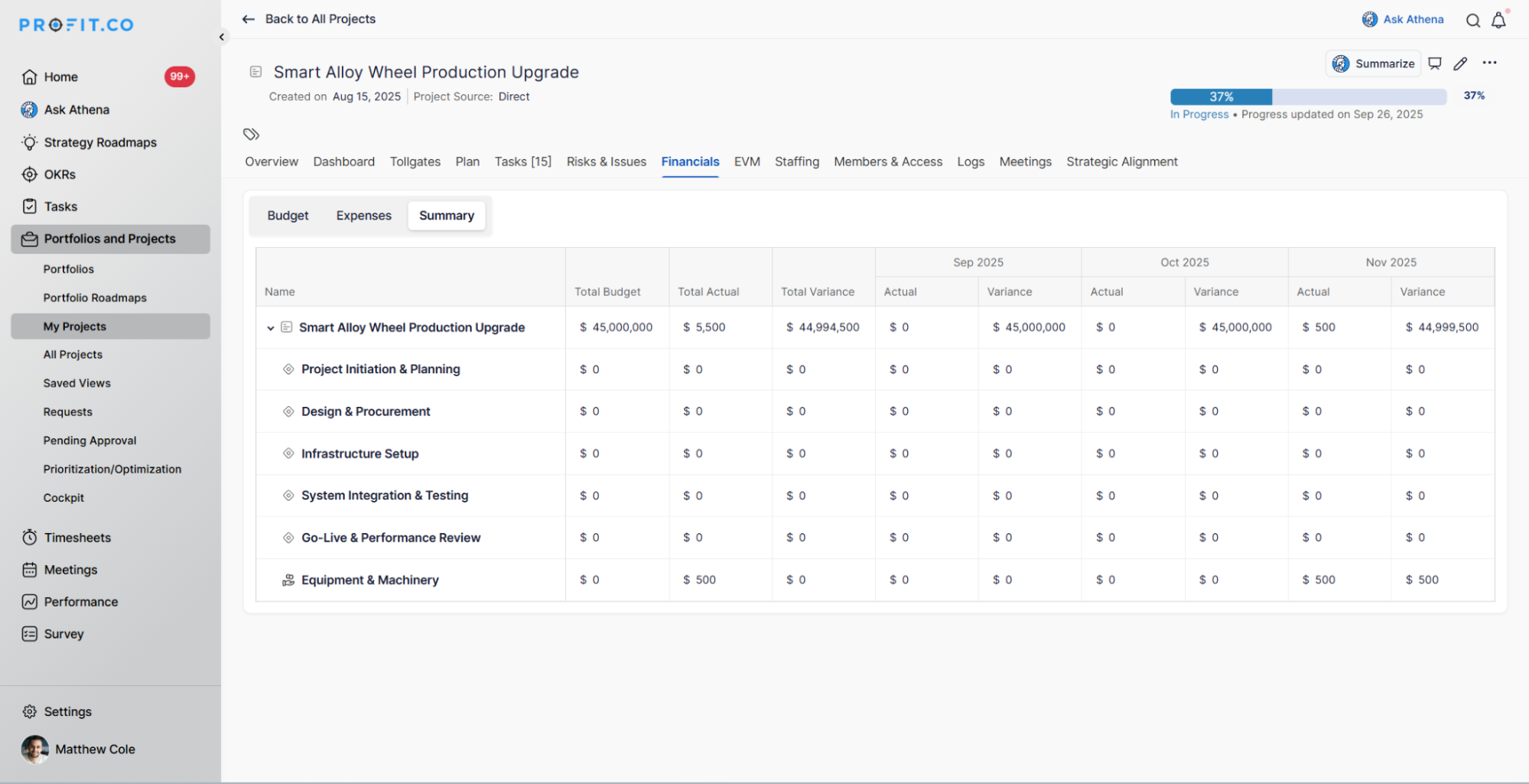
The Summary section provides:
- A quarterly breakdown of your project's financial data
- A high-level view of budget distribution across each quarter
- Quick snapshots to assess if you're on track to meet financial goals
- Easy identification of potential discrepancies
- All expenses added to a project are displayed in this tab
This summary helps you make informed decisions to stay aligned with the allocated budget.
What can I export from the Budget Management feature?
You can export financial data from the Budget tab using the Export/Download option. This allows you to:
- Download project budgets and related financial details
- Review data offline
- Create reports for stakeholders
- Perform analysis outside of Profi.co
- Share accurate financial data in presentations
This export feature streamlines financial reviews and supports better collaboration with team members and clients.
Best Practices for Budget Management in the PPM Module
To maximize the effectiveness of Budget Management in Profi.co:
- Choose the Right Billing Type: Select Fixed Price for well-defined projects, Time & Material for flexible projects, or Mixed for hybrid approaches.
- Regular Expense Tracking: Add expenses promptly to maintain accurate financial records.
- Monitor Quarterly Summaries: Review the Summary tab regularly to identify trends and potential budget issues early.
- Enable Automatic Numbering: Use automatic number generation for expenses to maintain organized records.
- Export Data Regularly: Download financial reports for stakeholder meetings and financial reviews.
- Align with Business Goals: Use the financial overview to ensure projects support overall business objectives.
Related Questions
- How to create a Project in the PPM module. click here
Frequently Asked Questions
Yes, you can modify the billing type in the Budget section of the Financials tab based on changing project requirements.
The Summary section updates automatically as you add expenses and budget information, providing real-time quarterly financial breakdowns.
Yes, team members with appropriate permissions can add expenses to track project spending collaboratively.
Related Questions
-
How to create a Project in the PPM module?
Profit.co provides an option for users to create a project within the Project Portfolio Management (PPM) module. This ...Read more
-
How do I manage tollgate compliance across projects in Profit.co?
In Profit.co, you can Manage tollgate compliance across projects by associating tollgate sequences with projects, ...Read more
-
How do I set up resource rate cards and cost allocation in Profit.co?
In Profit.co, you can set up resource rate cards by creating Resource Types with specific hourly cost rates, assigning ...Read more
-
How to View Critical Tasks of a Project in Profit.co?
Profit.co's Critical Path Method (CPM) feature helps project managers identify the most essential sequence of tasks ...Read more