



How to enable and add board stages and checklists for the tasks?
Category: Tasks
In Profit.co, you can enable Board Stages and Checklists to define a structured workflow for your tasks, ensuring that every task passes through the required steps and completion criteria before moving to the next stage.
Table of Contents
- What are board stages and checklists in Profit.co?
- How to enable board stages for a task board in Profit.co?
- How to add a checklist to a board stage in Profit.co?
- How do checklists control task movement between stages in Profit.co?
- Best practices for using Board Stages and Checklists in Profit.co
- Related Questions
- Frequently Asked Questions
What are board stages and checklists in Profit.co?
- Board Stages in Profit.co are sequential workflow steps configured within a task board that represent the different phases a task must pass through from start to completion, such as To Do, In Review, and Done.
- Checklists are to-do items attached to each stage that define the specific criteria a task must satisfy before it can be moved to the next stage. Together, they enforce a structured and controlled task progression workflow within any Board.
How to enable board stages for a task board in Profit.co?
Board stages can be enabled either when creating a new board or when editing an existing one.
Step 1
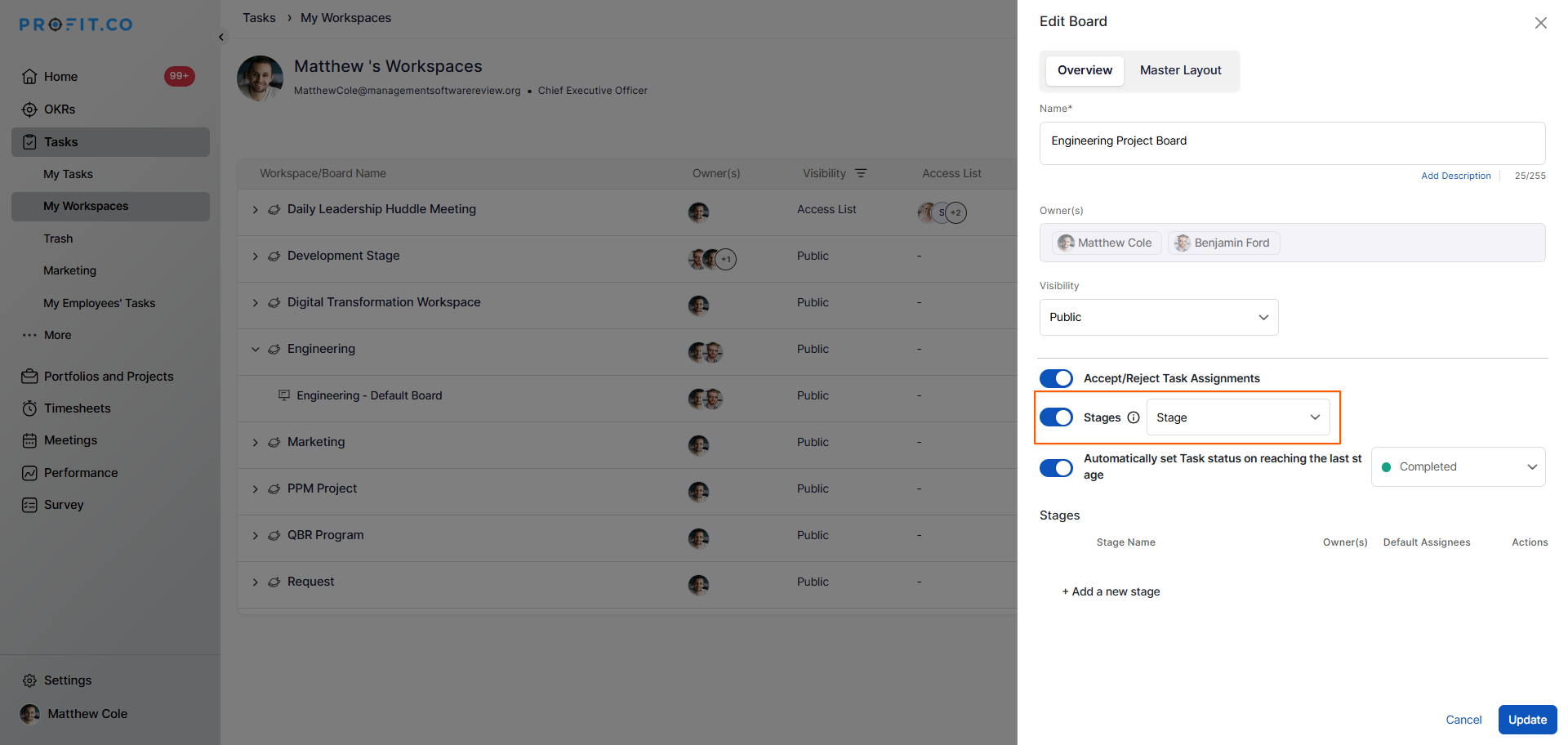
- Navigate to Tasks → Workspaces from the left navigation panel.
- Click "+ Create Board" to create a new board, or click the Edit option on an existing board.
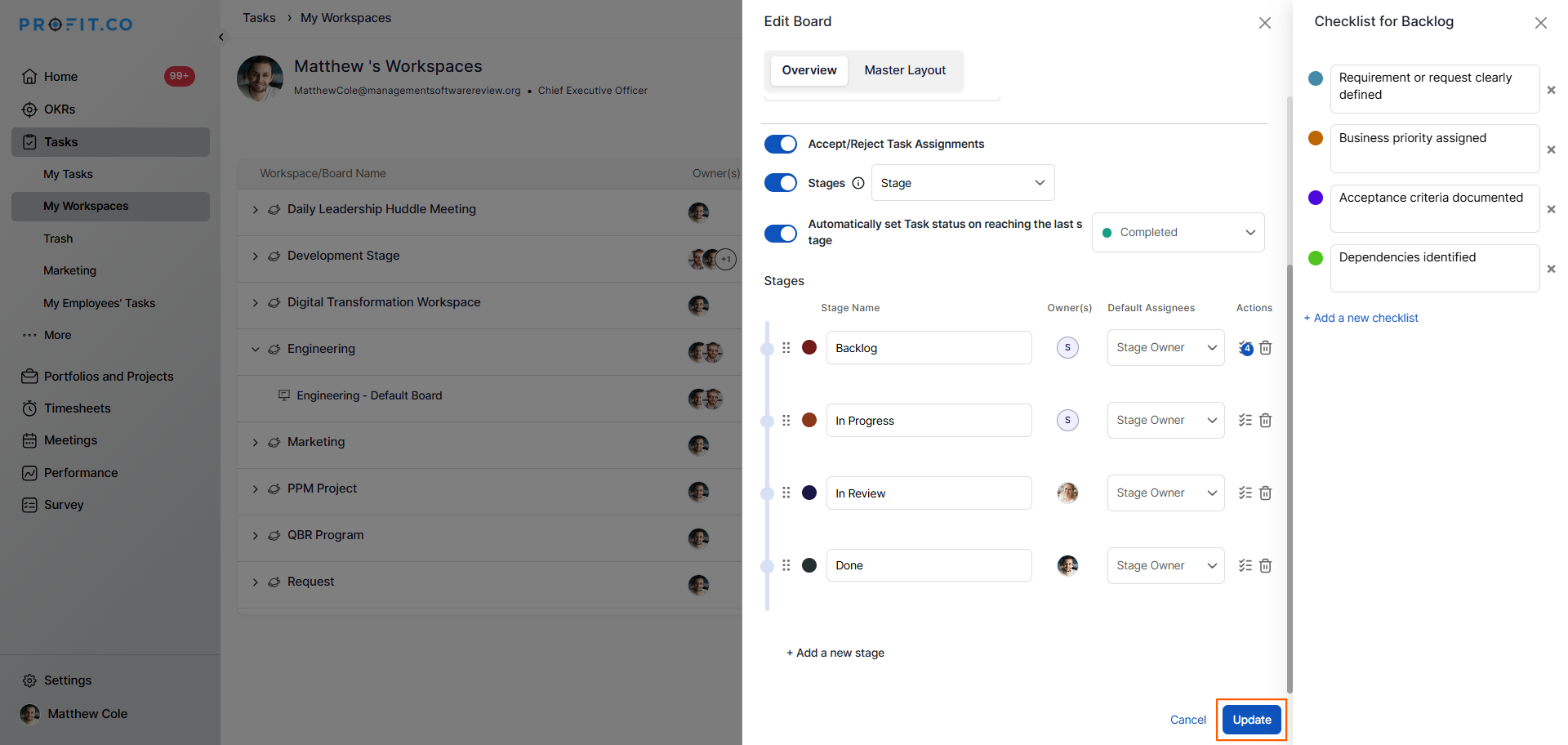
- On the Board creation or edit page, locate the Stages toggle.
- Enable the toggle to activate the Stages feature for the Board.
Step 2
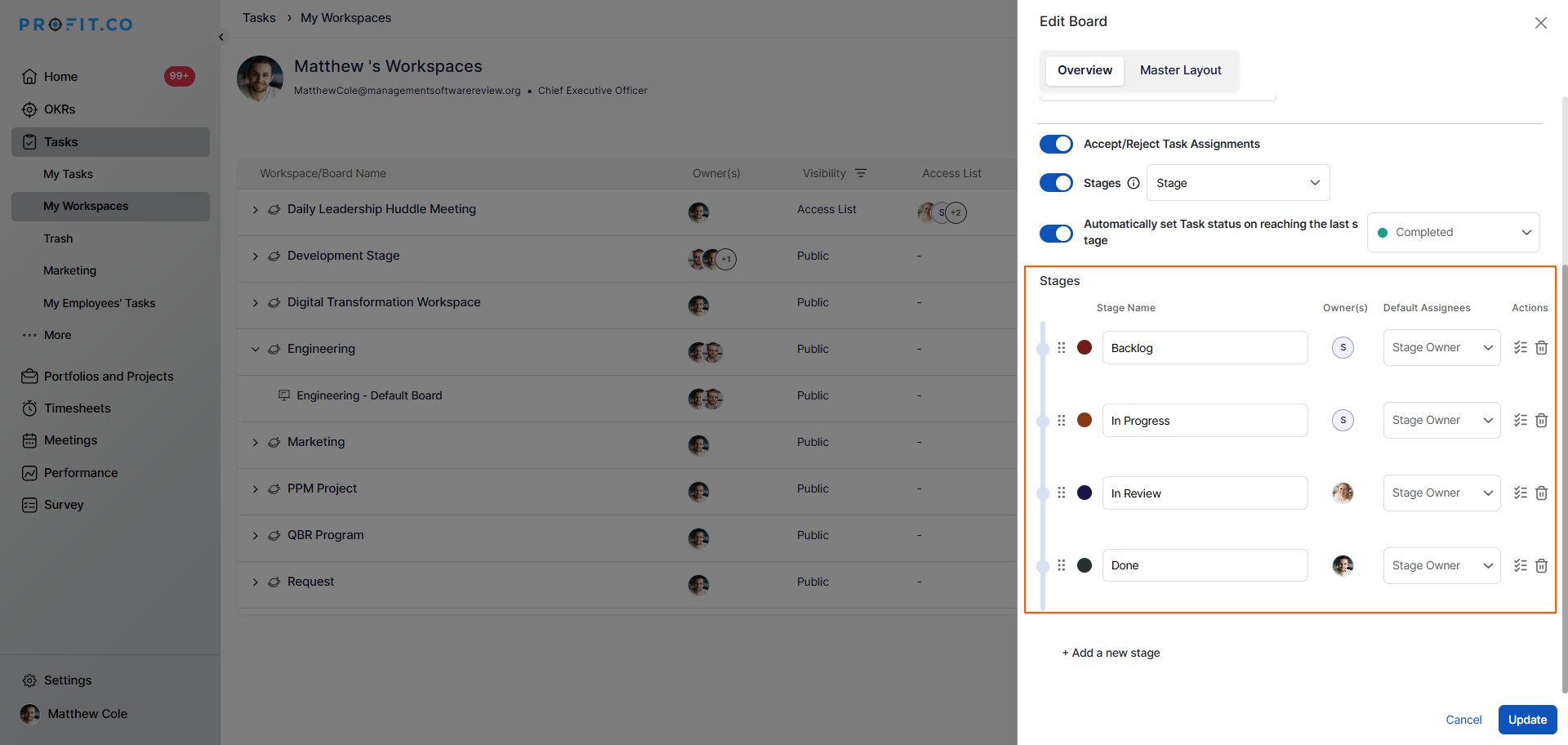
- Enter the Stage Name for each stage you want to create.
- Assign Stage Owners to each stage if needed — you can add multiple owners per stage.
- Add as many stages as required to reflect your team's workflow.
How to add a checklist to a board stage in Profit.co?
Once stages are configured, you can attach checklists to each stage to define the completion criteria required before a task can advance.
Step 1
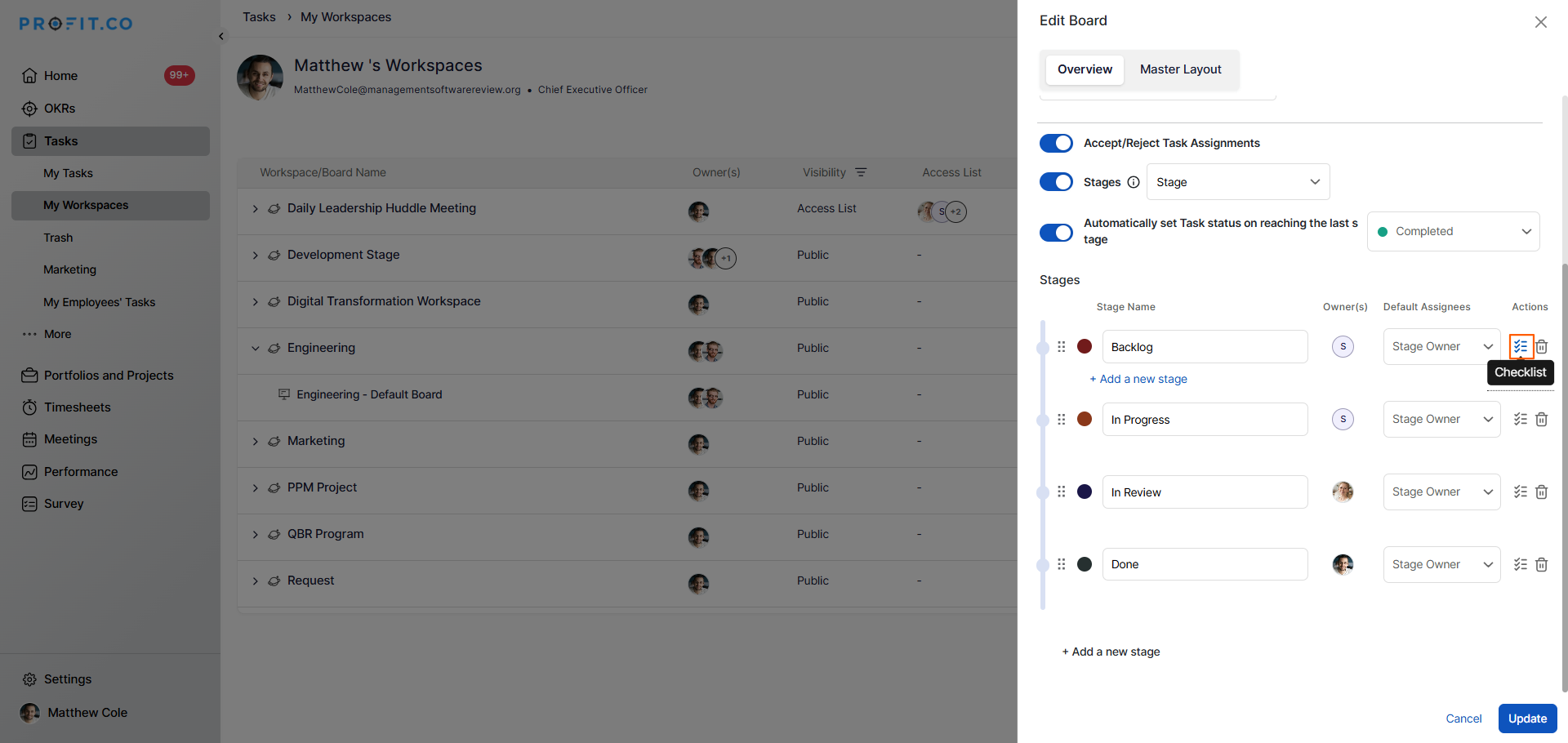
- Within the Stage configuration view, click the checklist icon next to the relevant stage.
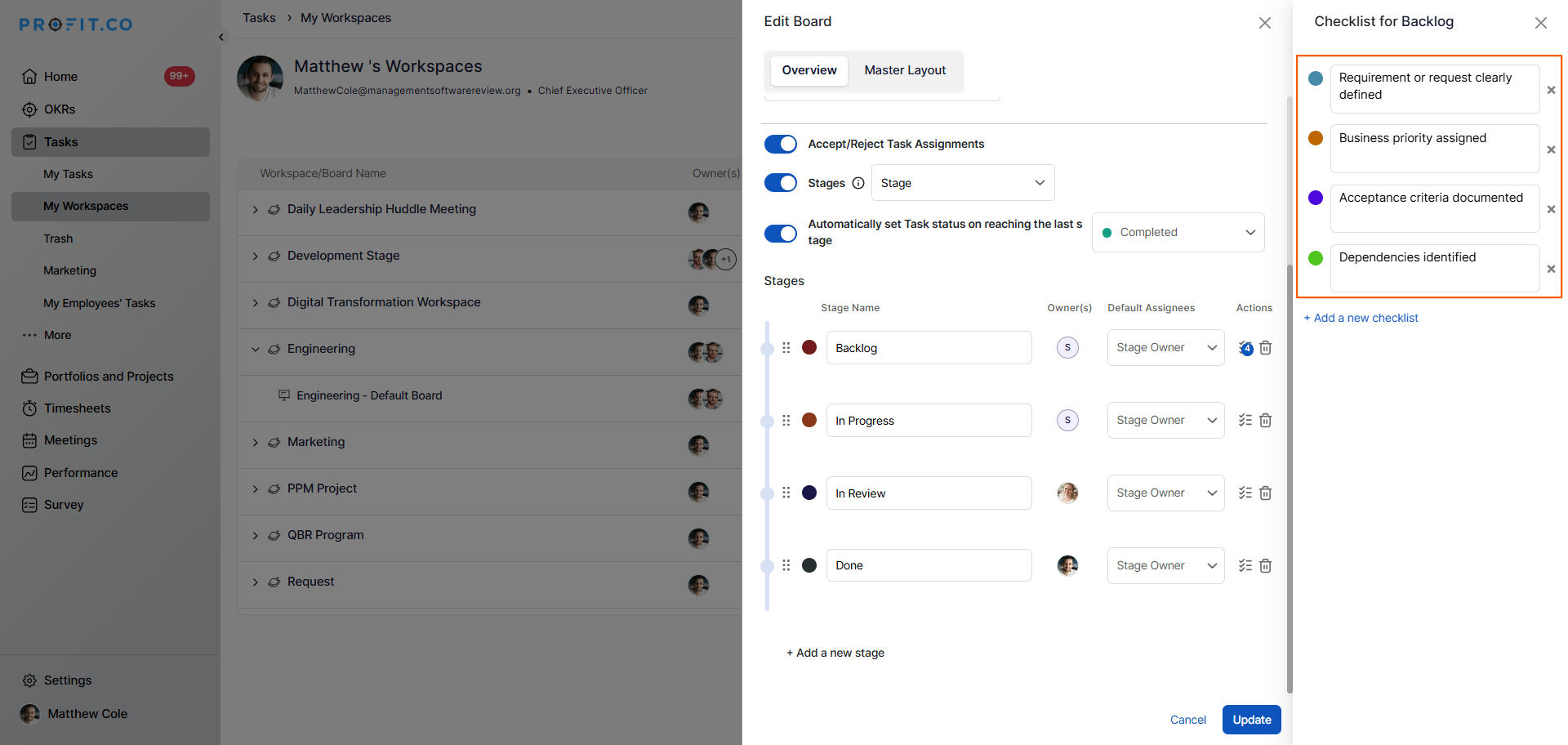
- Enter each checklist item that must be completed before the task can move to the next stage.
- You can add as many checklist items as needed for each stage.
Step 2
- Once all stages and checklists are configured, click Update to apply the settings to the board.
How do checklists control task movement between stages in Profit.co?
Checklists act as stage gates in Profit.co — a task can only be moved from one stage to the next once all the checklist items for the current stage have been marked as completed.
- When a task is in a stage that has a checklist, the checklist items must all be checked off before the task is eligible to progress.
- This ensures that no task skips a required step or advances prematurely in the workflow.
- Once all checklist items are completed, the task can be moved to the next stage in the Board.
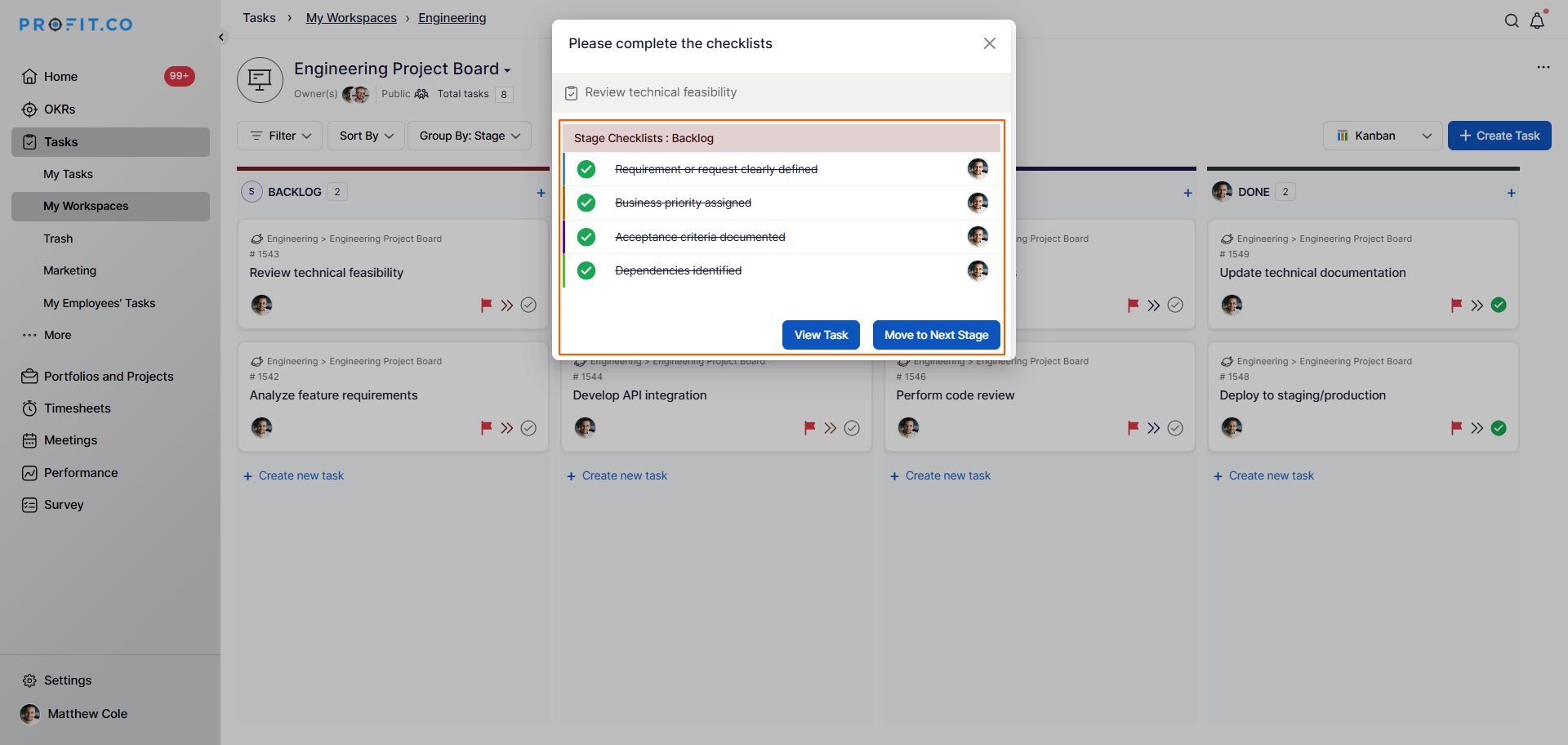
Note: This checklist-gated progression applies to all tasks created within the Board where stages and checklists have been configured.
Best practices for using Board Stages and Checklists in Profit.co
- Design your stages to mirror your team's actual workflow — for example, Backlog, In Progress, In Review, and Done.
- Keep checklist items concise and actionable so assignees can quickly understand and complete each requirement.
- Assign stage owners to each stage to ensure there is a responsible person overseeing task movement at every step.
- Avoid creating too many checklist items per stage; focus on the critical criteria that genuinely gate task progression.
- Review and update your Board stages and checklists periodically to ensure they still reflect your team's current process.
Related Questions
Click here to learn more about how to create a Workspace and Board under an OKR in Profit.co.
Frequently Asked Questions
Open the Board creation or edit view, locate the Stages toggle, and enable it. You can then enter stage names and assign stage owners for each step.
Yes. After enabling stages, click the Checklist icon next to any stage, add as many checklist items as needed, and save the Board.
No. All checklist items for the current stage must be completed before a task can be moved to the next stage in the Board.
Related Questions
-
How to create new Workspace and Boards for Tasks through a mobile application?
Profit.co’s mobile application lets you quickly create Workspaces and Boards to organize, manage, and track tasks on ...Read more
-
How do I use Agile Epics and User Stories in Profit.co?
In Profit.co, you can use Agile Epics and User Stories to structure work effectively, ensuring clear alignment and ...Read more
-
How to Restore Deleted Tasks in Profit.co?
Profit.co offers a valuable safety net by enabling users to restore deleted tasks through the new Trash and Restore ...Read more
-
How does Profit.co help track task start, delivery, and execution performance?
In Profit.co, the My Tasks Dashboard provides comprehensive analytics on your task performance, including schedule ...Read more