



How do I Import Goals in Profit.co?
Category: Performance
In Profit.co, you can import multiple goals at once using a CSV file, allowing you to quickly set up goals for individual without manual data entry.
What is the Import Goals feature in Profit.co?
The Import Goals feature allows you to bulk upload multiple goals from a CSV file instead of creating them one by one. This saves time when setting up goals for multiple team members or when migrating goals from another system.
What file format is required for importing goals?
Only the Comma-Separated Value (.csv) format is accepted for goals import. Other file formats like Excel (.xlsx), text (.txt), or PDF (.pdf) are not supported and will be rejected during upload.
How do I access the Import Goals feature?
Follow these steps to start importing goals:
- Click on Performance from the left navigation panel.
- Select Goals from the Performance menu.
- Click on the +Create Goals dropdown button.
- Select Import from the dropdown options.
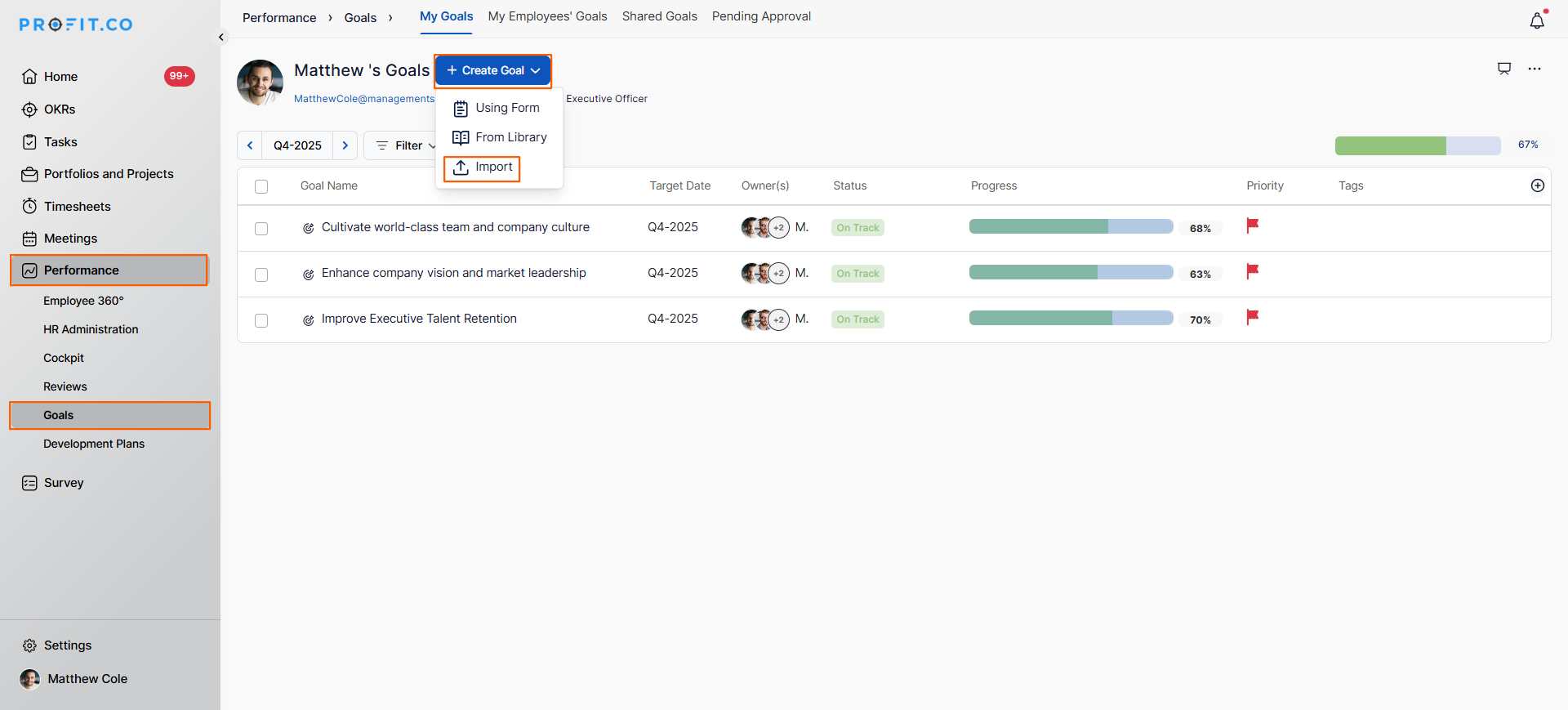
You will now see the User Goal Import page, where you can upload your CSV file.
How do I upload my goals CSV file?
Once you have prepared your CSV file with goals data:
Step 1
- On the User Goal Import page, click the Browse button.
- Navigate to the location of your CSV file on your computer.
- Select the file and click Open.
- After the file is uploaded, click Next to proceed to field mapping.
Note: The only accepted file type is Comma Separated Value (.csv) format.
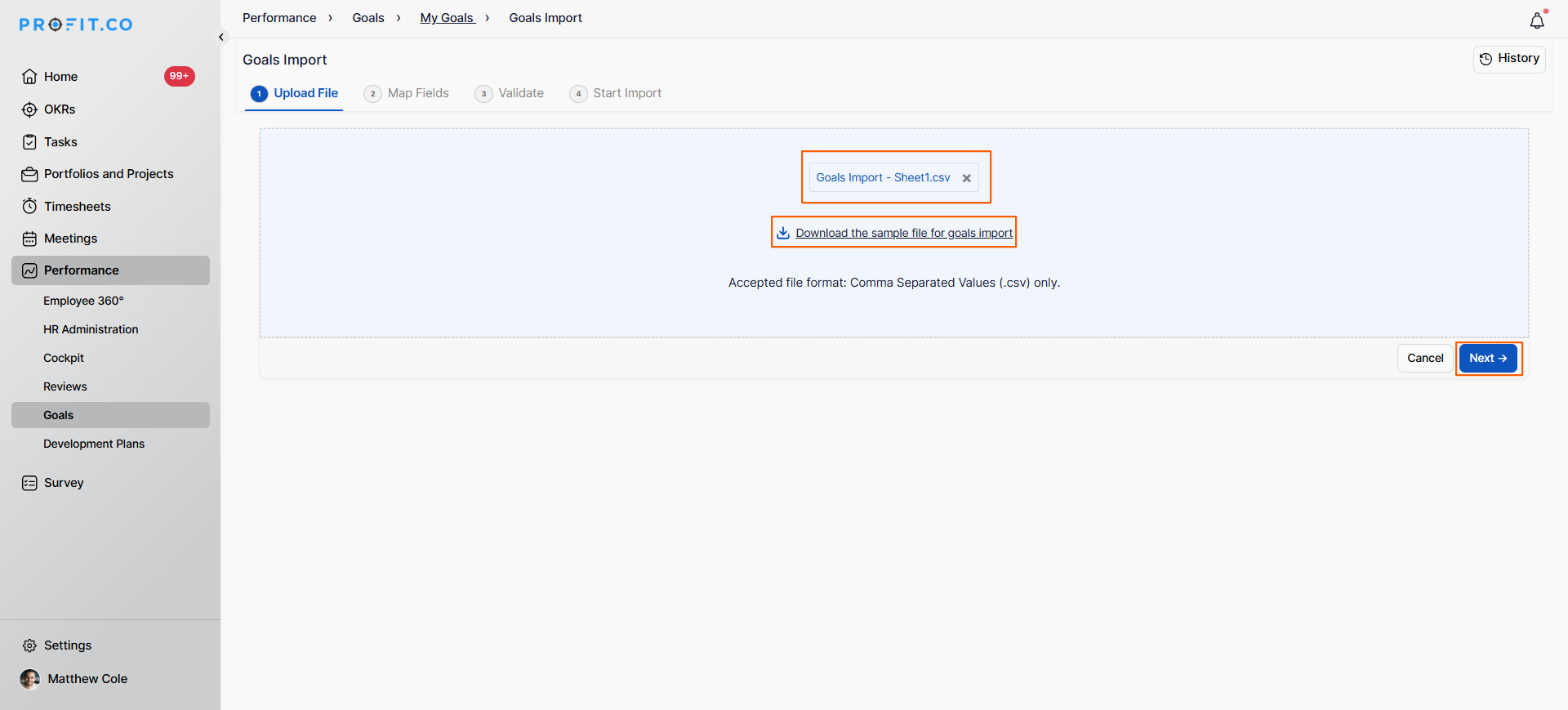
The system will display your uploaded file name and begin the import process.
Step 2
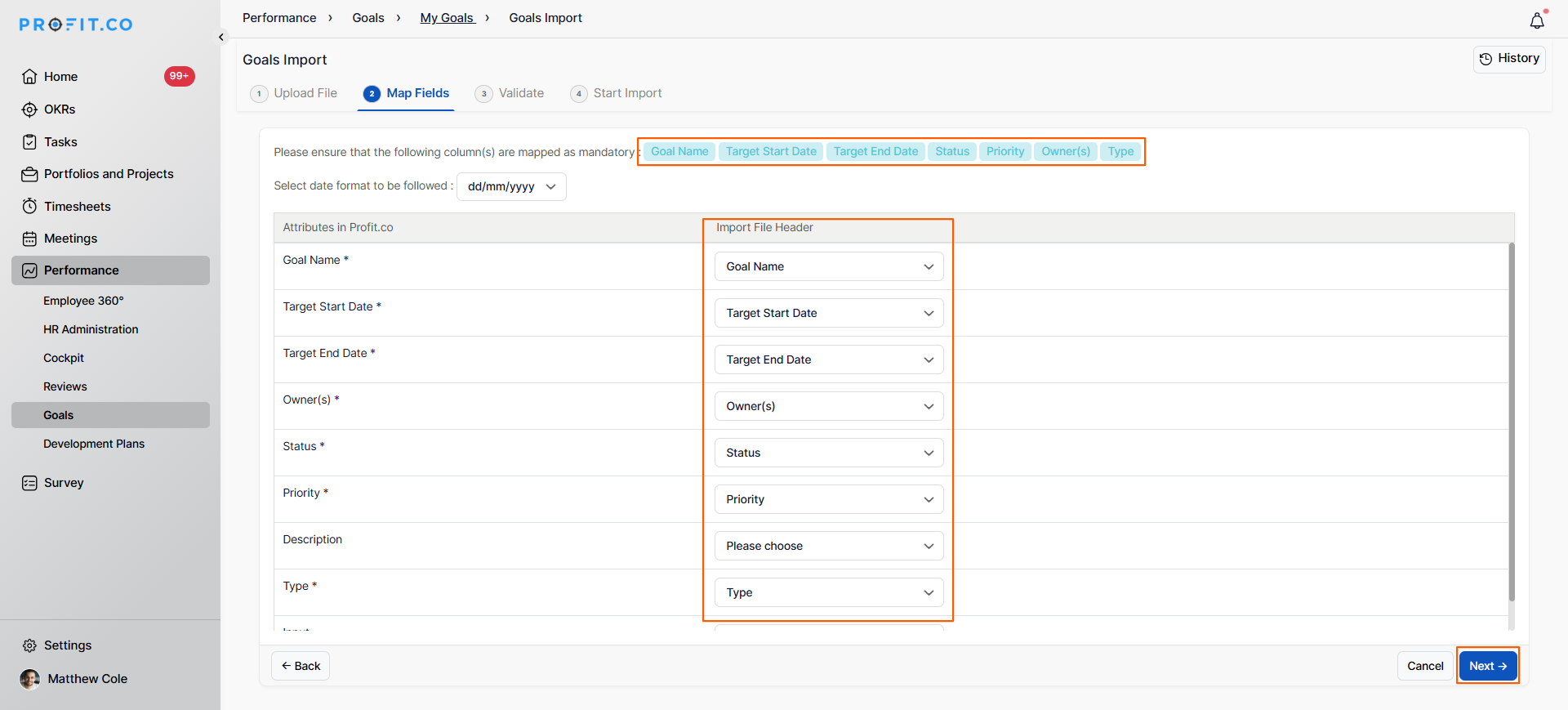
Field mapping automatically matches the columns in your CSV file to the corresponding fields in Profit.co.
Step to Complete Field Mapping:
- Review the automatic field mapping.
- Click Next to proceed to validation.
Step 3
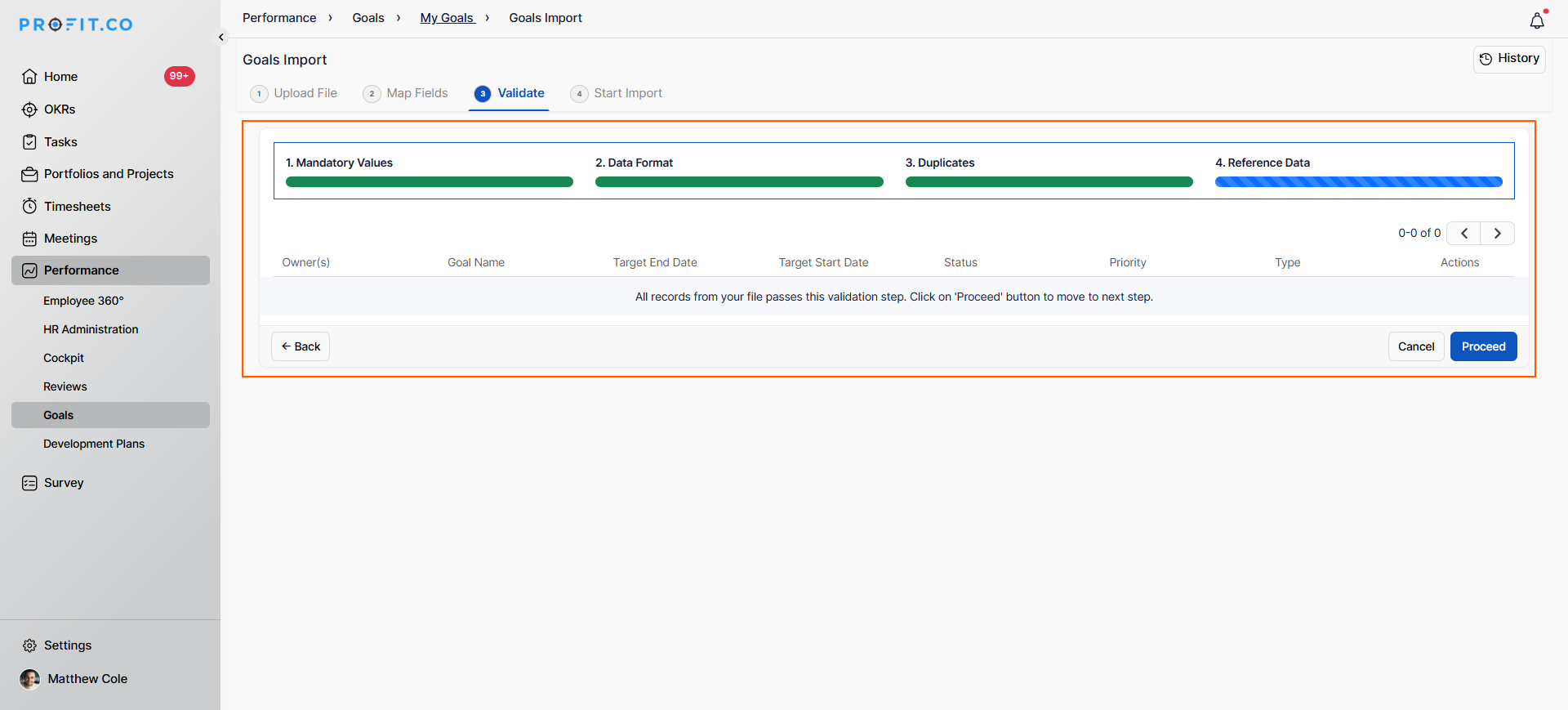
Profit.co validates your imported data across four categories to ensure data quality:
| Validation Type | What is Checked |
|---|---|
| Mandatory Values | Ensures all required fields have values |
| Data Format | Verifies dates, numbers, and text are in correct format |
| Duplicates | Checks for duplicate goal entries |
| Reference Data | Validates that referenced users, teams, or categories exist in the system |
The system will display validation results for each category. All validations must pass before you can proceed.
Step 4
- All these fields must contain valid data in your CSV file for the import to succeed.
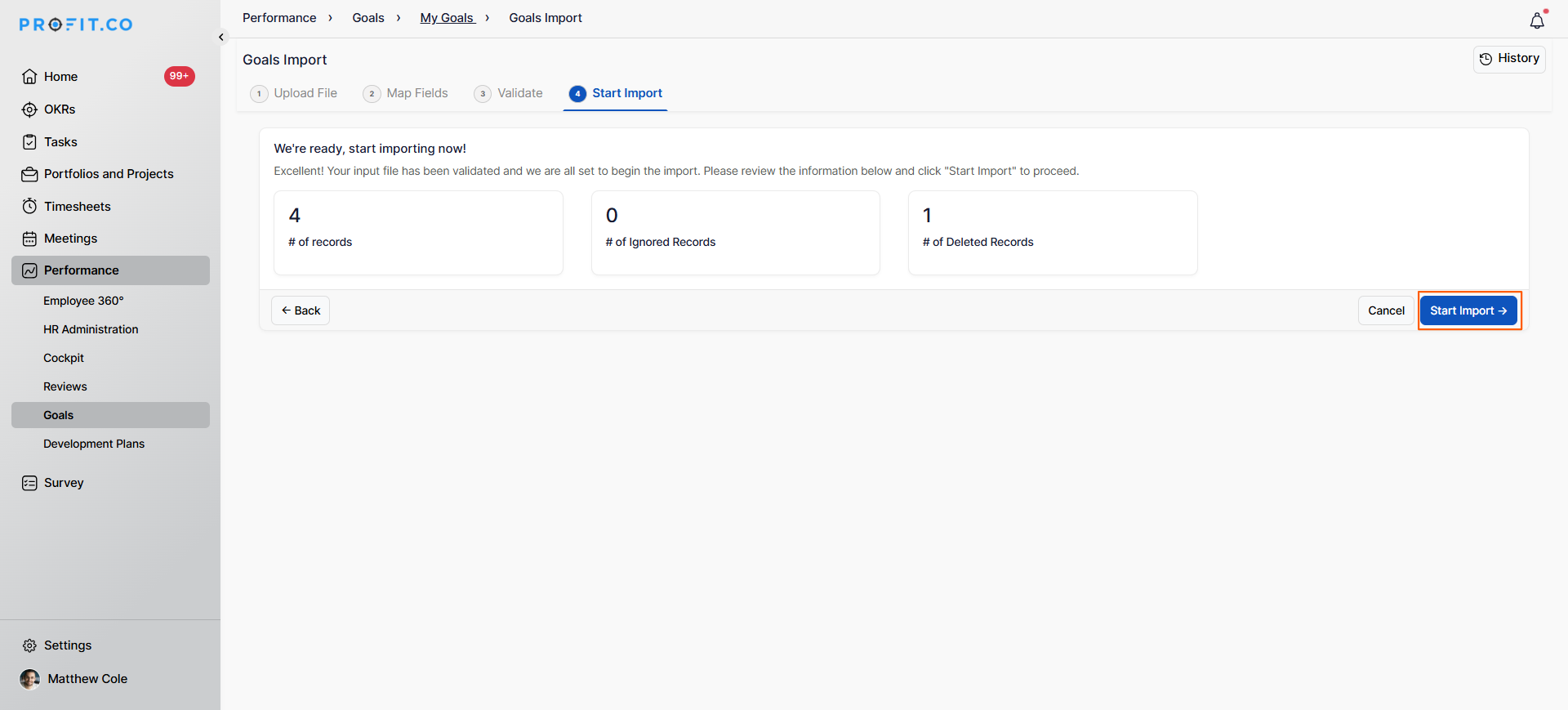
- The Start Import section shows the summary of your records. Once everything is good to go, you can click on the Start Import button.
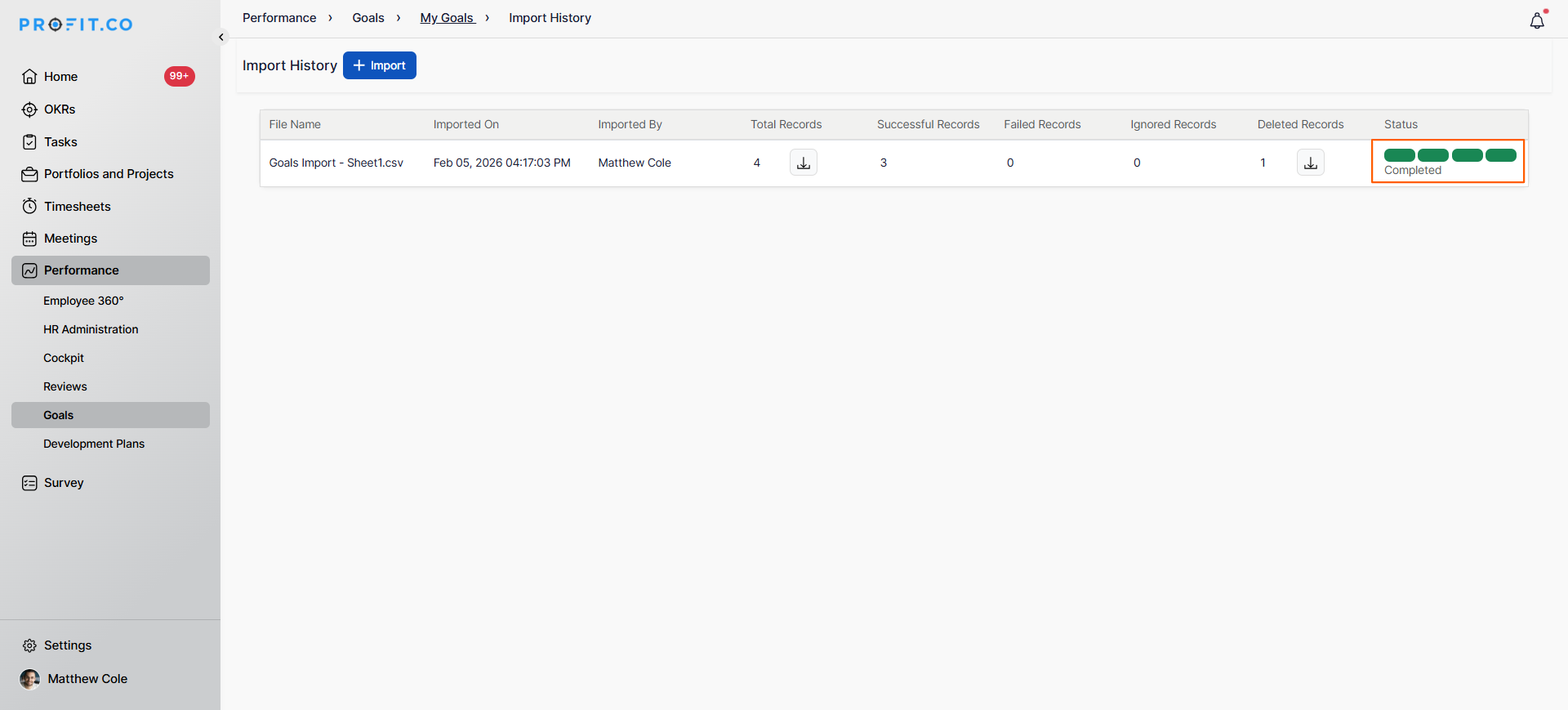
Your data will be successfully imported.
Best practices for importing goals in Profit.co
- Always download and review the sample CSV file before creating your own import file to ensure correct formatting.
- Prepare your CSV file in a spreadsheet application like Excel or Google Sheets, then export to CSV format.
- Use the exact column headers provided in the sample CSV file to ensure automatic field mapping works correctly.
- Validate your data in the spreadsheet before uploading to catch errors early (check for empty cells in mandatory fields).
- Import goals during off-peak hours if you're uploading a large number of records to avoid system slowdowns.
- Review the imported goals immediately after import to ensure all data appears correctly in the system.
Related Questions
To learn more about how to create and manage goals in Profit.co Click here
Frequently Asked Questions
No, only CSV (.csv) format is supported for goals import. If your data is in Excel format, save it as a CSV file before uploading..
While there's typically no strict limit, it's recommended to test with smaller batches first and contact your administrator if you need to import hundreds or thousands of goals.
Check the sample CSV file for the exact format. Common formats are MM/DD/YYYY or DD/MM/YYYY. Consistency is key—use the same format throughout your file.
Related Questions
-
What is Review Summary Information and How the Scores are calculated in Performance Reviews?
Table of Contents Why this feature? How to Enable Review Summary Information Understanding Score Calculations in ...Read more
-
How does the Saved View feature works in Profit.co’s PMS module?
The Saved View feature in Performance Goals allows you to quickly access frequently used, custom-filtered views without ...Read more
-
How to Customize the Email Template for Review Reminder in Profit.co?
In Profit.co, you can personalize the review reminder email notification sent to employees during a performance review ...Read more
-
What are Competency Activities?
In Profit.co, users can now create activities under competencies to document the actions they are taking to demonstrate ...Read more