



What are Competency Activities?
Category: Performance
In Profit.co, users can now create activities under competencies to document the actions they are taking to demonstrate or develop each competency. These activities appear during performance reviews alongside competencies, and the competency list shown to each user is filtered based on their assigned role.
Table of Contents
- What are Competency Activities?
- Configuring Competencies for a Job Title
- How to Enable Competencies in Profit.co
- How Competency Activities Work
- How Role-Based Competency Visibility Works
- How Competencies and Activities Appear in Reviews
- Best Practices for Competency Activities
- Related Questions
- Frequently Asked Questions
What are Competency Activities?
Competency Activities are user-created entries under a specific competency that describe the concrete actions a user is taking, or has taken, to achieve or demonstrate that competency. They function similarly to how tasks relate to goals: a competency defines what is being measured, while activities capture how the user is working toward it.
Multiple activities can be created under a single competency. These activities surface automatically during performance review assessments.
Configuring Competencies for a Job Title
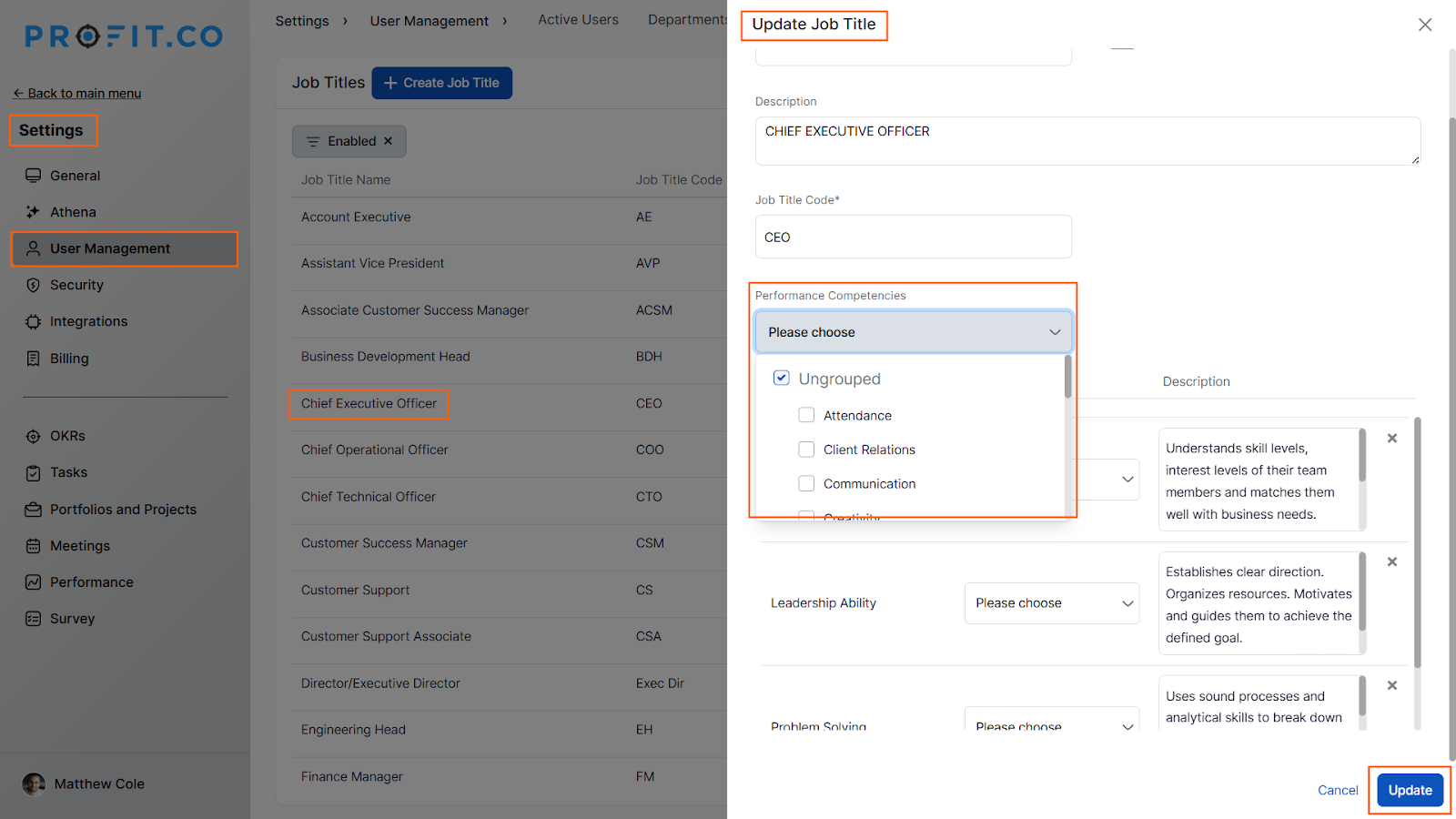
- Navigate to Settings → User Management and switch to the Job Titles tab.
- Click the Edit icon on the Job Title you want to configure.
- Under the Performance Competencies section, select the competencies relevant to that job title.
- Click Update to save. Users assigned this job title will now only see these competencies in their dropdown.
How to Enable Competencies in Profit.co
Competencies must be enabled before users can access the Competency list pages or create activities.
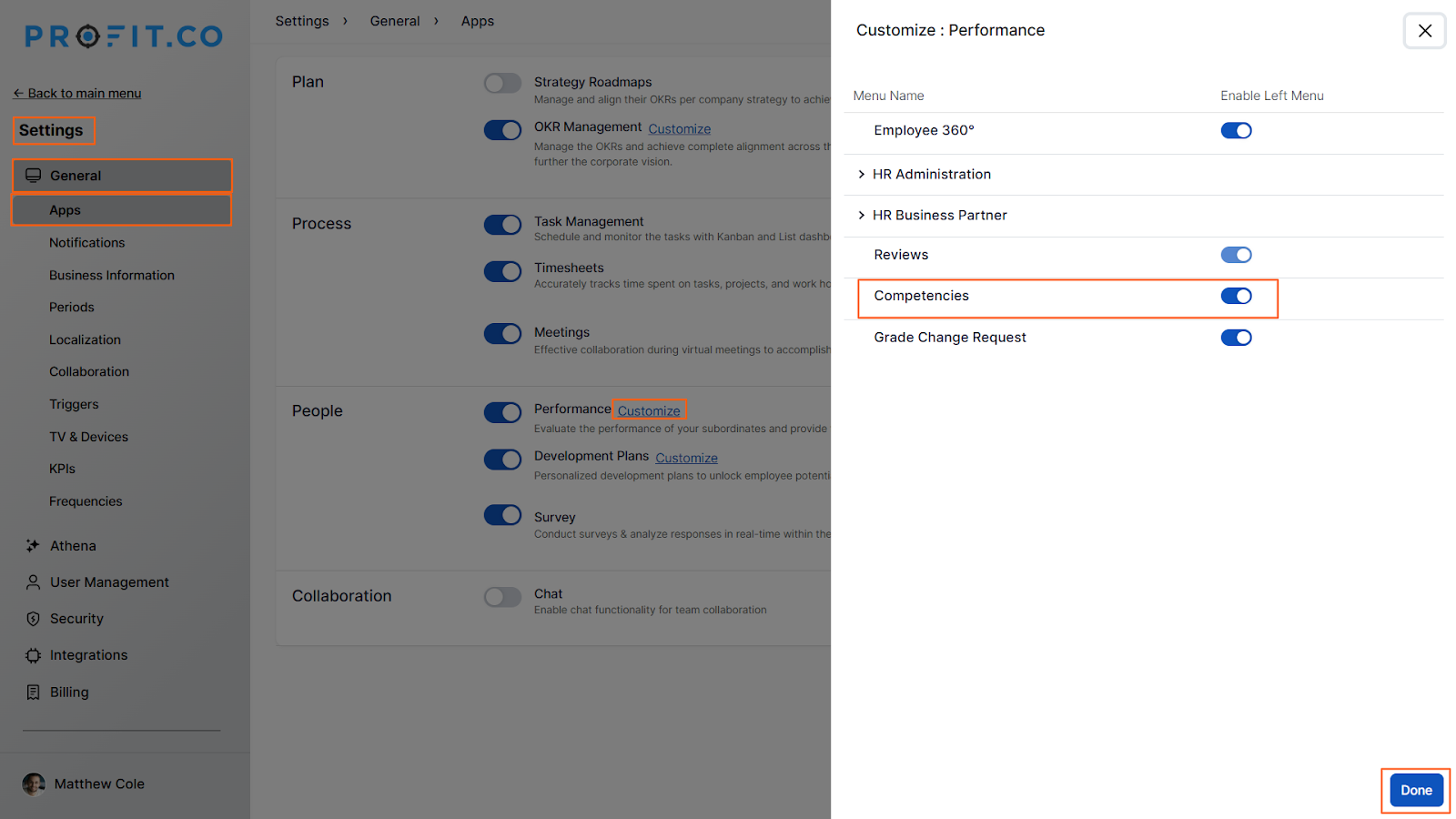
- Navigate to Settings → General → Apps from the left navigation panel.
- Click on the Performance Customize option.
- Enable the Competencies toggle, and click Done.
- The Competencies section will now appear in the left navigation panel.
How Competency Activities Work
Creating Activities Under a Competency
From the Competencies list page, users can open a competency and add one or more activities. Each activity describes a specific action taken to develop or demonstrate that competency.
- A single competency can have multiple activities logged under it.
- All activities associated with a competency carry over into the performance review automatically, no re-entry needed.
To create an activity, follow the steps below.
Step 1
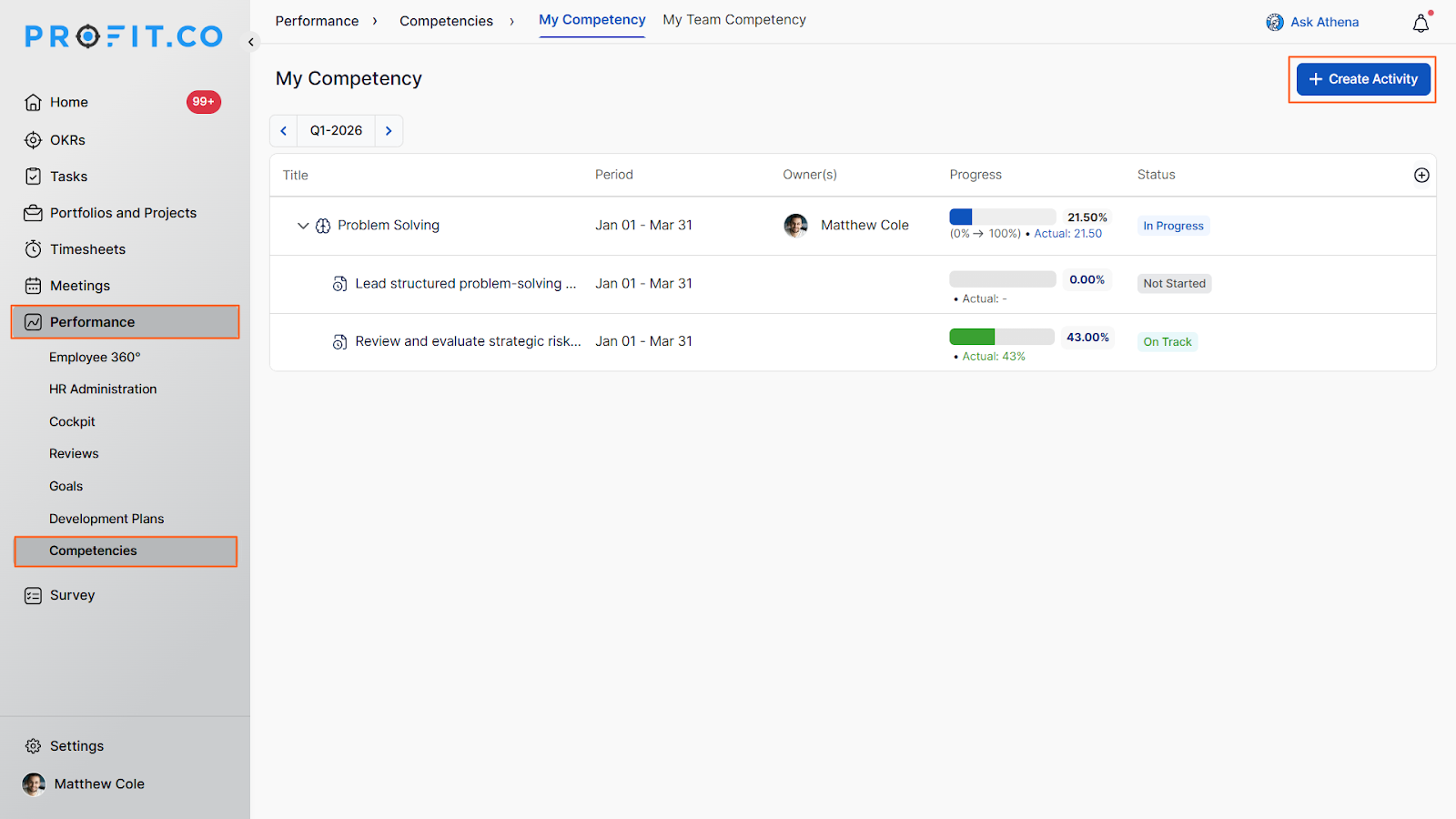
- Navigate to the Performance → Competencies from the left navigation panel.
- Click on the +Create Activity button.
Step 2
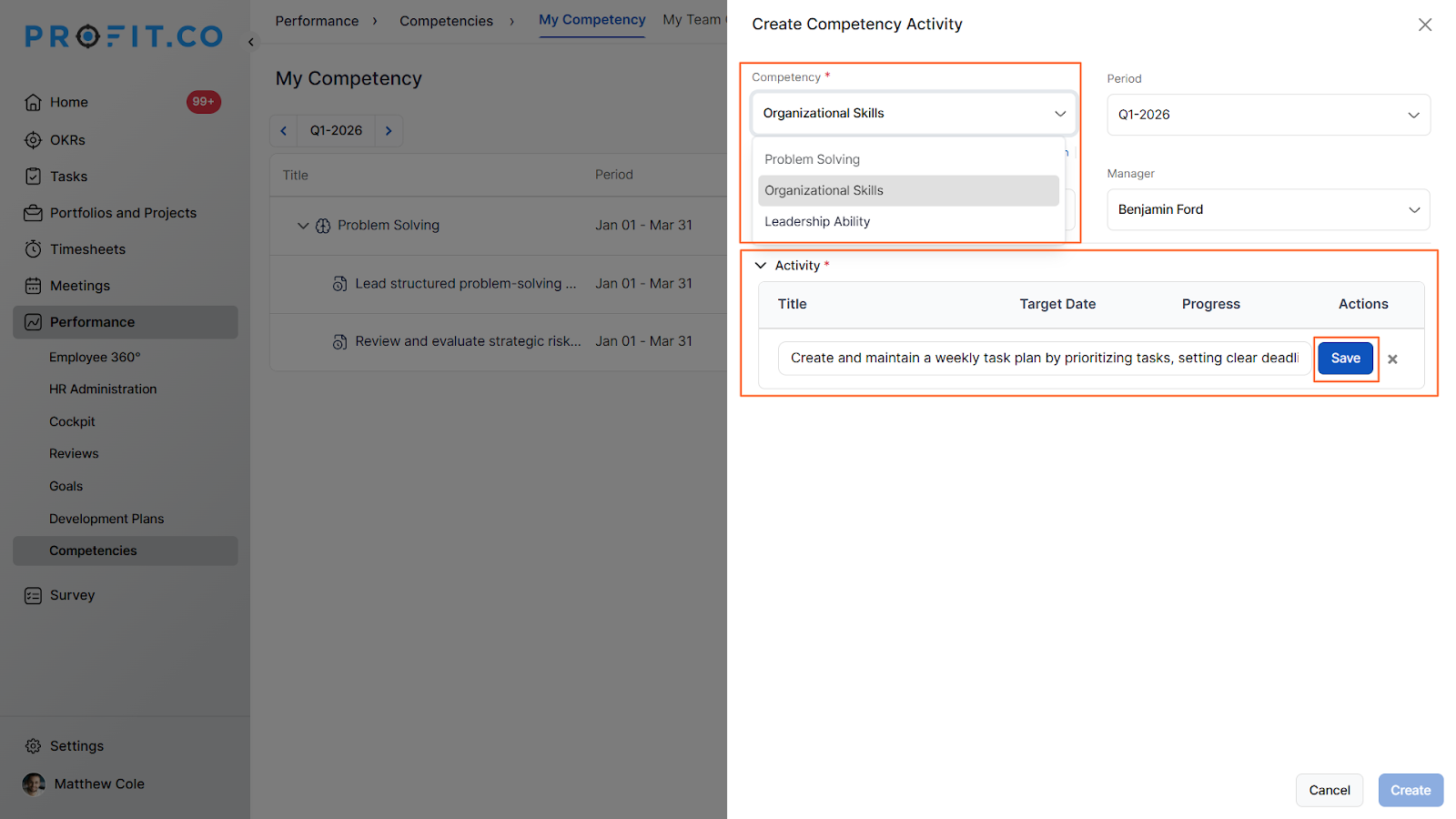
- On the Create Activity page, choose the required competency from the dropdown.
- Add the required Activity and click Save.
- Once Done, click Create.
Note: When an employee checks in, completes, or deletes a competency activity, the manager receives an in-app notification - and vice versa.
How Role-Based Competency Visibility Works
When a user creates an activity, the competency dropdown is filtered to show only the competencies associated with the user's assigned job title or role. This means the available competency list adapts per user; there is no manual filtering required.
| User Role | Competencies Shown in Dropdown |
|---|---|
| CEO | Competencies mapped to the CEO job title only |
| Engineering Manager | Competencies mapped to the Engineering Manager only |
| Sales Associate | Competencies mapped to Sales Associate only |
| Any role without mapped competencies | No competencies appear, mapping required in Settings |
Example: If a user is assigned the CEO role, the competency dropdown when creating an activity will only list competencies that have been explicitly mapped to the CEO job title in Settings → User Management → Job Titles.
How Competencies and Activities Appear in Reviews
When a performance review is initiated, competencies and their associated activities are displayed on the PMS review page alongside other review components such as OKRs and Goals. This gives reviewers a full picture of not just what competencies are being assessed, but the documented actions behind each one.
| Review Component | What is Displayed |
|---|---|
| Competencies | Role-relevant competencies assigned to the user |
| Competency Activities | All activities logged under each competency by the user |
| OKRs | Objectives and Key Results linked to the review period |
| Goals | Performance goals included in the review template |
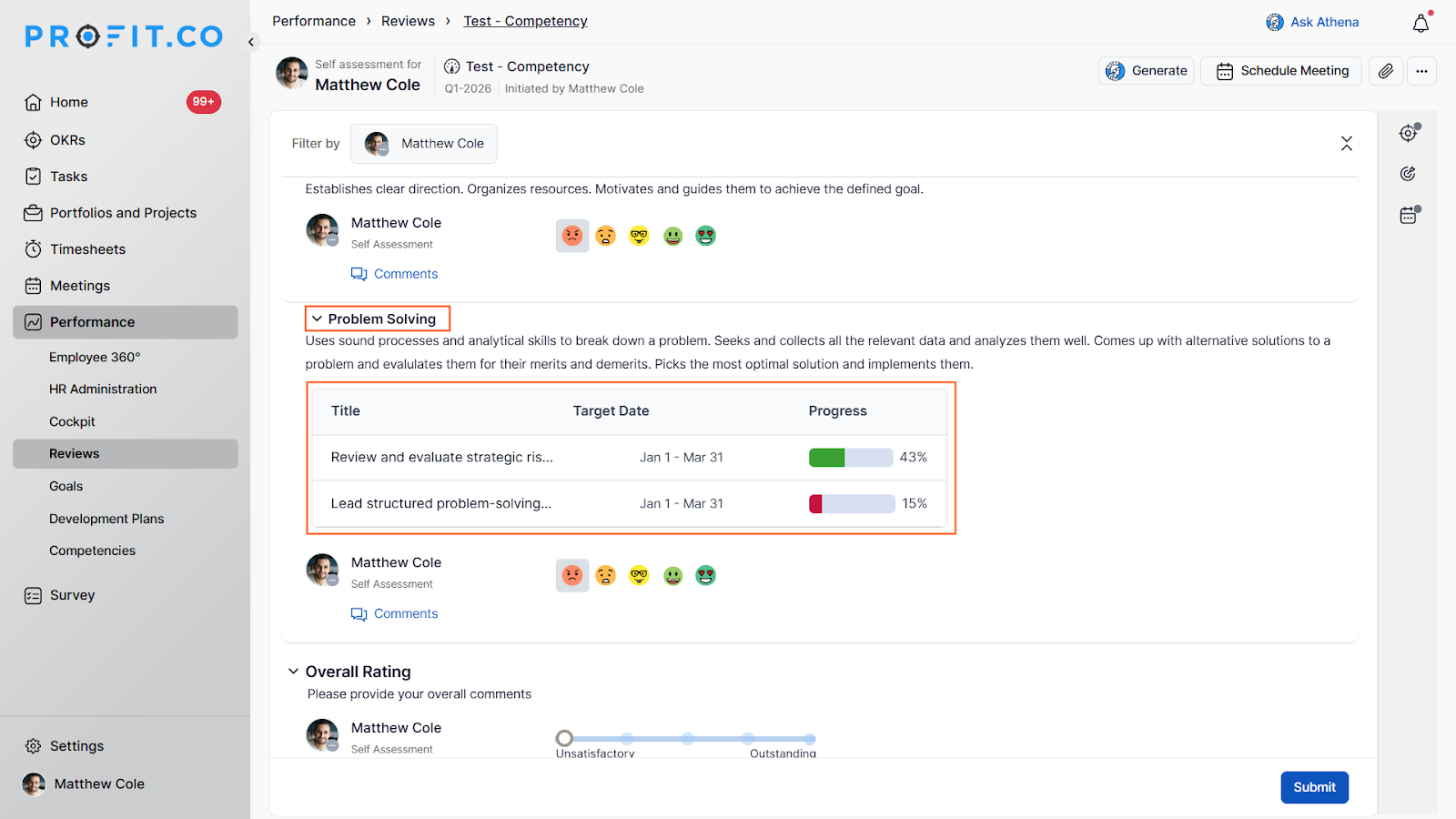
Note: Managers conducting an assessment can view the competency activities submitted by the employee before providing a rating, giving them direct context for the score they assign.
Best Practices for Competency Activities
- Map competencies to job titles in Settings → User Management → Job Titles before the review cycle begins; users with unmapped roles will see an empty competency dropdown when creating activities.
- Encourage employees to log activities continuously throughout the review period rather than retroactively at review time. This builds a richer evidence trail for assessors.
- Write activities as specific, observable actions rather than general statements. For example: "Led cross-functional alignment meeting for Q3 product launch" is more useful in a review context than "Worked on communication."
- Managers should review the My Team Competencies page ahead of assessment to familiarize themselves with the activities logged before rating — the review page surfaces the same data but reviewing early avoids rushed assessments.
- If a competency applies across multiple roles, confirm it is mapped to each relevant job title individually in Settings — a competency mapped to one role does not automatically apply to others.
Related Questions
Click here to learn more about how to add competencies at the job title level
Click here to learn more about how to add competencies in Profit.co
Click here to learn more about how to fill out a Manager assessment form
Frequently Asked Questions
No. The competency dropdown when creating an activity is strictly filtered to the competencies mapped to the user's assigned job title. Competencies not mapped to their role will not appear, regardless of how many exist in the system.
Activities are created by the user from their own My Competencies page. Managers can view activities on the My Team Competencies page and during reviews, but activity creation is the responsibility of the individual user.
Multiple activities can be created under each competency with no stated limit. Users should focus on logging activities that are specific and relevant to the current review period to keep the review context clear for assessors.
Related Questions
-
What is Review Summary Information and How the Scores are calculated in Performance Reviews?
Table of Contents Why this feature? How to Enable Review Summary Information Understanding Score Calculations in ...Read more
-
How does the Saved View feature works in Profit.co’s PMS module?
The Saved View feature in Performance Goals allows you to quickly access frequently used, custom-filtered views without ...Read more
-
How do I Import Goals in Profit.co?
In Profit.co, you can import multiple goals at once using a CSV file, allowing you to quickly set up goals for ...Read more
-
How to Customize the Email Template for Review Reminder in Profit.co?
In Profit.co, you can personalize the review reminder email notification sent to employees during a performance review ...Read more