

In Profit.co, you can enable auto time capture for projects by turning on the Timesheets module and logging time directly on project tasks. Once you log time on a task, it automatically appears in your timesheet, eliminating the need for manual timesheet entry.
Table of Contents
What is Auto Time Capture in Profit.co?
Auto Time Capture is a feature that automatically transfers time logs from project tasks to your timesheet. When you log time on a task in the Projects module, that time entry automatically appears in the Timesheets module without manual re-entry, ensuring accurate time tracking and reducing duplicate data entry.
How do I enable the Timesheets module?
Why This Matters: Before you can use auto time capture, you must enable the Timesheets module in your Profit.co instance.
Note: Only Super Users can enable this module in Settings.
- Click Settings from the left navigation panel.
- Select General from the Settings menu.
- Click Apps.
- On the Apps page, locate the Timesheets toggle.
- Enable the Timesheets toggle by clicking it.
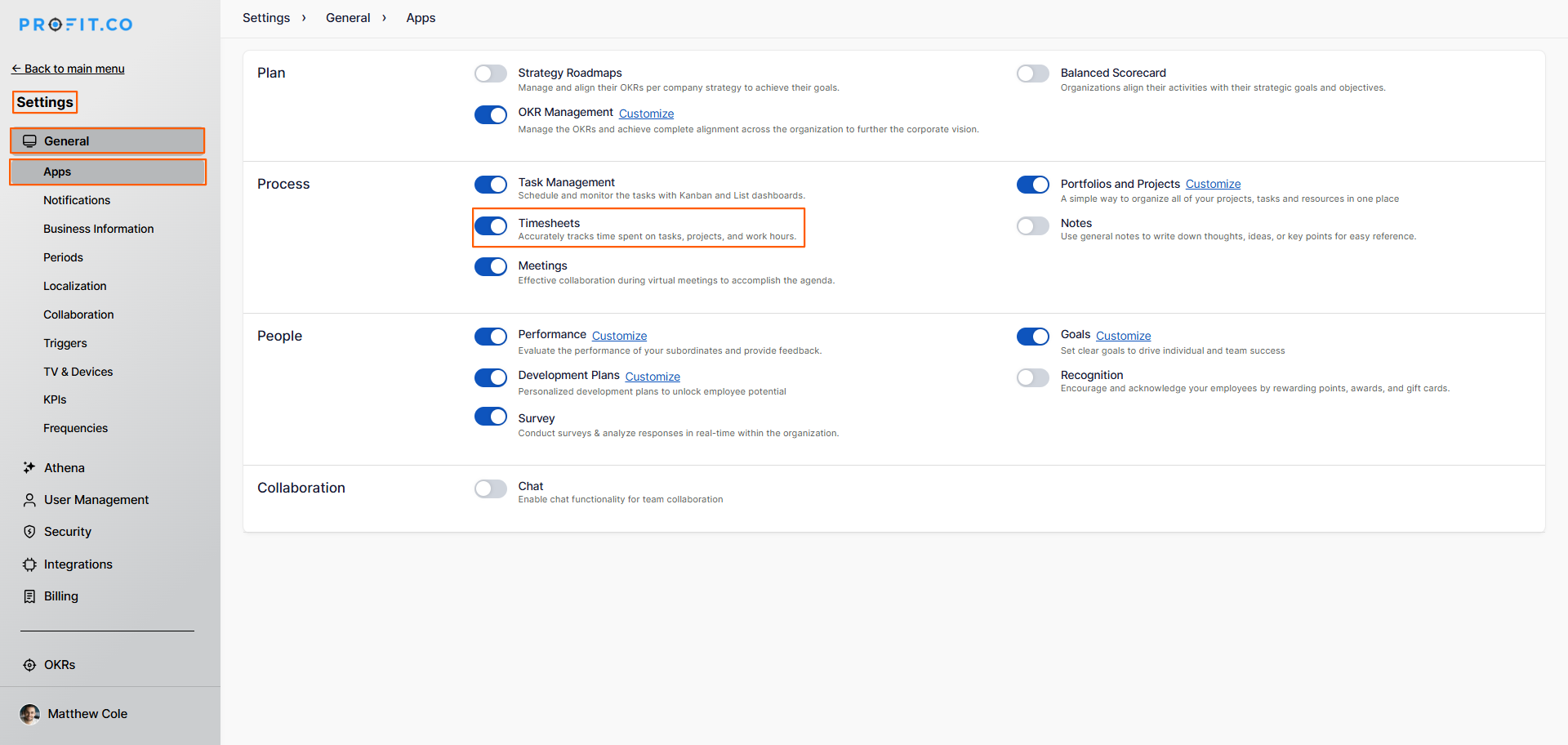
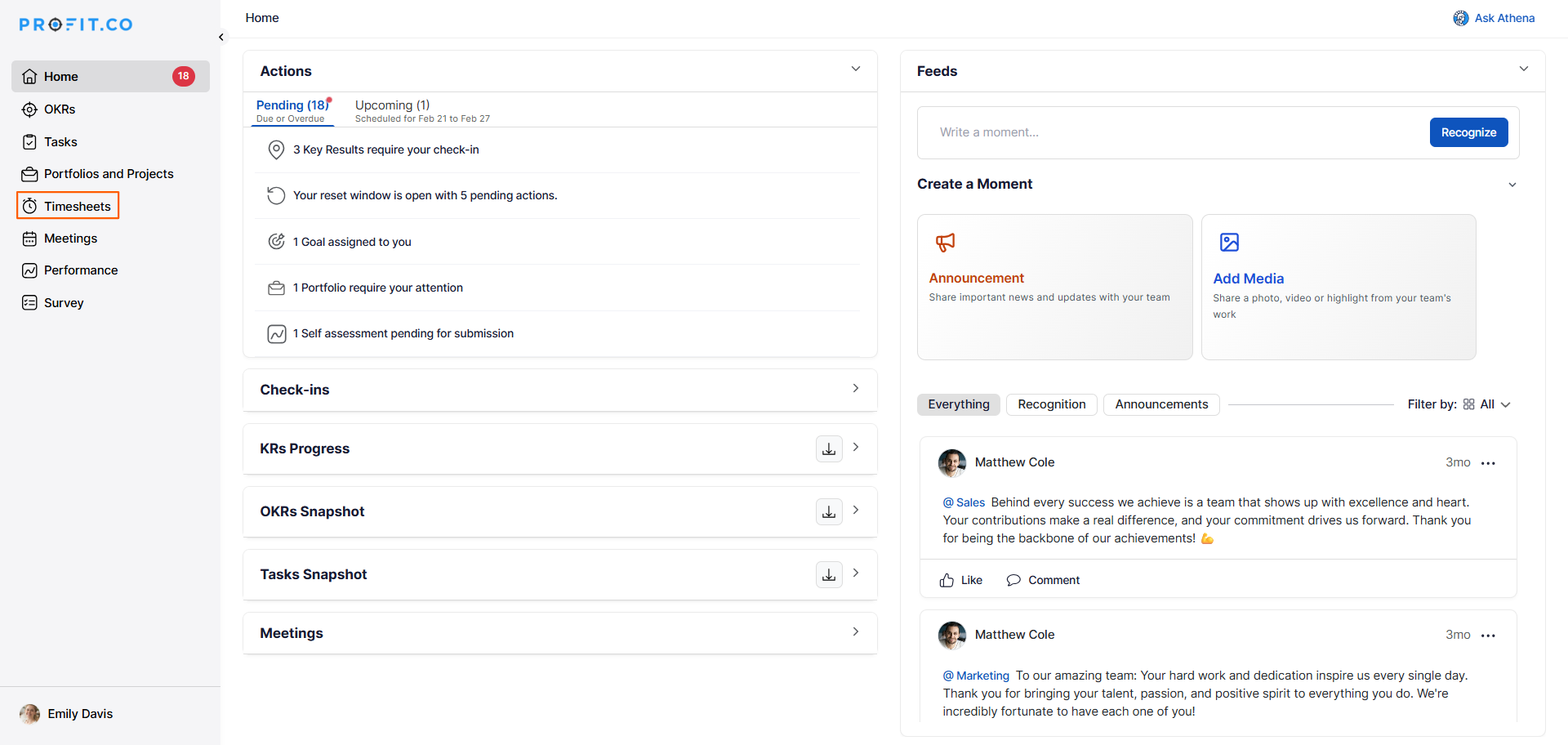
- Once you enable the toggle, Timesheets will appear in the left panel.
- The Timesheets module is now active and ready to use.
How to Access or Create Tasks?
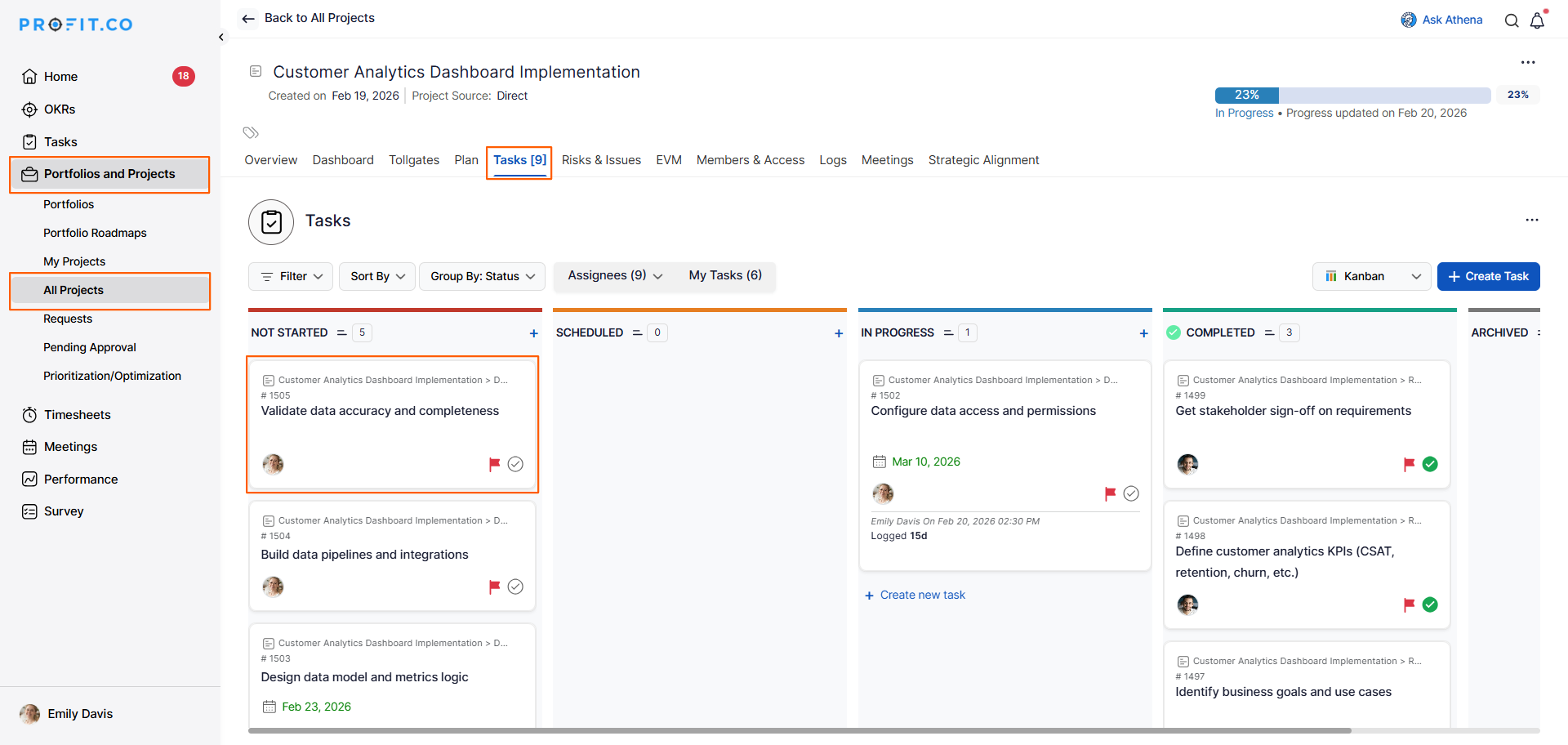
- Navigate to the Portfolios and Projects module.
- Choose the project and switch to the task tab.
- Click on an existing task or create a new task by clicking the "Create Task" button.
- For example, choose an existing task.
- On the task page, locate the time logging section.
- Enter the time log for this week.
- Once done, click the Save button.
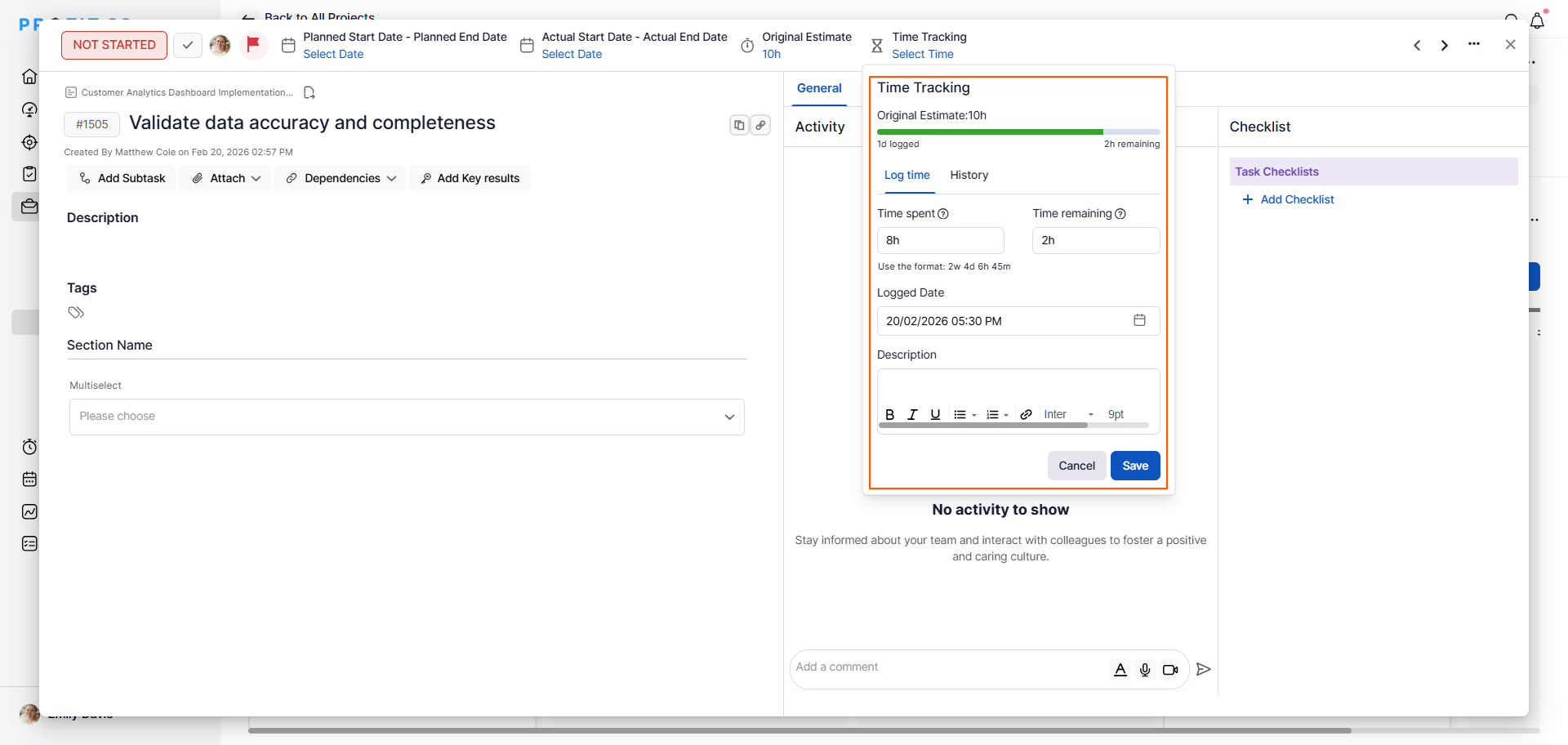
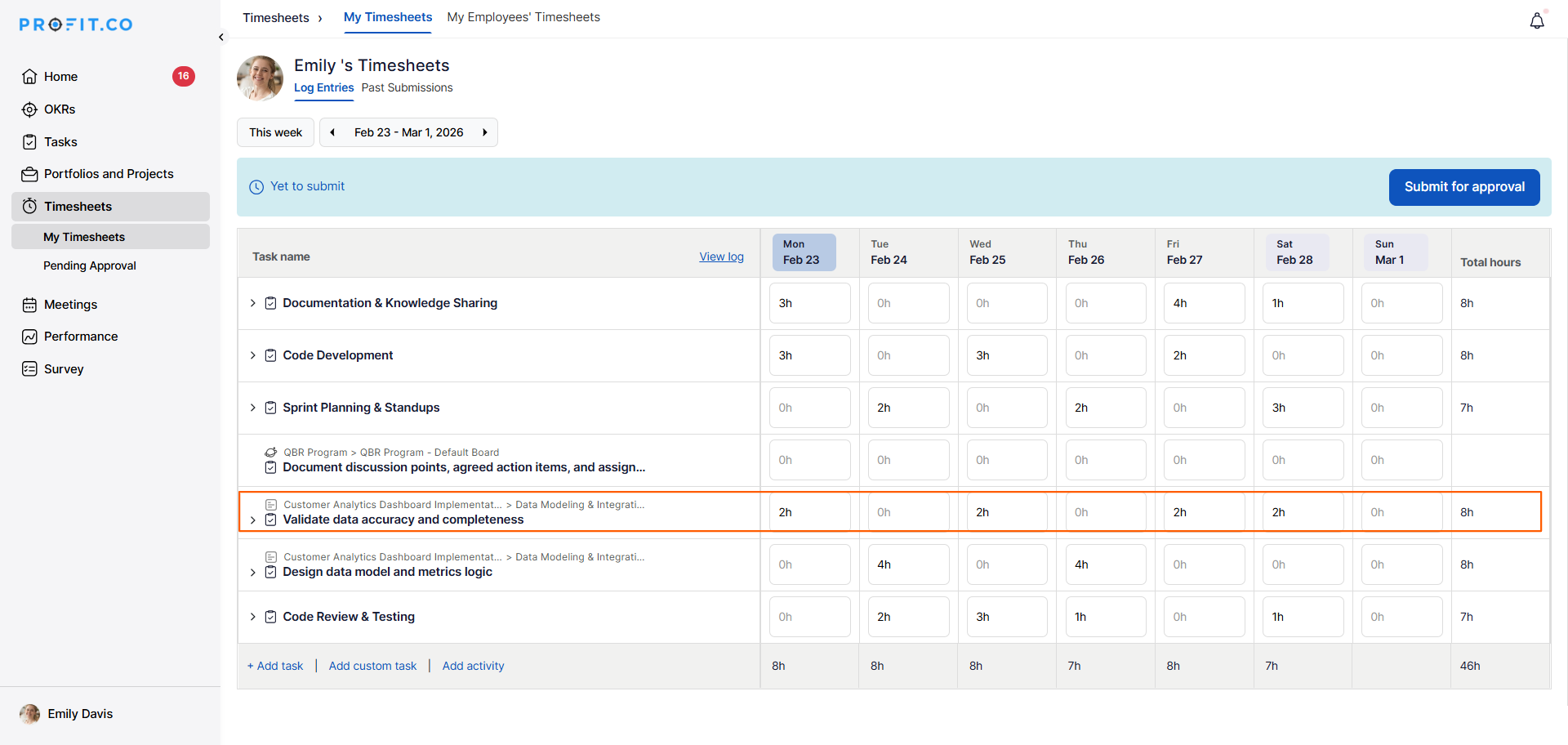
Note: Once you log the time under the task, the logged time will automatically be reported in the timesheet.
- No additional action is required.
- The time entry appears in your Timesheets module immediately.
Best practices for auto time capture
- Enable Timesheets module at the beginning of a project or fiscal period to ensure all time is captured from the start.
- Train team members to log time directly on tasks as they complete work, rather than waiting until end of week.
- Log time on the same day you perform the work for maximum accuracy and better recall of what you did.
- Add detailed notes when logging time to provide context for what was accomplished during those hours.
Related Questions
How do I create tasks in projects in Profit.co?
How do I view and manage timesheets in Profit.co?
Frequently Asked Questions
No, that's the benefit of auto time capture. Once you log time on a task in the Projects module, it automatically appears in your timesheet without manual addition.
Navigate to the task and log time with the correct past date. The time entry will automatically appear in your timesheet for that period.
Yes, you can typically edit time entries in your timesheet. Changes may sync back to the task or exist only in the timesheet, depending on your system configuration.