



How do I track ROI metrics across the portfolio in Profit.co?
Category: PPM
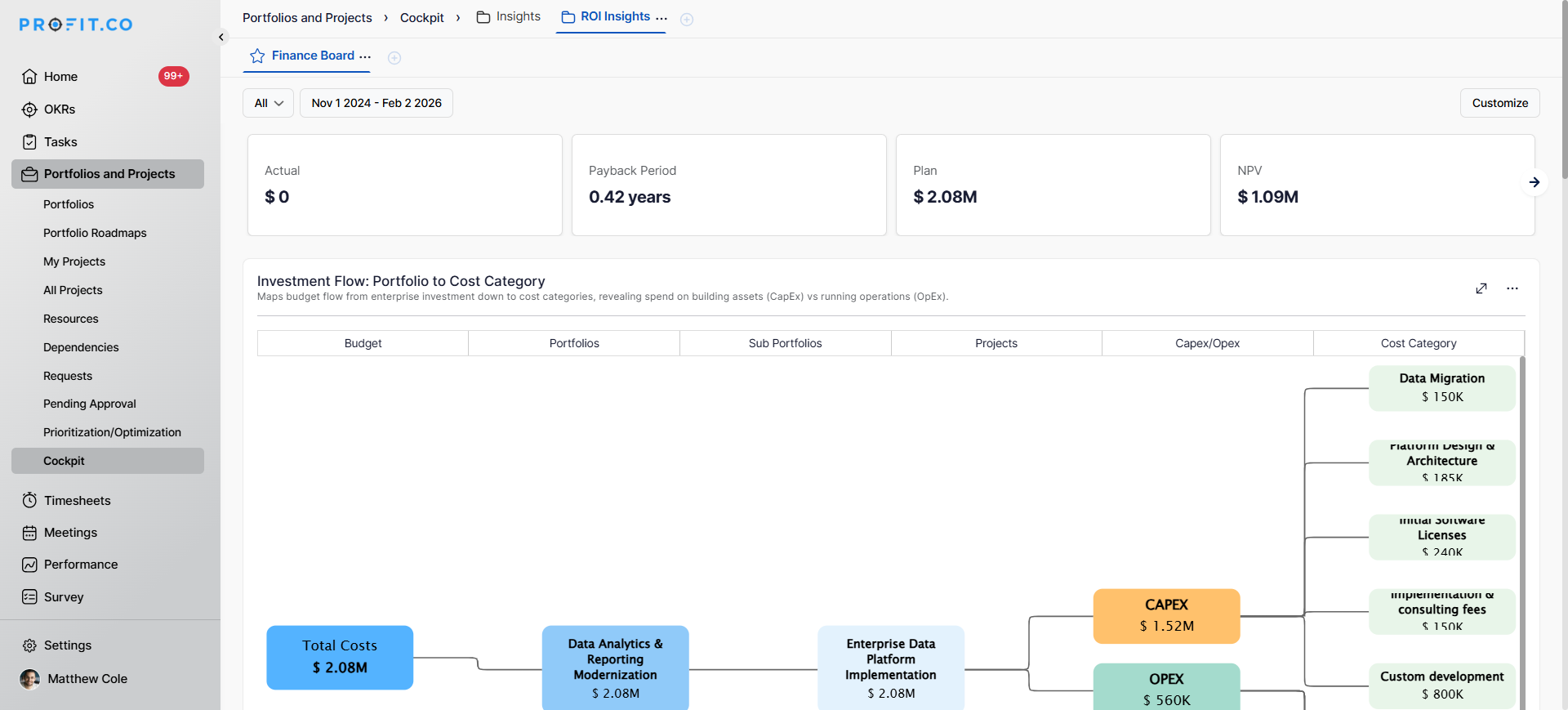
In Profit.co, you can track comprehensive ROI (Return on Investment) metrics across your entire portfolio using the PPM Cockpit, which provides visual widgets and summary cards to monitor financial performance, strategic alignment, and benefit realization in a single view.
Table of Contents
- What is ROI tracking in Profit.co?
- How do I access the PPM Cockpit?
- What ROI summary cards are available?
- What ROI widgets are available in the Cockpit?
- How do I create a folder and a subfolder in the Cockpit?
- How do I customize the Cockpit with ROI widgets?
- How do I add summary cards to the Cockpit?
- Best practices for tracking ROI metrics in Profit.co
- Related Questions
- Frequently Asked Questions
What is ROI tracking in Profit.co?h2>
ROI tracking in Profit.co allows you to monitor the return on investment across your entire portfolio using the PPM (Project Portfolio Management) Cockpit. This feature provides comprehensive financial metrics, strategic alignment analysis, and performance visualization through customizable widgets and summary cards.
How do I access the PPM Cockpit?
Follow these steps to navigate to the PPM Cockpit:
Step 1
Click on Portfolios and Projects from the left navigation panel.
Select Cockpit from the Portfolios and Projects menu.
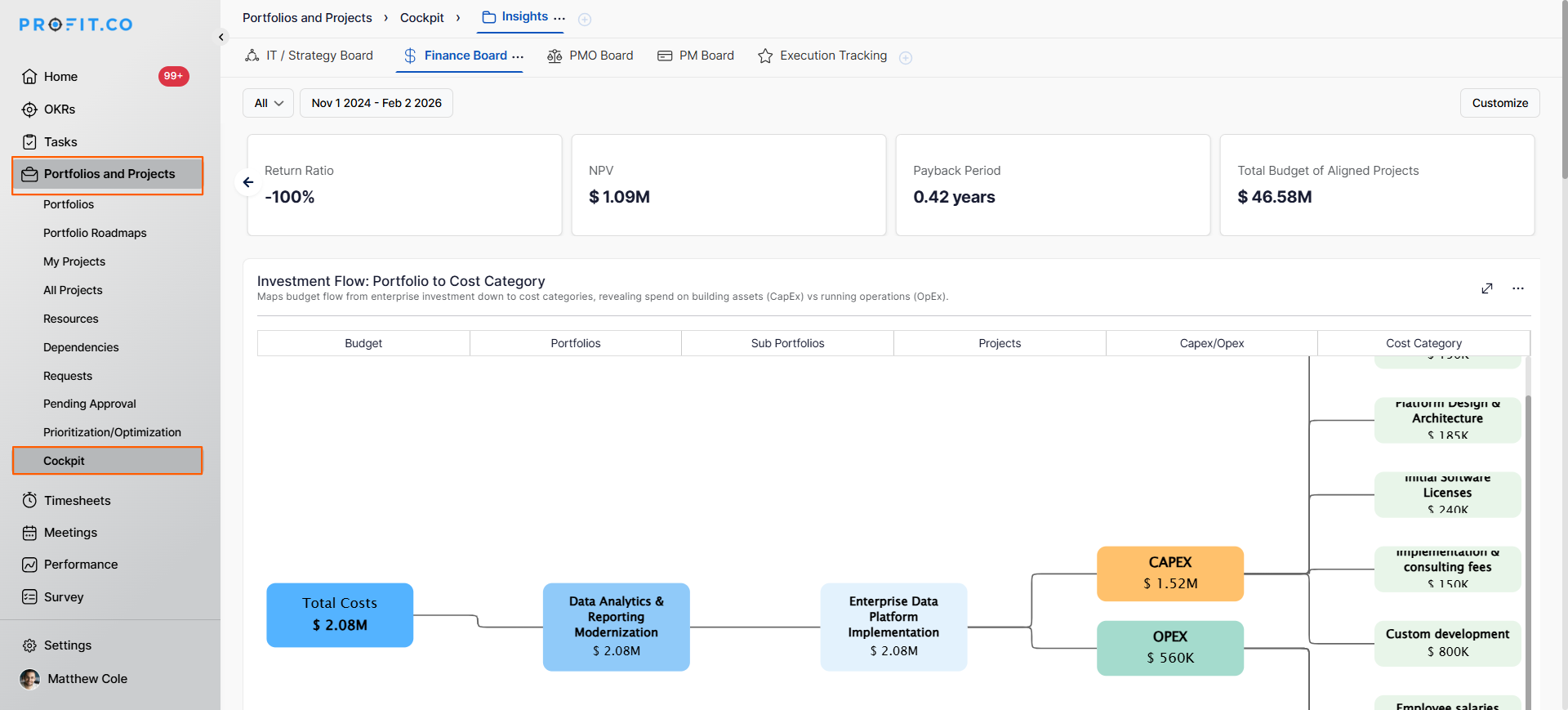
You will now see the Cockpit page, where you can create folders and customize your ROI metrics view.
What ROI summary cards are available?
The PPM Cockpit provides essential ROI summary cards displaying key financial metrics:
| Summary Card | Metric Displayed | Purpose |
|---|---|---|
| Return Ratio | Percentage return on investment | Shows overall portfolio profitability |
| Plan | Planned financial targets | Displays budgeted financial goals |
| Actual | Actual financial performance | Shows realized financial results |
| IRR (Internal Rate of Return) | Percentage rate of return | Indicates investment efficiency |
| NPV (Net Present Value) | Present value of future cash flows | Measures investment value |
| Payback Period | Time to recover investment (in years) | Time to recover investment (in years) |
| Total Budget of Aligned Projects | Total budget across portfolio | Displays aggregate project funding |
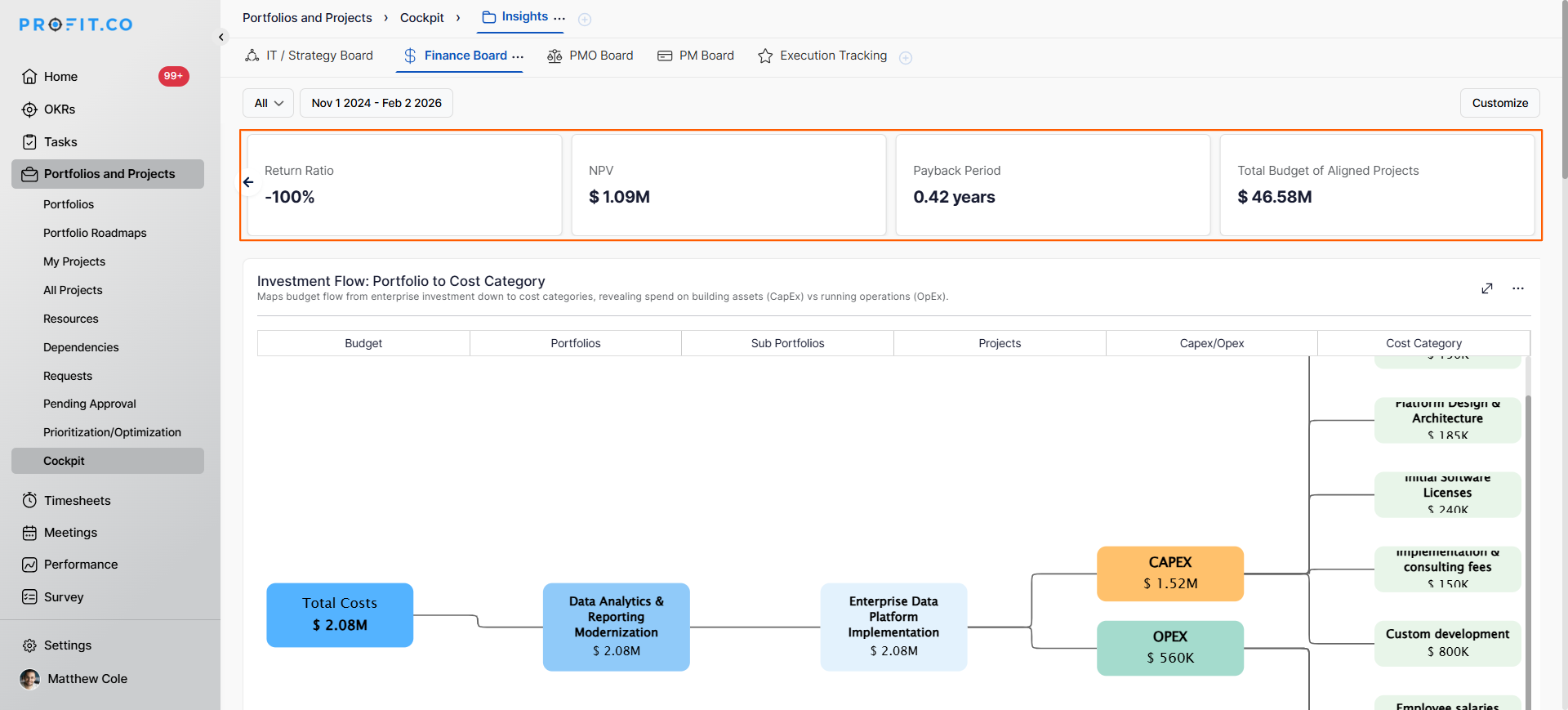
What ROI widgets are available in the Cockpit?
The PPM Cockpit offers multiple visualization widgets for comprehensive ROI analysis:
| Widget | Purpose |
|---|---|
| Investment Flow: Portfolio to Cost Category | Shows budget distribution by strategic alignment status |
| Budget Distribution by Strategic Alignment | Displays budget allocation across strategically aligned initiatives |
| IRR Distribution by Performance | Visualizes the internal rate of return across performance categories |
| CapEx, OpEx, and Amortization Trend | Tracks capital expenditure, operating expenses, and amortization over time |
| Budget Utilization Trend | Monitors planned vs. forecast vs. actual budget consumption |
| Budget Variance Analysis | Compares planned, forecast, and actual spending to identify variances |
| Benefits Realization Timeline | Shows when benefits are expected vs. actually realized |
How do I create a folder and a subfolder in the Cockpit?
Organize your ROI metrics by creating folders in the Cockpit:
- On the Cockpit page, click the + icon to create a new folder.
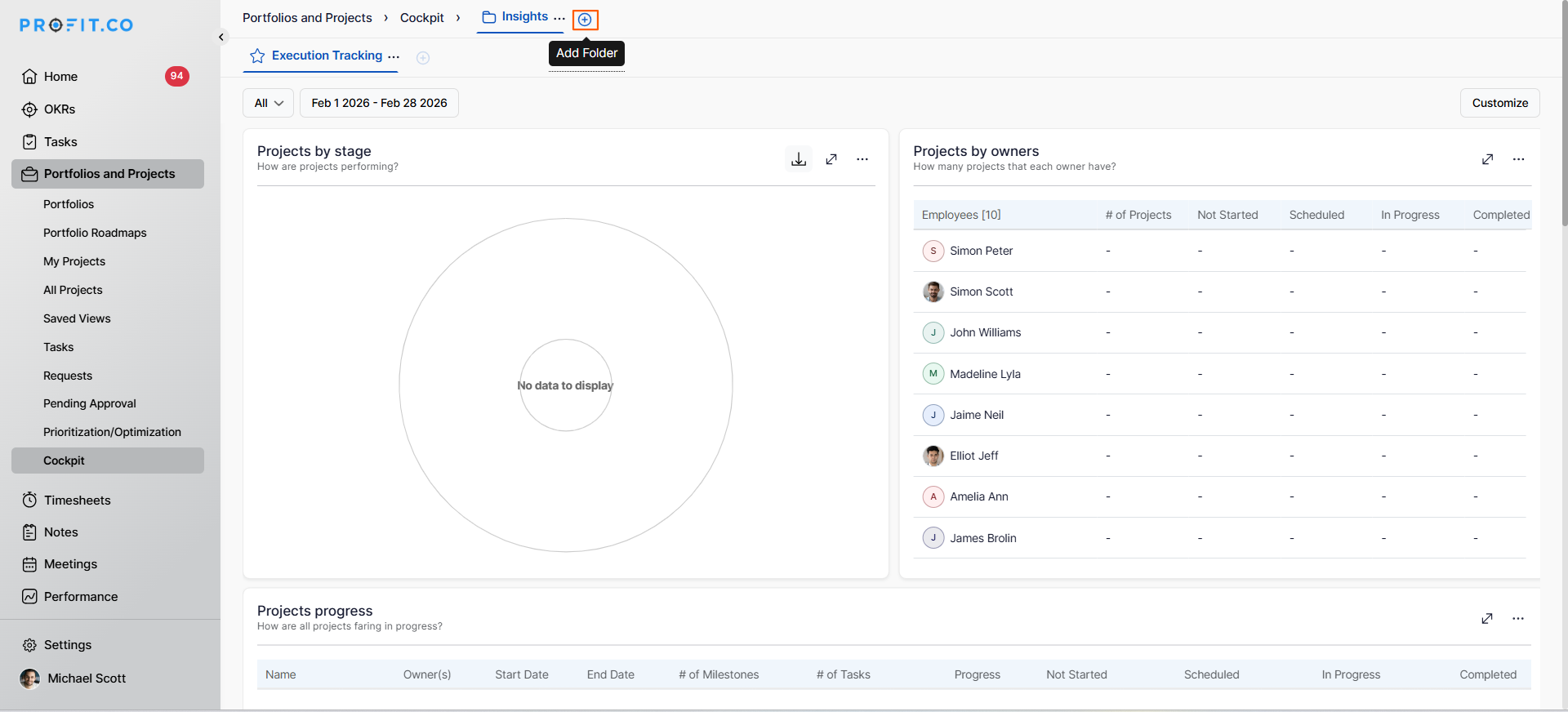
- In the pop-up window, enter the folder name (e.g., "Executive Dashboard").
- Set the visibility (who can access this folder).
- Click Add to create the folder.
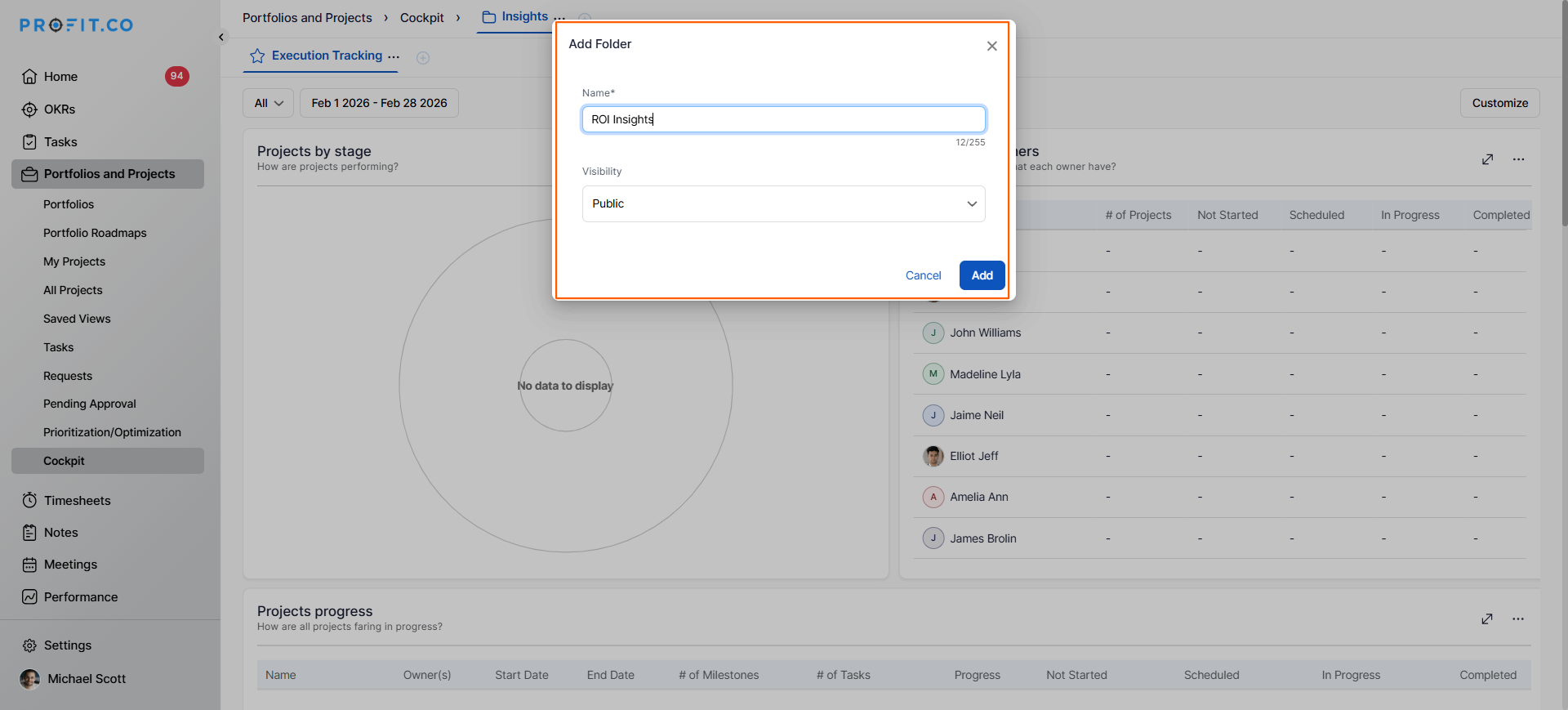
Your new folder will appear in the Cockpit navigation and is ready for subfolders and widgets.
Create subfolders within folders for detailed organization:
- Click on the folder where you want to add a subfolder.
- Click the + icon within the folder to add a subfolder.
- Enter the Subfolder Name (e.g., "Financial Metrics", "Strategic Alignment", "Benefits Tracking").
- Click Add to create the subfolder.
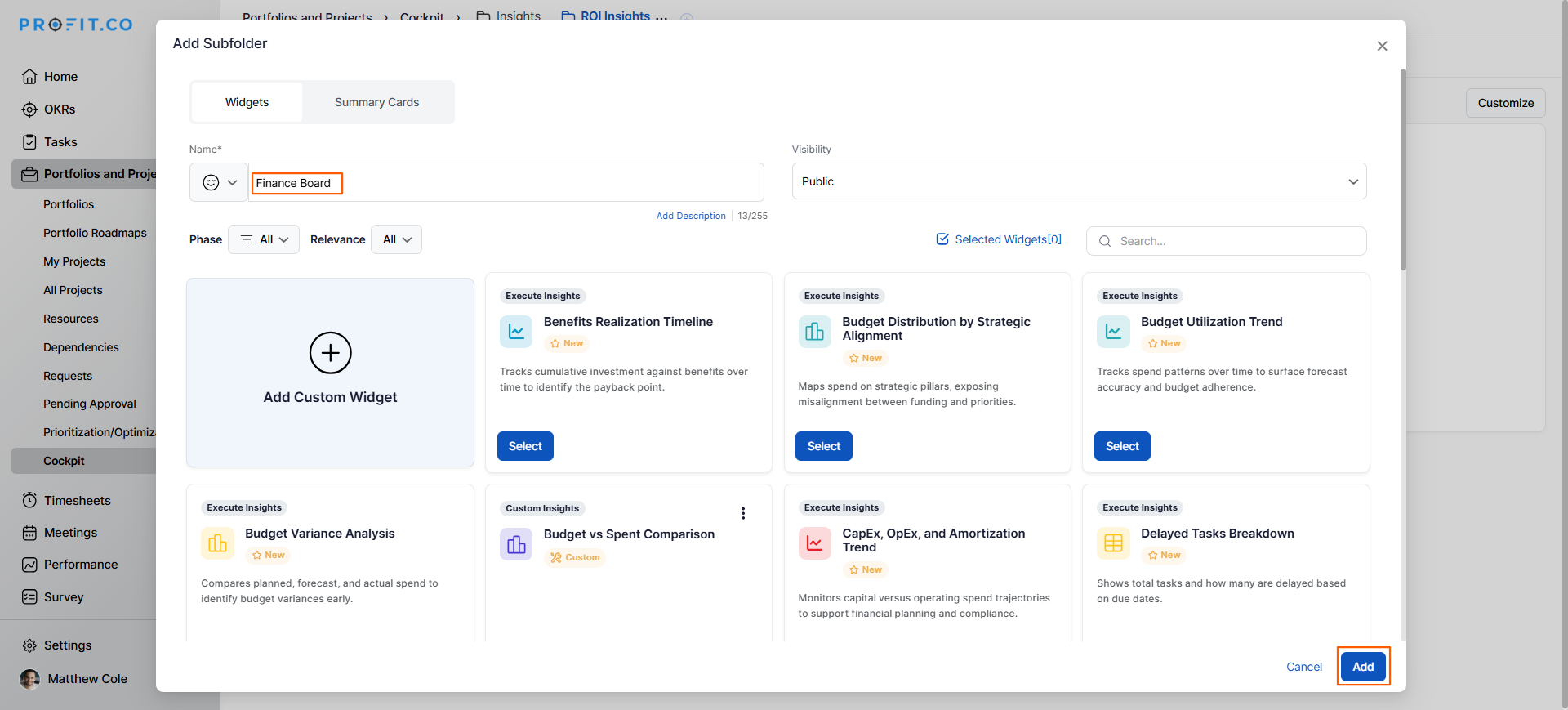
The subfolder will now appear nested under the parent folder.
How do I customize the Cockpit with ROI widgets?
Add widgets to your subfolder to visualize ROI metrics:
Step 1
- In your subfolder, click the Customize button.
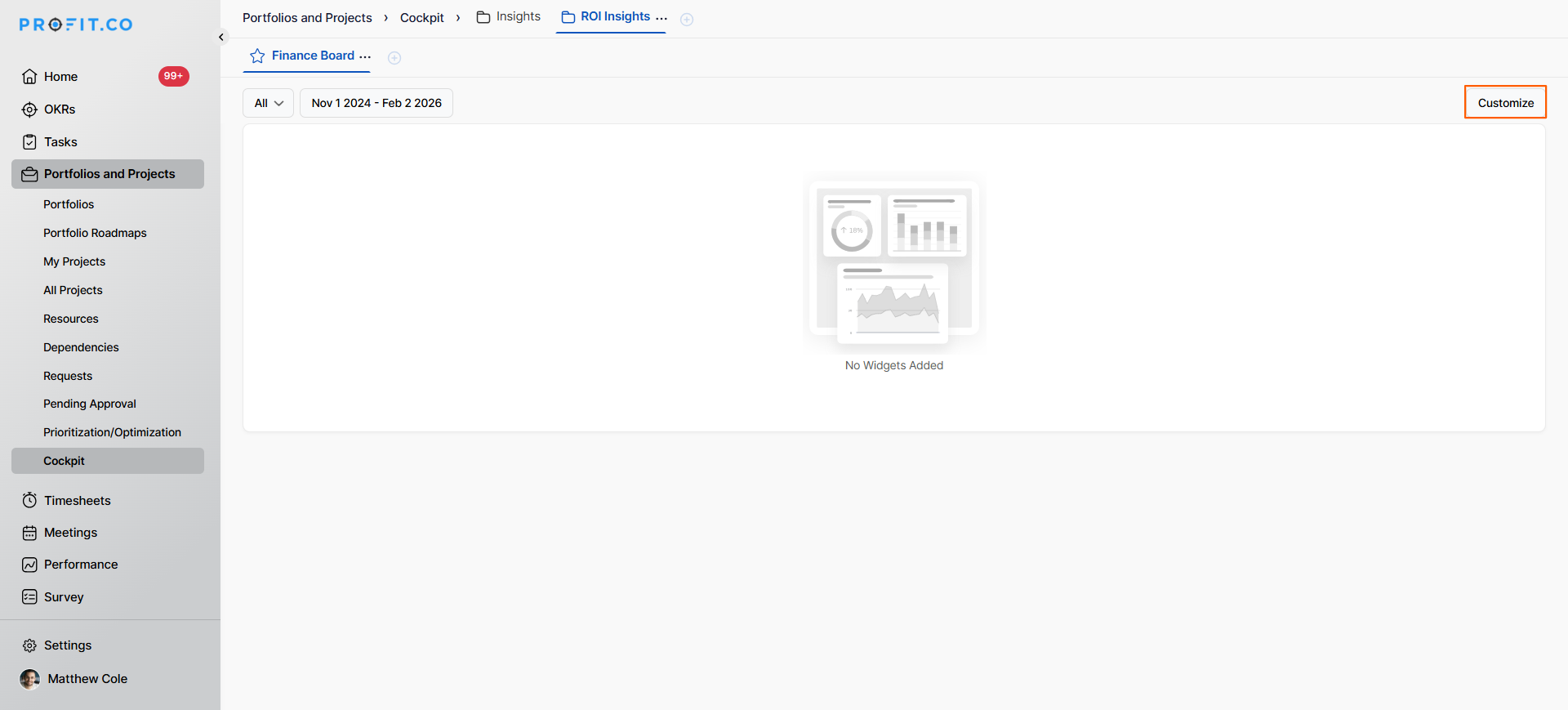
- In the customization panel, use the Search Box to find specific widgets.
- Browse through available ROI widgets:
- Investment Flow: Portfolio to Cost Category
- Strategic Alignment of Budget
- Budget Distribution by Strategic Alignment
- IRR Distribution by Performance
- CapEx, OpEx, and Amortization Trend
- Budget Utilization Trend
- Budget Variance Analysis
- Benefits Realization Timeline
- Check the boxes next to the widgets you want to add.
- Click Add to include these widgets in your view.
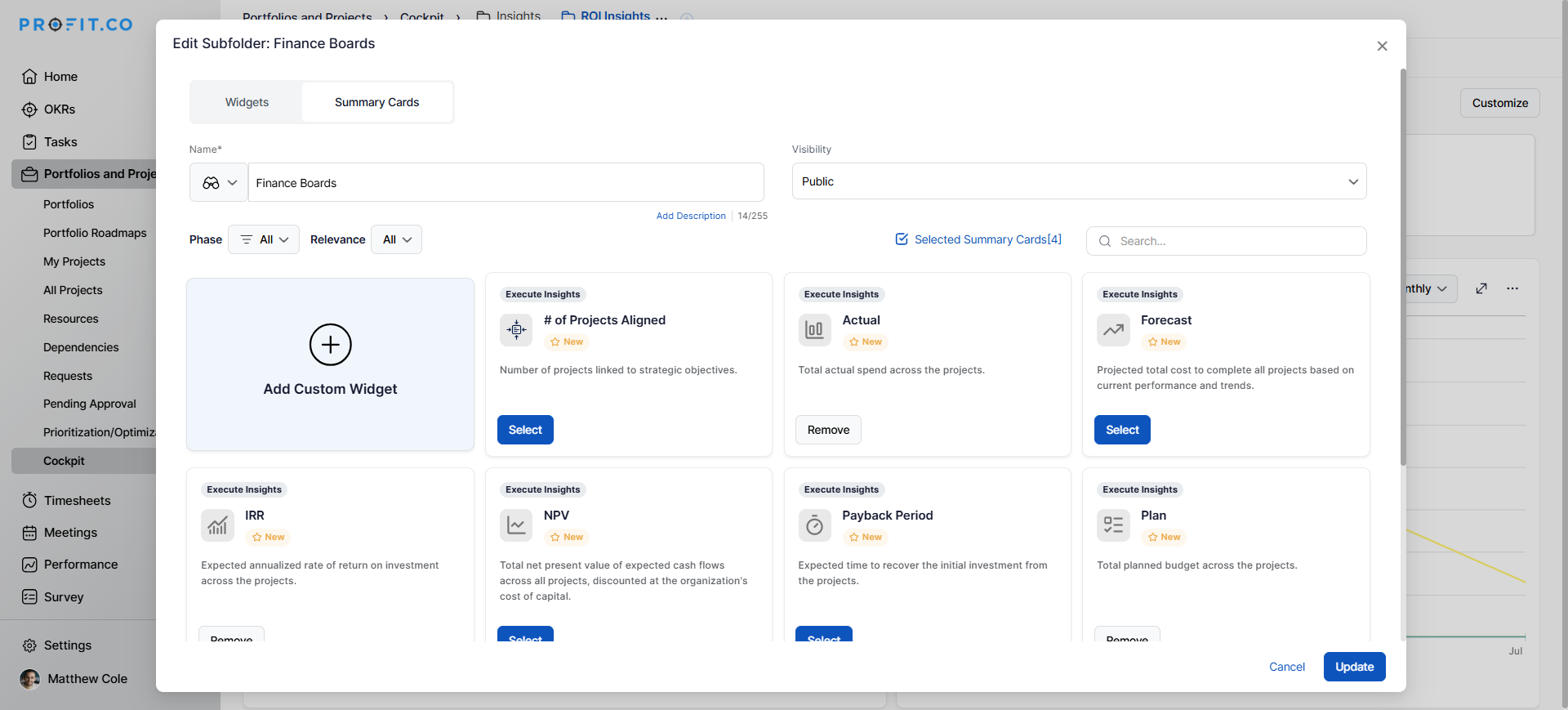
The selected widgets will now display your ROI metrics visually.
How do I add summary cards to the Cockpit?
Include summary cards alongside widgets for quick metric overview:
- In the customization panel (accessed via Customize button), switch to the Summary Card section.
- Select the summary cards you want to display:
- Return Ratio
- Plan
- Actual
- IRR
- NPV
- Payback Period
- Total Budget of Aligned Projects
- Check the boxes next to the desired summary cards.
- Click Add to include them in your view.
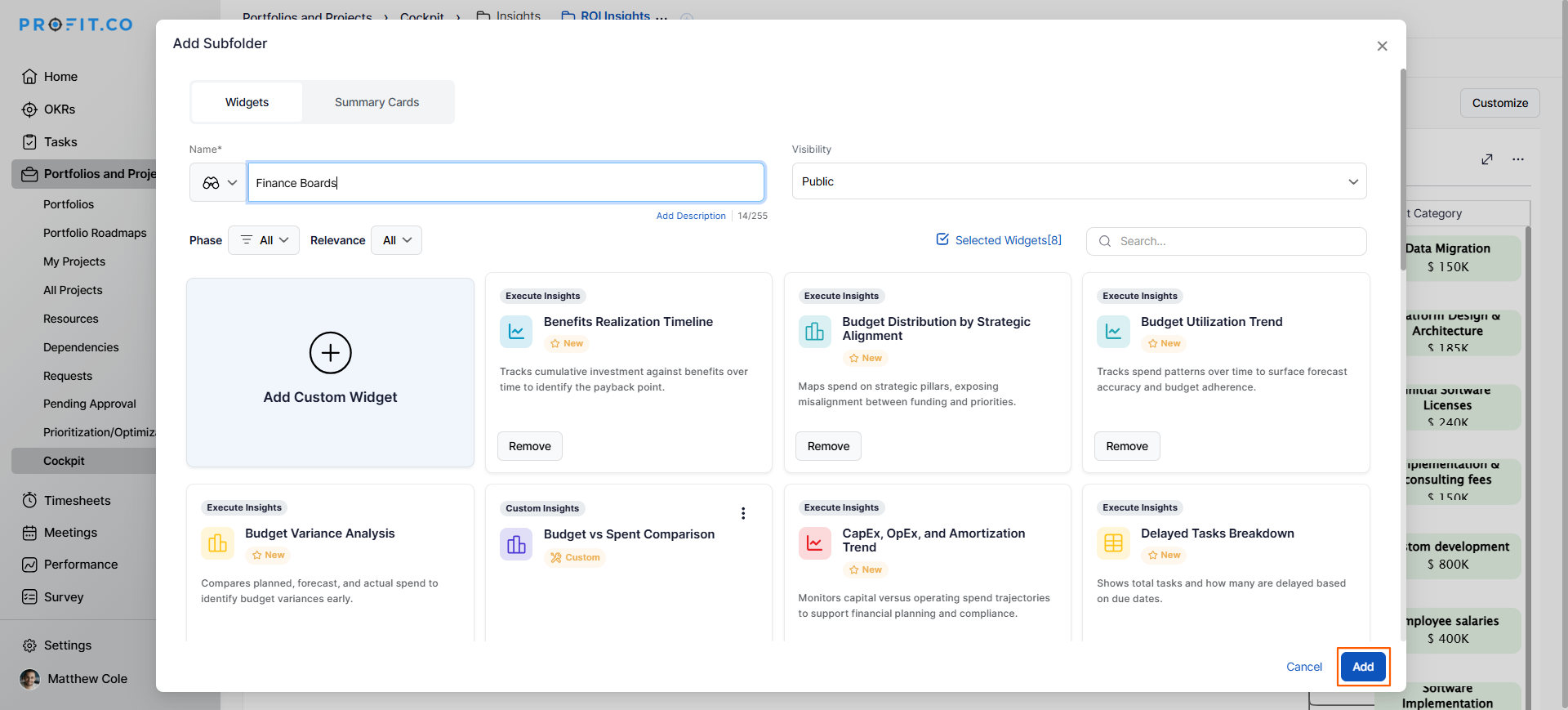
Result: You can now view all ROI metrics in one single, comprehensive view combining both widgets and summary cards.
Best practices for tracking ROI metrics in Profit.co
- Create dedicated folders for different stakeholder groups (executive dashboard, finance team, portfolio managers) with appropriate visibility settings.
- Use subfolders to organize metrics by theme: Financial Performance, Strategic Alignment, and Benefits Realization.
- Include both summary cards and widgets in each view for comprehensive insights: summary cards for quick numbers and widgets for detailed analysis.
- Use the Strategic Alignment of Budget widget to identify and reallocate funds from non-aligned to aligned initiatives.
- Monitor the Budget Utilization Trend widget monthly to catch spending anomalies before they become critical issues.
Related Questions
To learn more about portfolio management in Profit.co, Click here
Frequently Asked Questions
Q1. Can multiple users access the same Cockpit folder?
Yes, folder access is controlled by visibility settings. You can share folders with specific users, teams, or make them organization-wide.
ROI metrics are typically updated in real-time as project data changes, providing current financial performance information.
Check for export options in the Cockpit. Many visualization tools offer PDF or image export functionality for sharing in reports.
Related Questions
-
How to create a Project in the PPM module?
Profit.co provides an option for users to create a project within the Project Portfolio Management (PPM) module. This ...Read more
-
How do I manage tollgate compliance across projects in Profit.co?
In Profit.co, you can Manage tollgate compliance across projects by associating tollgate sequences with projects, ...Read more
-
How do I set up resource rate cards and cost allocation in Profit.co?
In Profit.co, you can set up resource rate cards by creating Resource Types with specific hourly cost rates, assigning ...Read more
-
How to View Critical Tasks of a Project in Profit.co?
Profit.co's Critical Path Method (CPM) feature helps project managers identify the most essential sequence of tasks ...Read more