



How do I use a Bill of Quantities (BOQ) in Profit.co?
Category: PPM
Profit.co's Bill of Quantities (BOQ) feature enables construction and project-based organizations to itemize all materials, labor, and services required to complete a project. This comprehensive pricing schedule breaks down projects into measurable work items with specified quantities, description, rates, and total costs, providing transparent cost control throughout the project lifecycle.
Table of Contents
- What is Bill of Quantities (BOQ) in Profit.co?
- How do I create a BOQ-enabled project in Profit.co?
- How do I create Line Items in my BOQ?
- How do I add expenses to Line Items?
- How do I record payments for expenses?
- How do I add deductions to Line Items?
- How do I view BOQ financial summary and dashboard?
- Best practices for using BOQ in Profit.co
- Related Questions
- Frequently Asked Questions
What is Bill of Quantities (BOQ) in Profit.co?
A Bill of Quantities (BOQ) is a detailed document that itemizes all materials, labor, and services required to complete a construction project. It serves as a comprehensive pricing schedule that breaks down the entire project into measurable work items, each with specified quantities, descriptions, rates, and total costs.
The BOQ is prepared based on architectural drawings, specifications, and technical requirements. It follows a standardized format that allows contractors to understand exactly what work needs to be performed and enables accurate cost estimation and comparison of bids.
In Profit.co, BOQ functionality integrates with project management capabilities, enabling:
- Line Item Creation: Organize work into categorized line items representing specific work packages
- Task Association: Link tasks to line items with individual budgets that roll up to project totals
- Expense Tracking: Record expenses against line items for accurate cost monitoring
- Payment Management: Track payments made for expenses with complete audit trails
- Deduction Handling: Apply deductions for delays, compliance issues, or quality concerns
- Dashboard Visibility: View comprehensive financial summaries including budget vs. actuals
How do I create a BOQ-enabled project in Profit.co?
Before working with BOQ features, you must create a project configured for BOQ billing.
Steps
- Go to Portfolios and Projects from the left navigation panel
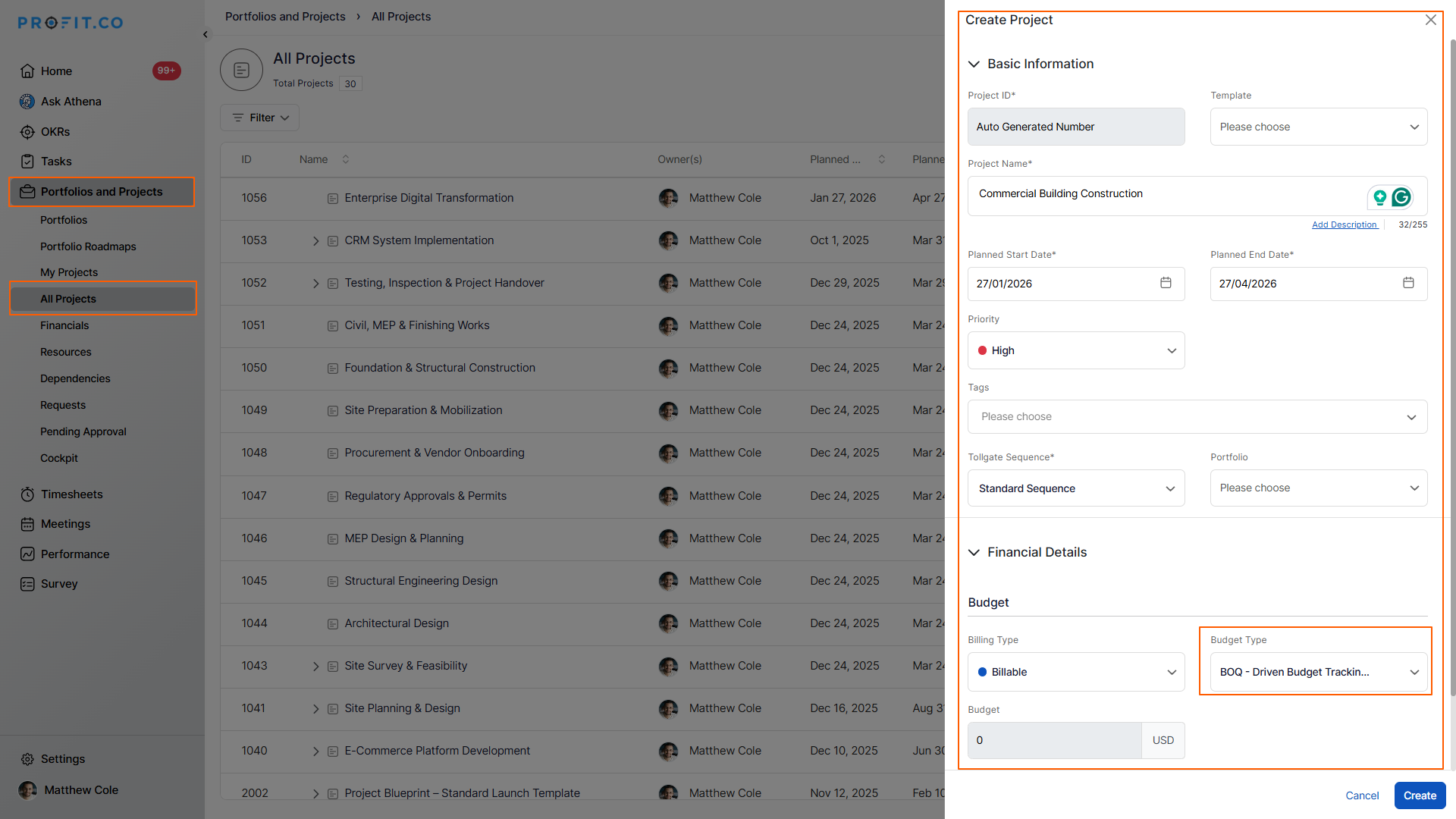
- Click Create Project
- Enter Project ID and Project Name
- Set Start Date and End Date
- Configure Status and Priority
- In the Billing Type dropdown, select BOQ - Driven Budget Tracking
- This enables the BOQ functionality for the project
- Set the project Budget if applicable
- Configure remaining project settings (Tags, Portfolio, etc.)
- Click Create to save the project
How do I create Line Items in my BOQ?
Line items represent major work packages or categories within your project (e.g., Site Excavation & Preparation, Structural Framework, Interior Finishes).
Step 1
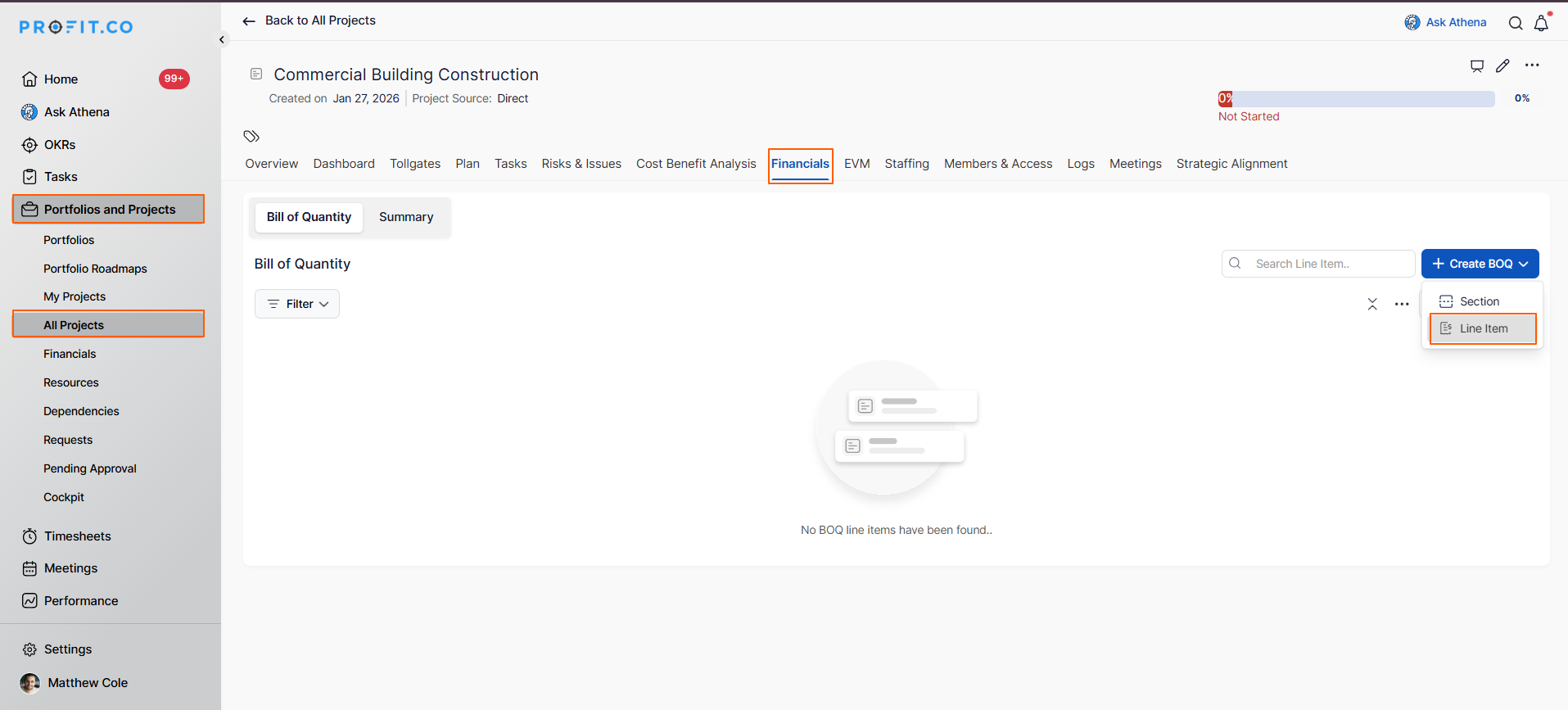
- Open your BOQ-enabled project
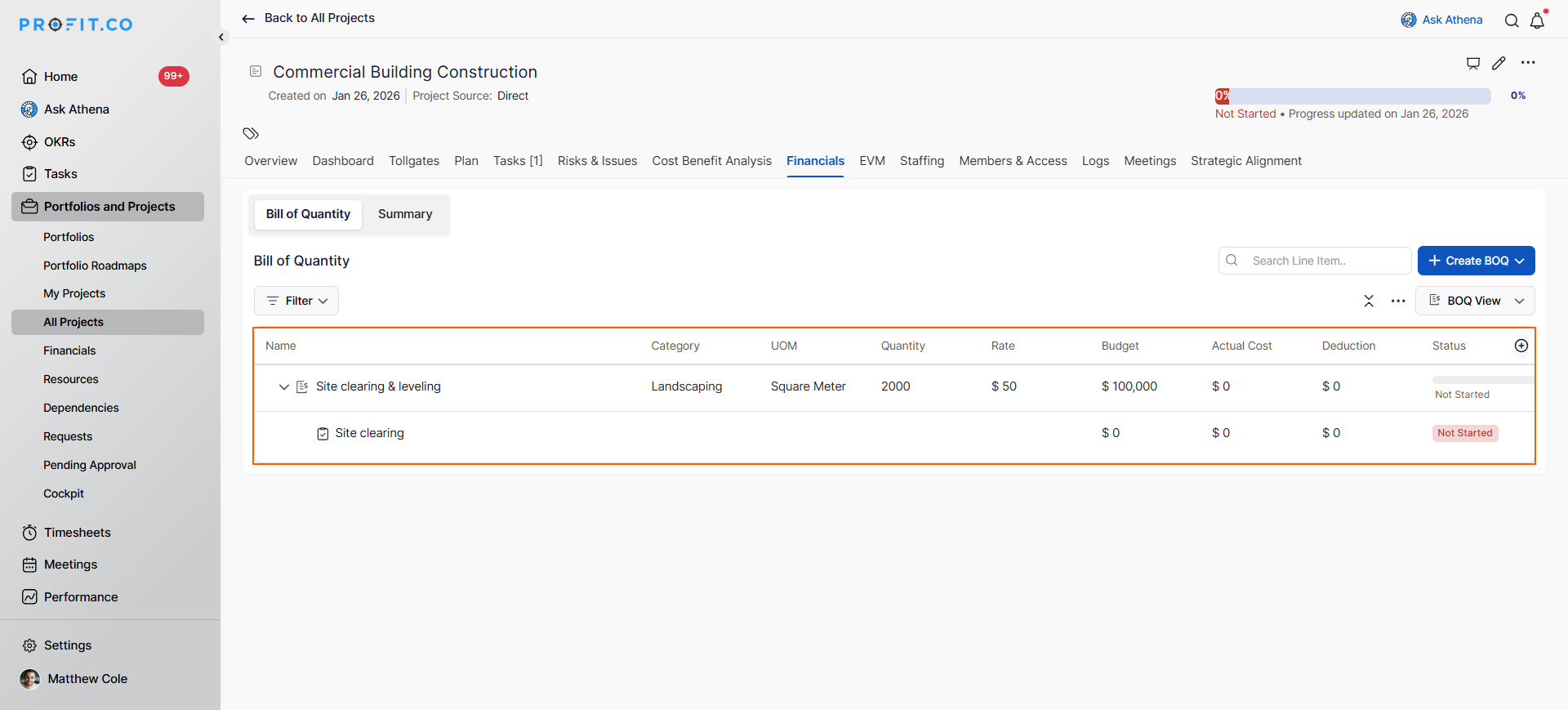
- Switch to the Financials tab in the project view
- Click on Create BOQ from the dropdown menu
- Select Line Item option
Step 2
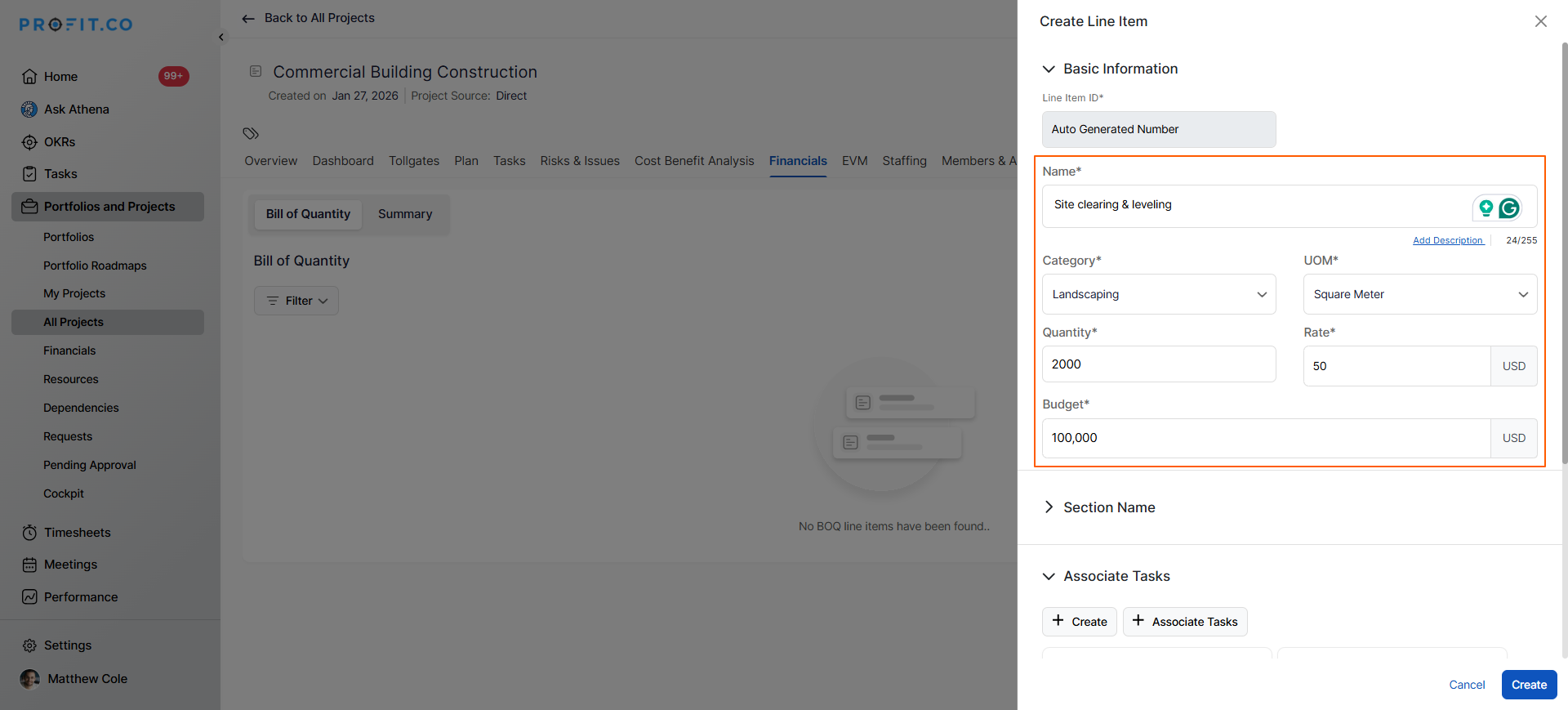
Complete the line item creation form:
- Line Item ID: Auto-generated number for tracking
- Name: Descriptive title for the work package
- Category: Select the work category
- UOM (Unit of Measure): Define measurement unit
- Quantity: Enter the total quantity required for this line item
- Rate: Cost per unit (if applicable)
- Budget: Total budget allocated to this line item
Step 3
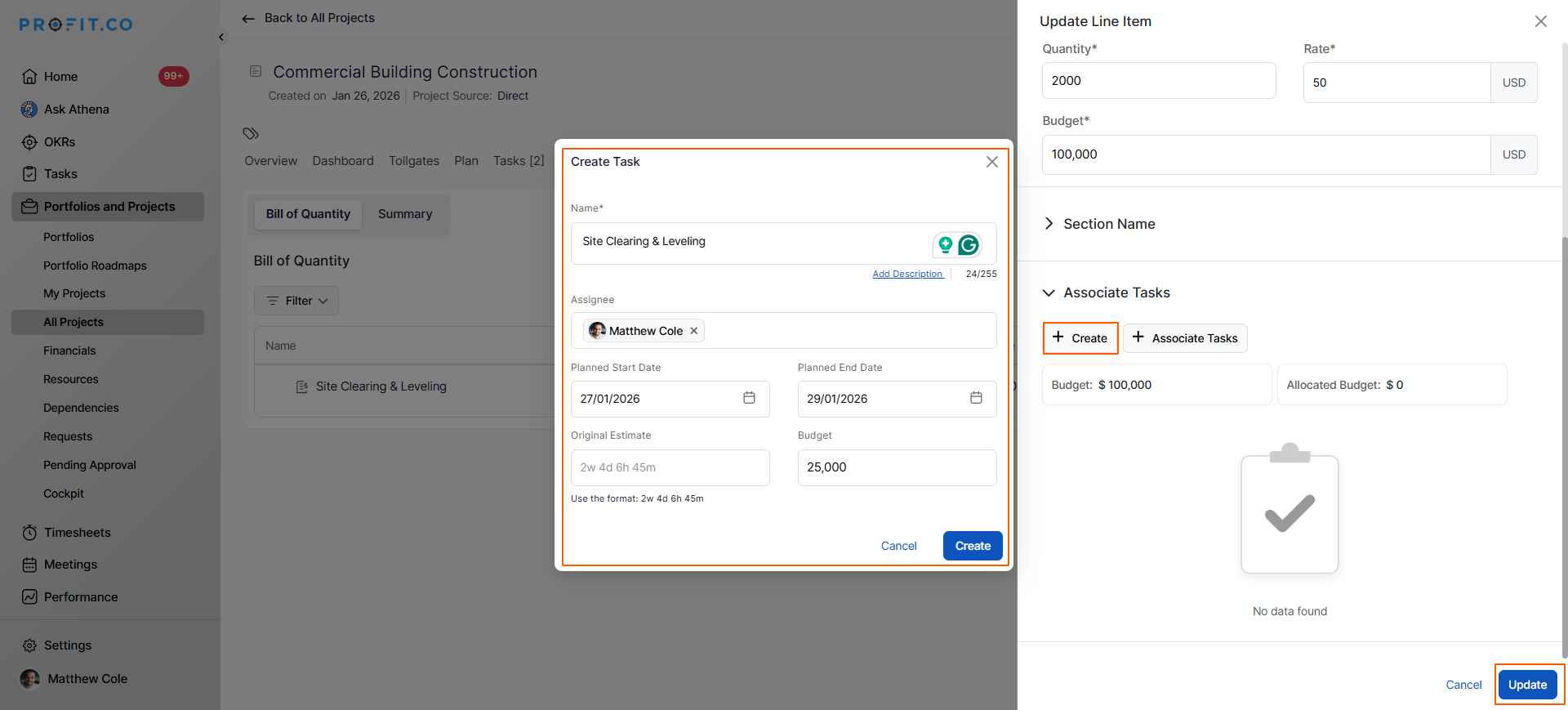
Under Associated Tasks, you can:
- Click Create to add new tasks specific to this line item
- Click "Associate Tasks" to link existing project tasks
- Review all entered information
- Click Create to save the line item
The line item now appears in your BOQ list
How do I add expenses to Line Items?
Expenses represent actual costs incurred during project execution. Tracking expenses against line items enables budget vs. actual cost analysis.
Step 1
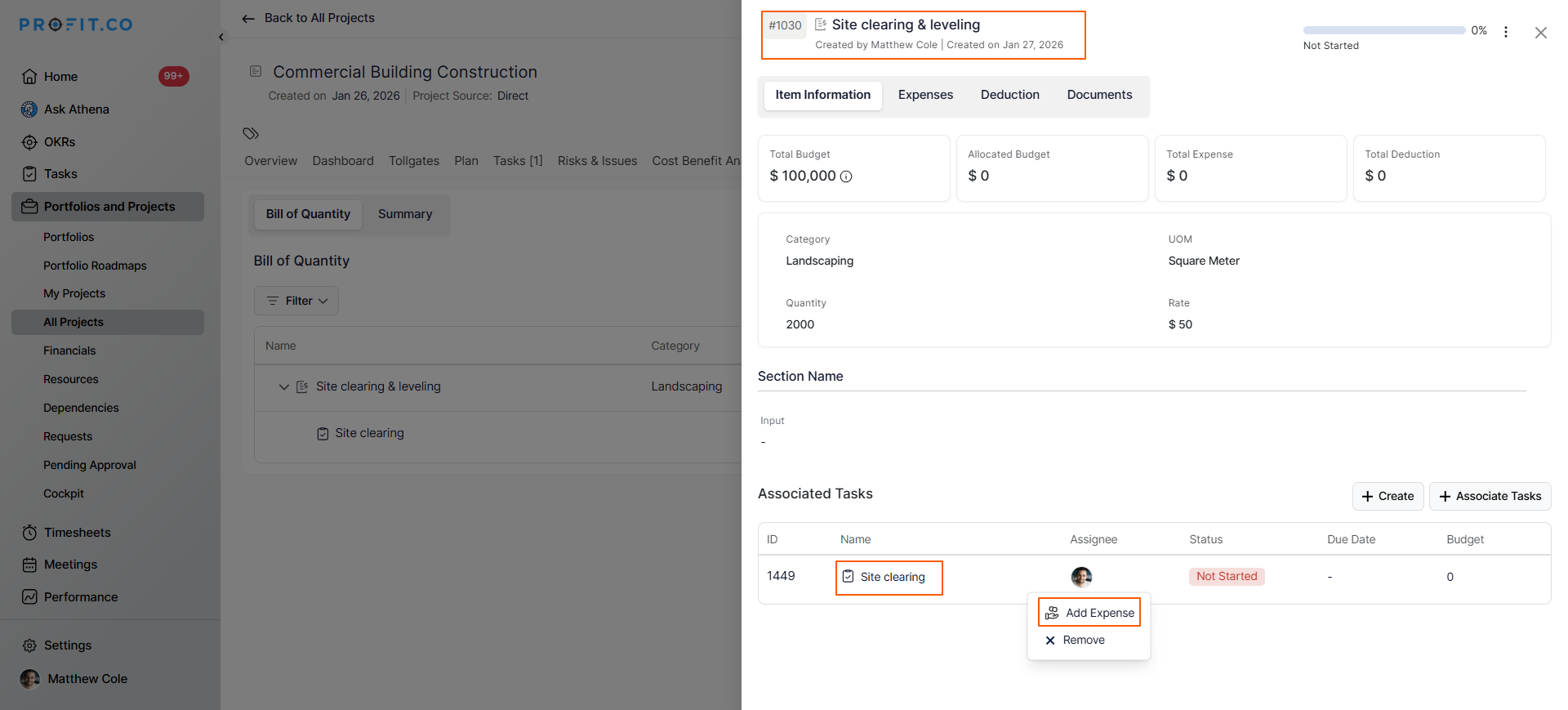
- Click on the Line Item name to open its detail view
- This displays the line item overview with tasks and expenses
- Click the More icon (⋯) within the line item detail view
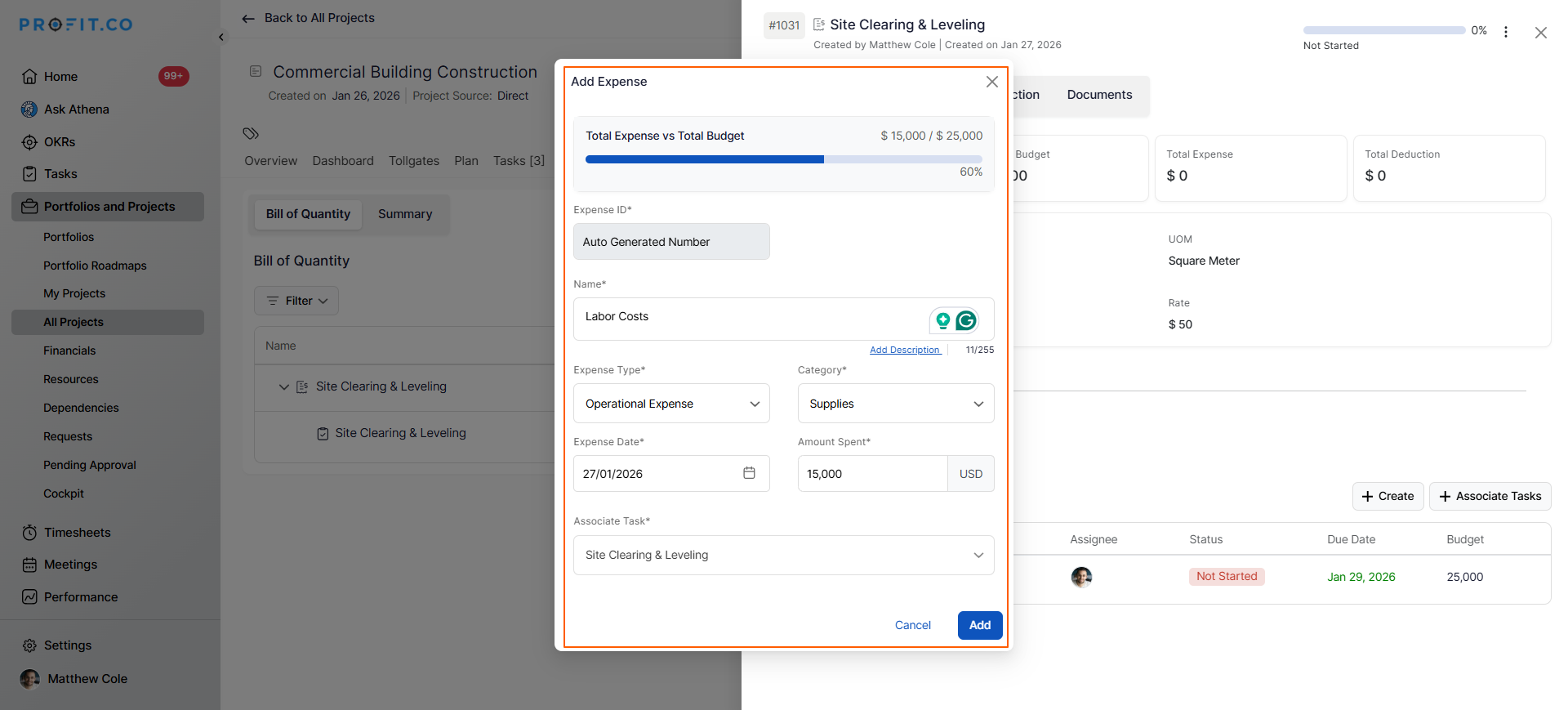
- Select Add Expense from the dropdown menu
A pop-up will appear fill in the required details in the pop-up and save
How do I record payments for expenses?
Payment tracking creates an audit trail showing how much has been paid toward each expense, helping manage cash flow and vendor relationships.
Step 1
- Navigate to the line item containing the expense
- Switch to the Expenses tab within the line item view
- Find the expense in the Expense History list
- Click the More icon (⋯) next to the expense name
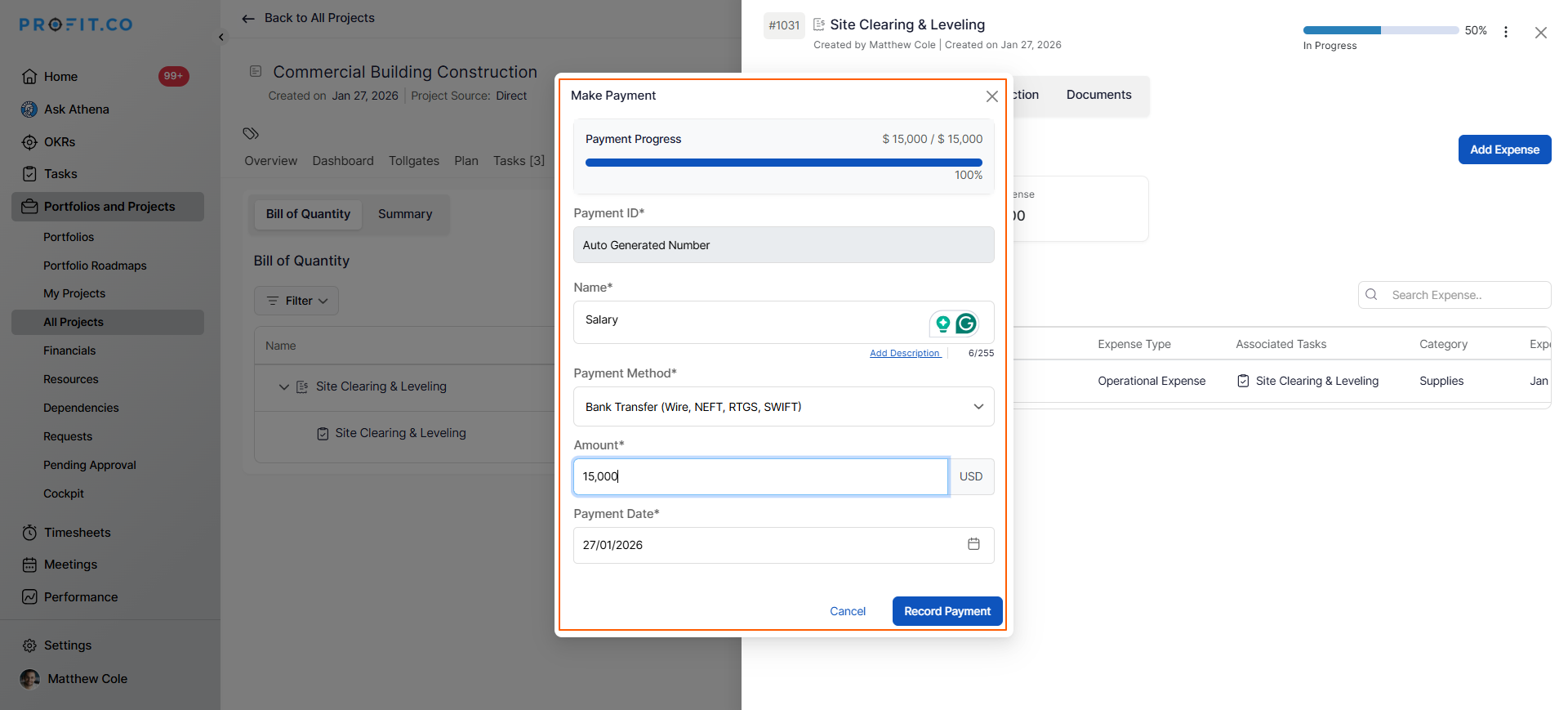
- Select Record Payment from the dropdown menu
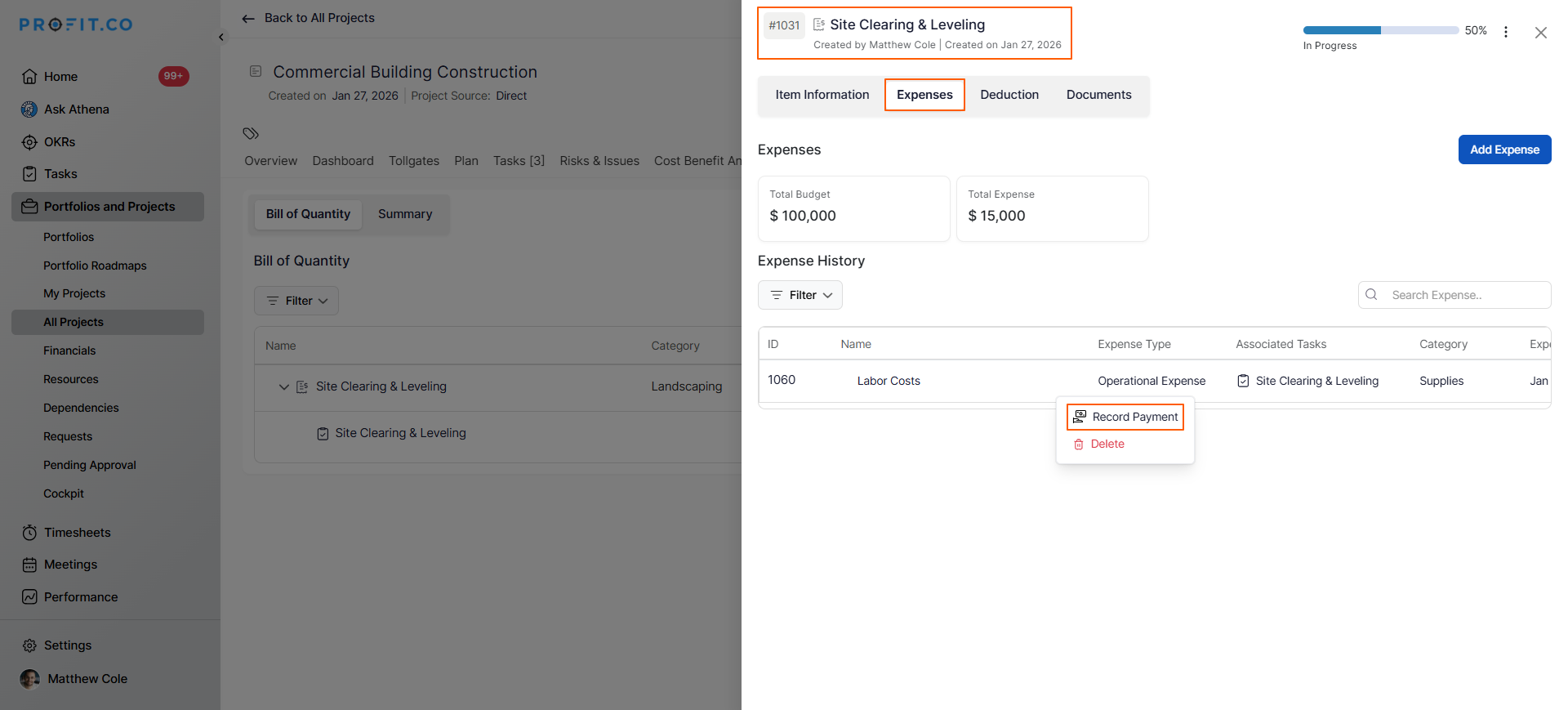
Complete the payment information:
- Review payment details
- Click Record Payment to save
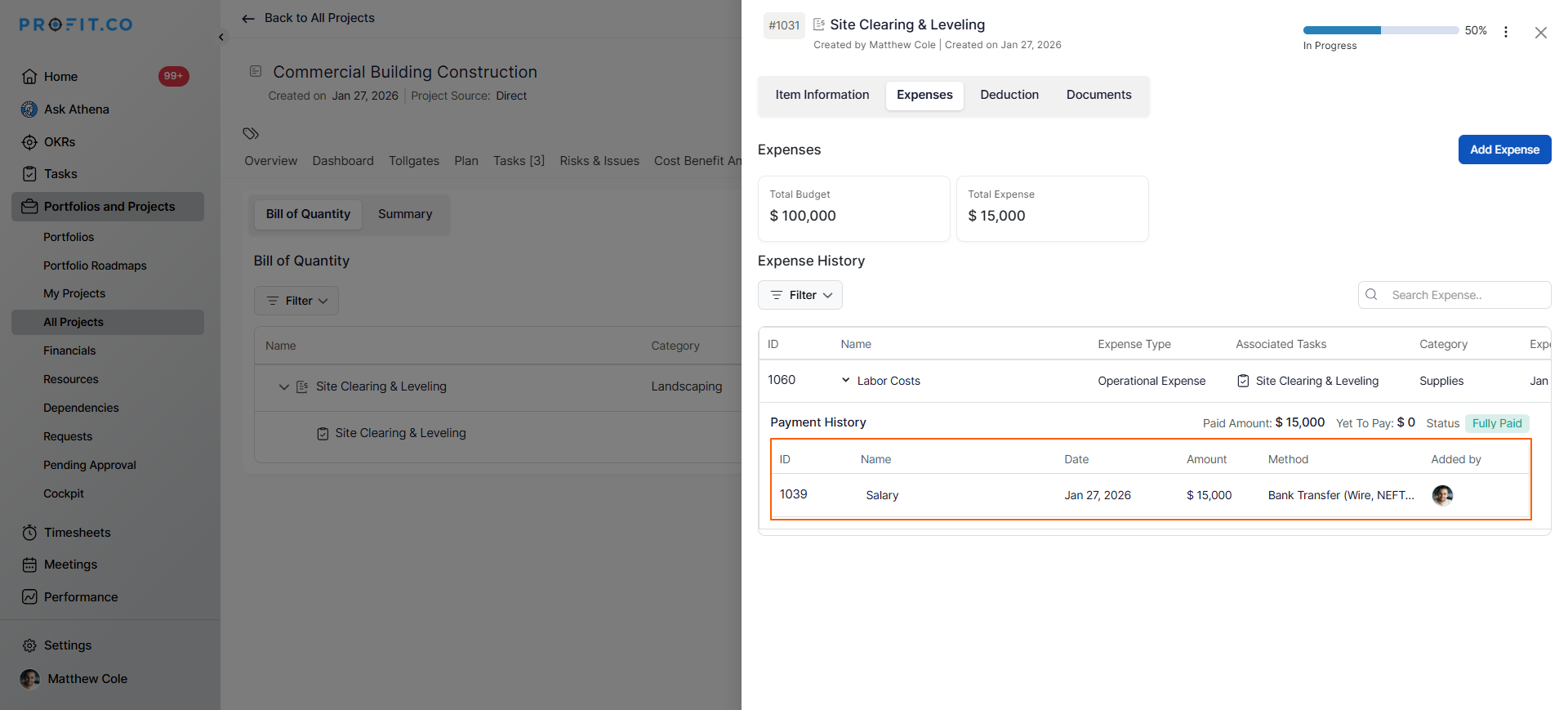
- Payment is now logged in the expense history
To view the payment history, click on the drop-down icon near to the expense name.
How do I add deductions to Line Items?
Deductions may be applied due to delays, compliance issues, quality concerns, or contractual penalties. Tracking deductions ensures accurate final cost calculations.
- Open the line item detail view
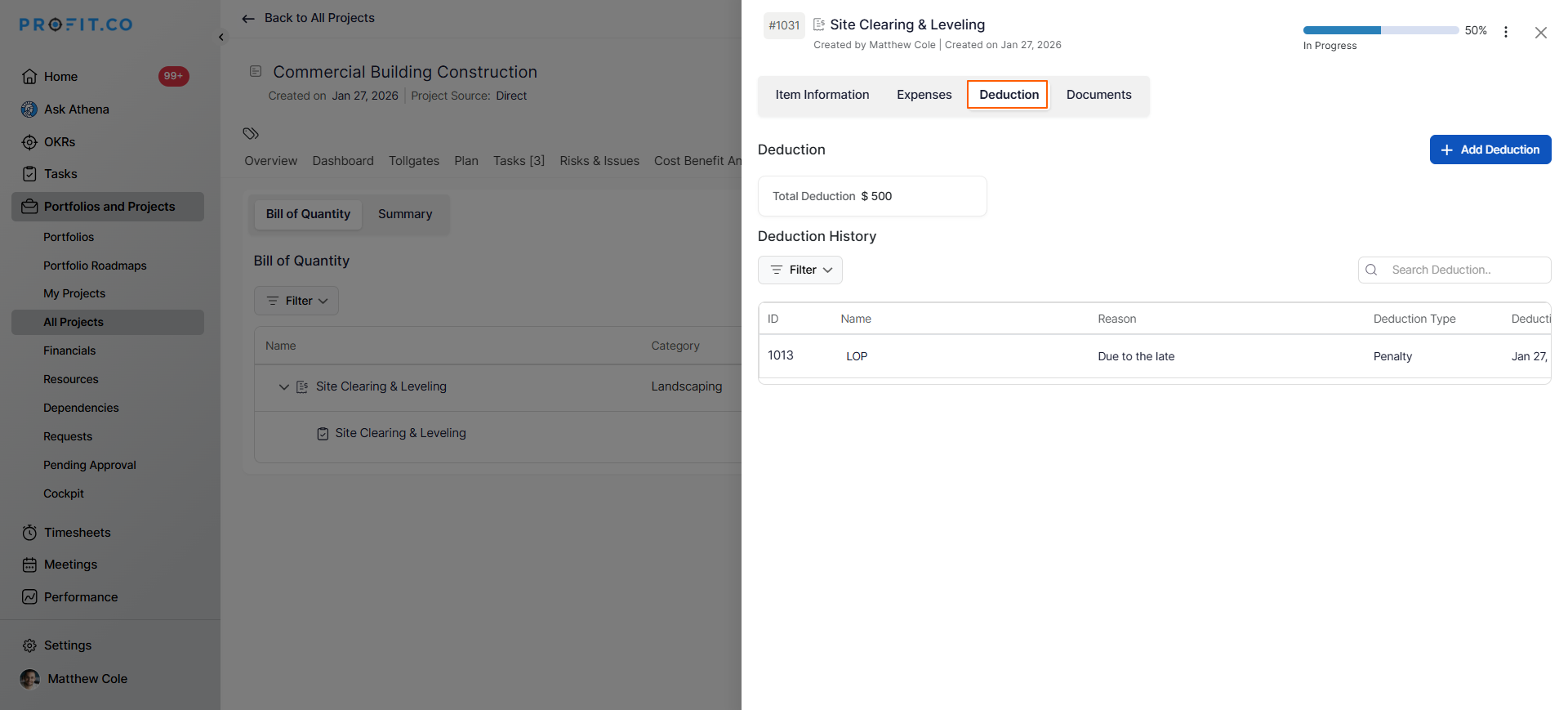
- Switch to the Deduction tab
- Click the + Add Deduction button
- The deduction creation interface appears
- Click Save to record the deduction
- Deduction appears in the Deduction History table
- The Total Deduction amount displays at the top of the section
- This amount is subtracted from expense totals in financial calculations
How do I view BOQ financial summary and dashboard?
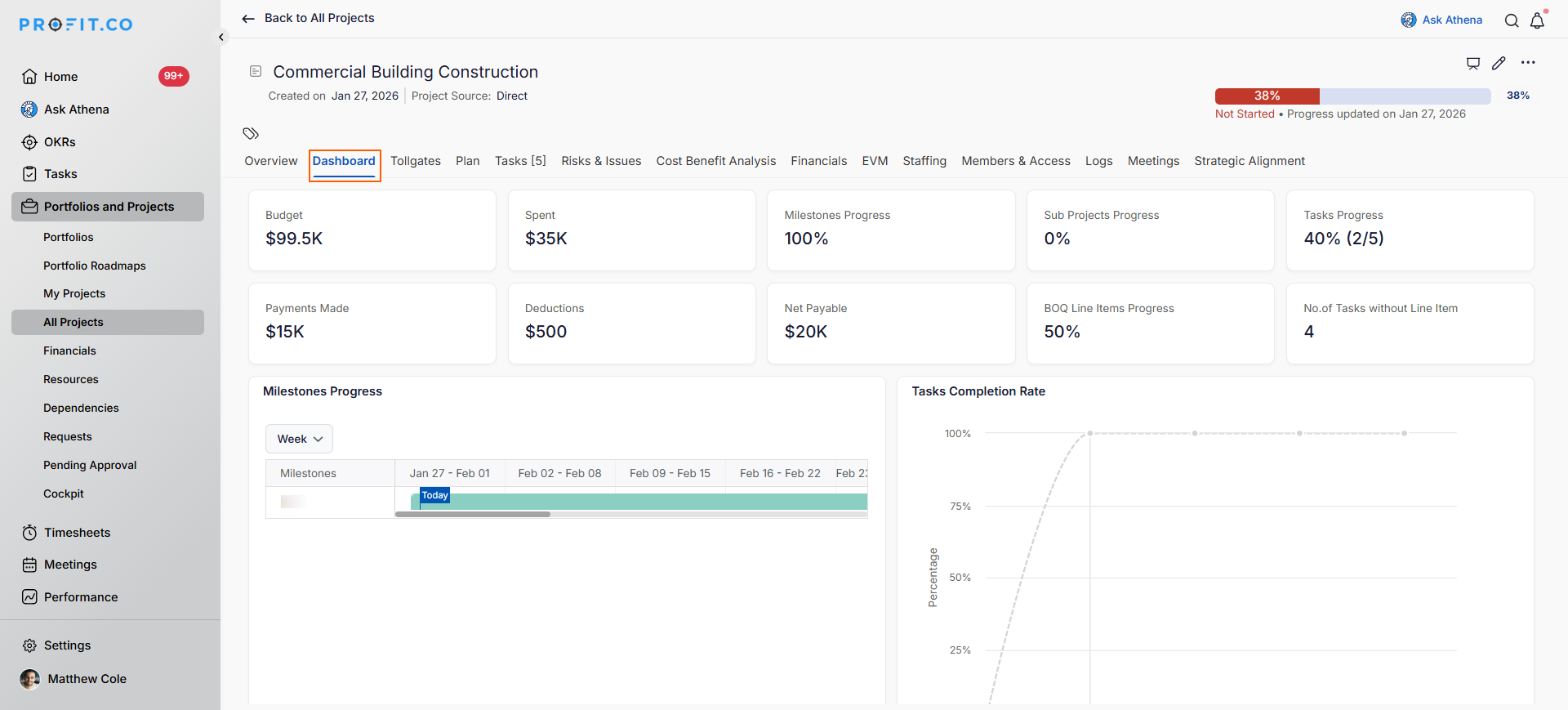
The dashboard provides comprehensive visibility into project financial health, comparing budgets against actual costs and tracking progress.
Step 1
- Open your BOQ-enabled project
- Switch to the Dashboard tab
Best practices for using BOQ in Profit.co
Create detailed, specific line items:
Break projects into granular line items that represent distinct work packages. Instead of one "Construction" line item, create separate items for "Foundation Work", "Structural Framework", "Roofing", etc. This granularity enables precise cost tracking and helps identify exactly where budget variances occur.
Assign realistic budgets at task level:
While line items show total cost, breaking budgets down to individual tasks provides better control. When tasks have specific budgets, team members understand spending authority and project managers can identify cost overruns earlier in the process.
Align expense recording with financial close:
Record project expenses promptly after your month-end book closing process completes. While immediate real-time entry isn't feasible due to accounting controls, minimizing the lag between period close and budget posting enables more effective variance tracking and proactive budget management.
Associate expenses with tasks when possible:
Linking expenses to specific tasks creates detailed cost trails showing exactly where money was spent. This granular tracking supports better future estimating, helps justify budget requests, and enables root cause analysis when costs exceed expectations.
Maintain detailed payment records:
Record all payment details, including method, date, and reference numbers. Complete payment records support financial audits, help resolve vendor disputes, provide cash flow visibility, and ensure nothing falls through the cracks when managing multiple vendors.
Related Questions
How to create a Project Request in the PPM module: Click here
Frequently Asked Questions
Yes, you can edit line item details even after expenses have been recorded. However, changing budgets or rates after substantial expenses are recorded may create confusion about budget variance reasons. Best practice is to finalize line item details before execution begins, and use change management processes for any necessary adjustments.
Yes, you can associate multiple expenses with the same task. This is common when a task requires various resources, materials, or services. All expenses associated with a task contribute to that task's actual cost, which you can compare against the task's original budget estimate.
Typically, you cannot delete line items with associated expenses, tasks, or payments, as this would create data integrity issues. If you need to remove a line item, first reassociate its tasks and expenses to other line items or remove them entirely. Contact your administrator if you need to archive or restructure your BOQ.
Related Questions
-
How to create a Project in the PPM module?
Profit.co provides an option for users to create a project within the Project Portfolio Management (PPM) module. This ...Read more
-
How do I manage tollgate compliance across projects in Profit.co?
In Profit.co, you can Manage tollgate compliance across projects by associating tollgate sequences with projects, ...Read more
-
How do I set up resource rate cards and cost allocation in Profit.co?
In Profit.co, you can set up resource rate cards by creating Resource Types with specific hourly cost rates, assigning ...Read more
-
How to View Critical Tasks of a Project in Profit.co?
Profit.co's Critical Path Method (CPM) feature helps project managers identify the most essential sequence of tasks ...Read more