



How Do I Use the Timesheets Module in Profit.co?
Category: PPM
In Profit.co, the Timesheets module lets you log and track time across tasks, custom tasks, and meetings. You can enable it from Settings and start tracking time using one of three methods: Add Task, Add Custom Task, or Add Activity.
Table of Contents
What is the Timesheets Module?
The Timesheets module in Profit.co is a time logging tool that lets you record hours against tasks and activities, then submit them for manager approval. It offers three ways to track time: linking an existing task from the task module, creating a custom task manually, or logging time for meetings and activities.
Why the Timesheets Module Matters
Logging time against specific tasks and activities gives managers an accurate picture of how effort is being spent across the team. It removes the need for manual reporting by pulling logged time directly from tasks into the Timesheet.
The Send for Approval workflow ensures that all time entries are reviewed before they are recorded, giving team leads the ability to verify hours before finalizing.
How It Works
Step 1
- Navigate to Settings from the left navigation panel.
- Select General from the Settings menu.
- Click Apps.
- On the Apps page, locate the Timesheets toggle and enable it.
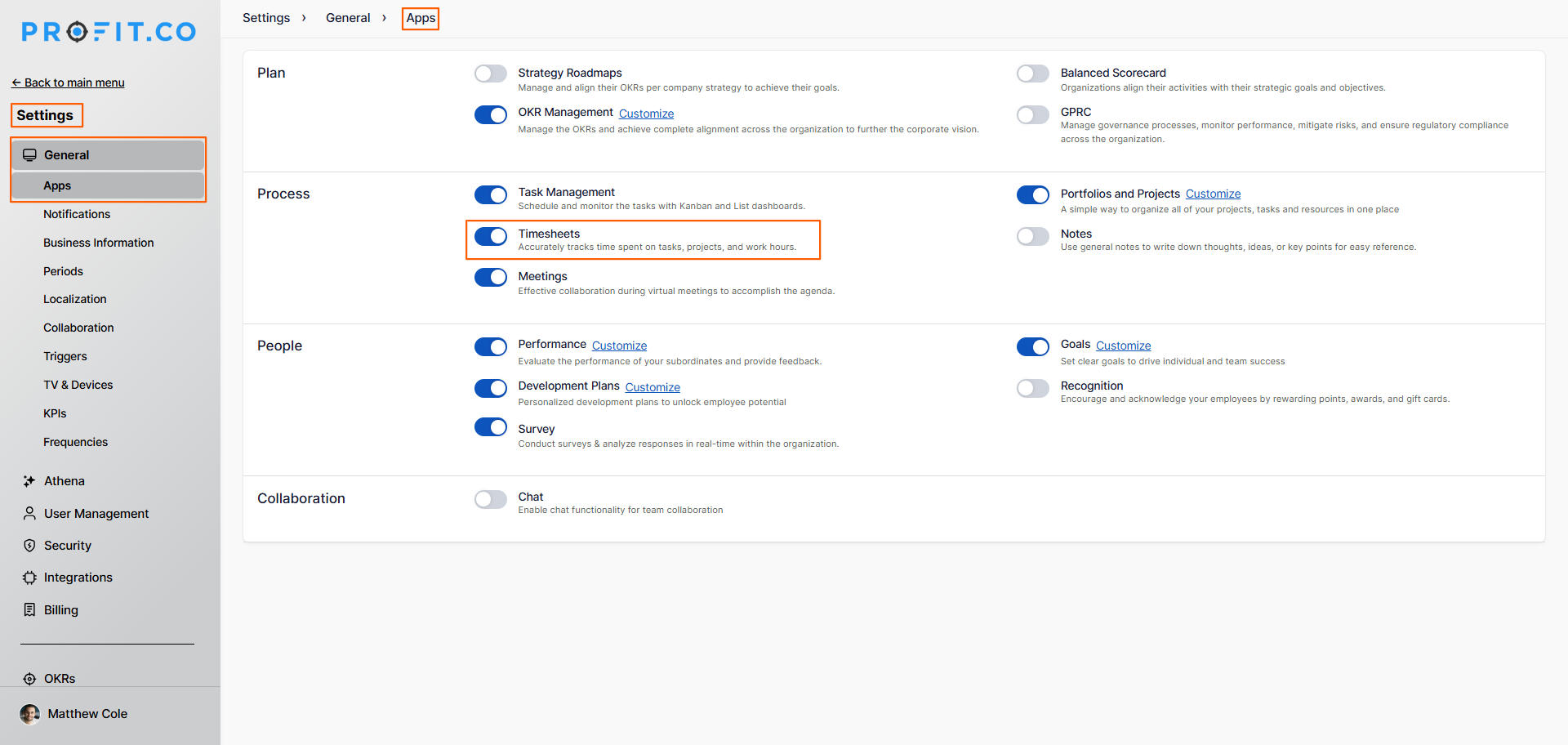
- Once enabled, Timesheets will appear in the left navigation panel. The module is now active and ready to use.
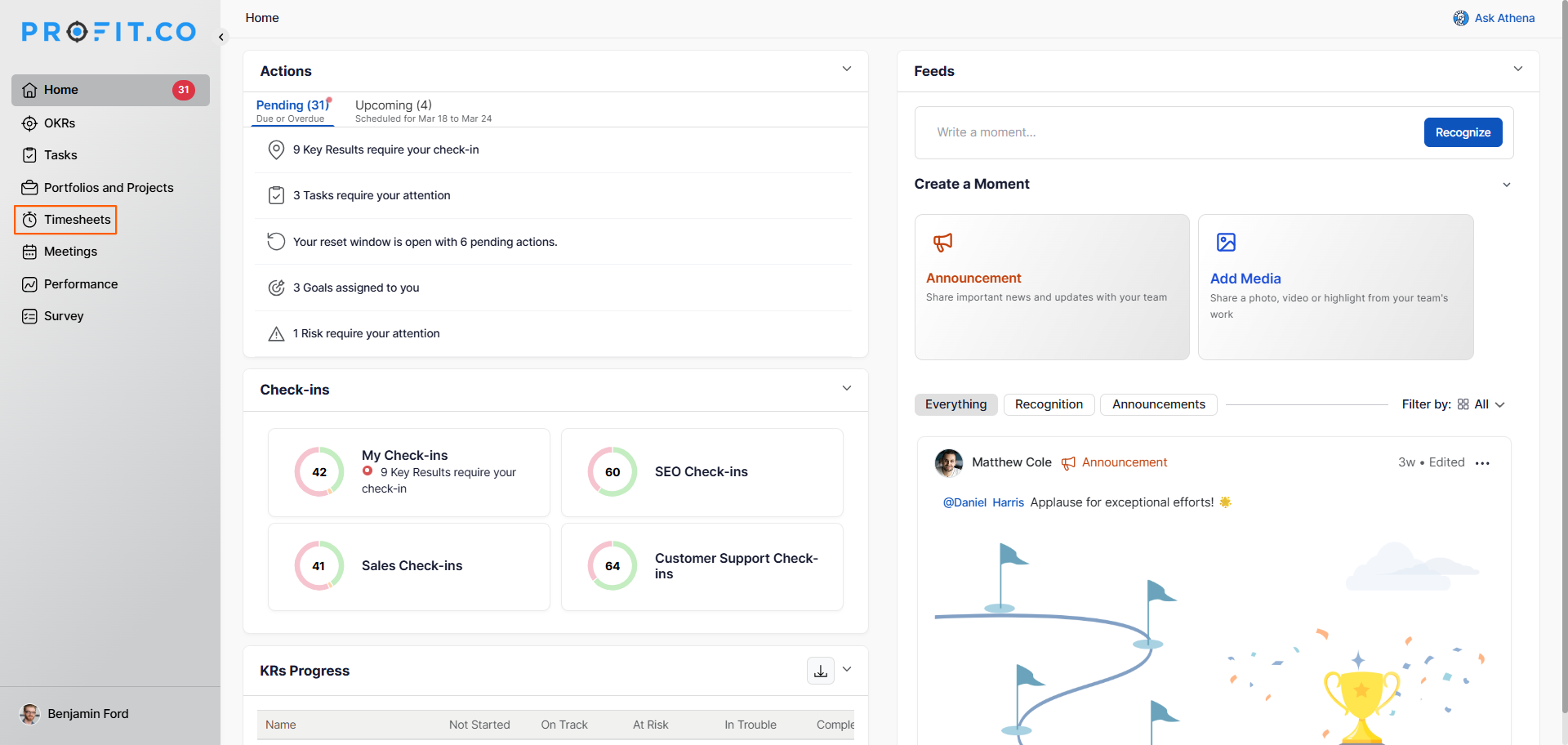
Step 2
- Click Timesheets from the left navigation panel.
- You can track time using one of the three methods below.
Method 1: Add Task
Use this option to log time against a task that already exists in the Task module.
- Click Add Task. The existing tasks from the Task module will be displayed.
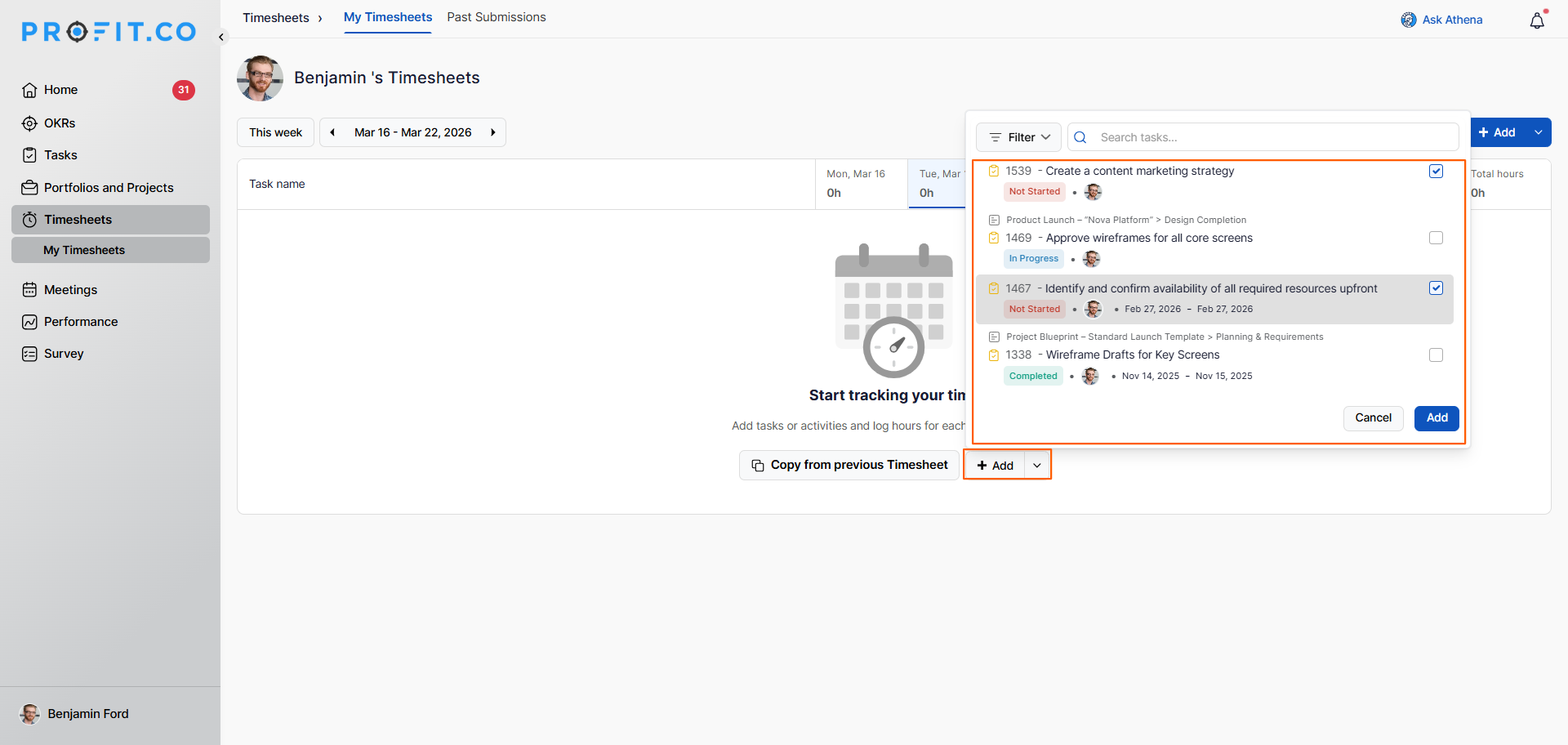
- click on an existing task or create a new one using the Create Task button.
- For example, choose an existing task.
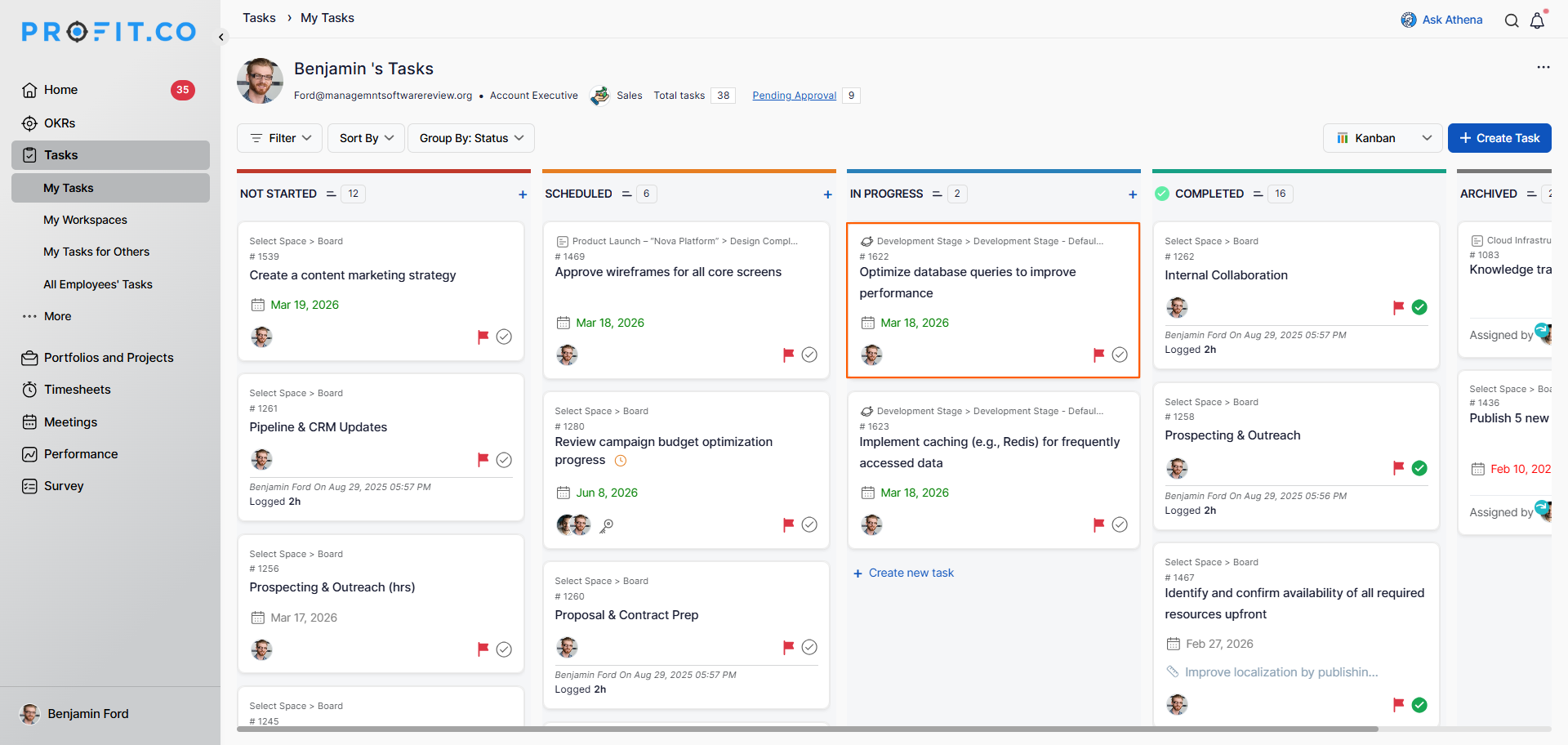
- On the task page, locate the time logging section and enter the time for the week.
- Click Save.
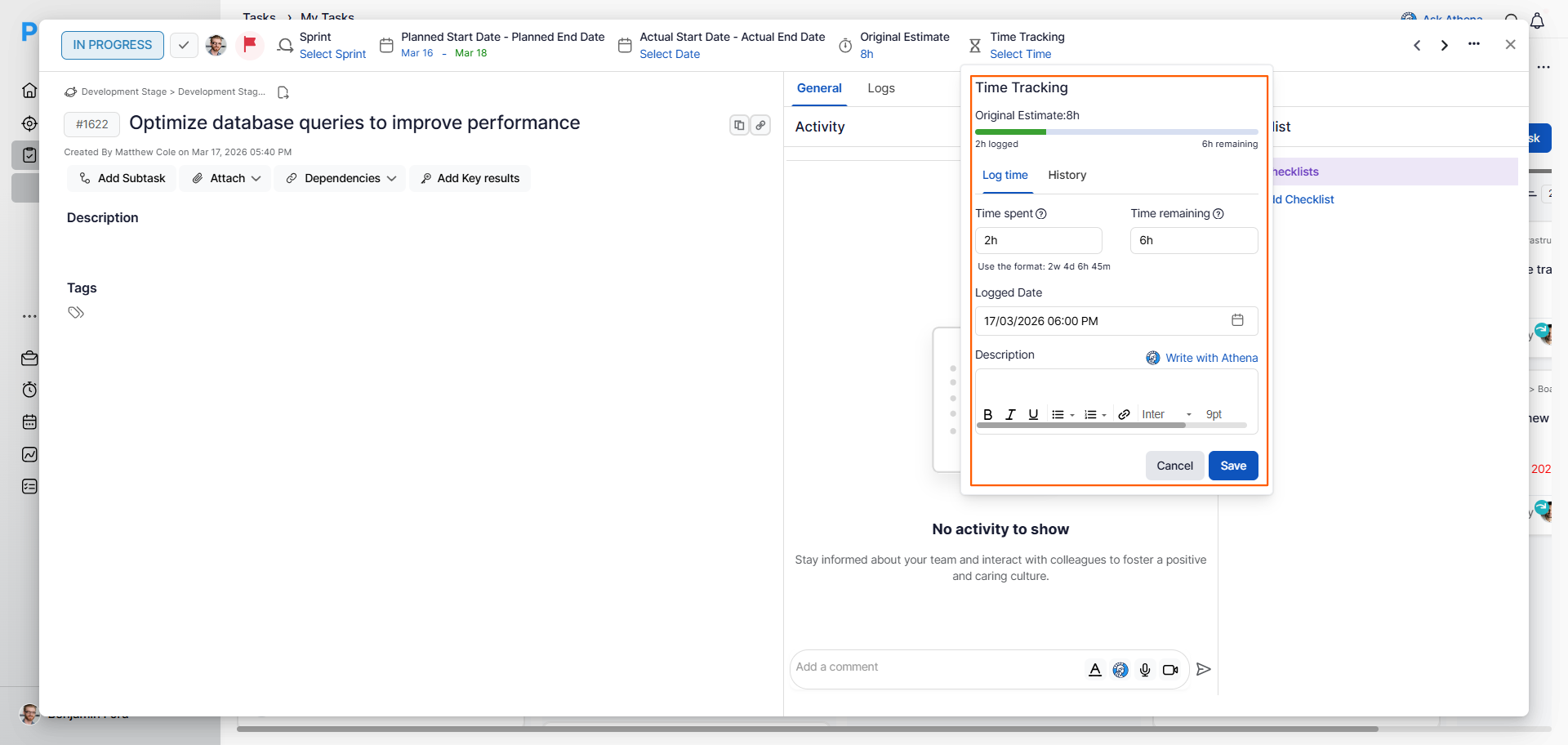
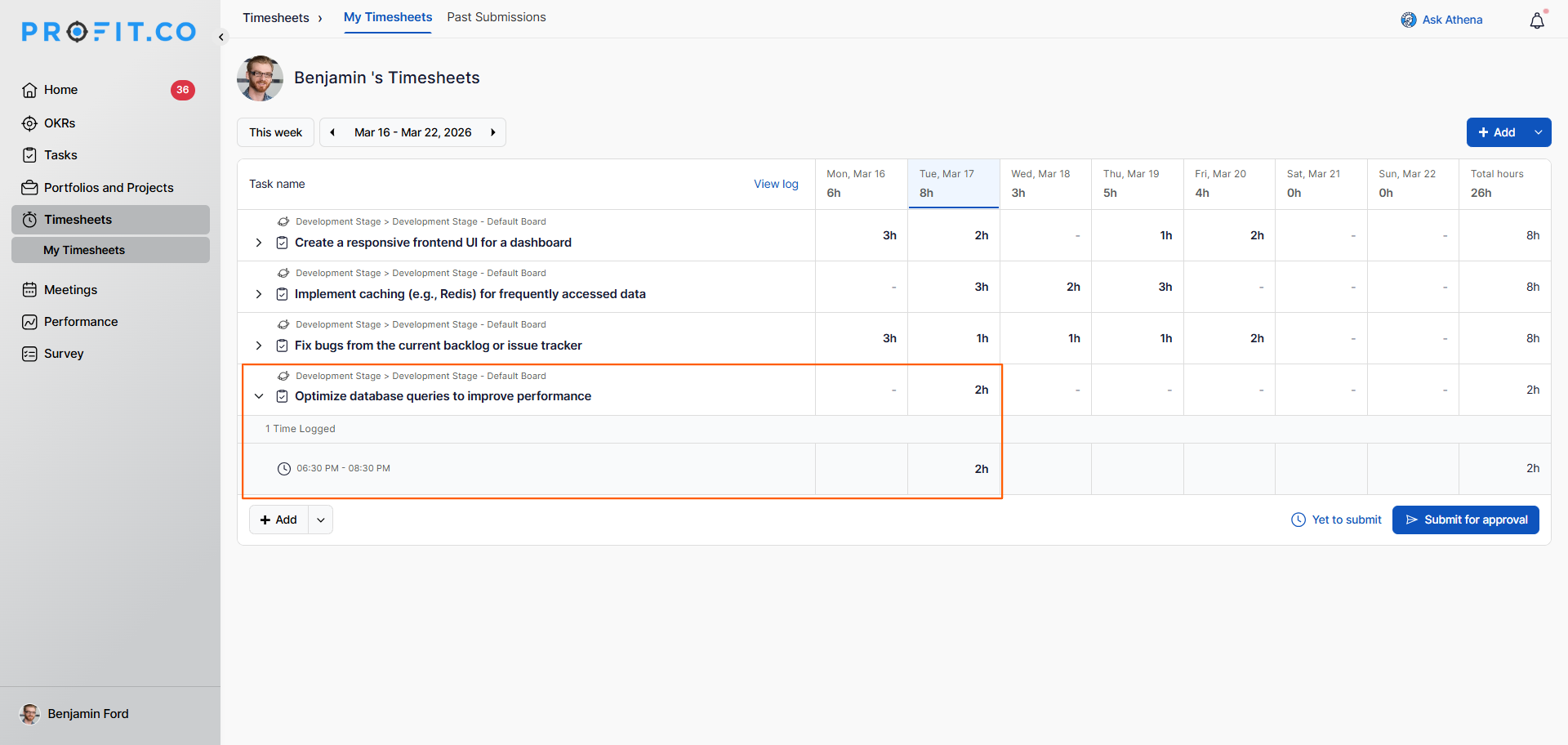
Note: Once you log the time under the task, the logged time will automatically be reported in the Timesheet.
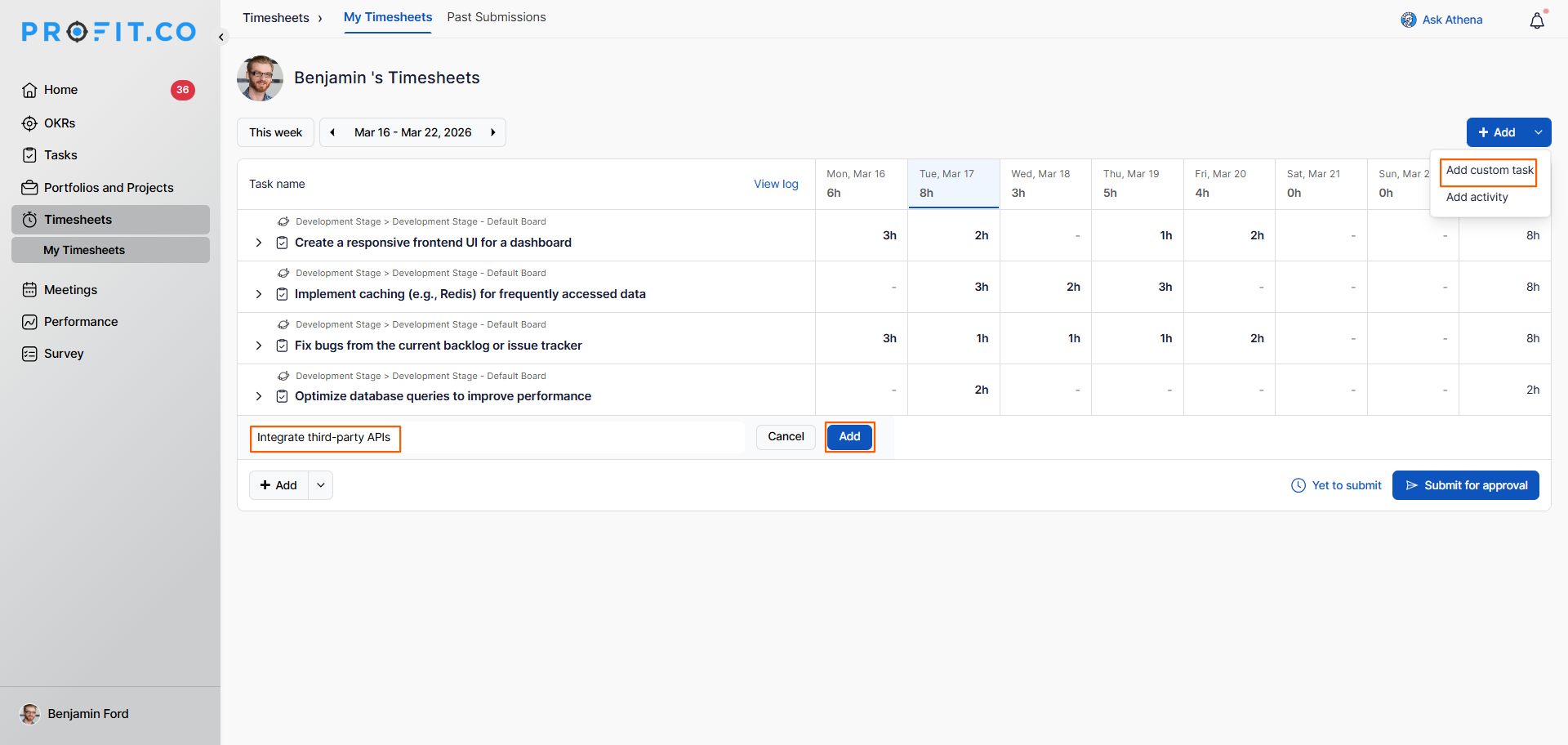
Method 2: Add Custom Task
Use this option to manually create a task and log time directly within the Timesheets module, without creating a record in the Task module.
- Click the + Add button.
- Enter the task name and click Add.
- Log the time directly in the Timesheets module.
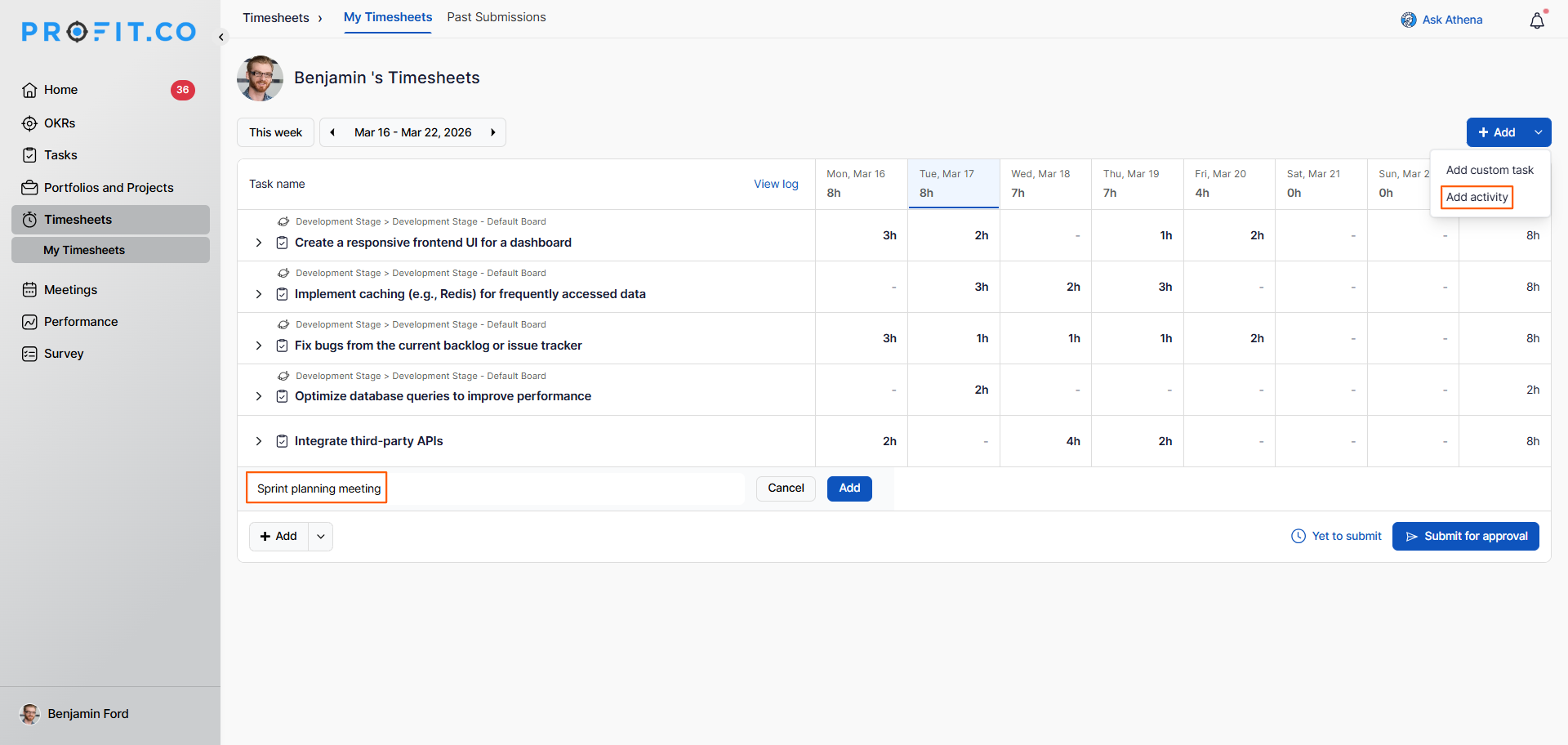
Method 3: Add Activity
Use this option to log time for meetings or other activities that are not task-based.
- Click Add Activity to log time against a meeting or activity.
- Enter the relevant details and log the time for the week.
Using the Timer
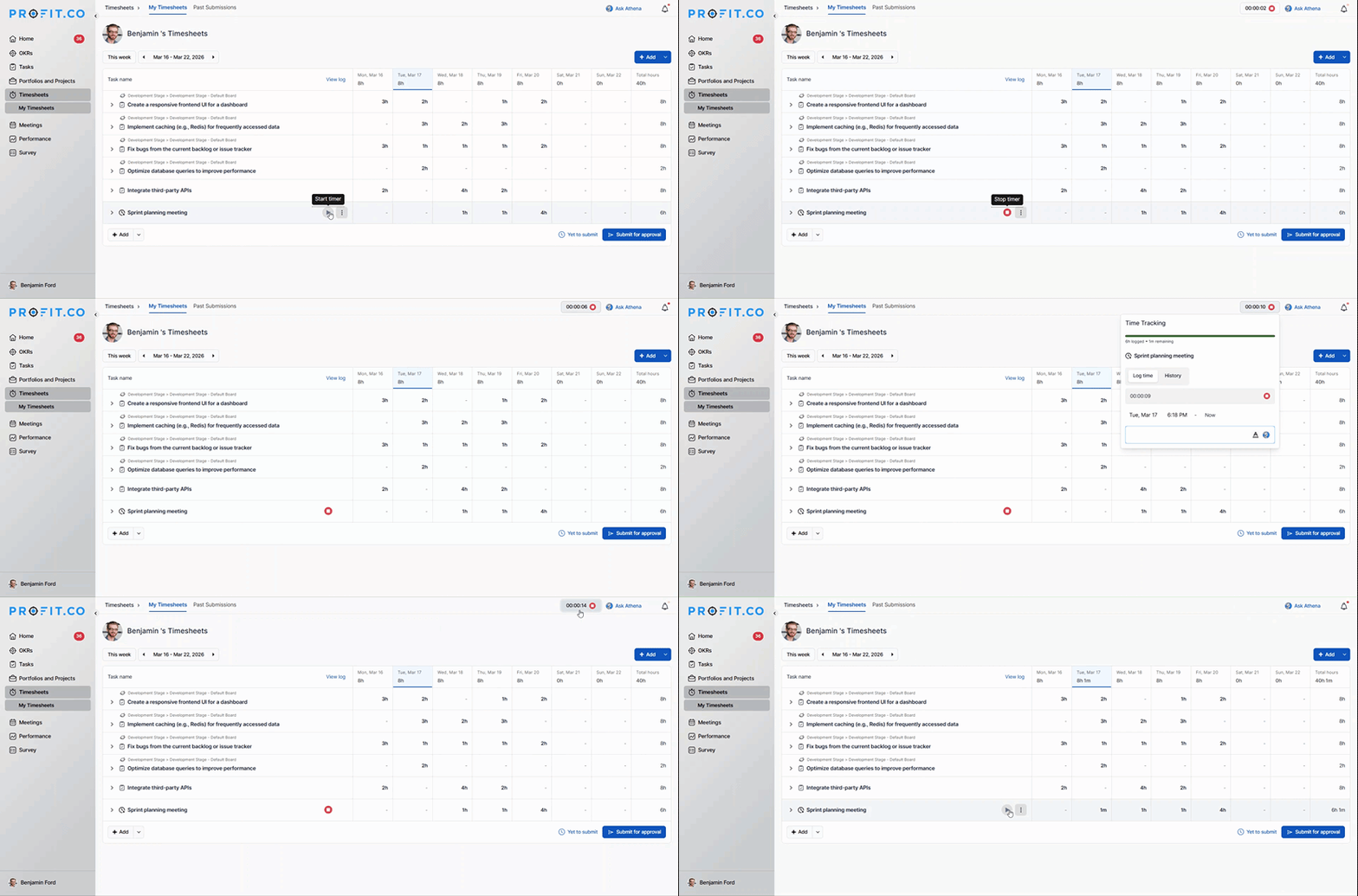
You can start and stop a live timer while working on a task. The recorded time is automatically added to your Timesheet when you stop the timer.
- Click Add Timer in the Timesheets module. The system begins tracking time automatically.
- Click Stop Timer when done, the elapsed time is logged directly in your Timesheet.
Step 3: Submit for Approval
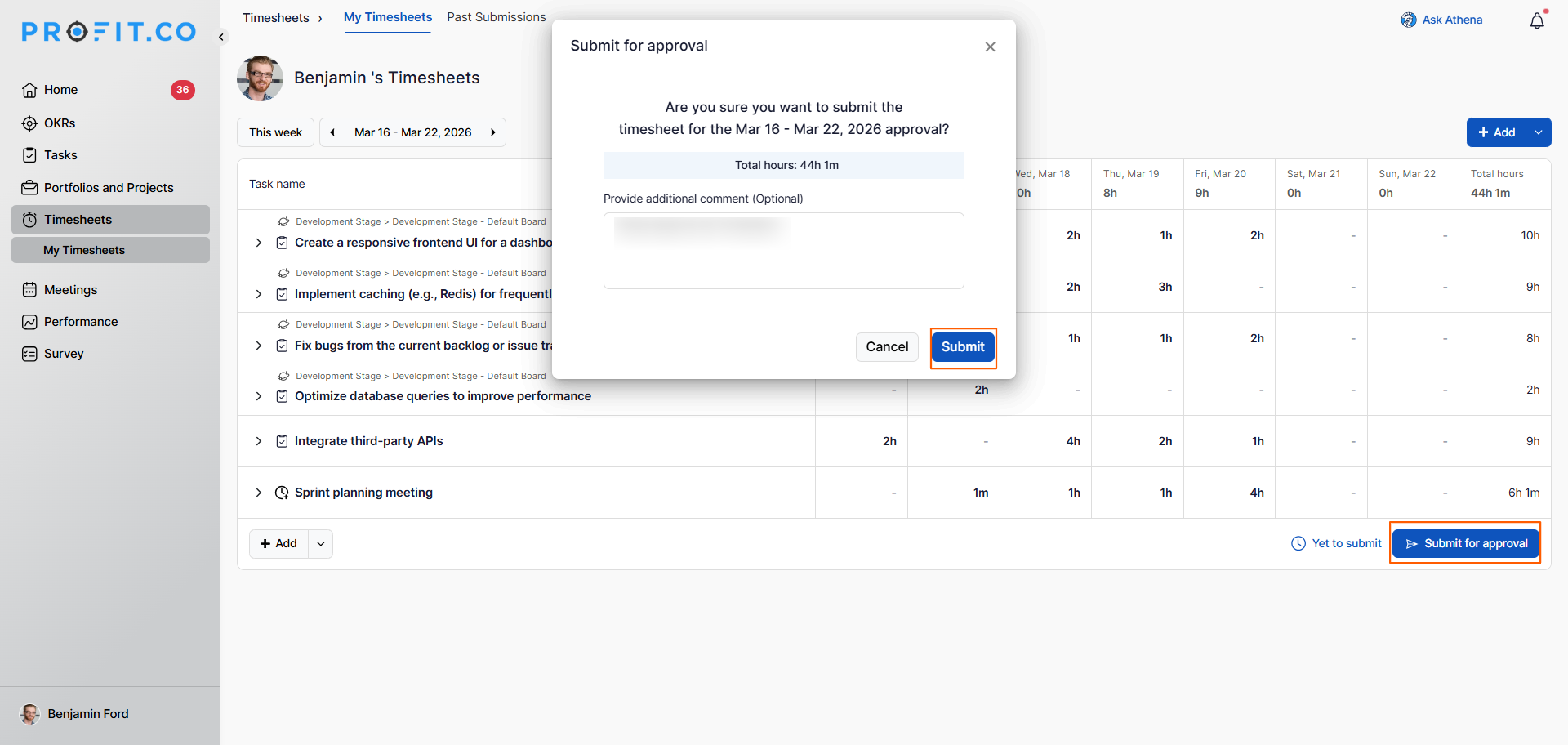
- Once all tasks are added and time is logged, click Send for Approval.
- Add comments if necessary, then submit.
%20(1).gif "timer")
Best Practices for Using Timesheets
- Enable Timesheets at the start of the cycle so time logging is available from day one: Settings → General → Apps.
- Use Add Task for tasks that already exist in the Task module to maintain a single source of truth and avoid duplicate records.
- Use Add Custom Task only for ad hoc work that has no corresponding task in the Task module.
- Use Add Activity consistently for meetings so all time — not just task-based work — is accounted for in the Timesheet.
- Use the Timer for real-time tracking to avoid estimating hours after the fact — start it when you begin a task and stop it when done.
- Add comments when clicking Send for Approval to give the reviewer a clear context for the hours submitted.
Related Questions
Click here to learn more about how to set Time Tracking (worklog) for a task.
Click here to learn more about how to create a task in Profit.co.
Frequently Asked Questions
Add Task links to an existing task in the Task module, and logged time is automatically reflected in the Timesheet. Add Custom Task lets you manually create a task directly in the Timesheet without a Task module record. Add Activity is used to log time against meetings or non-task activities.
Yes. Once you save a time log under a task in the Task module, it is automatically reported in the Timesheet. No additional steps are required.
Click Add Timer to start live time tracking. When you click Stop Timer, the elapsed time is automatically logged in your Timesheet no manual entry needed.
Related Questions
-
How to create a Project in the PPM module?
Profit.co provides an option for users to create a project within the Project Portfolio Management (PPM) module. This ...Read more
-
How do I manage tollgate compliance across projects in Profit.co?
In Profit.co, you can Manage tollgate compliance across projects by associating tollgate sequences with projects, ...Read more
-
How do I set up resource rate cards and cost allocation in Profit.co?
In Profit.co, you can set up resource rate cards by creating Resource Types with specific hourly cost rates, assigning ...Read more
-
How to View Critical Tasks of a Project in Profit.co?
Profit.co's Critical Path Method (CPM) feature helps project managers identify the most essential sequence of tasks ...Read more