



How to Configure Email Notifications for PPM?
Category: PPM
Profit.co provides an option to configure email notifications for the Portfolios and Projects module to keep team members informed about important updates.
Table of Contents
Why are email notifications important for PPM?
Email notifications ensure timely communication and keep project stakeholders informed about critical updates. Here's why this feature matters:
- Timely Awareness: Team members are immediately notified of assignments, changes, and deadlines without constantly checking the platform
- Improved Accountability: Automated notifications ensure no tasks or milestones fall through the cracks
- Better Collaboration: Keeps distributed teams synchronized with project updates and changes
- Reduced Manual Work: Eliminates the need for manual status update emails
- Action-Oriented: Notifications include actionable items that require user attention
What types of email notifications are available for PPM?
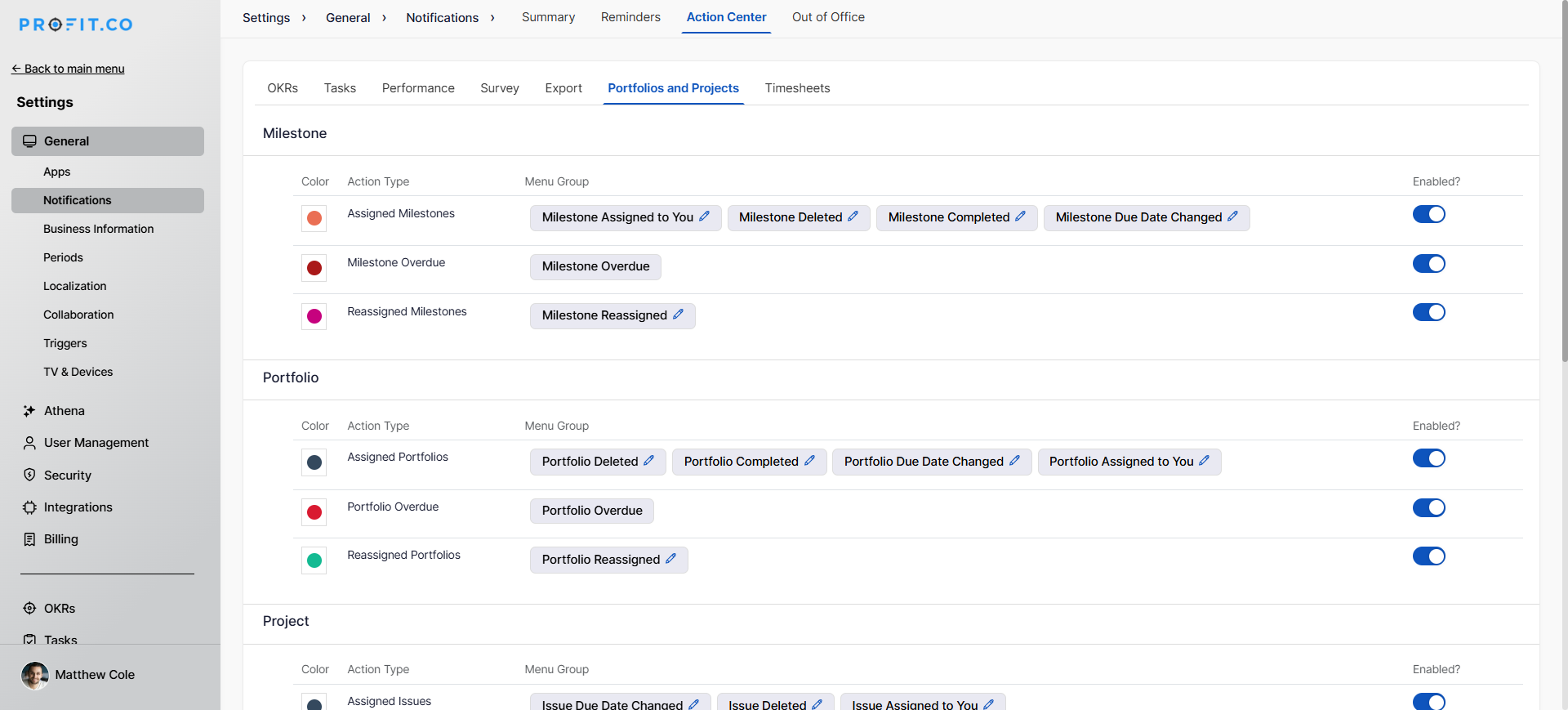
The Portfolios and Projects module supports various notification types:
How do I enable email notifications for PPM?
Follow these steps to configure email notifications:
Step 1
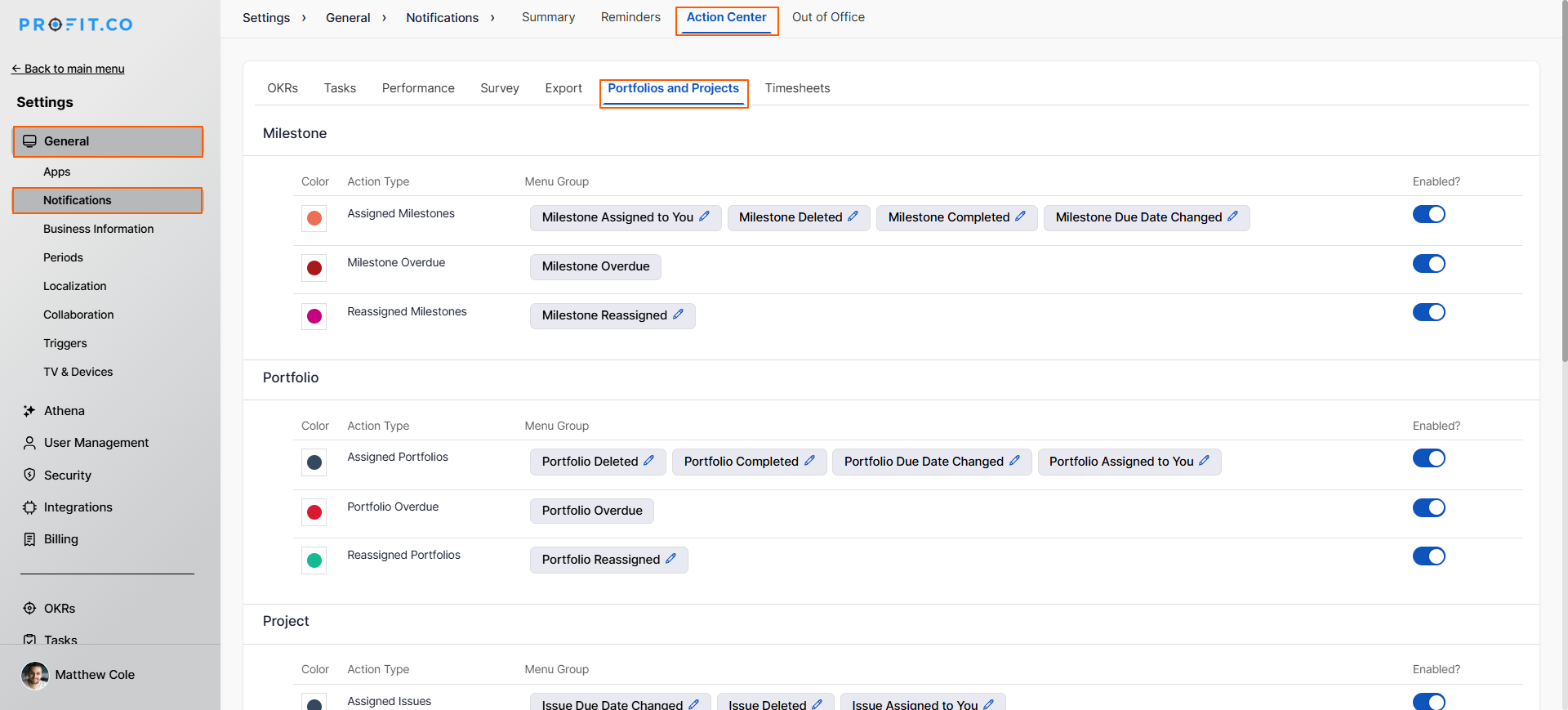
Navigate to Settings → General → Notification from the left navigation panel
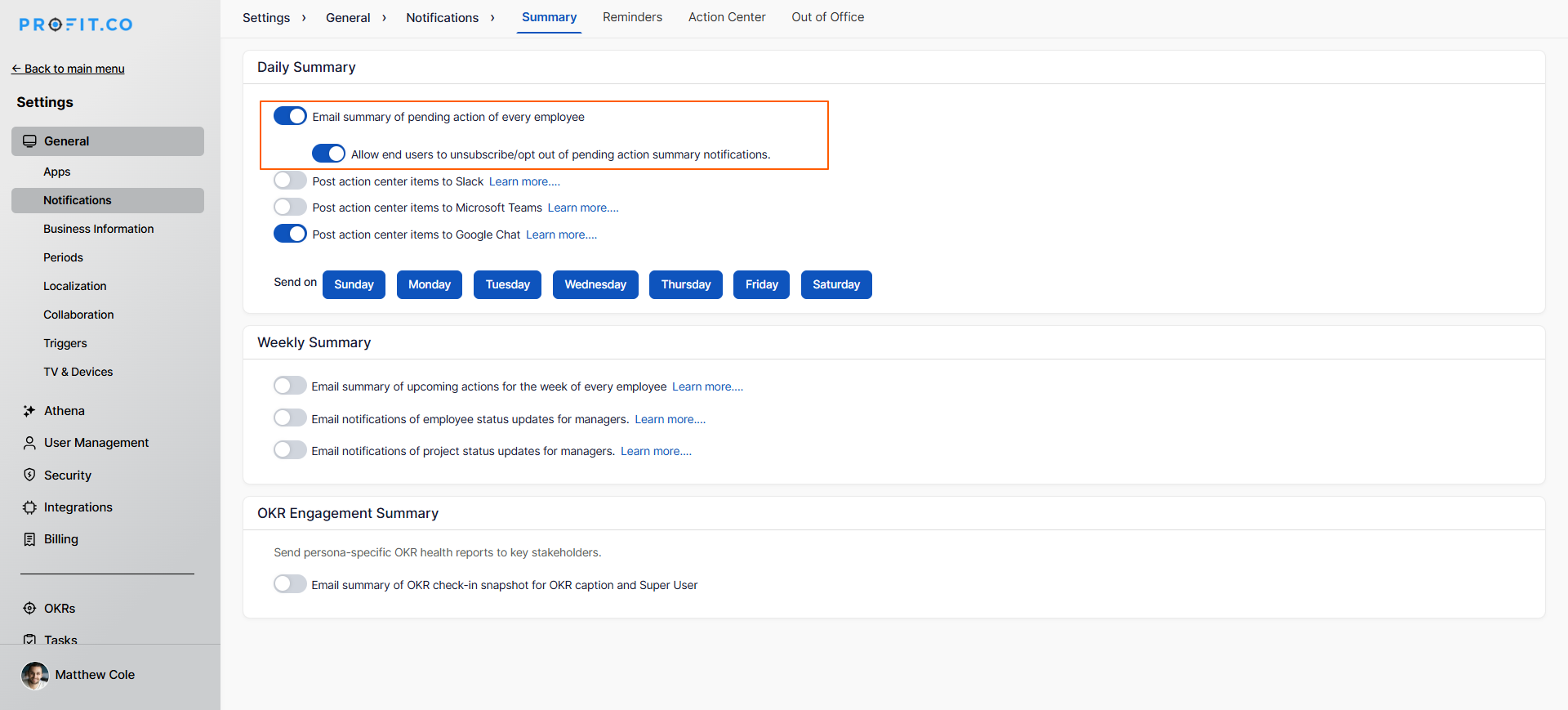
You will be landed on the Summary page
Before you enable email notification for PPM, make sure to enable the following toggle on the Summary page: "Email a summary of the pending action of every employee."
This ensures the overall email notification system is active
Step 2
Switch to the Action Center tab
Select the Portfolios and Projects tab
You'll see a list of all available notification types for PPM
Step 3
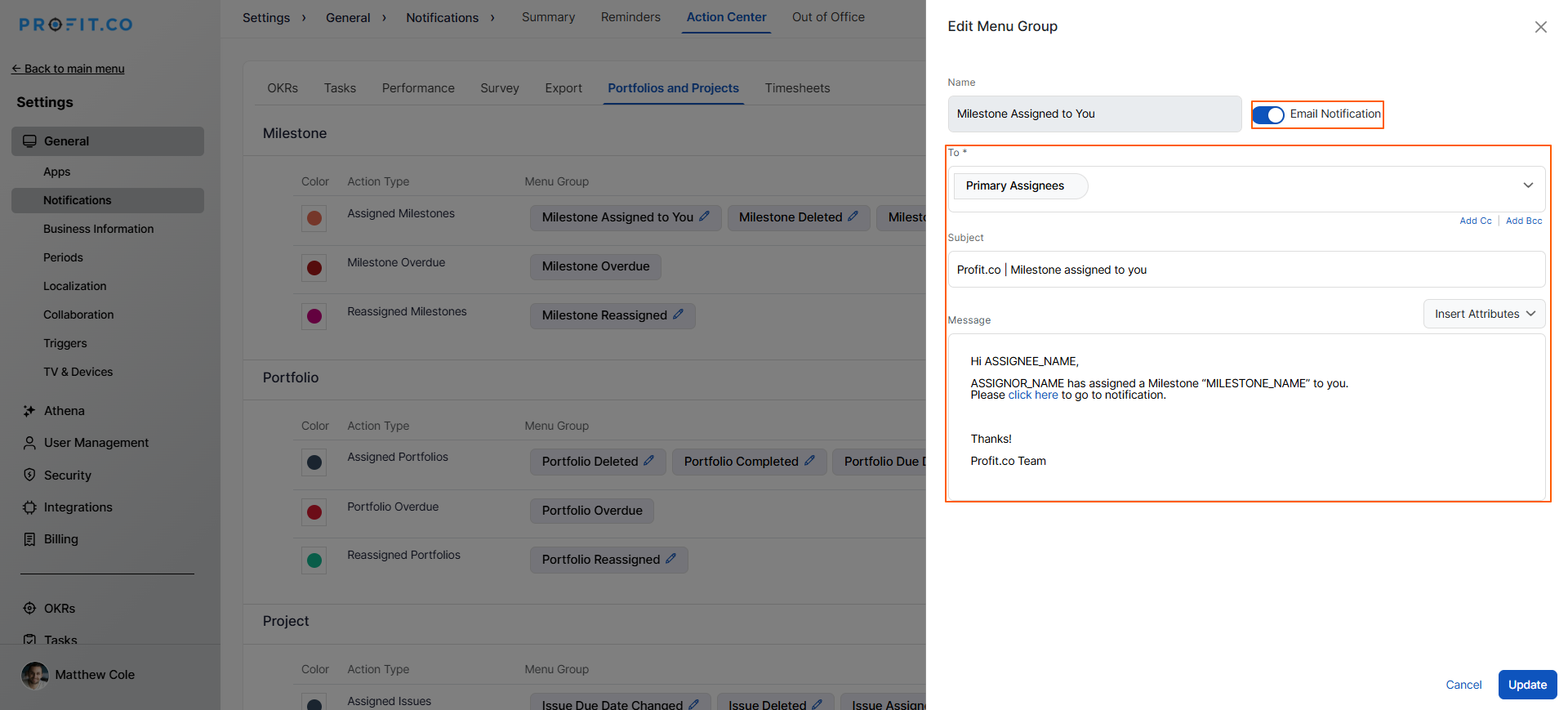
For each notification you want to enable, click on the Edit icon next to the notification name. This opens the Edit Menu Group panel, where you can configure:
For example: To enable notification for "Milestone Assigned to You":
- Click on the Edit icon (pencil icon) next to "Milestone Assigned to You"
- The Edit Menu Group panel opens on the right side with the following options: Name, To, Add Cc/Add Bcc, Subject, Message
- After customizing all fields, click Update to save your changes
- The notification is now active and configured
What happens after enabling notifications?
- Start receiving emails when configured events occur
- Notifications appear in the email inbox with a customized message
- Can take action directly from email (if supported) or click through to Profit.co
Best Practices for Email Notification
To maximize the effectiveness of email notifications:
- Enable Only Essential Notifications: Avoid notification fatigue by activating only the notifications that require user action or awareness; too many emails can cause users to ignore them.
- Use CC/BCC Strategically: Copy managers or stakeholders on critical notifications only; overuse of CC/BCC can clutter inboxes and reduce the importance of communications.
- Customize Messages for Clarity: Personalize notification messages to include specific instructions, context, or next steps so recipients understand exactly what action is required.
Related Questions
How to create a Project in the PPM module, Click here
Frequently Asked Questions
CC recipients are visible to all other recipients and can see who else received the email.
This depends on your system configuration. Summary emails typically consolidate pending actions and may be sent daily, weekly, or at other intervals set by your administrator.
Changes take effect immediately for future events.
Related Questions
-
How to create a Project in the PPM module?
Profit.co provides an option for users to create a project within the Project Portfolio Management (PPM) module. This ...Read more
-
How do I manage tollgate compliance across projects in Profit.co?
In Profit.co, you can Manage tollgate compliance across projects by associating tollgate sequences with projects, ...Read more
-
How do I set up resource rate cards and cost allocation in Profit.co?
In Profit.co, you can set up resource rate cards by creating Resource Types with specific hourly cost rates, assigning ...Read more
-
How to View Critical Tasks of a Project in Profit.co?
Profit.co's Critical Path Method (CPM) feature helps project managers identify the most essential sequence of tasks ...Read more