

Profi.co provides an option to create portfolio templates for facilitating efficient project structuring and streamlining workflow processes.
Table of Contents
- Why is the Portfolio Template feature important?
- What is a Portfolio Template in the PPM module?
- How do I create a Portfolio Template in Profi.co?
- How do I use a Portfolio Template?
- What information should I include in a Portfolio Template?
- Best Practices for Creating Portfolio Templates
- Related Questions
- Frequently Asked Questions
Why is the Portfolio Template feature important?
Portfolio Templates are essential for maintaining consistency and efficiency across your organization. Here's why this feature matters:
- Reusable Standardization: Generate reusable templates to standardize processes, saving time and ensuring consistency across multiple projects.
- Streamlined Operations: Streamline project structuring for smoother operations, promoting better organization and productivity within teams.
- Time Savings: Eliminate repetitive setup work by creating portfolios from pre-configured templates.
- Best Practice Implementation: Encode organizational best practices and workflows into templates for consistent application.
- Reduced Errors: Minimize setup mistakes by using tested, pre-configured templates.
What is a Portfolio Template in the PPM module?
A Portfolio Template is a pre-configured blueprint for creating portfolios in Profi.co's PPM module. It contains standardized settings, structures, and configurations that can be reused when creating new portfolios.
Key characteristics:
- Contains predefined settings for Owner, Visibility, and Status
- Provides a consistent starting point for new portfolios
- Can be customized to match different portfolio types
- Reusable across multiple portfolio creations
- Saves time by eliminating repetitive configuration work
Templates ensure that portfolios are set up correctly from the start, following your organization's standards and best practices.
How do I create a Portfolio Template in Profi.co?
Follow these steps to create a new Portfolio Template:
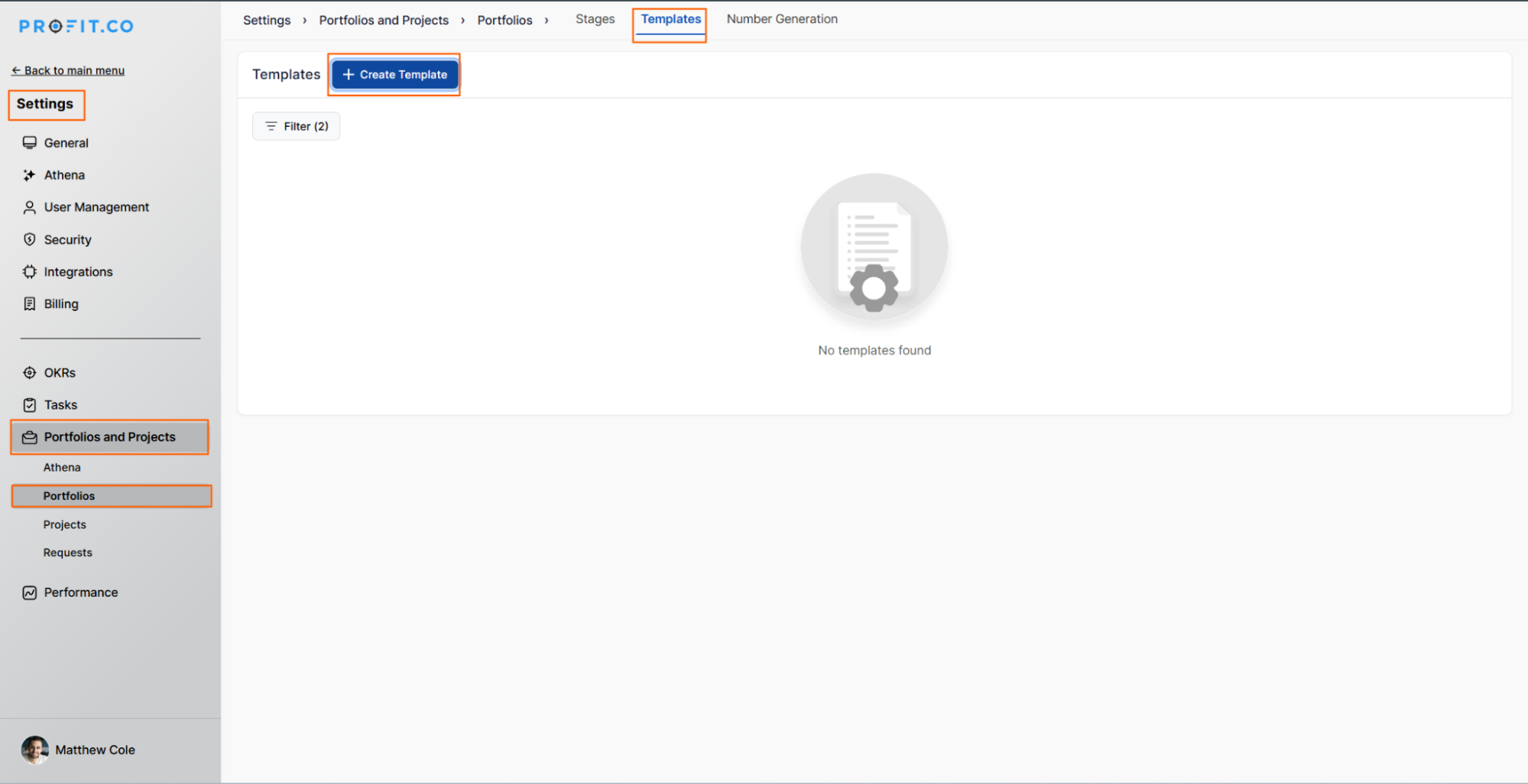
Step 1: Navigate to Portfolio Templates
- Navigate to Settings from the left navigation panel
- Go to Portfolios and Projects → Portfolios
- Switch to the Templates tab
- On the Templates page, click on the + Create Template button
Step 2: Configure the Template
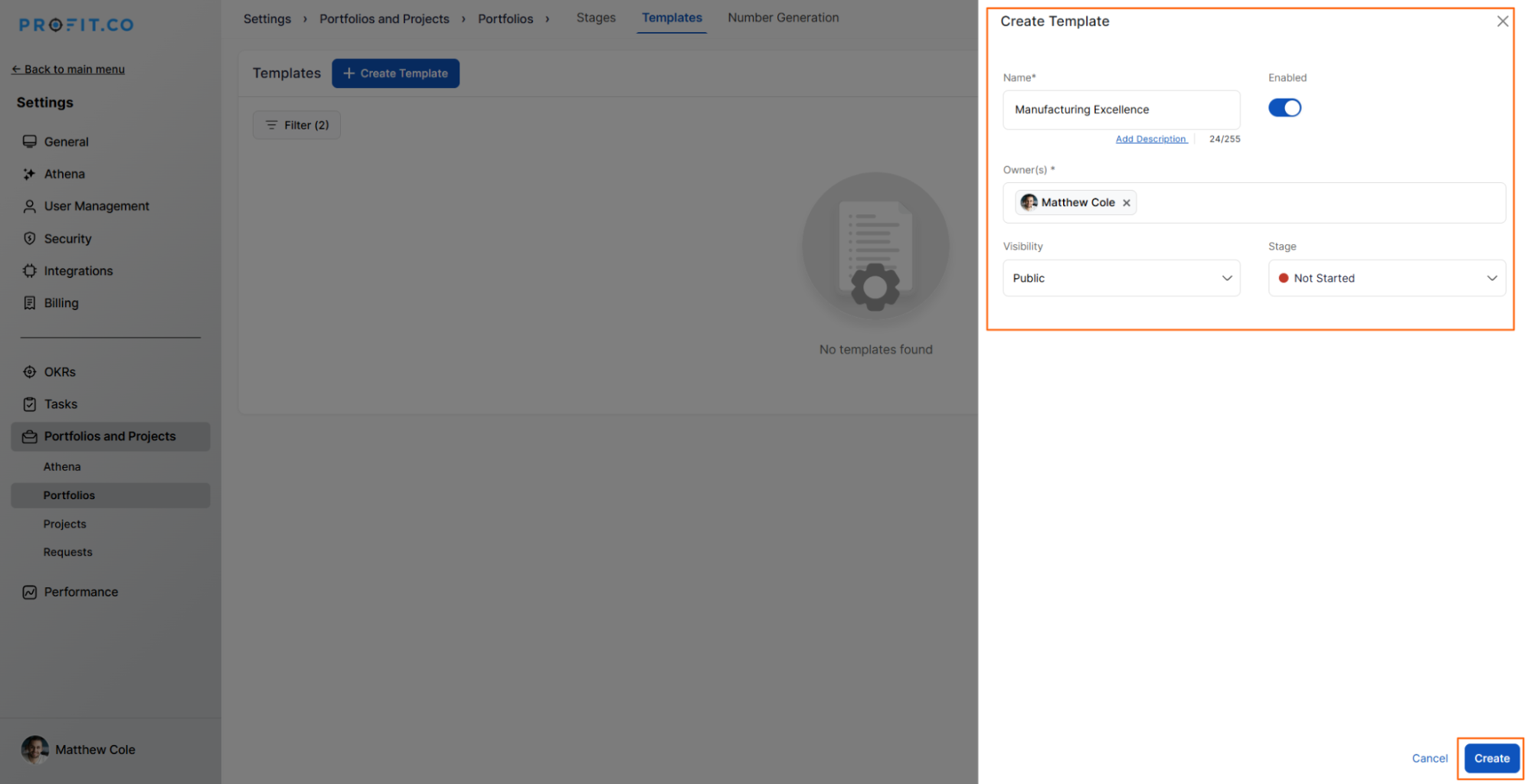
On the Create Template side panel:
- Enter the Portfolio name
- Fill in the required fields: Owner, Visibility, Status
- Click the Create button
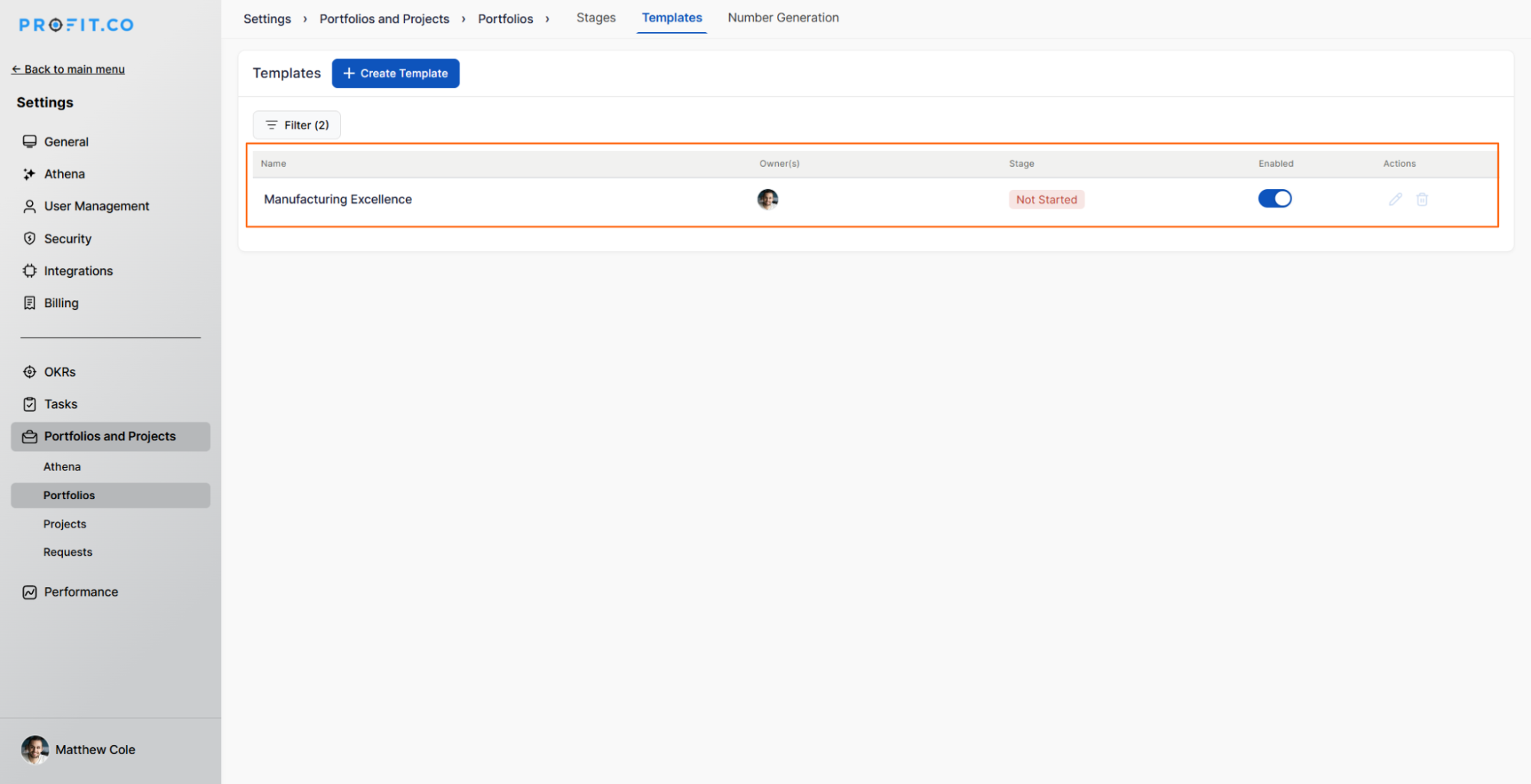
The newly created Portfolio template will appear on the Templates page and will be available for use when creating new portfolios.
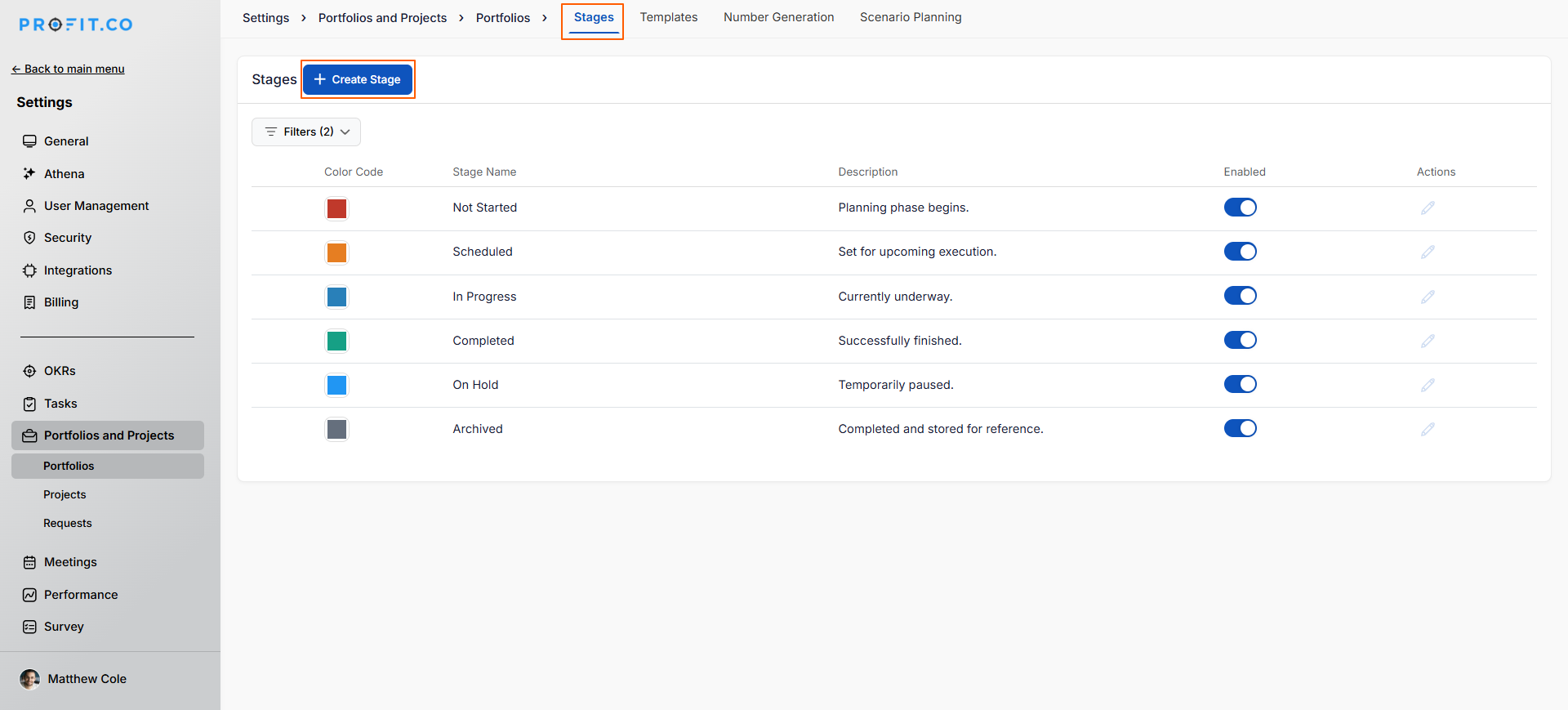
Note: To create new stages in the portfolio, click the Create Stage option and add the required stages.
How do I use a Portfolio Template?
Once you've created Portfolio Templates, using them is straightforward:
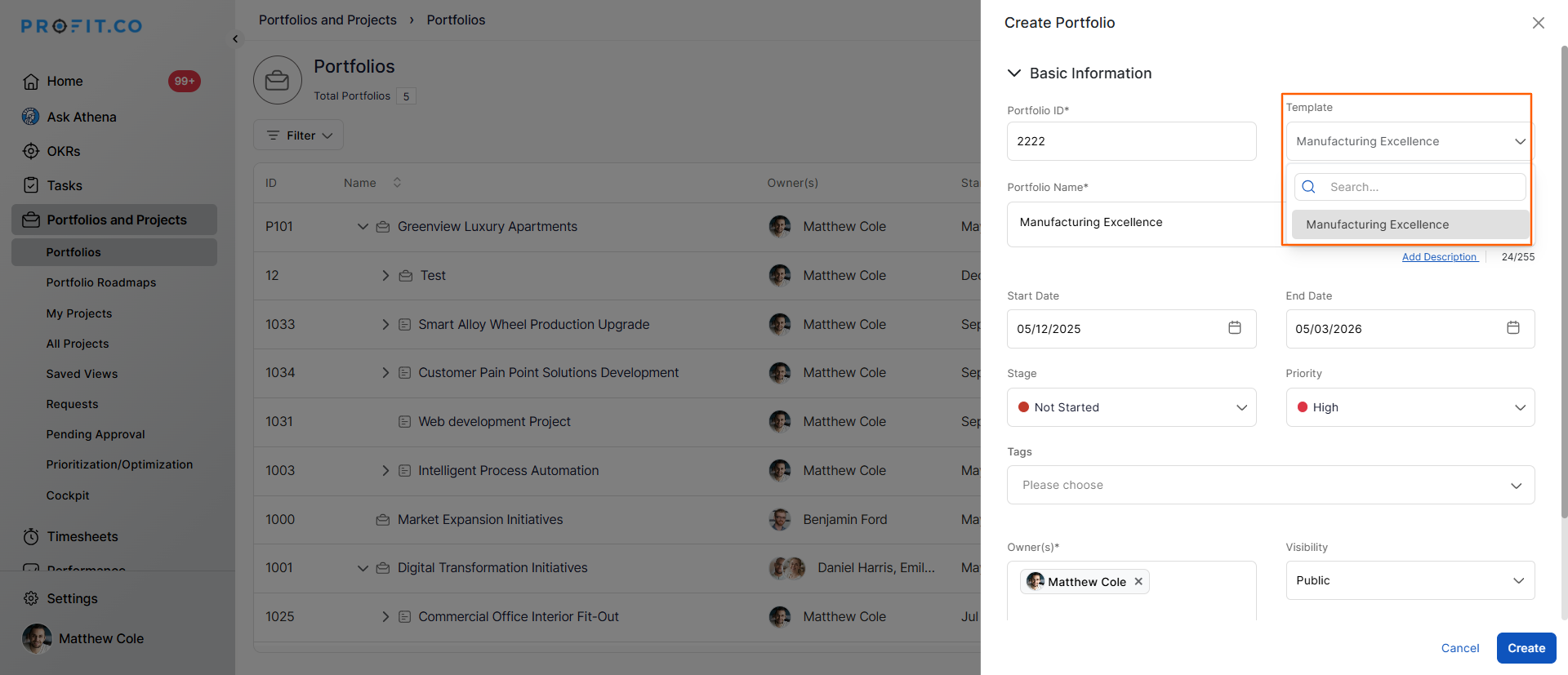
- When creating a new portfolio, you'll see an option to select a template
- Choose the template that fits your requirements
- The portfolio will be created with all the predefined settings from the template
- You can still customize individual settings after creation if needed
This saves significant time compared to manually configuring each portfolio from scratch.
What information should I include in a Portfolio Template?
When creating a Portfolio Template, consider including:
Essential Configuration:
- Portfolio Name: Use a descriptive naming convention that indicates the template's purpose
- Default Owner: The person or role typically responsible for this type of portfolio
- Visibility Settings: Who should have access to portfolios of this type
Best Practices for Creating Portfolio Templates
To maximize the effectiveness of portfolio templates:
- Start with Common Patterns: Identify recurring portfolio types in your organization
- Use Descriptive Names: Make template names self-explanatory
- Document Template Purpose: Add descriptions explaining when to use each template
- Set Appropriate Defaults: Configure default settings that work for most cases
Related Questions
How to create a new portfolio in profit.co, Click here
Frequently Asked Questions
Q1. How many portfolio templates should I create?
Create templates for distinct portfolio types that you use regularly.
This depends on your Profi.co configuration. Check your settings to see if template editing is available.
Changing a template typically doesn't affect portfolios already created from that template. Templates are used at creation time only; portfolios become independent entities afterward.
