





Profit.co provides an option for users to manage and track resources efficiently within the Project Portfolio Management (PPM) module.
This helps organizations optimize workload allocation, improve time tracking, and enhance overall project productivity.
Table of Contents
Why this feature?
Resource Management provides organizations with tools to manage capacity, utilization, and allocation across multiple projects.
By using this feature, you can:
- Accurately allocate time and monitor workloads for each resource.
- Identify underutilized or overworked employees in real time.
- Track project staffing, utilization, and time spent.
- Improve delivery efficiency through balanced resource assignment.
This ensures timely completion of tasks, better visibility into project performance, and smarter resource distribution across portfolios.
What is Resource Management in PPM?
Resource Management is the process of planning and assigning the right people to the right tasks at the right time.
In Profit.co, it includes:
- Creating Resource Types (defining cost rates and available users).
- Allocating Resources to projects and tasks.
- Tracking utilization to measure workload and performance.
This allows project managers to monitor staffing levels, forecast capacity, and ensure projects are delivered efficiently.
How to Create and Use Resource Management in Profit.co
Follow the steps below to configure and manage resources in your PPM module.
Step 1: Create a Resource Type
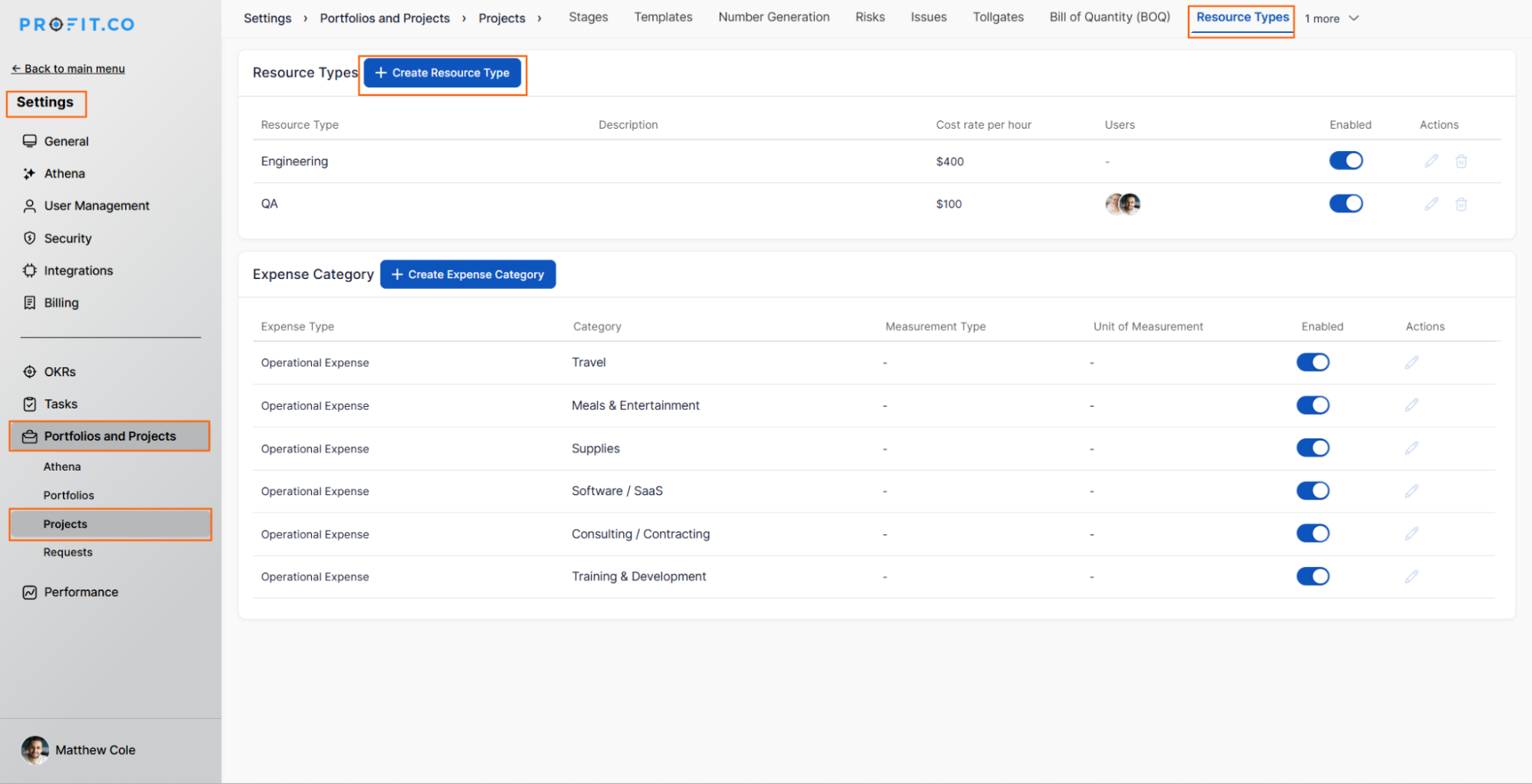
- Navigate to Settings → Portfolios and Projects from the left navigation panel.
- Switch to the Resource Type tab.
- Click + Create Resource Type.
- Enter the following details: Resource Type Name, Cost Rate (per hour) Users to assign under this resource type
- Click Create to save the resource type.
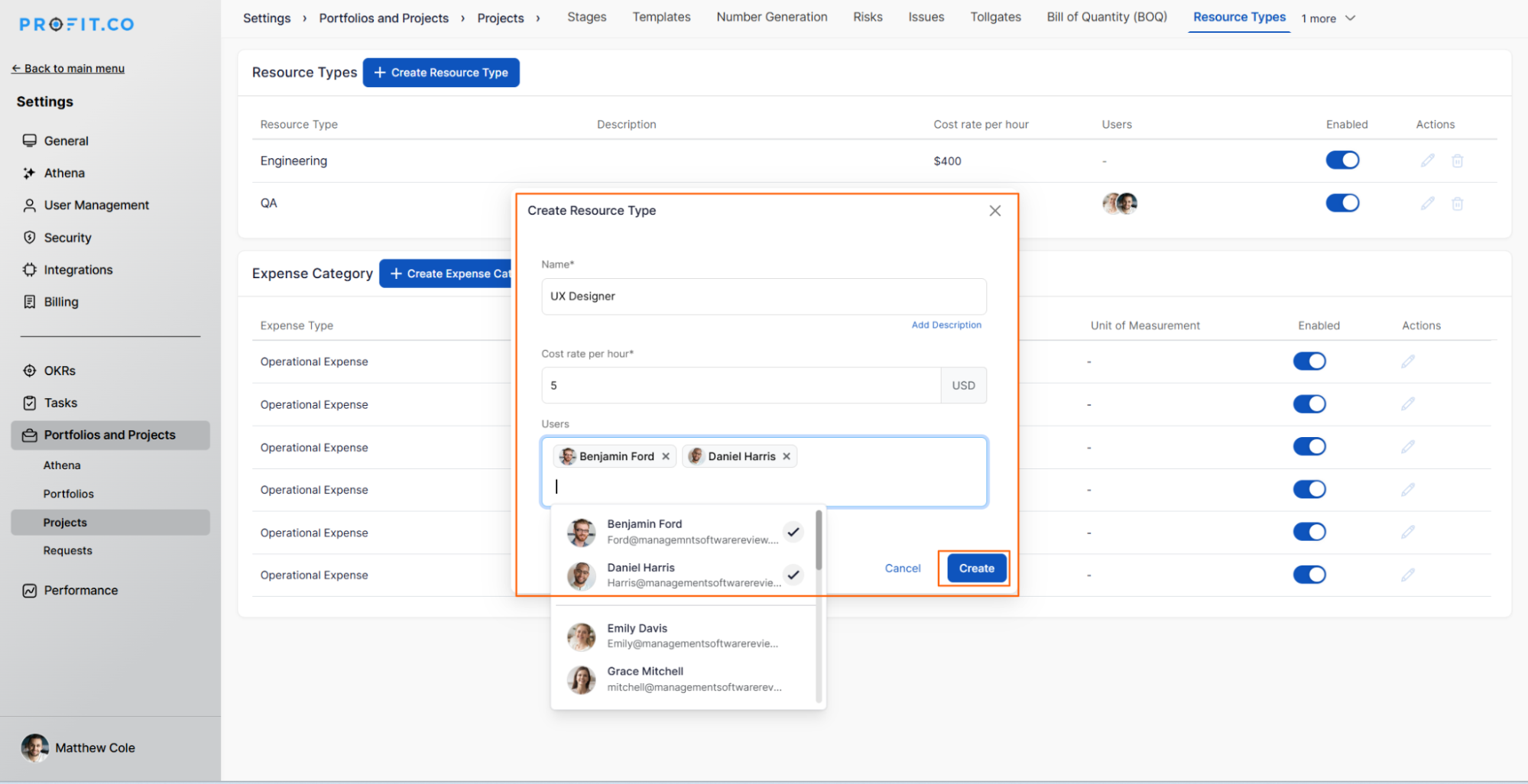
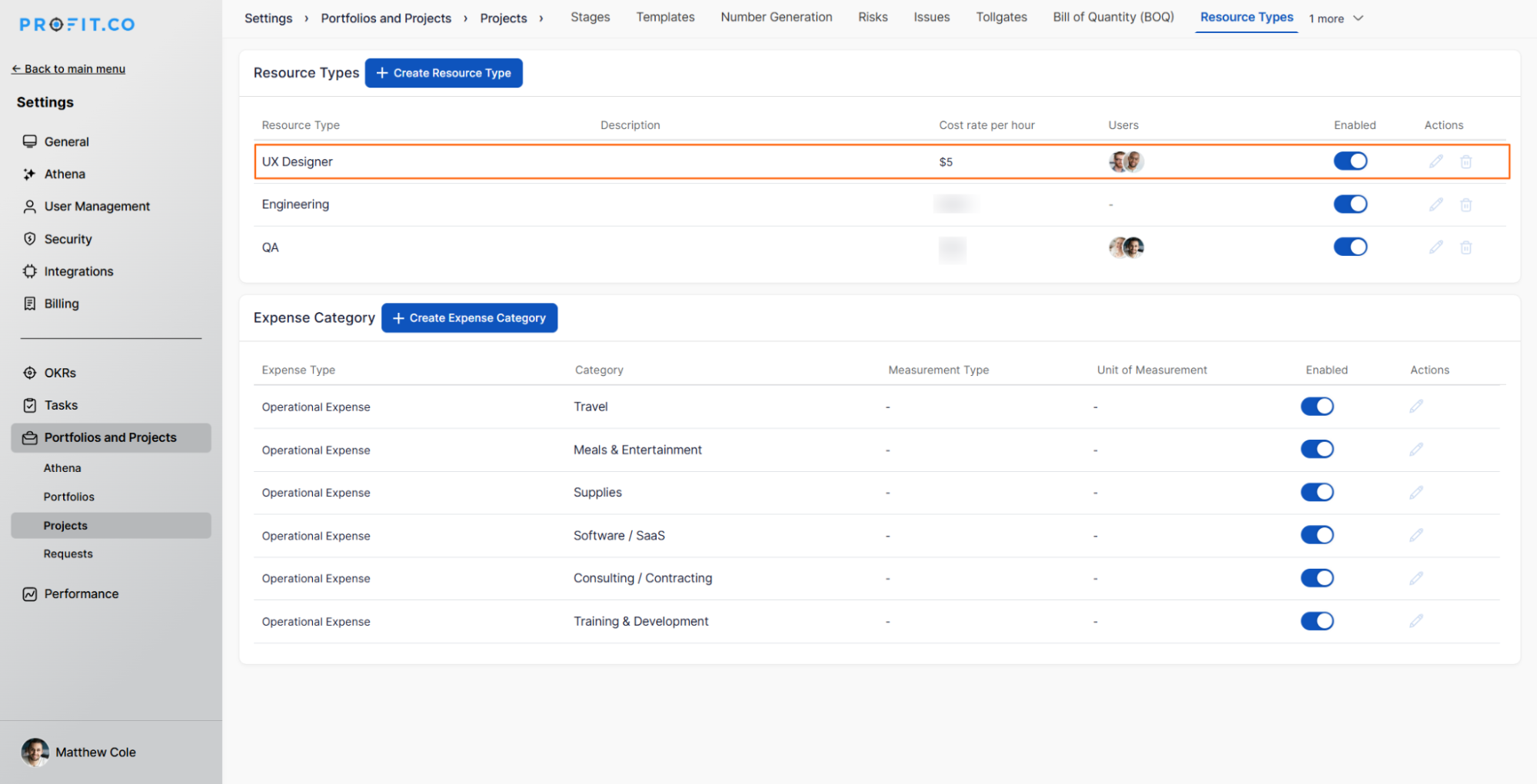
Result: The new resource type is now available for assignment within projects.
Step 2: Add Resource Staffing to a Project
- Go to Portfolios and Projects → All Projects and select a project.
- On the project overview page, switch to the Staffing tab.
- Click + Add Resource.
- Choose the Resource Type and select the Users to assign.
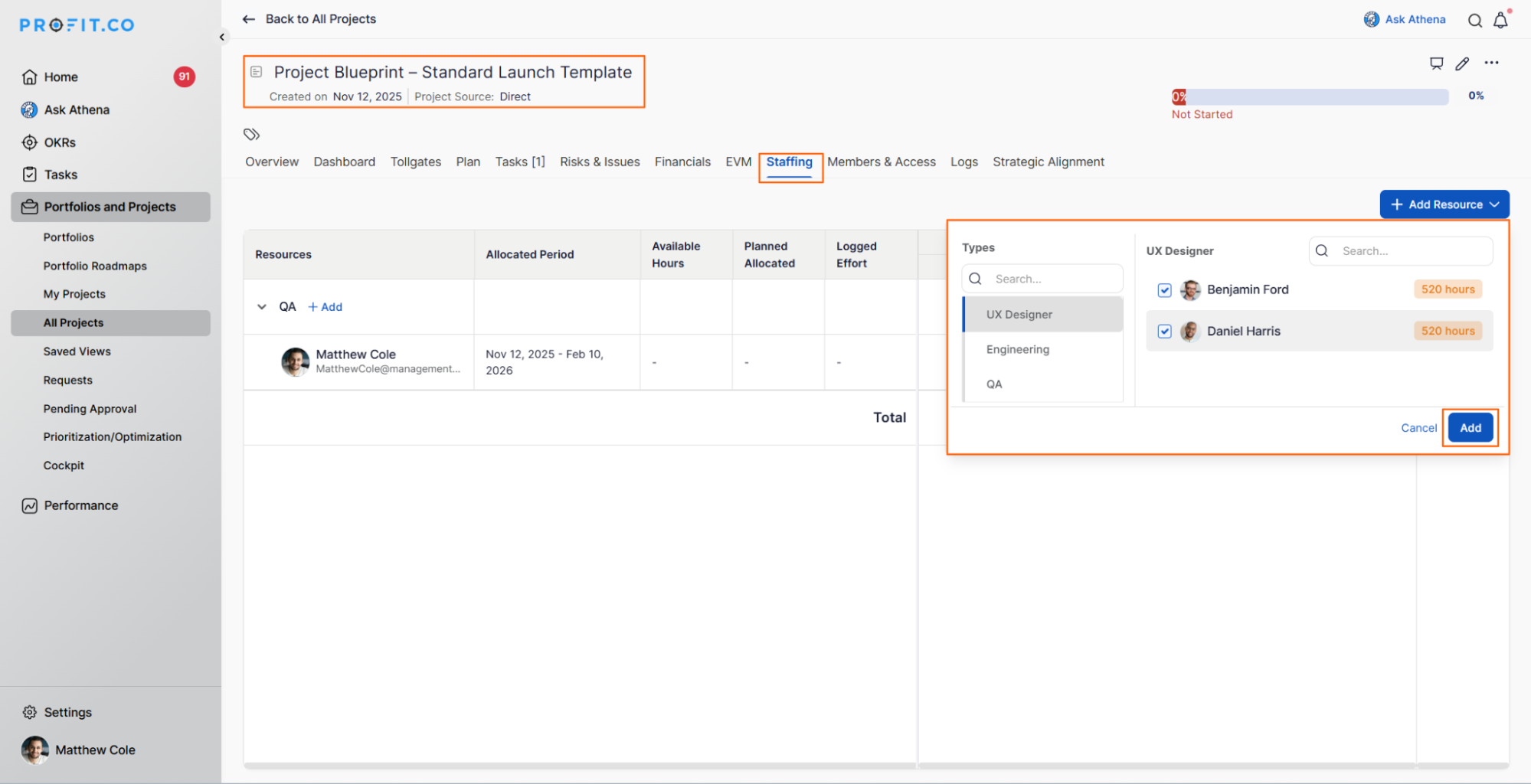
Note: Assign resource types strategically to balance workload across multiple team members.
Step 3: Allocate Time to Tasks
- In the same project, go to the Tasks tab.
- Select the task you want to allocate time for.
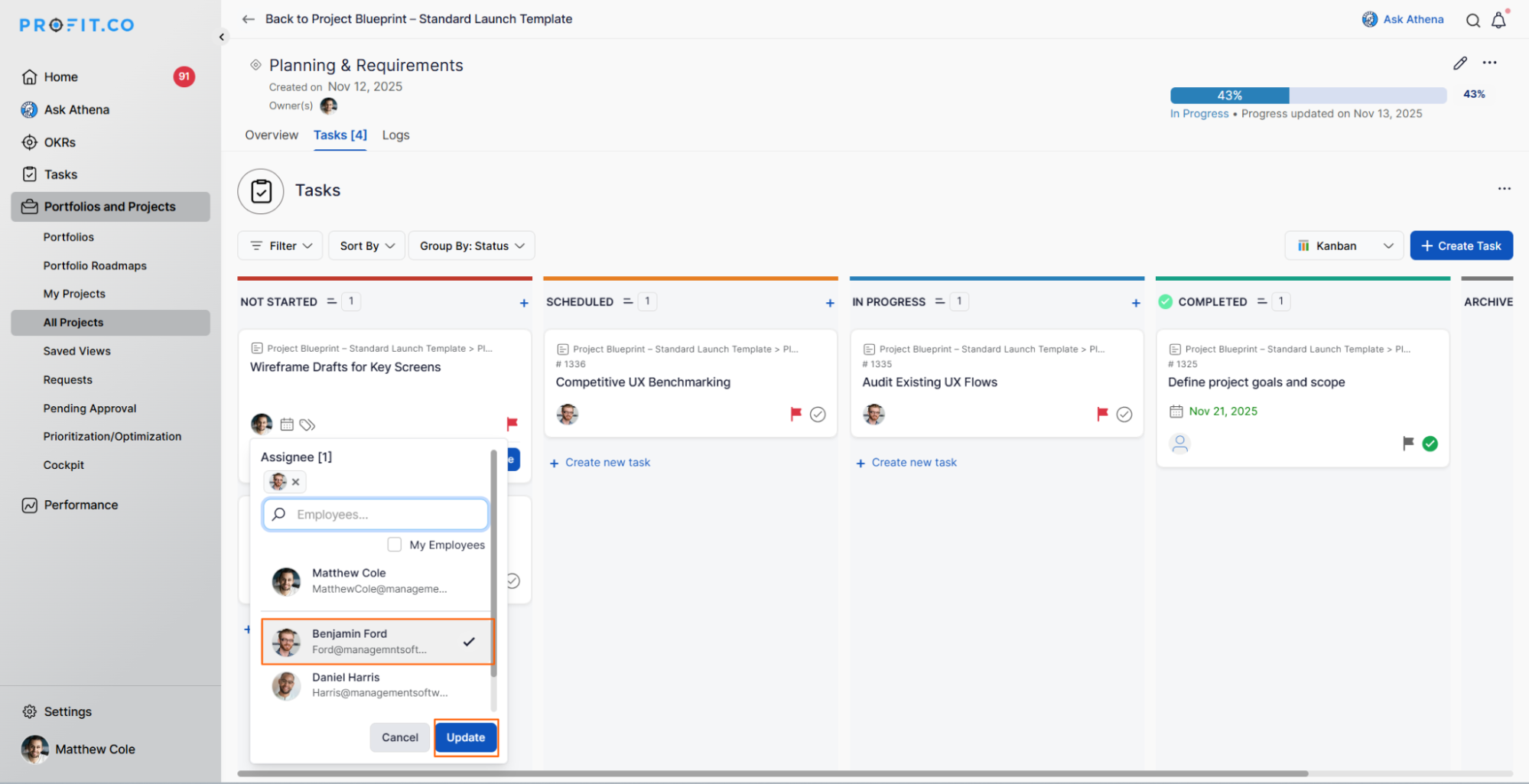
- Set the Start Date and Due Date, and enter the Estimated Hours.
- Track time as required; these values automatically update in the Resource Management view.

Step 4: Track Time and Progress
- Navigate to the Time Tracking page.
- Log the time spent on each task and click Save.
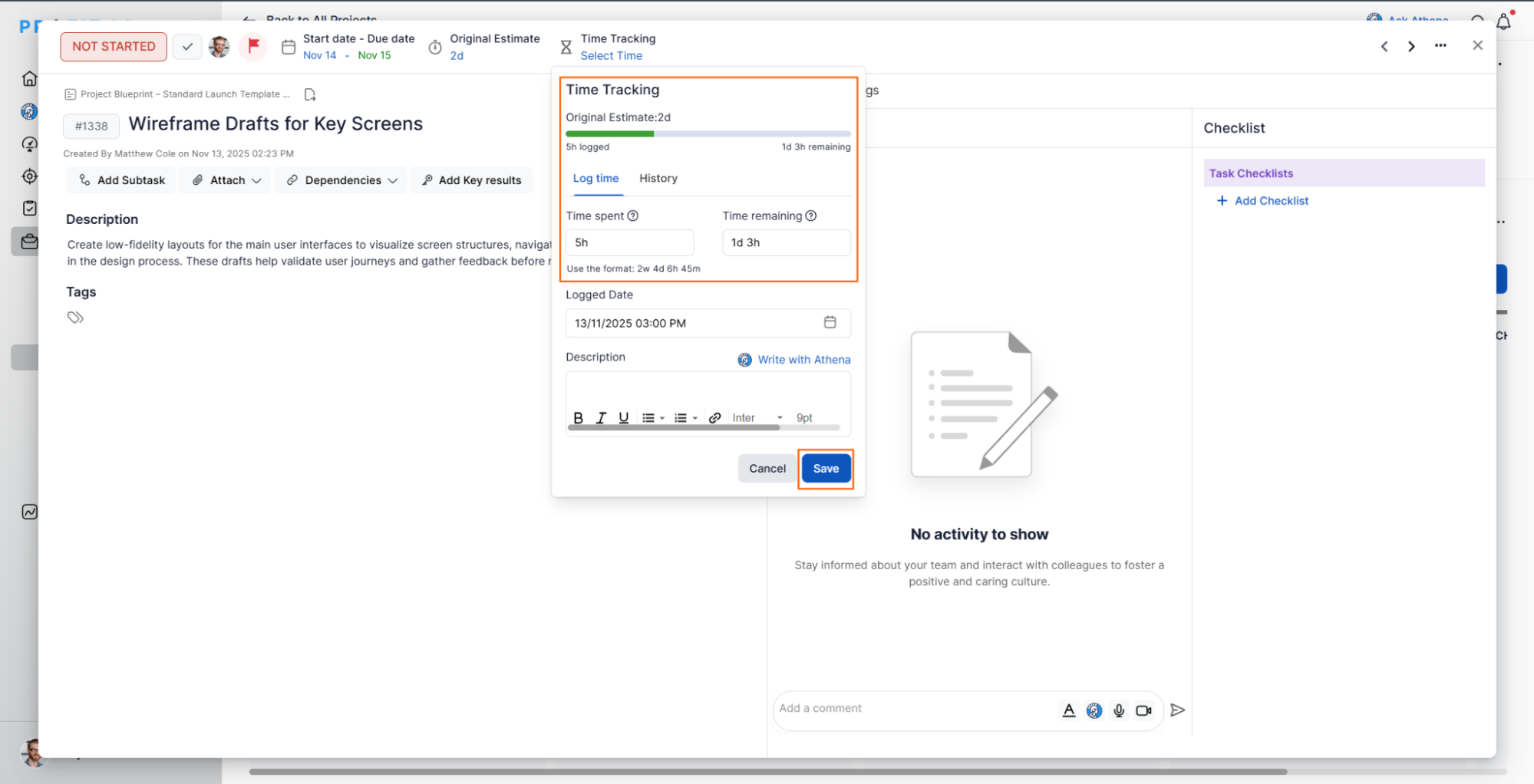
This allows you to maintain accurate records of work completed and analyze productivity trends.
Step 5: View the Resource Management Dashboard
- Navigate to Portfolios and Projects → Cockpit.
- Click the Customize button.
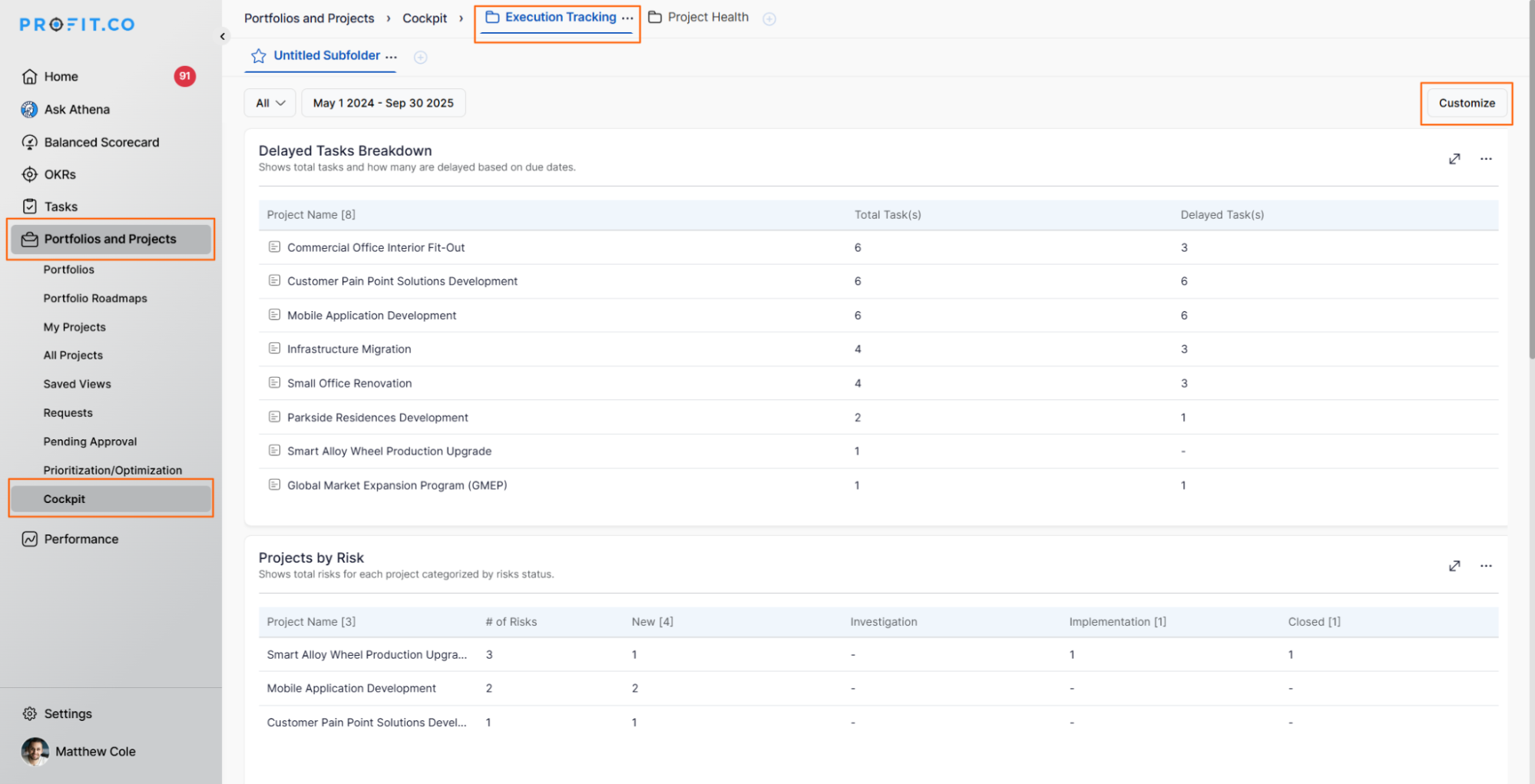
- Search for the Resource Management widget in the search bar.
- Select it and click Update.

- You can now view detailed progress and utilization data for each employee, including allocated, estimated, and utilized hours.
Note: The widget only displays tasks that have defined Start Dates, End Dates, and Worklog entries.
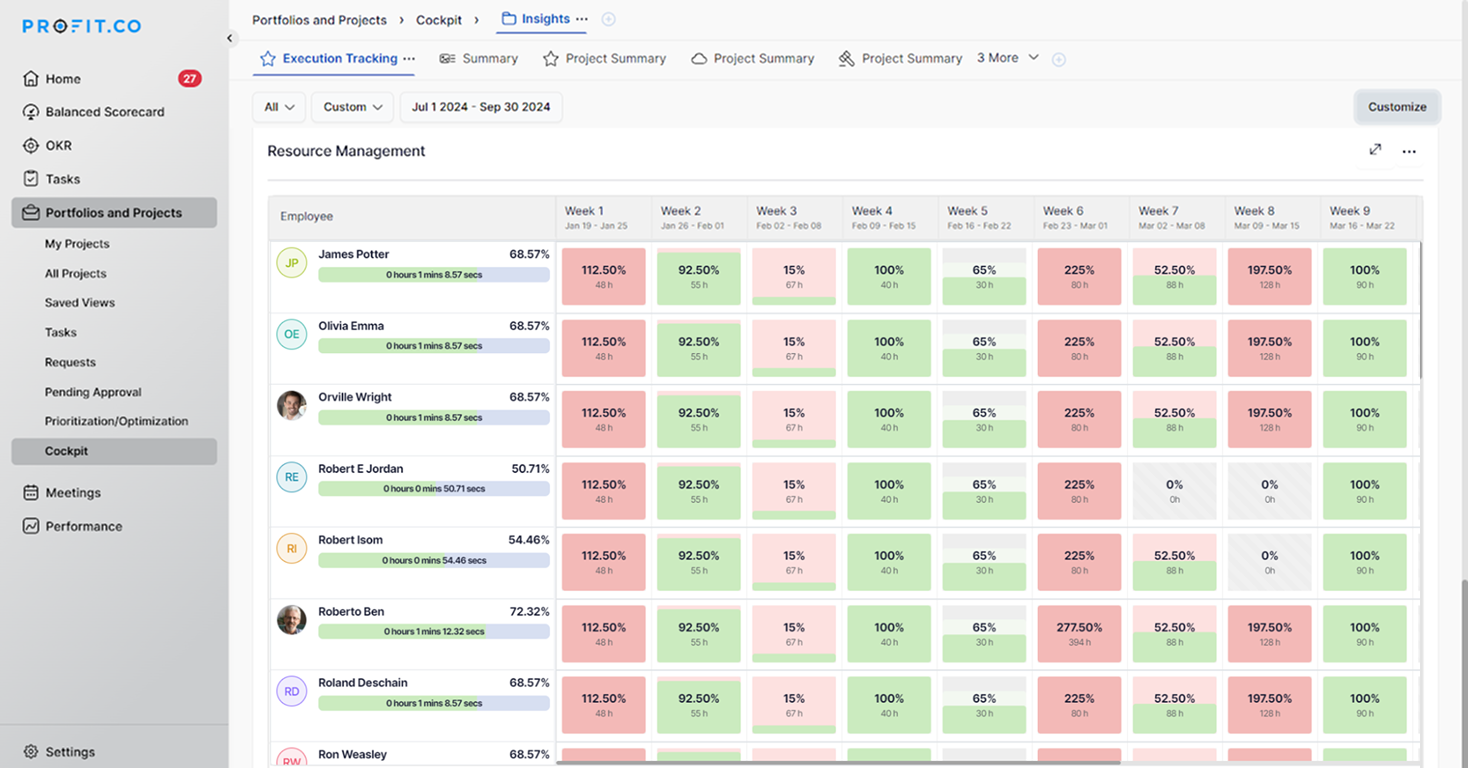
Understanding the Color Indicators in Resource Management
Color indicators help visualize resource workload and task progress.
-
Grey Line: No tasks are assigned to the employee.
-
Full Grey: A task is assigned to the employee.
-
Light Green Bar: Total allocated hours match the estimated hours for a task.
-
Light Red Bar: Estimated hours exceed the total allocated hours (e.g., allocated 40 hours vs. estimated 50 hours).
-
Dark Green Bar: Utilized hours fall within the allocated time.
Best Practices for Resource Management
- Review utilization trends regularly to avoid workload imbalances.
- Utilize accurate cost rates to accurately forecast project expenses.
- Encourage employees to log time daily for real-time reporting.
- Add the Resource Management widget to Cockpit dashboards for continuous tracking.
- Keep Resource Types updated when roles or costs change.
Related Questions
How to create a Project in the PPM module. Click Here
How to create a Project Request in the PPM module. Click Here
Frequently Asked Questions
Yes. A user can be associated with multiple resource types depending on their role and project requirements.
Yes. You can update the cost rate in Settings → Portfolios and Projects → Resource Type.
Ensure the task has a Start Date, End Date, and Worklog entry. Only tasks with complete scheduling information appear in the widget.
